
Mark as Picked allows a supervisor to confirm an eligible soft-allocated picking batch, or an order that is alone in its picking batch, directly from the desktop. The supervisor can confirm or correct the bins, lots, serial numbers, tracking IDs and quantities that represent what was physically picked. Once confirmed, the order moves to Picking Completed and can be packed using the regular packing flow.
Steps to Mark an Order as Picked
-
Navigate to Order Management.
-
Find the order to mark picking complete. The order must be in “Batched” status.
3. Click on “Action” and select “Mark as Picked”.
-
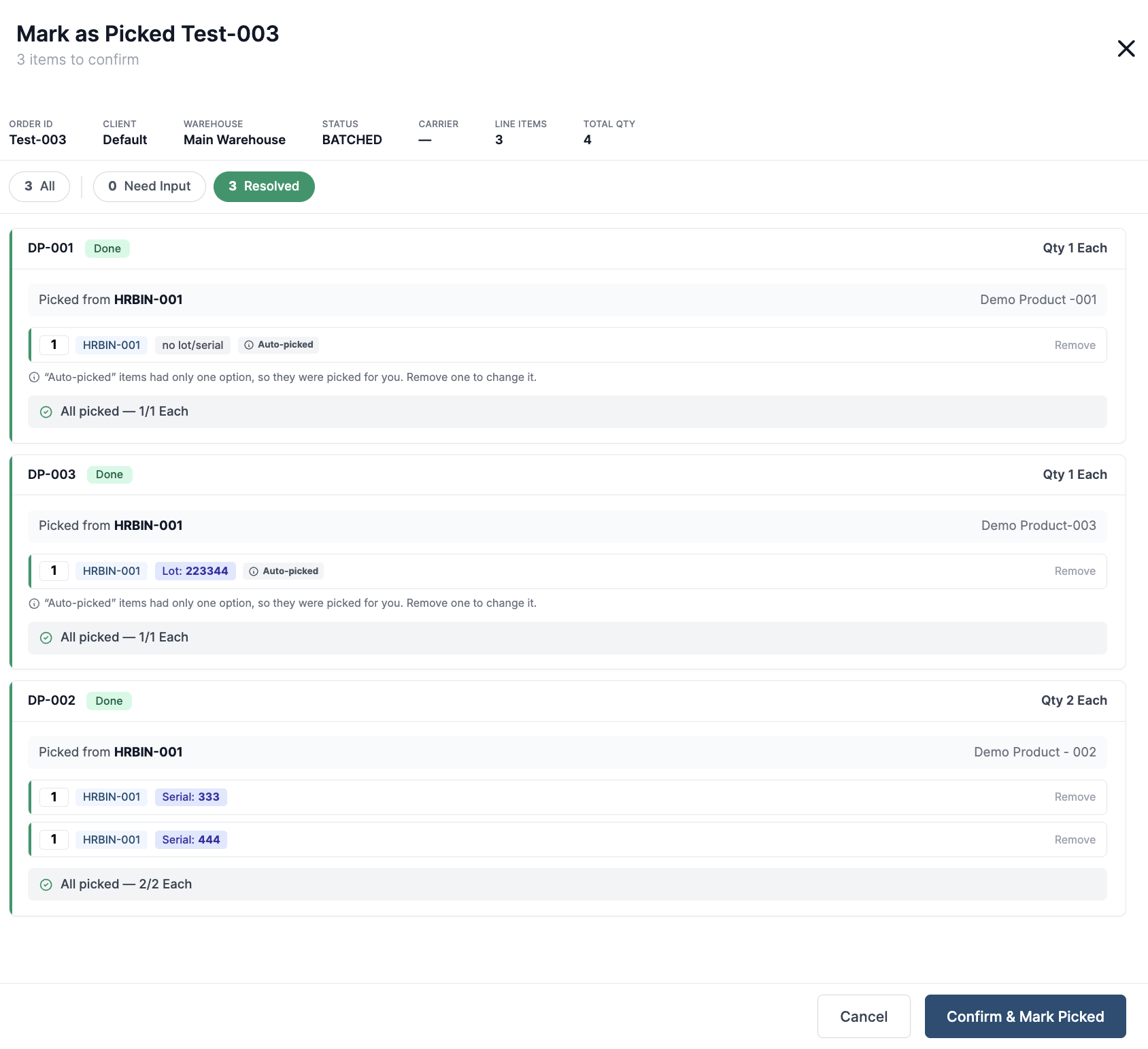
Review the picked inventory: Hopstack displays the bin, lot and quantity selected for each order item.
a) If no order item requires additional resolution, review the details and select Confirm & Mark Picked directly.
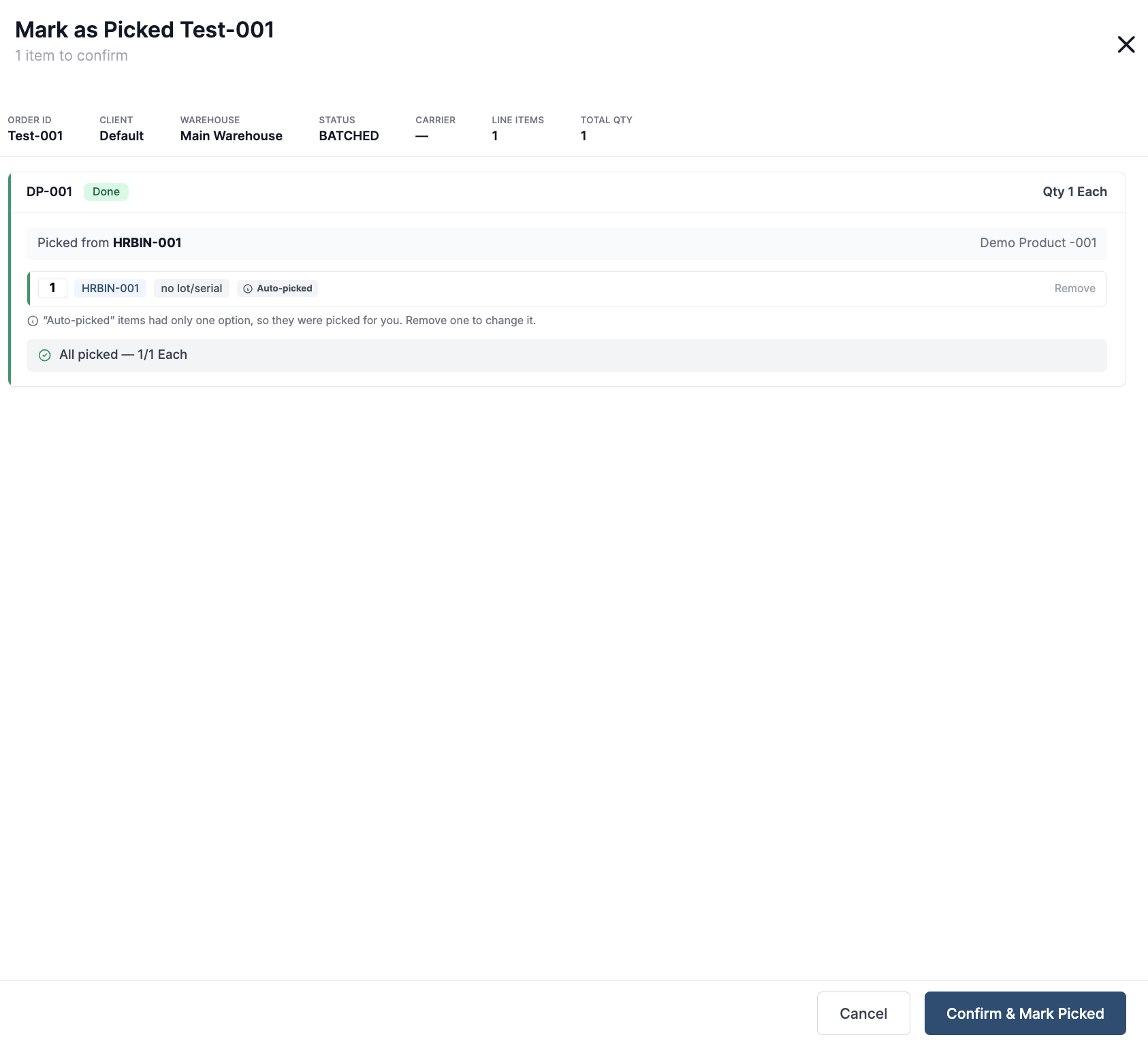
Confirm the pick directly when all order items are already resolved.
b) If an order has items that need input, provide necessary input and then review resolved items.
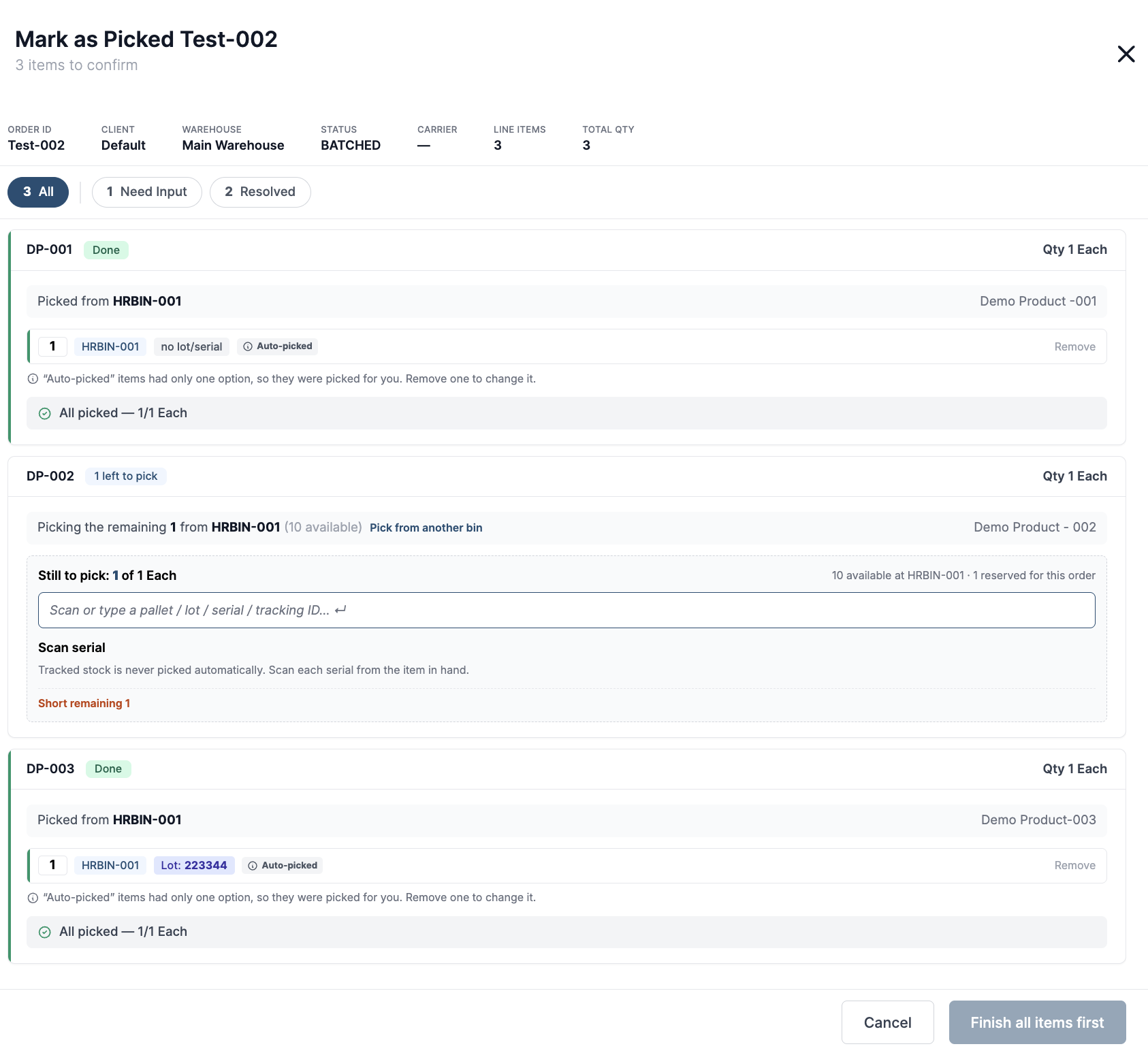
Resolve items that need input. Use the Need Input tab to view items that require an inventory selection. Items already resolved are available under Resolved.
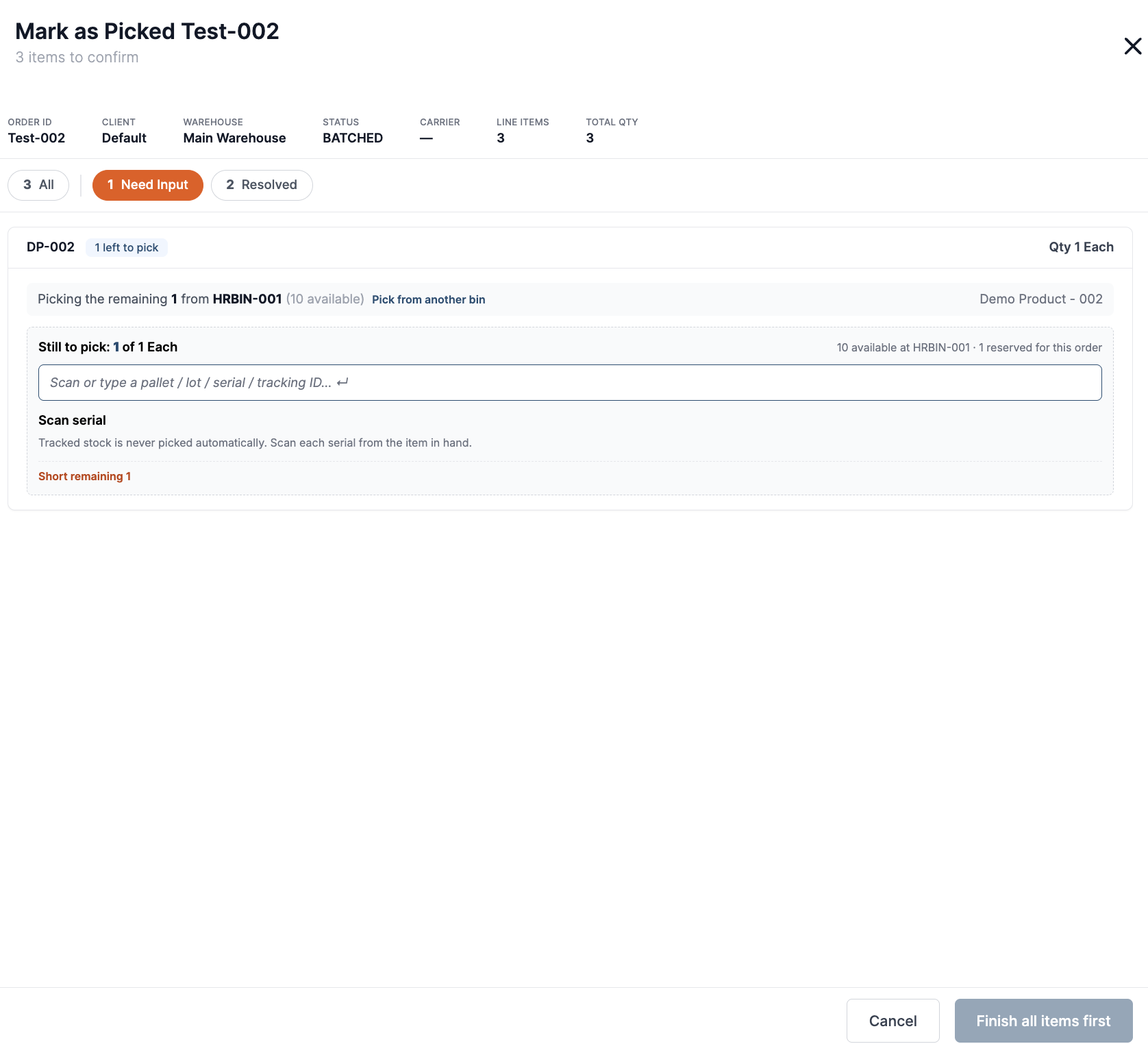
Use Need Input and Resolved to work through the order items.
Enter inventory tracking details. For serial- or tracking-controlled items, scan or enter the inventory tracking ID from the physical item.
Scan or enter the serial number or tracking ID.
Review the resolved item. Once the inventory tracking ID such as a serial number, is accepted, the item moves to Resolved. Verify the selected bin, lot, serial or tracking information and quantity.
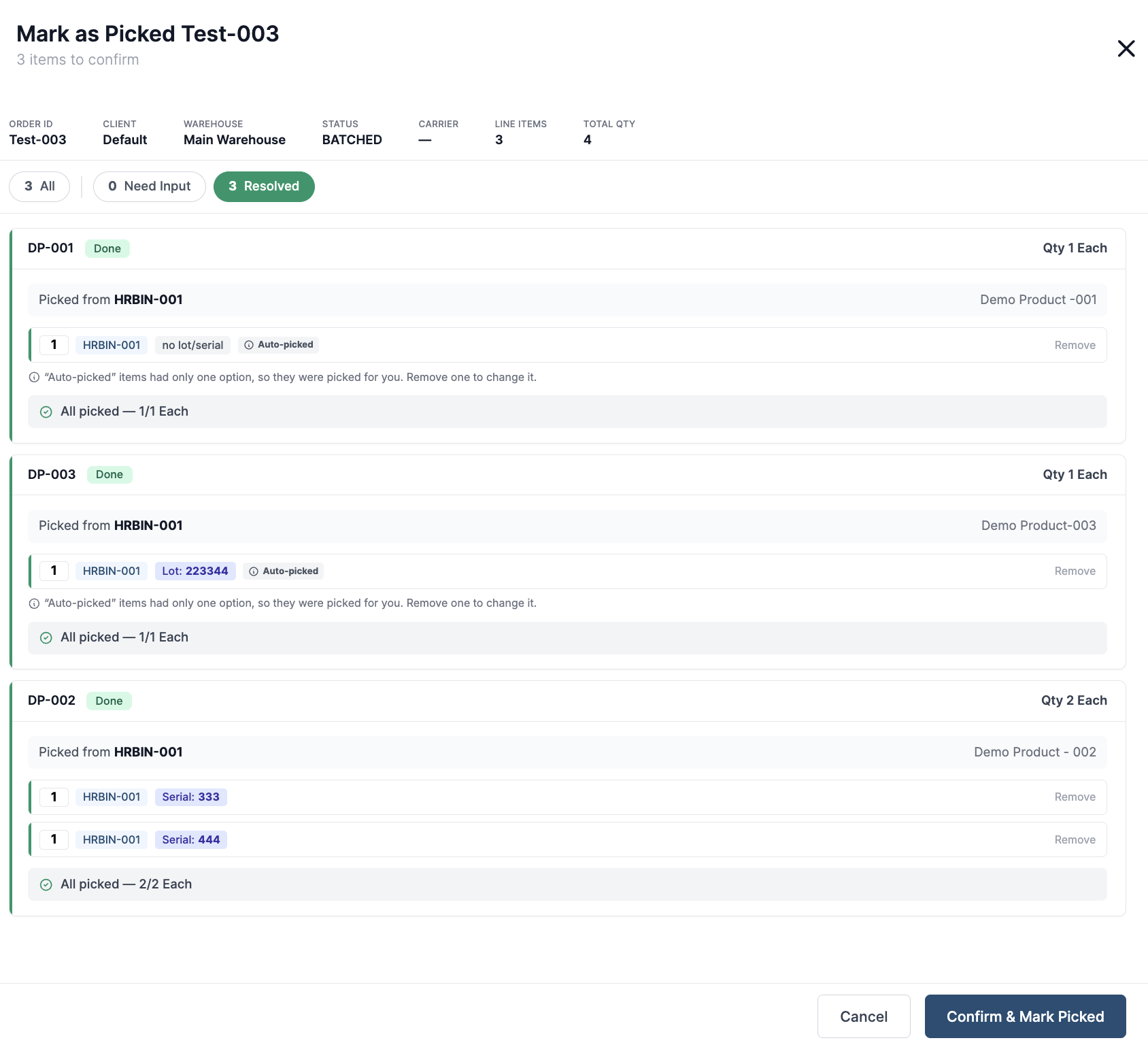
Record shorts when required. If the full quantity was not picked, the short quantity and the reason for the short is displayed. The order can continue with the quantity that was picked.
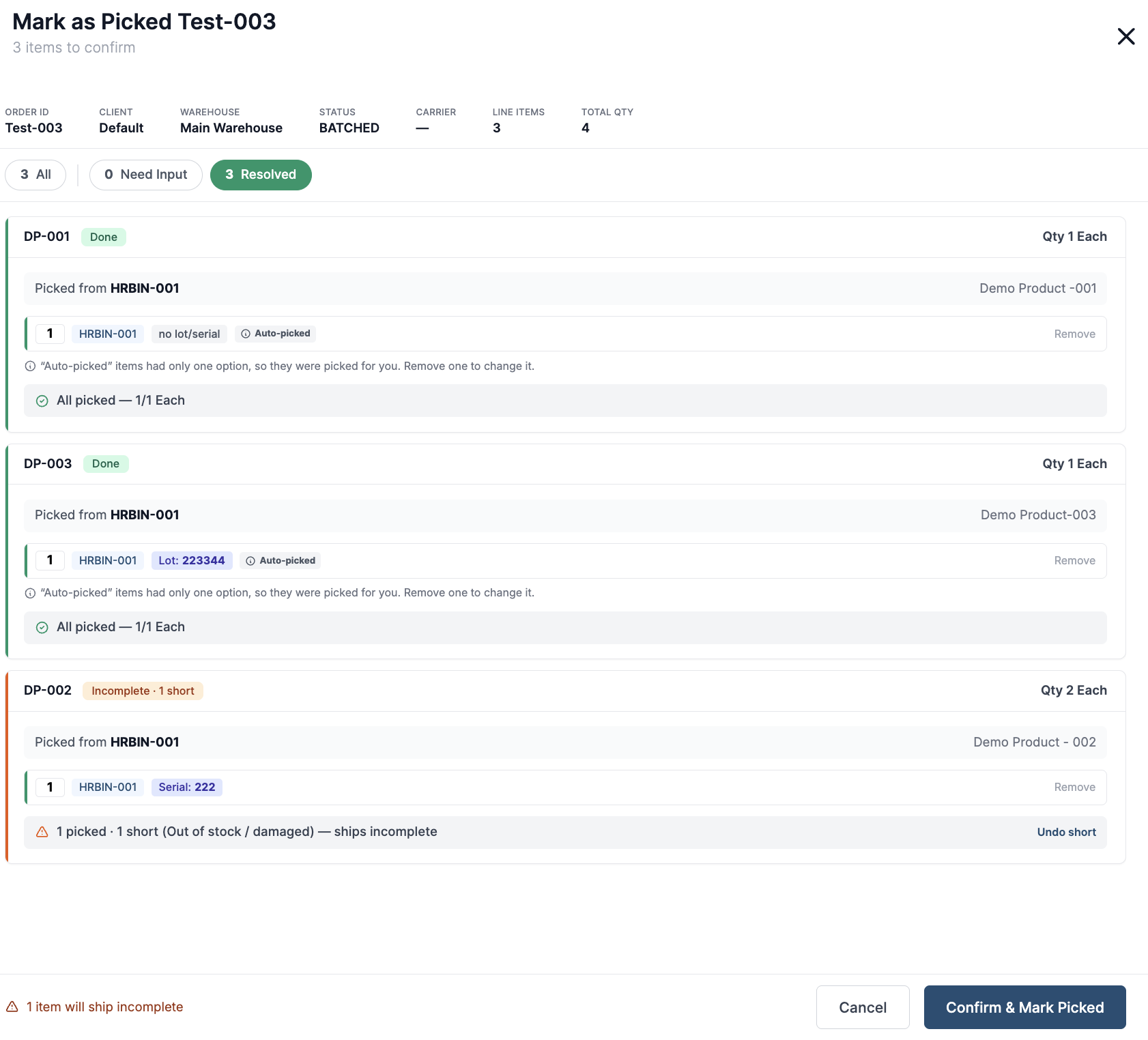
Confirm the action. After all required items are resolved, select “Confirm & Mark Picked”.
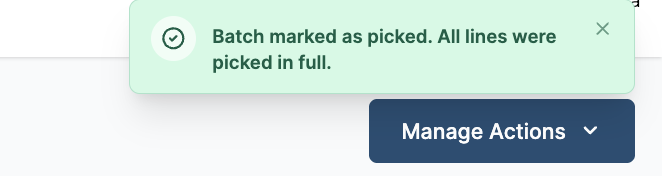
Hopstack displays a confirmation message and advances the order to Picking Completed.
Fully picked orders continue to the standard packing handoff.