
This document describes how to use the enhanced Order Line Items tab in Order Management v2 to search for orders, review details, handle missing orders, apply advanced filters, group results, and customise columns.
Step 1: Open the Order Line Items Tab
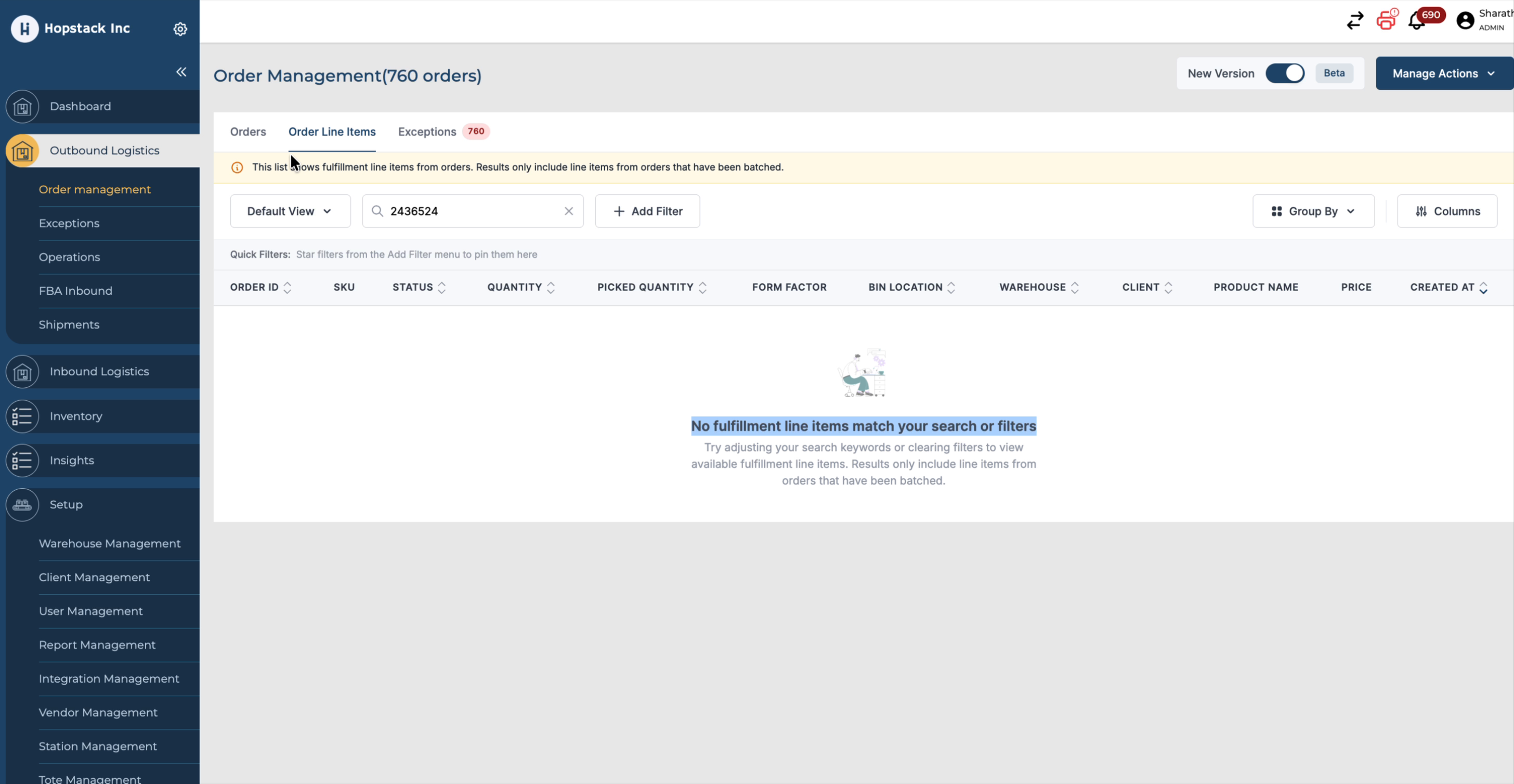
In Order Management v2, navigate to the Order Line Items tab to begin working with individual order lines.
Step 2: Search for an Order and Review Key Details
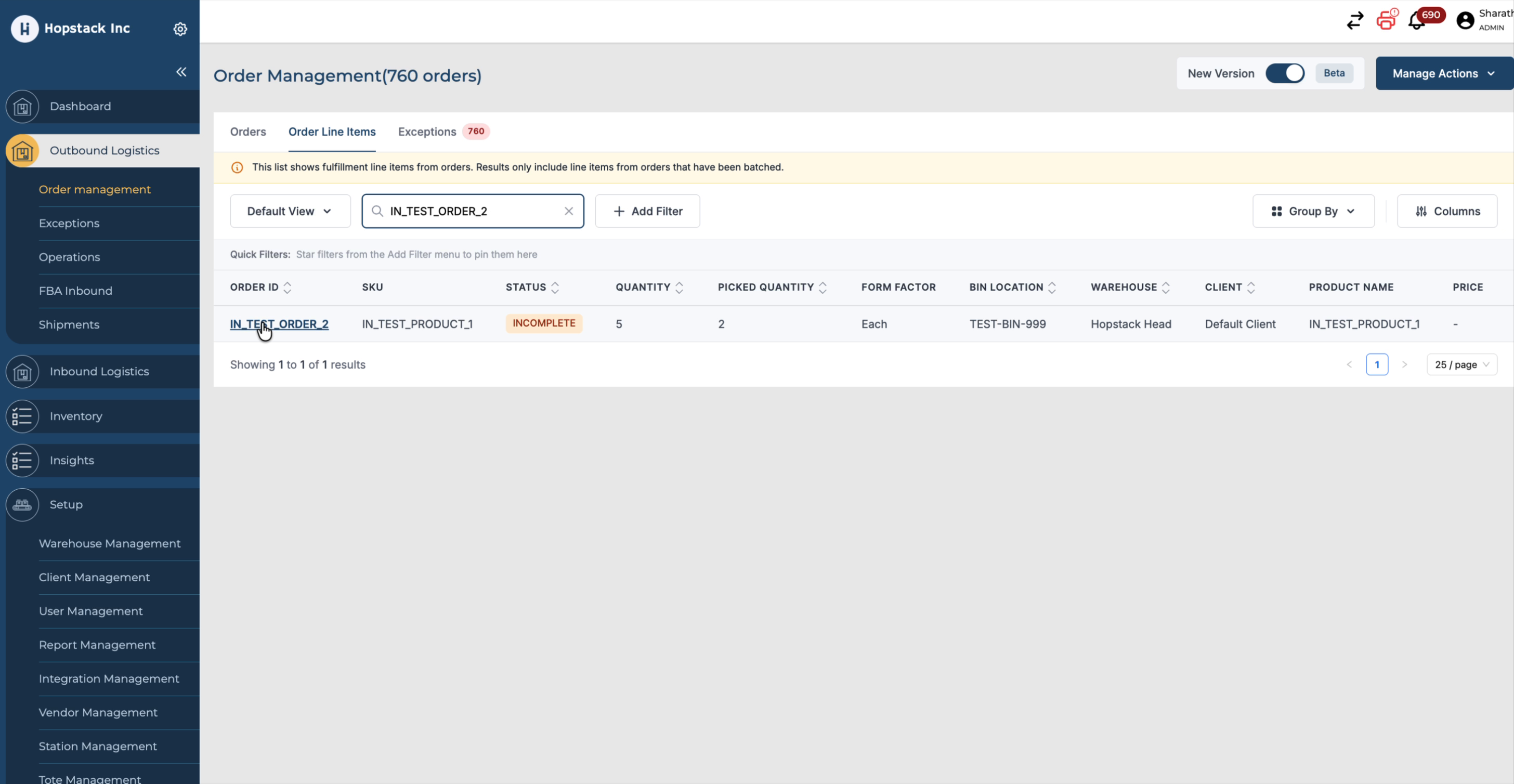
Use the search bar to look up an order by its Order ID. The results grid will display key information such as order status, quantity, and picked quantity so you can quickly understand the fulfilment progress for that order.
Step 3: Open Order Details and Check the Audit Trail
Click on the Order ID in the results to open the order details view.
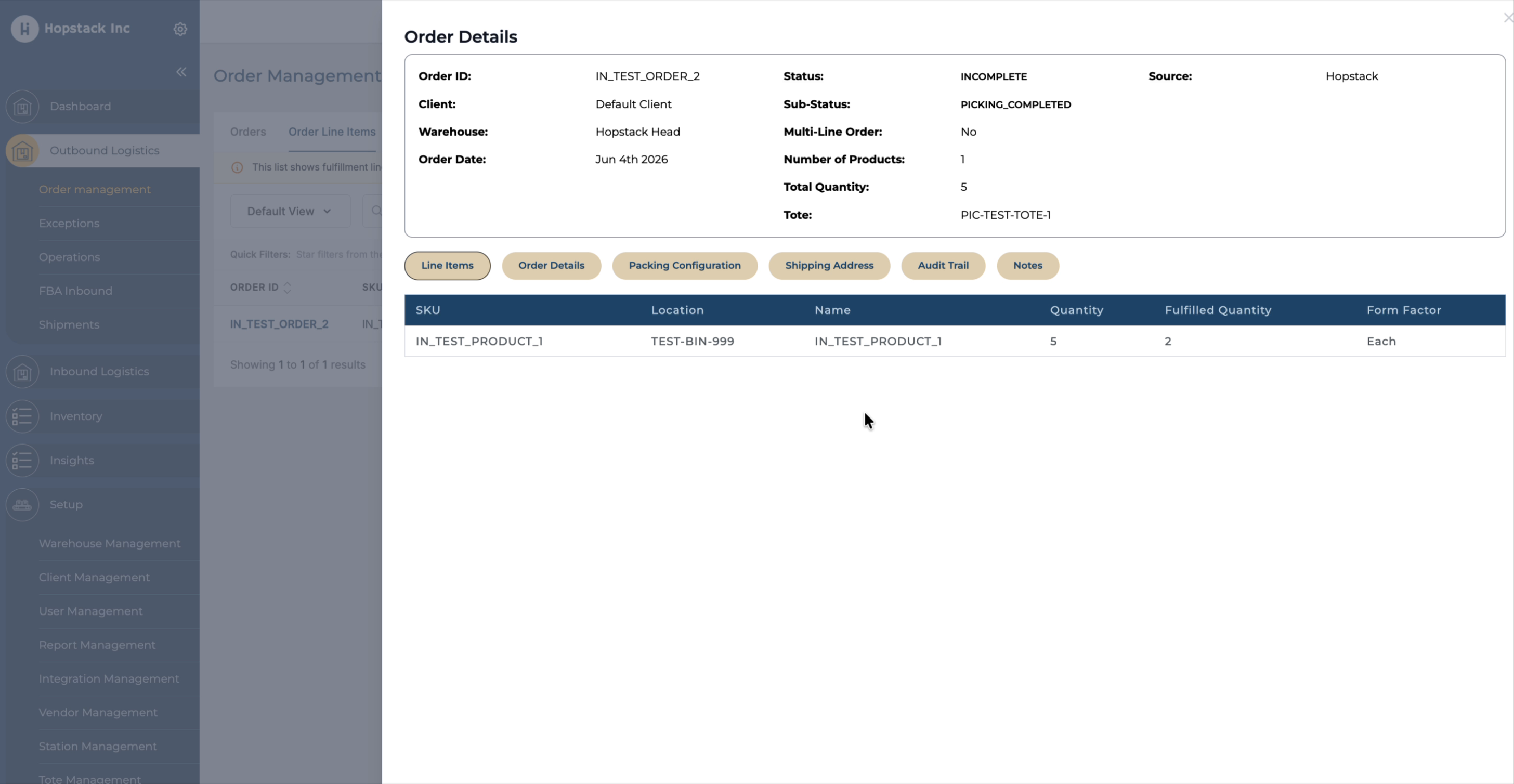
From there, go to the Audit Trail section to investigate why an order is in an incomplete status or to confirm whether the order has been fully completed.
Step 4: Identify Orders That Do Not Exist in the System
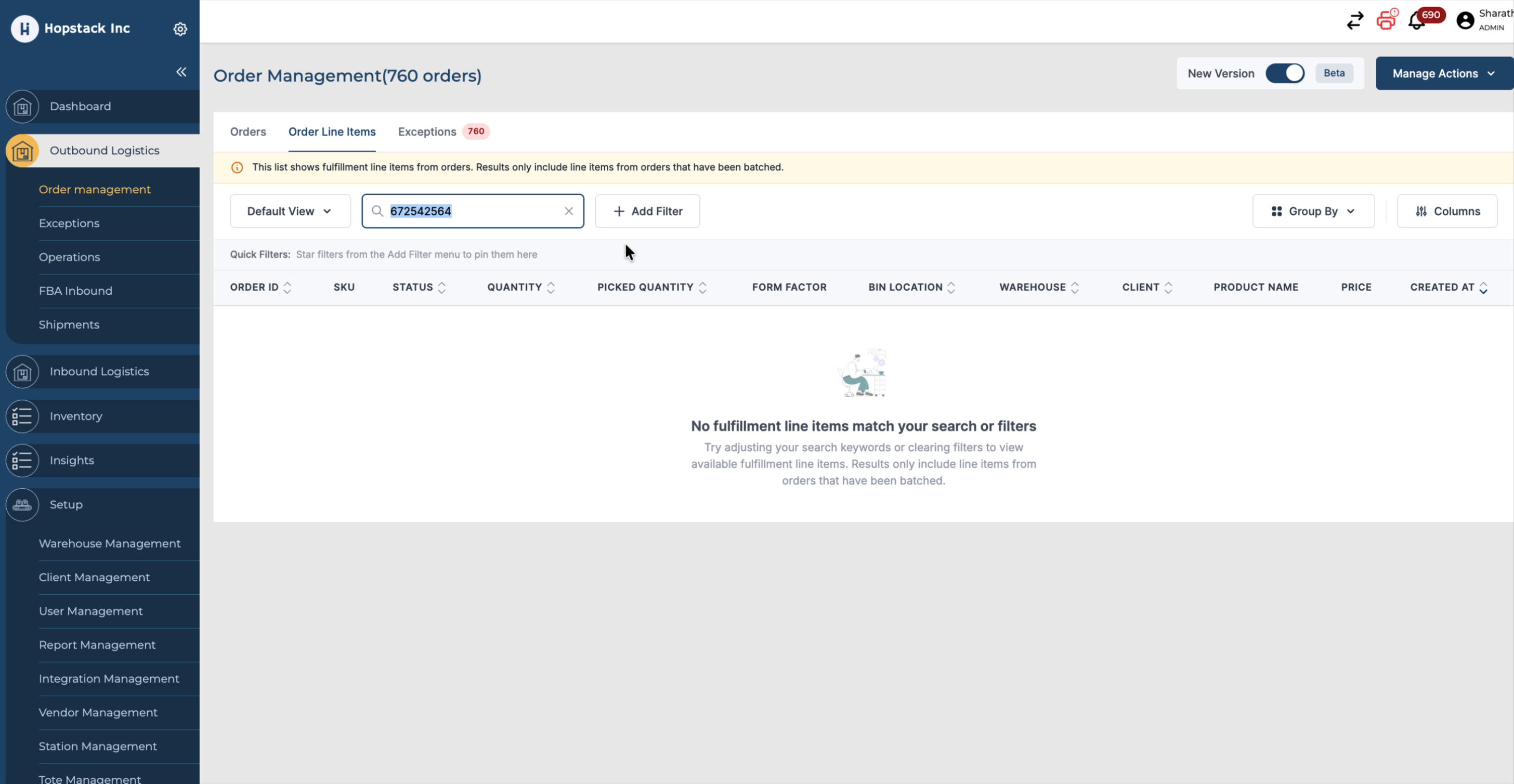
If you search for an Order ID that does not exist in the system, a banner will appear stating that no fulfillment items match your search or filters. This banner clearly indicates that the entered order has no associated line items in the system.
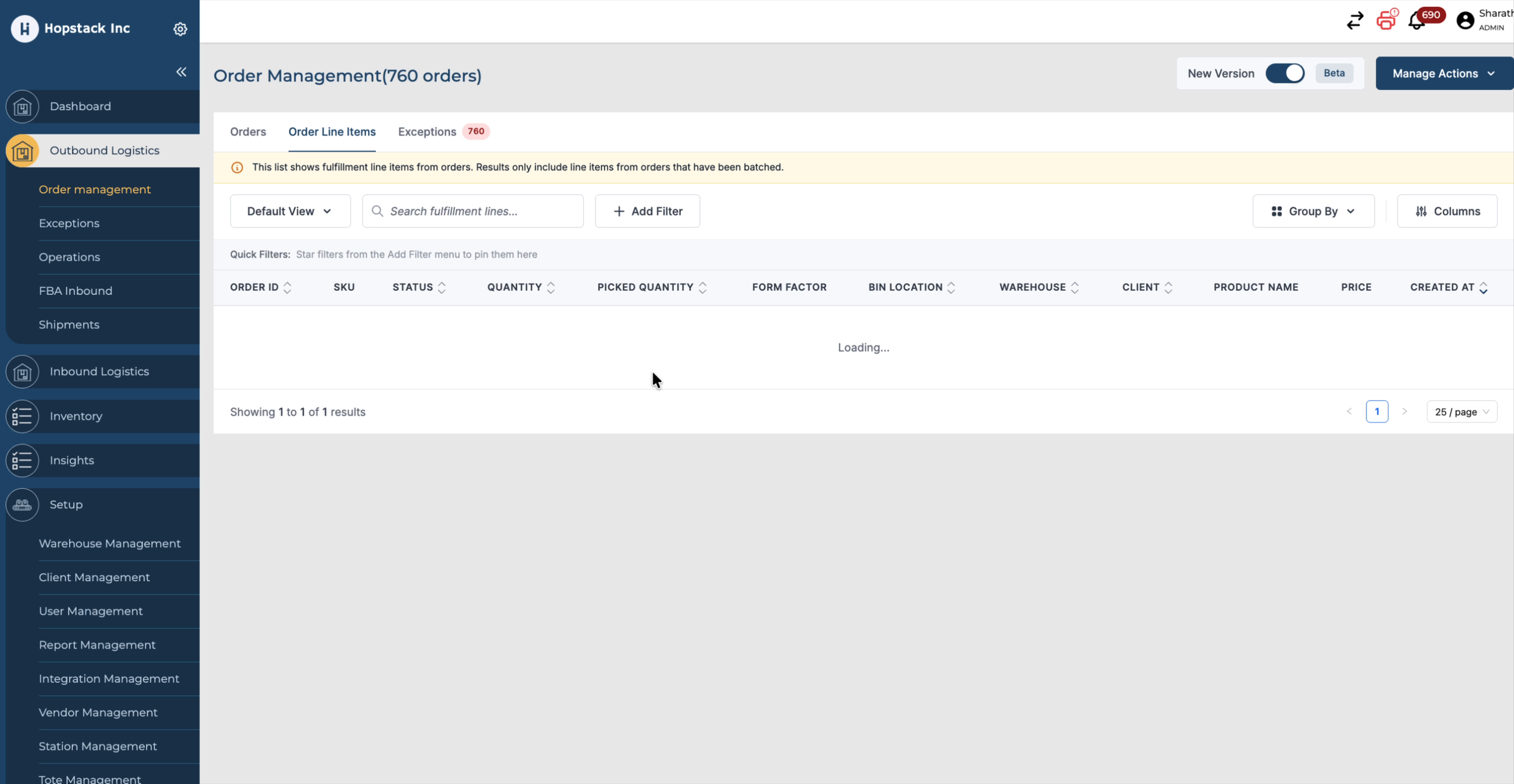
This banner is part of the enhancement for non‑existent orders with no matching line items.
Step 5: Apply Advanced Filters to Order Line Items
Use the filter options in the Order Line Items tab to refine your search.
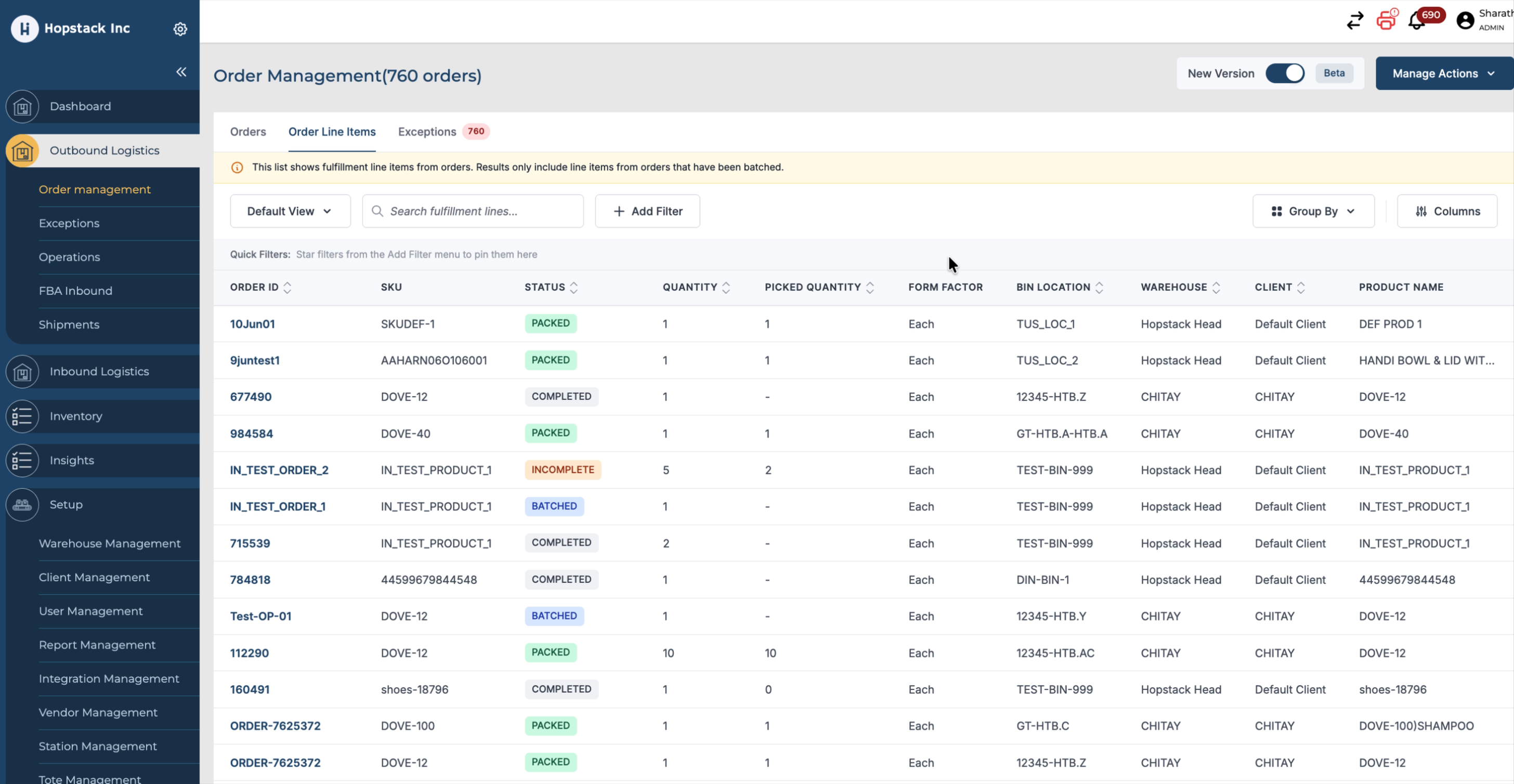
You can filter by multiple criteria simultaneously, including:
-
Warehouse
-
Client
-
Order ID
-
Status
-
Picked quantity
-
Order creation date
-
Serial number
-
Lot ID
-
Pallet ID
-
Bin location
-
Inventory tracking
-
Storage LPIN
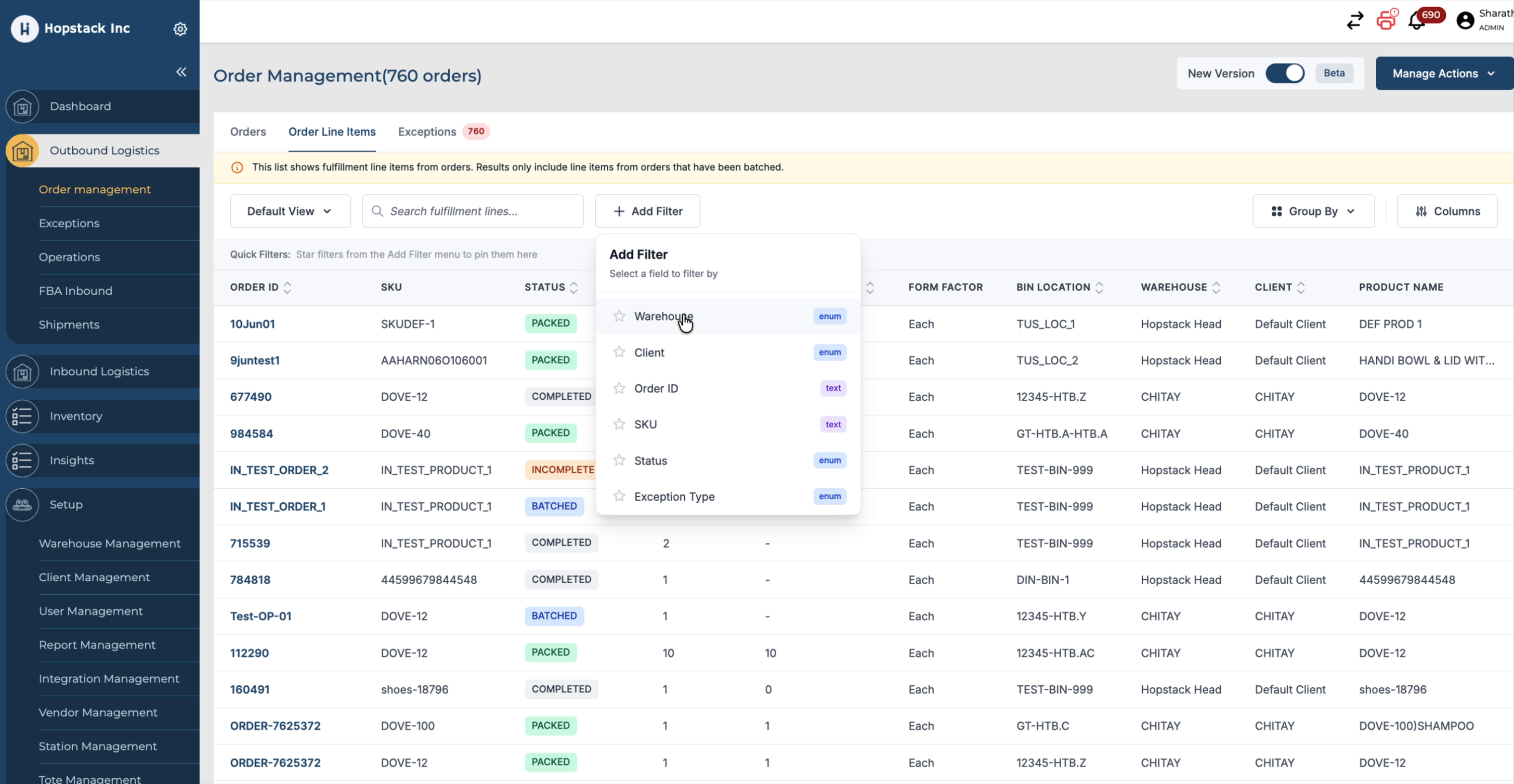
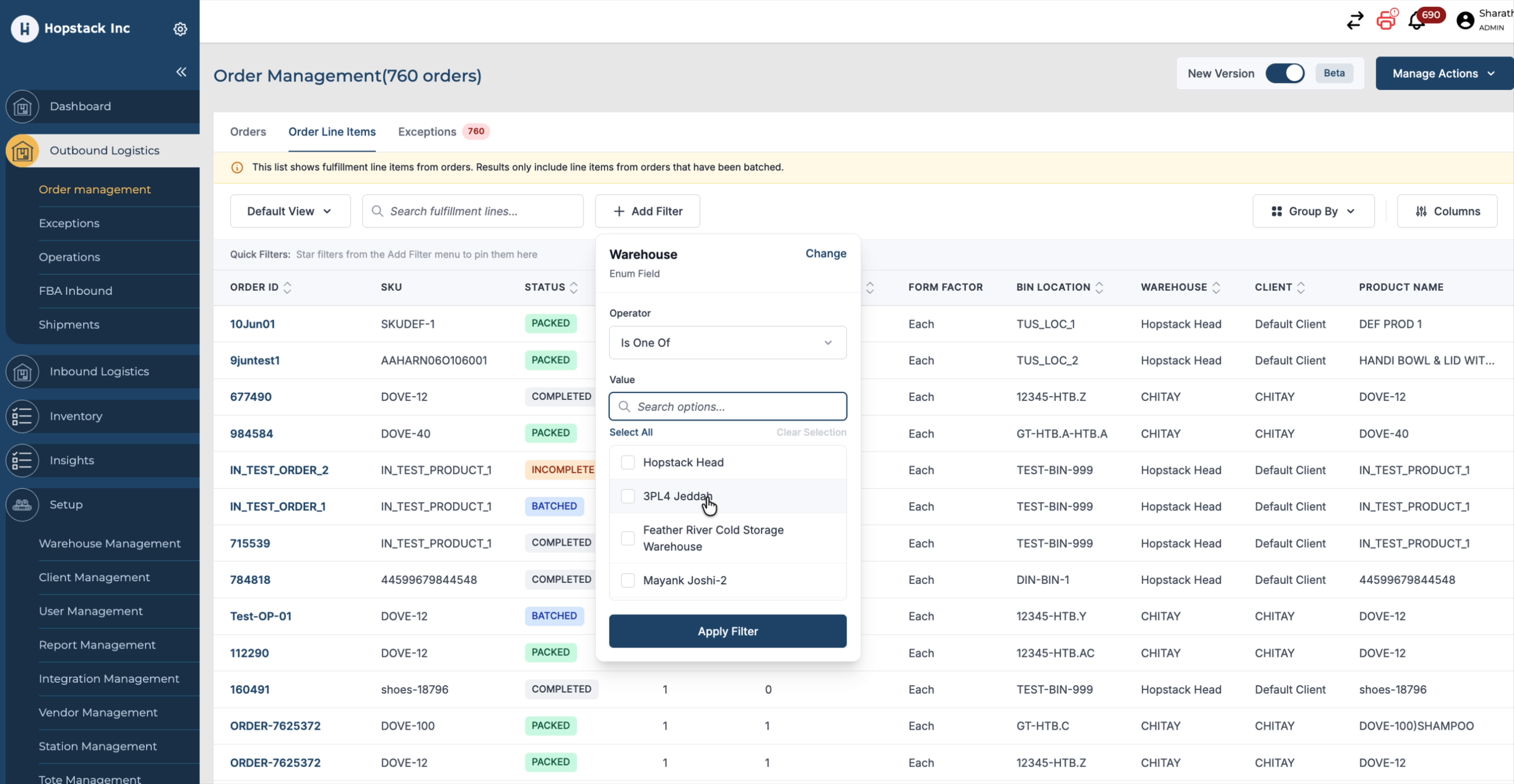
Use these filters to narrow down results and quickly locate specific line items.
Step 6: Group Order Line Items
Use the Group By functionality to organise the results:
-
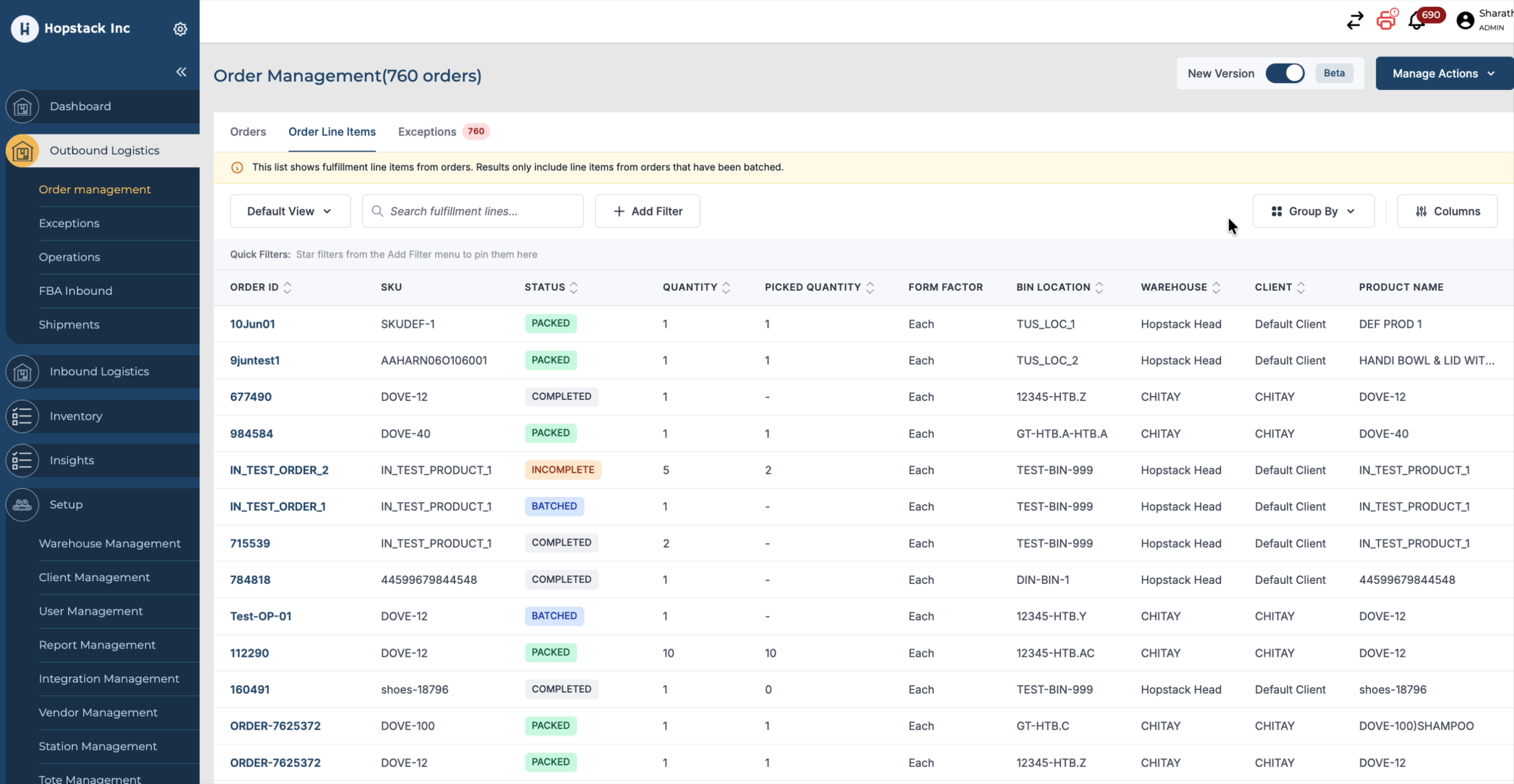
Group by Warehouse to view orders by fulfilment location.
-
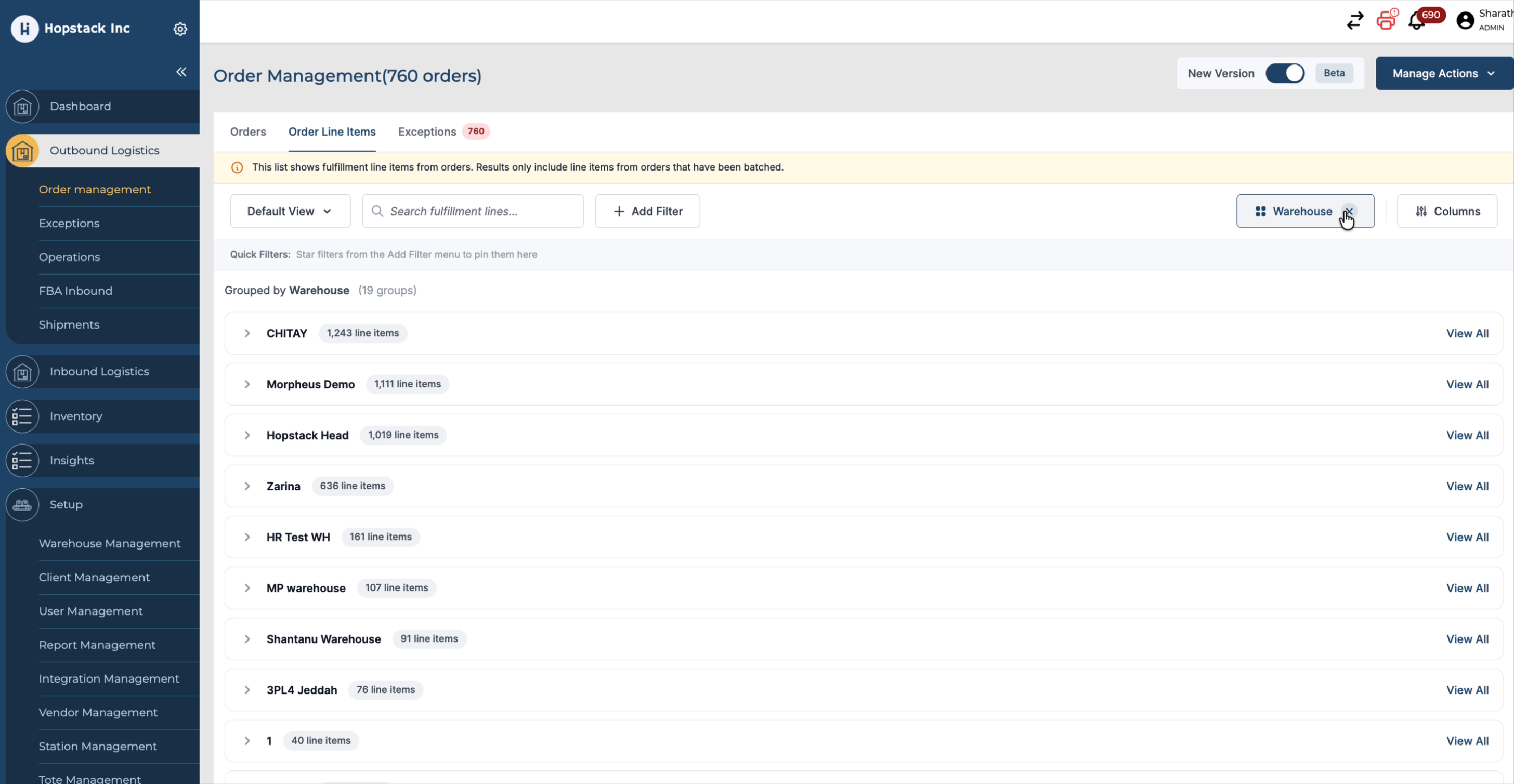
Group by Client to see orders segmented per client.
-
Group by SKU to analyse line items by product.
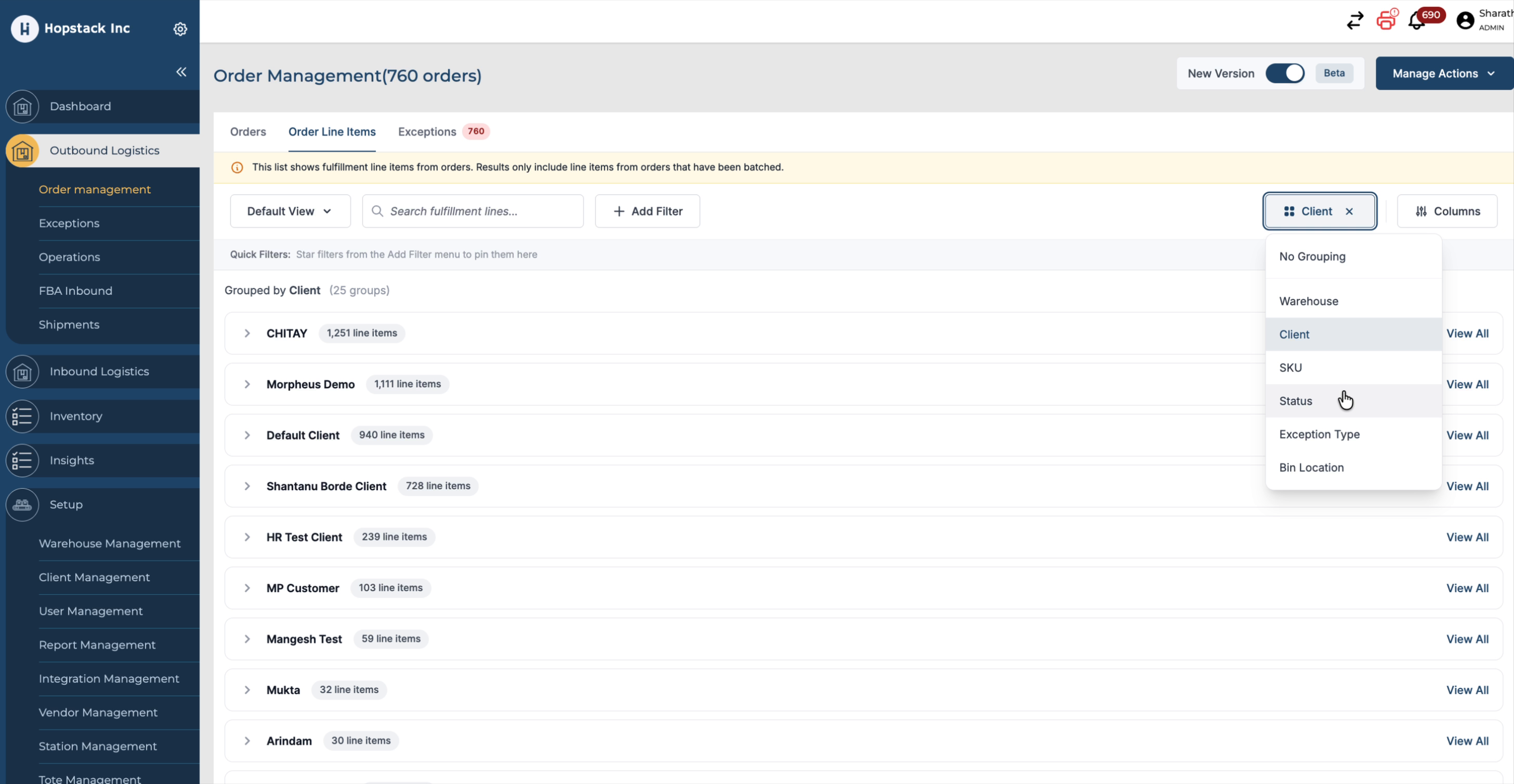
This grouping helps you better analyze and manage large sets of order line items.
Step 7: Rearrange and Configure Visible Columns
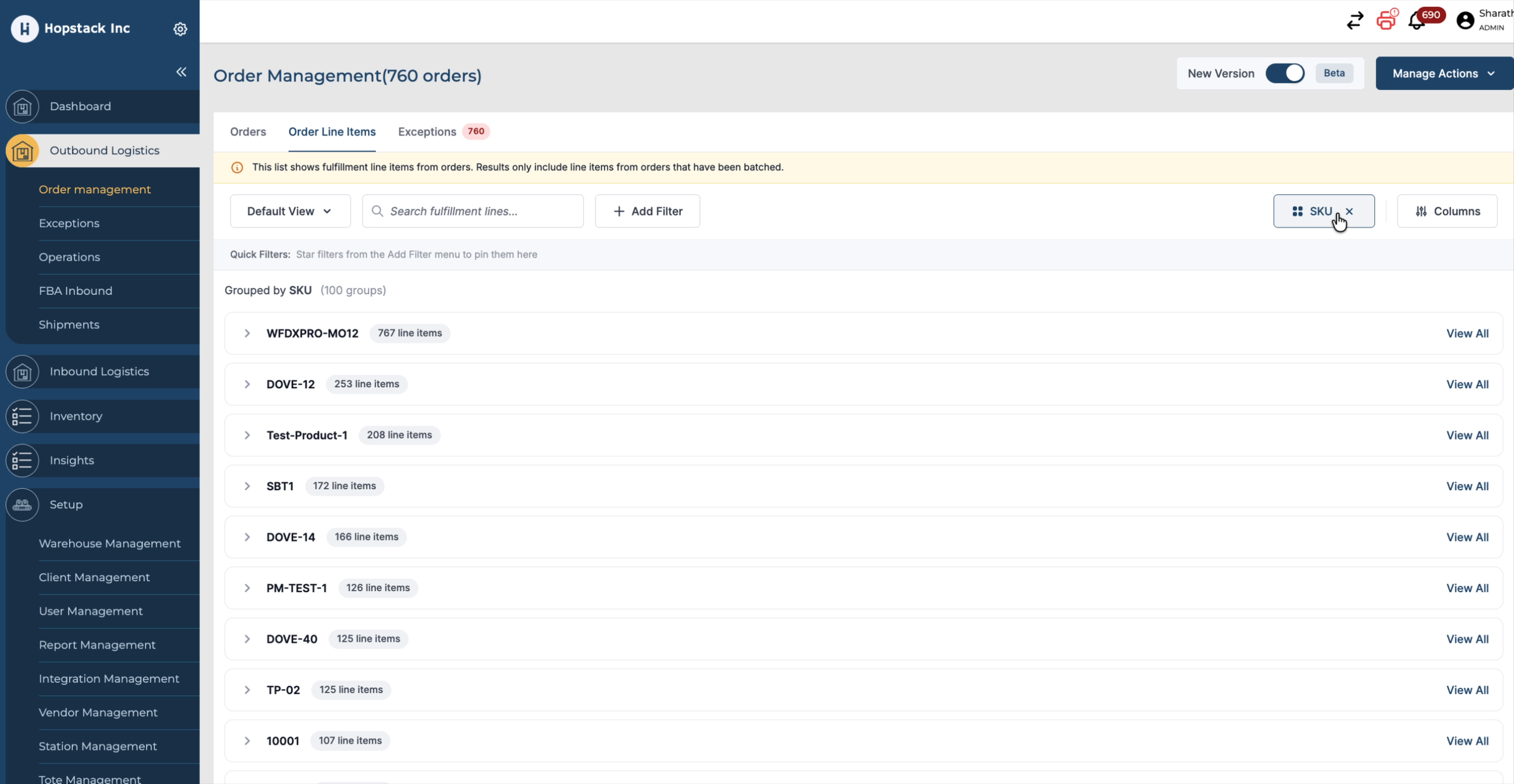
Customise the columns in the Order Line Items grid to match your workflow.
-
Drag and drop columns to rearrange their order and immediately see the updated layout on the screen.
-
Select or deselect columns to control which data fields are visible.
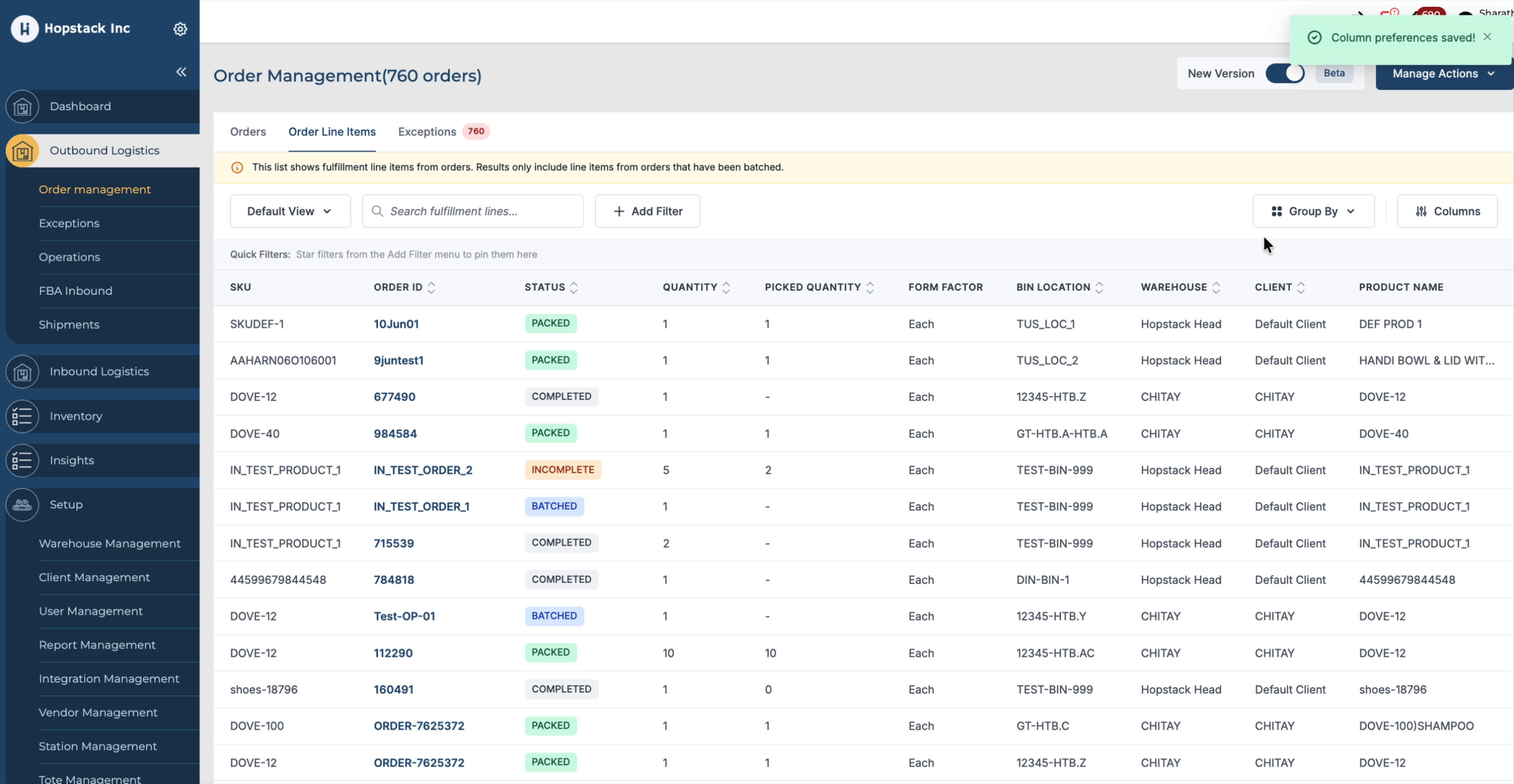
This column customisation allows you to focus on the most relevant information for your operations