
Users can add their own notes to an order, for example "Customer called, hold until Friday" or "Repack in gift box". Each note shows who wrote it and when. Notes that came in with the order from a sales channel are shown separately and stay read-only.
Viewing notes
-
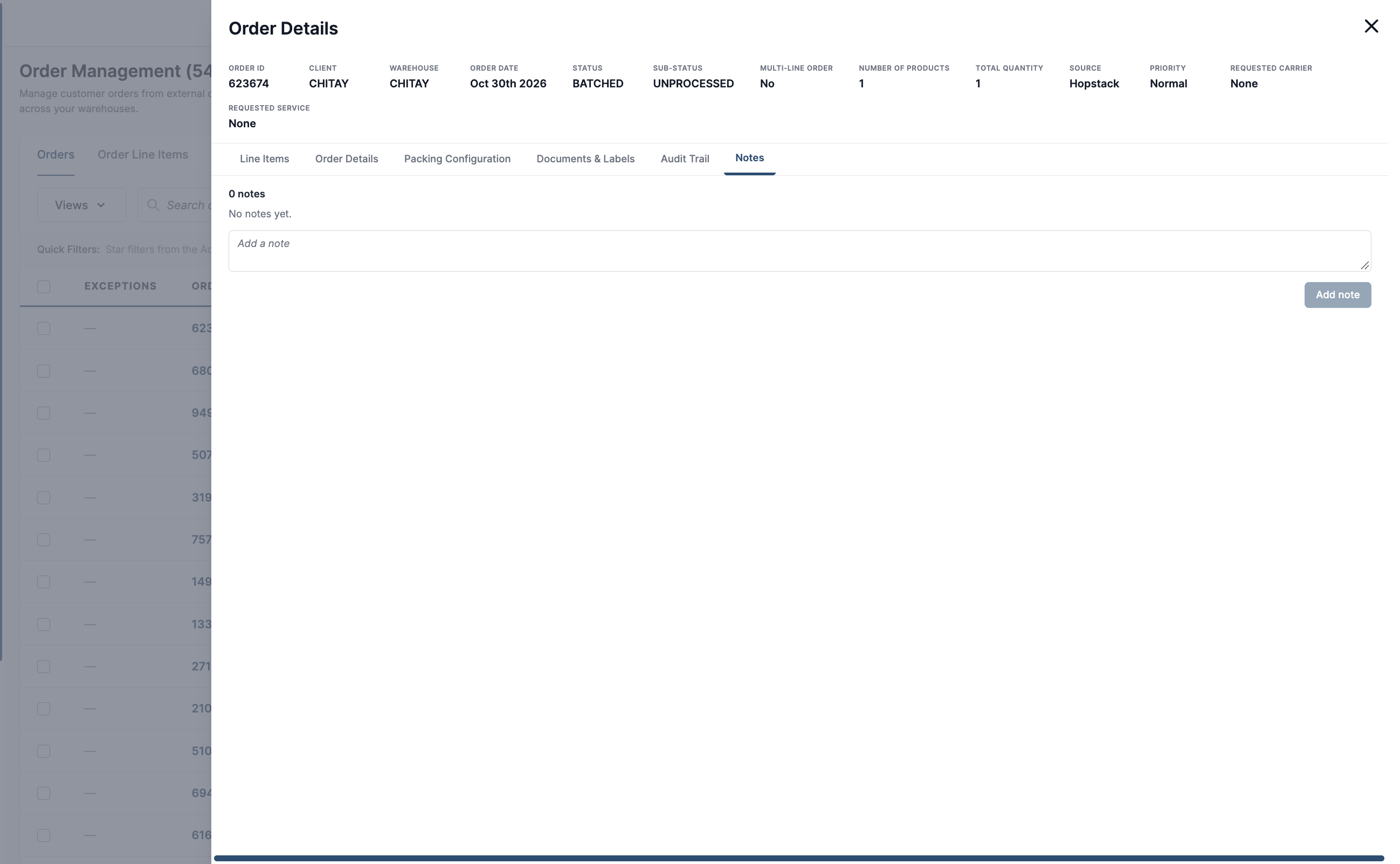
Open an order from Order Management.
-
Click the Notes tab.
-
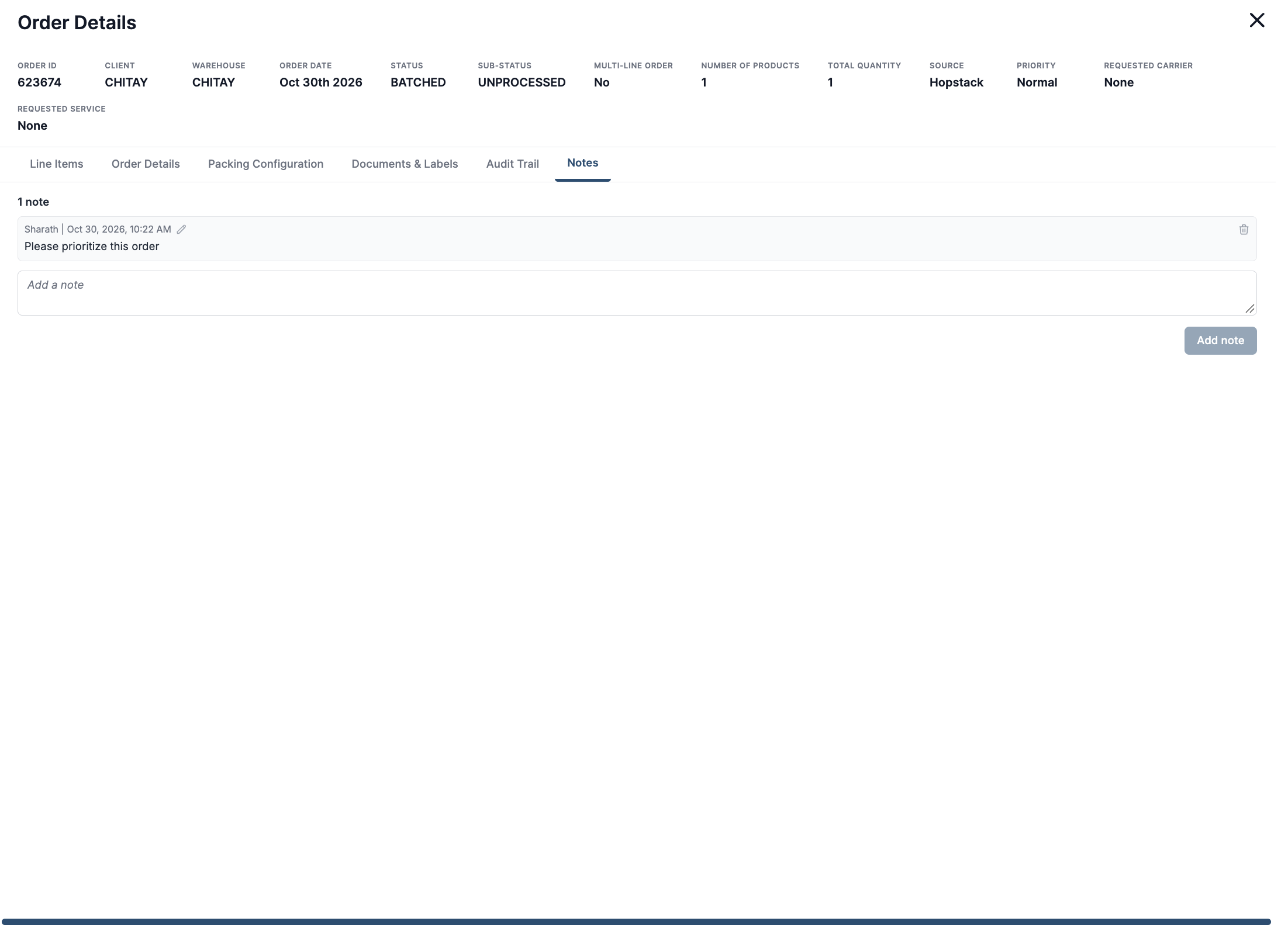
User notes are listed newest first. Each shows the author's name and the date and time, for example "Jane Doe | Oct 28, 2026, 3:15 PM". A note that was changed is marked (edited).
-
Notes sent by the sales channel appear below, under Received with the order. They cannot be edited or deleted.
In the orders list, the Notes column shows how many notes an order has, counting both user notes and notes received with the order. Hover the count to read the notes, and to add, edit or delete your own without opening the order.
Adding a note
-
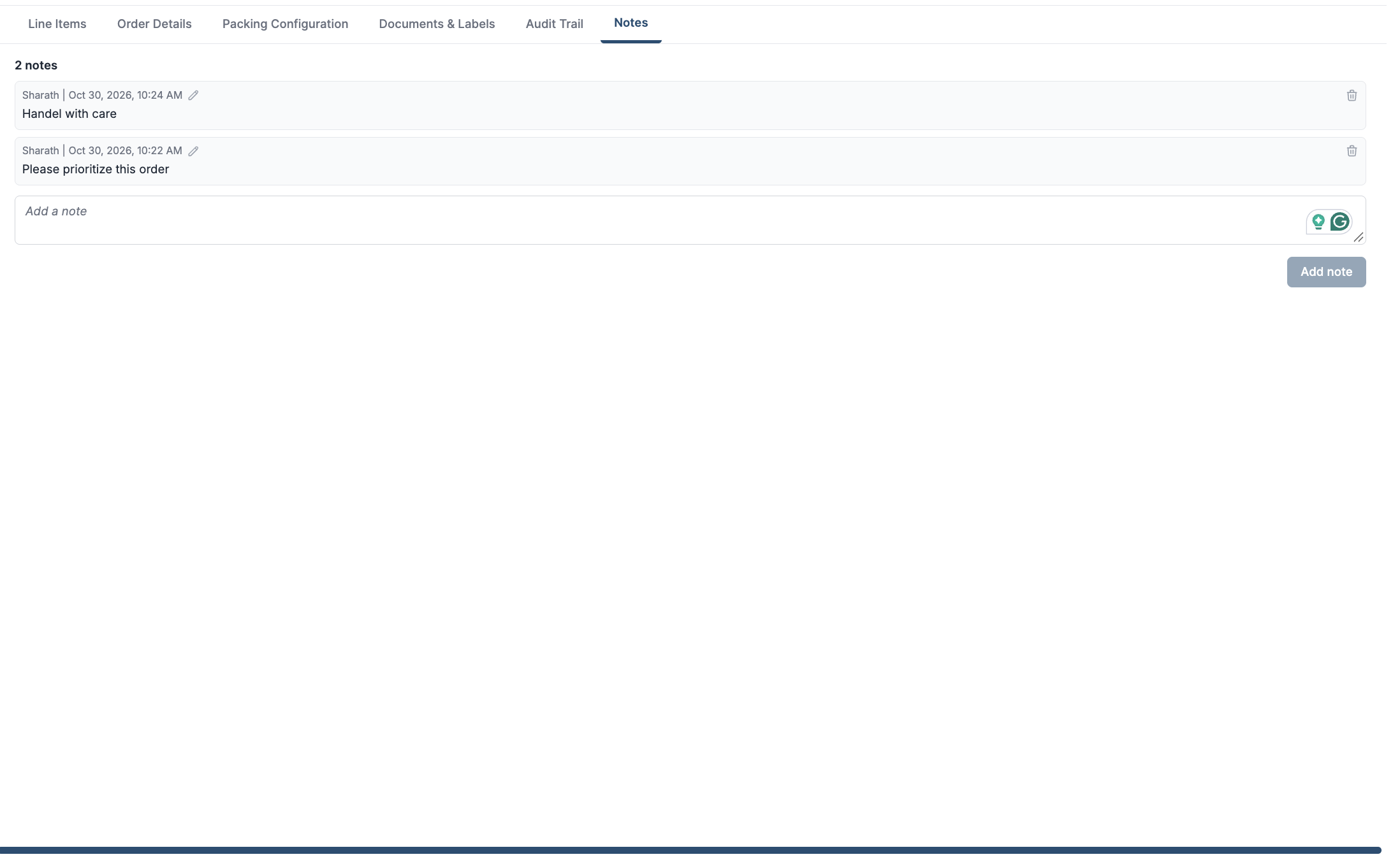
On the Notes tab, or in the hover card in the orders list, type your note in the Add a note box.
-
Click Add note.
The note appears at the top of the list with your name and the time. A note can be up to 1,000 characters and cannot be empty. Notes can be added at any order status, including completed and cancelled orders.
Editing or deleting your note
-
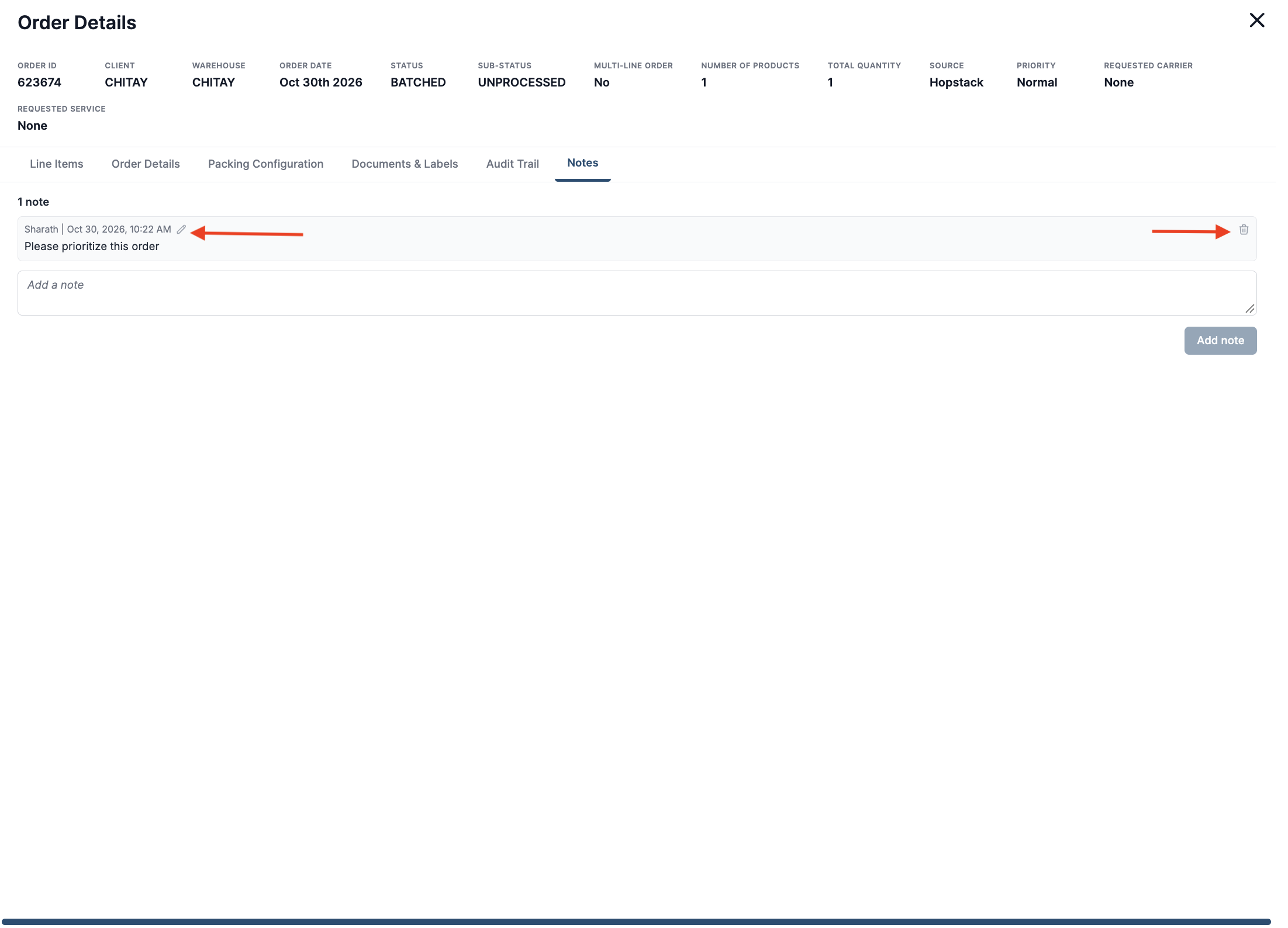
Edit: click the edit icon next to the date and time on your note. The note becomes a text box in place. Change the text and click Save, or click Cancel to keep the original. Ctrl+Enter (Cmd+Enter on Mac) saves; Esc cancels.
-
Delete: click the delete icon on your note.
Only the user who wrote a note can edit or delete it. Other users see the note without the edit and delete icons.
What notes do not change
-
Adding, editing or deleting a note does not change the order's status, line items or allocations.
-
Editing an order keeps its notes.
-
User notes are not shown on handheld screens, packing slips or order documents.
Audit trail
Every add, edit and delete is recorded on the order's Audit Trail tab, with who made the change and the note text. Edits show the text before and after.