
This document provides step-by-step instructions on how to mark the Orders as Cancelled/ Completed in Bulk
Accessing the Order Management Screen
-
Log in to the Hopstack platform.
-
Navigate to Outbound Logistics from the main menu.
-
Click on the Order Management screen
Marking the Orders as Cancelled/Completed in Bulk
-
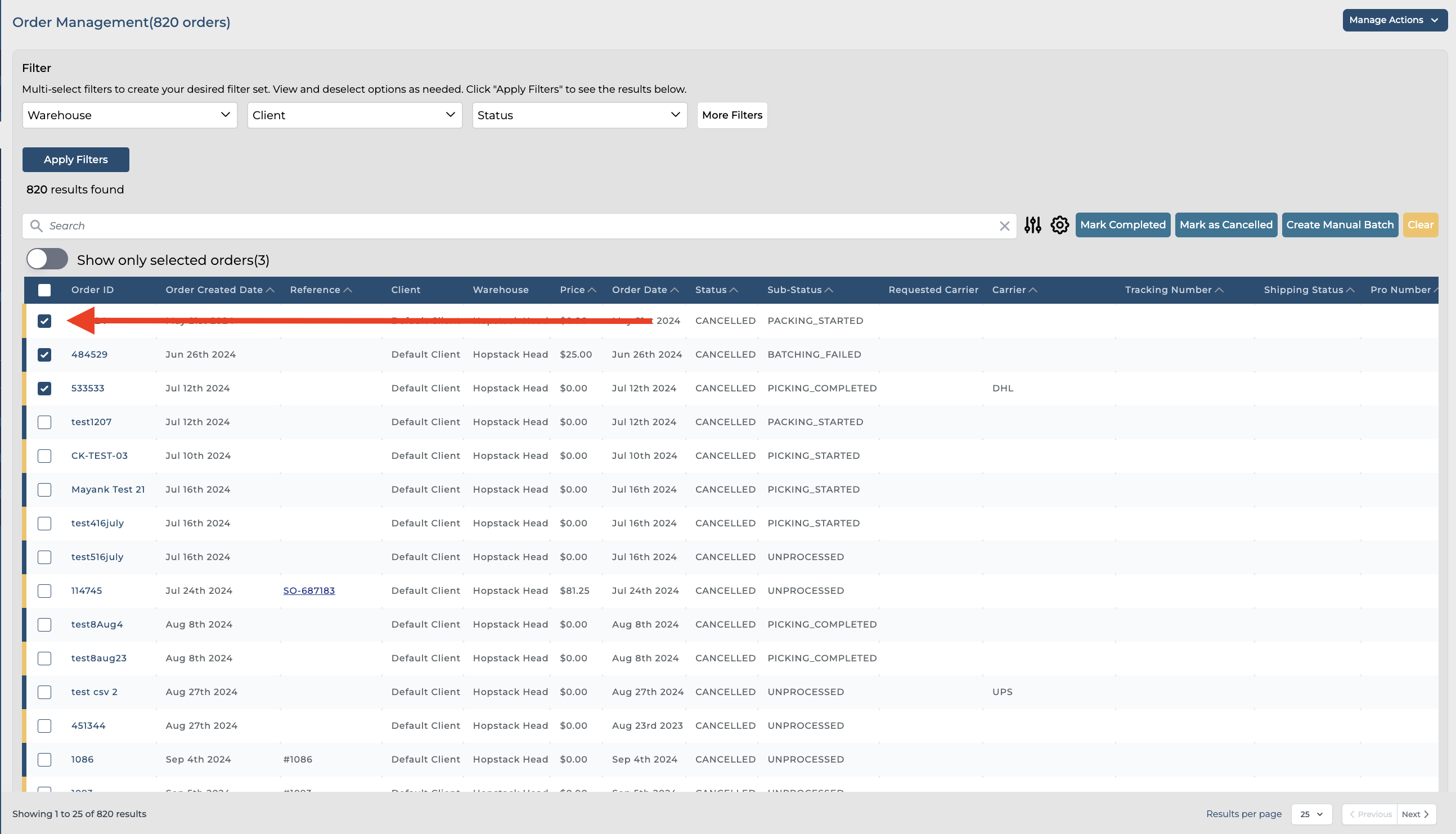
Locate the checkbox option next to the Order ID column. This checkbox allows you to select multiple orders at once for bulk actions, such as cancellations and completion.
-
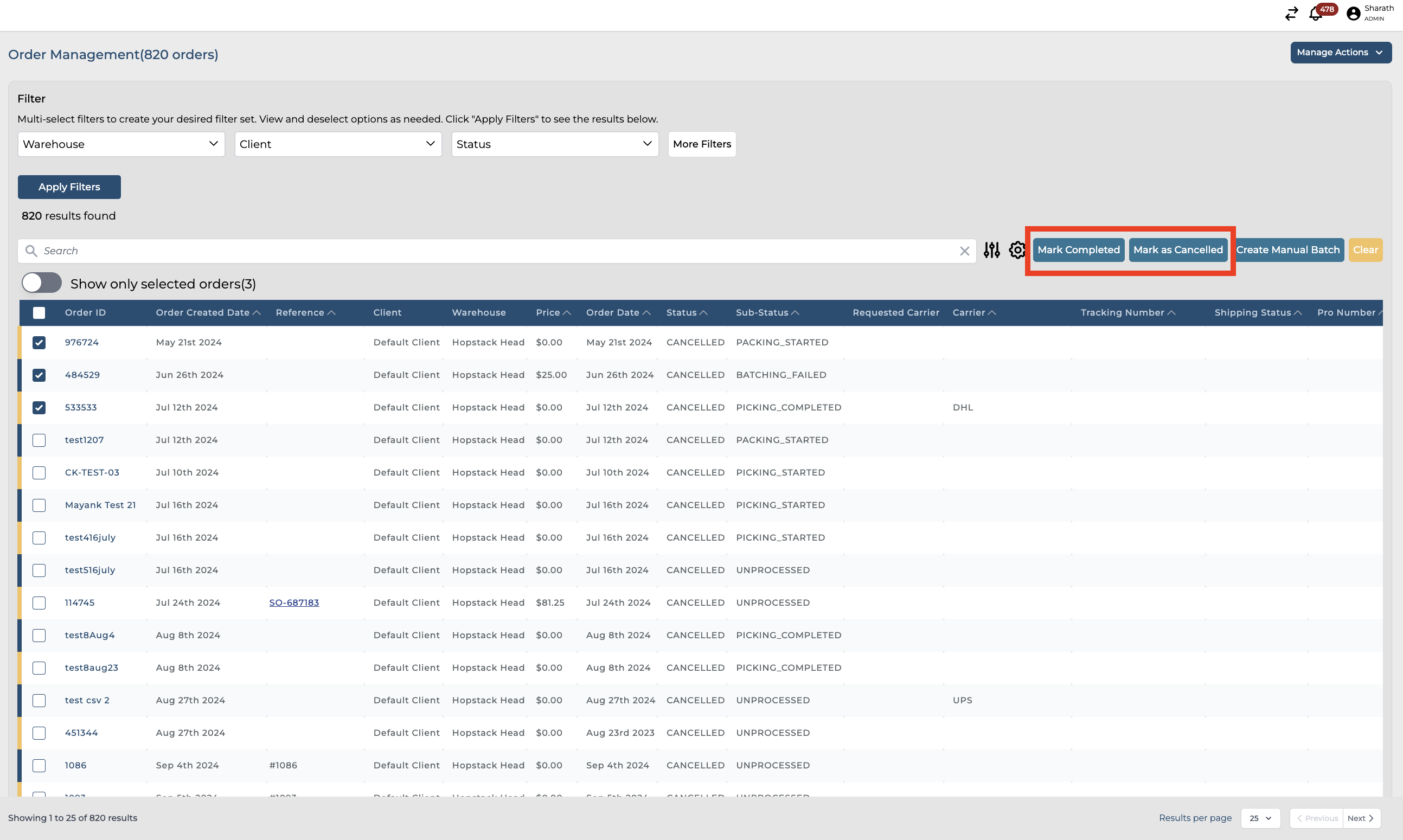
Once the correct order ID is selected, please click on either of the options “Mark Complete or Mark as Canceled”.
-
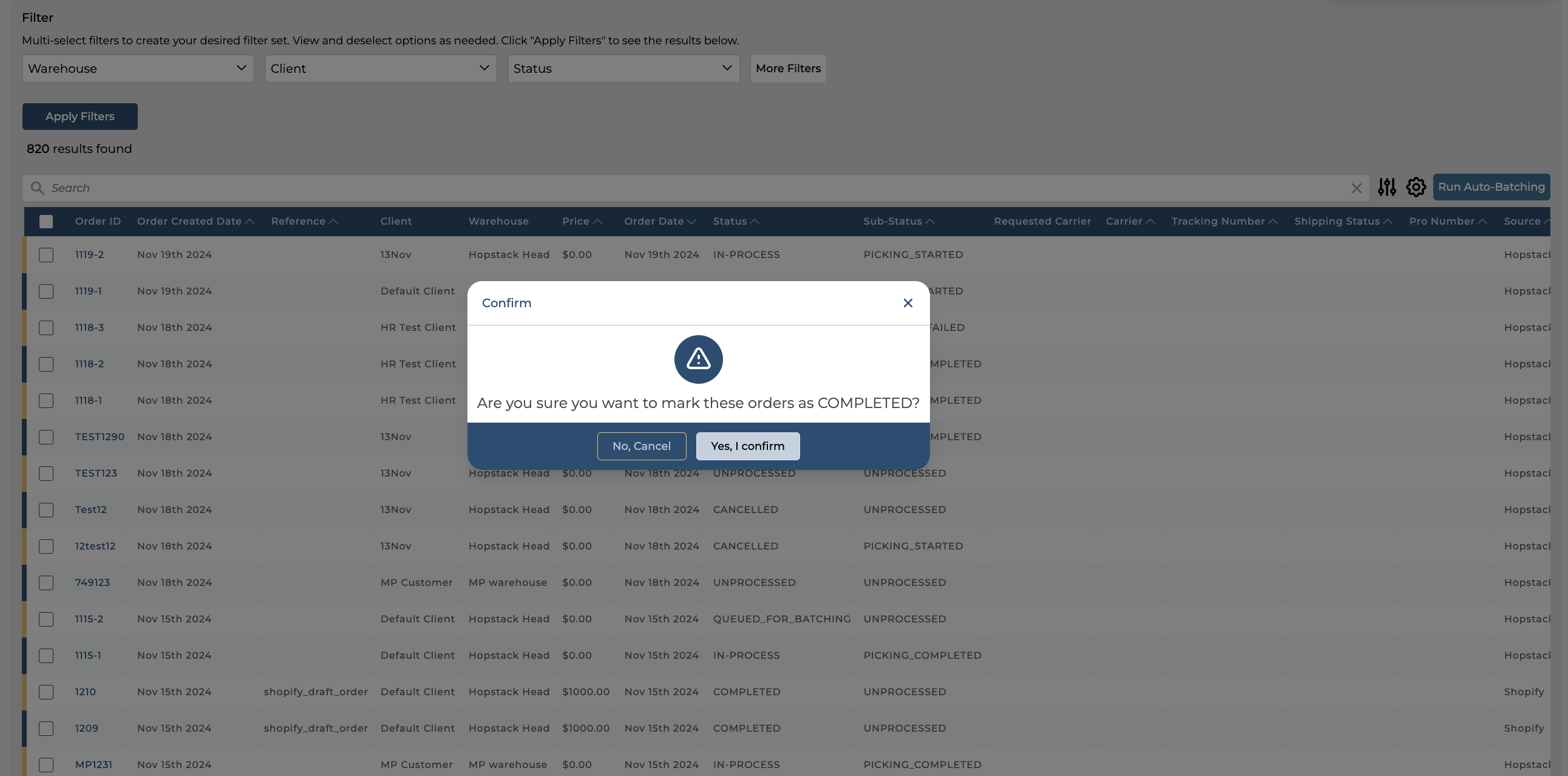
Once you click on Mark Complete or Mark as Canceled a pop-up appears on the screen asking for confirmation.
-
Click on “Yes, I Confirm” to proceed further with the Cancellation or Completion of an order. A notification is displayed stating the order updated successfully.
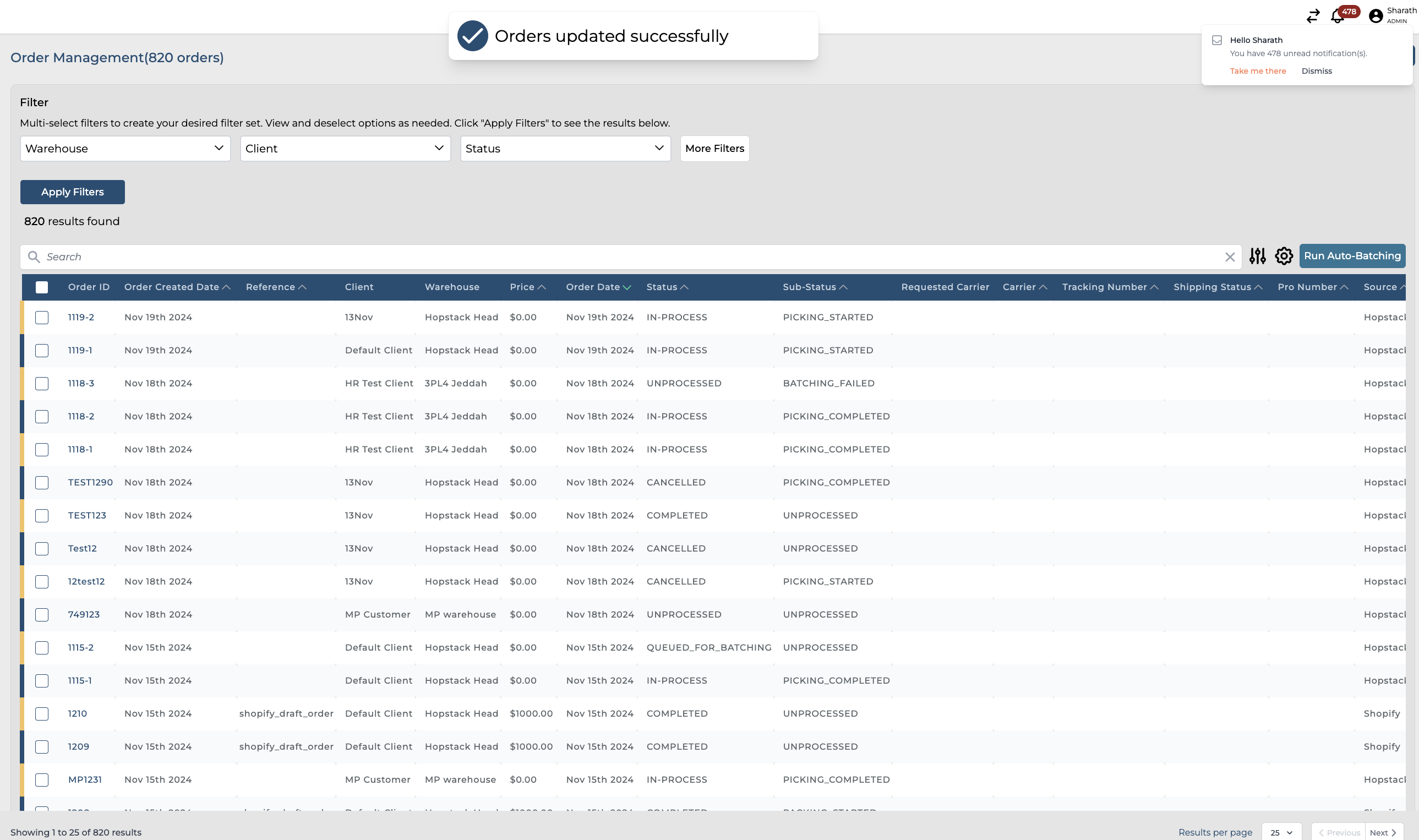
Please note that you cannot cancel or complete the order which already has the status Cancelled or Completed.