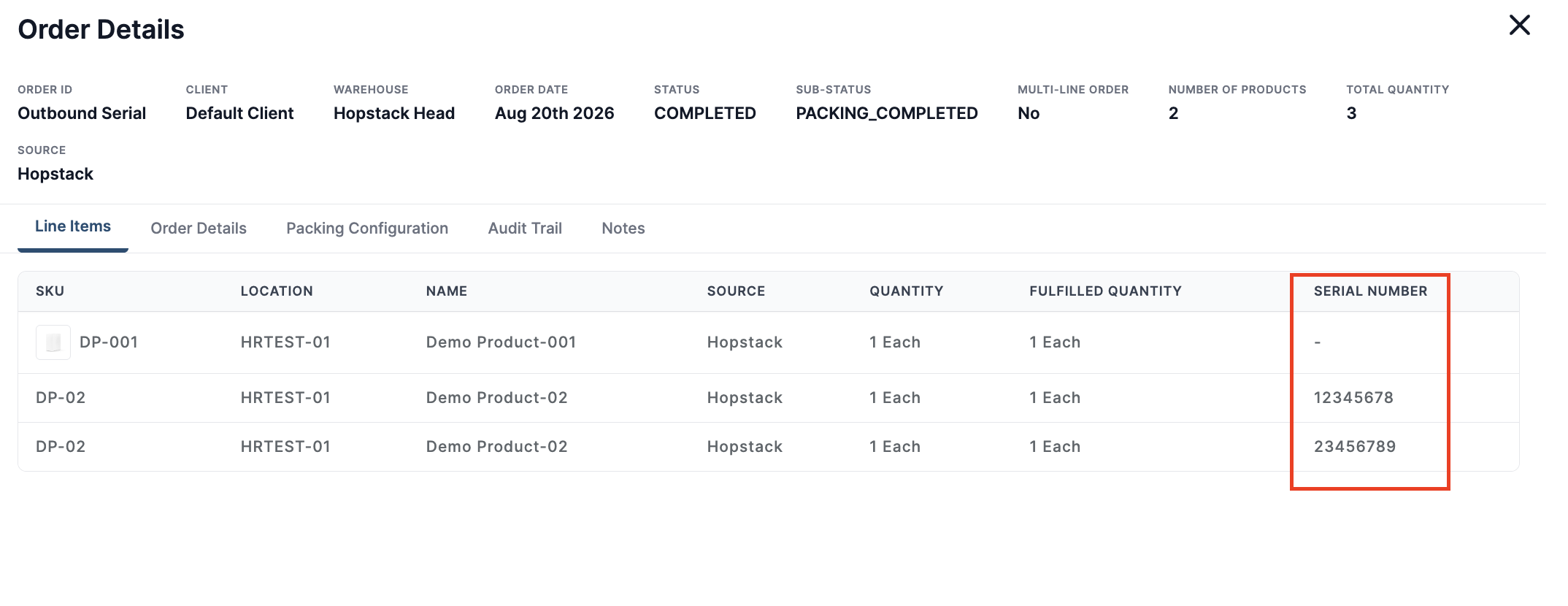
Packing can now capture an outbound serial number, IMEI, device ID or similar identifier for configured products without requiring those products to be managed as serialized inventory in Hopstack. When enabled, scanning the product during packing prompts the operator to capture the outbound identifier before the unit is considered packed. The captured value is tied to the order line, package and shipment for later reconciliation.
Note: This is a gated feature, please reach out to your implementation lead or sales liaison to know more about this.
This is capture-only: Hopstack does not validate the value against an inventory serial master or change allocation or inventory quantities based on it.
Step 1: Enable Outbound Serial Capture at Client Level
-
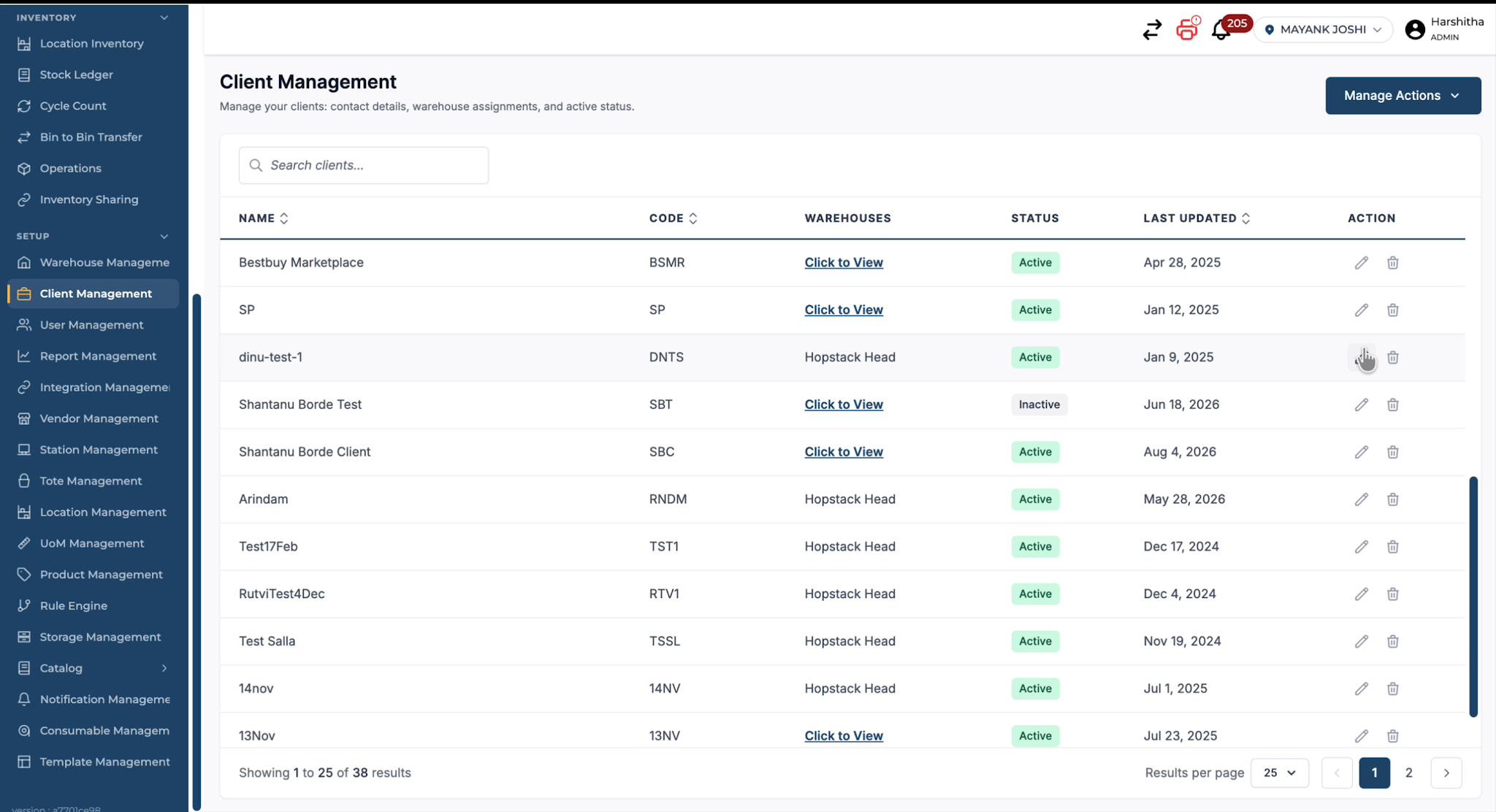
Navigate to Client Management in your application.
-
Select the client for whom you want to enable outbound serial packing tracking.
-
Click on Action > Edit for that client.
-
-
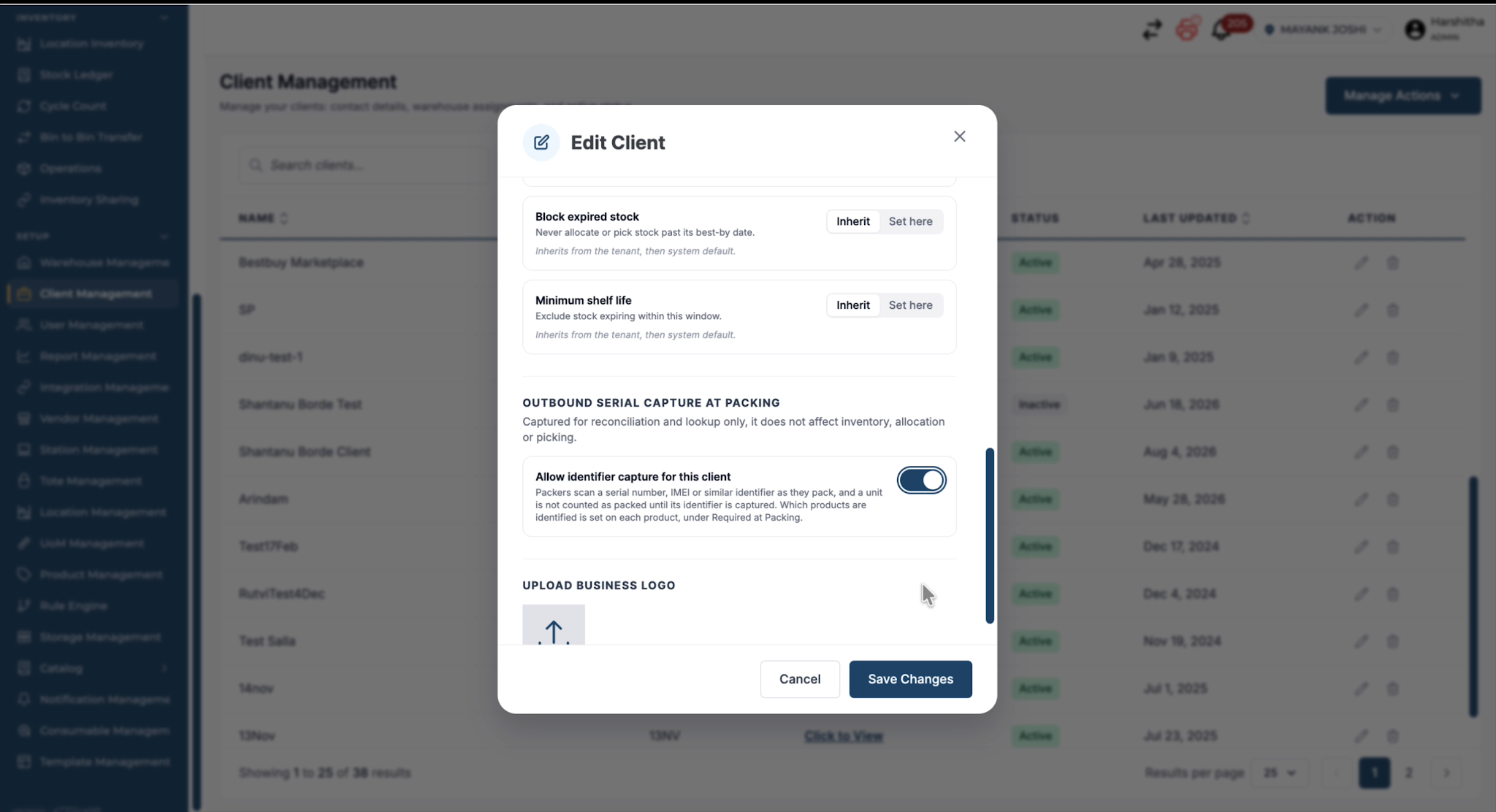
Scroll through the client settings until you find Outbound Serial Captured Packing.
-
Toggle this option On to require serial numbers to be captured during outbound packing.
-
-
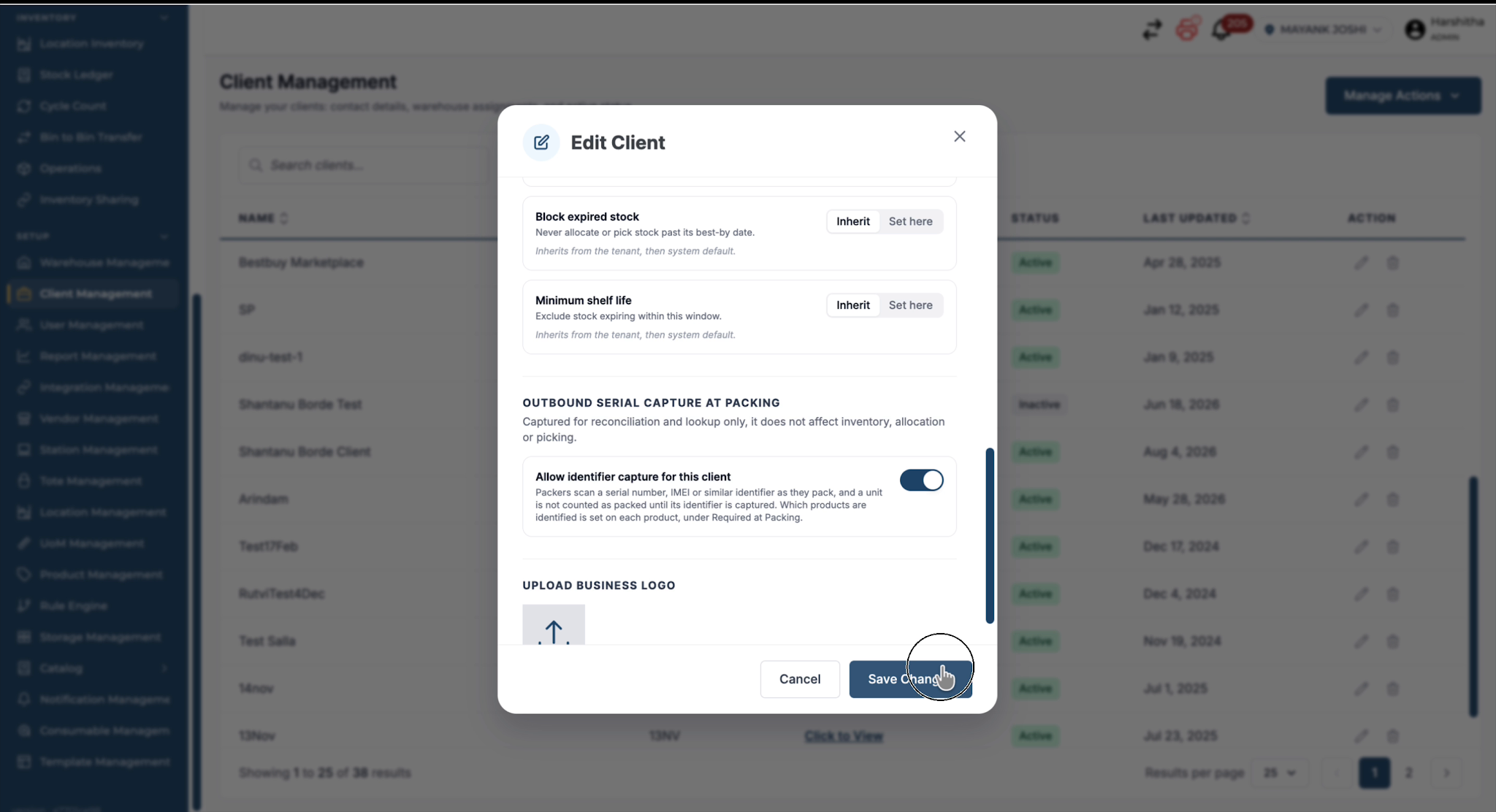
Click Save Changes to apply the setting.
-
Step 2: Enable Required Packing Serial Number at Product Level
-
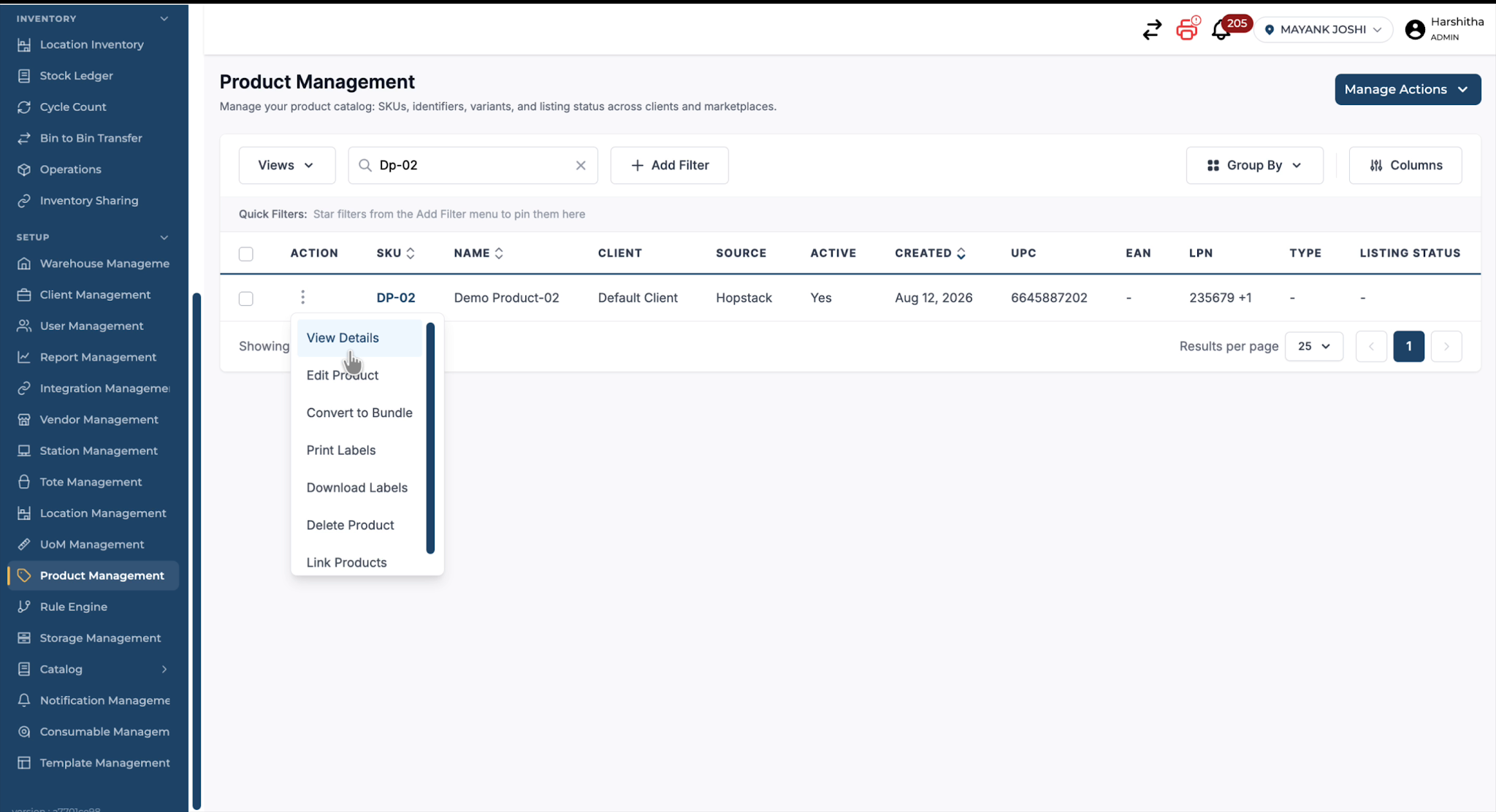
Go to Product Management.
-
Select the product for which you want to enable outbound serial number tracking.
-
Click Edit Product.
-
-
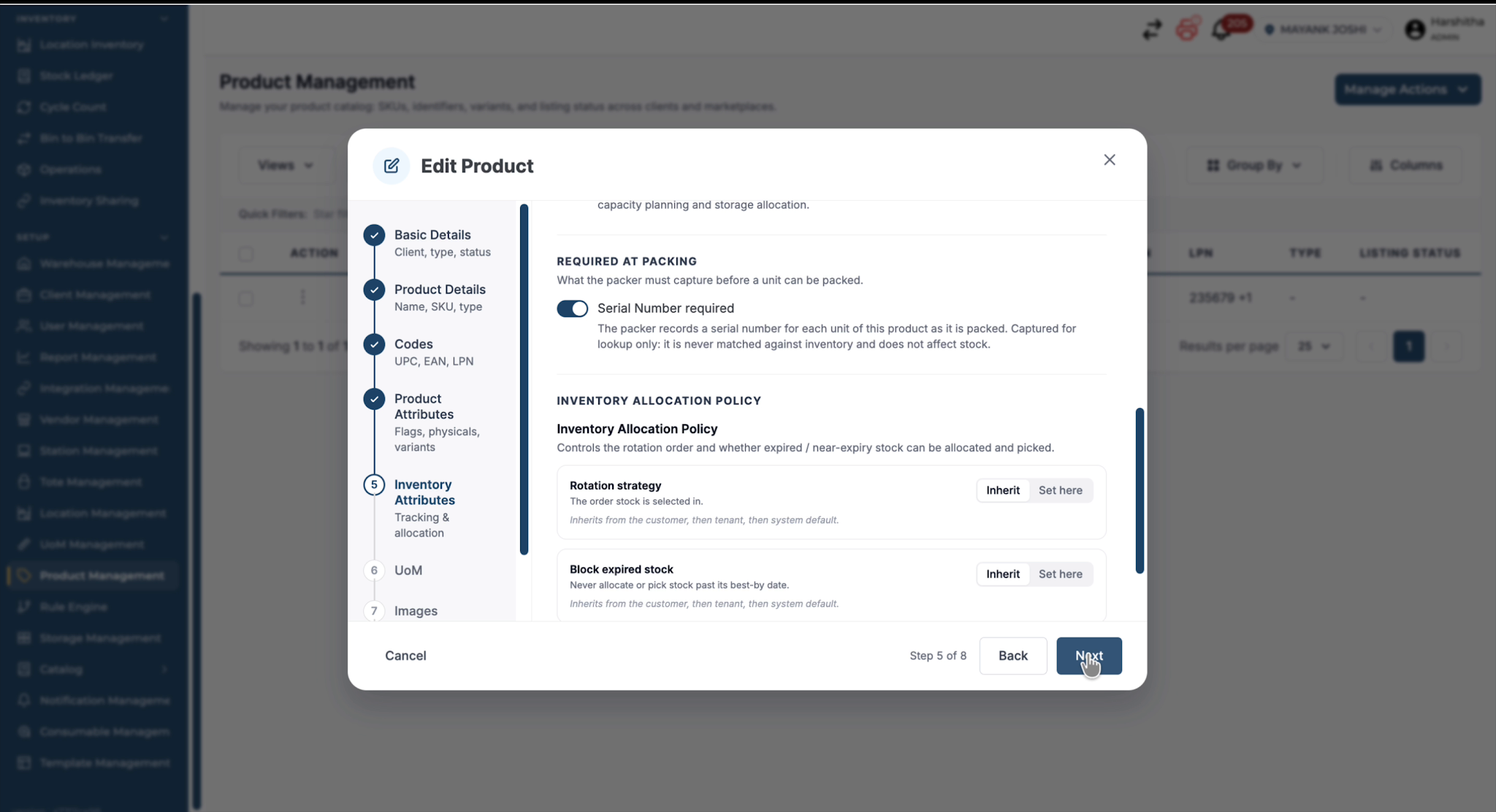
Go to the Inventory Attributes tab.
-
Scroll until you find Required At Packing.
-
Toggle Serial Number Required to On.
-
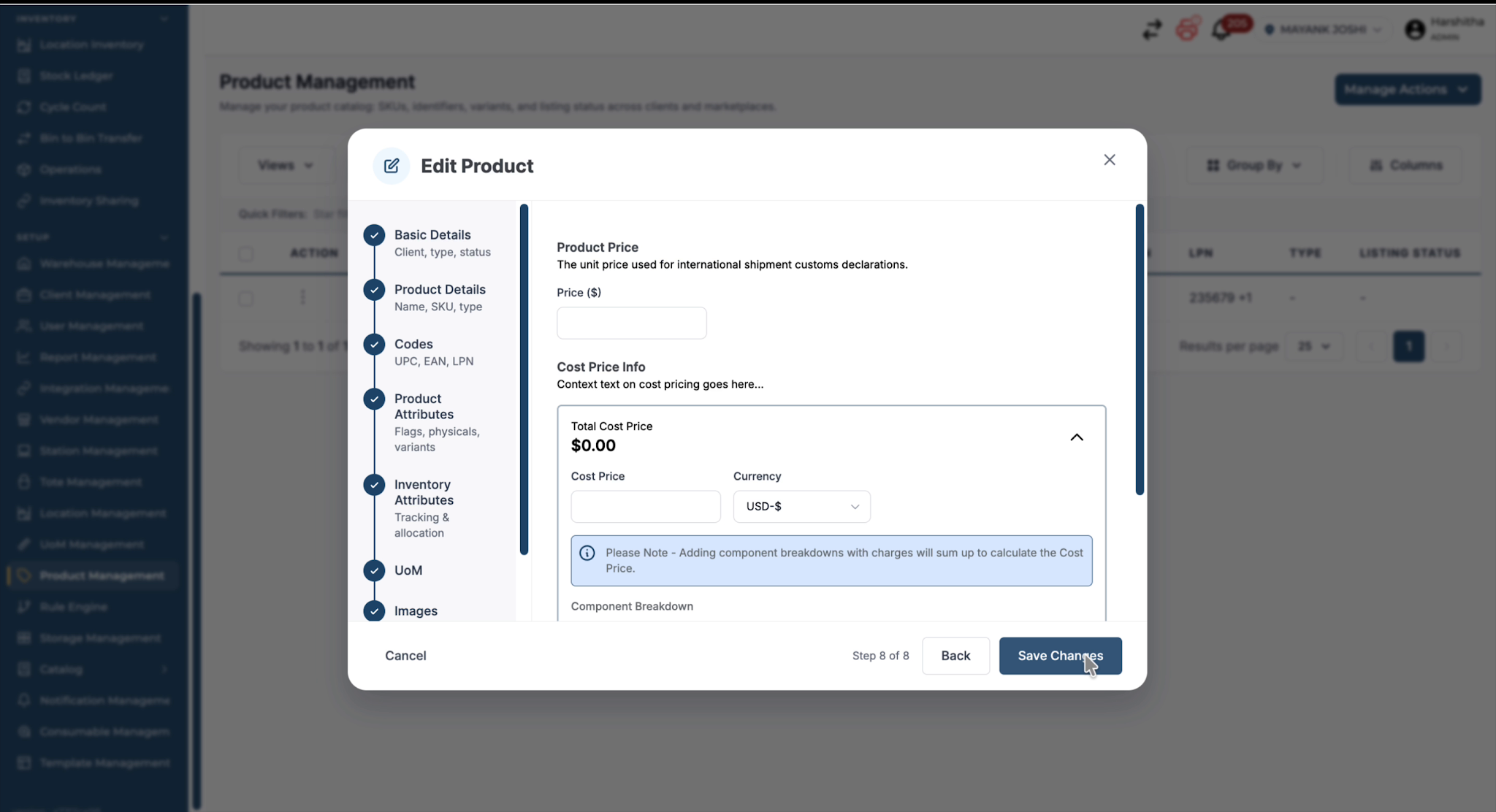
Save Changes to confirm.
-
-
Step 3: Capture Serial Numbers During Packing
-
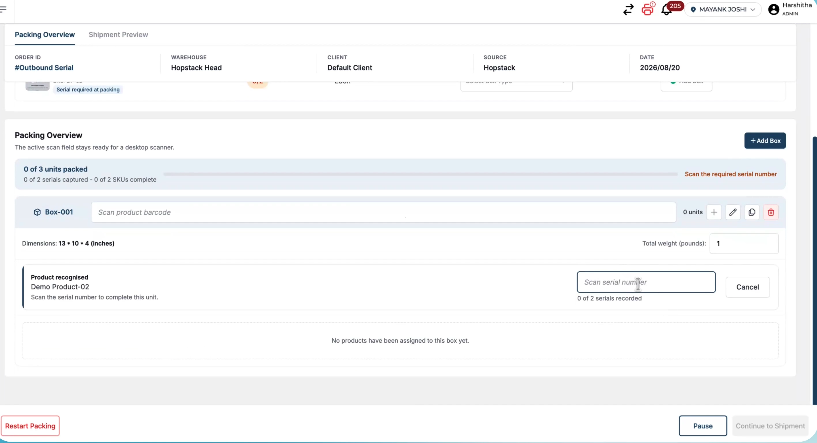
During packing process for an order where the selected product has outbound serial capture enabled, you will see the option to capture serial number as soon as the product is scanned.
-
Add a box to the shipment.
-
Scan the product into the box.
-
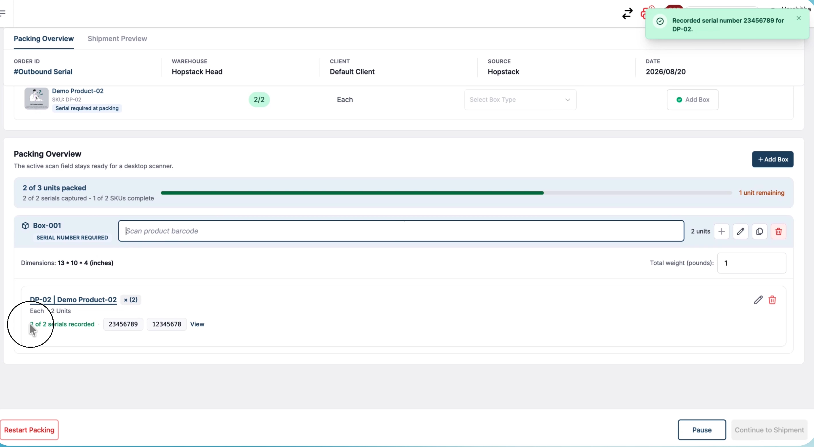
Observe that the system indicates something like “0 of 2 serial recorded” as there are two units.
-
Enter the first serial number for the product and press Enter to capture it.
-
Enter the second (or next required) serial number and press Enter again.
-
Confirm that the status updates to show all required serials recorded (e.g., “2 of 2 serial numbers recorded”) and that the serial numbers are listed for the line item.
-
Continue and complete packing.
View Captured Serial Numbers in Order Management
Click on Order ID to get the order details. The serial numbers entered during packing are displayed against the line items.