
This document explains the updated Order Management V2 screen, including how to use the Orders and Exceptions tabs, apply filters, group data, and rearrange columns to efficiently review and manage orders.
Step 1: Access the Order Management V2 Screen
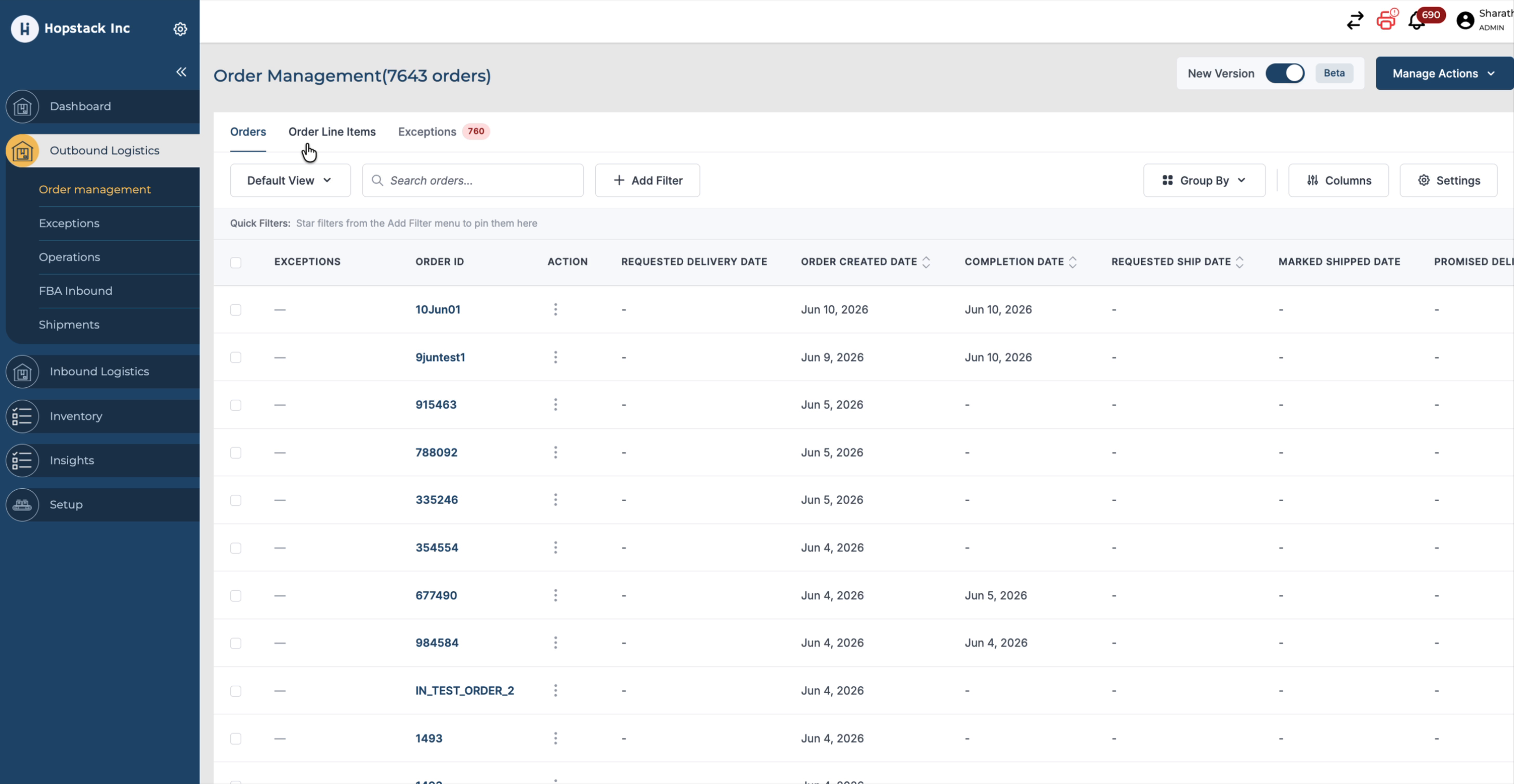
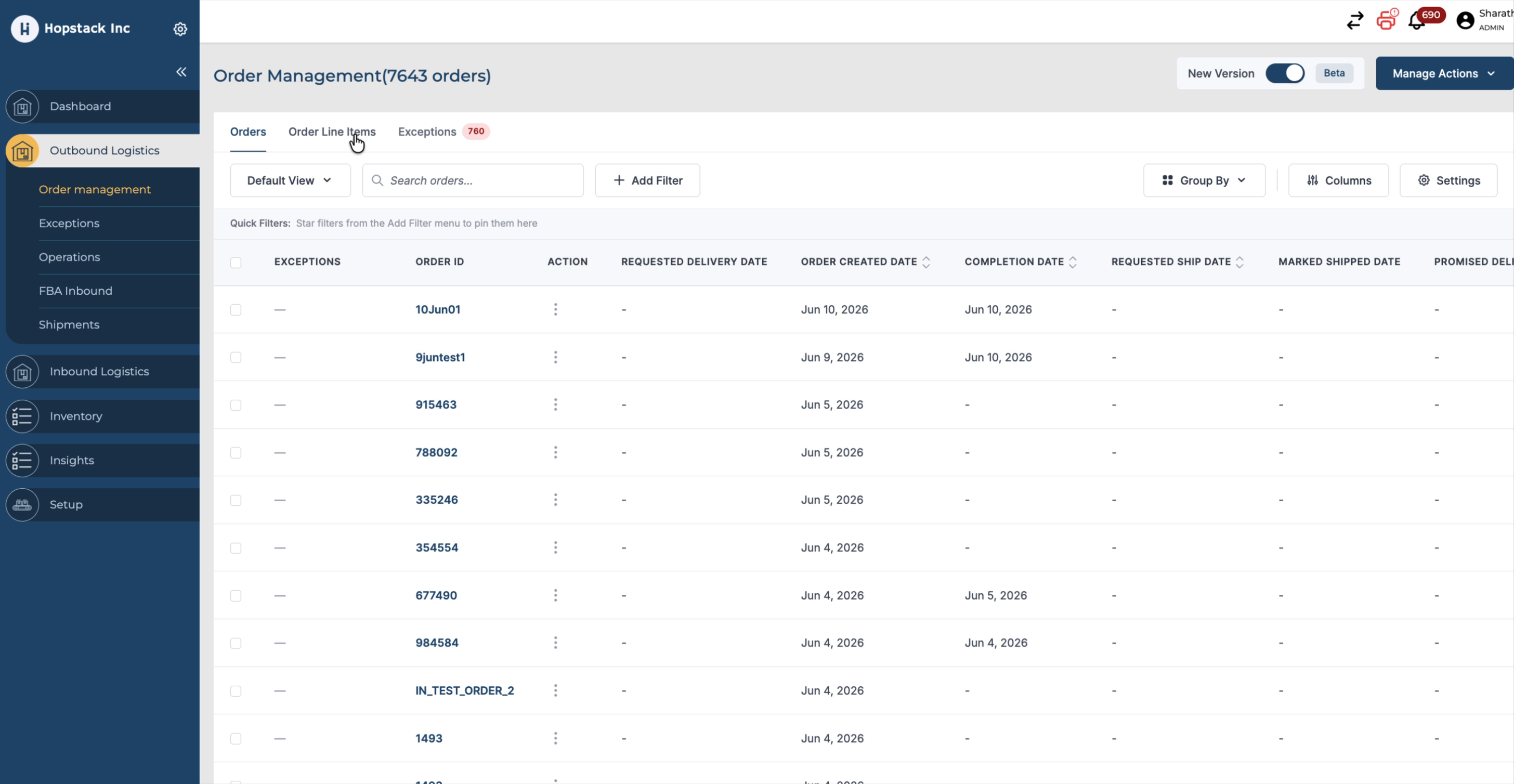
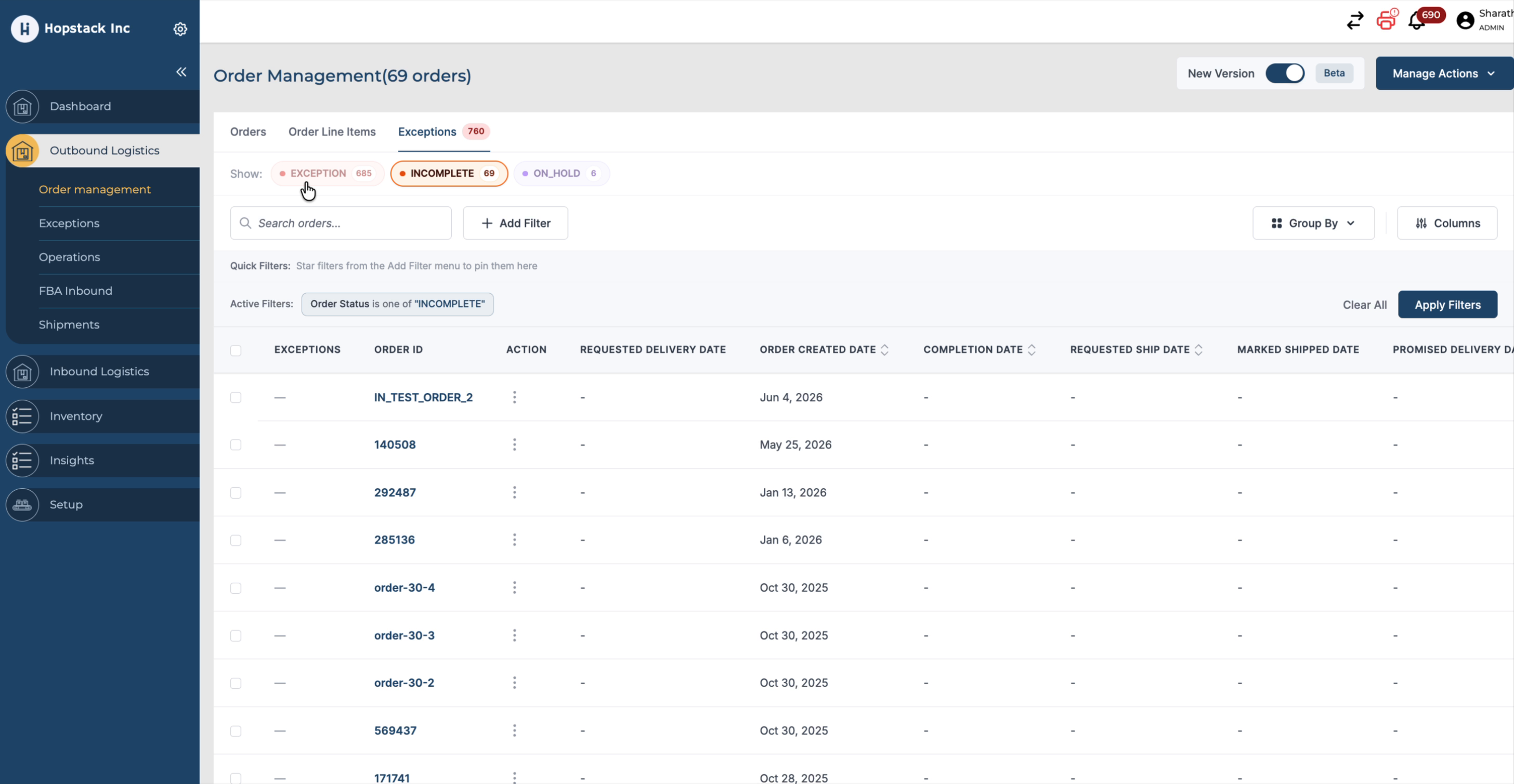
When you open the Order Management screen, you will now automatically land on the V2 version. On the V2 Order Management screen, you will see three main tabs: Orders, Order Line Items, and Exceptions. The Exceptions tab surfaces the active exception count more clearly with a Red tag indicating the number of exceptions.
Step 2: Work with the Orders Tab (Filters, Grouping, and Settings)
In the Orders tab, you can use the available tools to refine and organize the data:
-
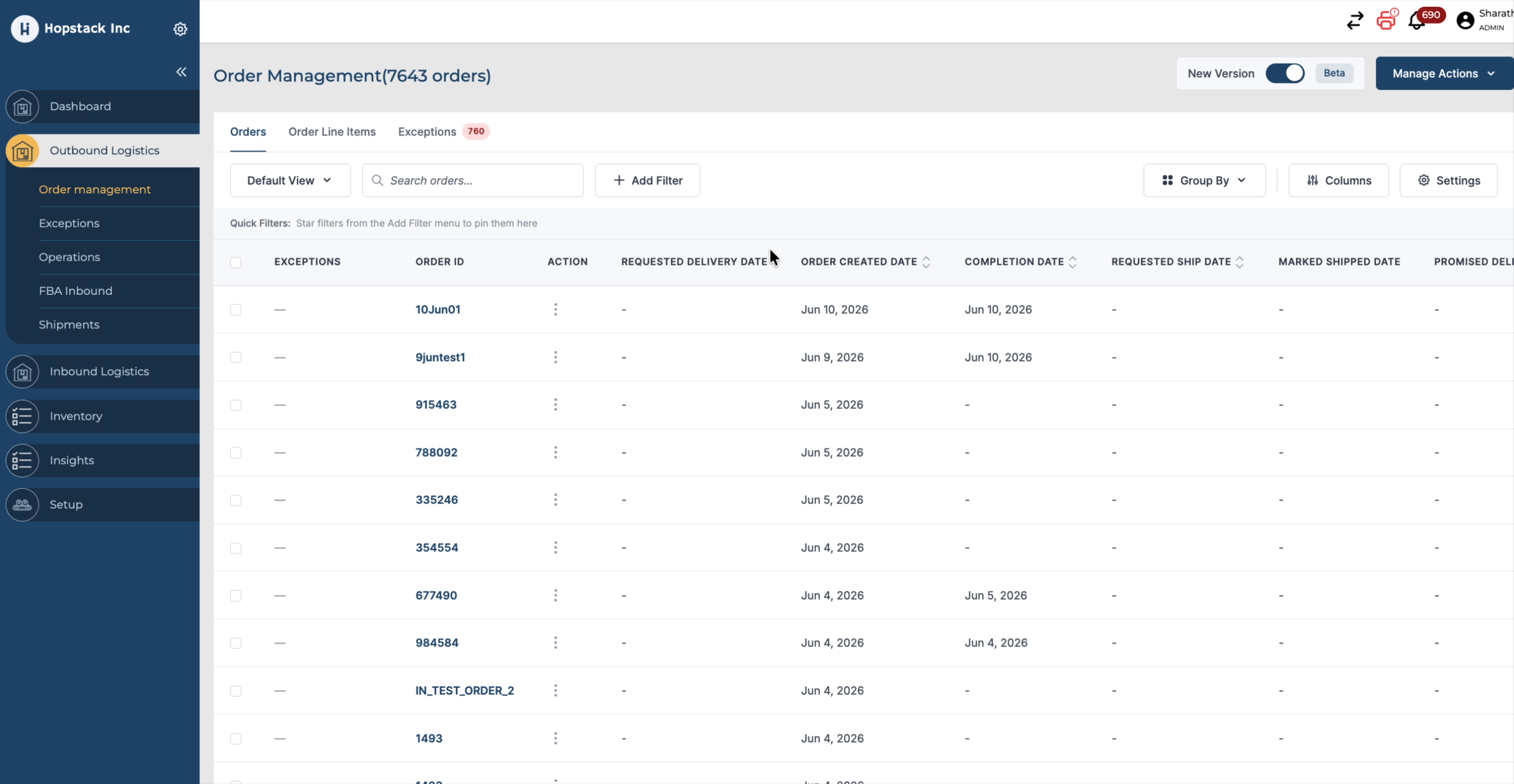
Add and configure filters to narrow down the list of orders.
-
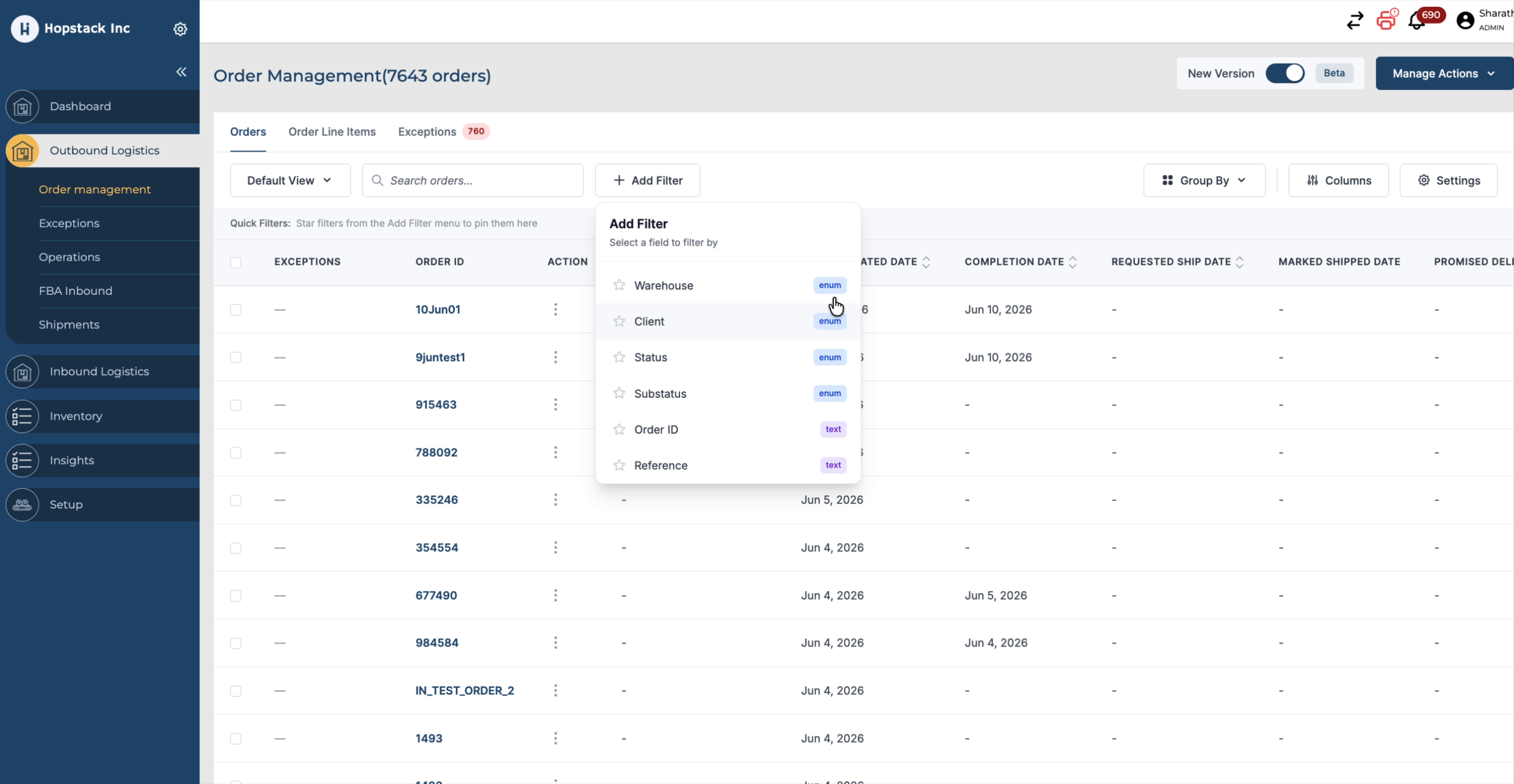
Group orders by different attributes such as warehouse, client, status, and substatus.
-
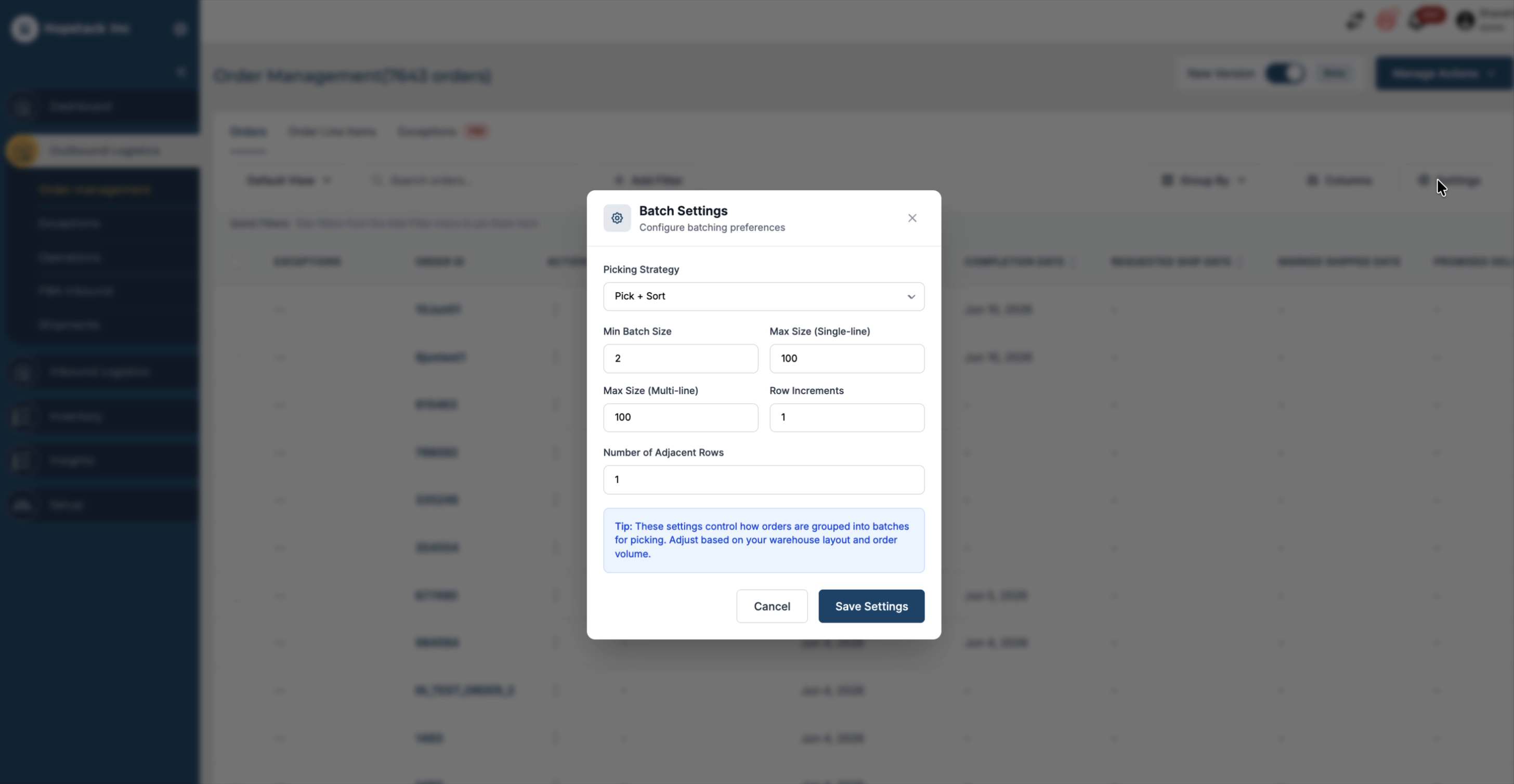
Open the settings panel to enable or adjust additional display options.
Step 3: Open the Exceptions Tab and Review Statuses
Exceptions are now integrated into the Order Management screen via the Exceptions tab (previously a separate tab).
In the Exceptions tab, orders are categorised into three statuses:
-
Exception
-
Incomplete
-
On Hold
These statuses can be combined with filters and grouping, similar to the Orders tab.
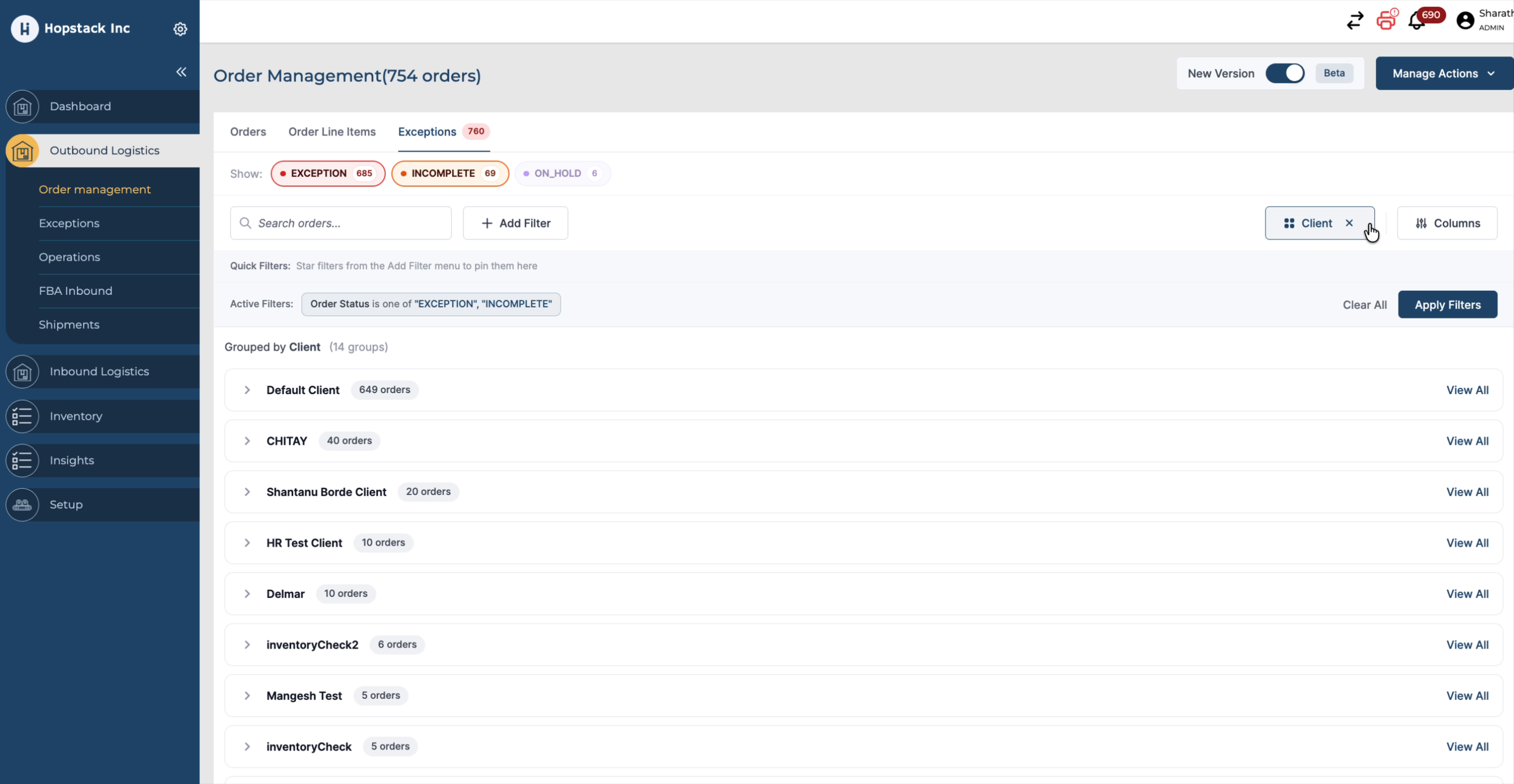
You can also group exception records by warehouse and client to see how issues are distributed across locations and customers.
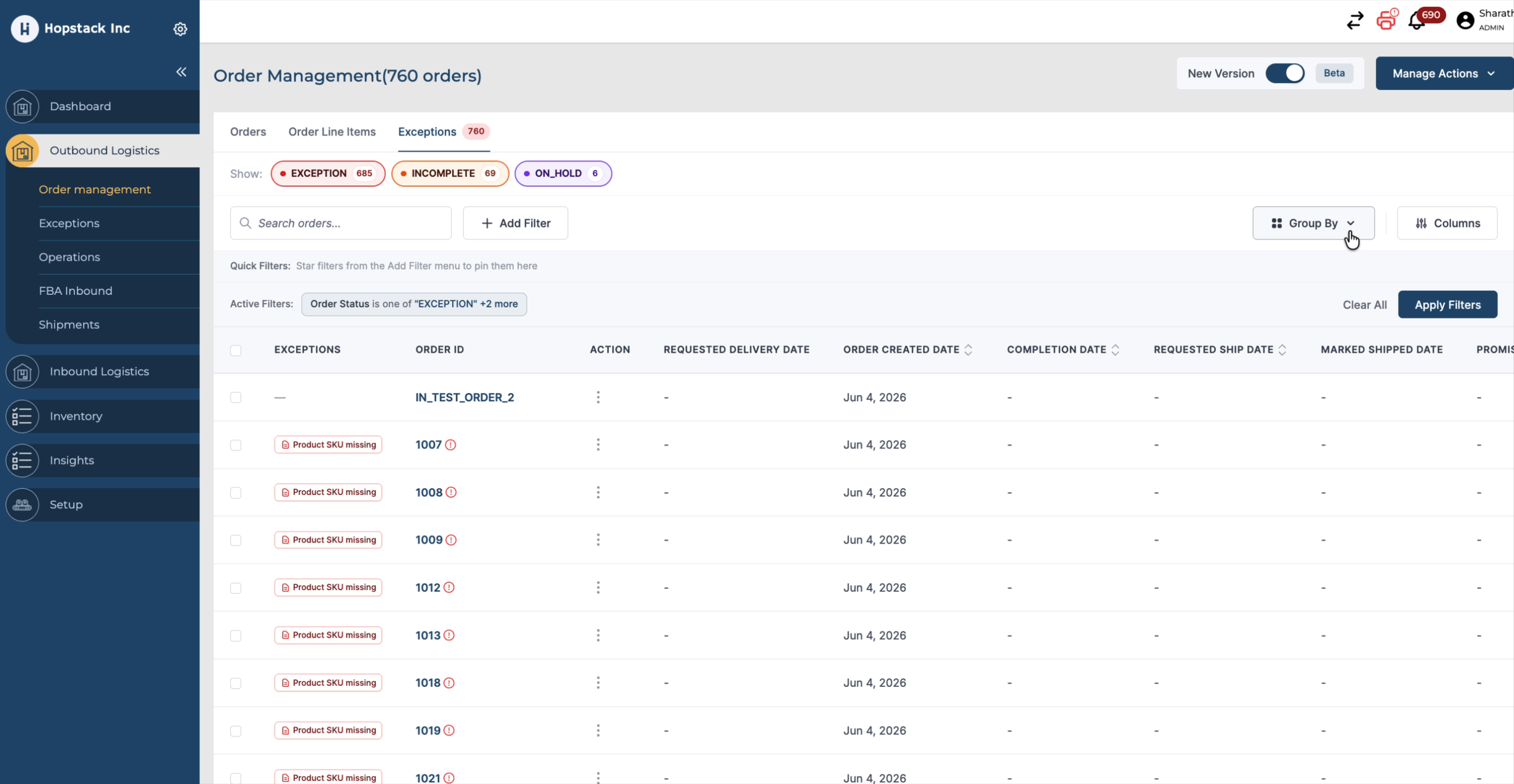
Step 4: Filter by Exception Statuses (Exception, Incomplete, On Hold)
To focus on specific exception statuses:
-
Use the status filters to enable or disable Exception, Incomplete, and On Hold as needed.
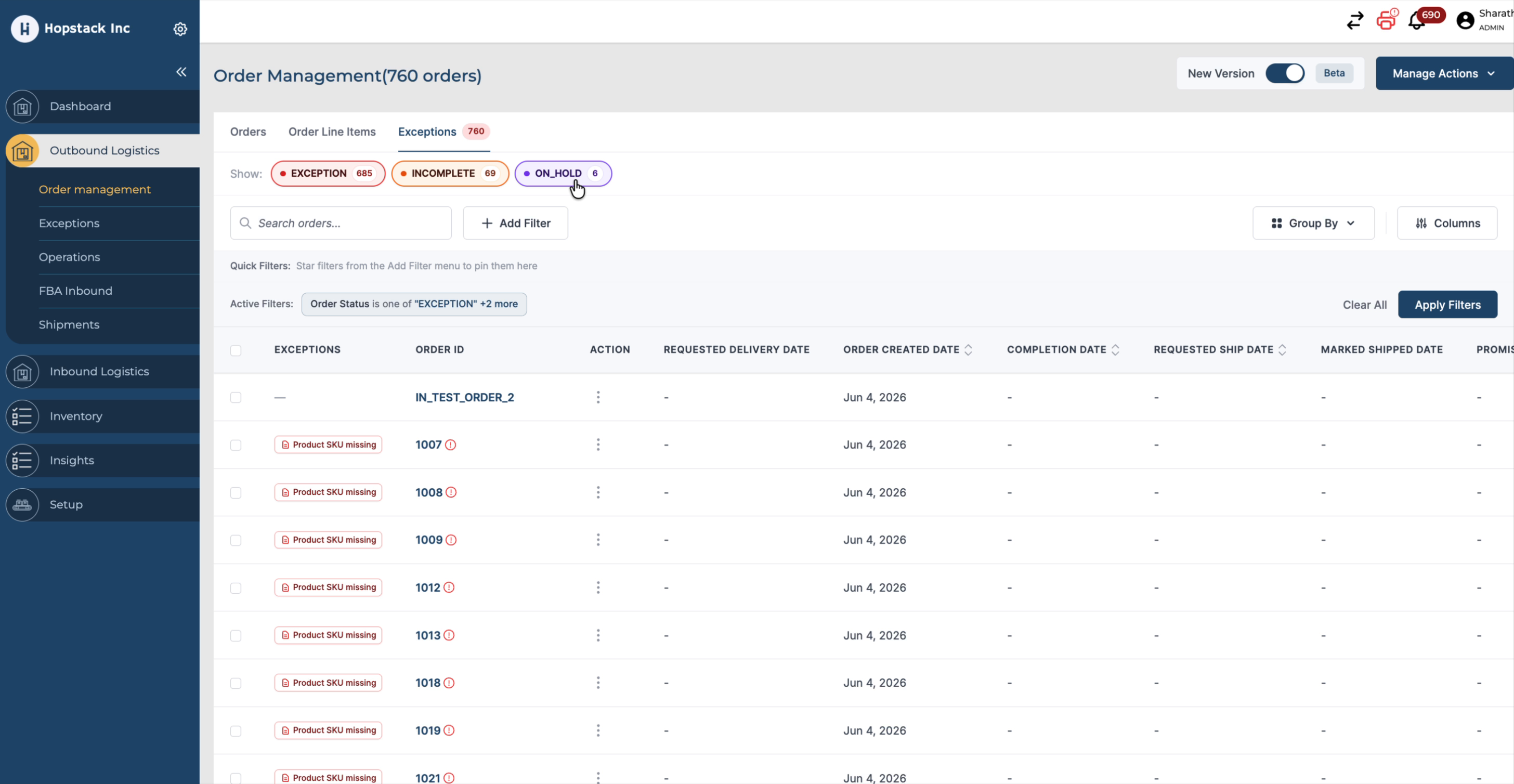
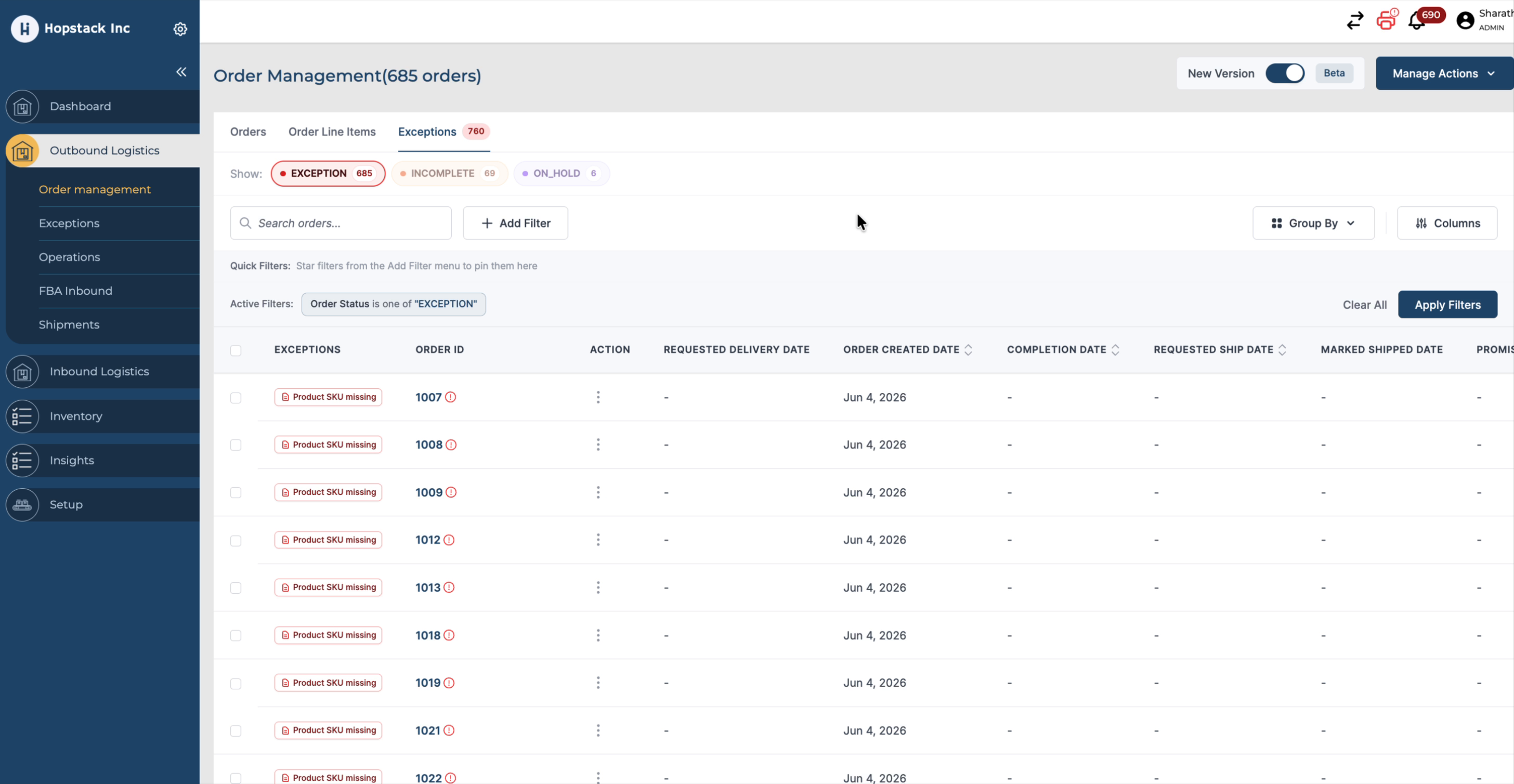
For example, to view only Exception orders, disable Incomplete and On Hold. The screen will then show only orders in Exception status.
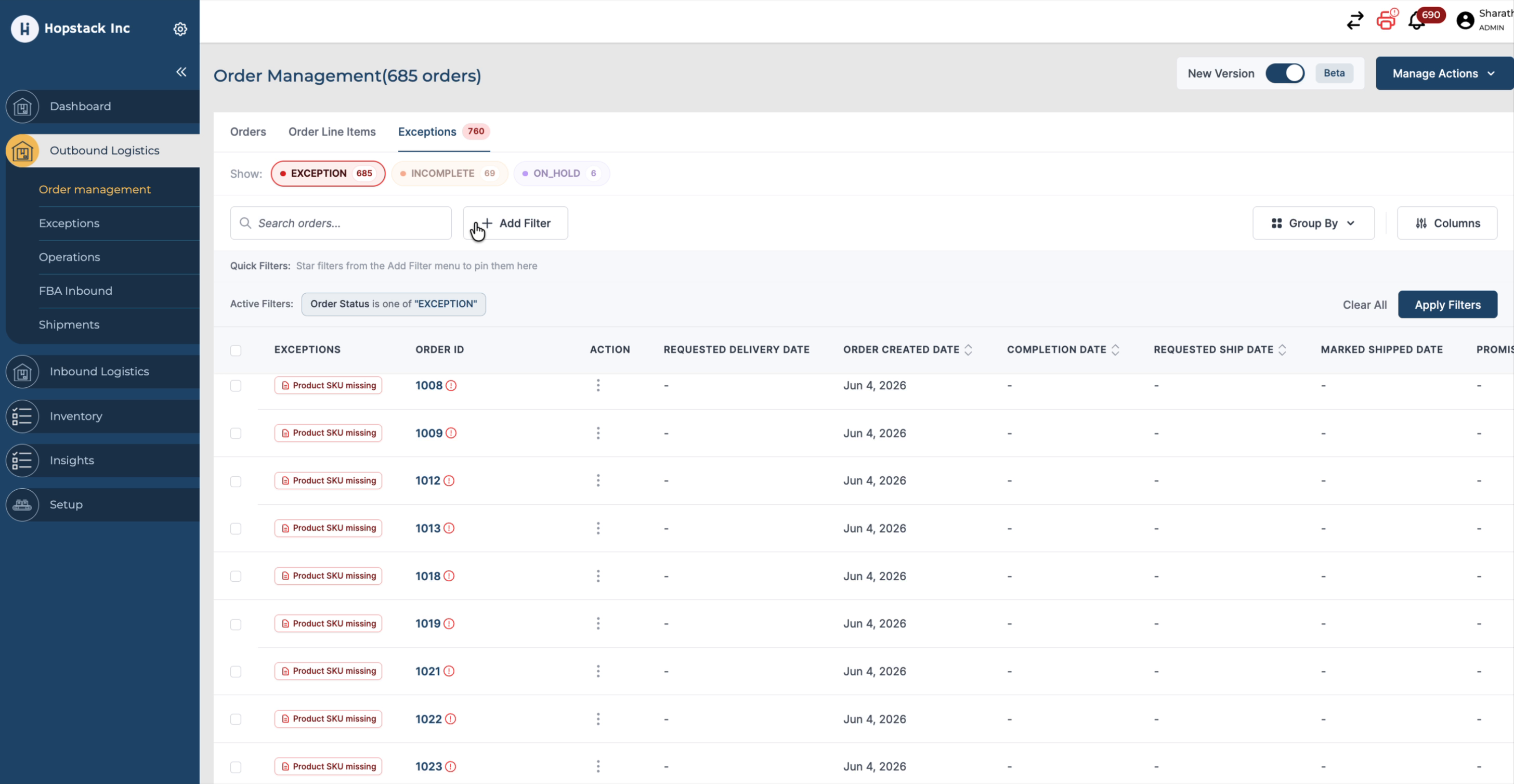
You can further refine the list by clicking Add Filters, which allows you to filter by:
-
Warehouse
-
Client
-
SKU
-
Order source
-
Exception type (e.g., product SKU missing)
Step 5: Filter by Exception Type (e.g., Product SKU Missing)
To see orders with a specific exception type:
-
Open Add Filters in the Exceptions tab.
-
Locate the Exception Type filter.
-
Select the relevant exception type (for example, Product SKU Missing).
-
Enable the corresponding checkbox to apply the filter and view only orders with that exception type.
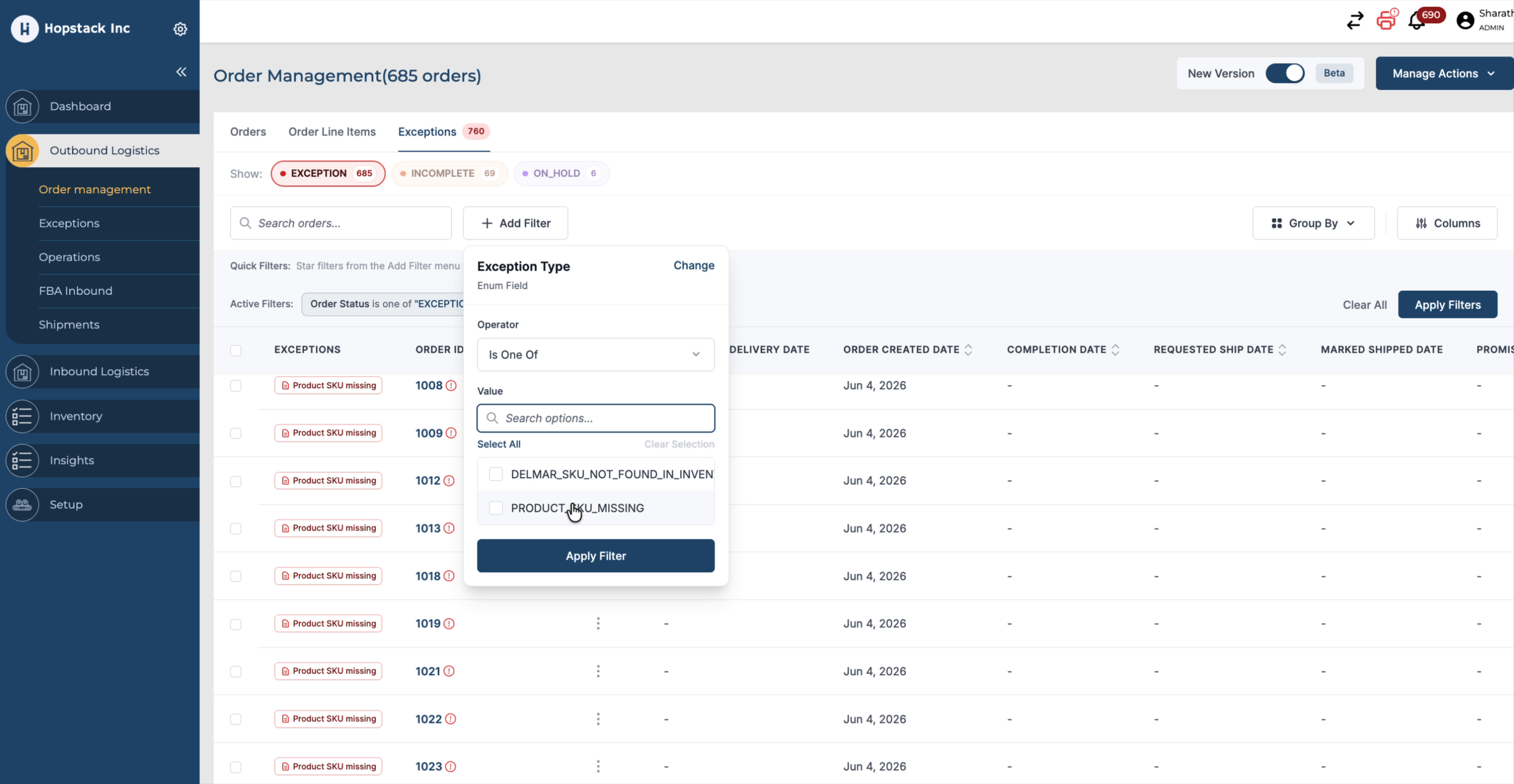
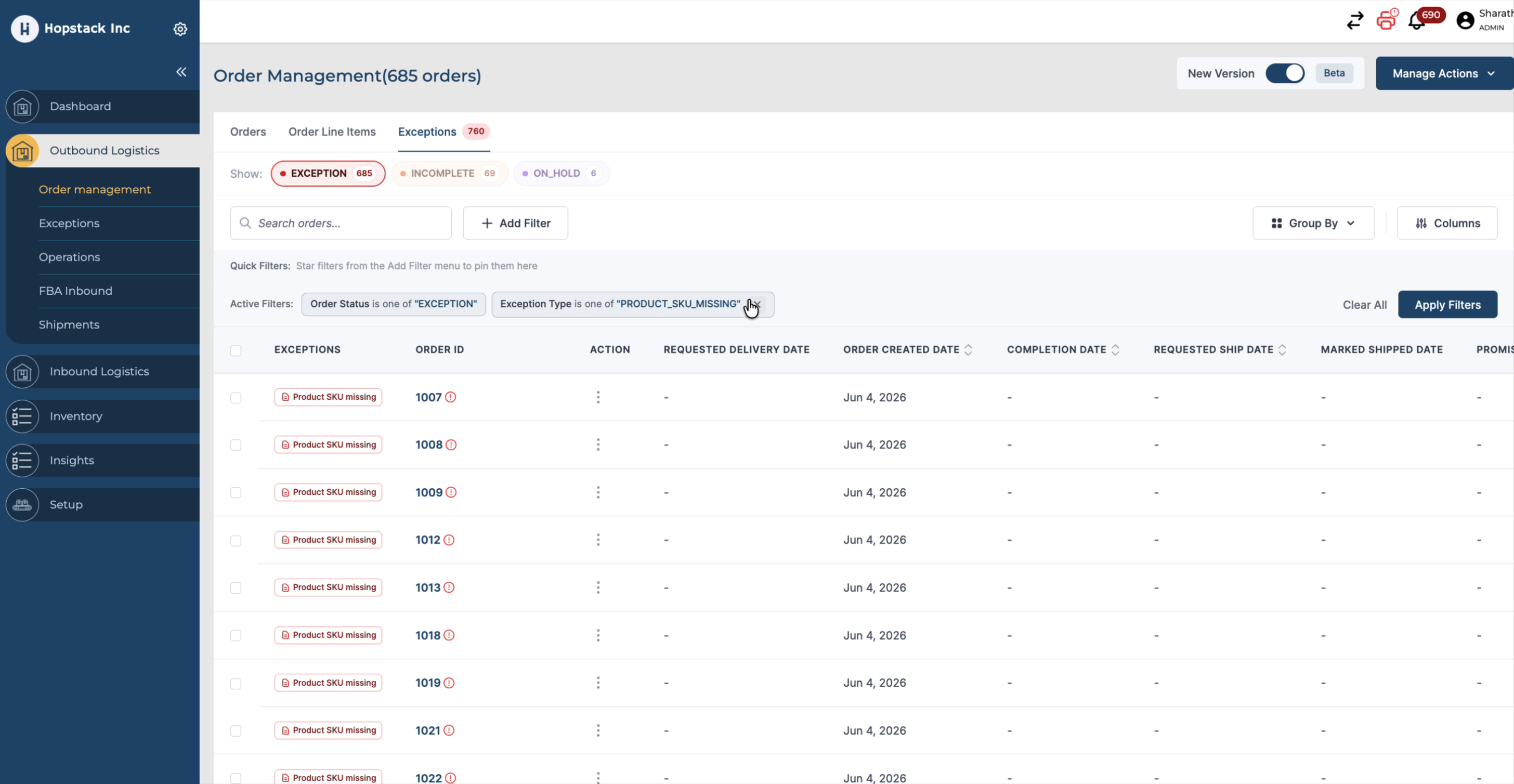
You can combine multiple exception-type filters to handle various scenarios.
Step 6: Combine Status Filters for Exception and Incomplete Orders
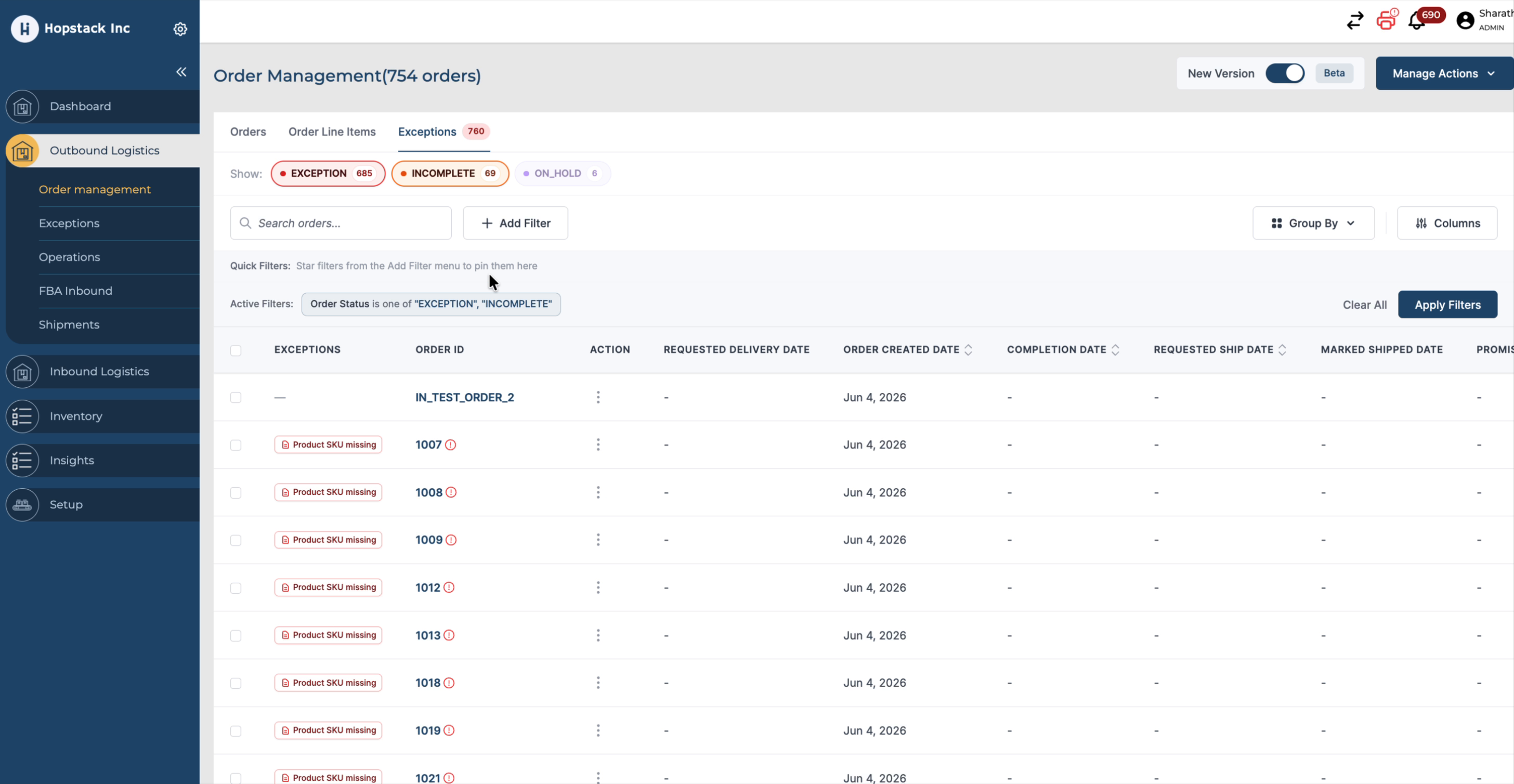
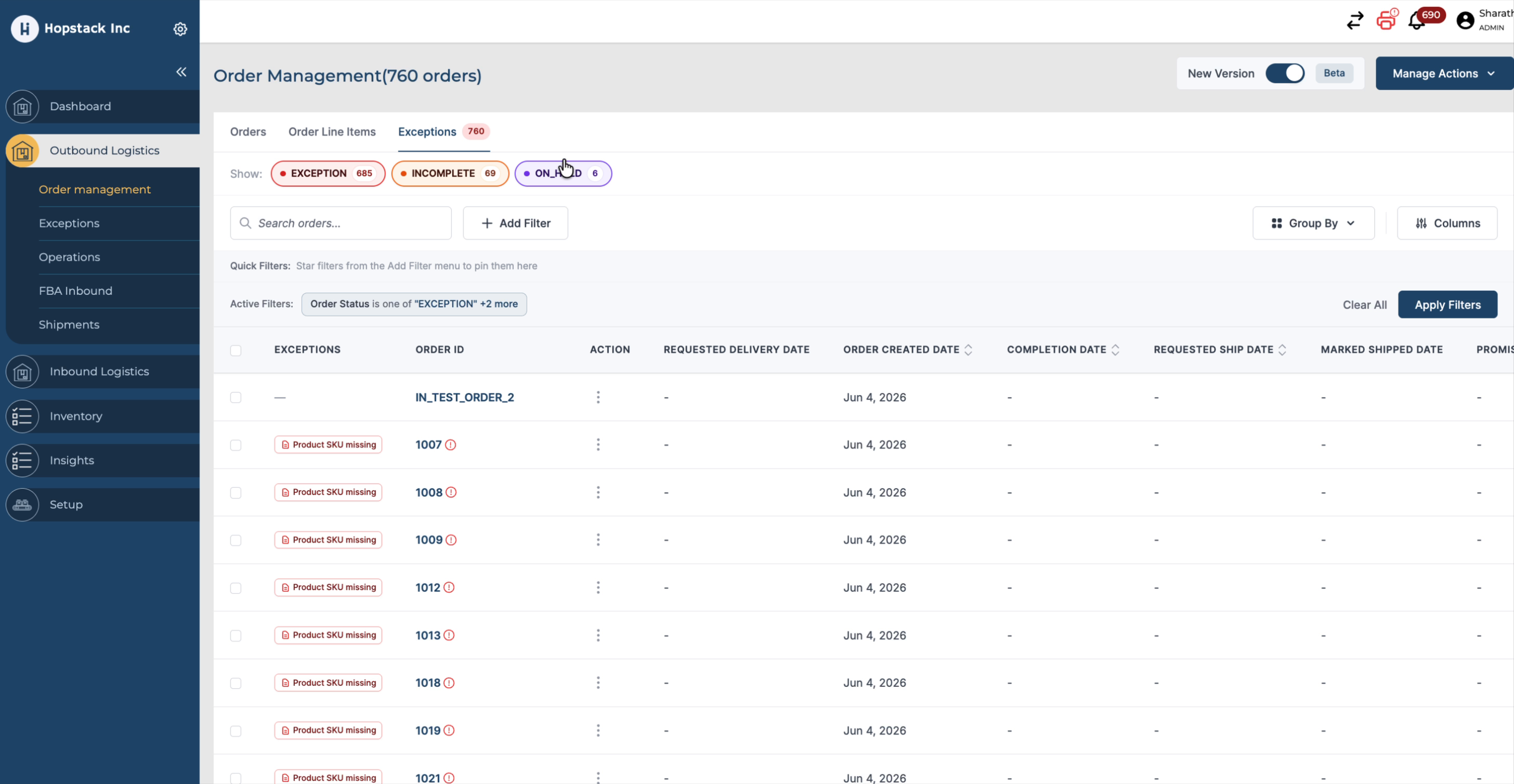
You can adjust the three statuses—Exception, Incomplete, and On Hold—in different combinations:
-
To view only Incomplete orders, disable Exception and On Hold.
-
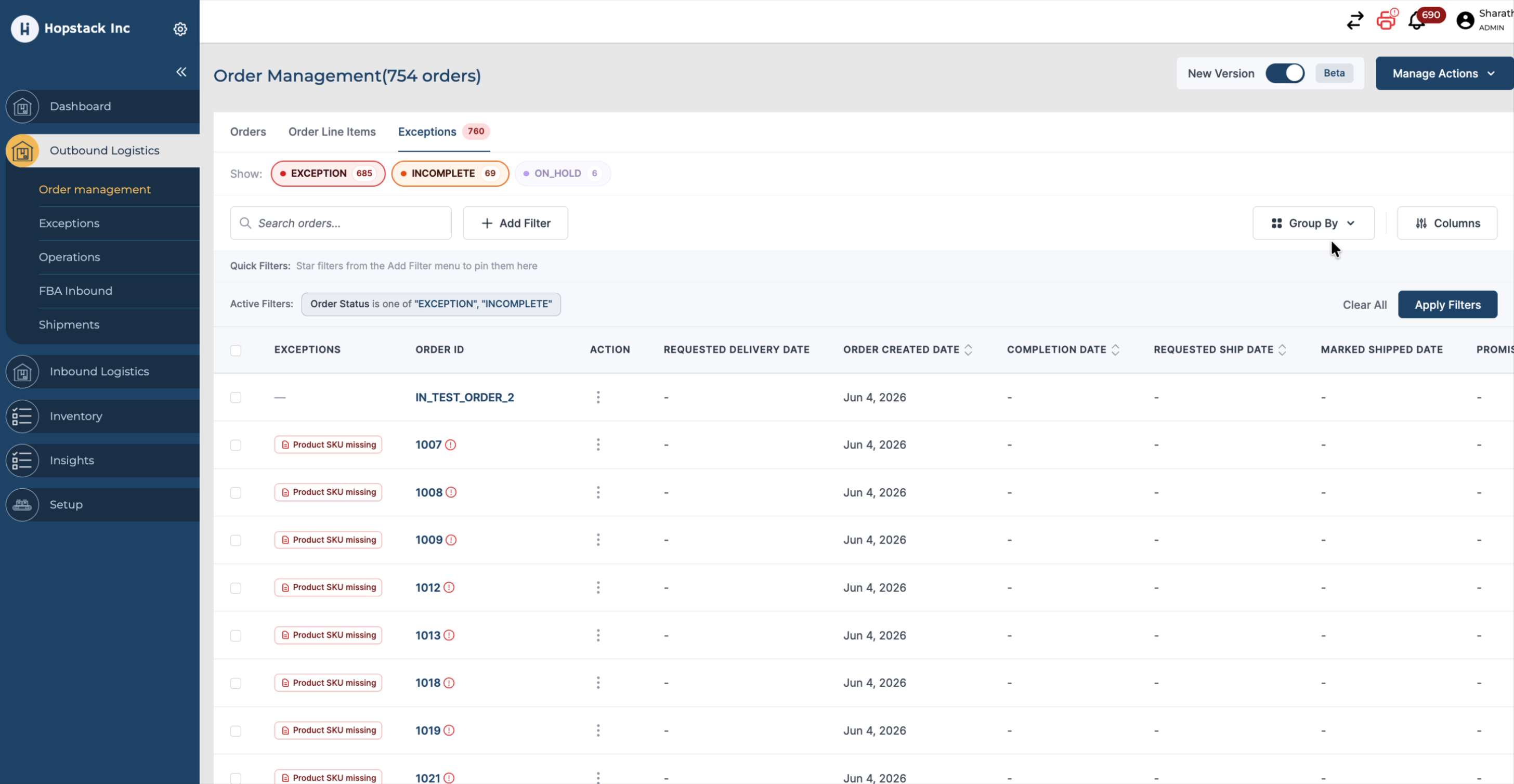
To view both Exception and Incomplete orders together, enable both statuses while optionally disabling On Hold.
By default, all three statuses (Exception, Incomplete, On Hold) are enabled. You can modify these selections at any time to match your requirements.
Step 7: Group Exceptions by Warehouse and Client
To better understand where issues are concentrated:
-
Use Group By to group orders by Warehouse. This allows you to see, for each warehouse, how many orders are in Exception or Incomplete status.
-
Use Group By to group orders by Client, so you can identify which clients have more exception or incomplete orders.
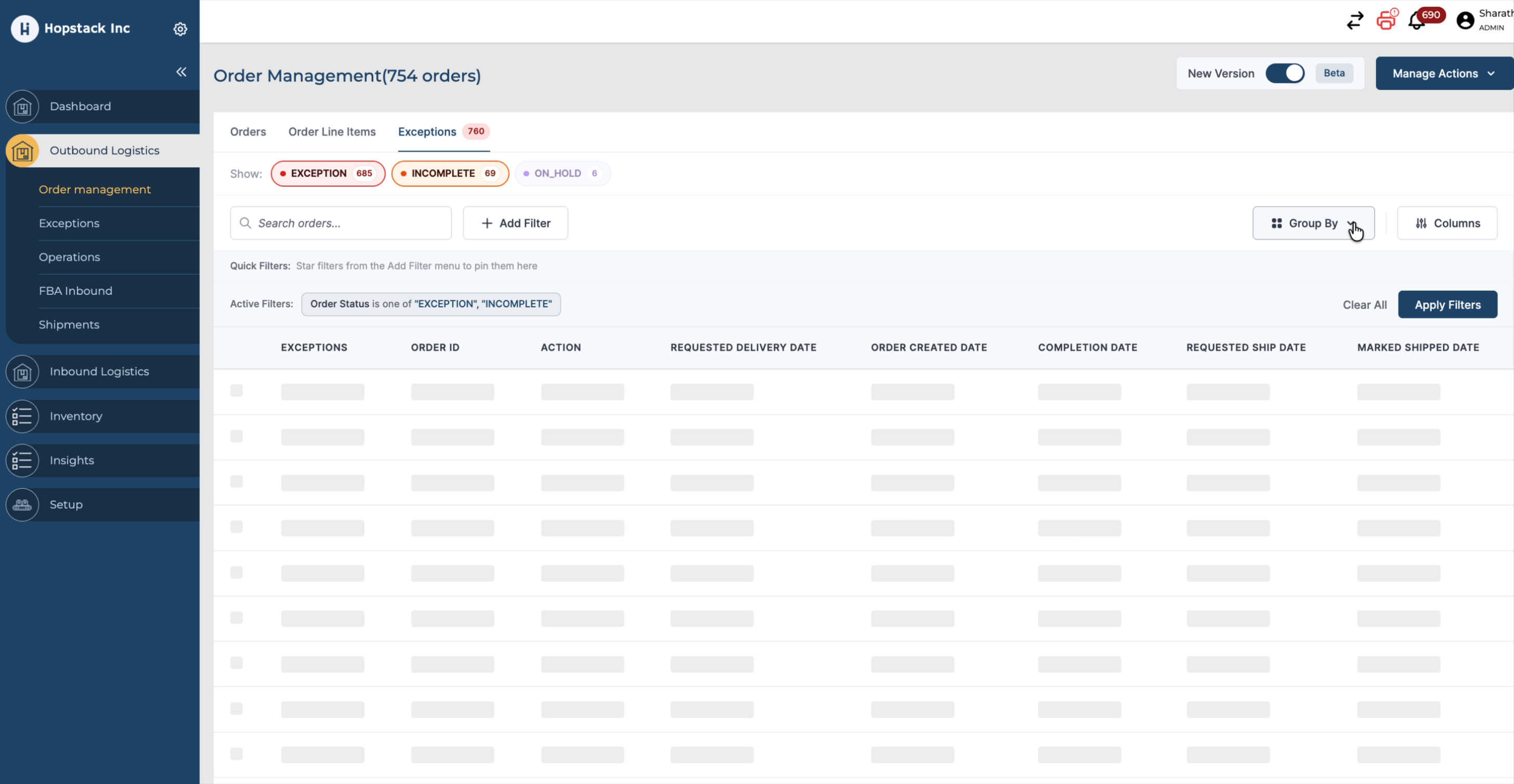
This grouping helps you prioritise and address problem areas more efficiently.
Step 8: Rearrange Columns and Customise the View
You can customise the layout of the Exceptions (and Orders) grid:
-
Rearrange columns to change the order in which they appear.
-
For example, if you want the Action column to appear at the beginning of the grid, drag and drop it to the desired position directly on the screen.
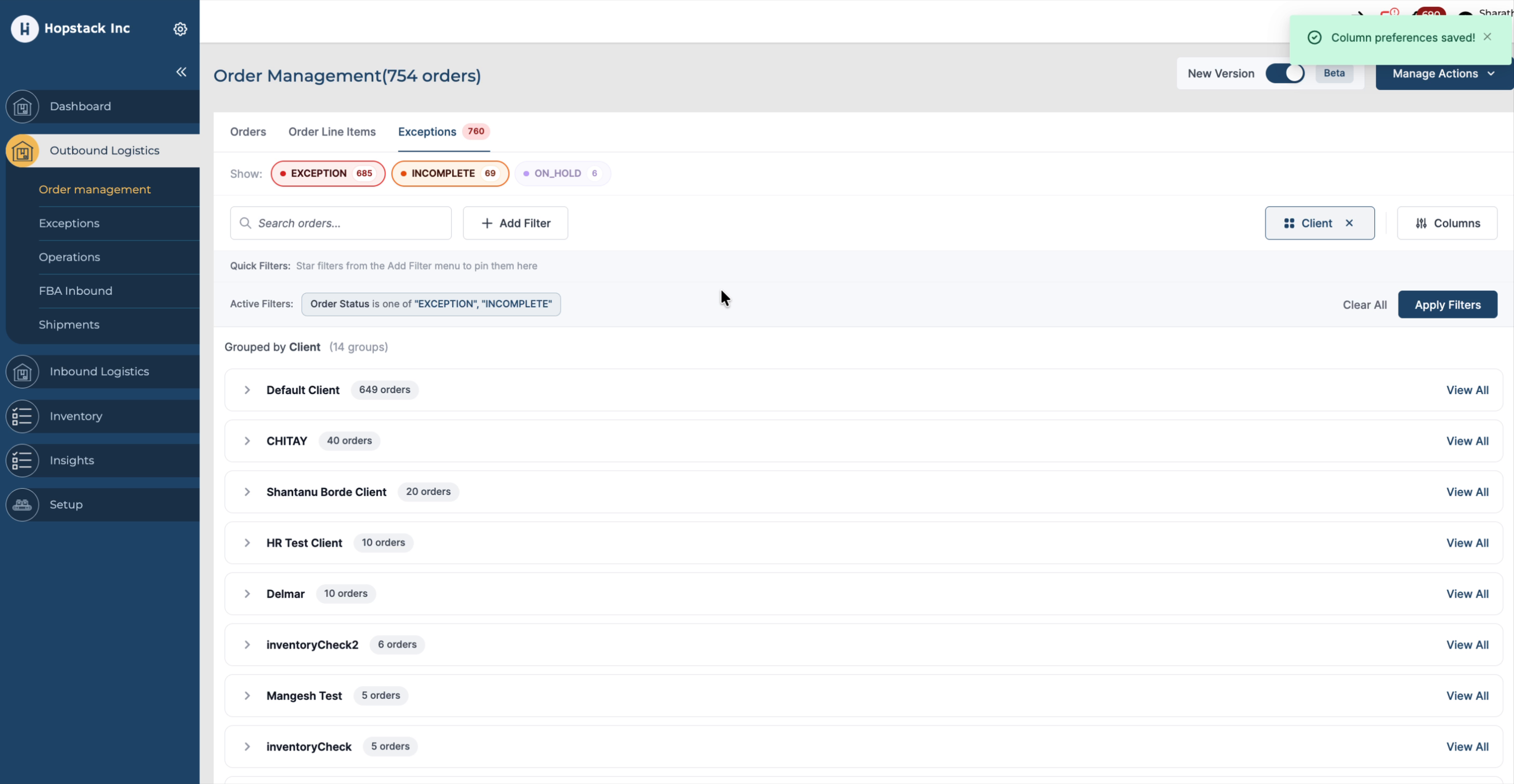
This allows you to prioritise the most important information for your workflow.
Step 9: Apply and Refine Filters as Needed
Continue applying and refining filters (by status, warehouse, client, SKU, order source, and exception type) until the list of orders matches your operational needs.
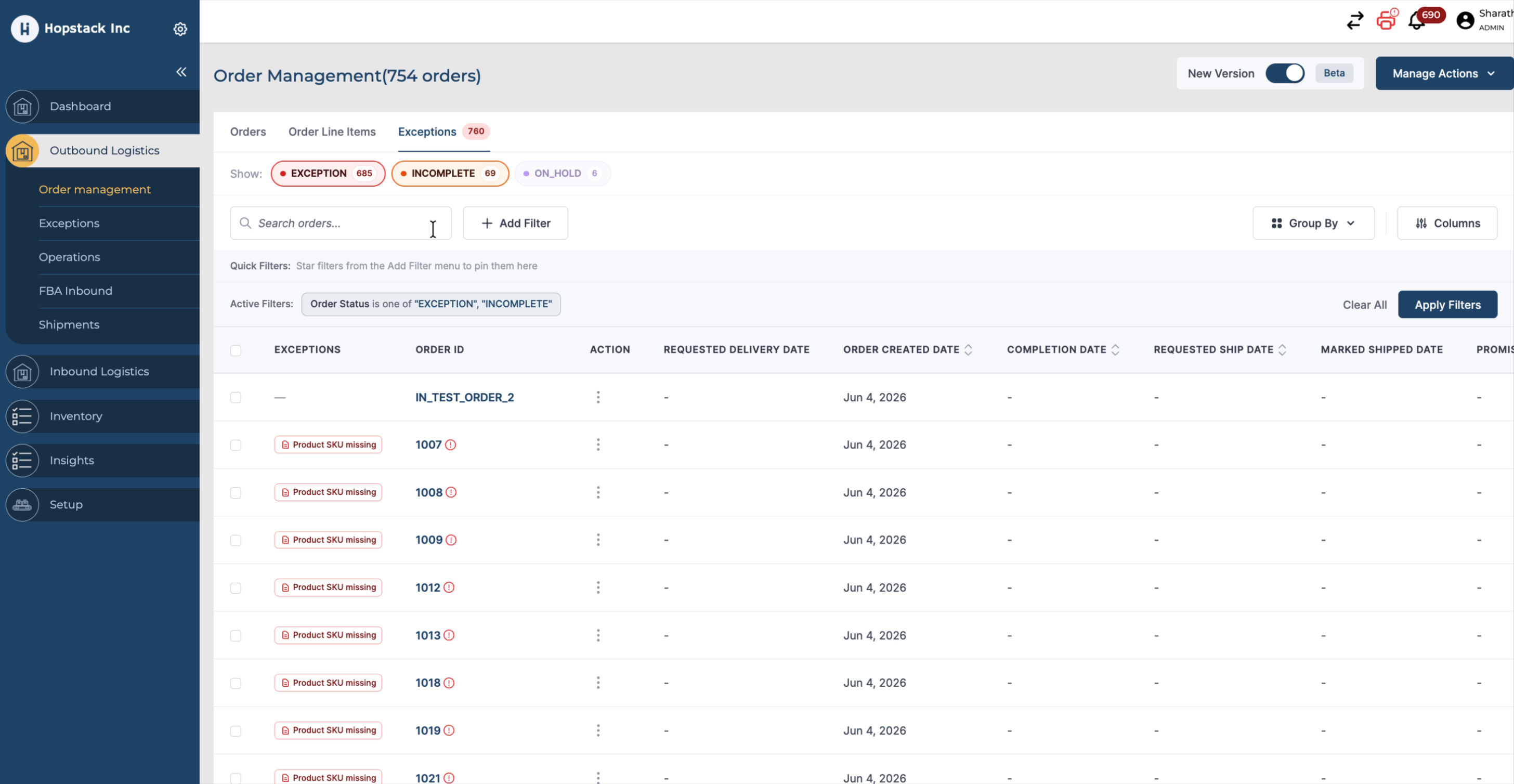
Use these capabilities together—status filters, exception-type filters, grouping, and column rearrangement—to efficiently identify, review, and manage all Exception, Incomplete, and On Hold orders in the Order Management V2 screen