
Our order management filter experience is now more enhanced and seamless. Users can multi-select options across various filter categories, create a complete filter set, and see the search results by clicking "Apply Filter." If you modify the filter criteria, simply click "Apply Filter" again to view the updated results.
This document guides you through the use of filters in the Order Management System. These filters help you navigate, sort, and manage orders efficiently, by allowing you to refine the orders displayed based on various criteria.
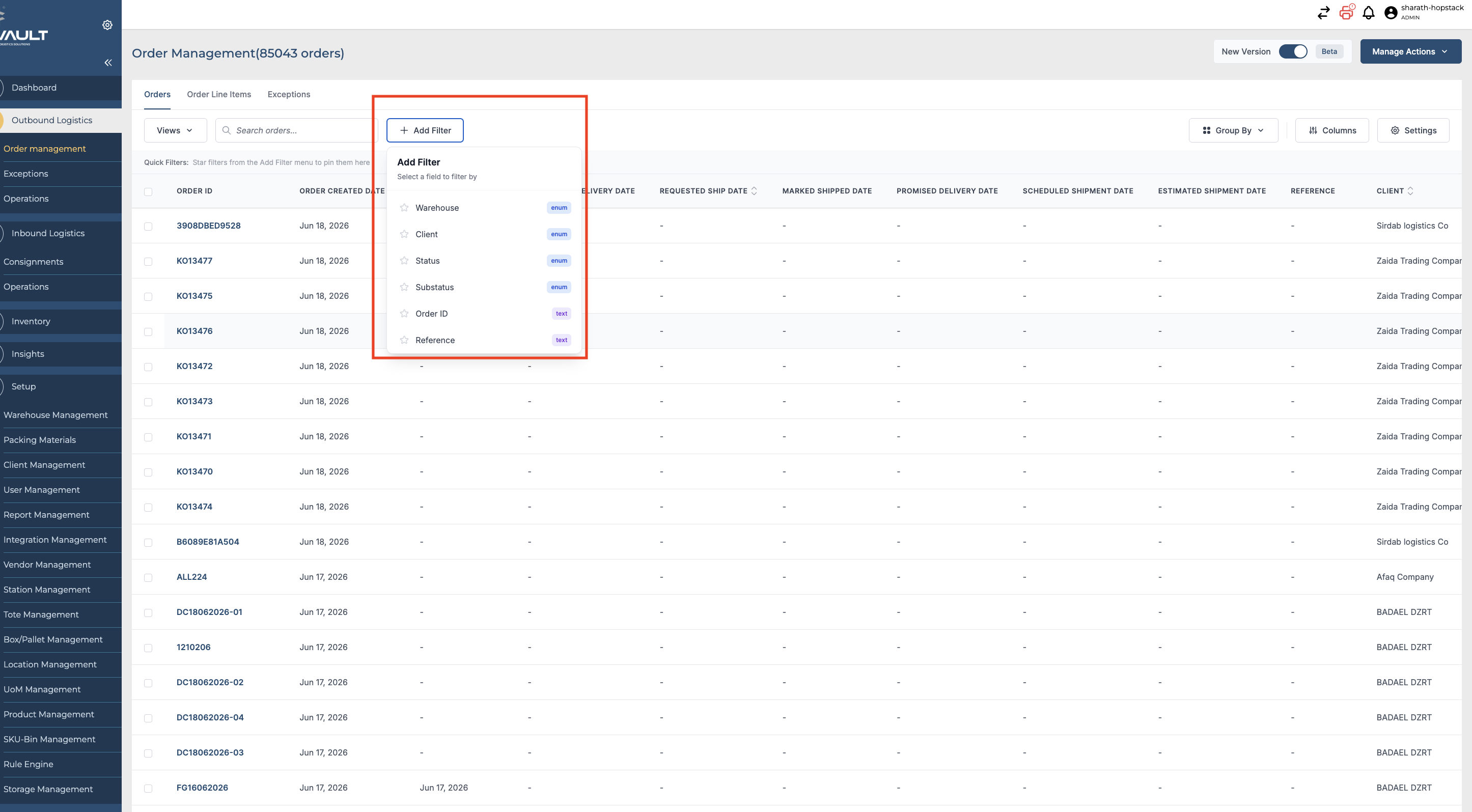
Filter Options
1. Warehouse
-
Description: Allows filtering orders based on the warehouse from which they are dispatched or stored.
-
How to Use: Select the desired warehouse(s) from the dropdown list to view orders associated with them.
2. Client
-
Description: Filter orders by specific clients to manage and view their orders exclusively.
-
How to Use: Choose the client(s) from the provided list to filter their orders.
3. Status
-
Options:
-
UNPROCESSED
-
BATCHED
-
IN-PROCESS
-
INCOMPLETE
-
CANCELLED
-
ON_HOLD
-
PARTIAL_COMPLETED
-
COMPLETED
-
BATCHED_PARTIALLY
-
-
Description: Filter orders based on their current status.
-
How to Use: Select one or multiple statuses to view the corresponding orders.
4. Sub-Status
-
Options:
-
UNPROCESSED
-
PICKING_STARTED
-
PICKING_COMPLETED
-
PREPPING_STARTED
-
PREPPING_COMPLETED
-
PACKING_STARTED
-
PACKING_COMPLETED
-
-
Description: Offers a more granular view of the order's progress.
-
How to Use: Select the sub-status(es) to refine the order display further.
5. Carrier
-
Description: Filters orders based on the carrier service used for shipping.
-
Examples:
-
Amazon Partnered - Small Parcel
-
UNITED_PARCEL_SERVICE_INC
-
-
How to Use: Select the carrier(s) to view orders shipped by them.
6. Order Source
-
Description: Filters orders based on their origin or order channel.
-
Examples: FBA, Hopstack, Shopify
-
How to Use: Choose the source(s) to display orders placed from those channels.
7. Order Type
-
Options:
-
Stock Transfer
-
Regular
-
-
Description: Allows filtering orders by their type.
-
How to Use: Select the order type to narrow down the order list.
8. Date Selections
-
Description: Filters orders based on various date criteria.
-
Fields:
-
Order Start Date
-
Order End Date
-
Order Completion Start Date
-
Order Completion End Date
-
-
How to Use: Specify the date range(s) to filter orders within a particular timeframe.
9. Order Line Items
-
Options:
-
Single-Line Items
-
Multiple-Line Items
-
-
Description: Filters orders based on the number of line items.
-
How to Use: Select the preferred option to view orders with either single or multiple line items.
10. Number of Products (Line items)
-
Description: Filters orders by the number of distinct products they contain.
-
How to Use: Select the comparison option and enter a number to find orders with the specified number of products.
11. Total Quantity
-
Description: Filters orders by the total quantity of units across all line items.
-
How to Use: Select the comparison option and enter a quantity to find orders that meet your criteria.
Grouping Options
Group By
Group Orders in Order Management
The Group By feature in Order Management V2 organizes orders into logical groups, making it easier to review and navigate large order lists. Orders can be grouped by:
-
Warehouse
-
Client
-
Status
-
Substatus
-
Carrier
-
Carrier Service
-
Order Source
-
Exception Type
-
Country
-
Classification
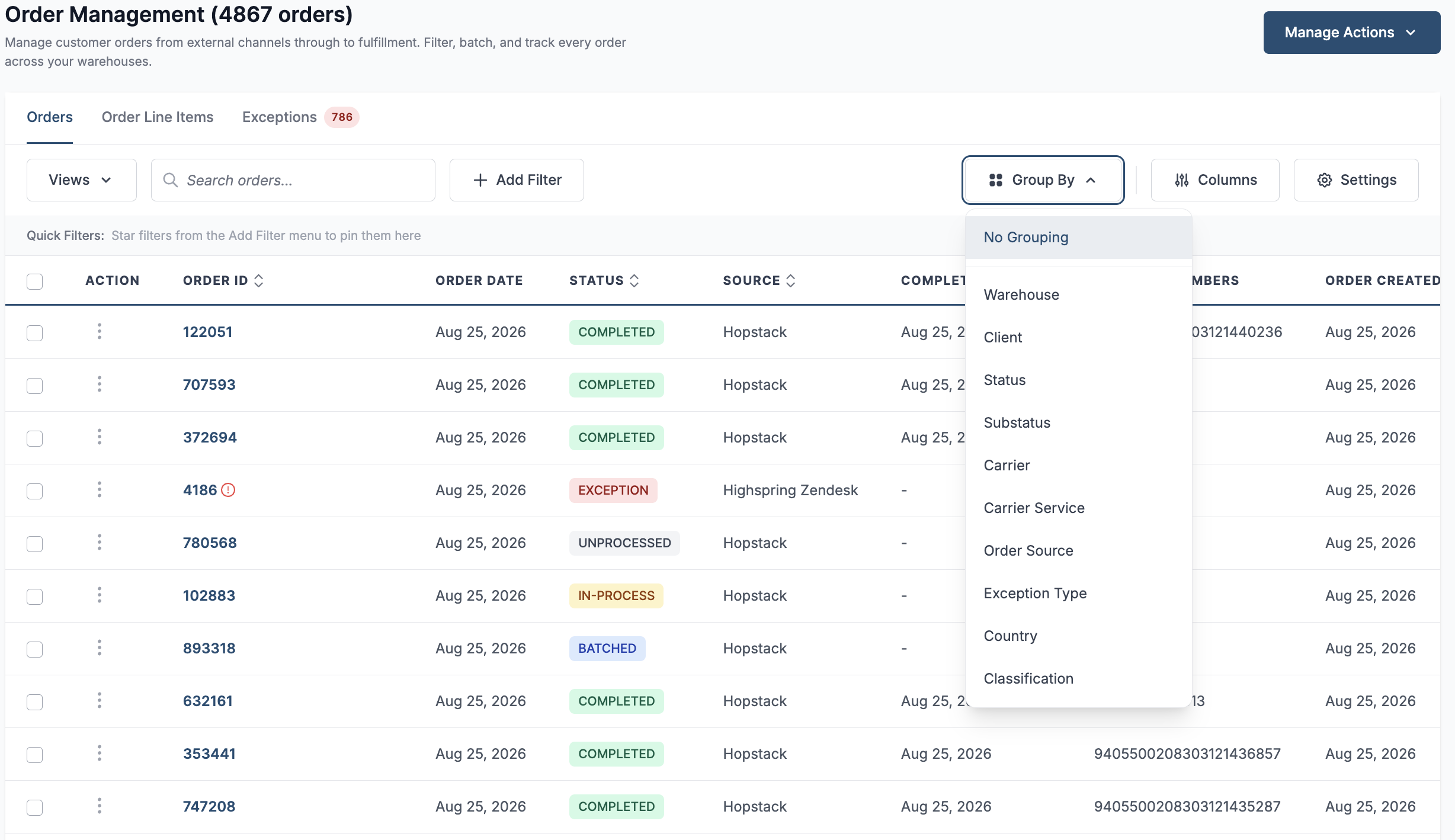
View detailed information within groups
When you expand a group, each order displays substantially more information than the basic Order ID, customer, and status preview. The expanded rows closely follow the columns configured for your order table, allowing you to review relevant order details without leaving the grouped view.
You can use “Columns” to select and arrange the information displayed in the table. These preferences are reflected more closely within expanded groups, providing a consistent and detailed experience across both grouped and standard list views.
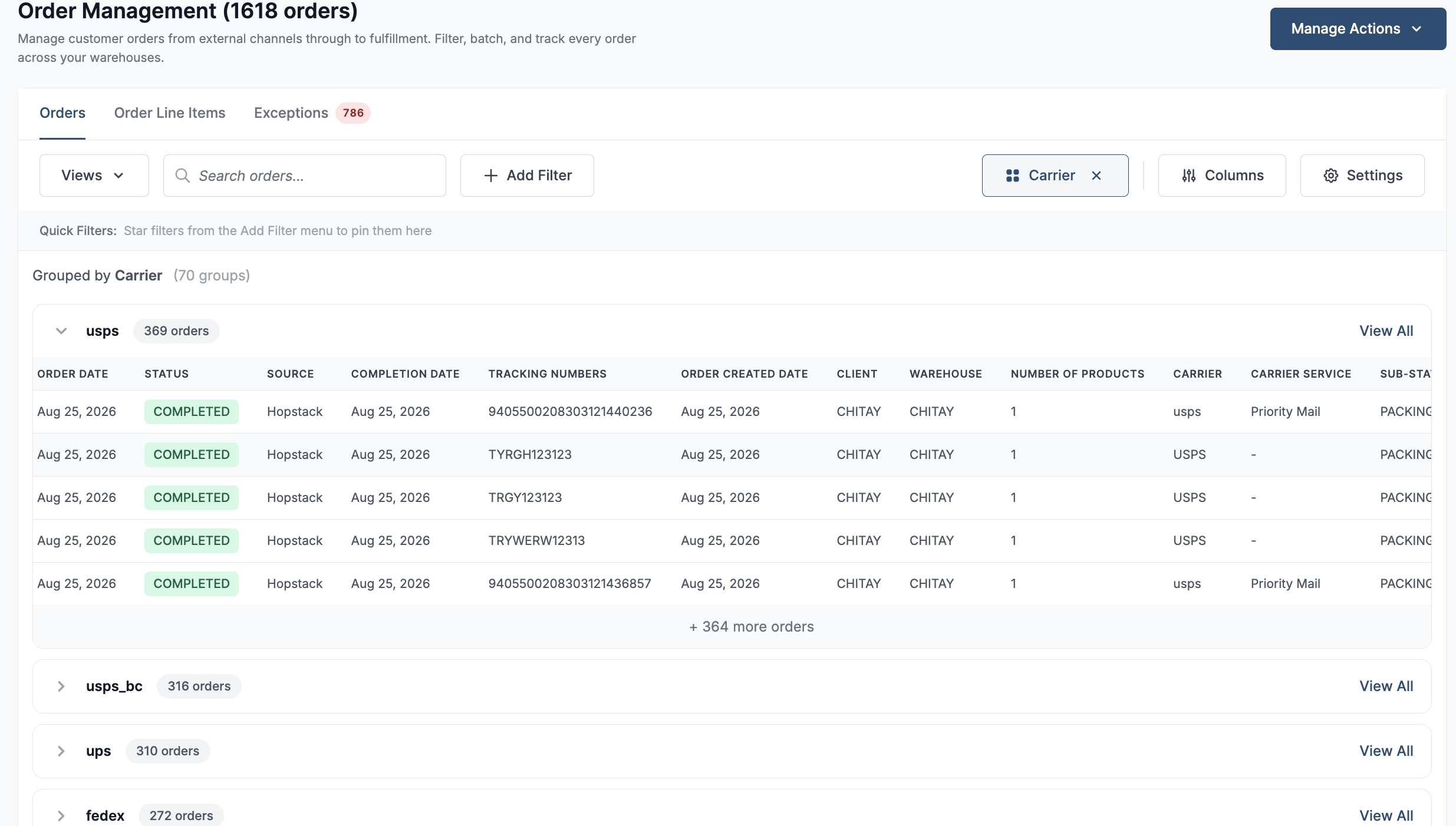
Sort options
Use the sort icon beside a column heading in the Order Management list to arrange orders by that field. Click it again to reverse the order. You can sort by:
-
Order ID
-
Order Date
-
Status
-
Source
-
Completion Date
-
Order Created Date
-
Client
-
Warehouse
-
Number of Products
-
Carrier
-
Carrier Service
-
Sub-status
-
Total Quantity