
This guide provides step-by-step instructions on how to cancel a shipment for a specific order. By following these steps, the order status will be updated both in your system and on the associated marketplace.
Steps to Cancel a Shipment:
-
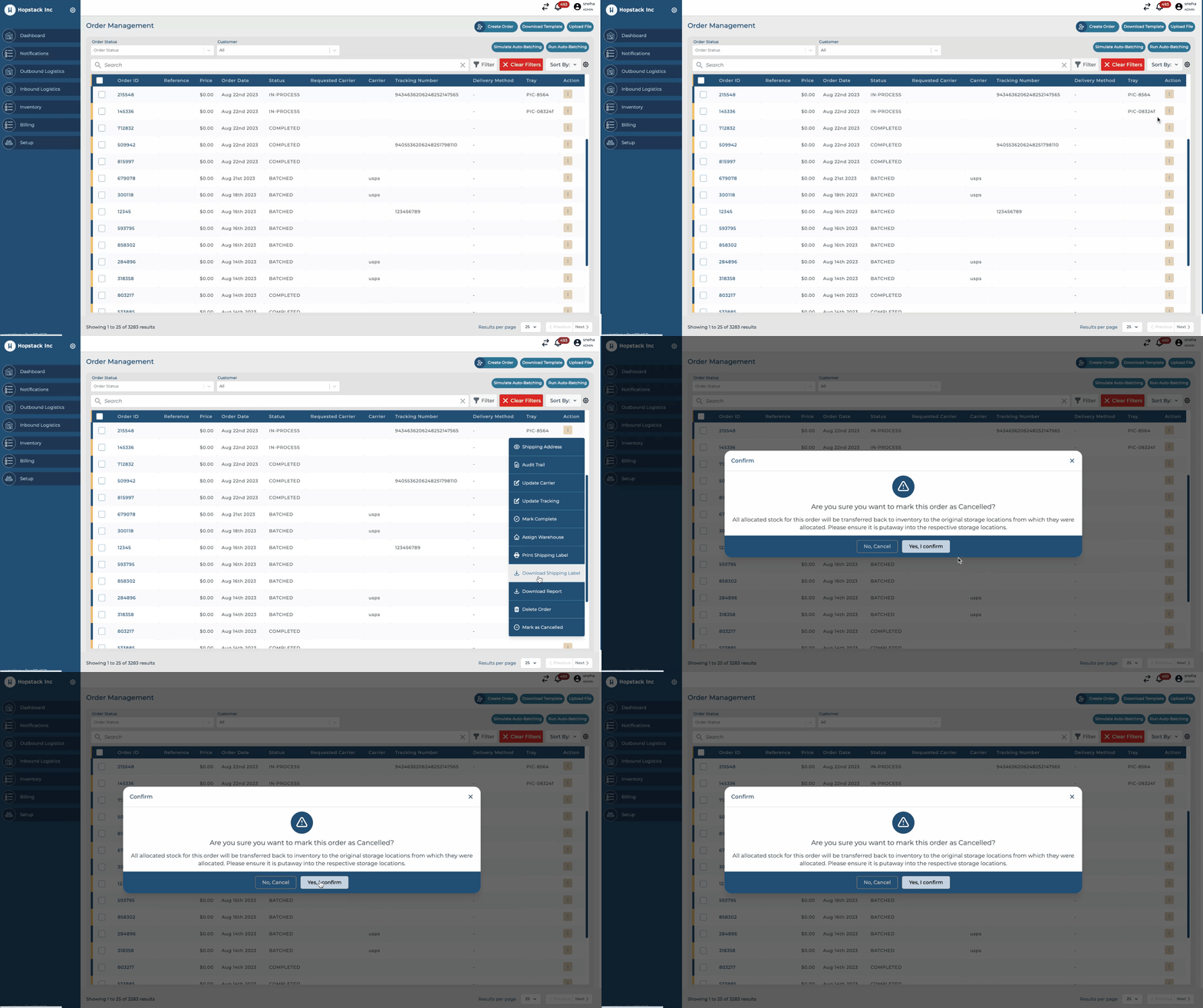
Navigate to the Order: From your dashboard, locate the order you wish to cancel.
-
Access the Action Menu: On the specific order line, look for the three-dot action button (often represented as '...'). Click on it to expand the available actions for that order.
-
Mark as Canceled: From the dropdown menu, select the option labeled 'Mark as Canceled.'
-
Confirmation: Once clicked, the system may prompt you for a confirmation. Confirm the cancellation.
Important Notes:
-
Impact on Marketplace Shipments: If there's a shipment linked to the order on the marketplace, that will also be canceled. Ensure you are aware of this before making the cancellation.
-
Inventory Reallocation: All the inventory that had been allocated for the order will be reverted back to its original status, making it available for other orders.
When an order is manually marked as canceled, the associated inventory batches are affected as well. A modal window titled 'Inventory Affected' will pop up to provide a detailed overview of the inventory restocked as a result of this cancellation. Below is the structure of the information provided in the modal: