
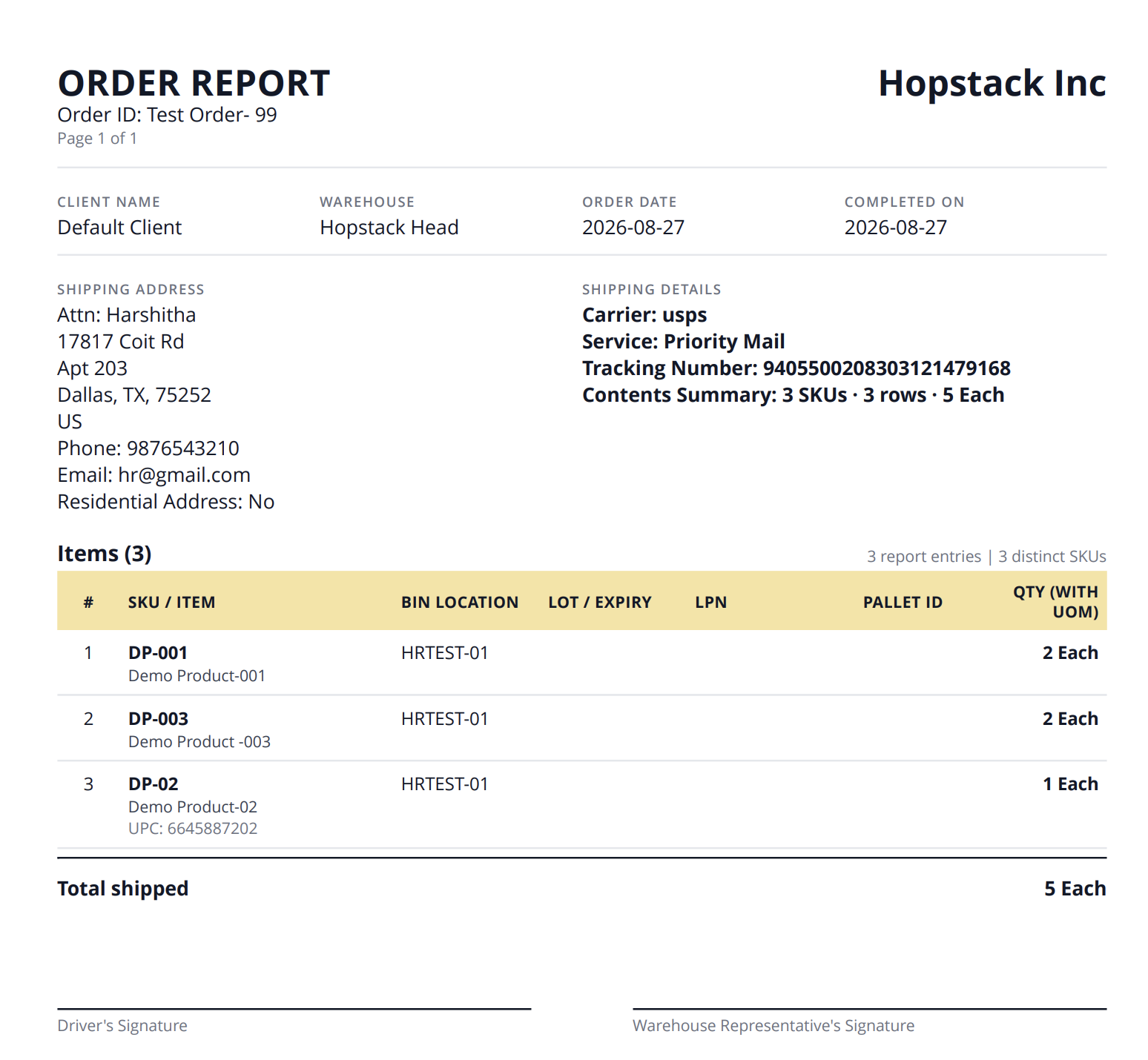
The Order Report is a downloadable PDF that brings an order’s shipping details and item information into one document. Its layout supports both small ecommerce orders and larger B2B orders with detailed inventory tracking.
The new layout includes Ship To business and attention details, shipment information, notes and a paginated item table covering SKU, bin, lot or expiry, LPN, pallet ID, quantity and UOM.
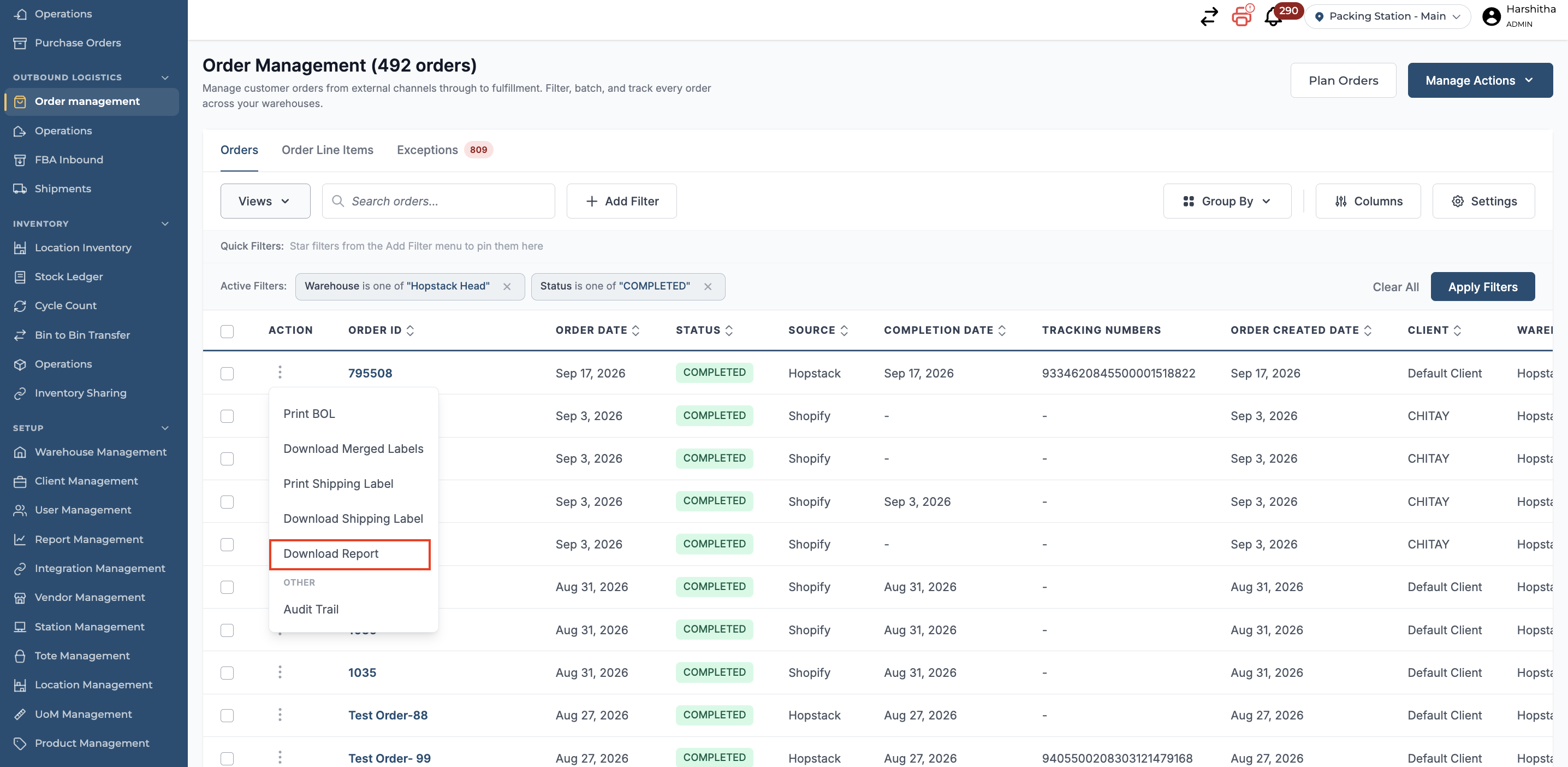
Download the report
-
Go to Order Management and find the order.
-
Open the order’s Actions menu.
-
Select the Download Report option.
What the report shows
-
Tenant Logo: Logo appears in the upper-right corner if available.
-
Order details: Order ID, client name, warehouse, order date, and completion date.
-
Ship To information: Shipping address, business and attention details when provided, and available contact information.
-
Shipping details: Carrier, service, tracking number, and a summary of the items shipped.
-
Notes: Order notes when available.
-
Items: A table showing each report entry’s SKU and item name, bin location, lot or expiry, LPN, pallet ID, and shipped quantity with its unit of measure (UOM). Fields without a value appear blank.
-
Shipment record: Total shipped quantity and spaces for the driver’s and warehouse representative’s signatures.
For orders with many item entries, the item table continues across pages. The Order ID and page number help keep the pages together.
A sample report is below.
Use the report to review what was shipped, confirm the shipment details, and identify the inventory associated with each item.