
We’ve enhanced the receiving workflow to allow users to receive multiple/bulk serial numbers during consignment receiving.
Follow the steps below to use this feature:
Steps to receive Multiple Serial Numbers
1. Start the Receiving Workflow
-
Open the Receiving module.
-
Scan the consignment you are receiving.
-
This opens the receiving workflow for that specific consignment and product.
2. Add Product Details
-
Select the product you want to receive.
-
Enter the required product details, such as quantity.
-
Click on “ Serial Numbers”
-
Scan the serial number barcode or enter the serial numbers manually.
If the product is not serial-controlled, entering serial numbers is optional. For serial-controlled products, it is mandatory.
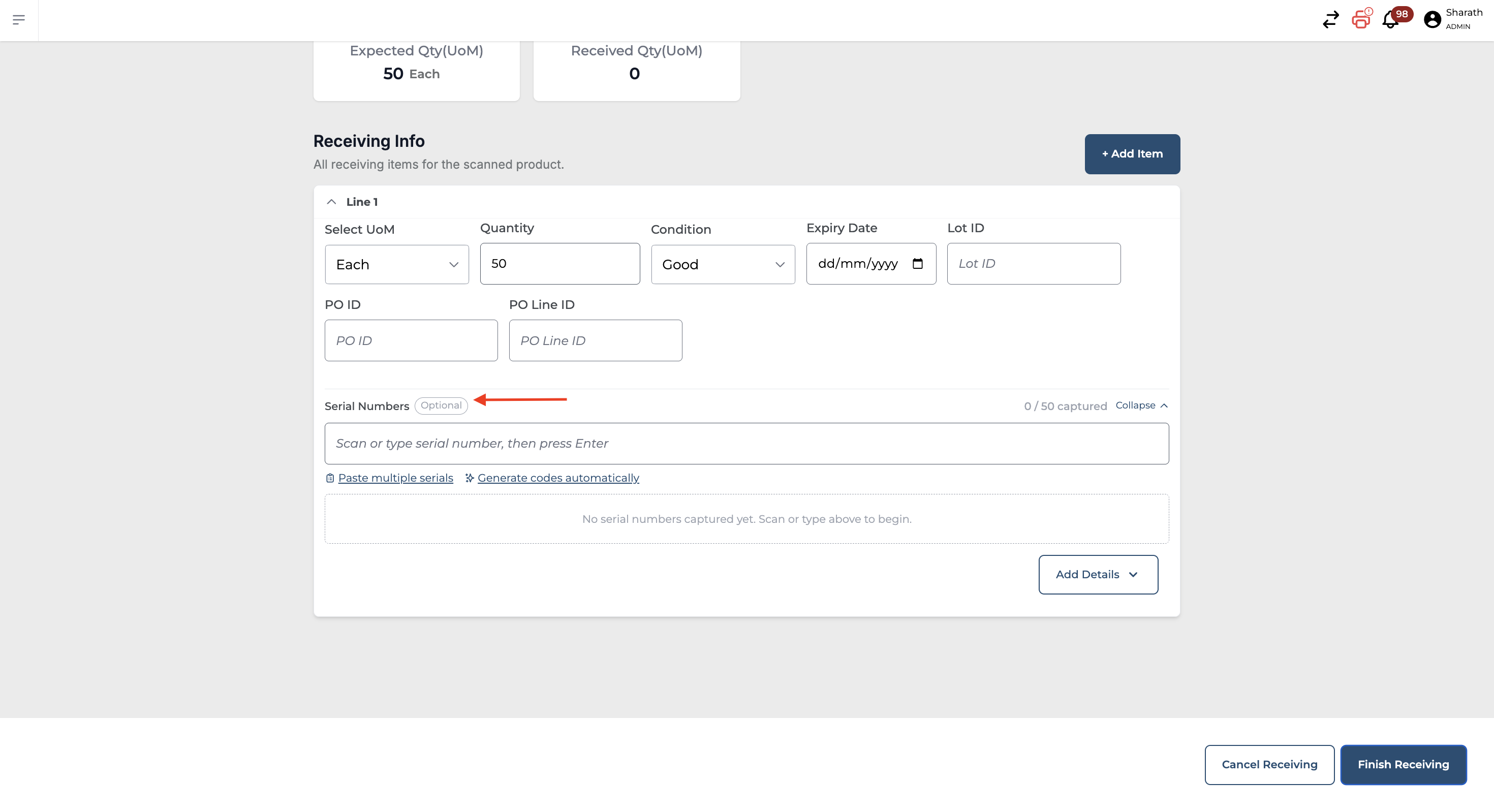
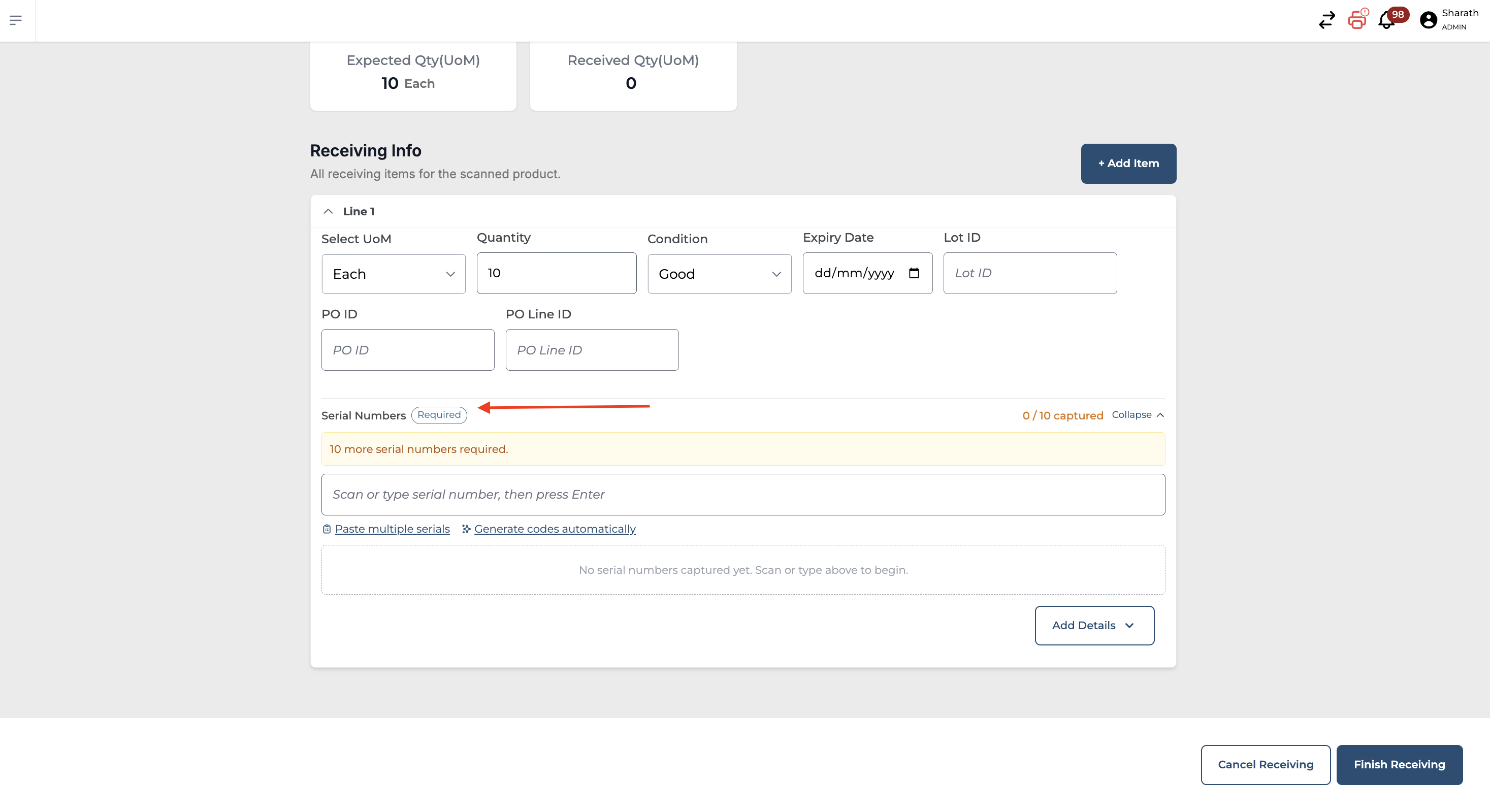
You can select “Generate codes automatically” to have the system create serial numbers for you, or select “Paste multiple serials” to quickly add multiple serial numbers at once.
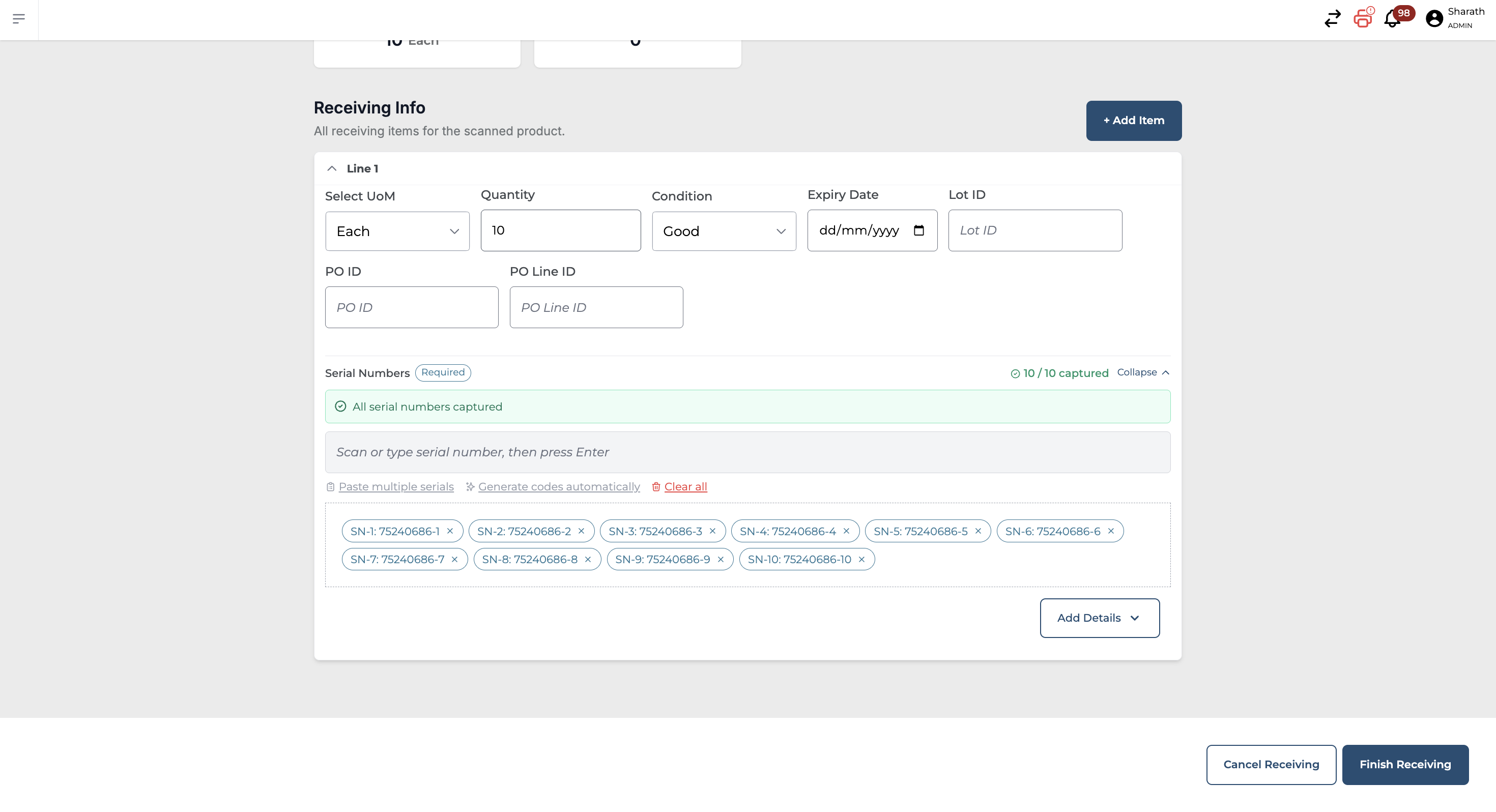
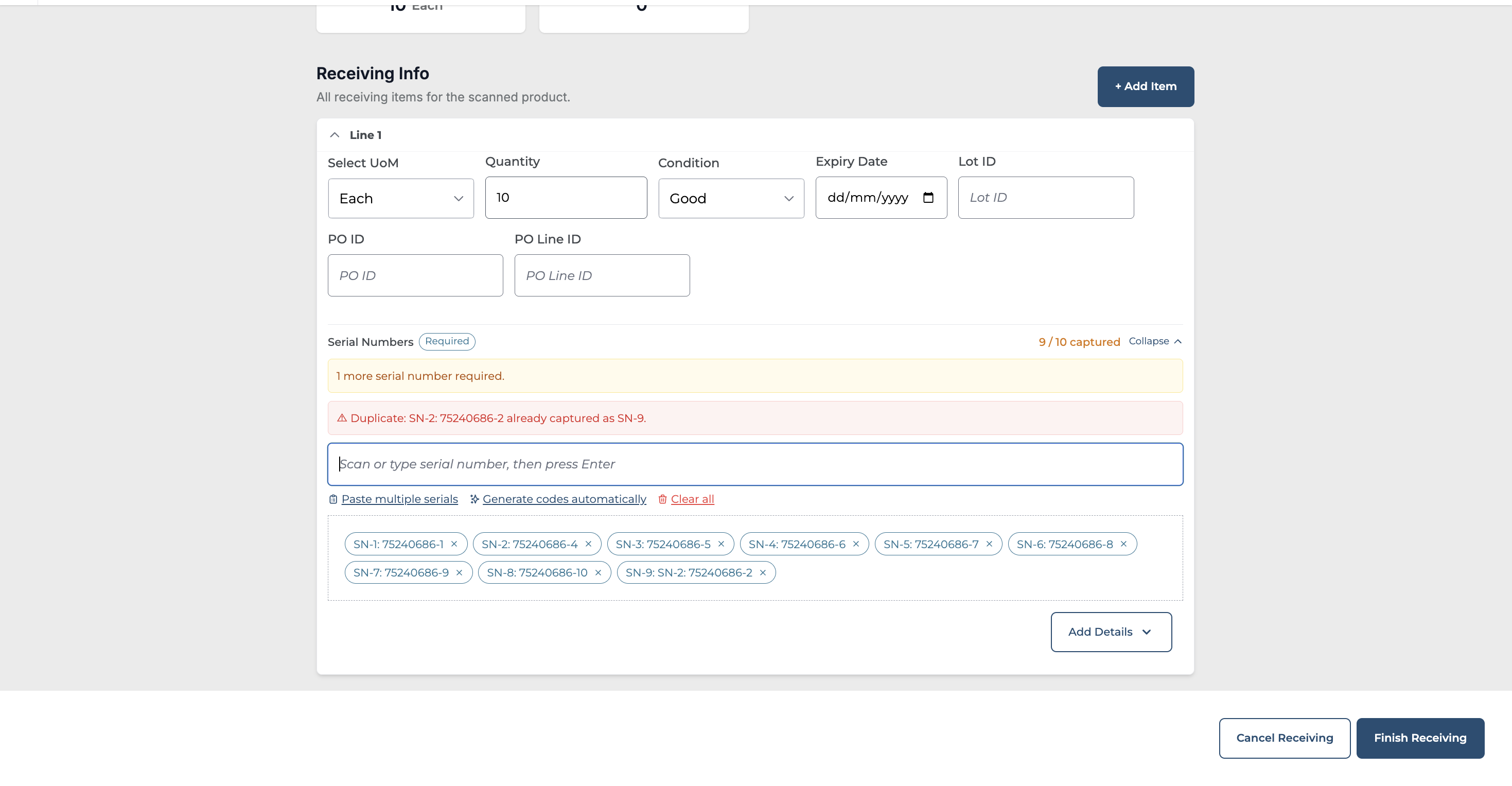
Ensure that each serial number is unique—duplicate serial numbers are not permitted during receiving.
After verifying the serial numbers, click “Finish Receiving” to complete the process.