
This document explains how to enable and use the new feature for capturing physical dimensions (weight, volume, length, etc.) for products during stock receiving. The feature is optional and can be configured per product where these attributes are operationally important.
Capturing Physical Dimensions During Receiving
This document explains how to enable and use the new feature for capturing physical dimensions (weight, volume, length, etc.) for products during stock receiving. The feature is optional and can be configured per product where these attributes are operationally important.
Step 1: Open Product Management and Edit the Product
Navigate to your product management area to configure the product for dimension capture.
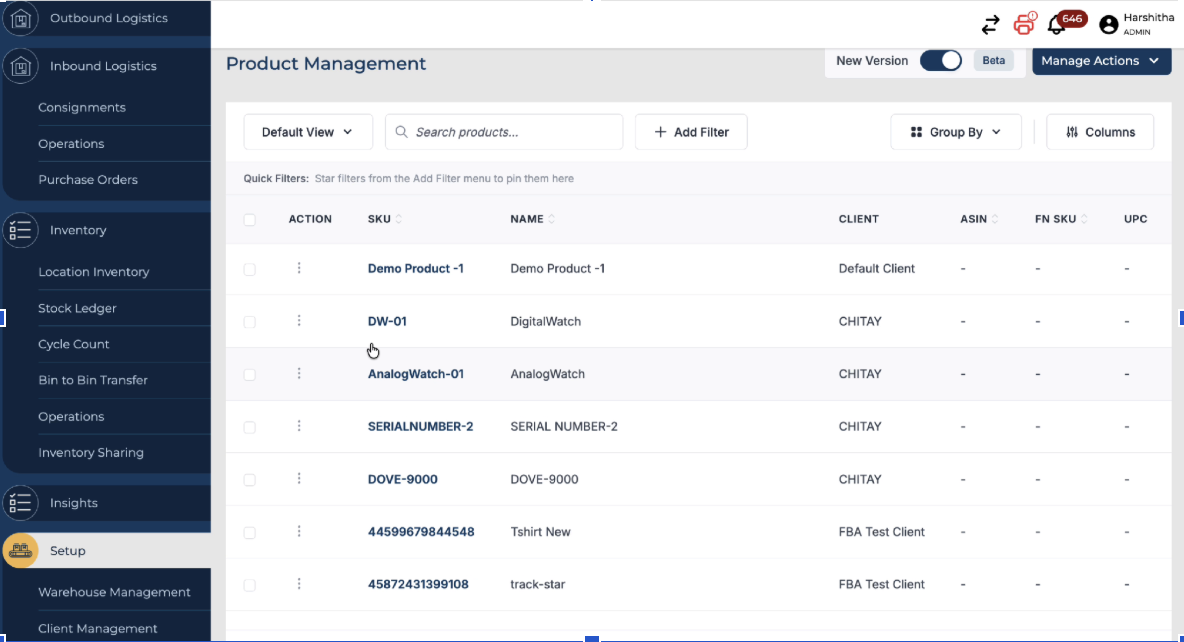
Click on Action and edit the specific product for which you want to capture physical dimensions during receiving.
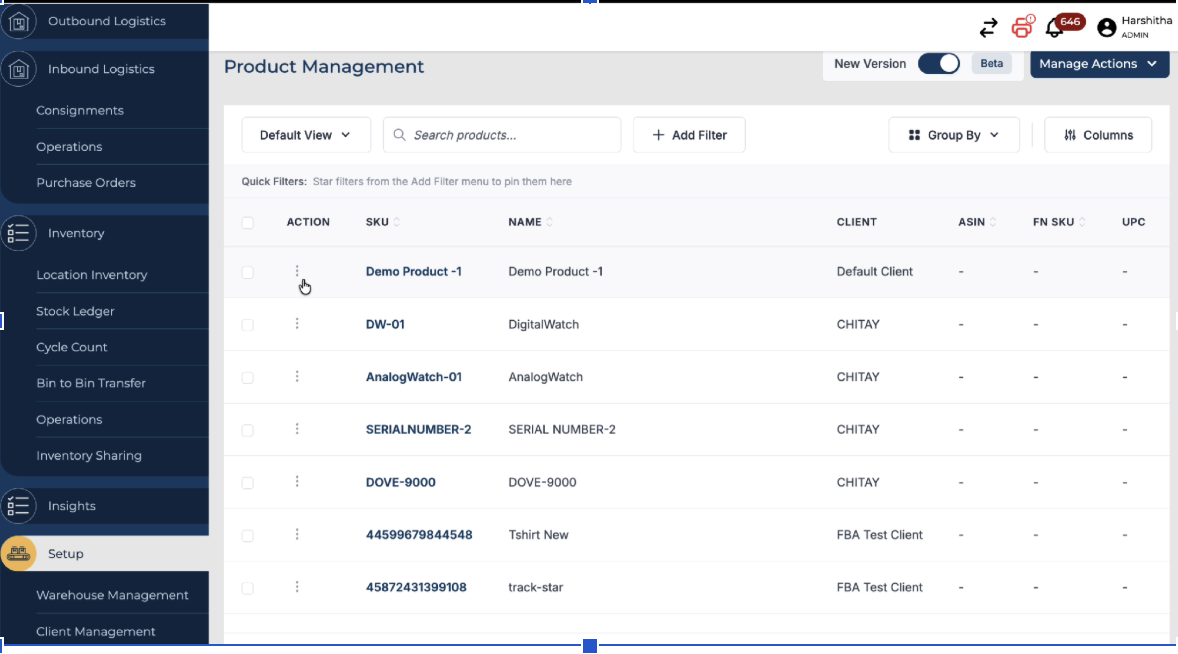
Step 2: Enable Required Dimension Attributes
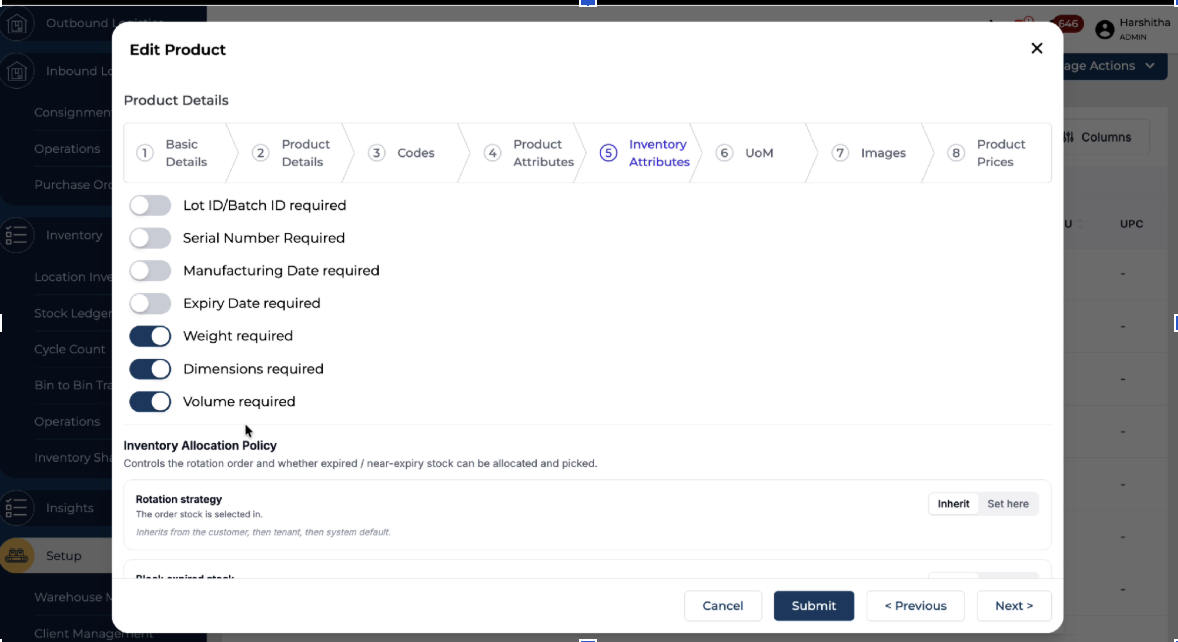
In the product edit view, go to the Inventory Attributes tab.
Toggle on the options for Weight, Dimension (Length), and/or Volume as required for that product.
Mark these attributes as required if you want to mandate their entry during receiving.
Once the desired options are enabled, click Submit to save the changes to the product master.
Step 3: Create a Consignment and Start Receiving
Create a consignment that includes the configured product and proceed to the receiving flow.
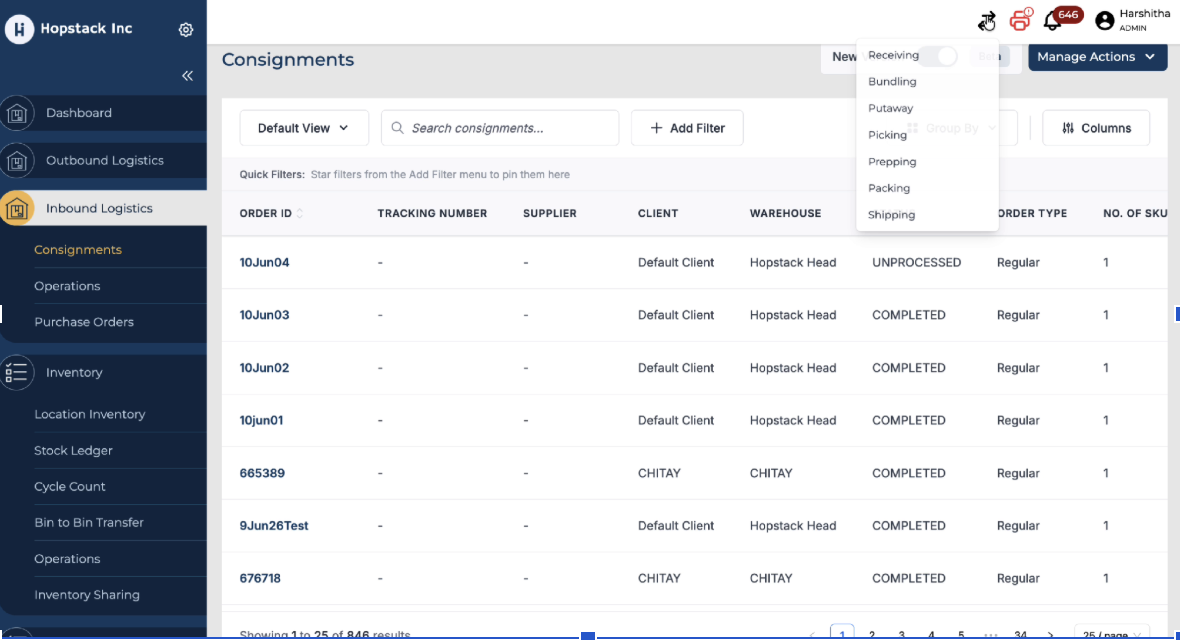
When receiving starts for this consignment, the system will recognize that the product has physical dimensions enabled.
You will see that the receiving flow now supports entering the enabled dimensions for this product.
Step 4: Enter Weight, Volume, and Length During Receiving
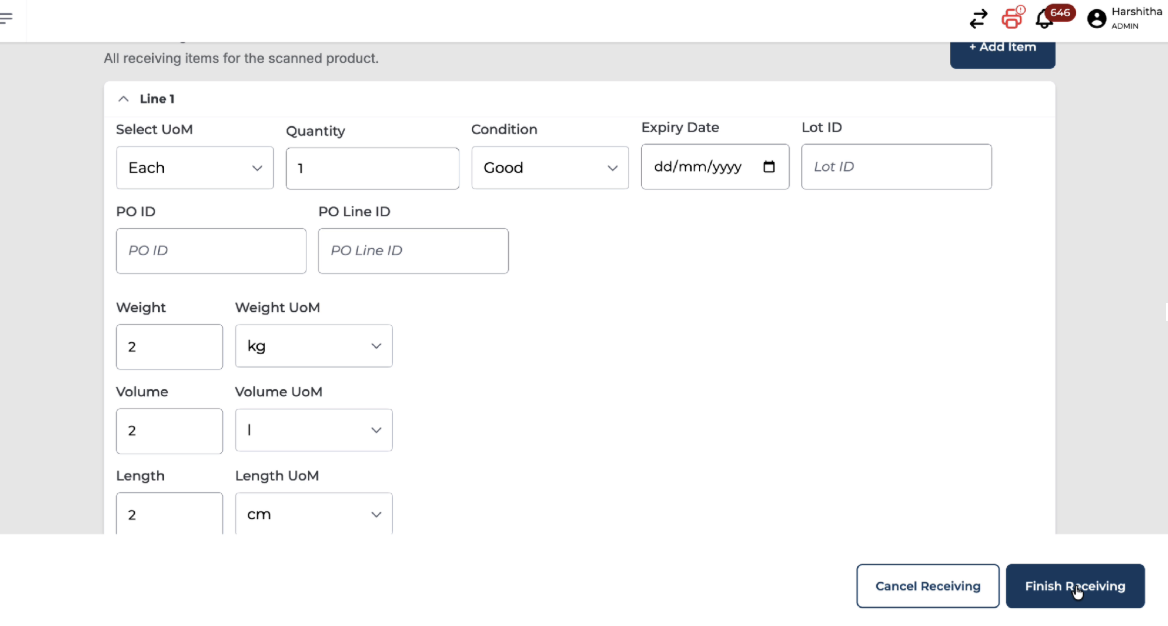
On the receiving screen, locate the input fields for the enabled dimensions.
You will see input fields for Weight, Volume, and Length, as configured in Product Management.
These fields will appear according to what you enabled earlier for the product.
If any of these fields have been marked as required, the user must provide both the value and the unit of measure (UOM) before finishing receiving.
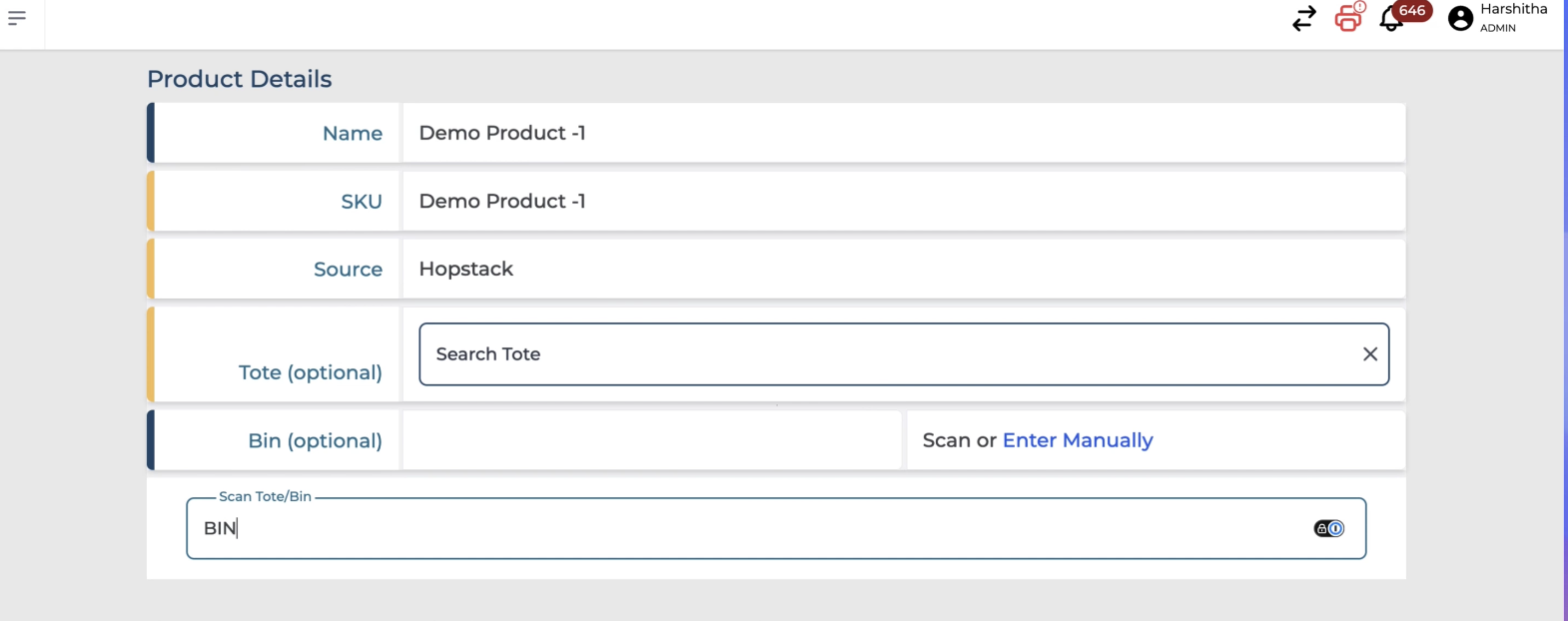
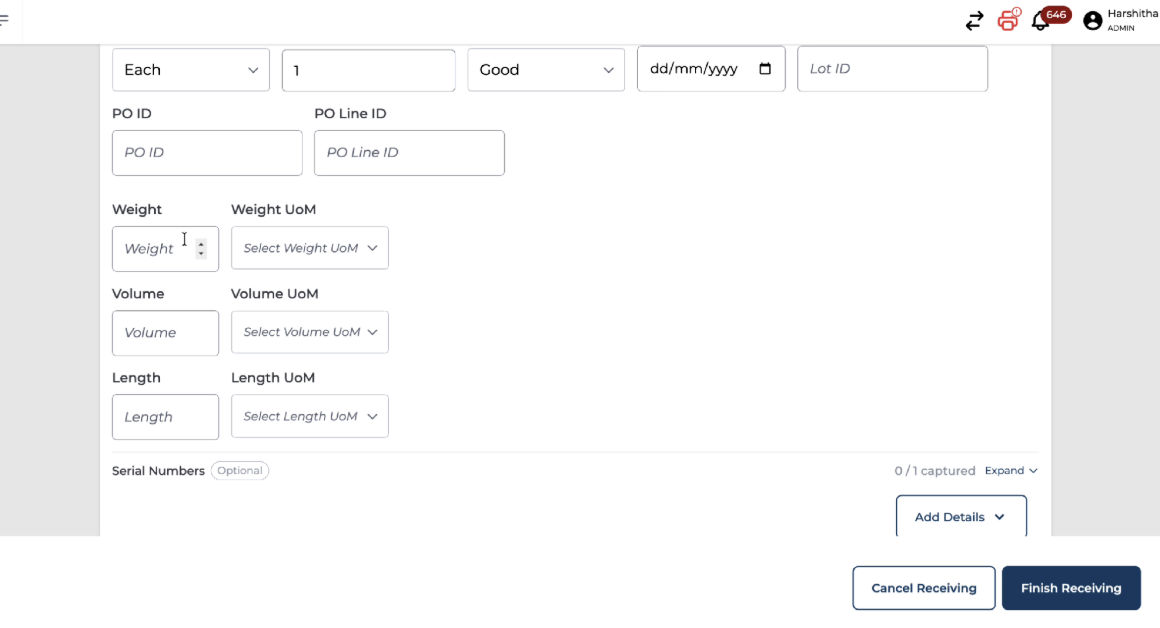
Step 5: Handle Validation Errors for Missing Values or Units
The system validates these inputs when the user attempts to complete the receiving process.
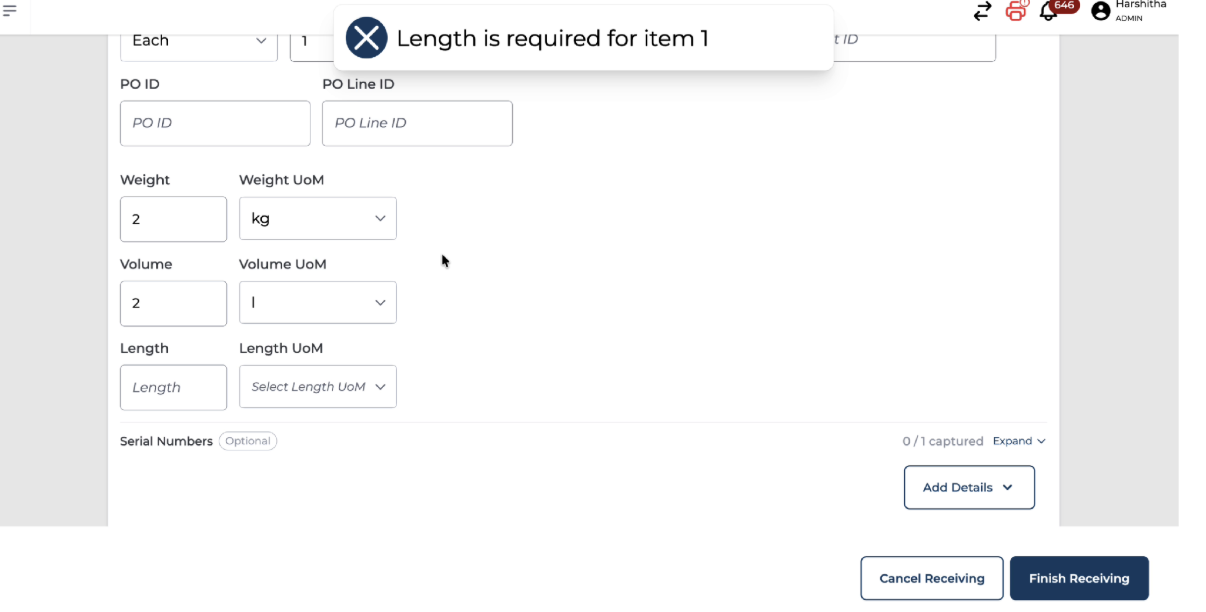
If a required dimension value is missing when the user tries to finish receiving, an error message will specify what is missing for the item.
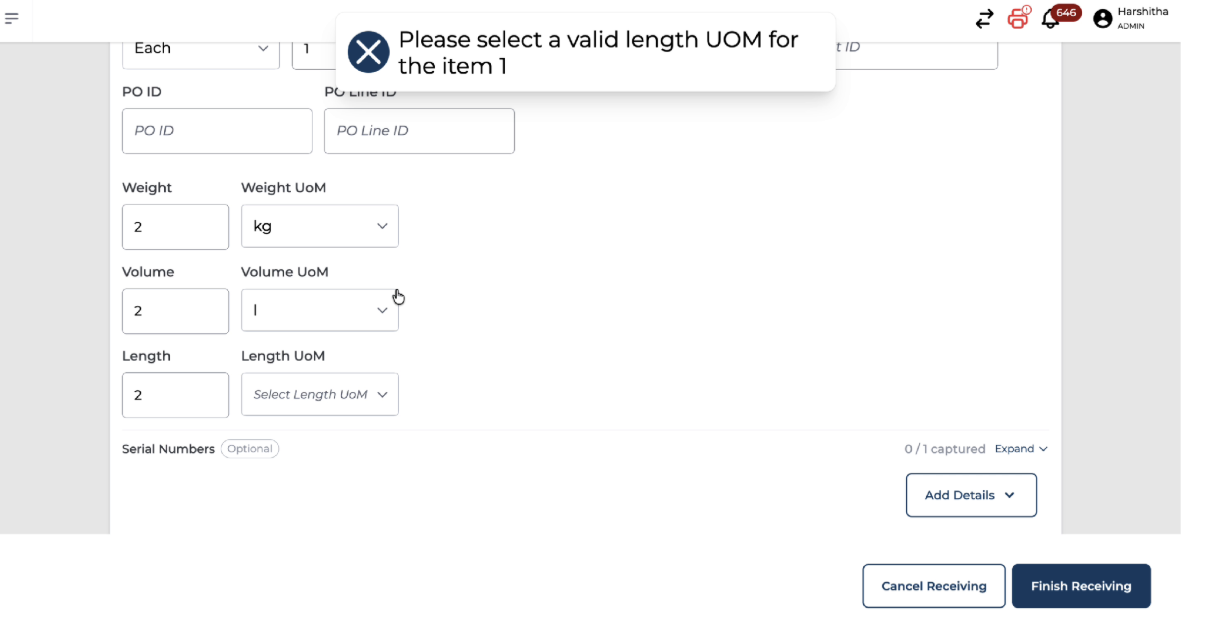
If the unit of measure (UOM) for a required field is not specified, a similar error will be displayed.
Step 6: Complete Receiving and Verify Captured Dimensions in Location Inventory
Once all required values and UMs have been entered correctly, the user can finish the receiving process.
After the items are received, the captured dimensions will be reflected in the inventory records for that product and location in Location Inventory. The inventory view will show the weight, volume, and length values that were captured during receiving.
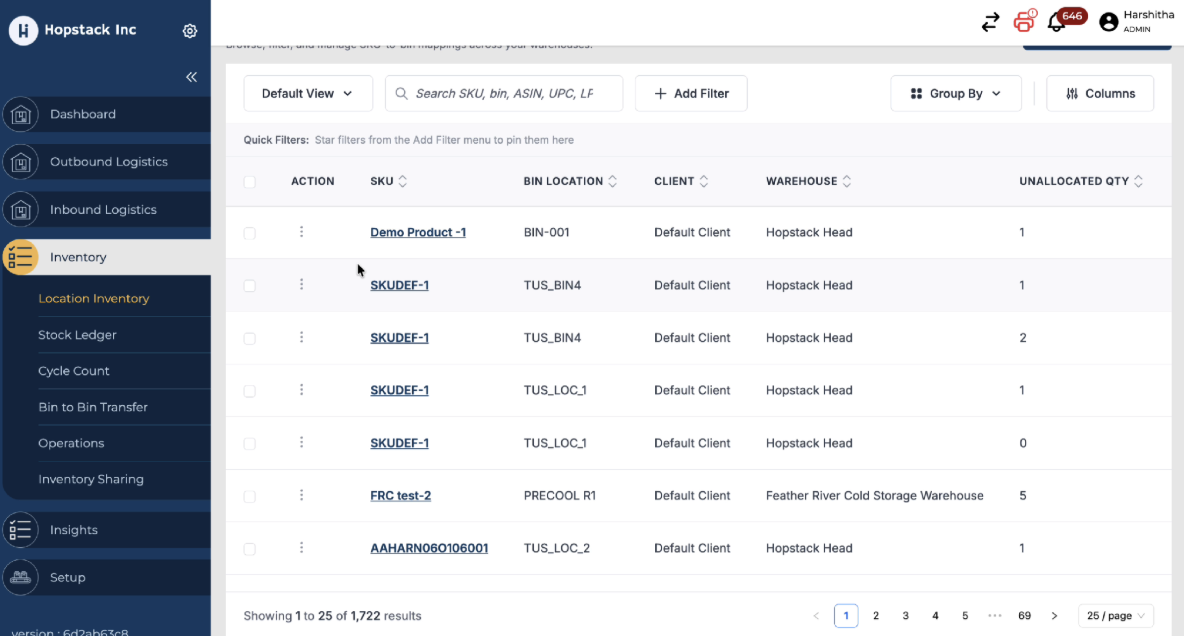
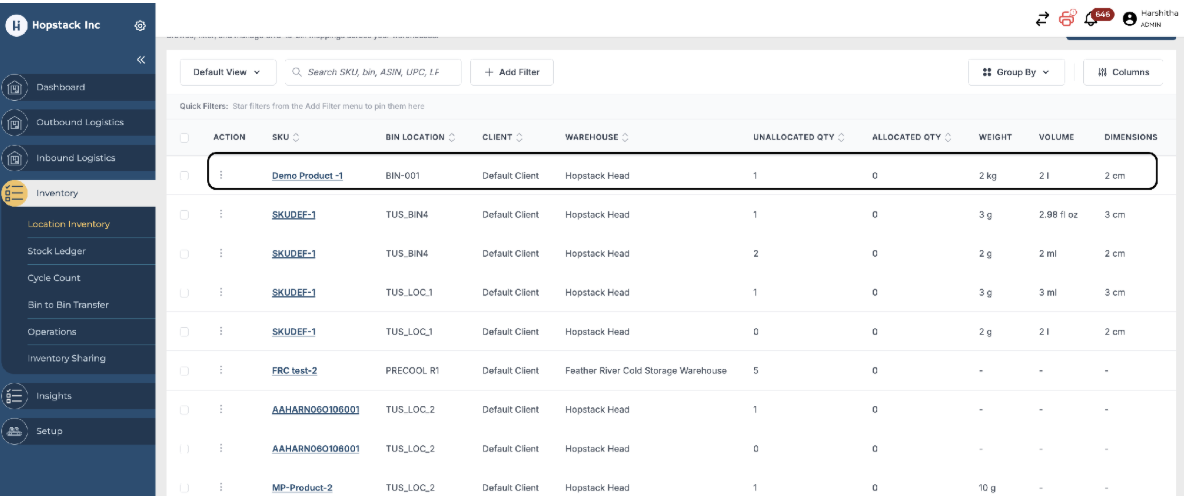
Note: The dimensions are captured at SKU-BIN level and not per piece. If dimensions are required per piece, it works best for serial tracked inventory.