The Pre-Receiving feature allows users to capture Lot ID and Weight information by connecting a weighing scale at the arrival of inbound goods. Based on the lots recorded during pre-receiving, the system automatically creates a consignment that is ready for the receiving process. During receiving, users can complete the inventory details by associating product information with each lot.
This is a gated feature, please reach out to your implementation lead or sales liaison to know more about this.
Steps to perform Pre-Receiving
-
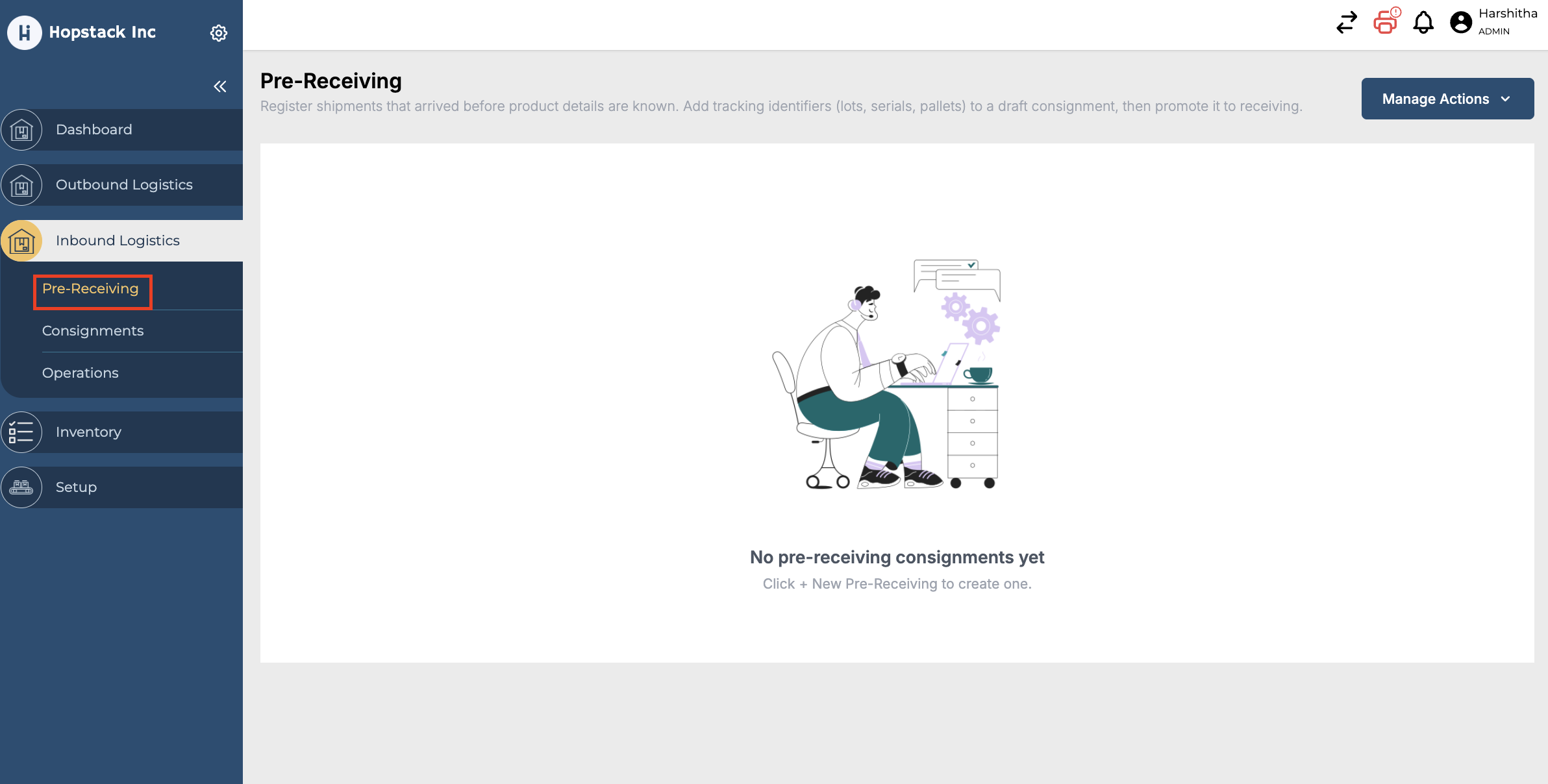
Navigate to Pre-Receiving in the Inbound logistics section.
-
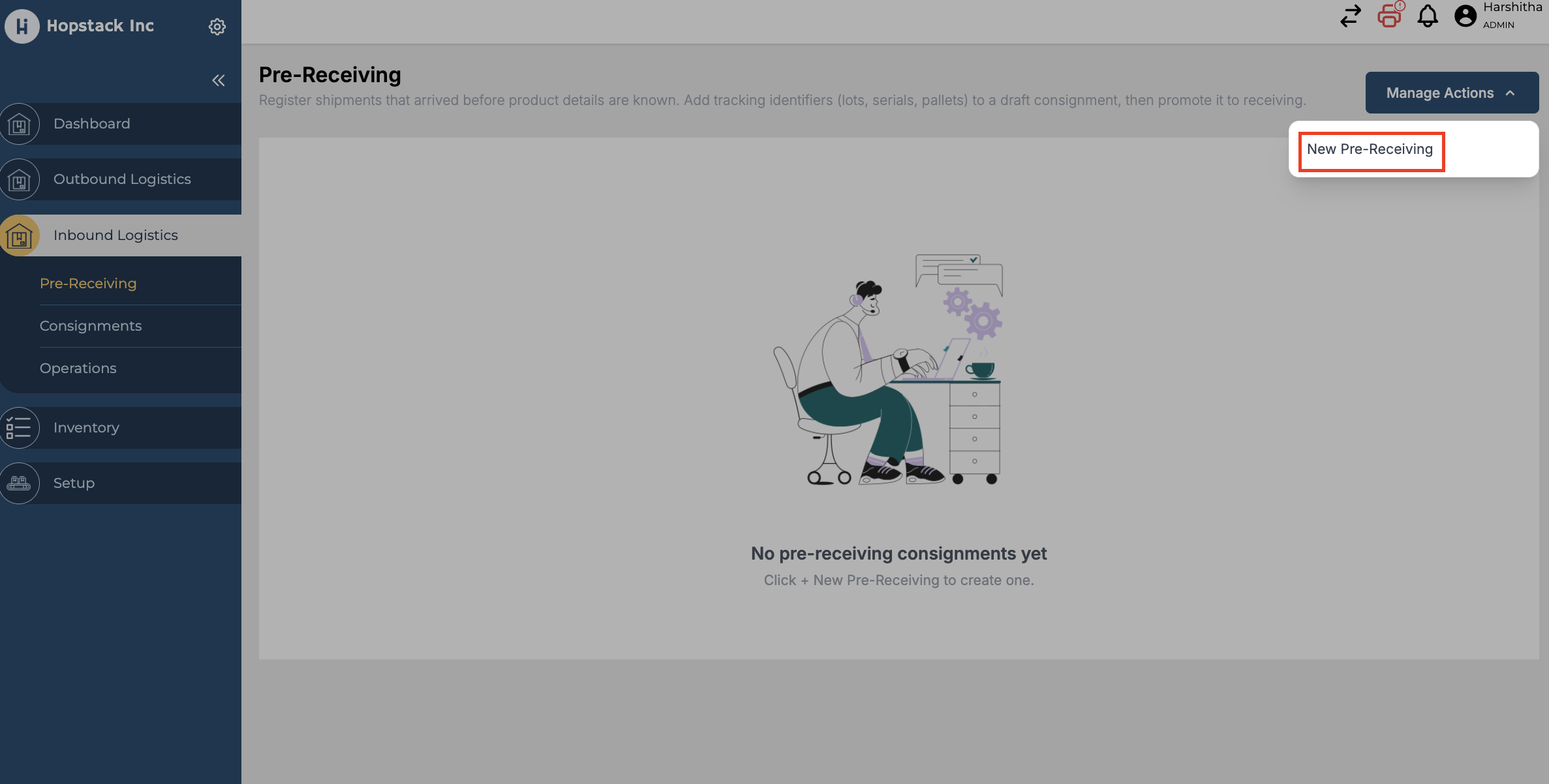
Click on Manage Actions → New Pre-Receiving.
-
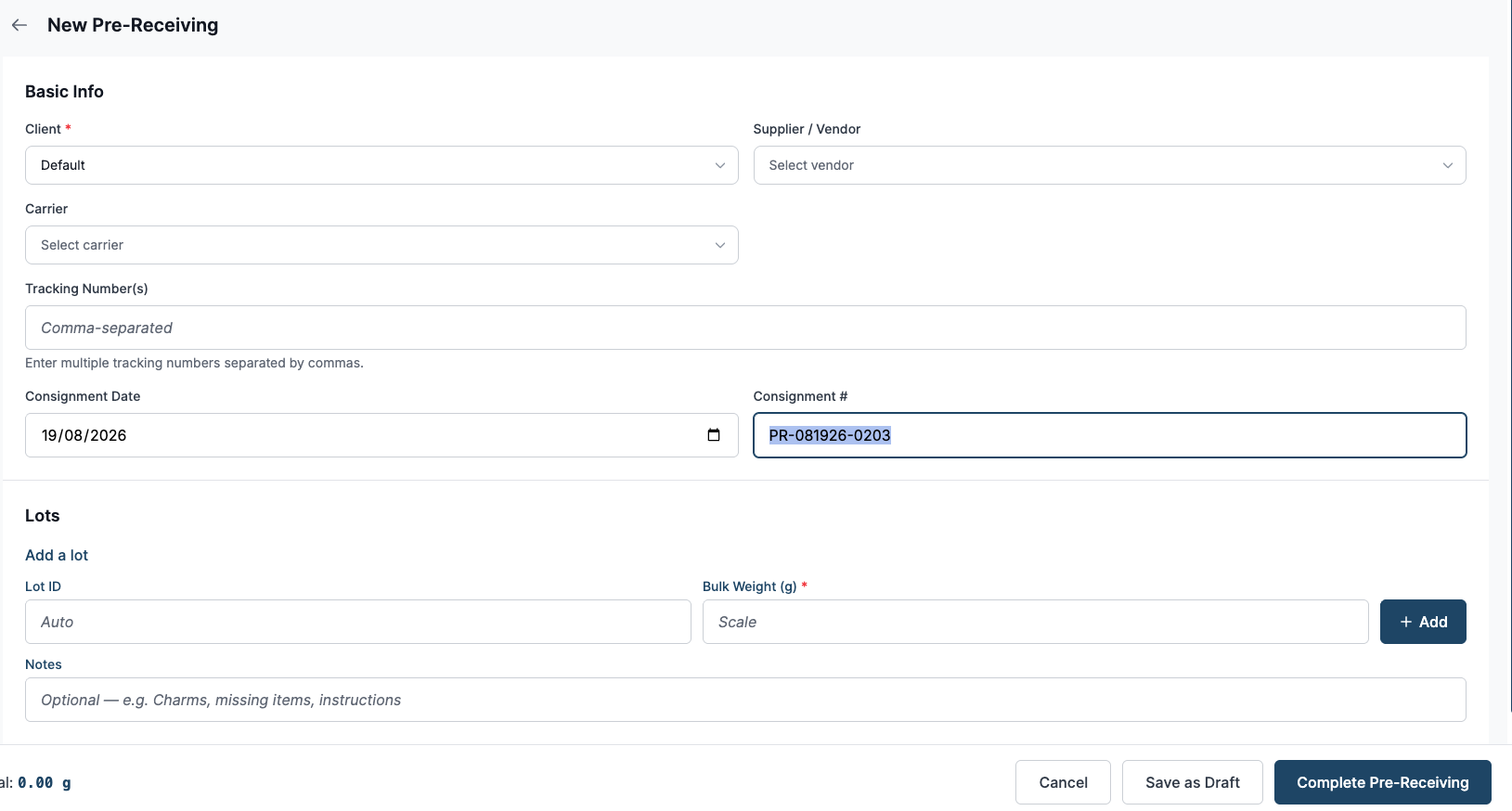
Fill in the Basic Info section with details related to the consignment.
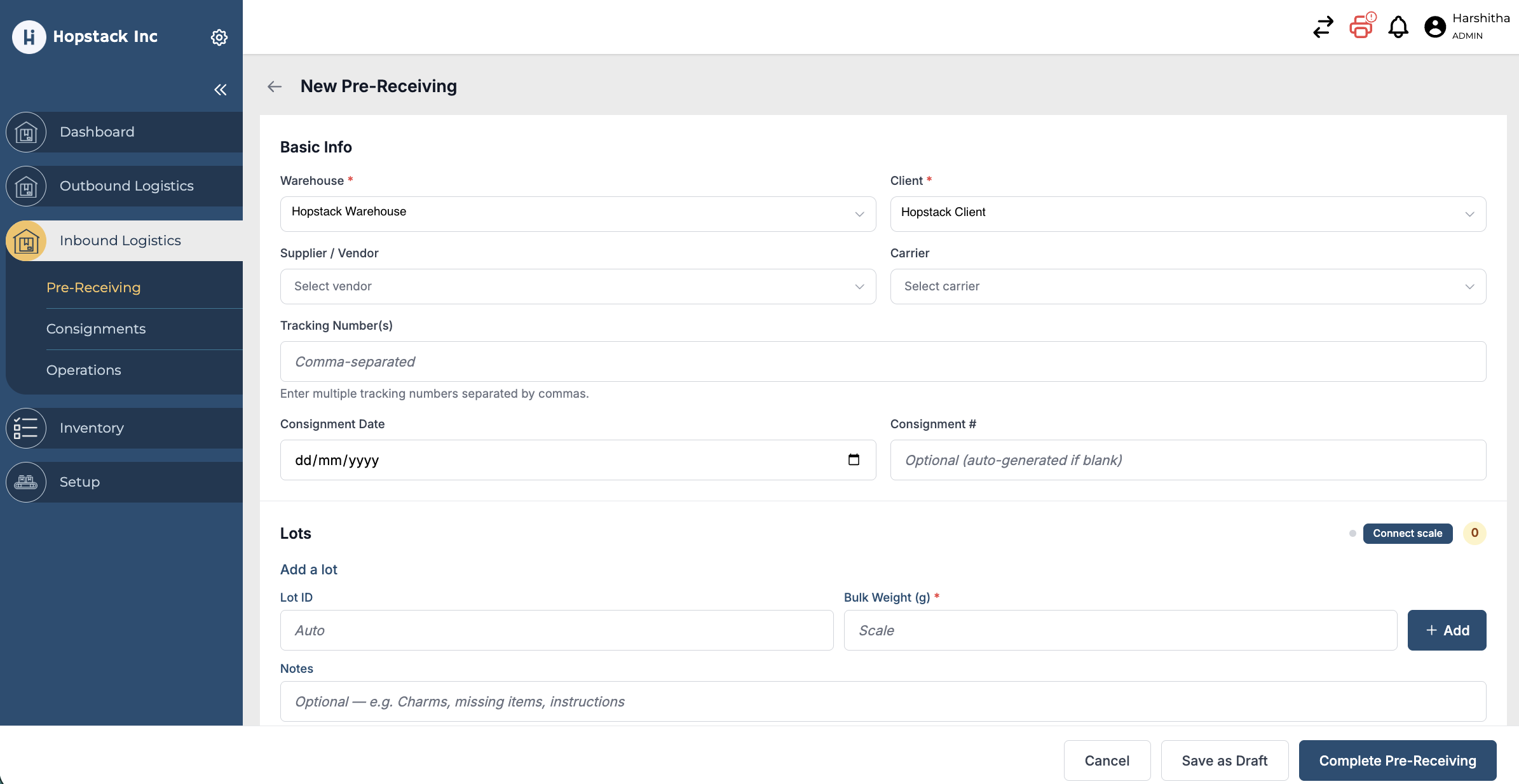
- Warehouse (if Multi-warehouse set-up) - Mandatory
- Client - Mandatory
- Supplier/Vendor
- Carrier
- Tracking Numbers
- Consignment # - Autogenerated with prefix PR
- Consignment Date - Automatically set to today
-
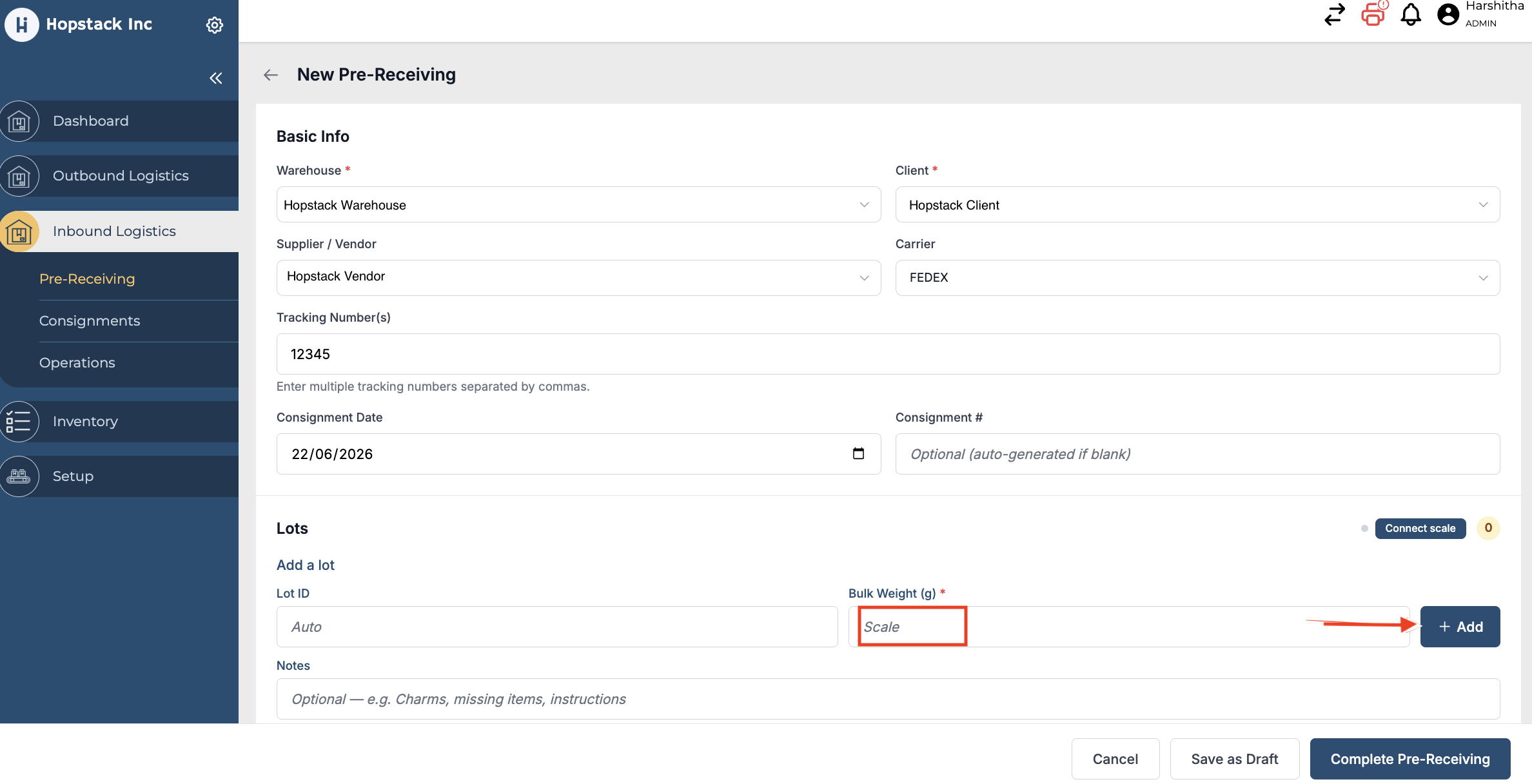
To add a Lot, enter Lot ID (Leaving Lot ID blank will auto-generate Lot ID) and place the item on the connected weighing scale or enter the weight manually. Then click on “Add” button.
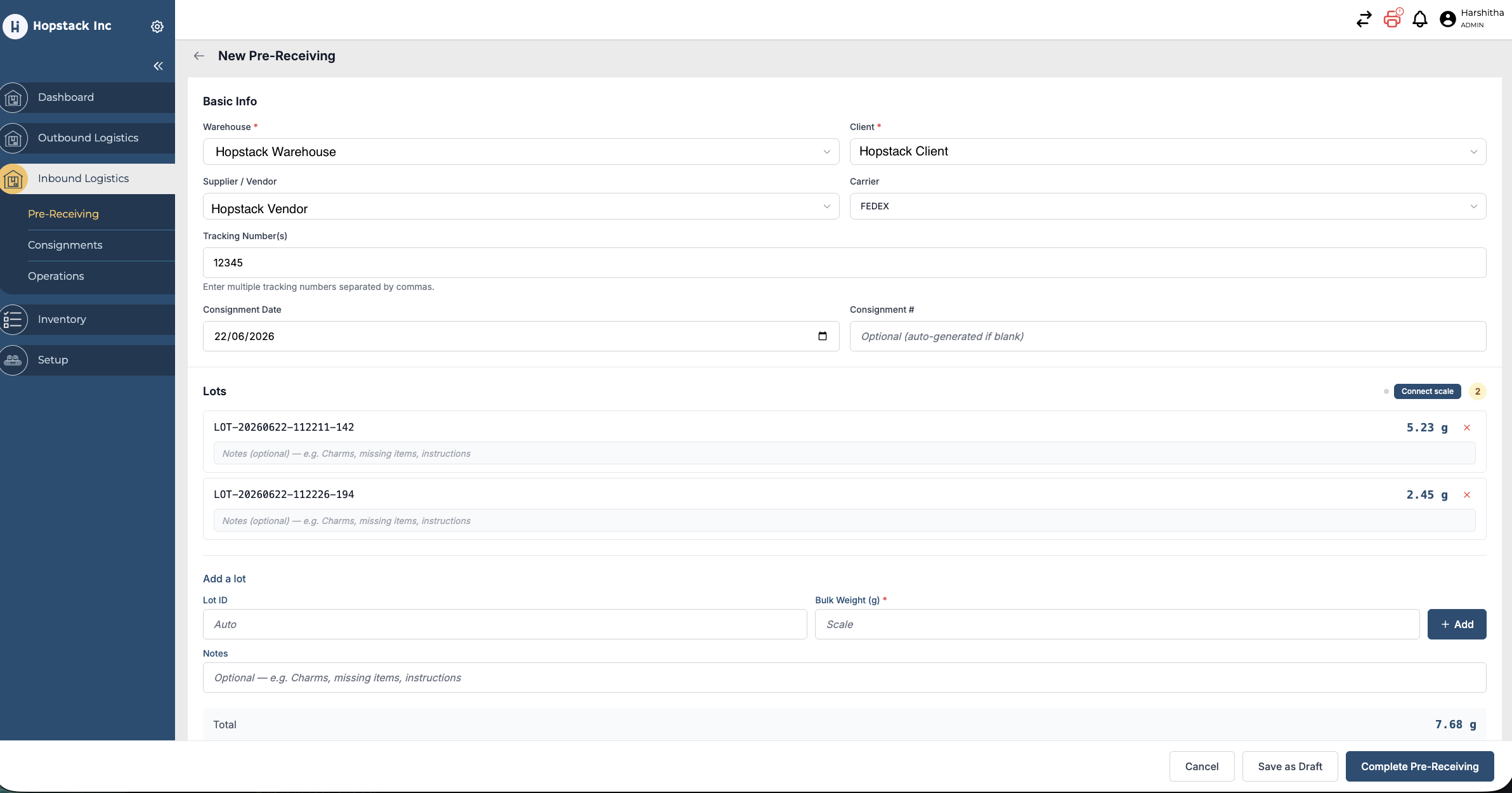
User can also include notes for the Lot to capture information related to the Lot by using the Notes field.
-
User can add multiple lots by following the same steps. User can notice that the total Weight gets computed as they add lots.
-
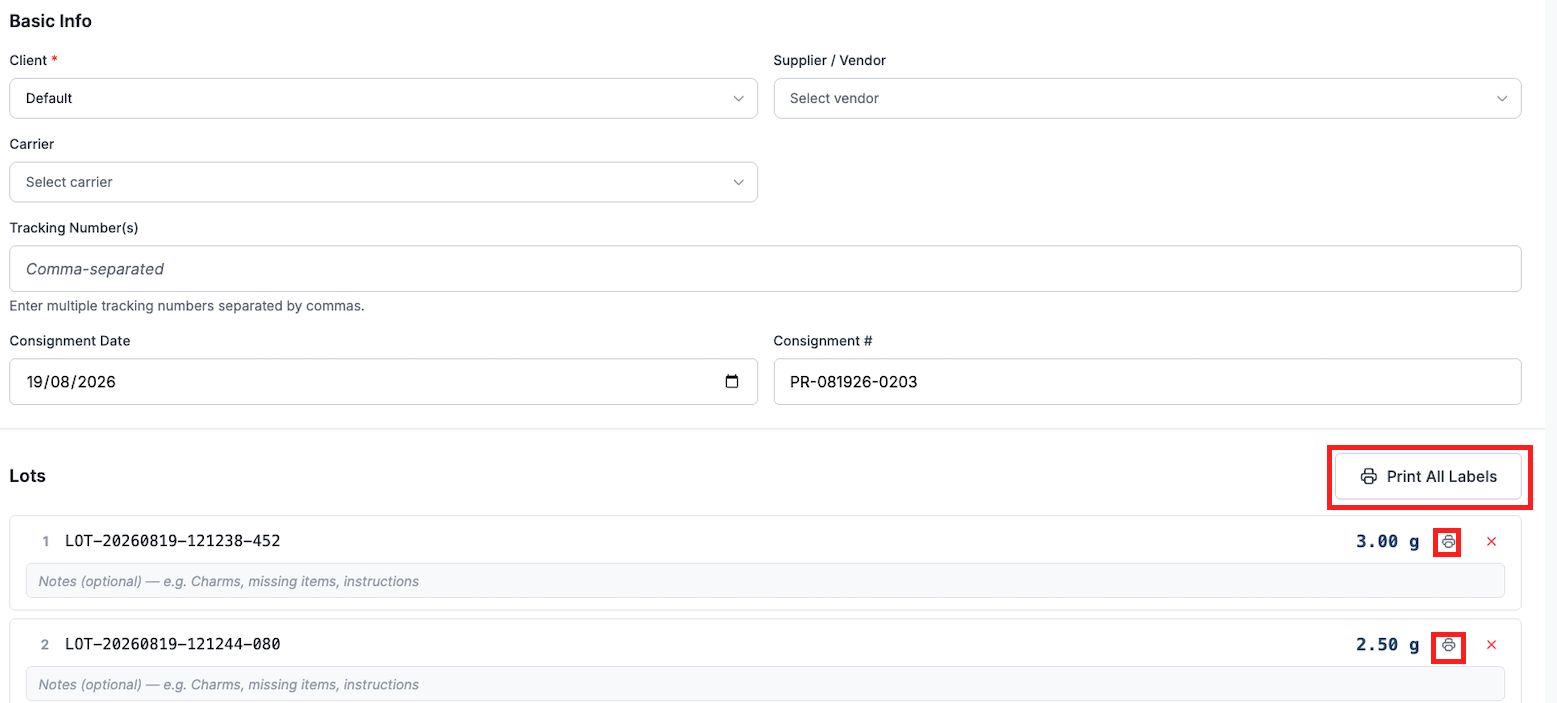
As an added feature, users can now print the labels for Lots individually or Print All Labels by clicking on the print icon.
-
User has an option to save the Pre-Receiving information as draft an continue working on it at a later point. Click on “Complete Pre-Receiving” to complete Pre-Receiving.
-
User gets notified that Pre-receiving is completed and that the consignment is ready for receiving.
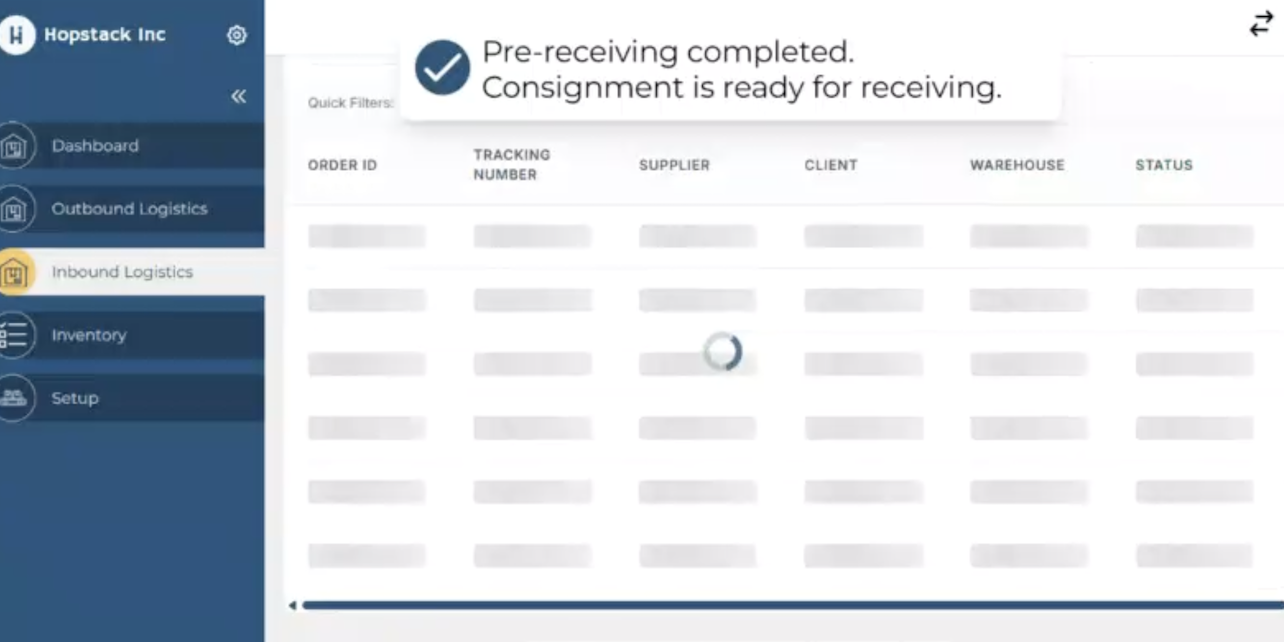
Users can now receive the consignment from the receiving window. Select the station, Client and start receiving by scanning the tracking number or selecting the consignment from the List view.
Edit Pre-Receiving
The user can edit pre-receving information in the following ways.
-
Click on Pencil Icon under Action in the Pre-receiving screen.
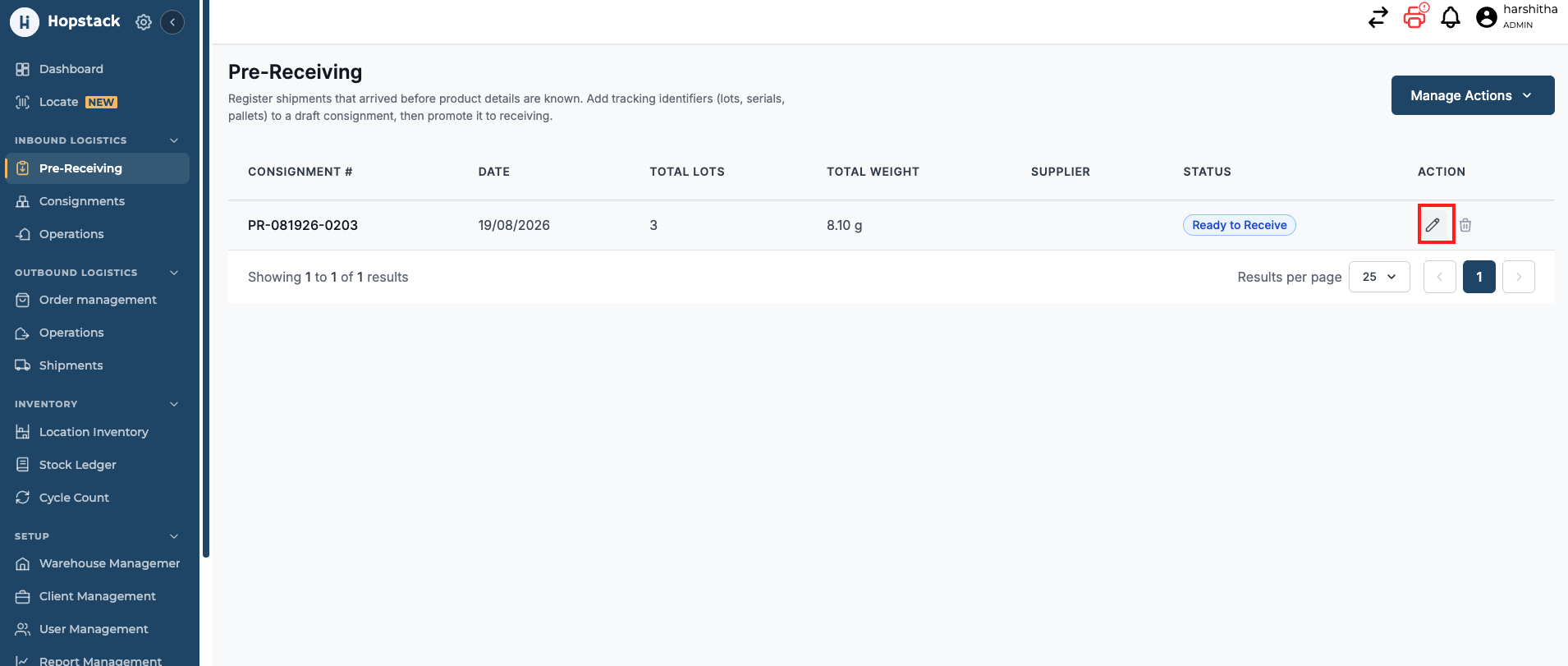
-
Click on Edit Consignments from the action menu in the consignments screen.
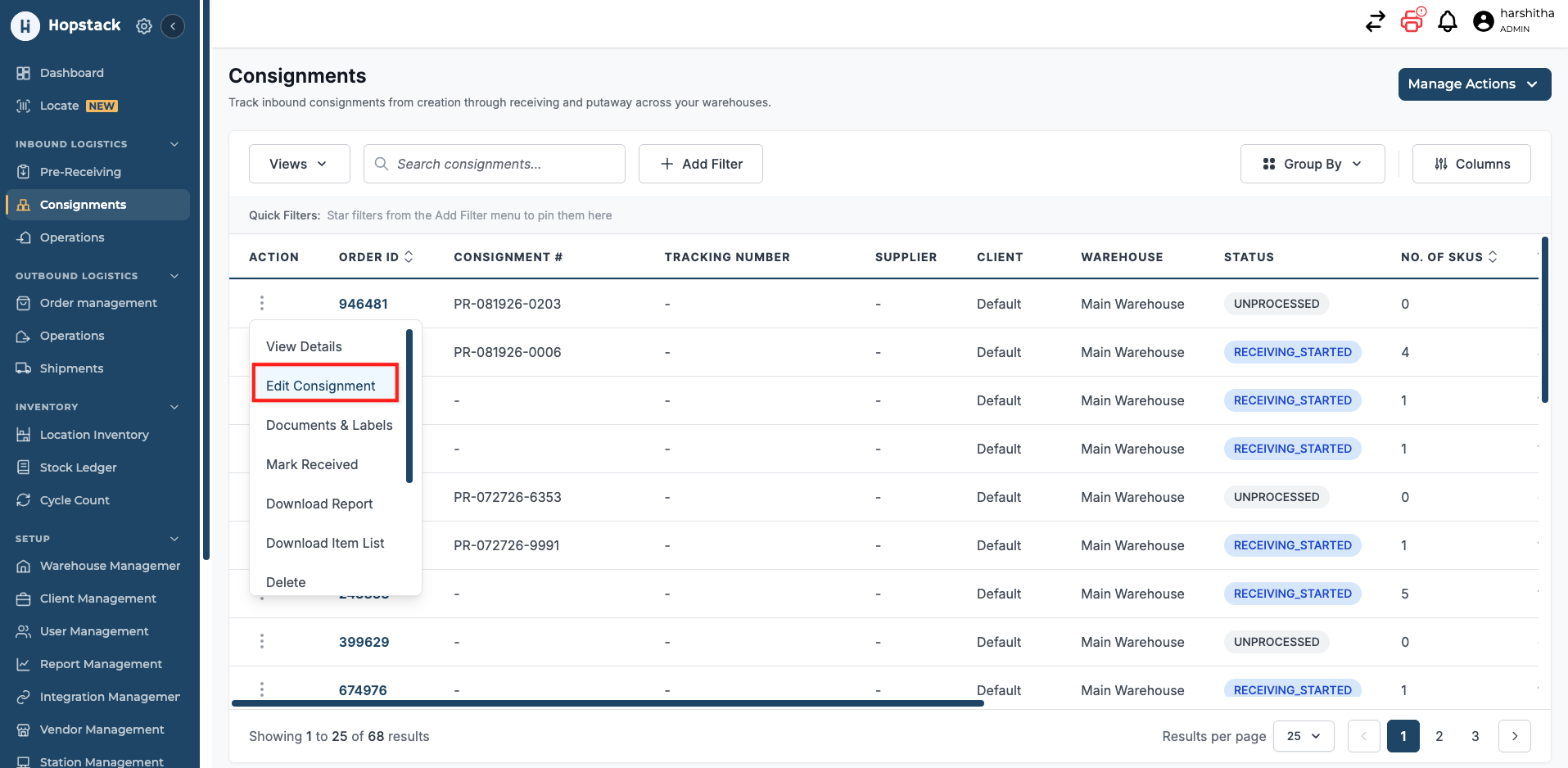
Both the above actions open up the edit pre-receiving window; the user may now modify any information and click on “Save Changes”.
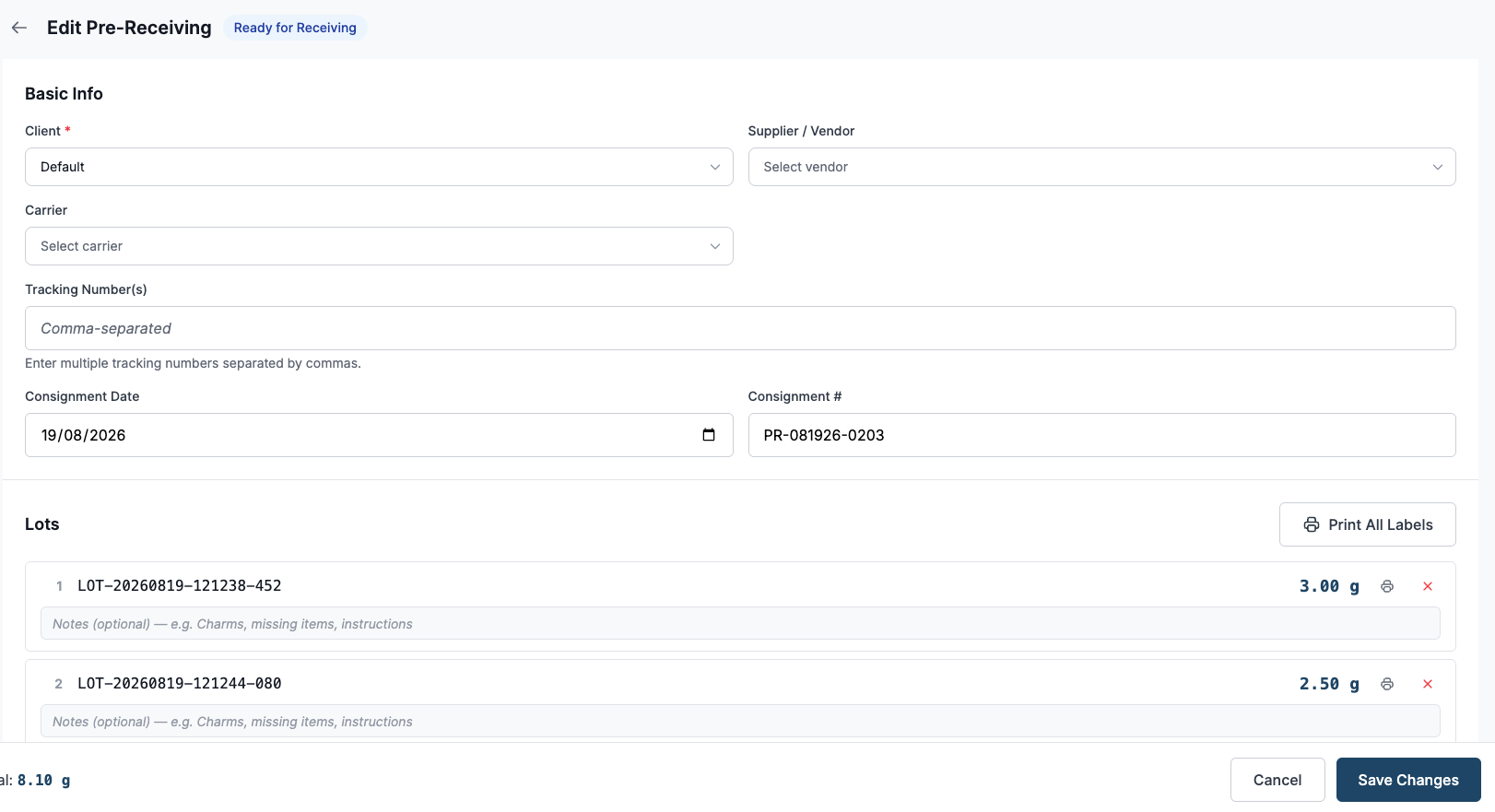
Users can edit pre-receiving information only while the consignment is in the Unprocessed state. Once receiving begins, the pre-receiving information can no longer be edited.
Receiving a Consignment Created Through Pre-Receiving
-
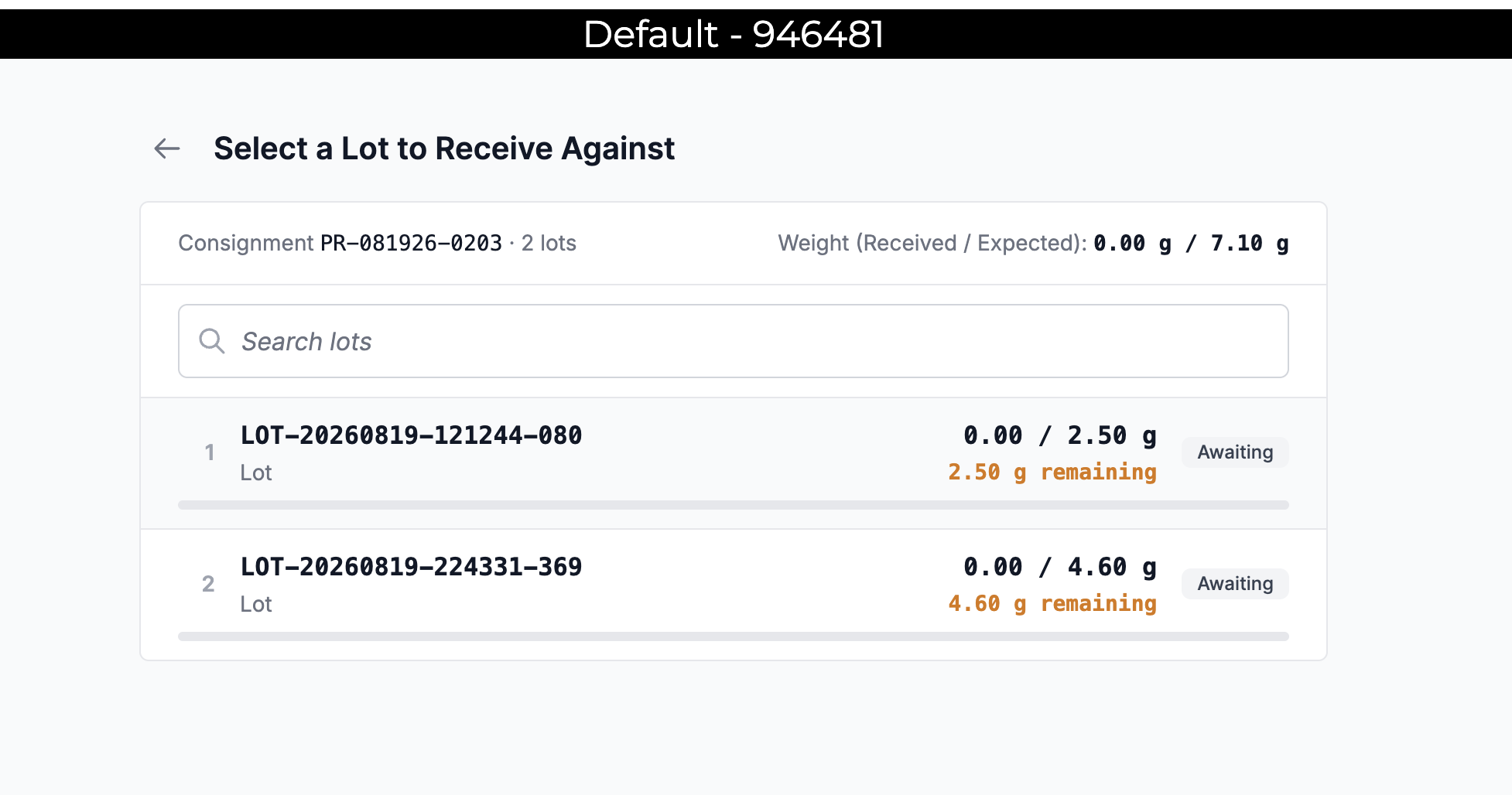
When the user selects the consignment created through Pre-Receiving, the receiver sees a screen with the lots in the consignment. They can start receiving against a lot by clicking on it.
-
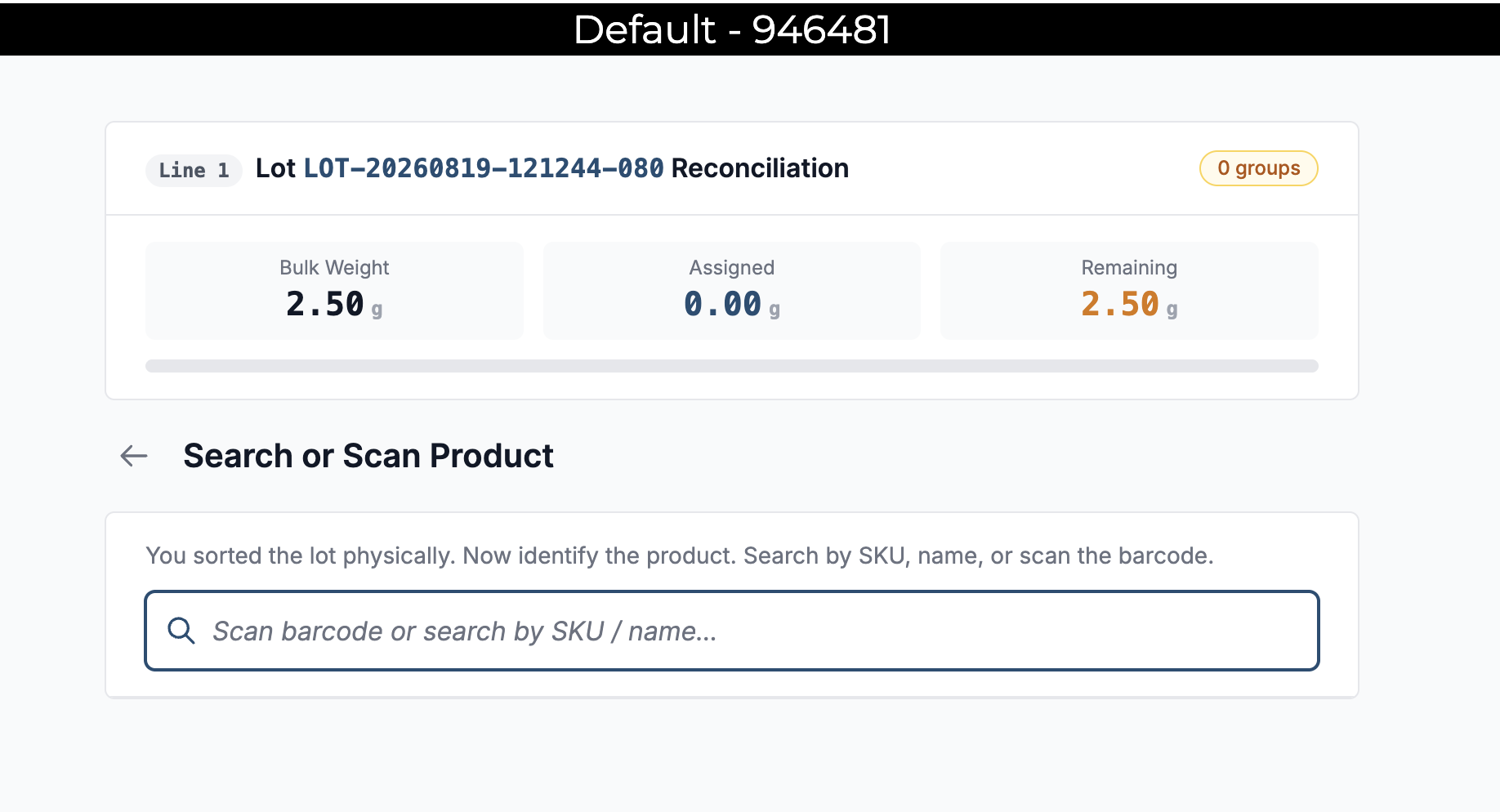
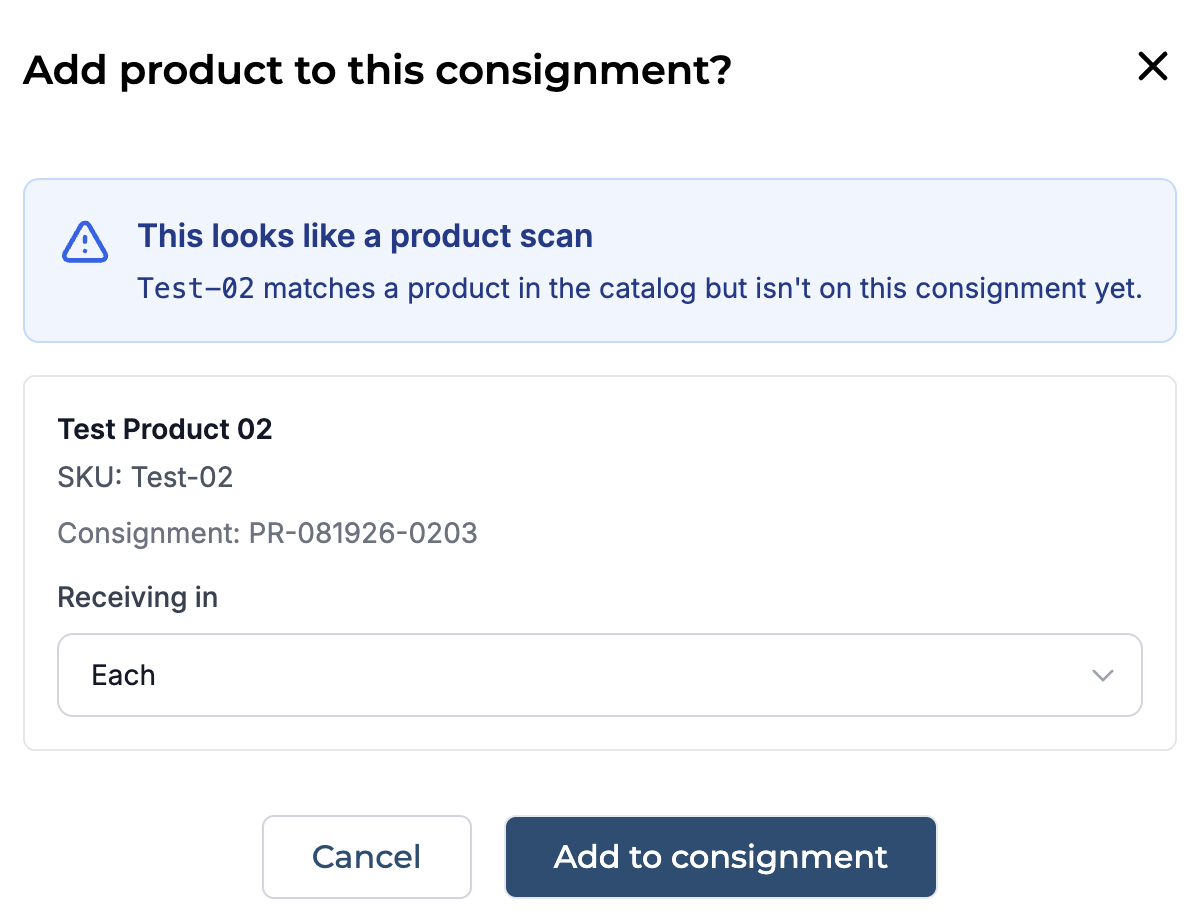
Scan the product and add it to the consignment.
-
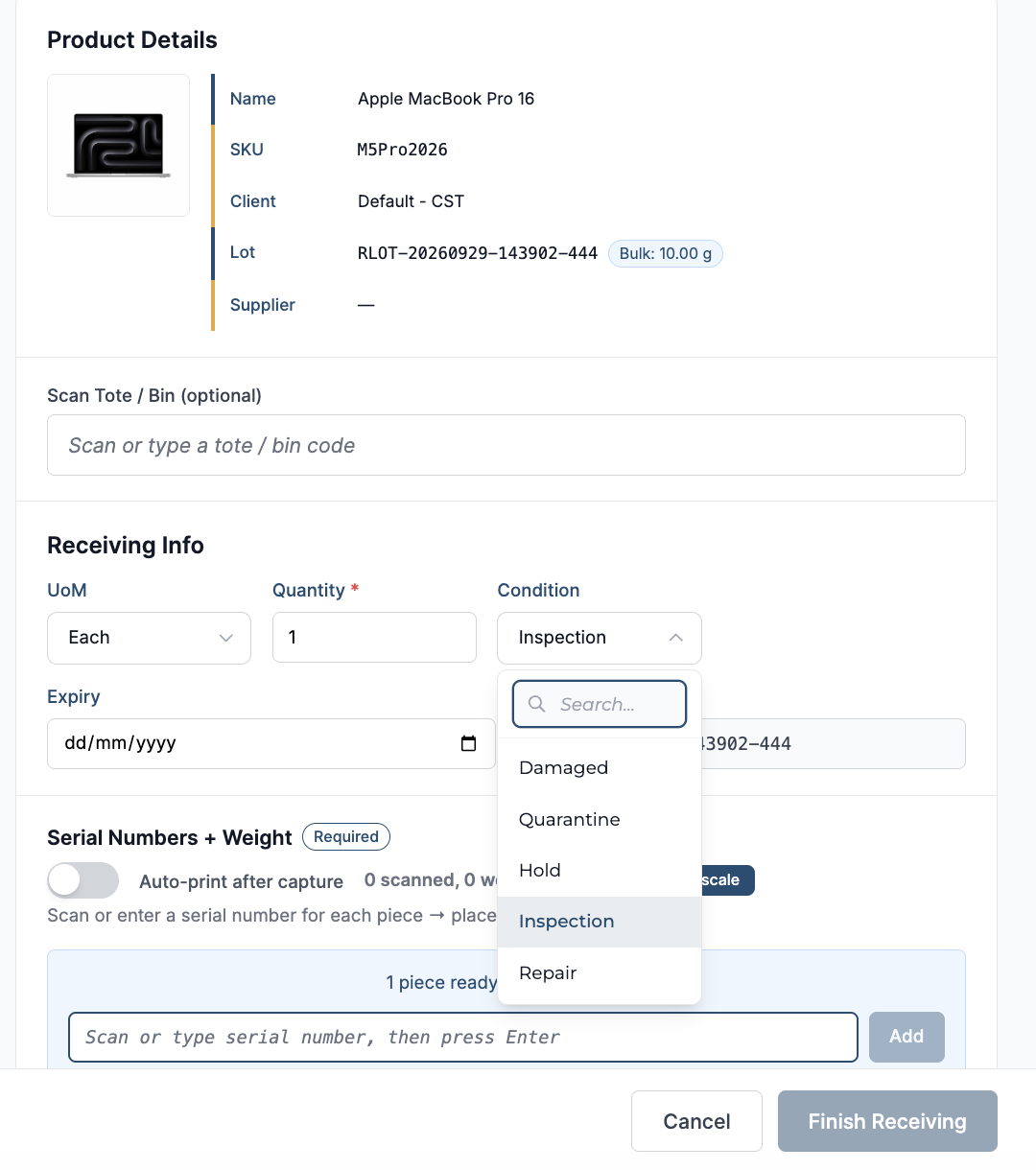
Complete the receiving process by entering the quantity, Serial Number, and weight, then click Finish Receiving.
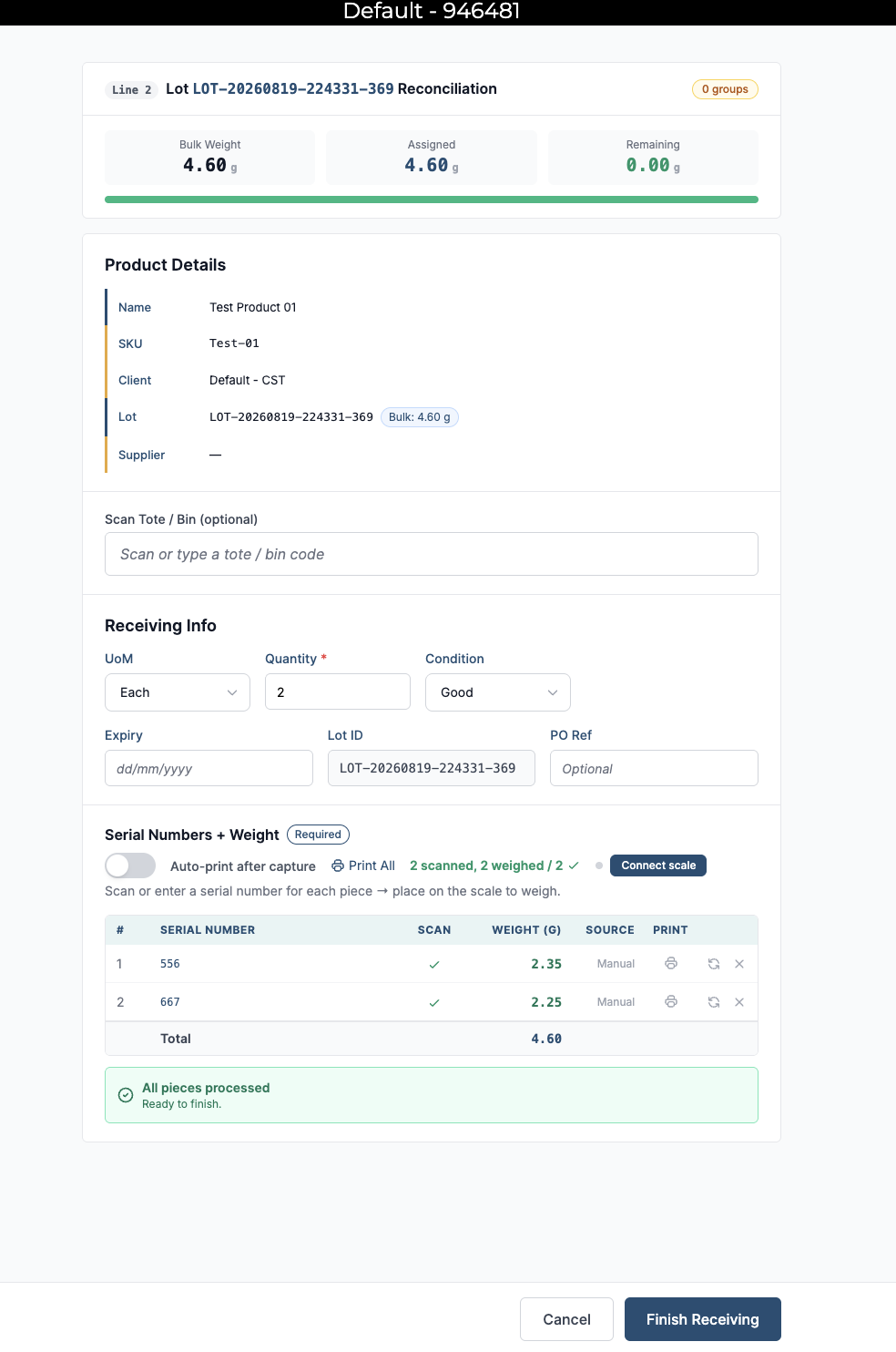
A single lot can contain multiple SKUs, and receiving for the same lot can be completed across multiple receiving instances. This allows receivers to process different SKUs or quantities from the lot as they arrive or are handled, rather than receiving the entire lot at once.
Approve Shortage or Close Lot after receiving
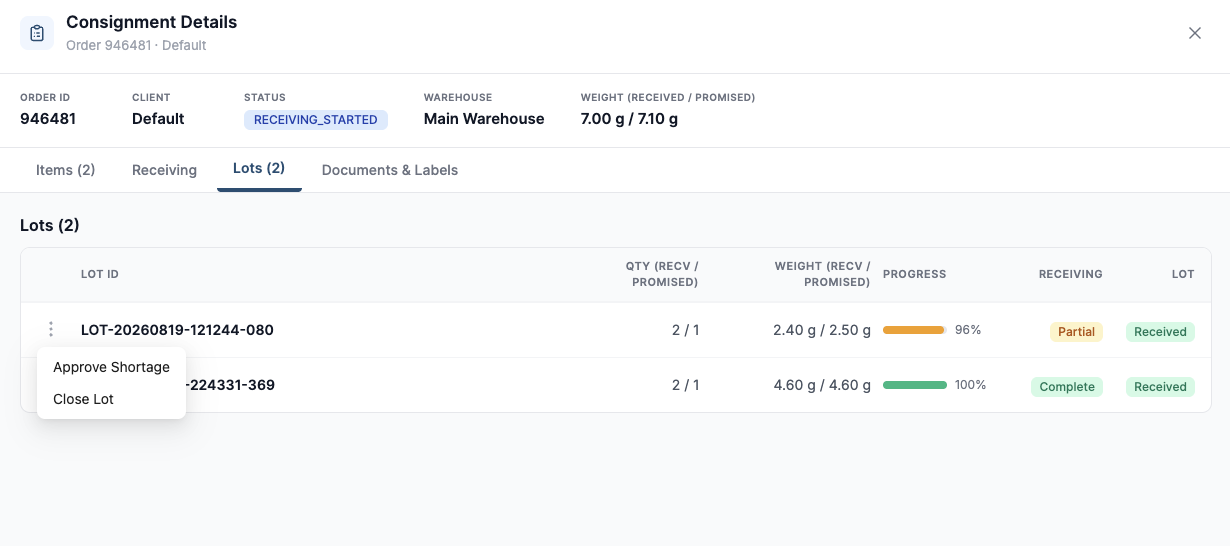
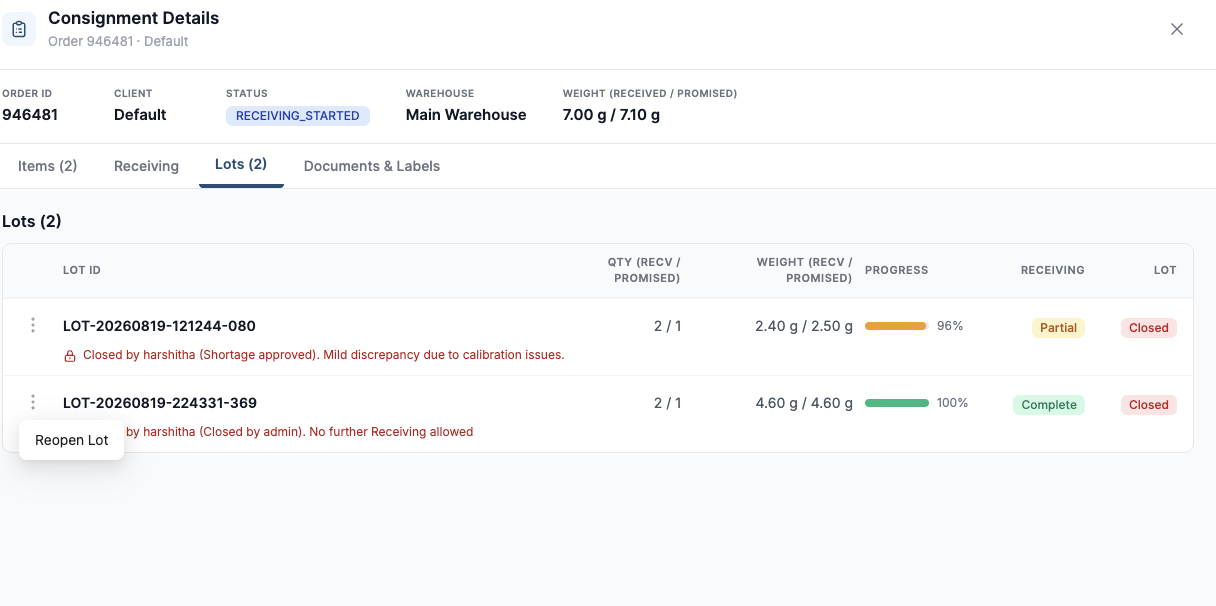
If a lot is not fully reconciled, it can be closed using one of the following options by selecting the Lots tab in the consignment details → Lots:
-
Approve Shortage: If receiving is completed with a shortage, the receiver must provide a reason before finishing the lot. The reason is recorded against both the lot and the consignment, providing traceability for the shortage.
The user needs to provide the reason in the comments section and click on “Approve Shortage”. The reason and the user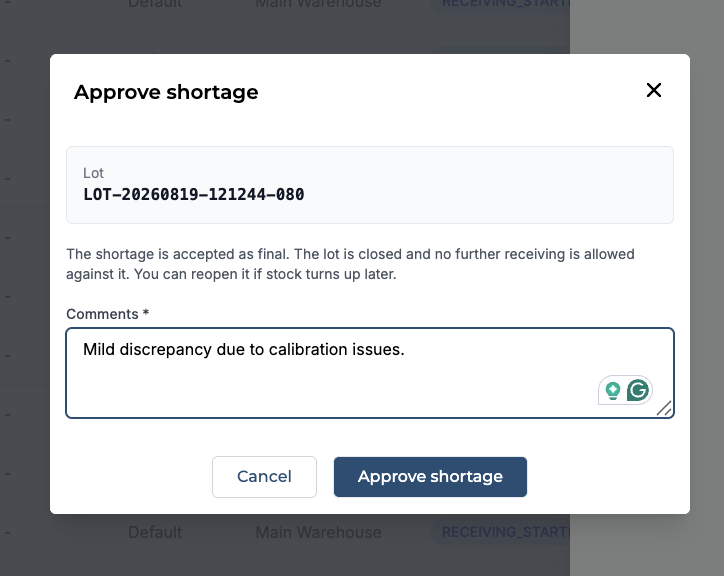
-
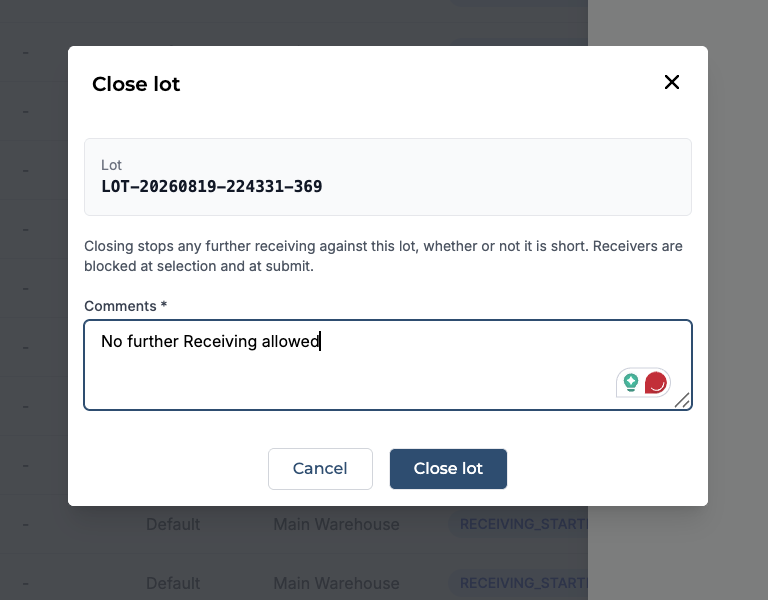
Close Lot: An admin can manually close a lot by adding comments. Once closed, no further receiving can be performed against the lot. This can be used to approve a confirmed shortage or to stop any additional receiving for the lot.
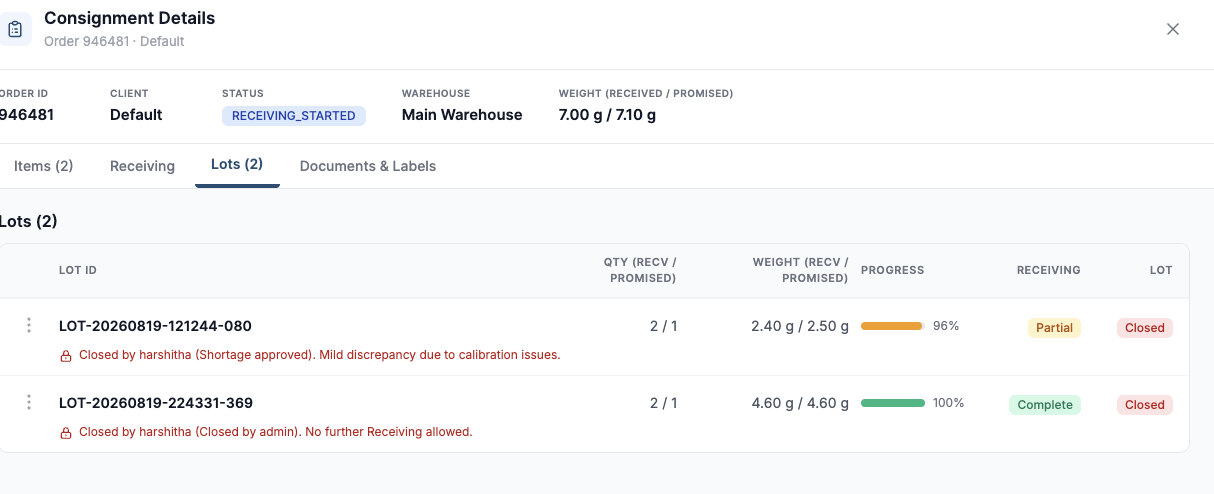
For a closed lot, the user who closed it, the closure method, and the reason provided are displayed for easy reference and traceability.
-
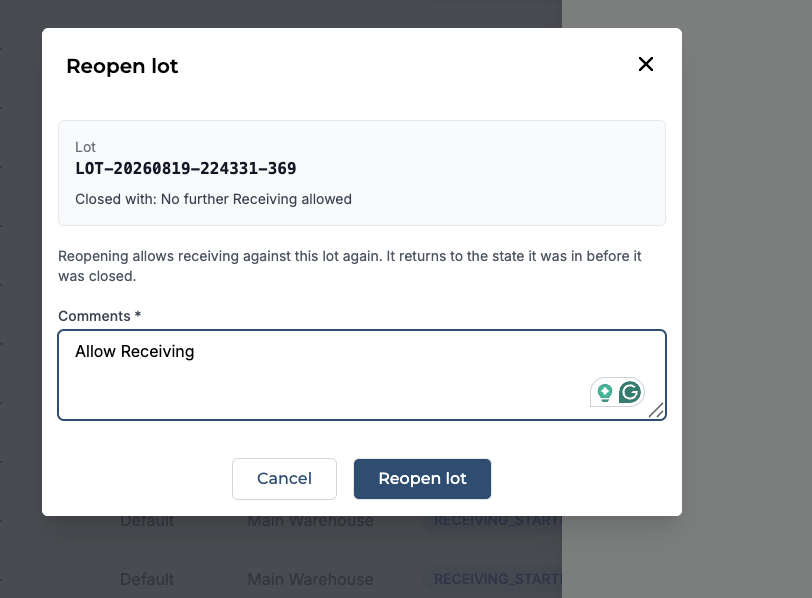
Reopen Lot: If a lot was closed accidentally or receiving needs to resume, an admin can click Reopen Lot and provide a reason for reopening. Once reopened, further receiving can continue against the lot.
Returns Through Pre-Receiving
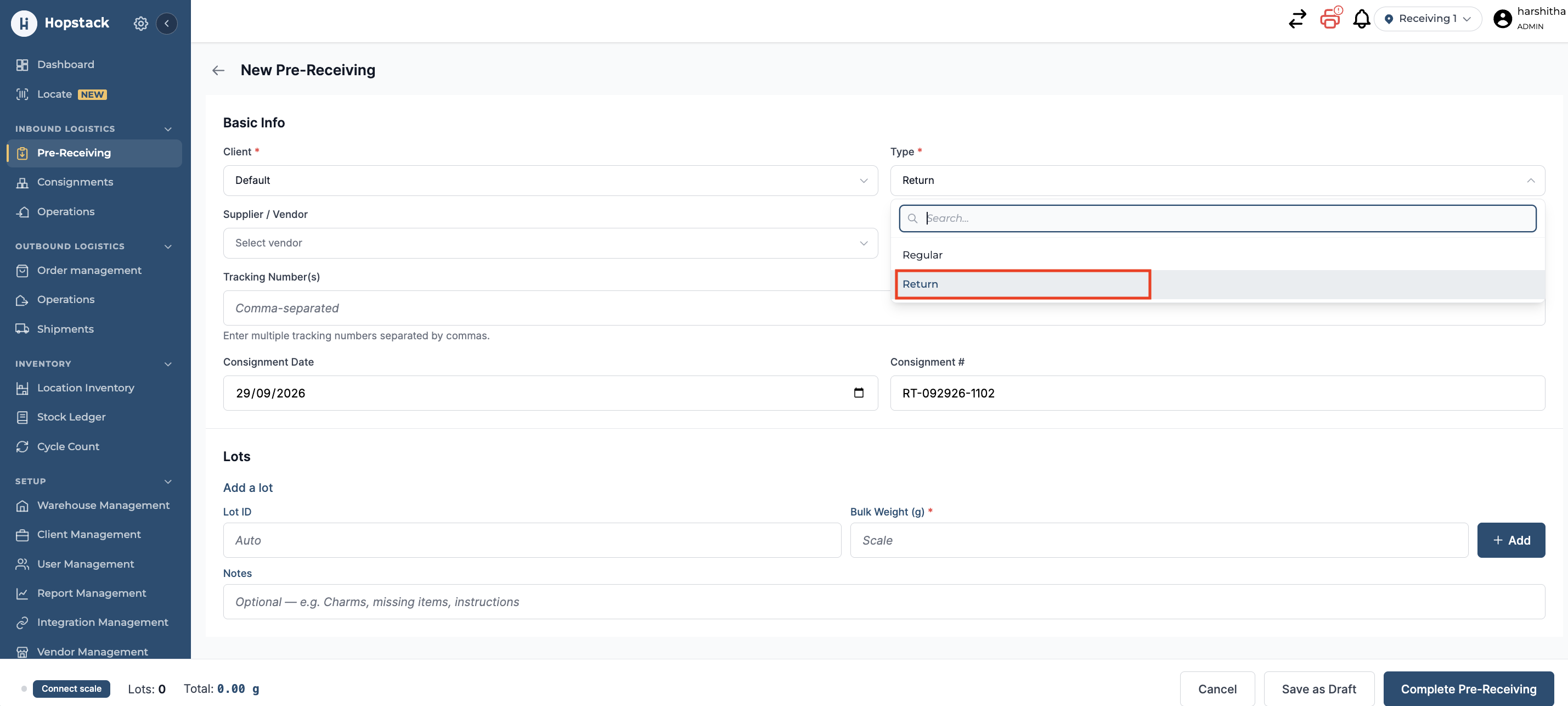
Pre-Receiving now supports Regular and Return types, so inbound returns can be created through the same structured flow.
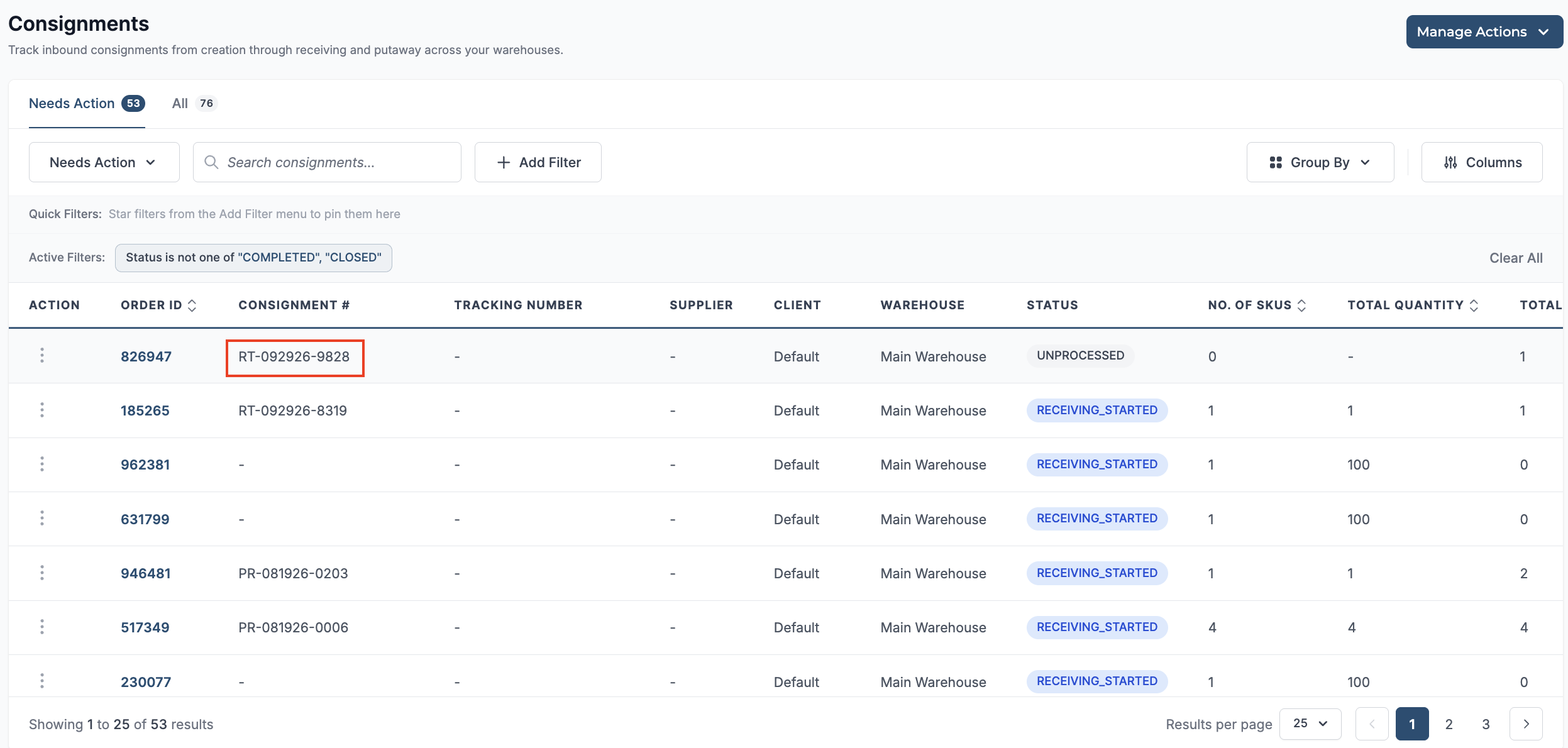
The consignments for returns created through pre-receiving have a consignment # that starts with “RT”.
The consignment created can be received with the steps elaborated in the above “Receiving a Consignment Created Through Pre-Receiving” section.
If Quality Check is enabled for your instance, the returned inventory is routed through Inspection instead of being received directly as Good. Users cannot receive returned items in Good condition, as the available condition options are limited to Damaged, Quarantine, Hold, Inspection, and Repair.