
We’ve introduced a new feature in the receiving workflow that allows users to add multiple pallet IDs for better tracking during consignment receiving.
Follow the steps below to use this feature:
Steps to Add Multiple Pallet IDs
1. Start the Receiving Workflow
-
Open the Receiving module.
-
Scan the consignment you are receiving.
-
This opens the receiving workflow for that specific consignment and product.
2. Add Product Details
-
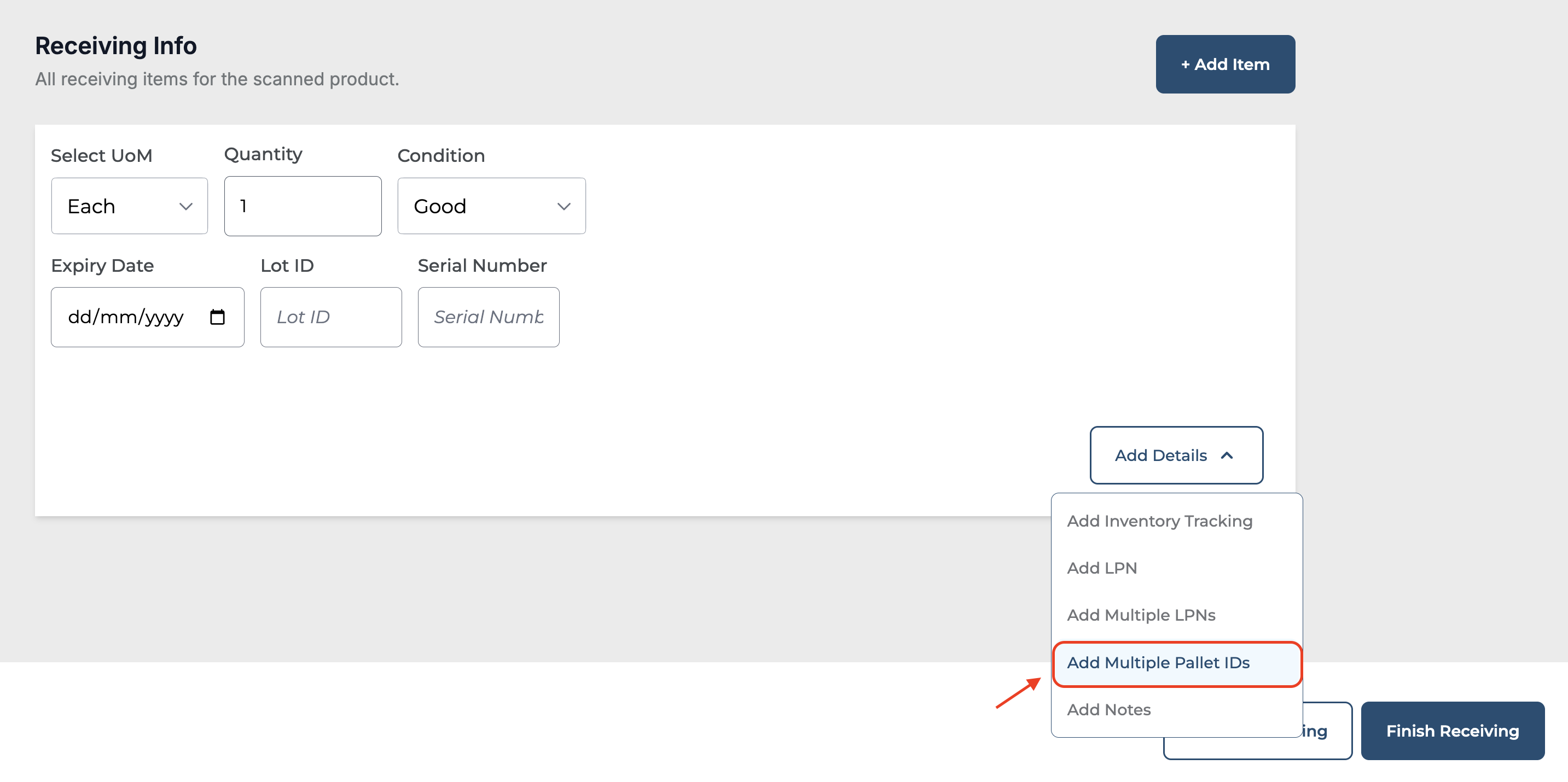
To add the multiple pallet IDs - Click on “Add Details.”
-
Then click on “Add Multiple Pallet IDs.”
3. Enter Quantity & Pallet Count
-
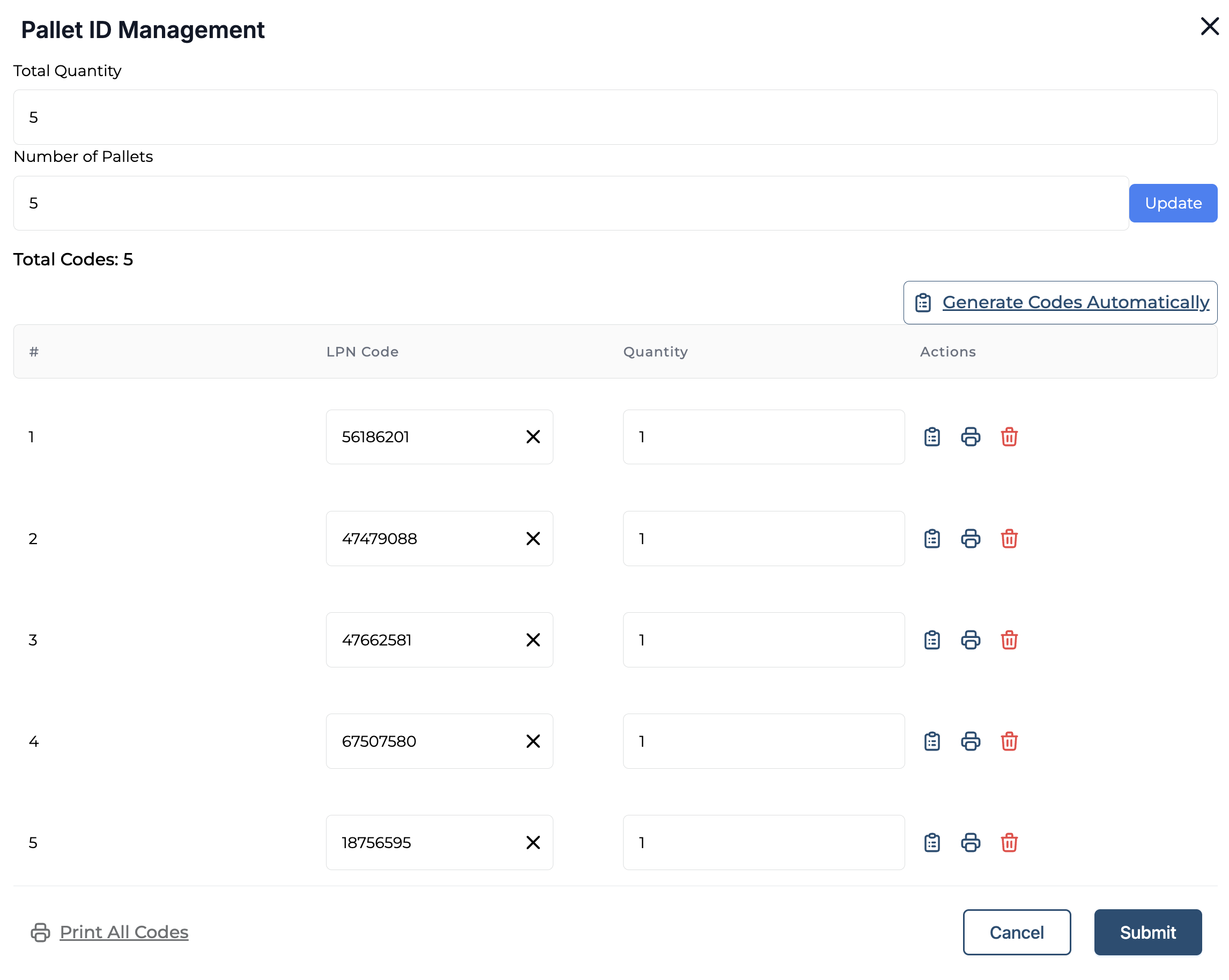
A popup will appear prompting you to:
-
Enter the total quantity.
-
Specify the number of pallets you want to split the quantity into.
-
-
Click “Update” once done.
Pallet ID Options
If You Have Predefined Pallet IDs:
-
You can manually enter each pallet ID.
If You Do Not Have Pallet IDs:
-
Click on “Generate Codes Automatically.”
-
The system will auto-generate unique IDs for each pallet.

Printing Pallet Barcodes
-
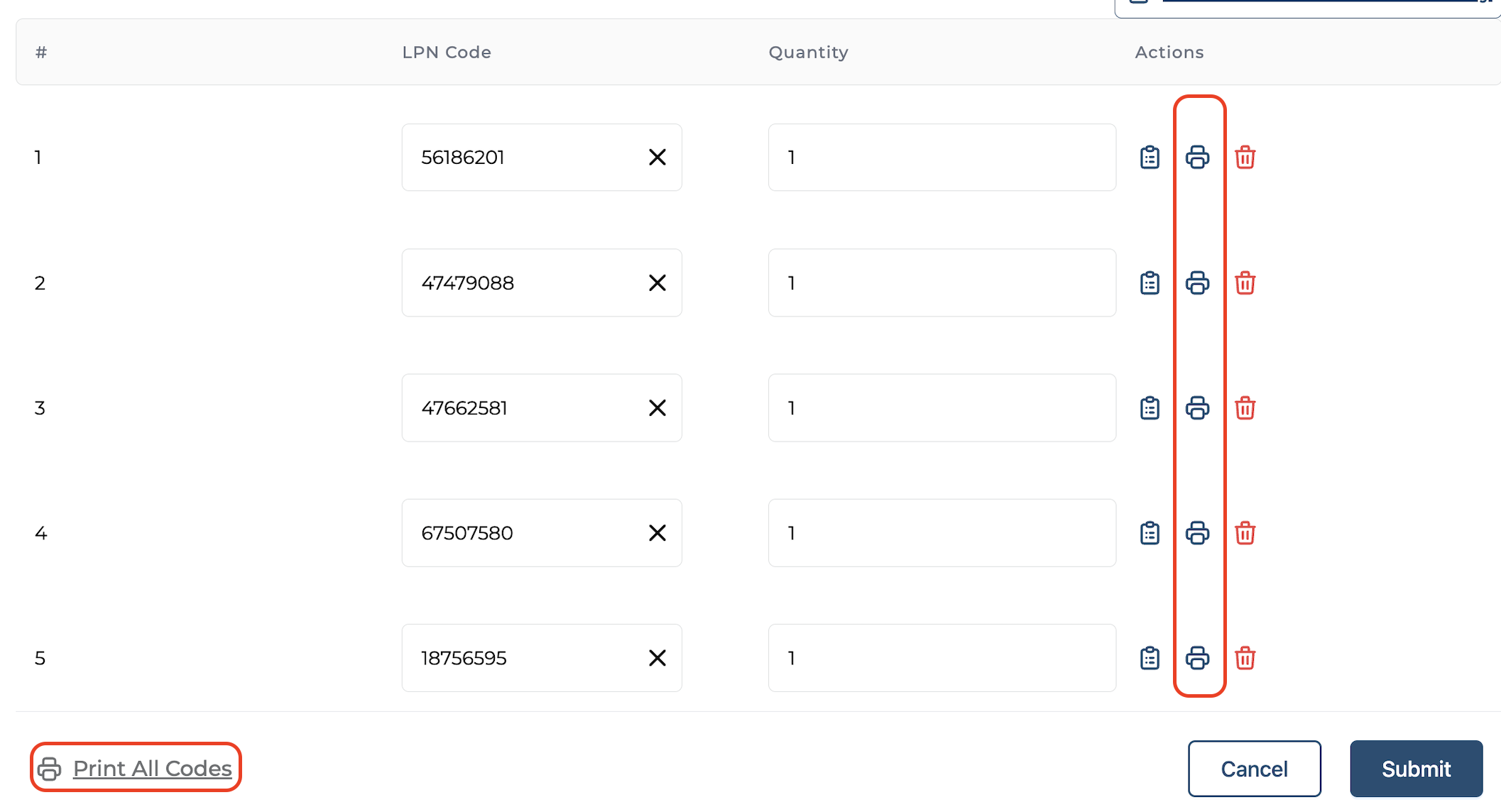
To print individual pallet barcodes, click the print icon under the Action column.
-
To print all pallet barcodes at once, click on “Print All Codes.”
Final Step: Submit
-
After verifying the pallet IDs and printing barcodes, click on “Submit” to complete this process.
