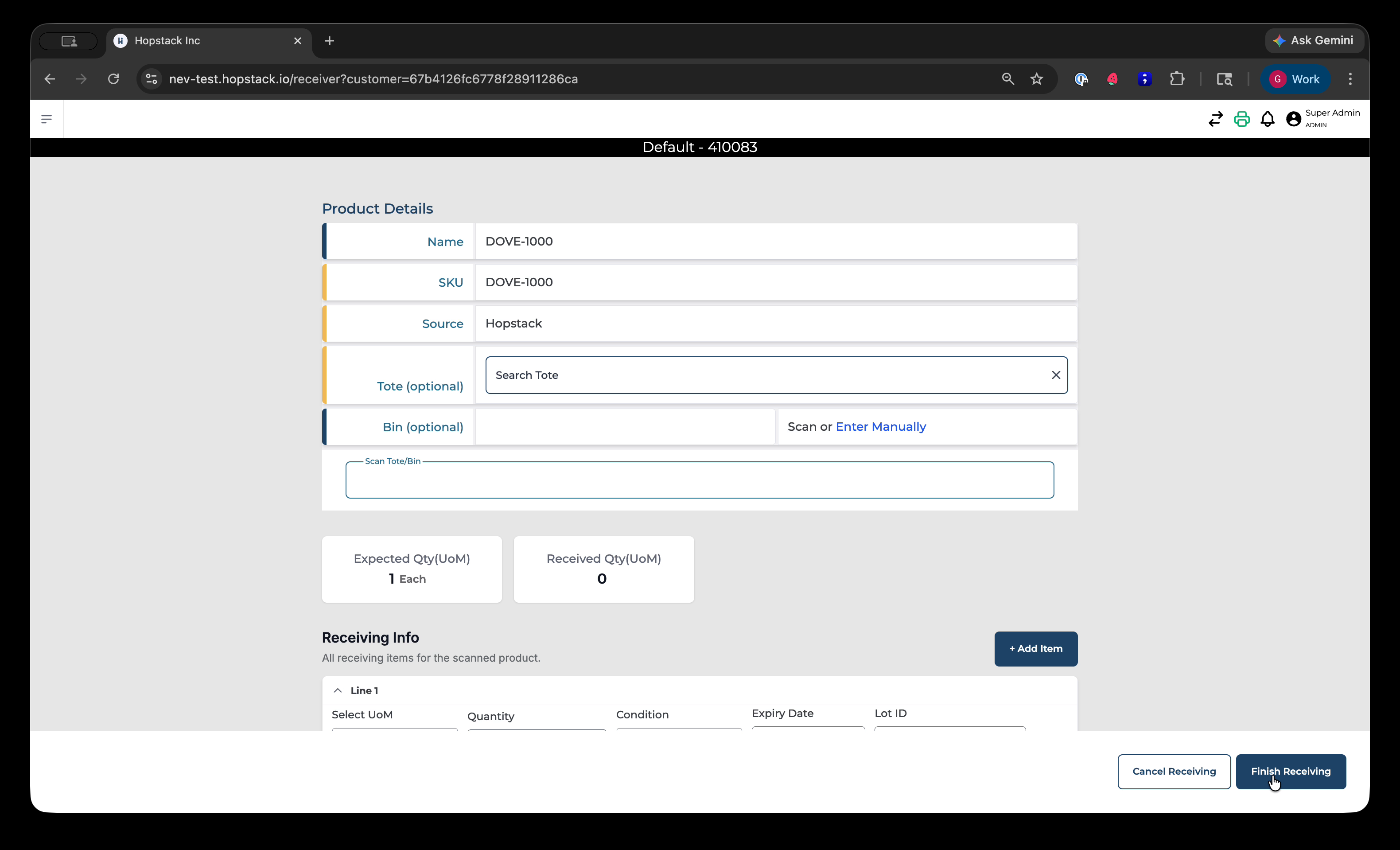
This document describes the enhanced receiving capabilities, including blind receiving, inline product creation, and appending items to both new and existing consignments. These features help receivers quickly handle unknown products, tracking numbers, and over-receipts directly in the receiving flow.
Step 1: Start Blind Receiving from a Product Scan
Begin in the receiving screen and scan a product that does not have an inbound order or consignment associated with it.
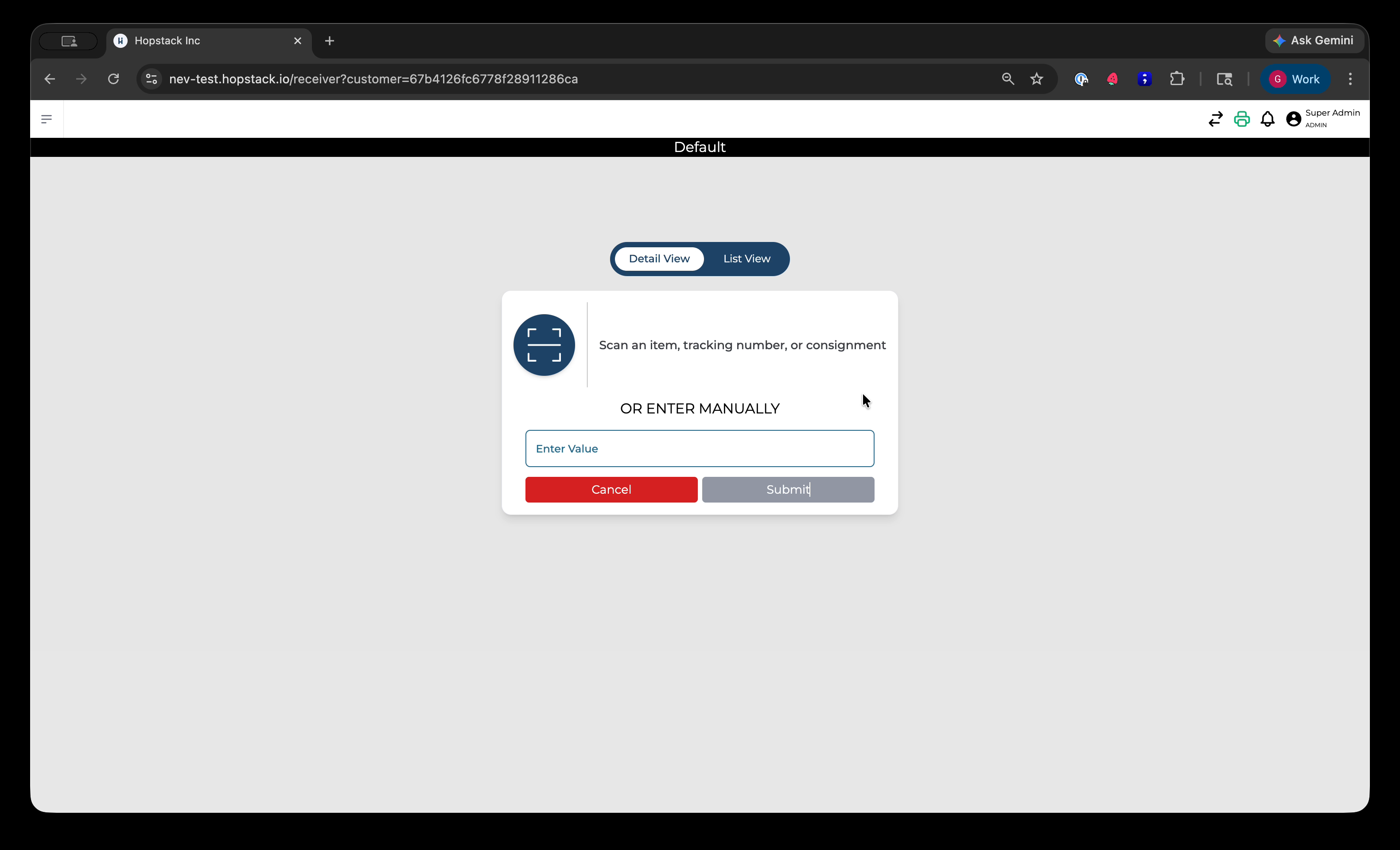
When the system detects that there is no consignment for the scanned product, it will display an option indicating that no consignment exists and ask if you want to create one inline for this product.
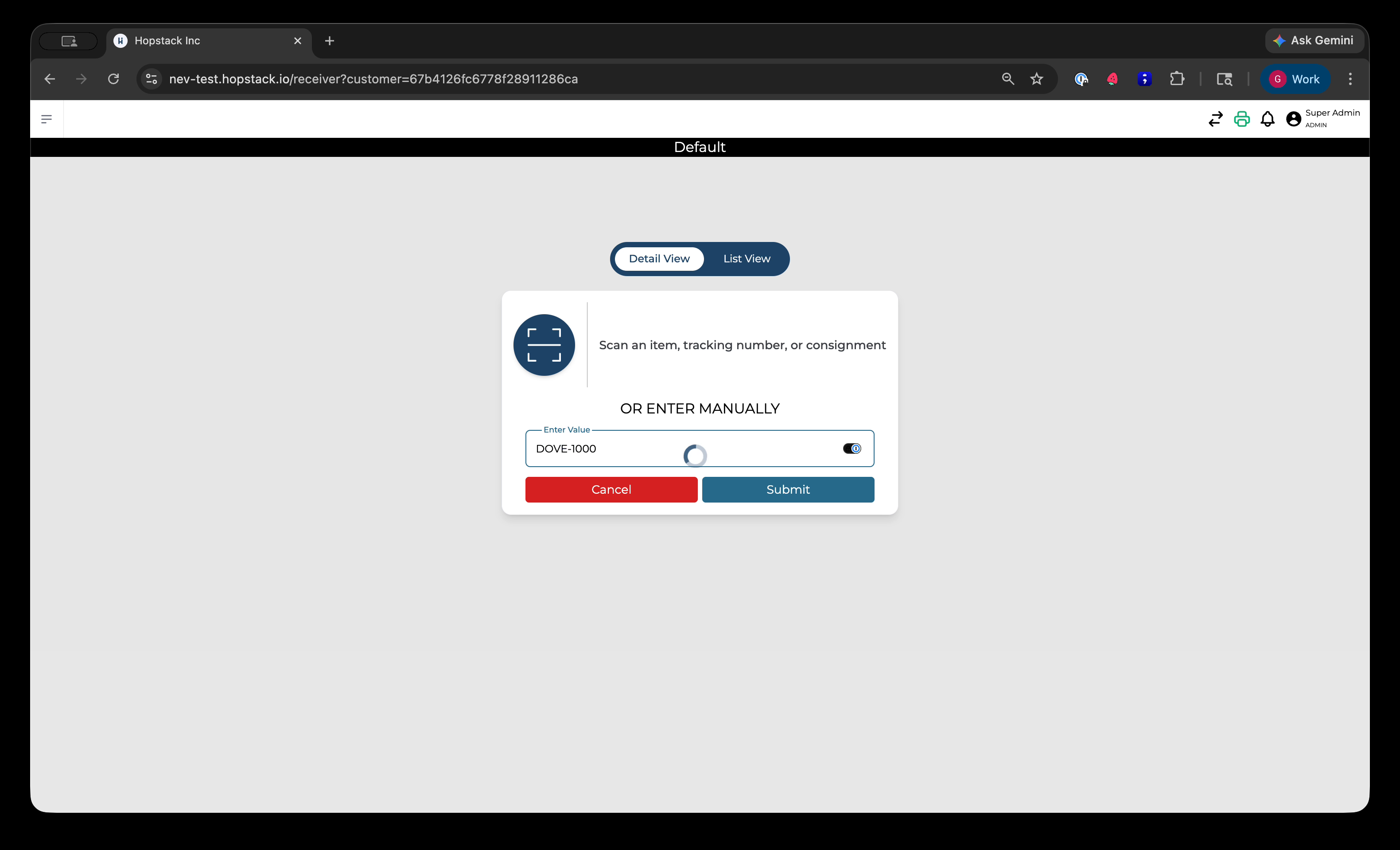
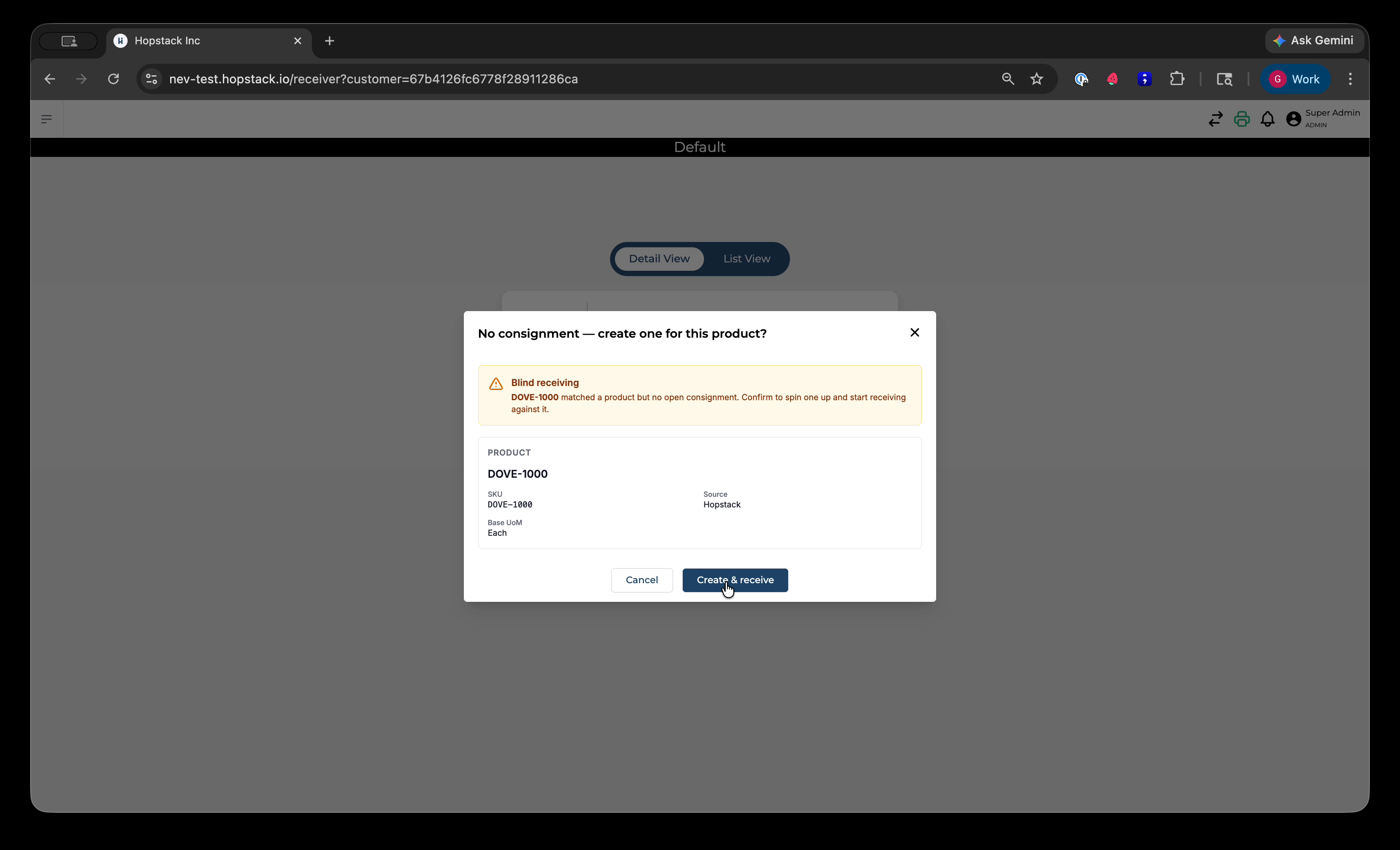
Confirm the prompt by choosing the option to create a consignment and proceed to receive against it. This action creates a placeholder consignment and allows you to receive the item as usual.
Step 2: Create a Shell Consignment from an Unknown Tracking Number
Next, scan a tracking number that does not exist in the system. This differs from the previous case, where the unknown scan was a product.
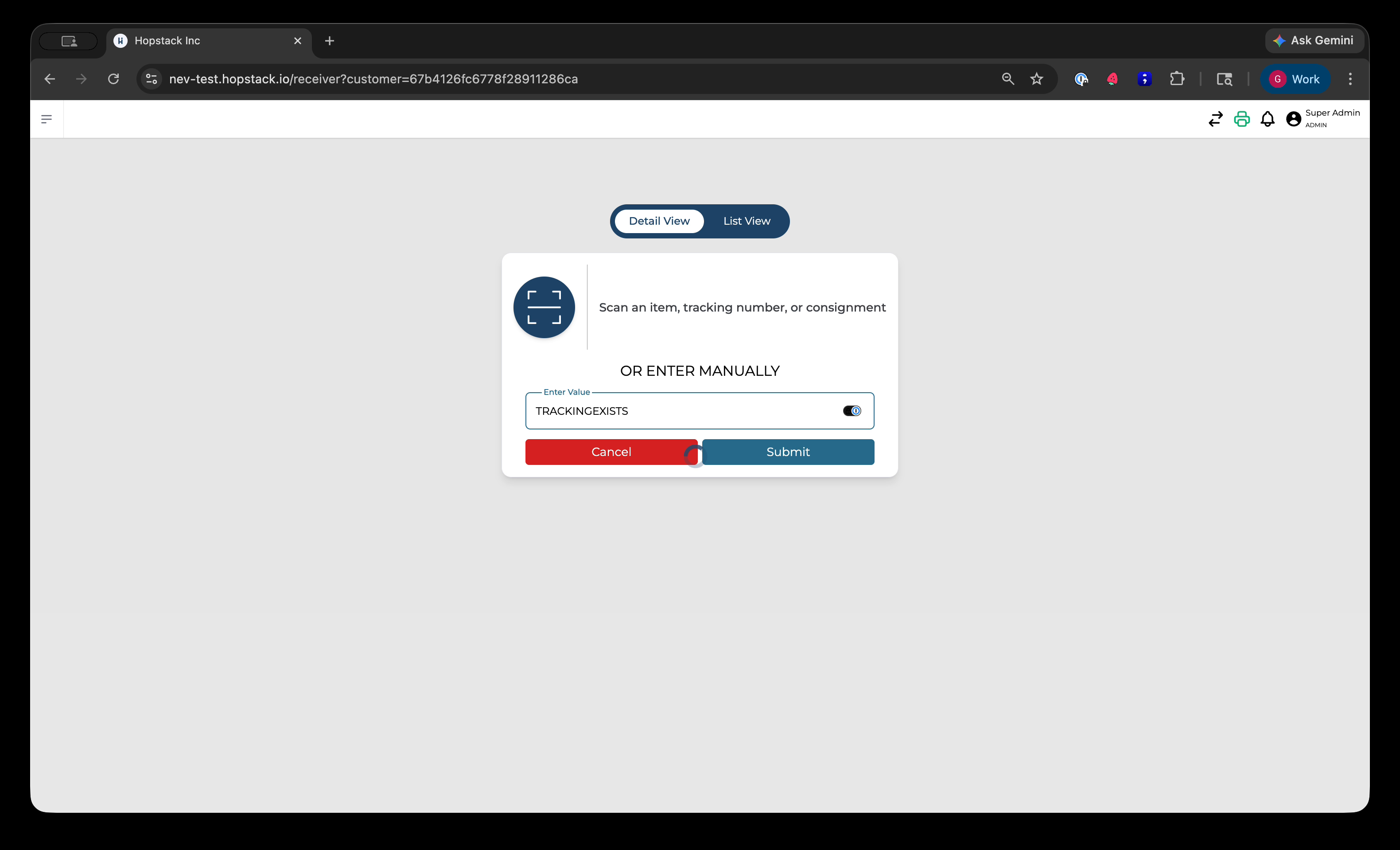
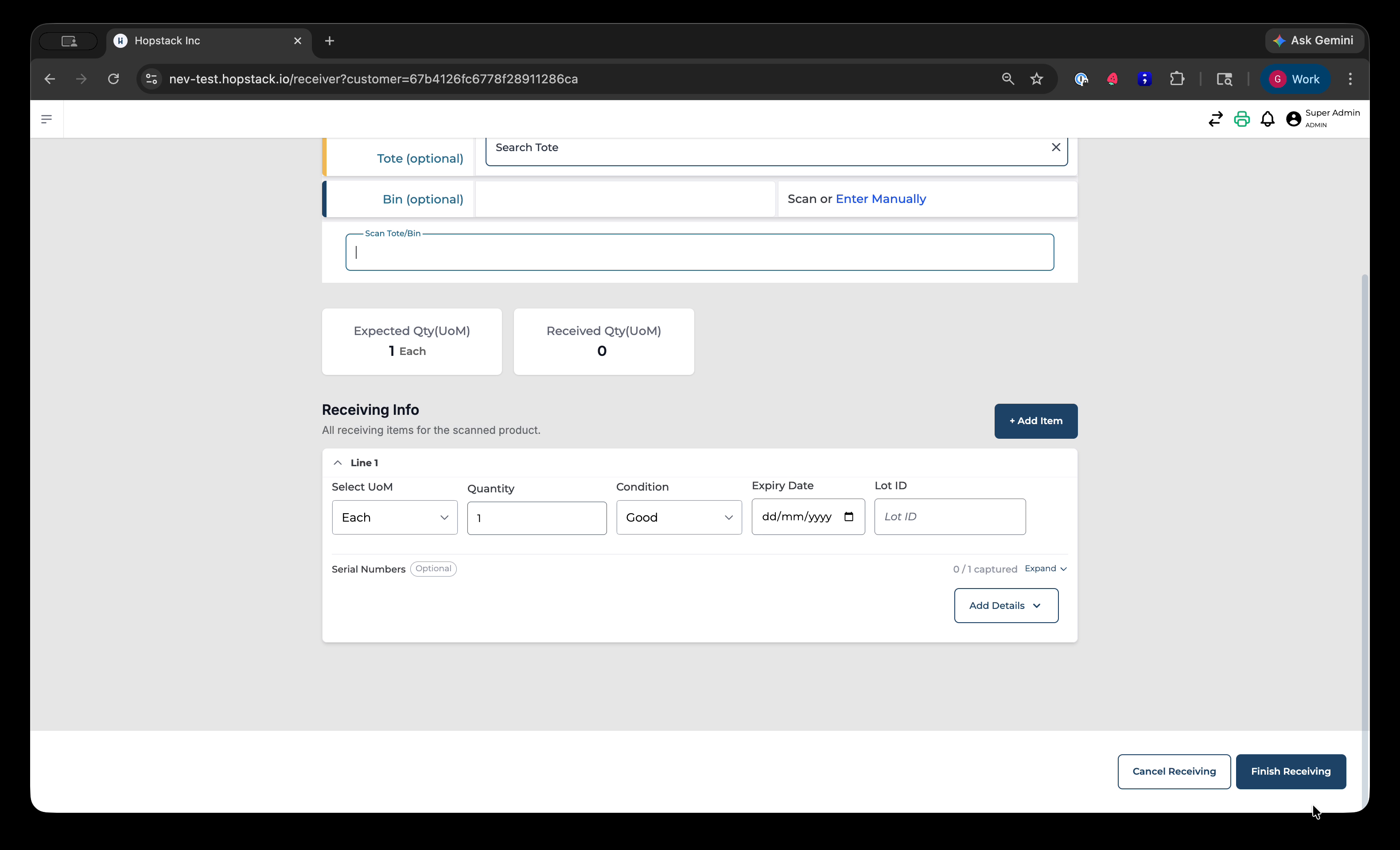
Because this scan does not match either a known product or an existing consignment, the system will ask whether the scanned code represents a product or a consignment.
Select that the scan represents a consignment. The system will then prompt you for basic consignment details such as Order ID and Consignment Number (often the tracking number you just scanned, which you can edit if needed).
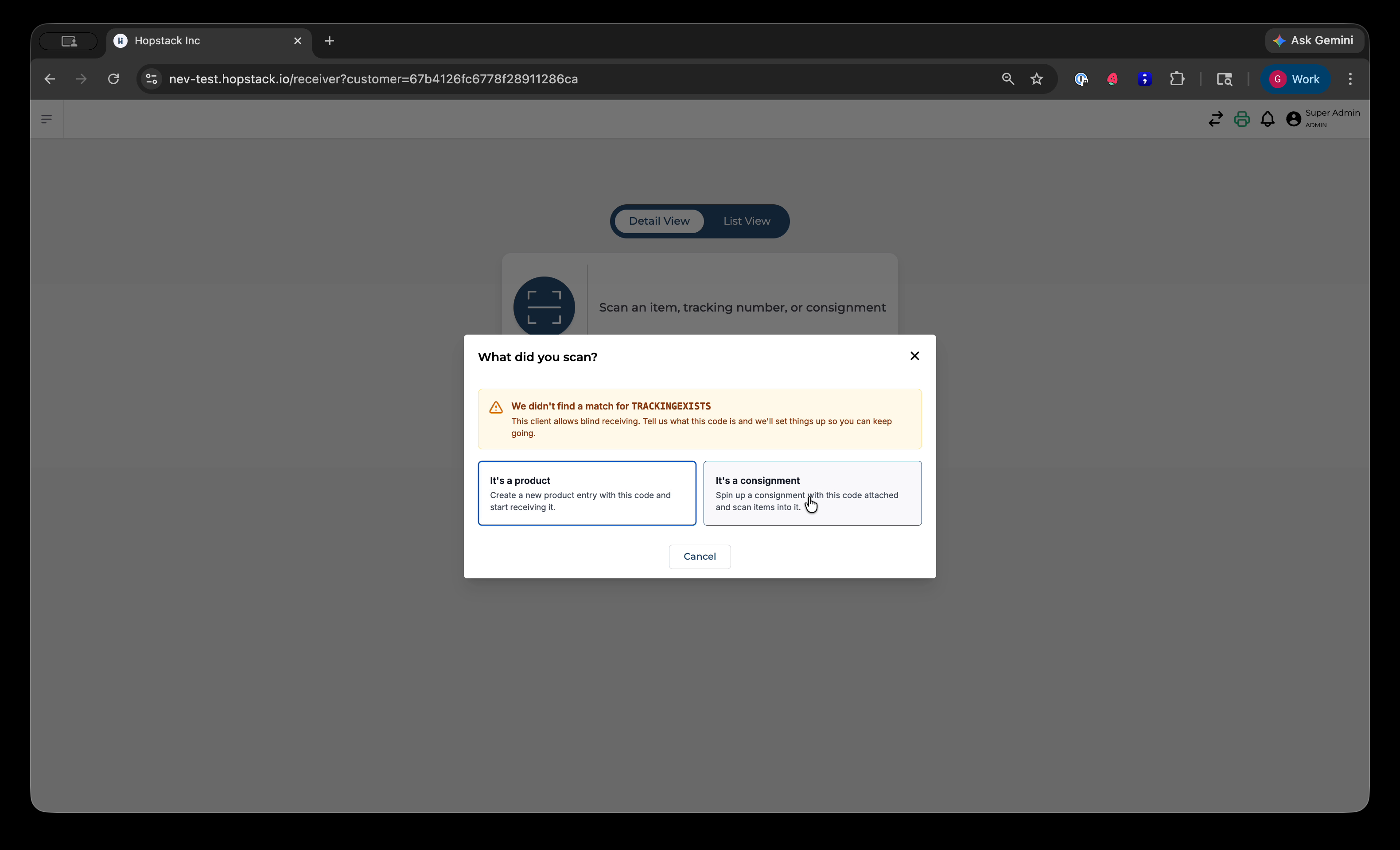
Confirm by choosing to create and receive. The system now creates a “shell” (empty) consignment and moves you into the receiving flow, where it expects you to scan items for this new consignment.
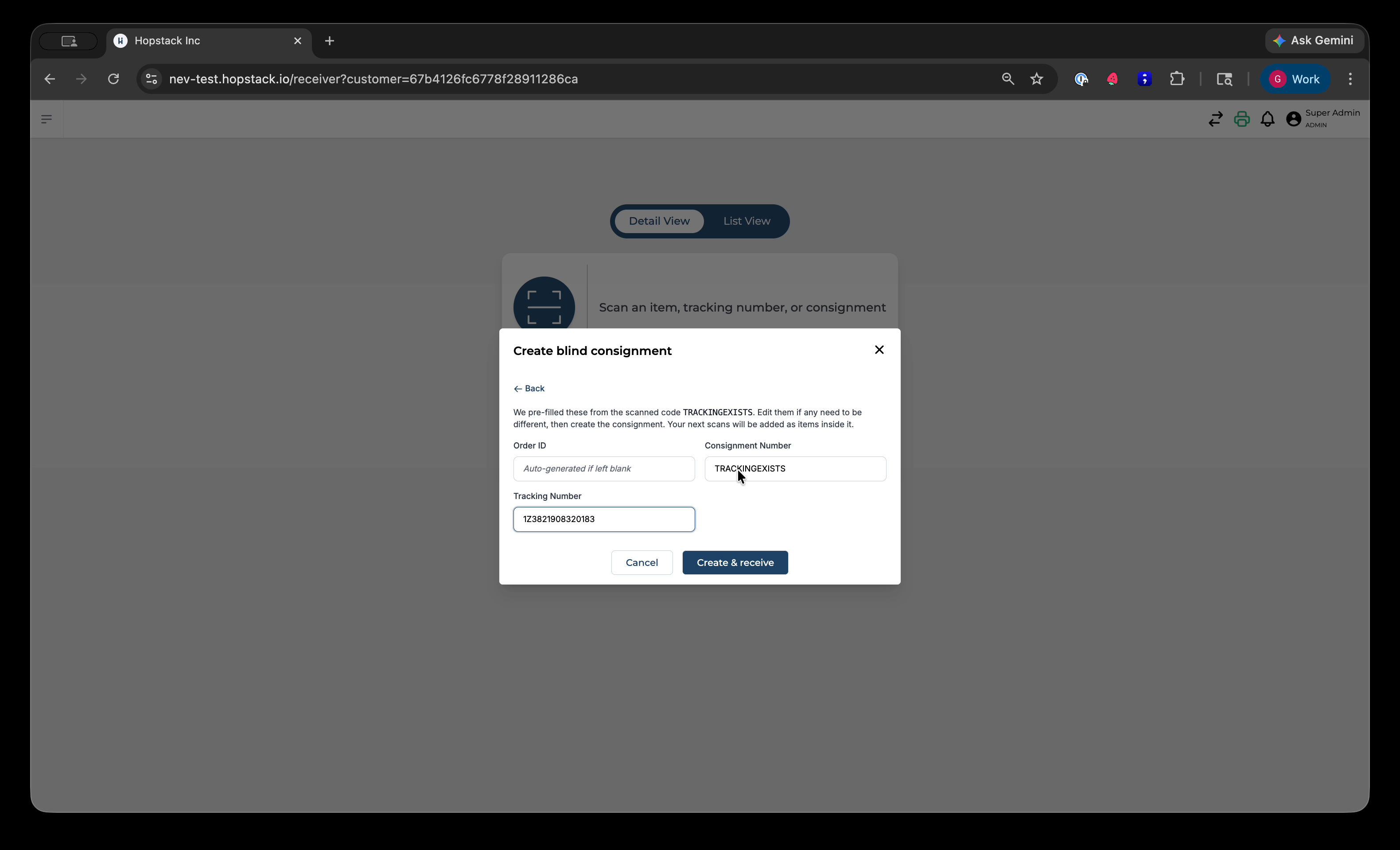
Step 3: Append Known Products to the New Shell Consignment
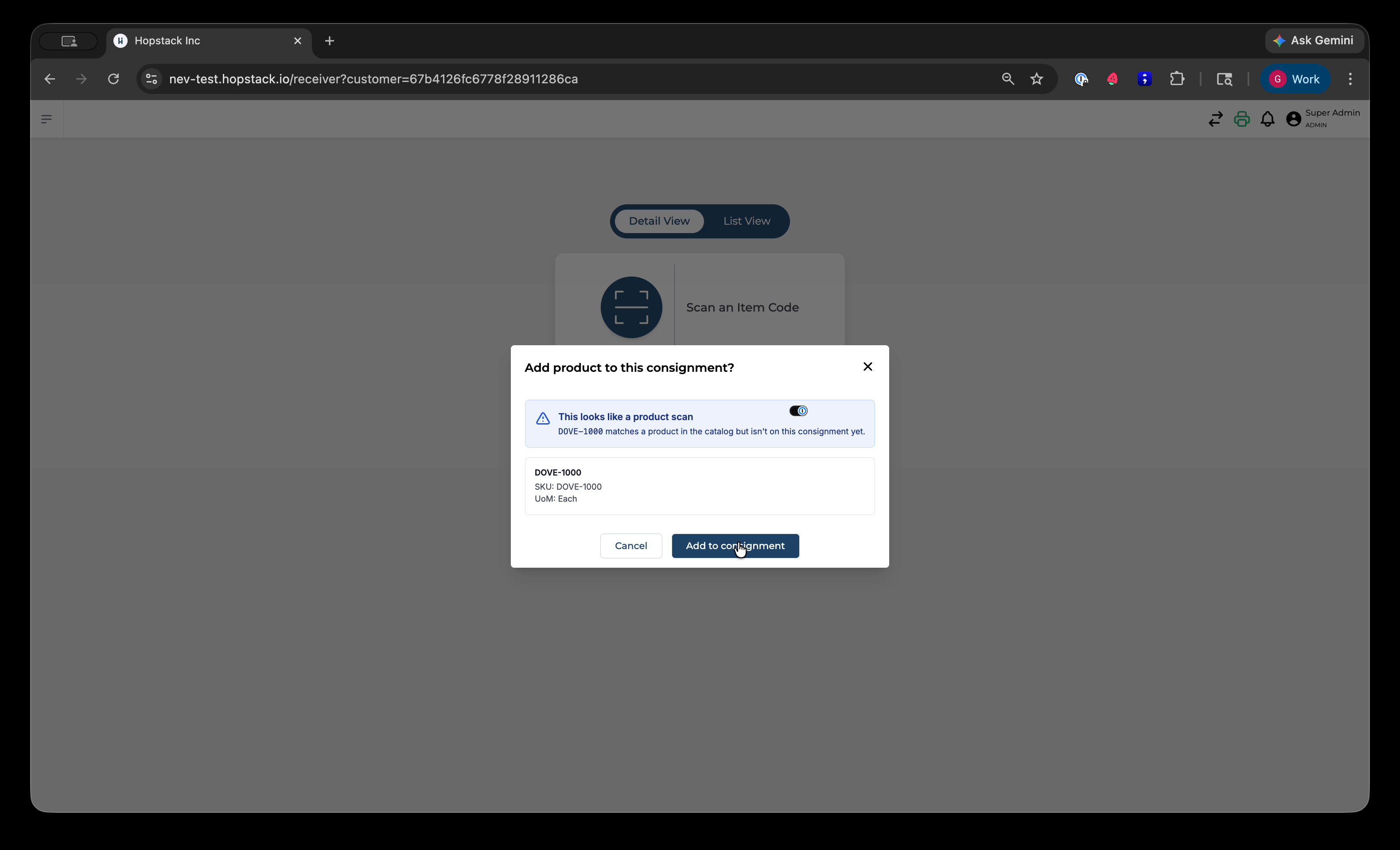
With the shell consignment open, scan any existing product from your catalog. The system will recognize it as a product and confirm with you that this is indeed a product scan and ask whether you want to add it to the current consignment.
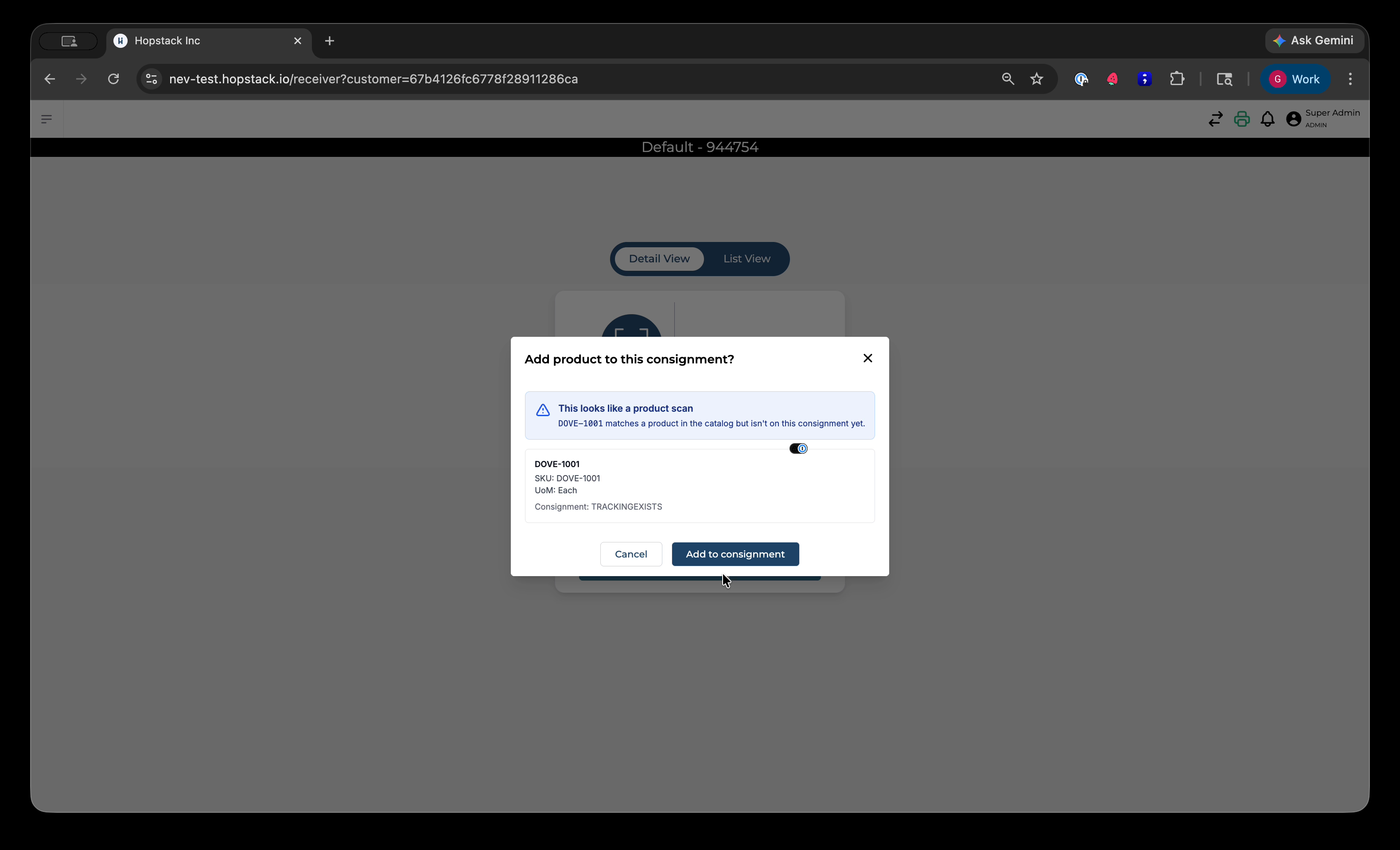
Confirm the prompt to append the product to the consignment. This allows you to build up the consignment contents even after the consignment has been created.
Step 4: Create New Products Inline During Receiving
If you now scan something that does not exist as a product in the system while working on this consignment, the system will trigger the inline product creation flow.
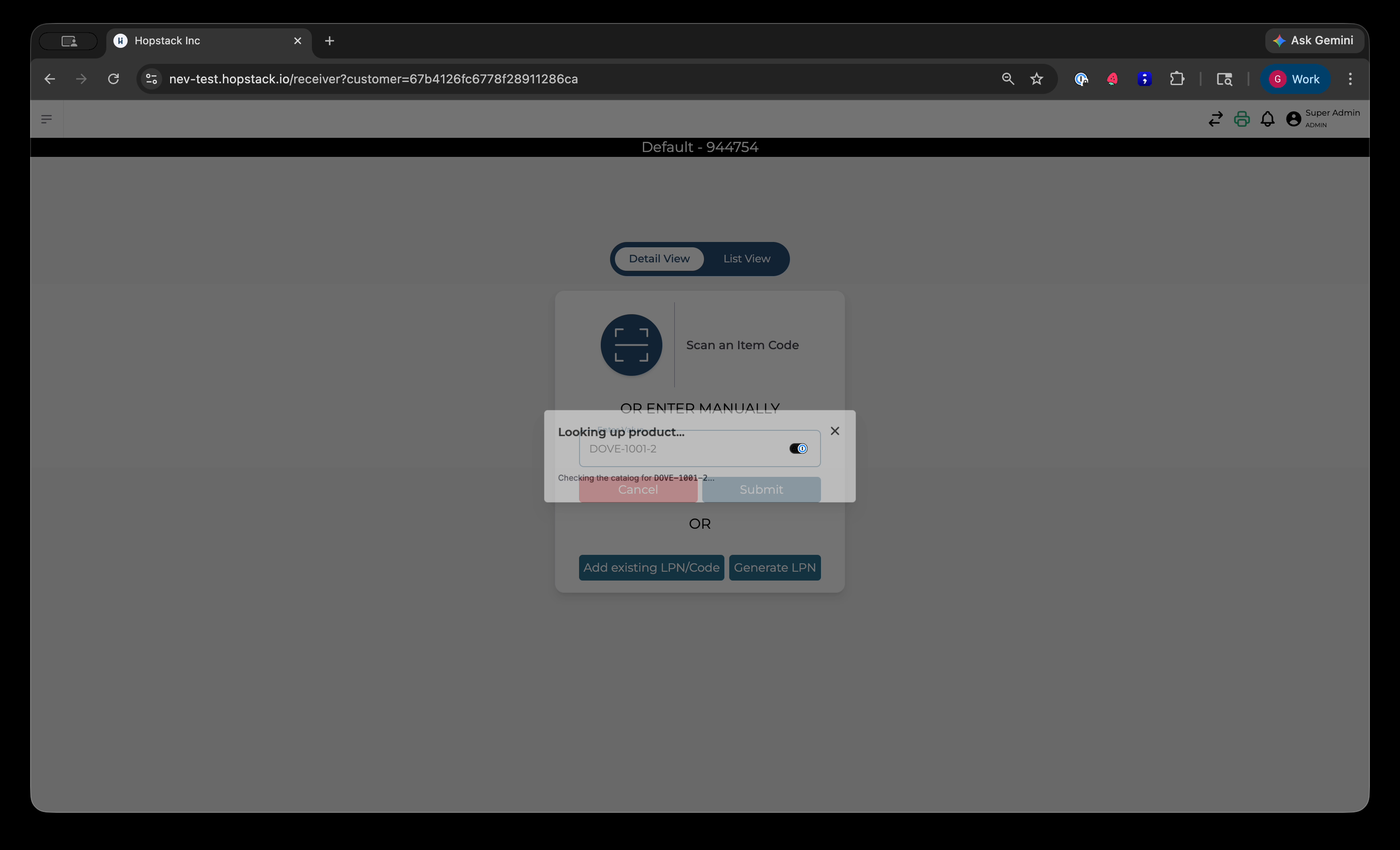
A new product creation form will appear, allowing you to define basic product details such as name, identifiers, and base unit of measure (UOM). You can provide minimal required data here and plan to enrich the record later in the product master.
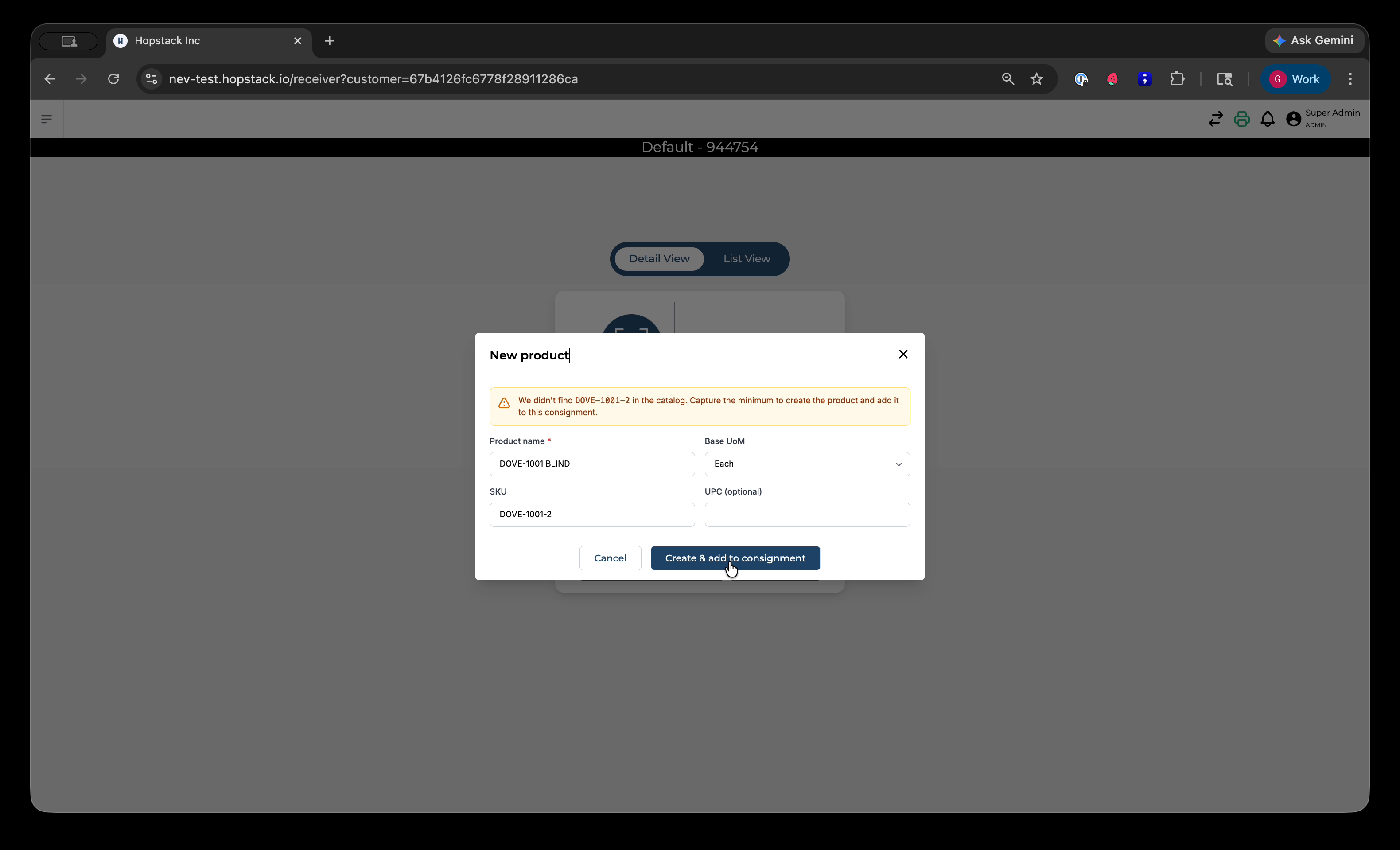
Complete the minimal product details and choose the option to “create and add to consignment.” The new product is created inline, added to the consignment, and the item is immediately available to be received against the blind consignment you created.
Step 5: Work with Existing Consignments and Over-Receipts
To use these capabilities on an existing consignment, select an already created consignment from the receiving screen.
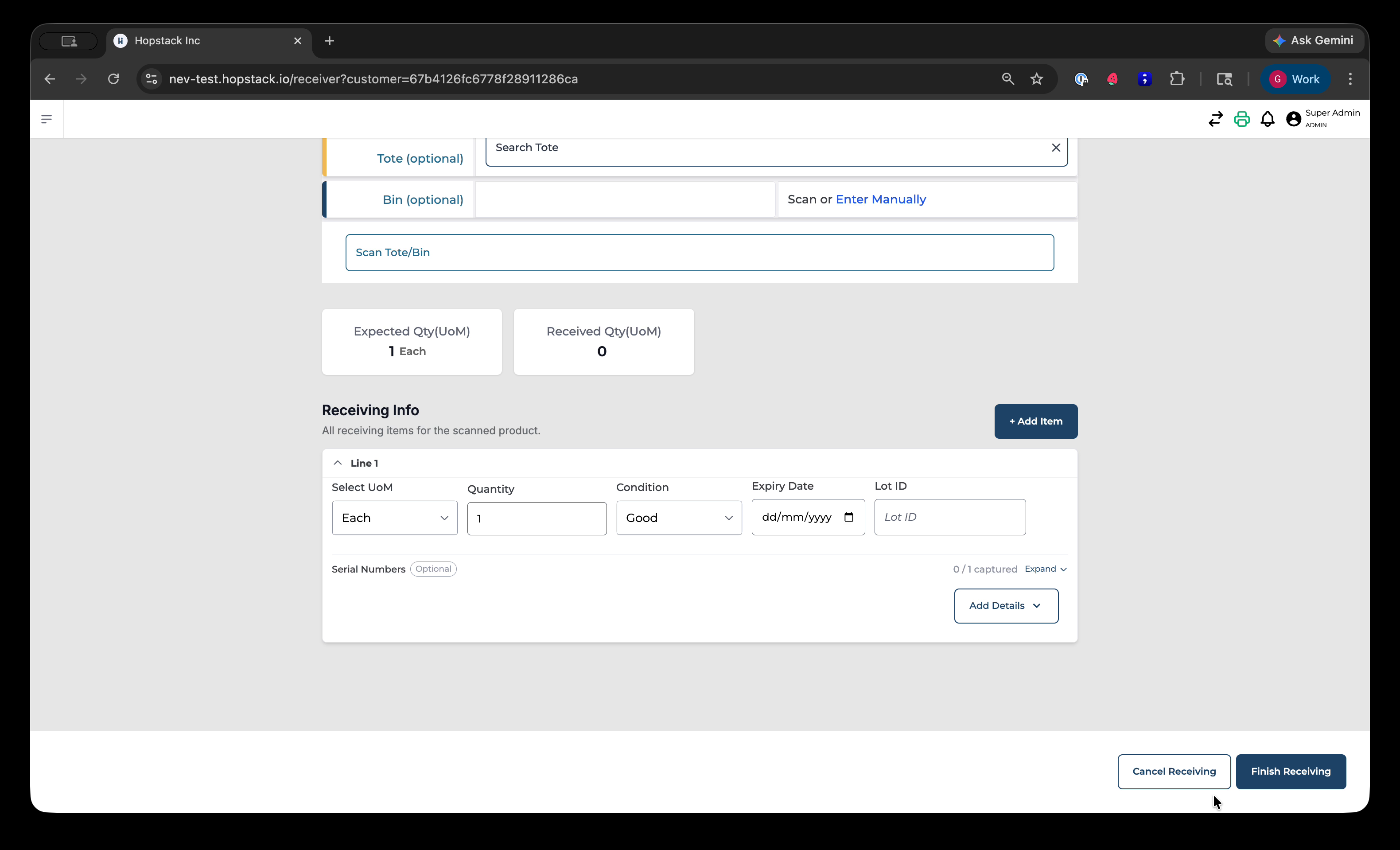
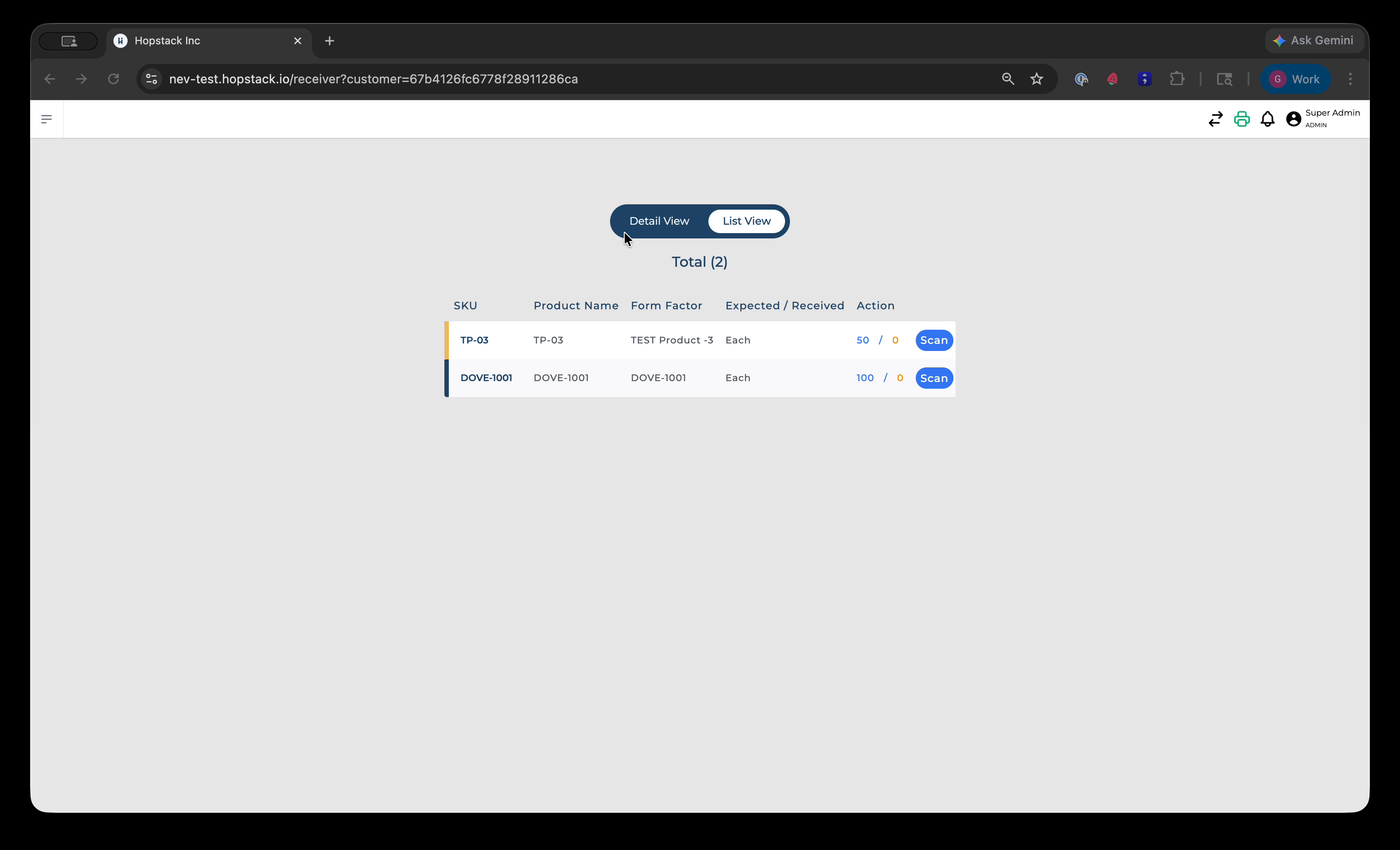
Open the chosen consignment; you will see the list of products already associated with it.
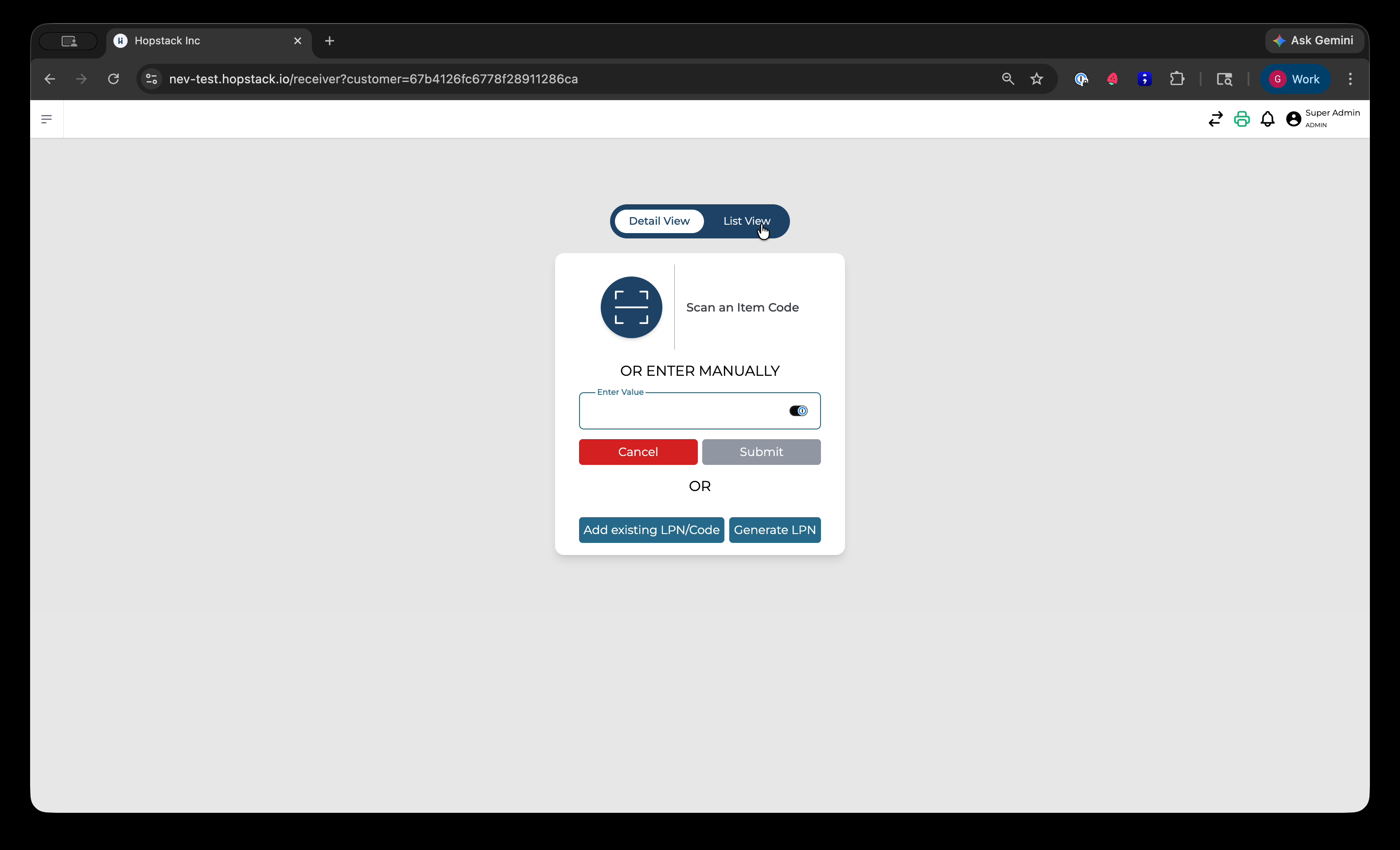
If you receive more than was originally promised or receive a different product, you can scan another product from the system that is not currently part of this consignment.
The system will allow you to append this additional product to the existing consignment on the fly, even though it was not initially planned. Confirm the prompt to add the product and continue receiving against it.
These enhancements—blind receiving, shell consignments, inline product creation, and on-the-fly appending of products—significantly streamline and speed up the receiving process.