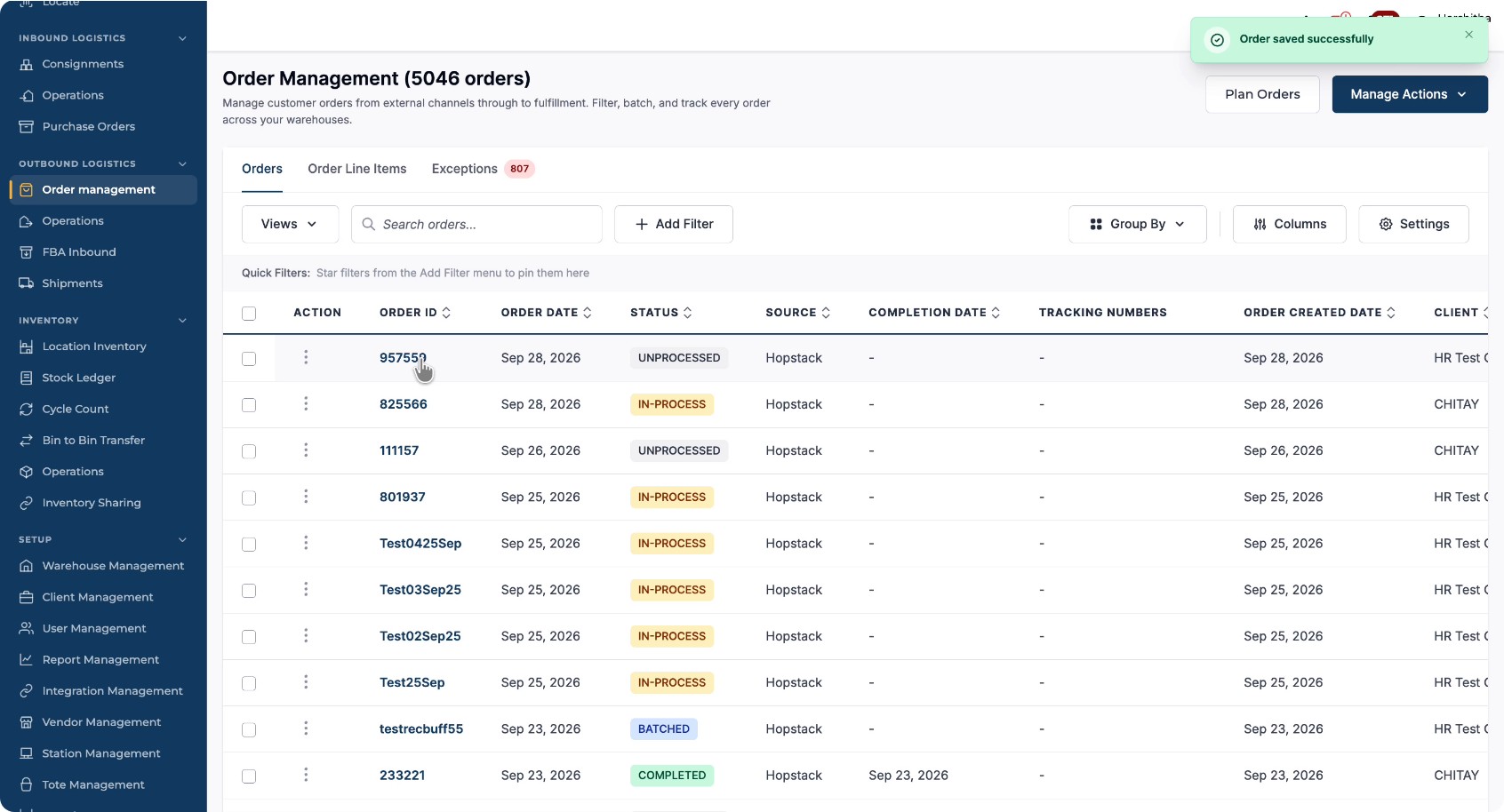
Create Order V2
This document walks through the new full-page “Create Order” workflow, from enabling the new version to adding items, defining packing and shipping, and finally creating and reviewing the order.
Step 1: Enable the New Create Order Experience
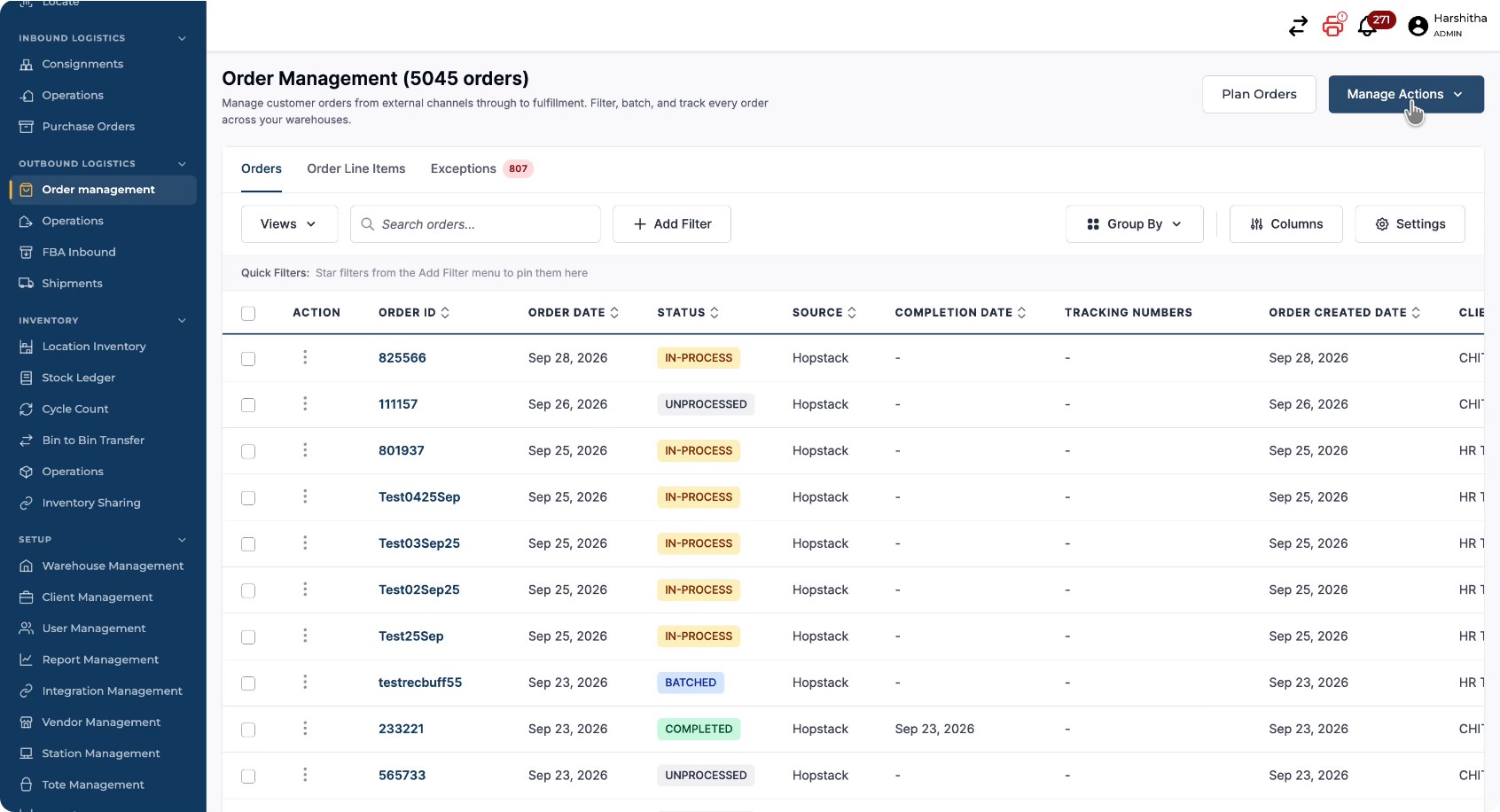
Click Manage Actions to begin.
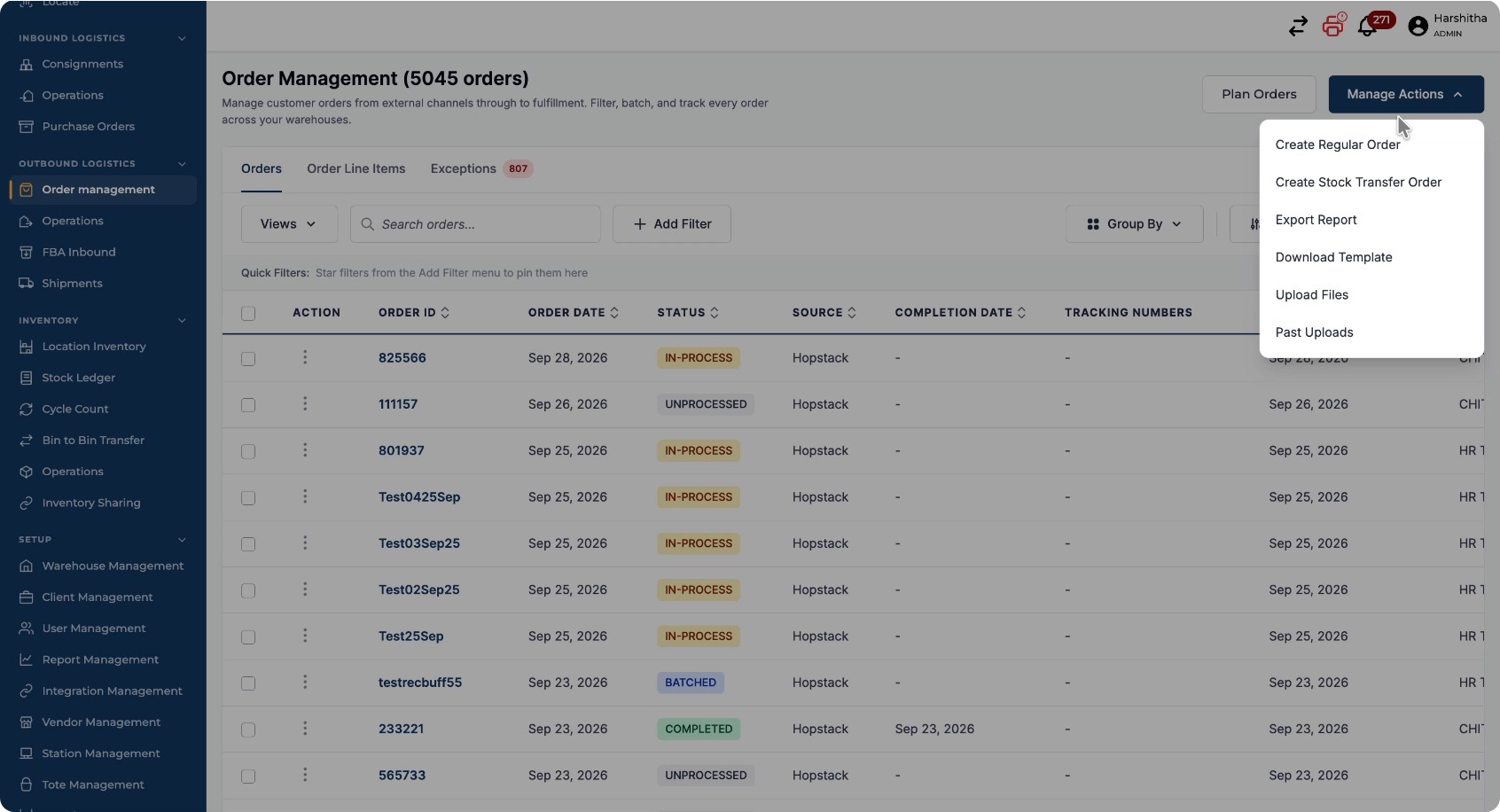
Select Create Regular Order from the menu.
Toggle Try New Version to turn on the new create order flow.
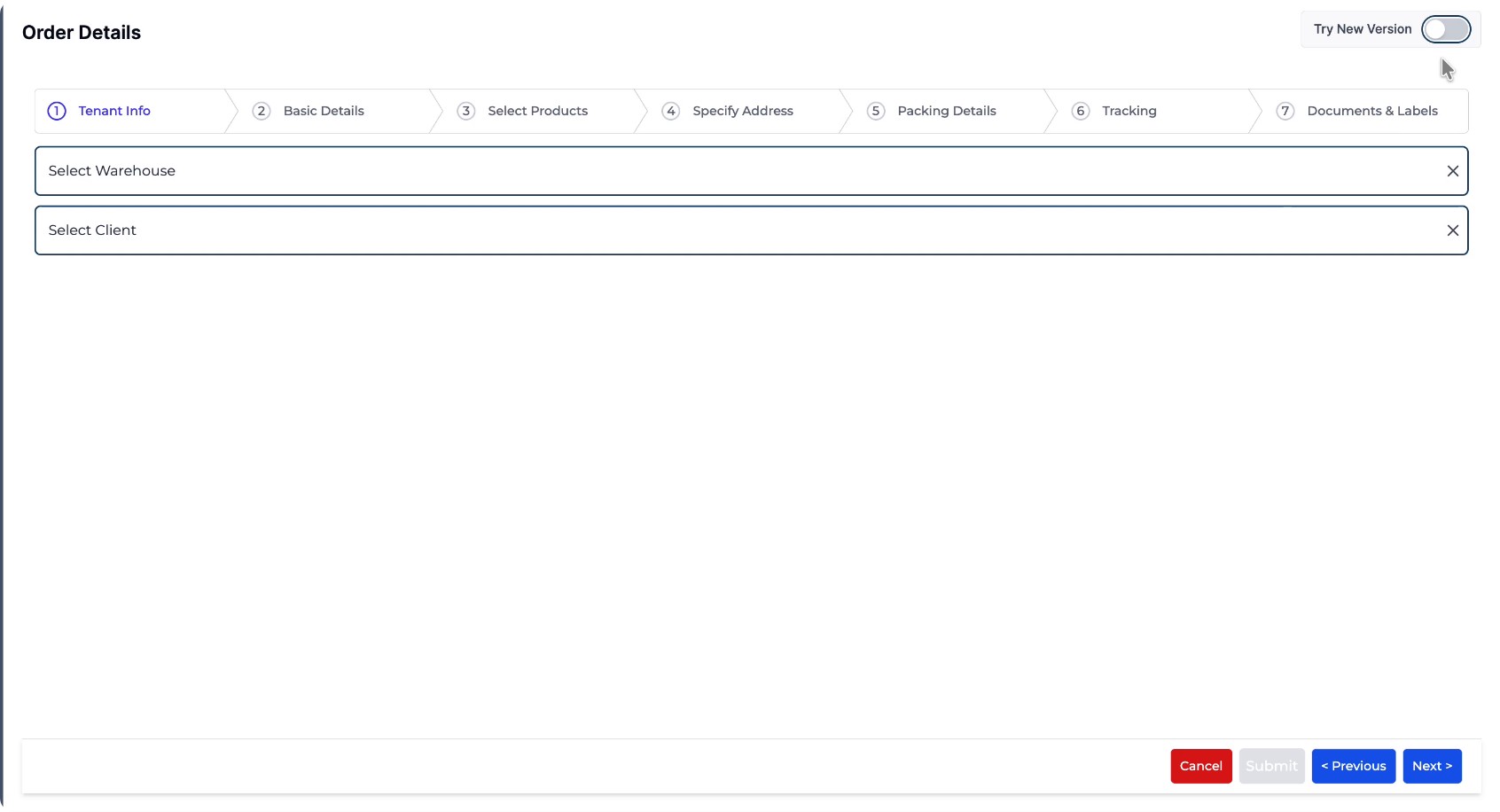
The new version opens as a full-page workflow.
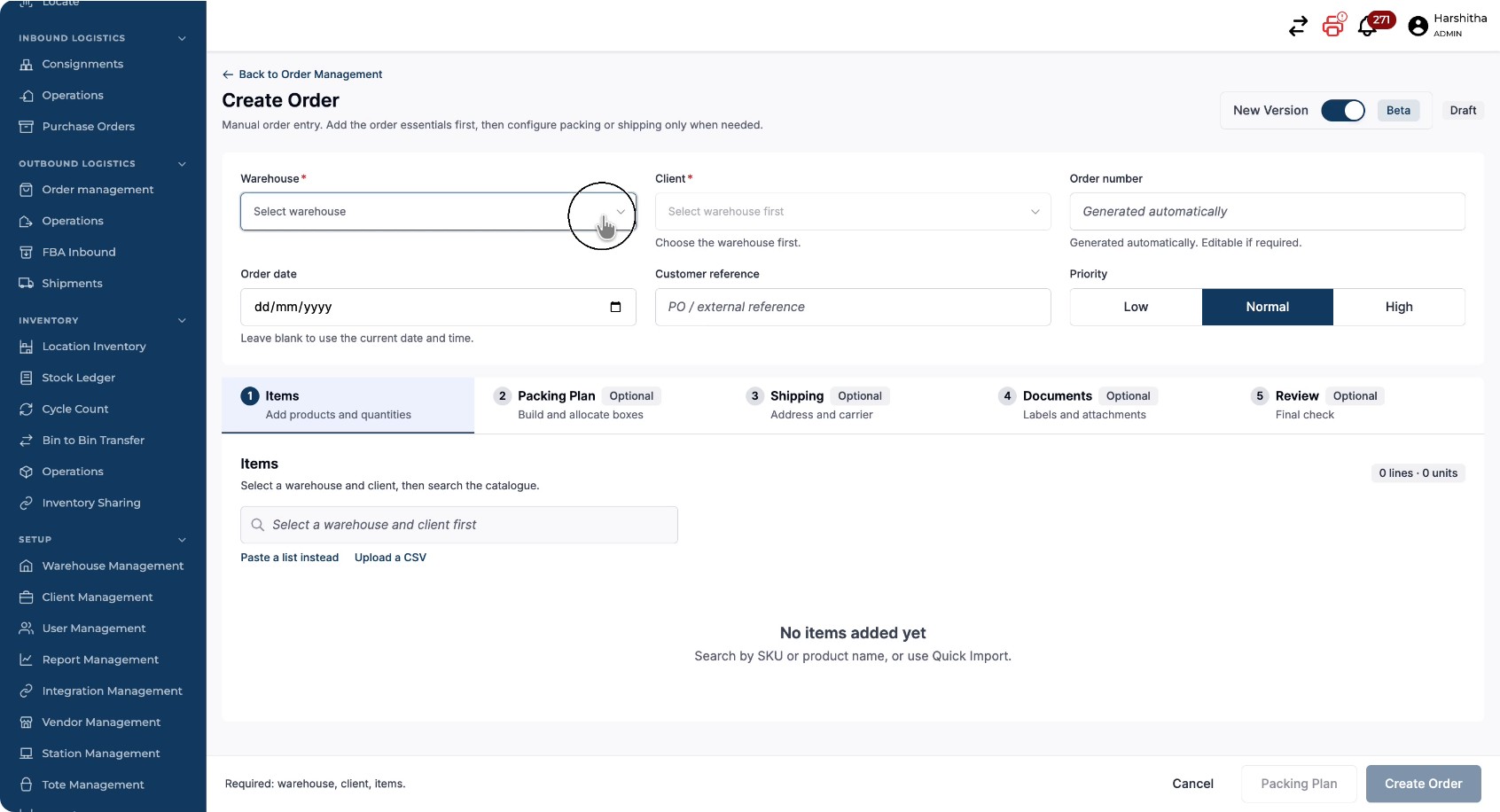
Step 2: Select Warehouse, Client, and Priority
Select the appropriate Warehouse for the order.
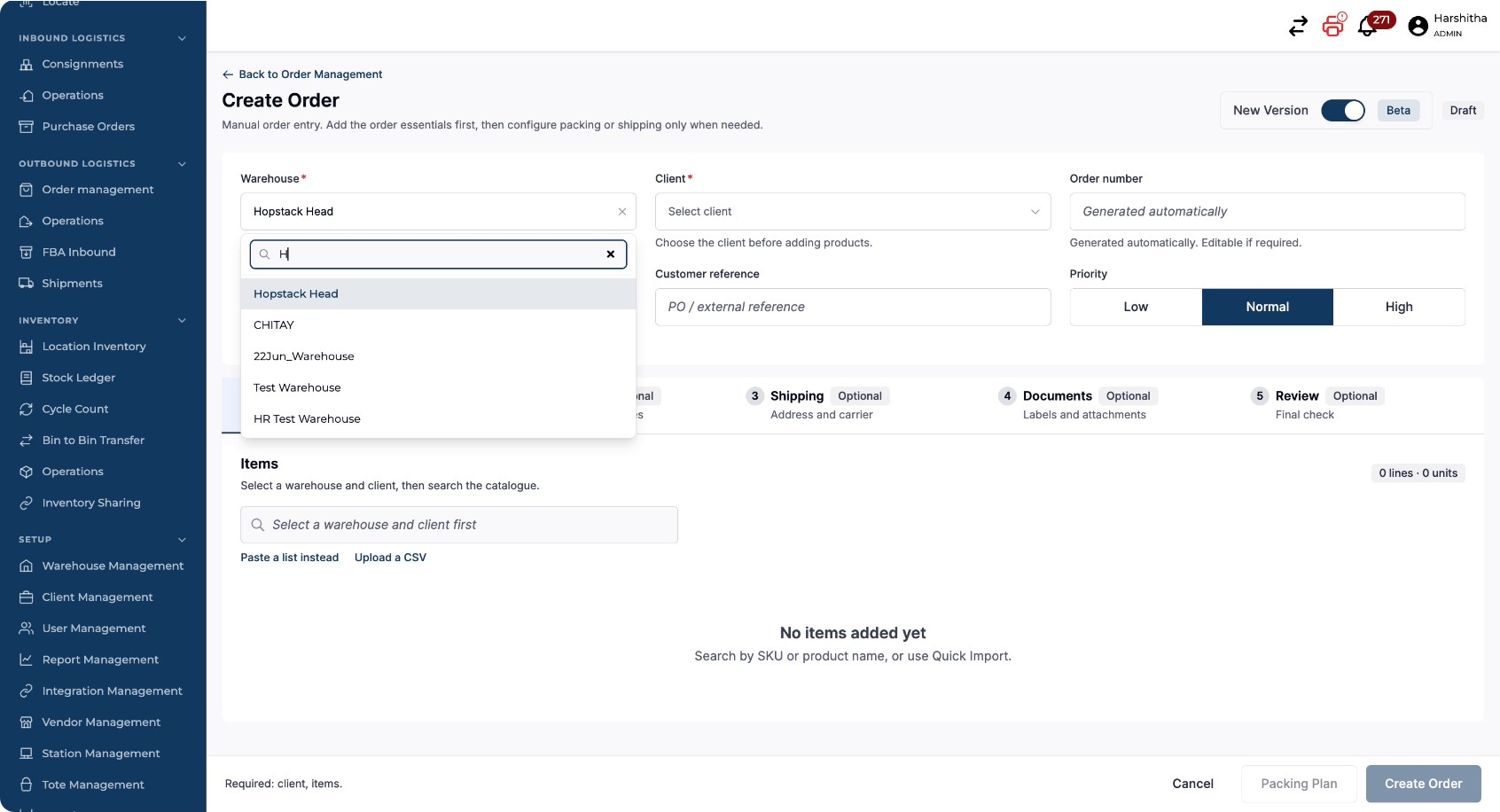
Select the Client associated with the order.
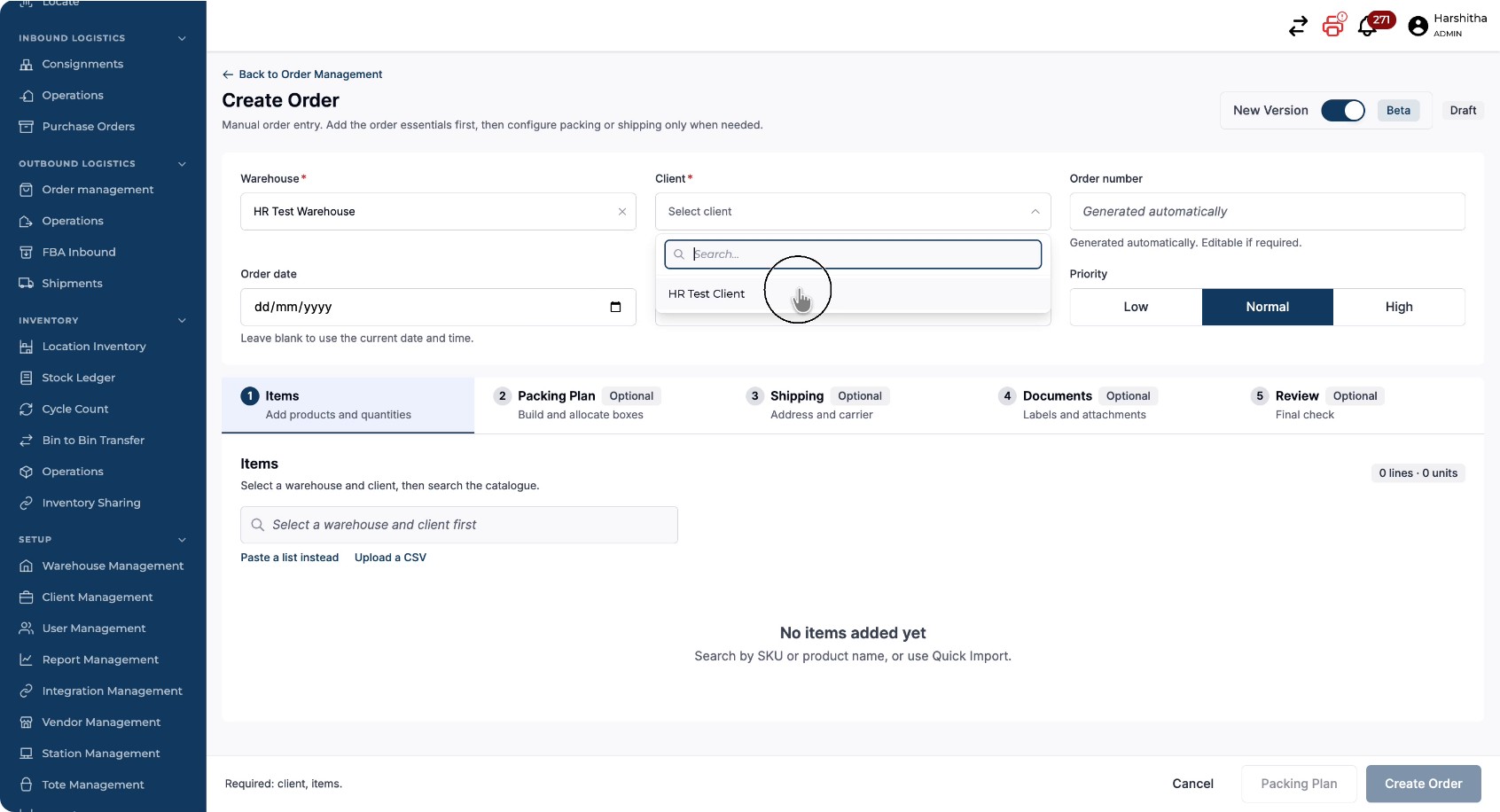
Optionally, set the Priority for your order (e.g., Low, Normal, High).
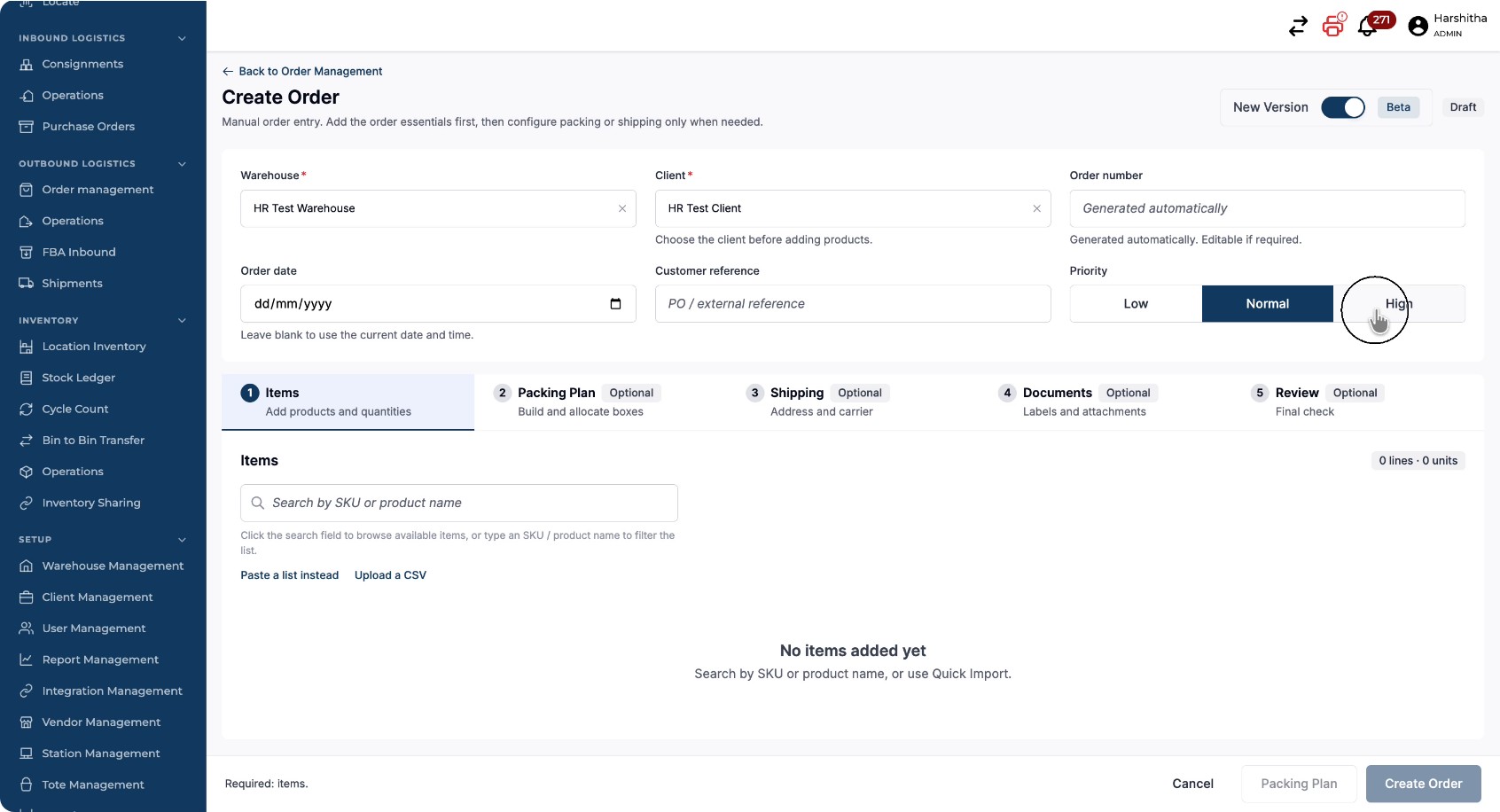
Step 3: Add Items
A) By Searching Products and Choosing Inventory Identifiers
You can add items to the order by searching for products:
Use the search bar to find the product you want to add.
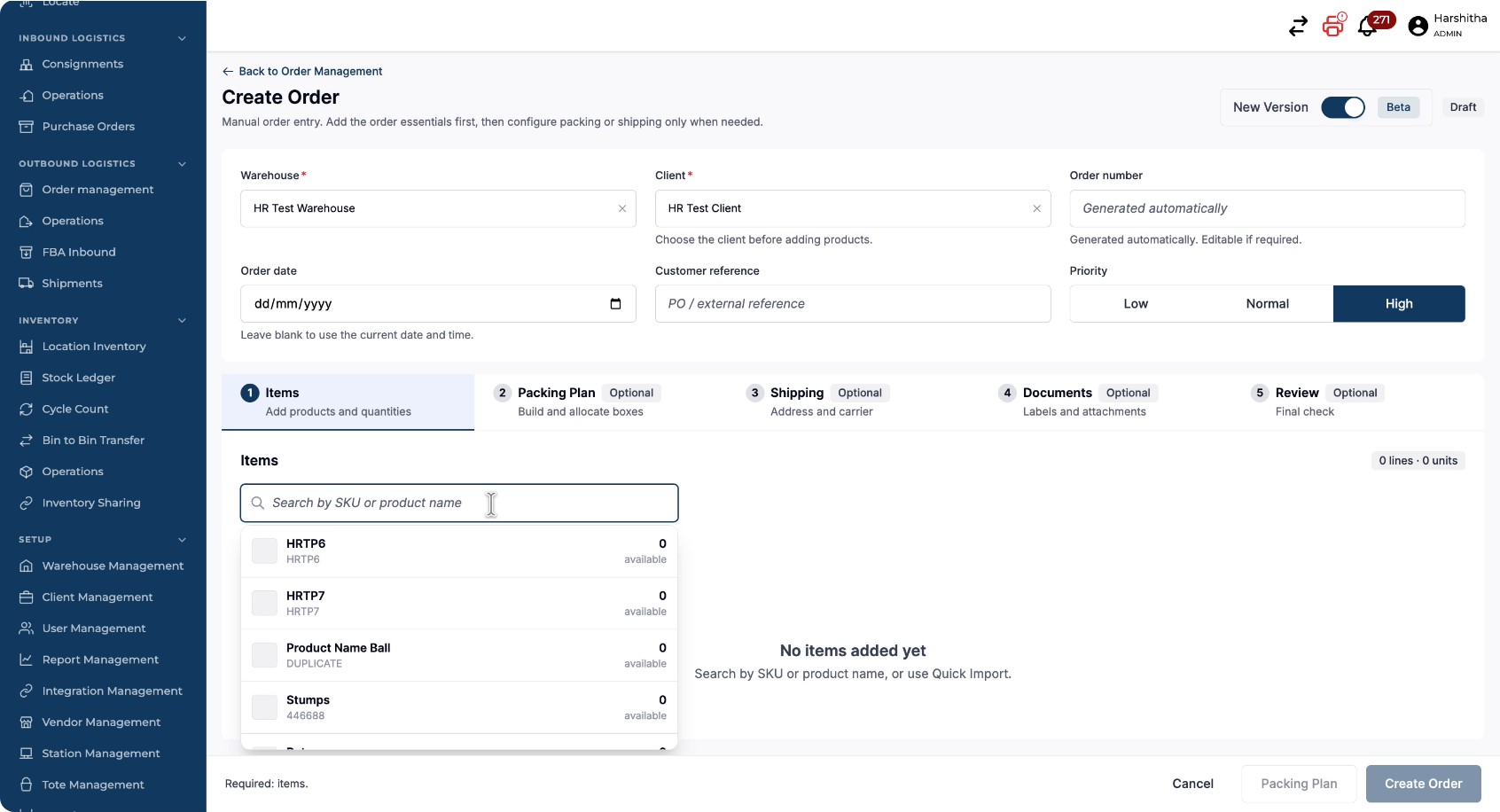
Click on the product in the search results to add it to the order.
Optionally, define which inventory identifier (e.g., Lot ID) the order line should use.
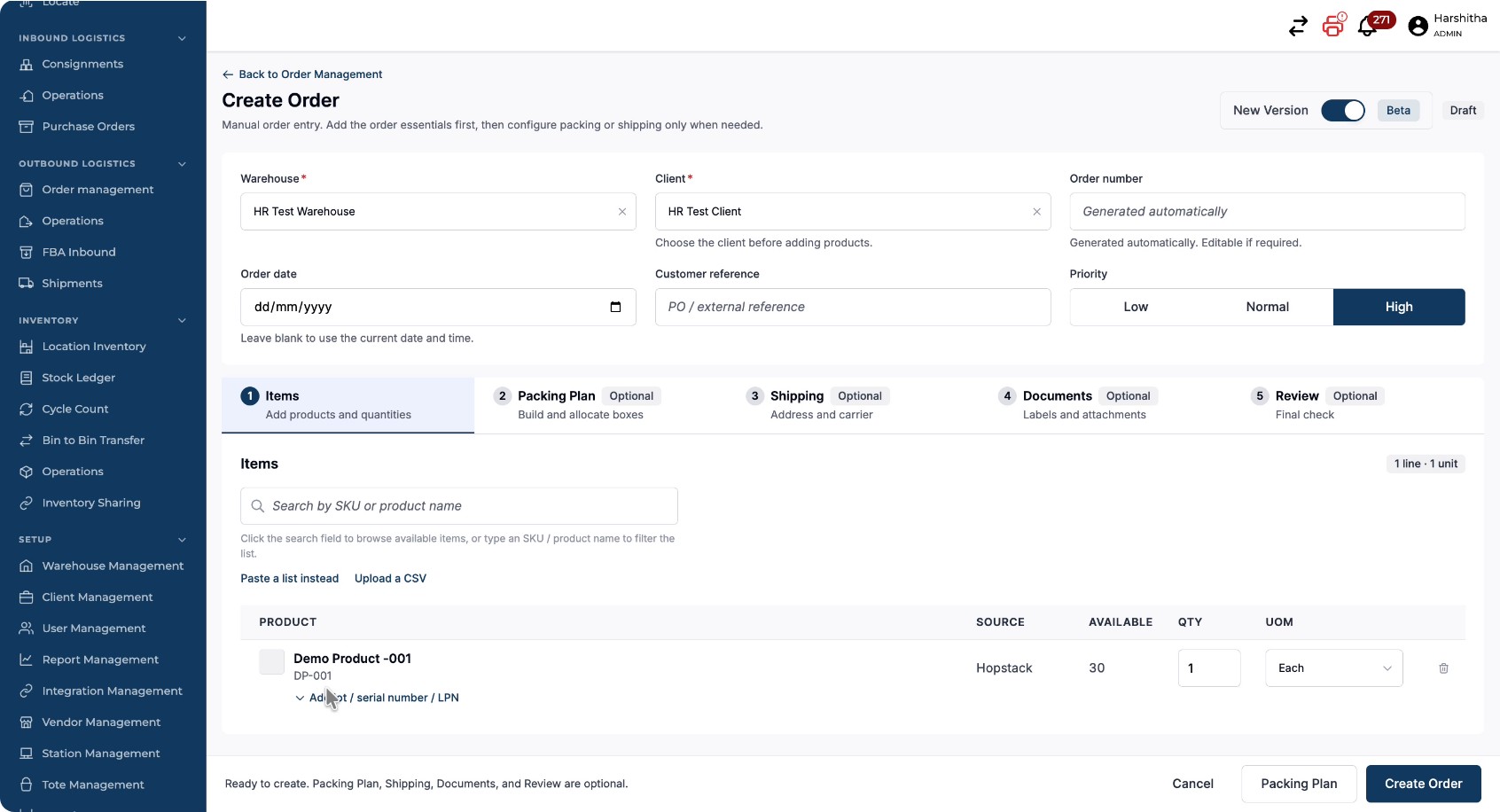
For example, if the product has a Lot ID, click on the Lot ID field.
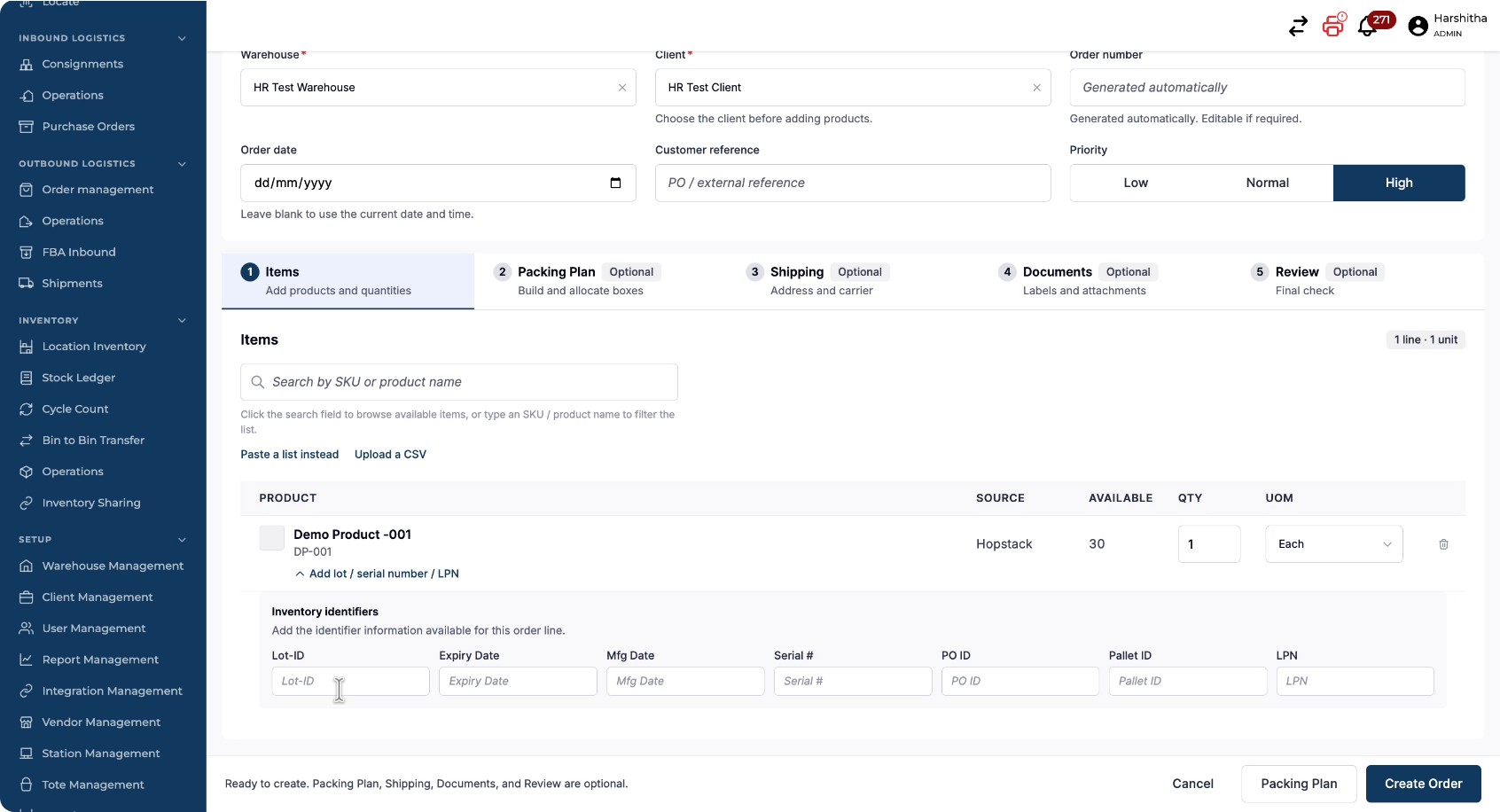
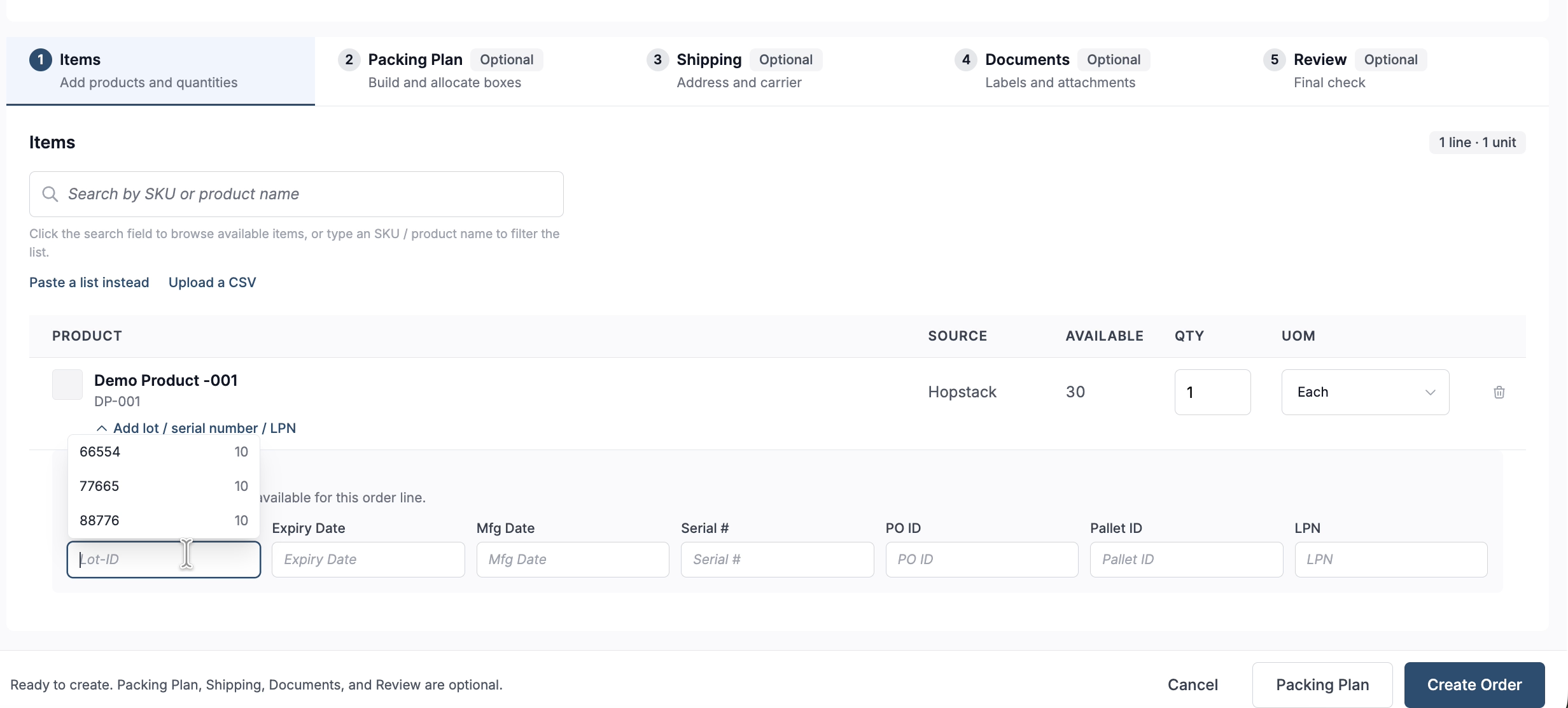
You can then see the available lot IDs in inventory and their quantities, and choose which lot the product should be picked from.
Choosing the bin a line is picked from
On the new Create Order screen you can also name the bin an order line must be picked from.
Under the product, click Add lot / serial number / LPN / bin. The Inventory identifiers panel opens with a Bin Location field at the end.
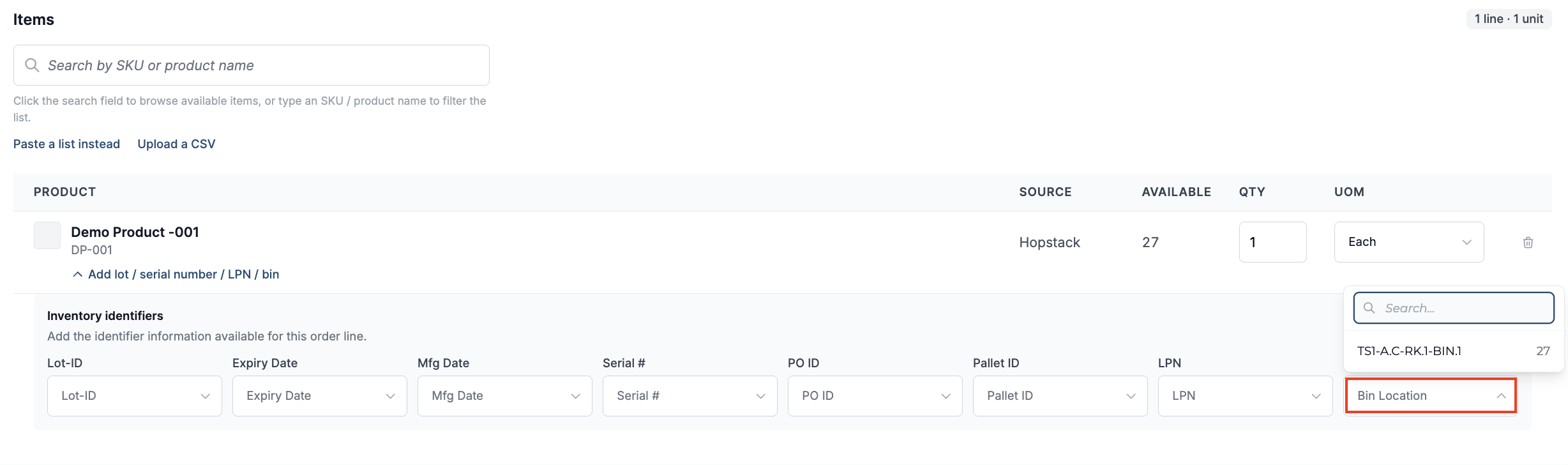
The Bin Location list shows every bin in the selected warehouse that holds unallocated stock of the product for the selected client, with the quantity held in each bin. If you have already chosen a Lot ID or another identifier on the line, only bins holding that stock are listed. If you change an identifier later, a bin that no longer holds matching stock is cleared from the line.
The list holds the regular storage bins, followed by the system-created damaged location and receiving buffer, marked Damaged and Receiving buffer.
The Bin Location field is available on orders created in Hopstack, other than dropship orders.
After the order is created
-
The chosen bin is shown against the line in the order’s line items under Location, and in the Bin Location column of the Create Manual Batch table.
-
Batching allocates that line only from the chosen bin. If the bin holds less unallocated stock than the line needs at batching time, the line is short, as for any line without stock.
-
The picker is sent to that bin.
If a bin cannot be used, Create Order is refused and the message names the SKU and the bin, for example Bin A-01 cannot be used for SKU SKU001: Invalid Location when no such bin exists in the order’s warehouse.
B) Add Items by Copy-Pasting a Product List
If you have product details prepared in Excel, you can paste them directly:
Open the Paste List section.
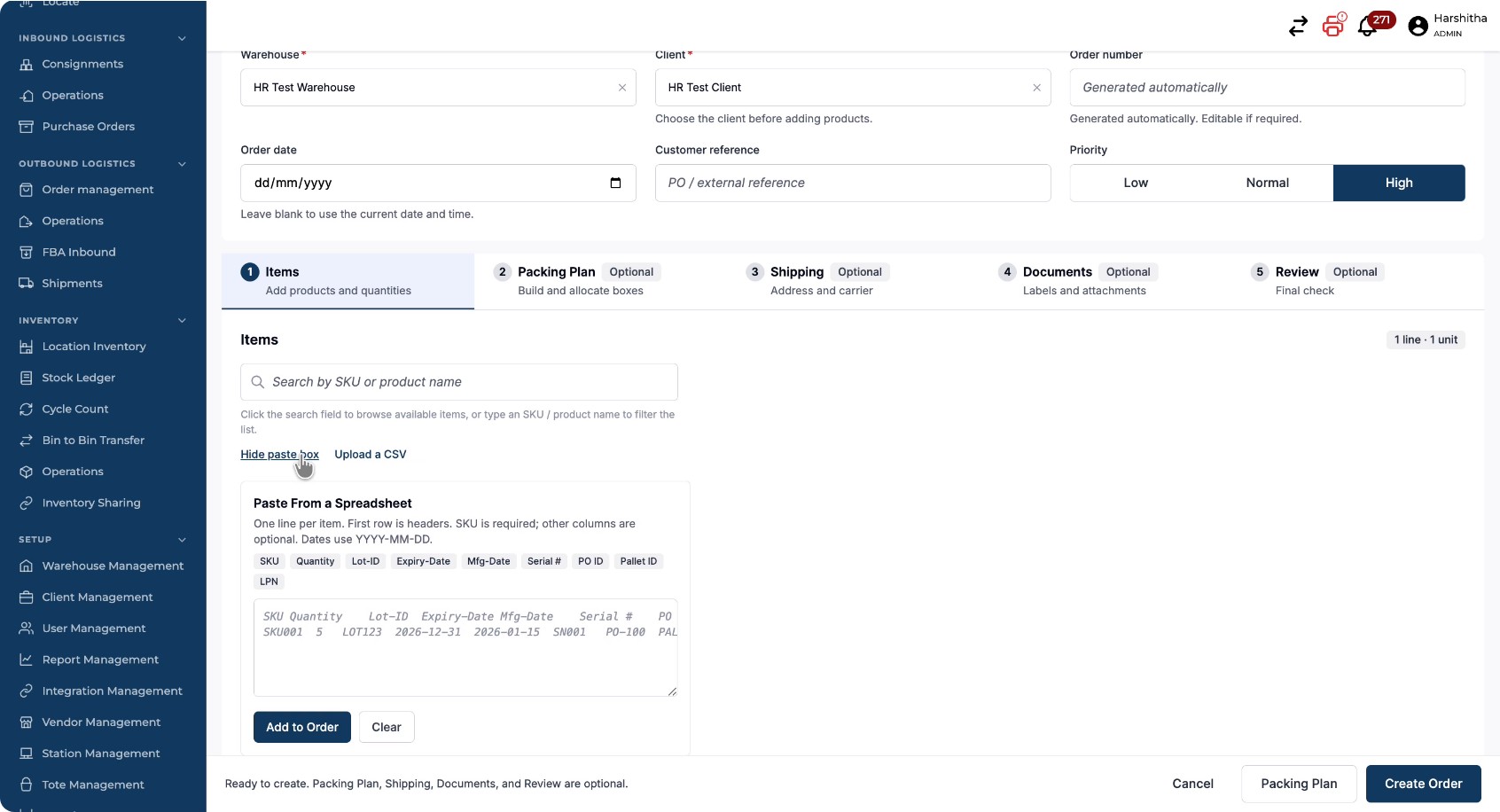
Copy the product details from Excel and paste them into the provided area, then click Add to Order.
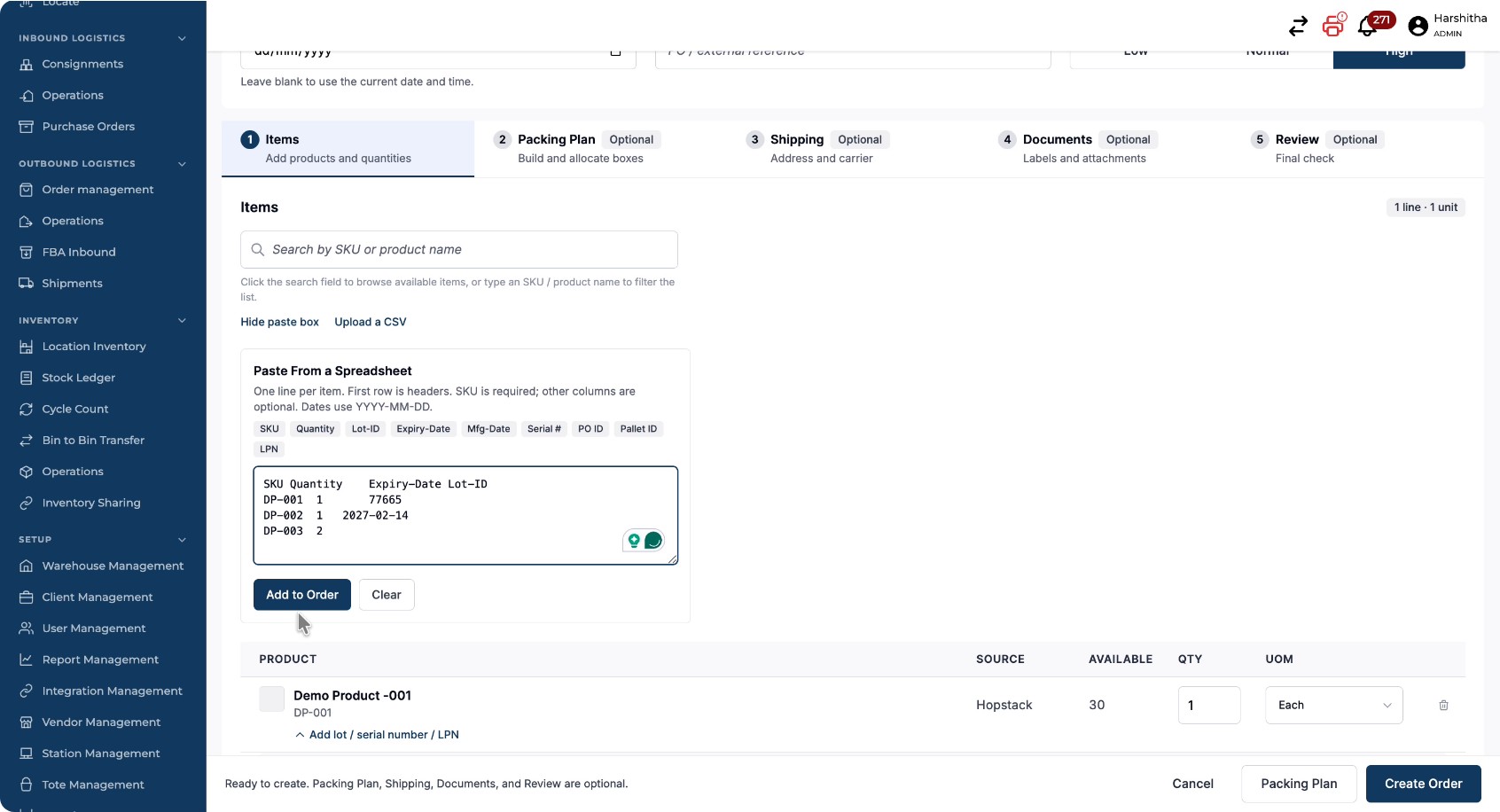
To name the bin for a pasted line, include a Bin Location column (the headers Bin and Location are also recognised). A blank cell leaves the line without a bin.
C) Add Items by Uploading a CSV File
To import order line items from a CSV:
Click the option to upload order line items.
Click Upload CSV.
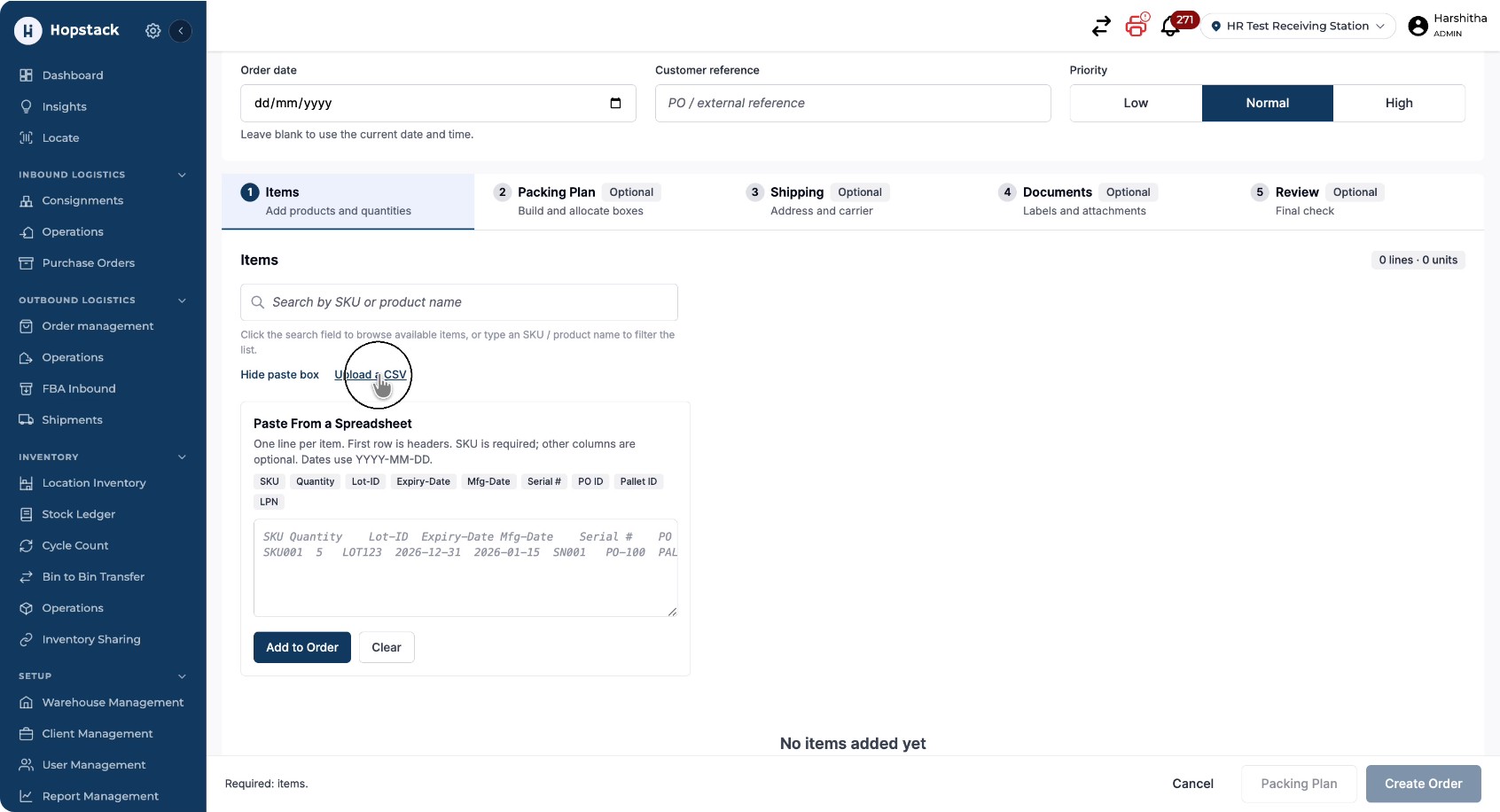
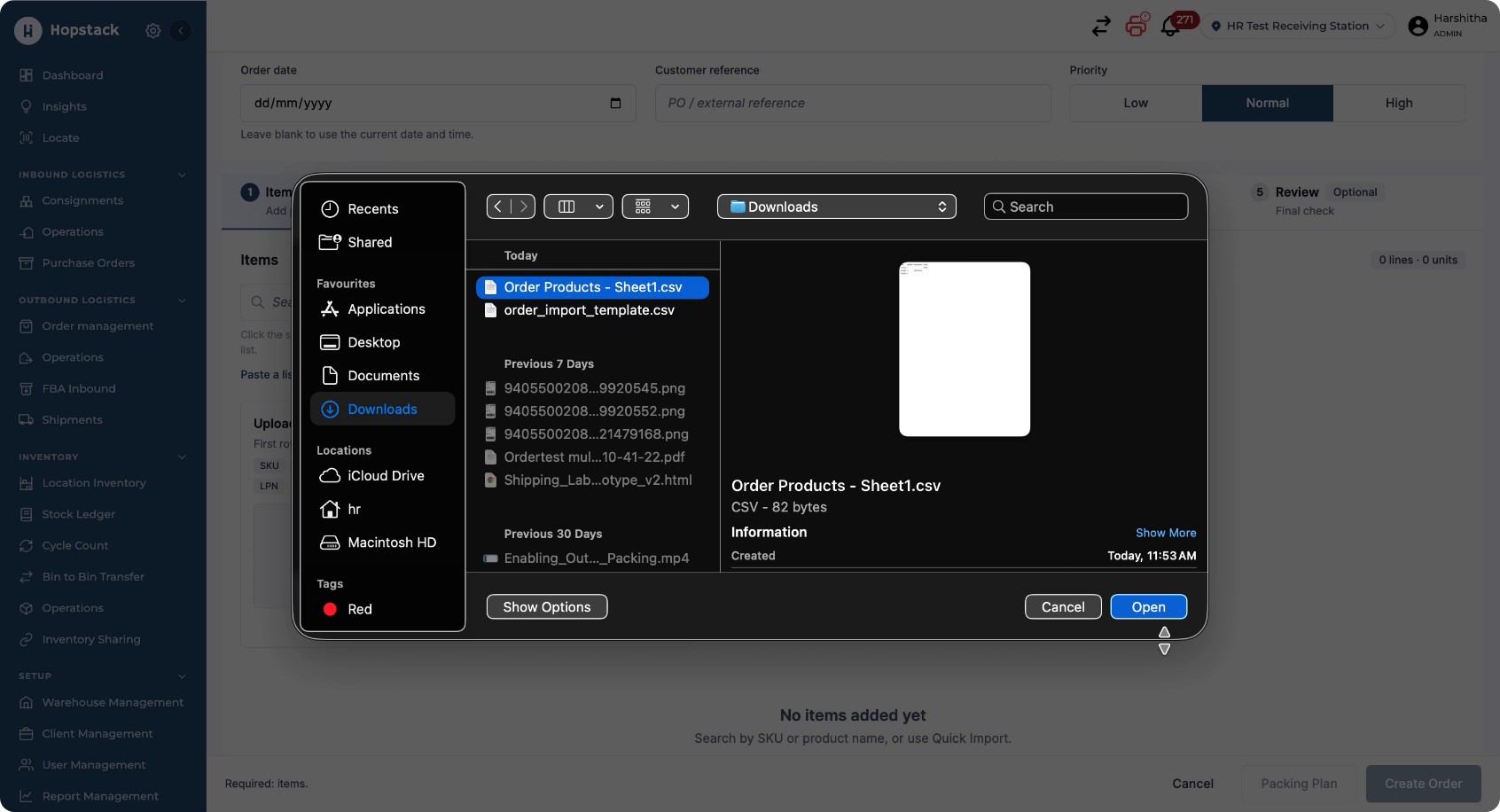
Select the CSV file containing your SKUs and order line details.
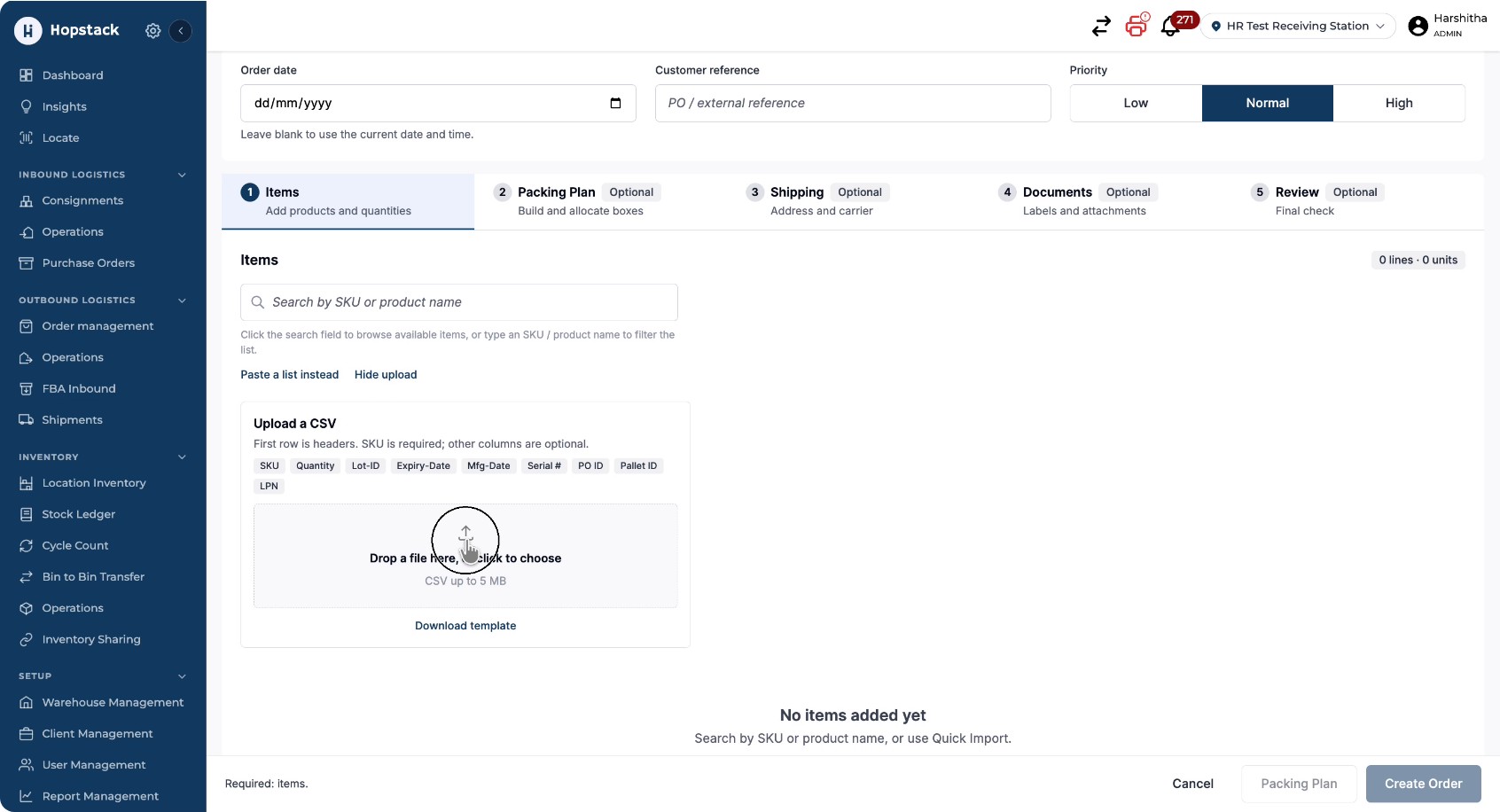
Click Open to upload the file.
The SKUs in the file are validated, and you are informed how many SKUs were added successfully.
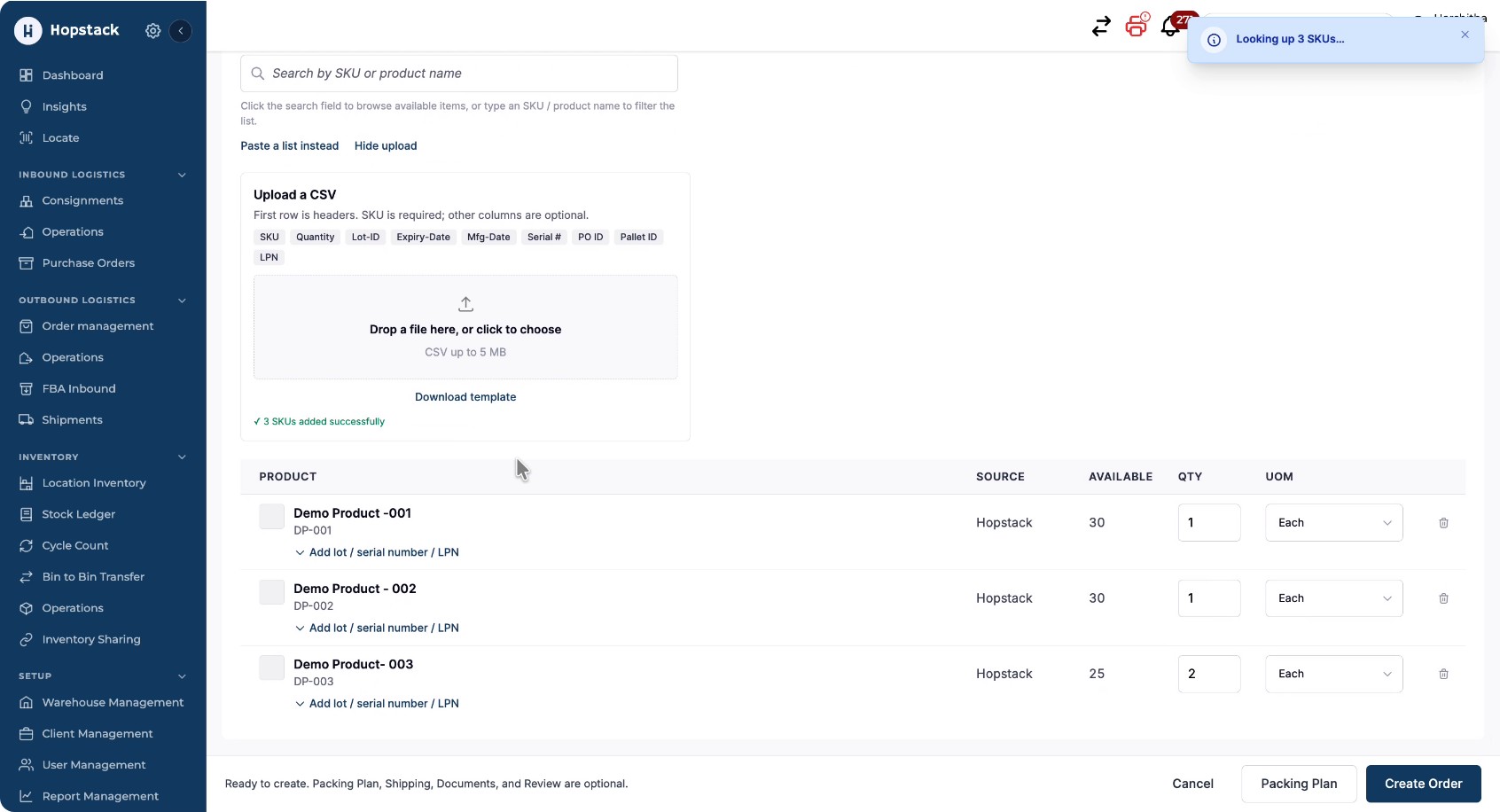
Expand the imported lines to review details such as Lot ID and expiry date that were present in the CSV; these are automatically embedded into the order.
The CSV can also carry a Bin Location column; Download template includes it when the option applies to the order. The bin is checked when you click Create Order, exactly as a bin chosen from the list.
Step 4: Decide Whether to Use Only Basic Order Details
Once products are added, you can already create the order using just the basic details:
-
Warehouse
-
Client
-
Order line items
Packing and shipping workflows are fully optional. Users who only need a basic order can directly create an order at this point without having to navigate through the packing and shipping flows.
Step 5: Configure a Pack Plan (Optional)
If you want to define a pack plan:
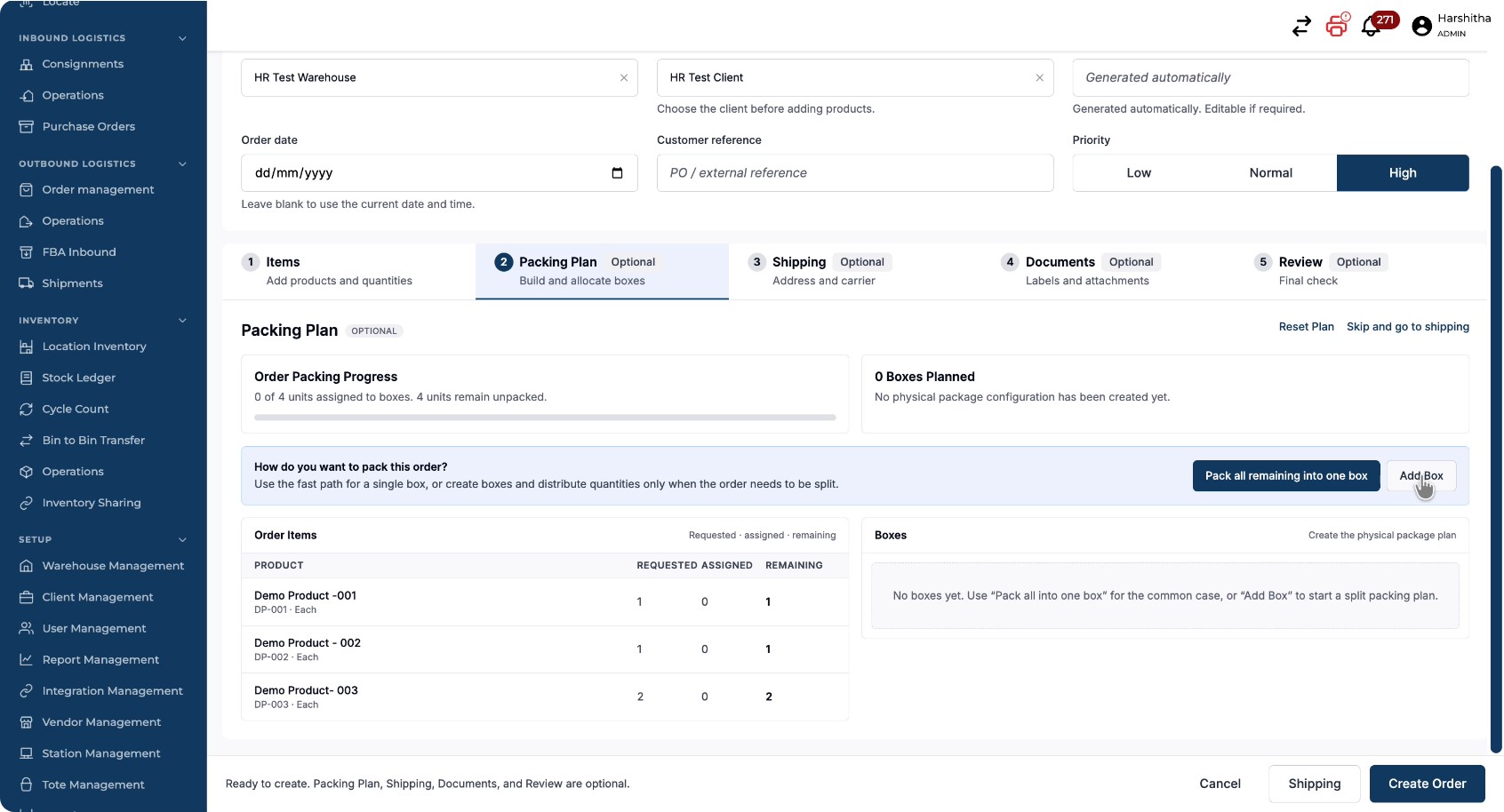
Click the Pack Plan tab.
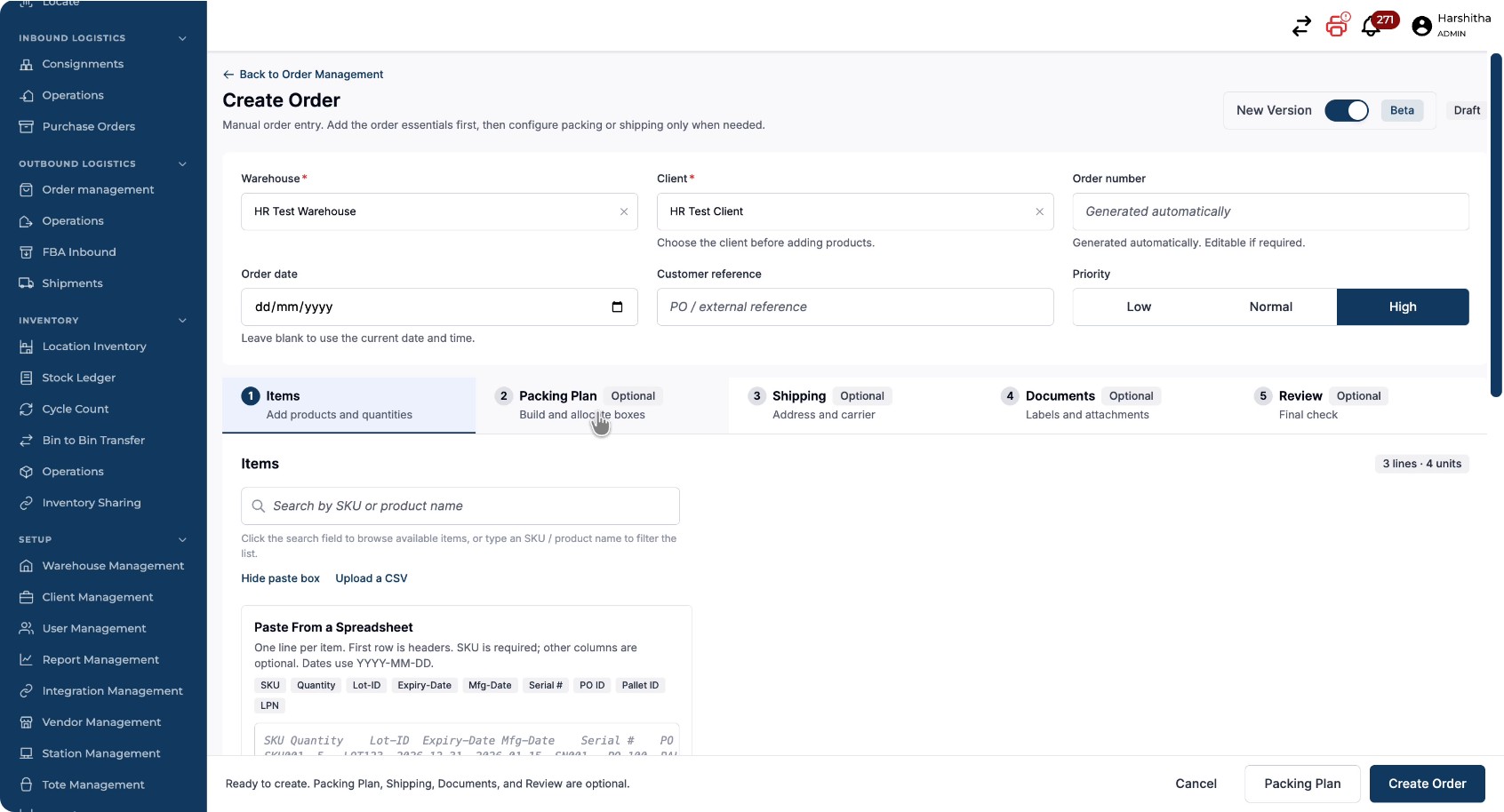
You will see the Add Box section.
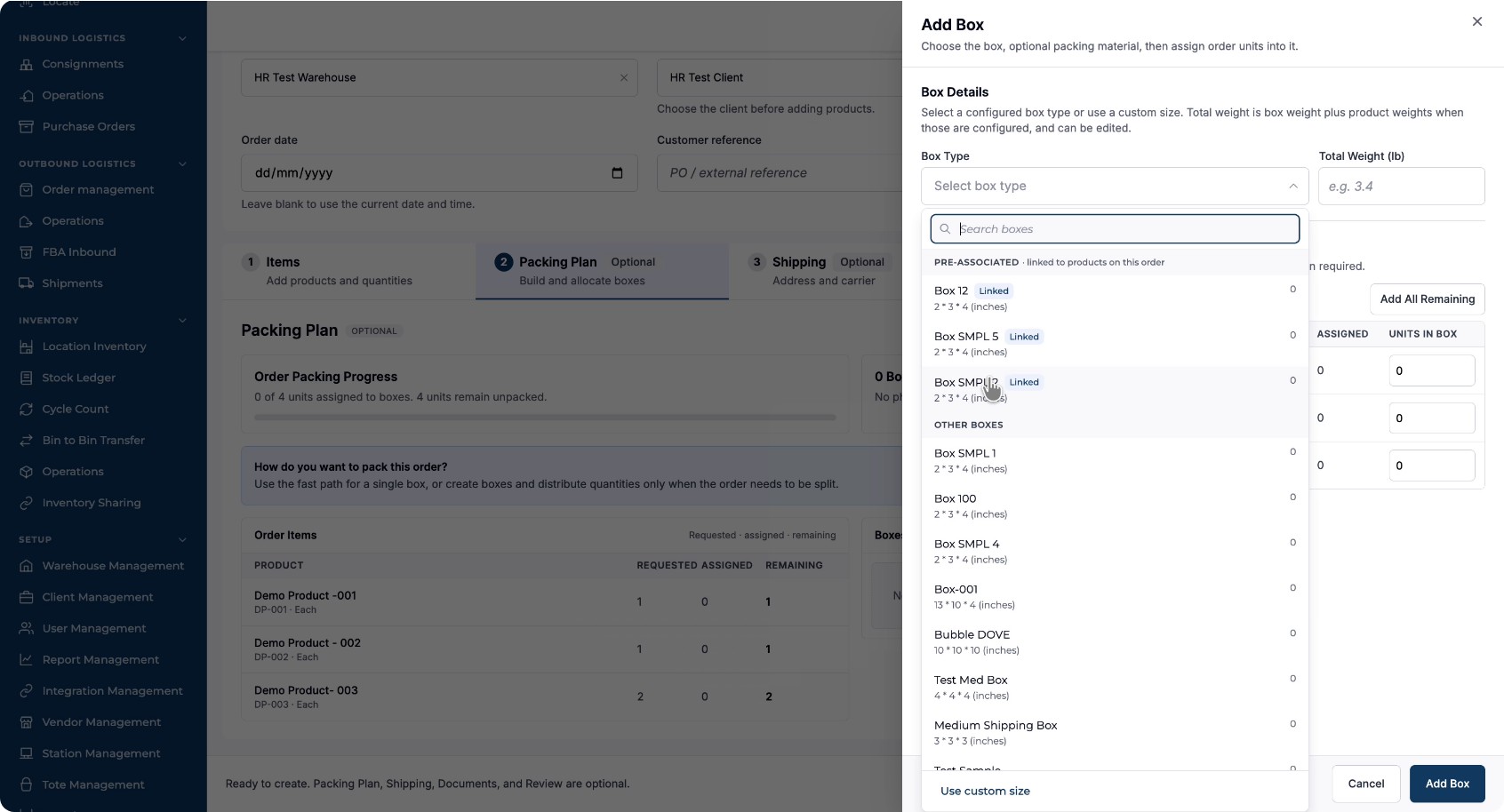
Select a box to use for packing. Any pre-associated boxes appear at the top of the list.
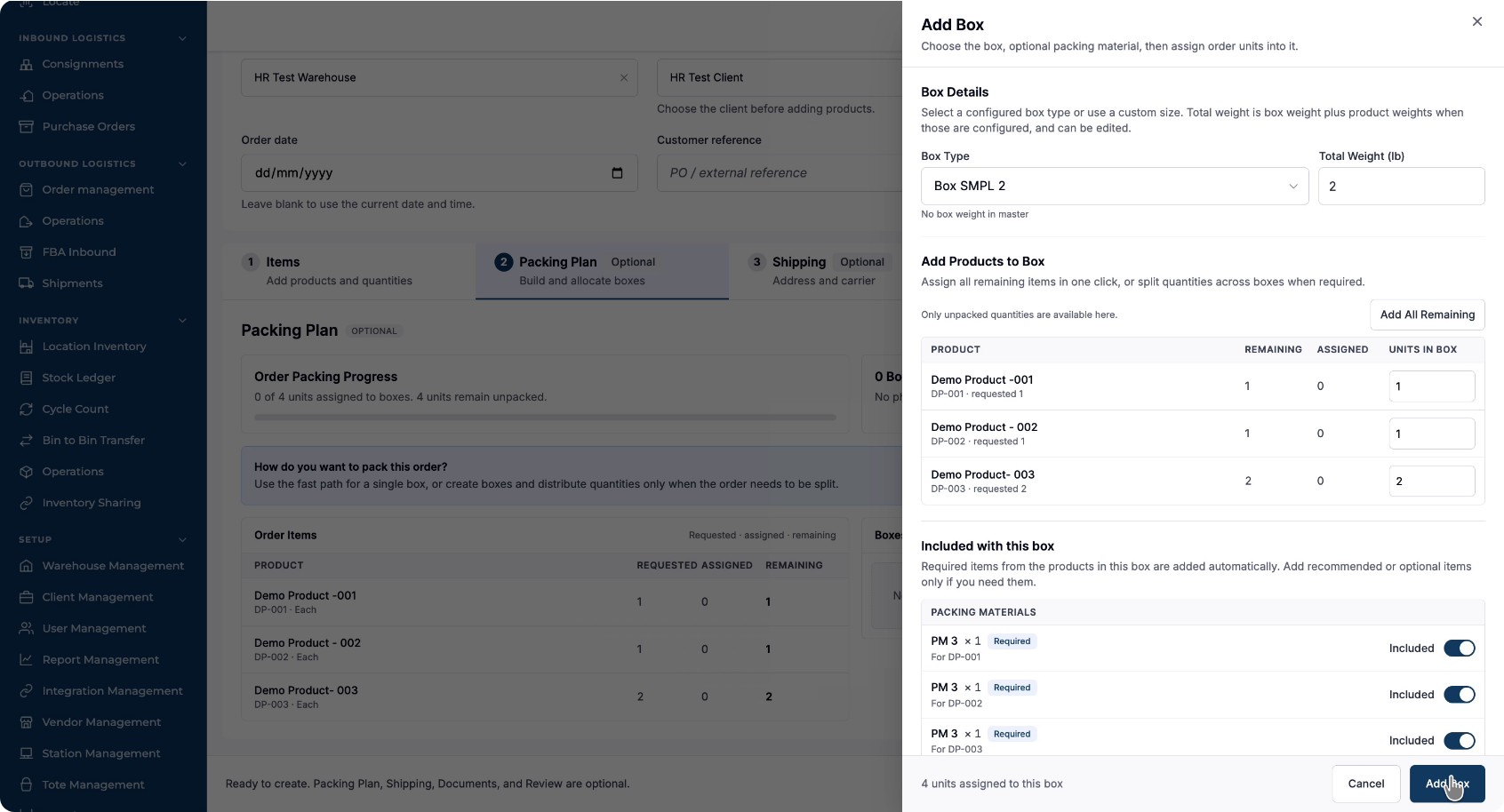
Add items to the box. When items are added to the box, required packing materials are automatically included, and recommended components are listed. Toggle on any additional components you wish to include.
Once the packing plan is complete, click Add Box to save it.
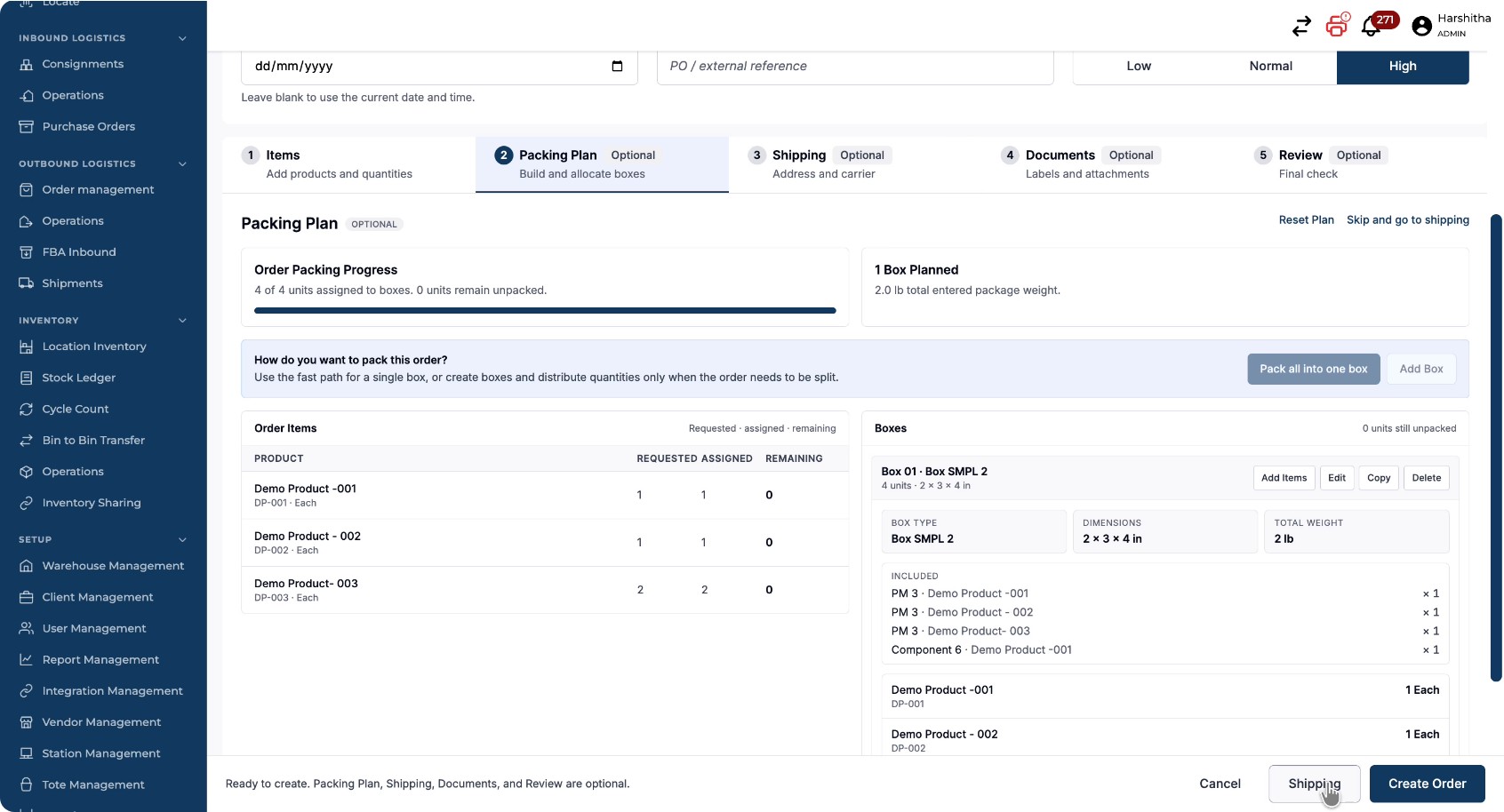
You can then view packing progress in the Packing Summary.
Step 6: Enter Shipping Details and Rate Shop (Optional)
Next, move to the shipping configuration:
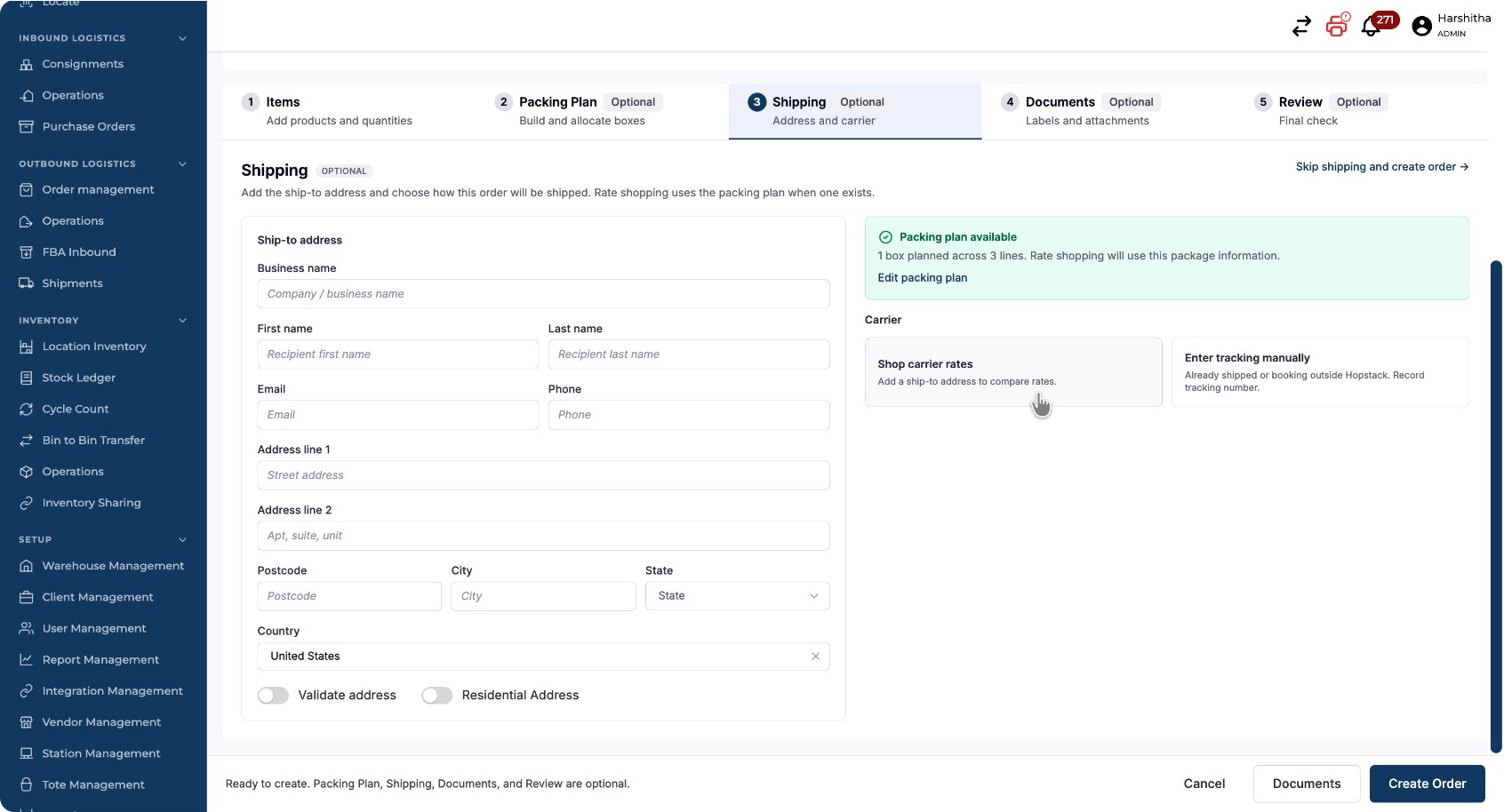
Go to the Shipping tab, or click Shipping from the navigation.
Enter the shipping details for the order.
To compare carrier options, click Shop Carrier Rates to perform rate shopping.
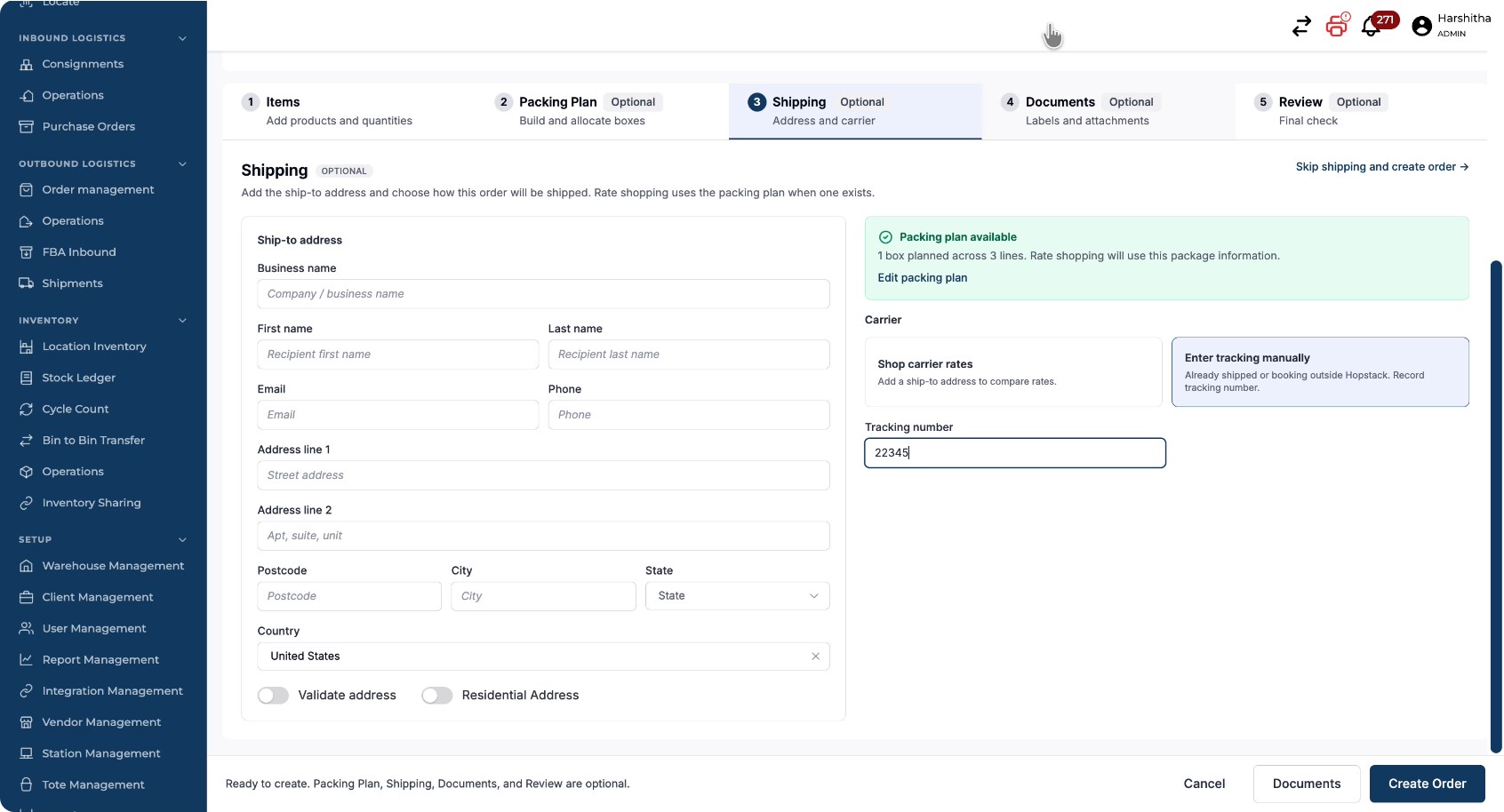
If the shipping label has already been purchased or is provided externally, enter the tracking number.
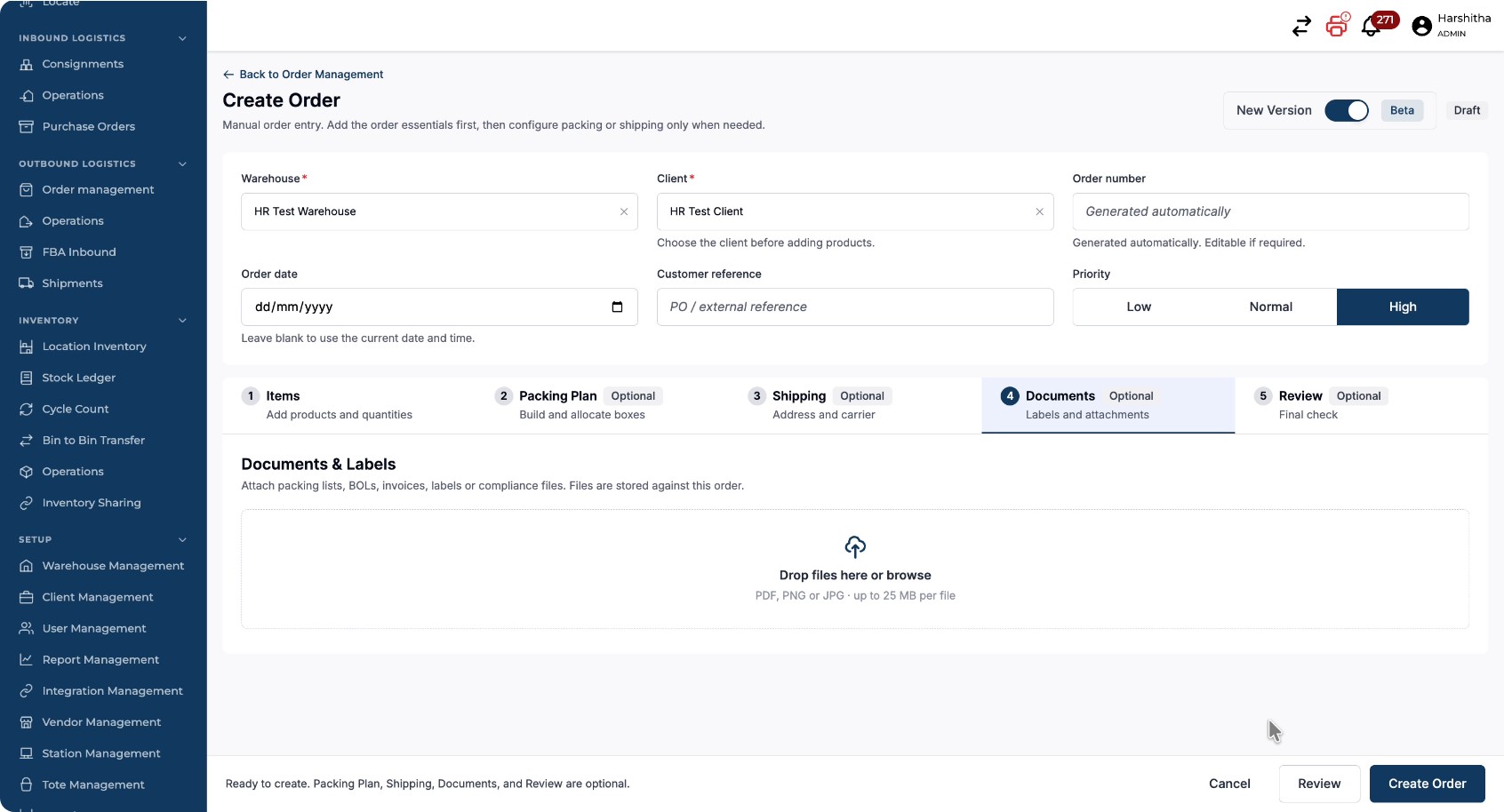
Step 7: Upload Documents
Upload the label or any supporting documents you want to attach to the order in the Documents Tab
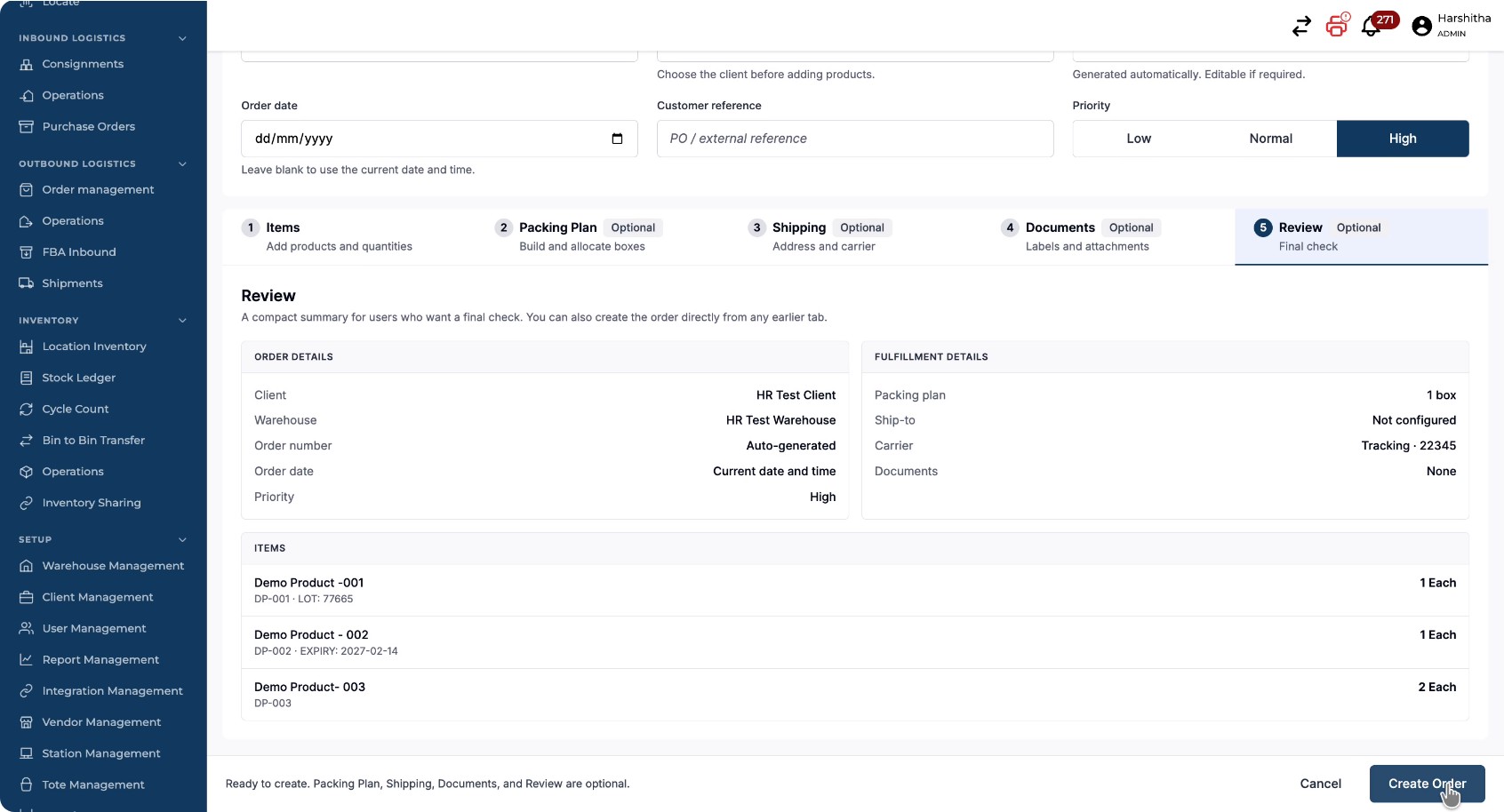
Step 8: Review and Create the Order
On the review screen, confirm all order details, including:
-
Order information
-
Items and any inventory identifiers (e.g., Lot IDs, LPNs, expiry dates, Bin Location)
-
Pack plan
-
Ship-to and carrier information
-
Any attached documents
Once everything is verified, click Create Order to finalize.
You will be notified that the order has been saved successfully and can see that the order has been created.