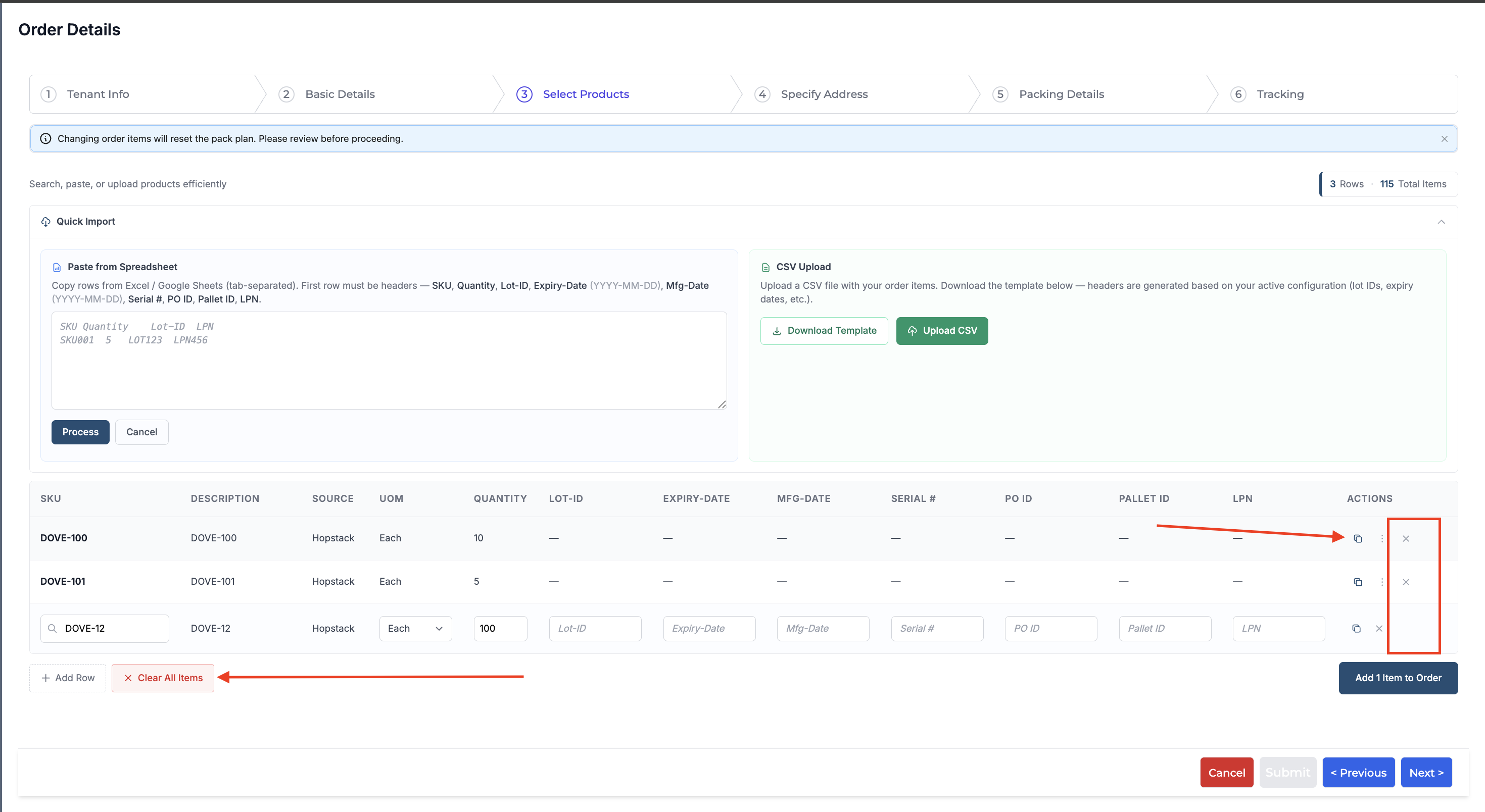
We’ve enhanced bulk order creation during manual order entry to better support high-volume workflows.
You can now add multiple SKU lines more efficiently—especially for orders with many line items across different Lot ID’s, LPNs, Serial numbers, Expiry Date, etc—using:
-
File upload
-
Copy-paste from the clipboard
-
Spreadsheet-like table entry within the order flow
Step 1: Click on Outbound Logistics
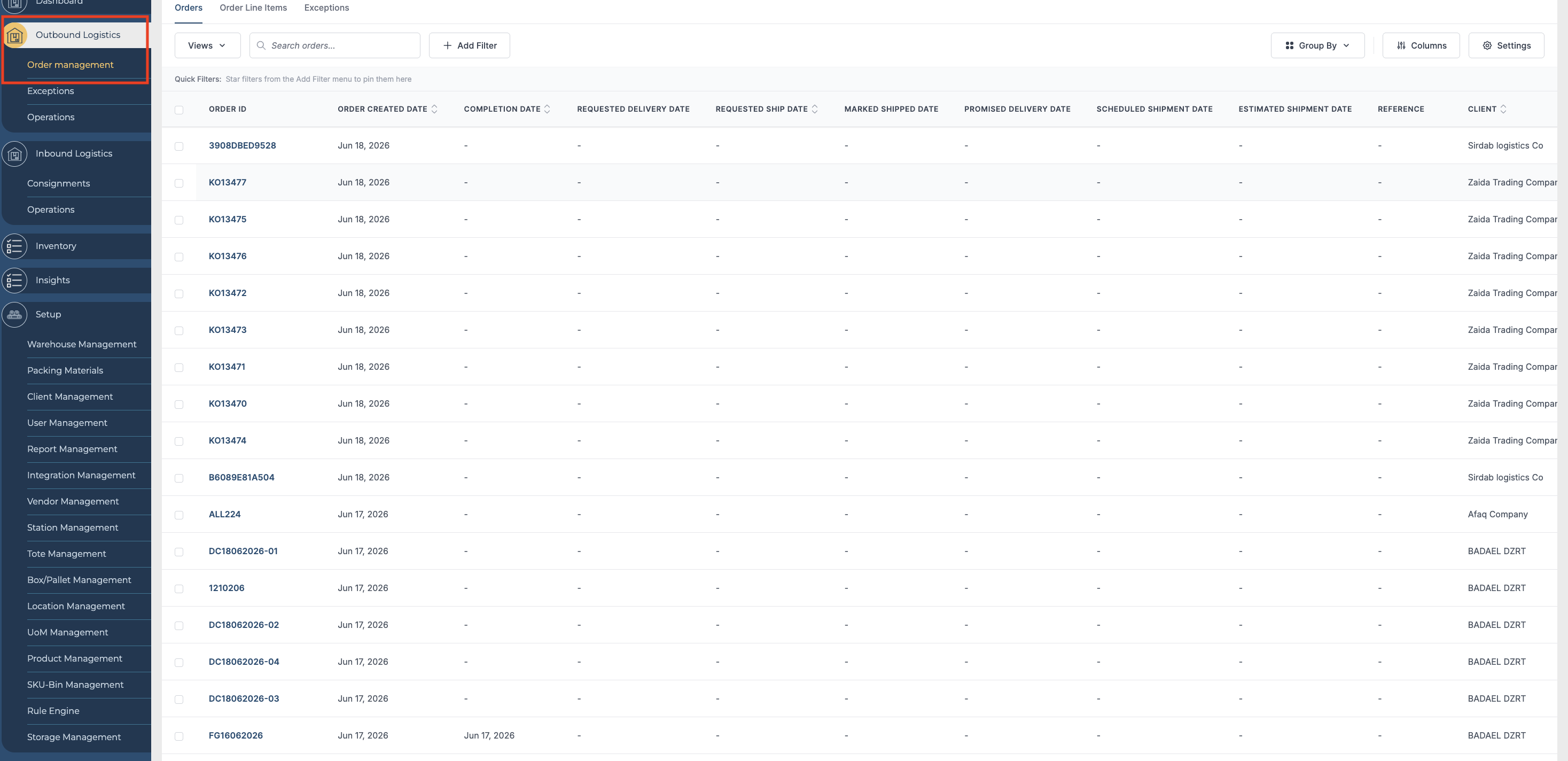
Step 2: Click on Order Management under Outbound Logistics to enter the order management screen.
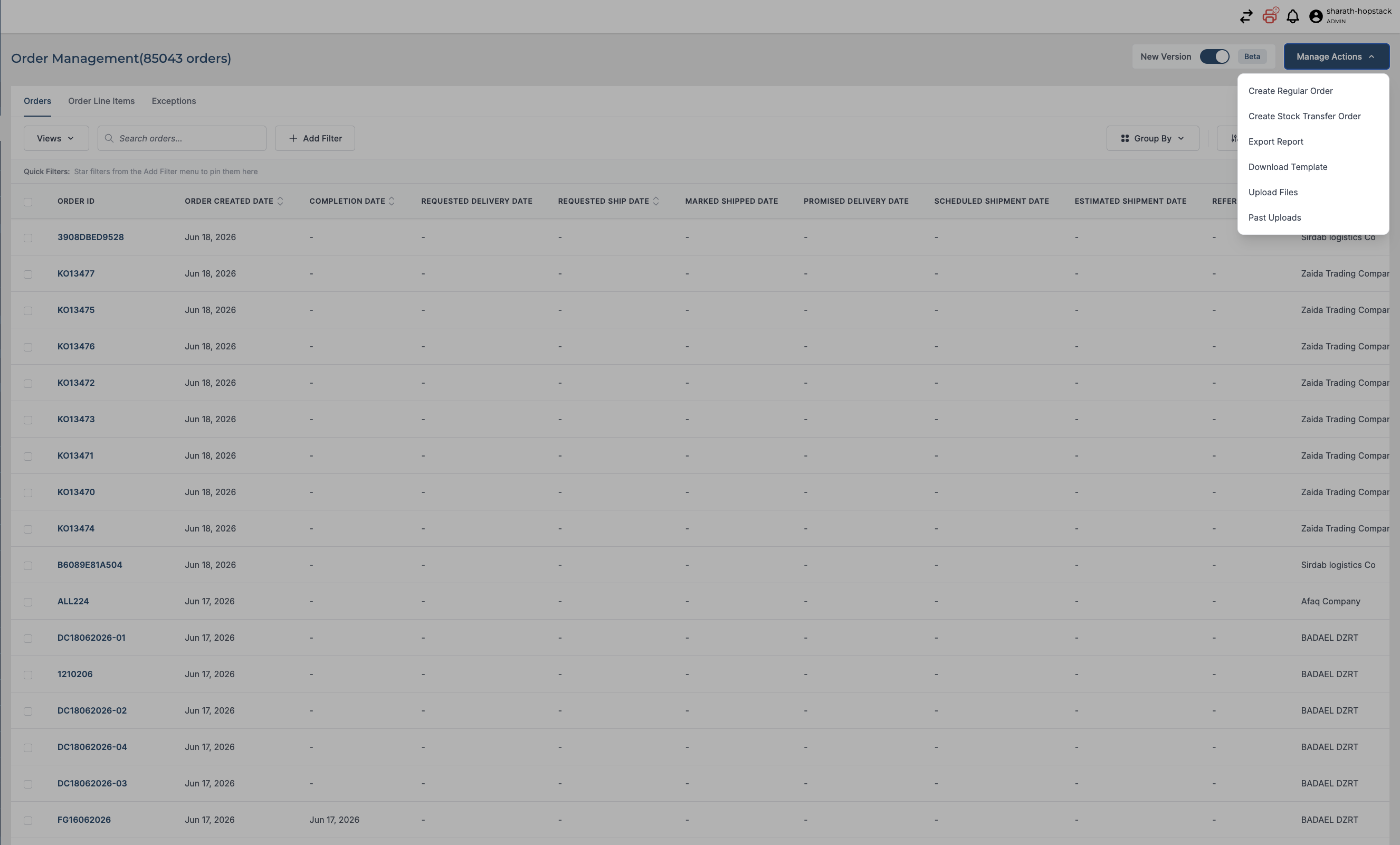
Step 3: Click on the Manage Actions button, and click on the Create Regular Order
Step 4: Select the Warehouse and the Client, and update the Order ID(Not Mandated)
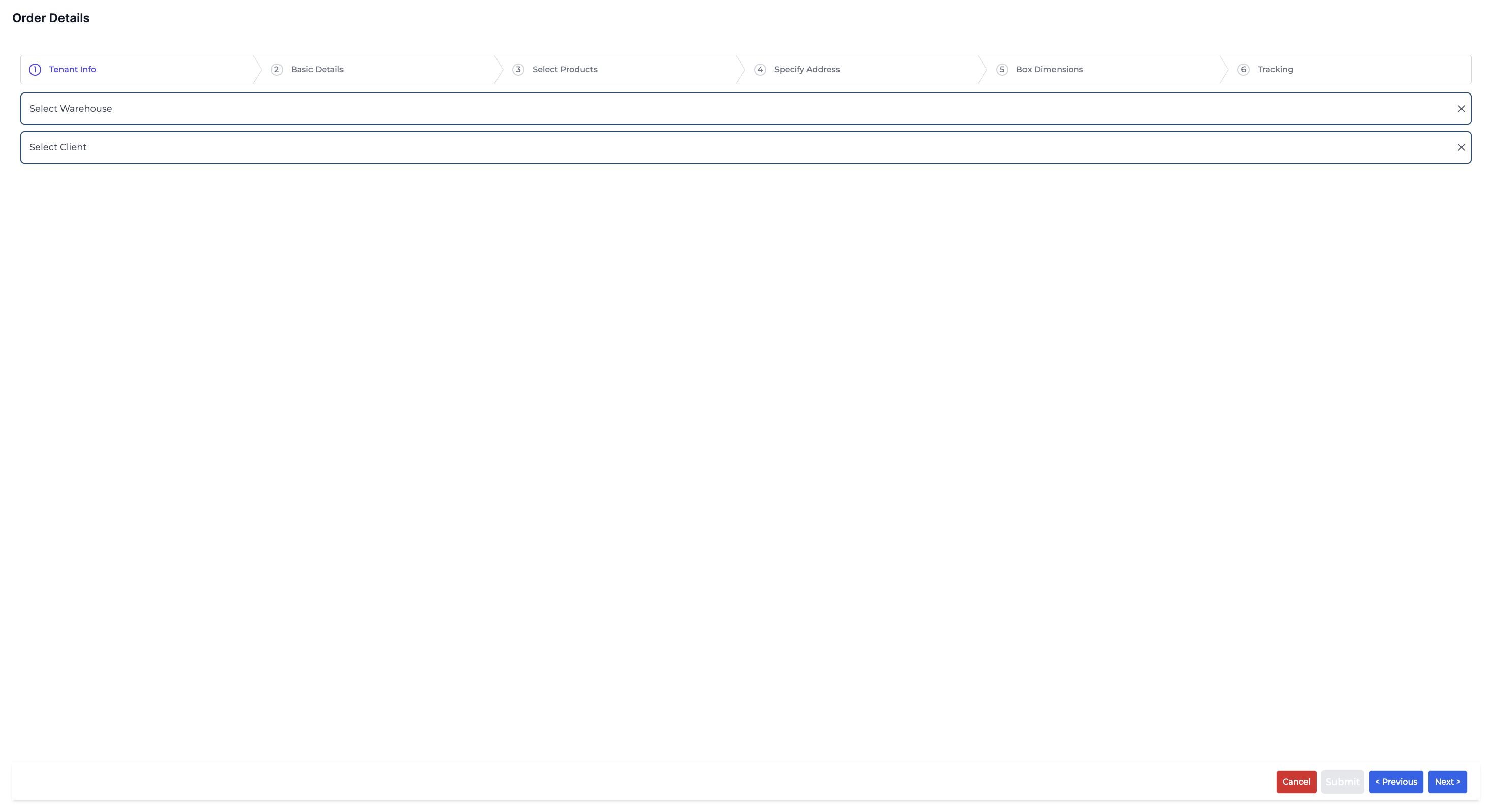
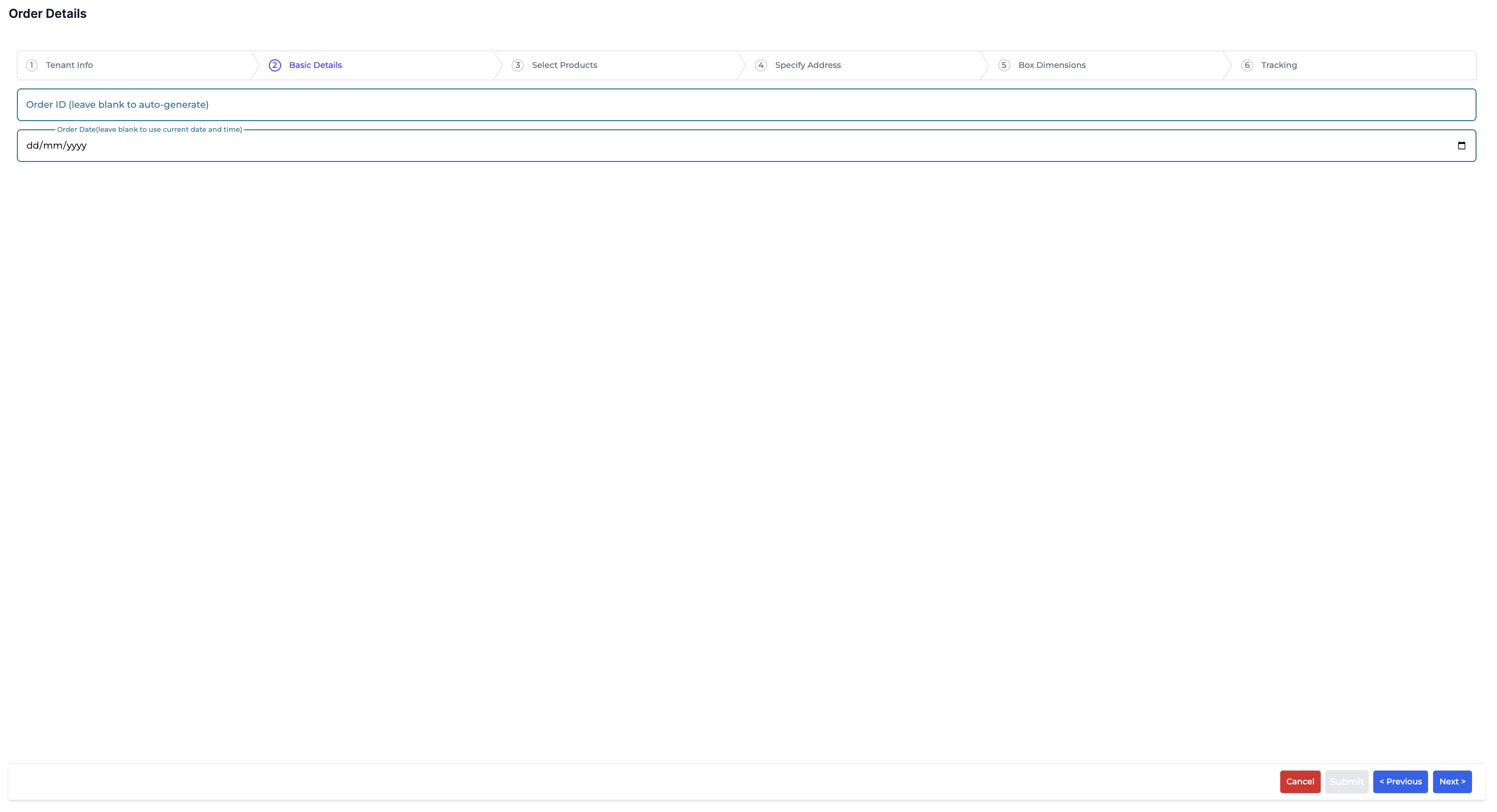
Step 5: Click on Select Products
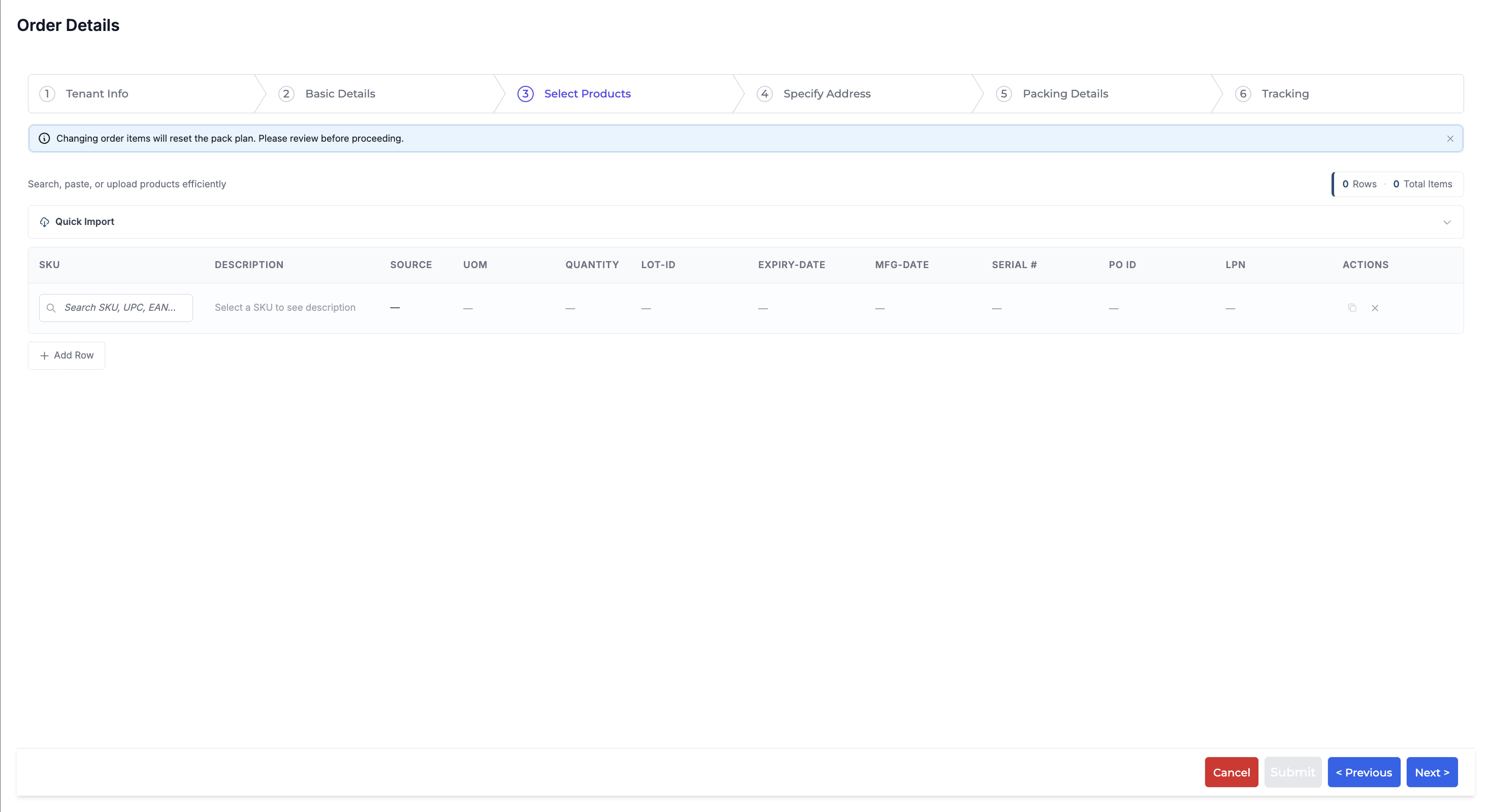
Step 6: Click on “Add Row” to keep on adding the line-items.
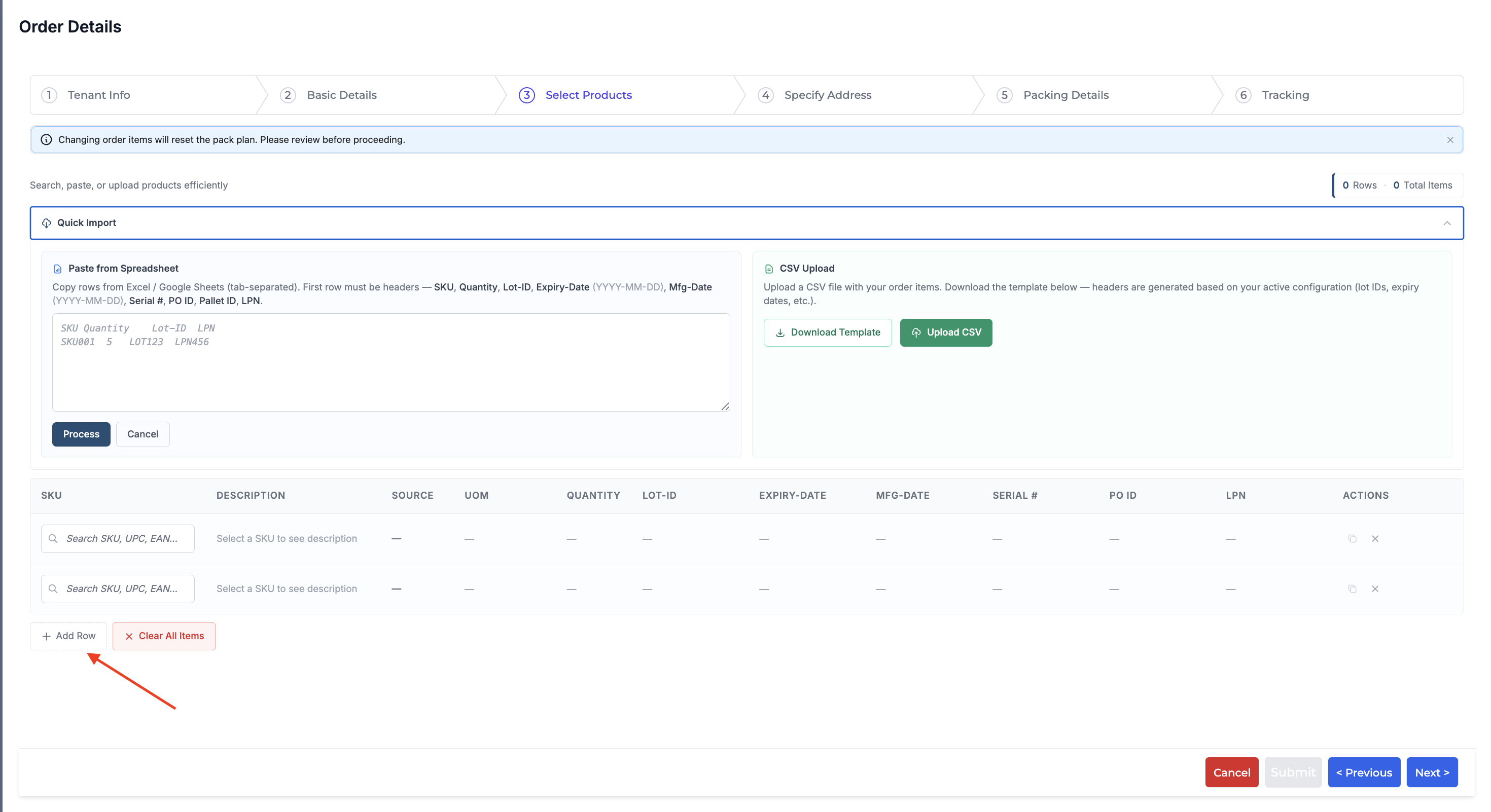
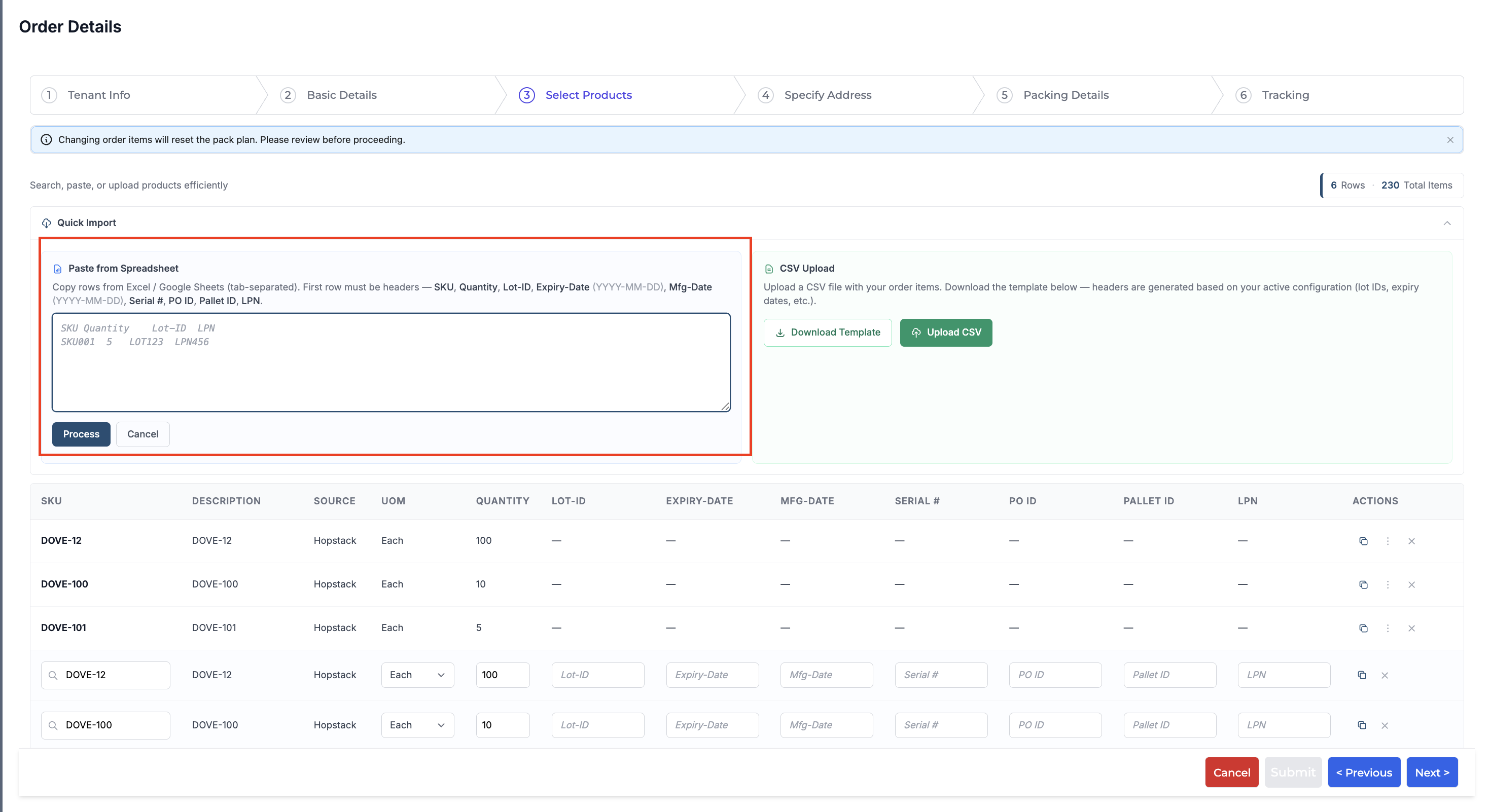
Click “Quick Import” to copy and paste data from a spreadsheet.
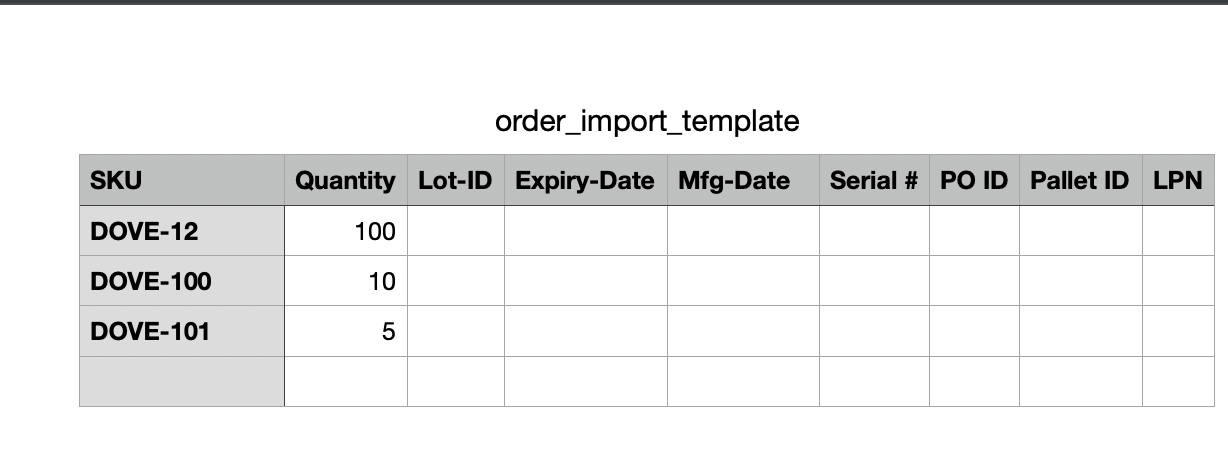
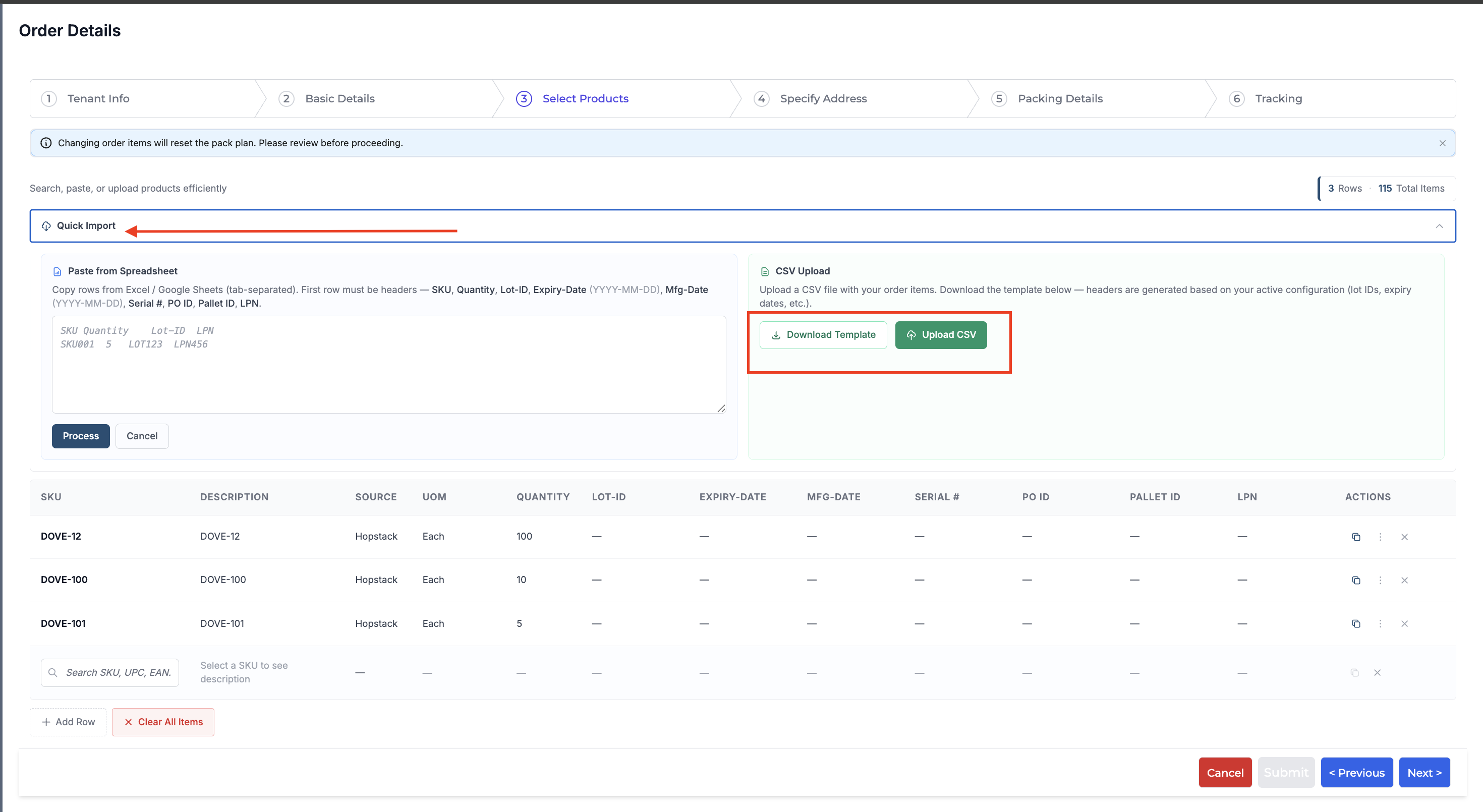
Once your template file is filled, click “Upload a CSV” to import it into the system.
Once you have used your preferred method, the user can see the line items added accordingly.
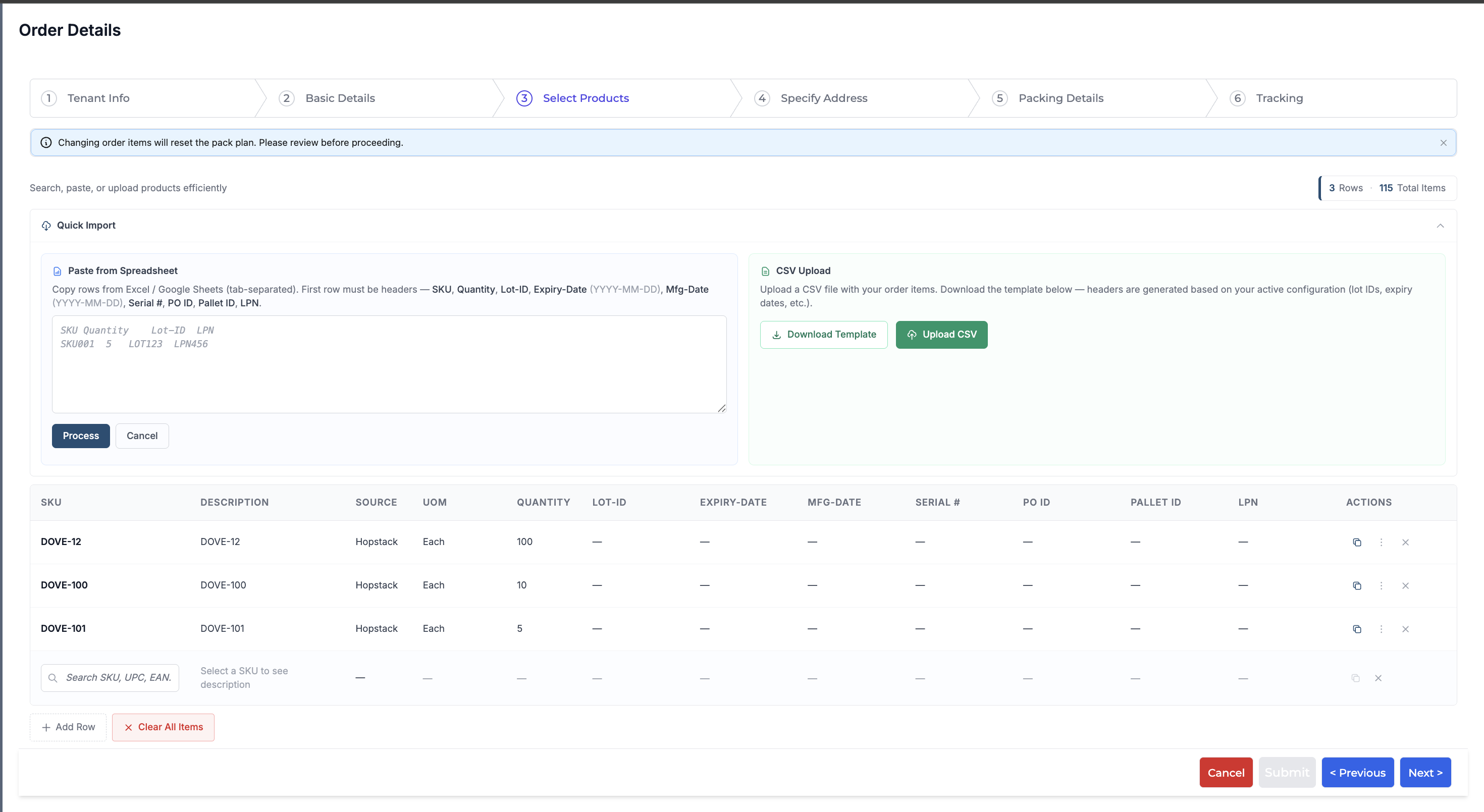
You can quickly use the Copy icon to duplicate line items and add more or remove them by clicking the Cancel icon. Click “Clear All Items” to remove all line items at once.