
When you preview a batch, Hopstack checks the selected orders against available stock and shows whether they can be fulfilled together. When soft allocation is enabled, if several orders need the same stock, the preview identifies which orders are expected to run short before you create the batch. This helps you review and adjust the selection before proceeding.
Review the preview
1. Preview your selected orders. In the Create Outbound Plan flow, select the orders and open the Order Plan preview. The preview considers the orders in the sequence in which the batch will process them.
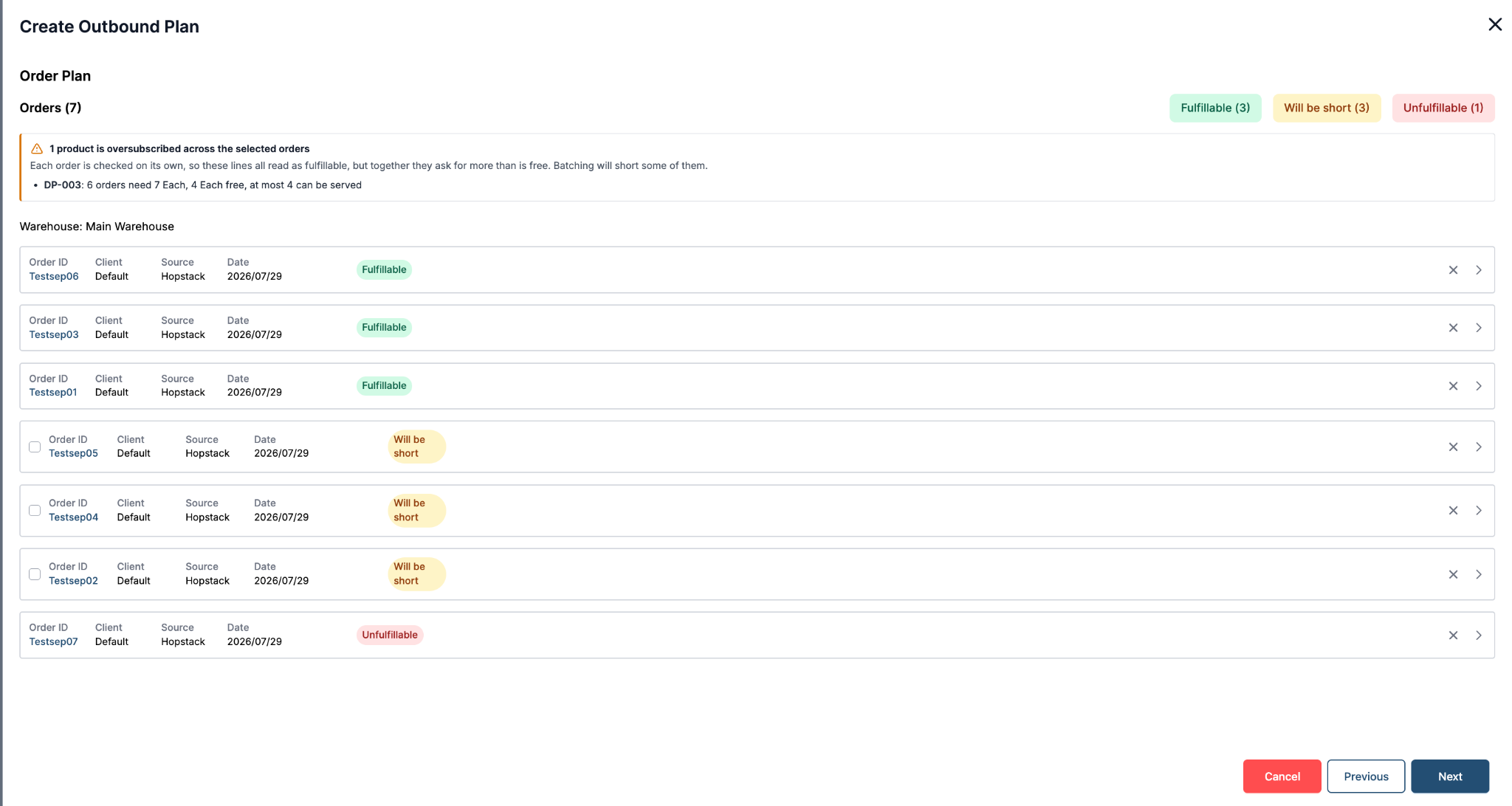
2. Check the order groups. Use Fulfillable, Will be short, and Unfulfillable to review the predicted outcome for each order. If selected orders compete for a product, the warning above the list summarises how much is needed, how much is free, and how many competing orders can be served.
The preview groups orders by predicted outcome and summarises shared stock demand.
Understand the results
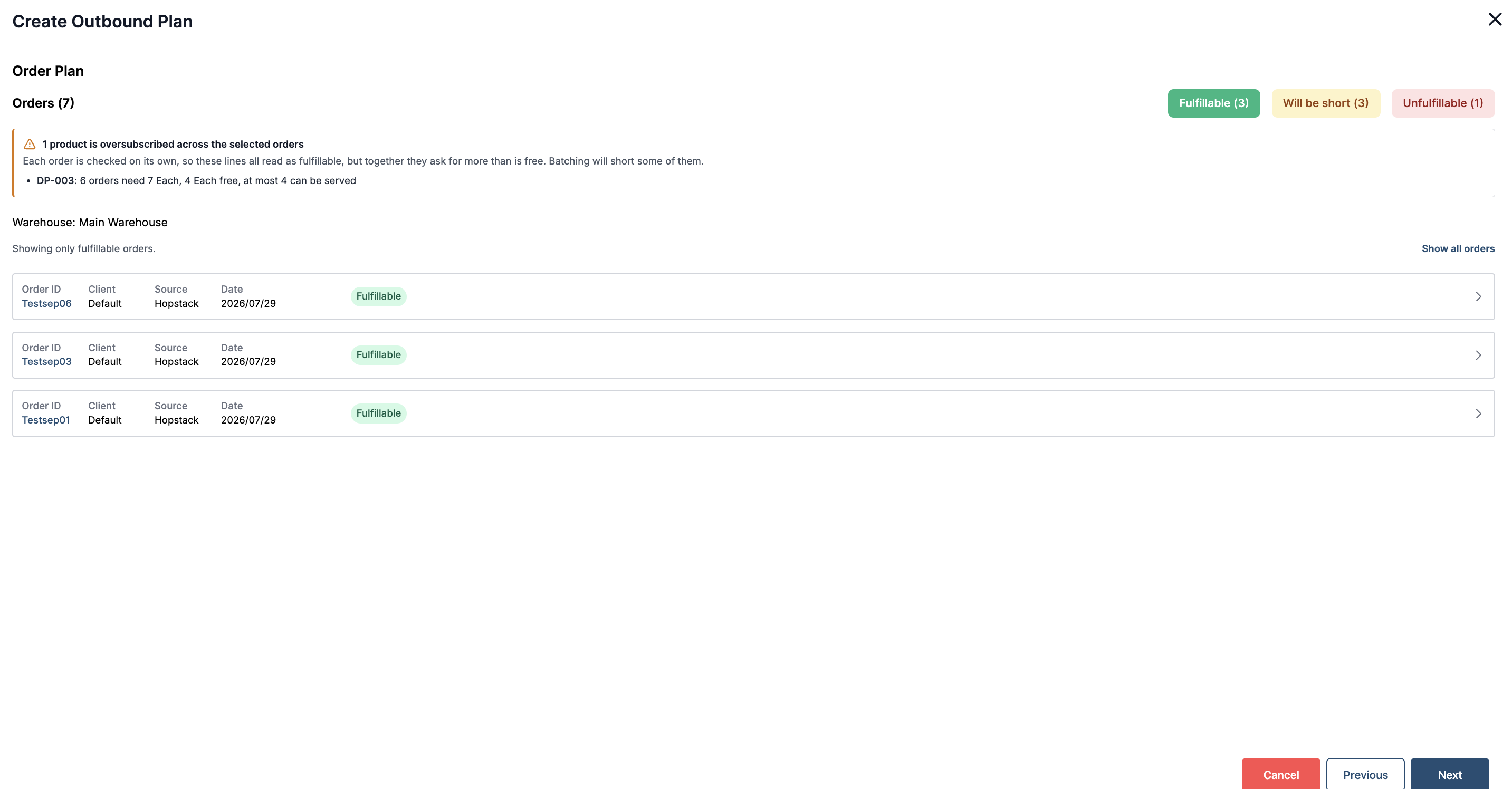
Fulfillable: The order can be served based on the stock remaining when its turn comes in the selected sequence.
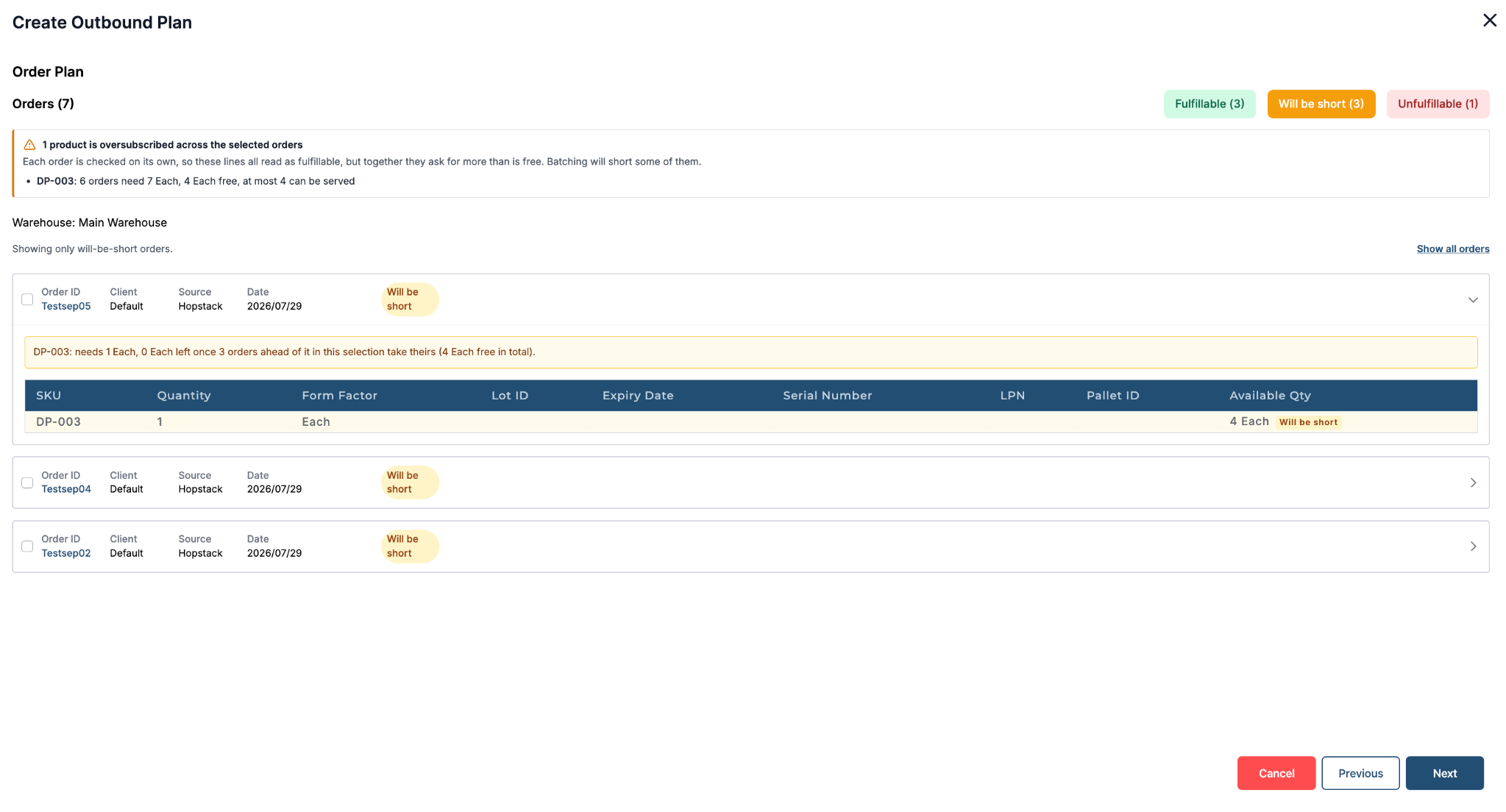
Will be short: Earlier selected orders are expected to consume stock this order needs. These orders are deselected by default. Expand an order to see the affected SKU, requested quantity, available quantity, and shortage explanation.
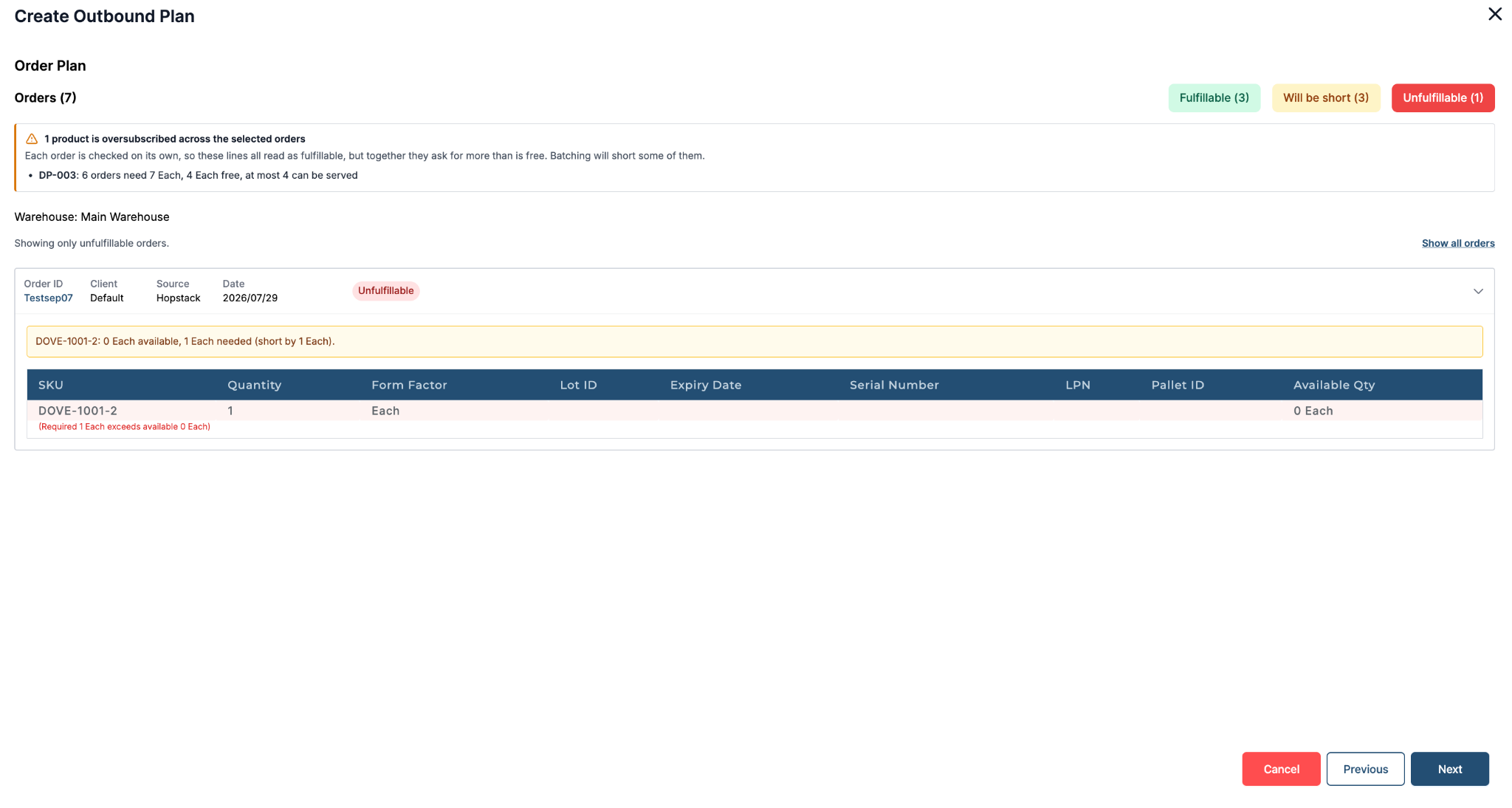
Unfulfillable: The order is short even when evaluated on its own, independently of competition with other selected orders.
Choose which orders to batch
3. Review shortages. Open the Will be short group and check the reason for each affected order. In the example shown, six orders need seven units of DP-003, but only four are free; the preview predicts which orders will be short in sequence.
4. Confirm the selection.
-
Leave Will be short orders deselected to exclude them from this batch. You can select one manually, but doing so may cause the entire batch to fail.
-
Remove or reorder orders and preview again to see the updated results.
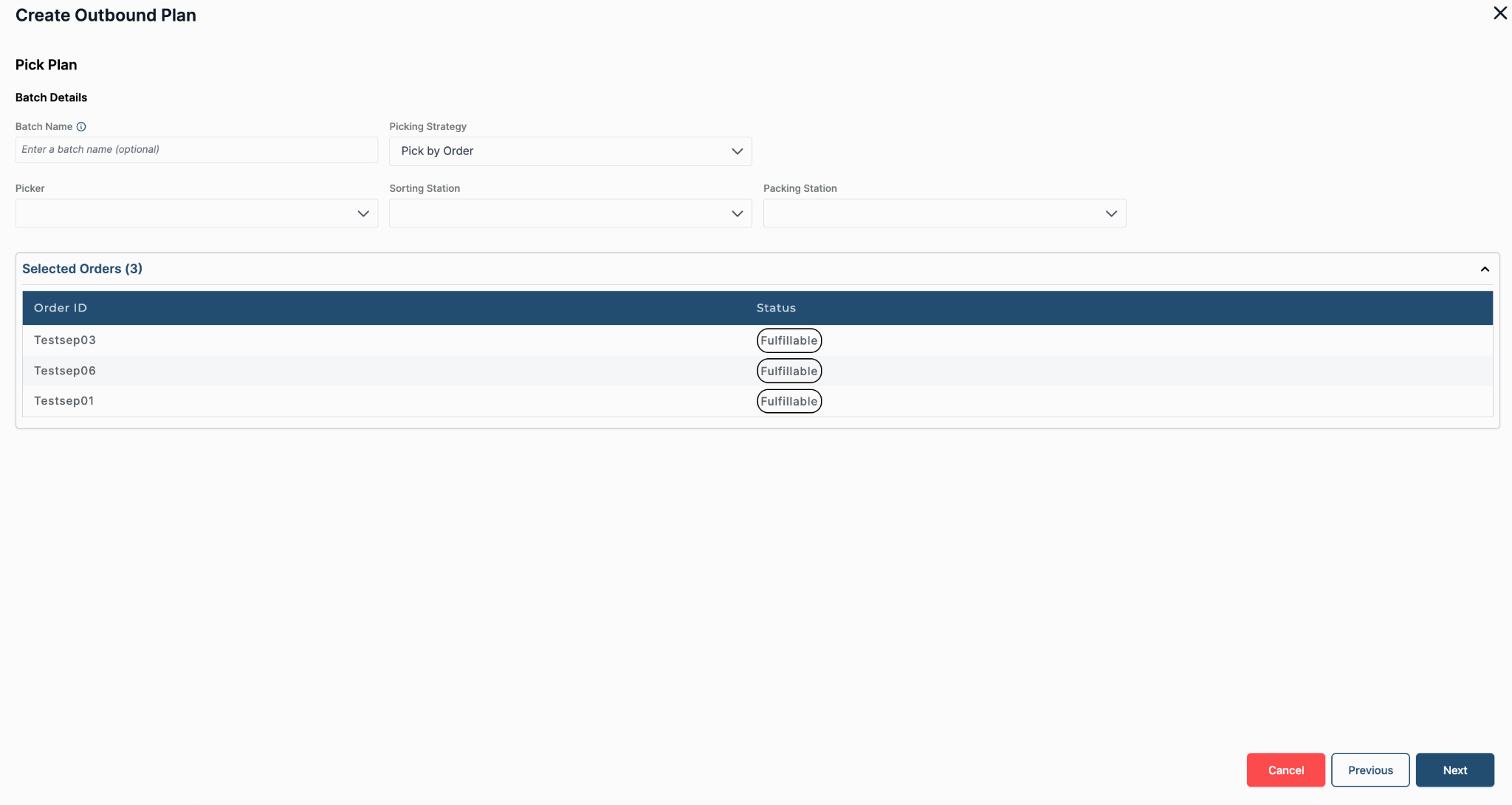
5. Continue with the batch. Proceed to Pick Plan by clicking Next. The fulfillable orders move to the next step for batching.
The preview does not reserve or change inventory. If the order selection or quantities change, preview again before creating the batch.