
Summary Tab
The Location Inventory screen now includes a Summary tab that rolls up inventory by client, warehouse, SKU, and unit of measure. This gives you a high-level view of what you have and where, without scrolling through individual bin-level rows. It is especially useful for quickly answering questions like how much of a product is on hand across all locations.
To navigate to the Location Inventory summary tab, click Location Inventory in the side panel, then click the summary tab.
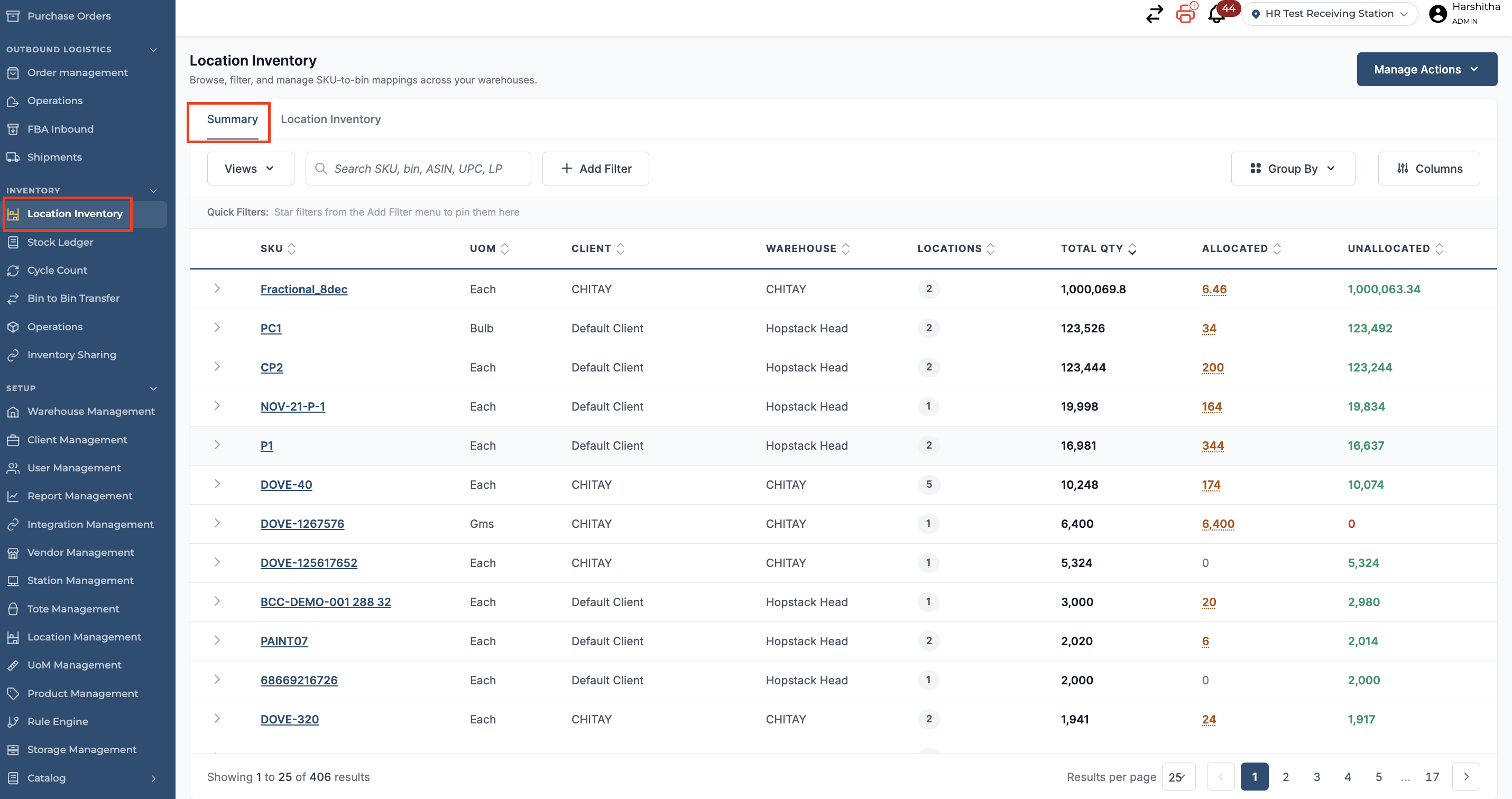
The user can see the total quantity, how much of the total quantity is allocated for orders and the remaining unallocated quantity. The number of locations across which the specific SKU is stored.
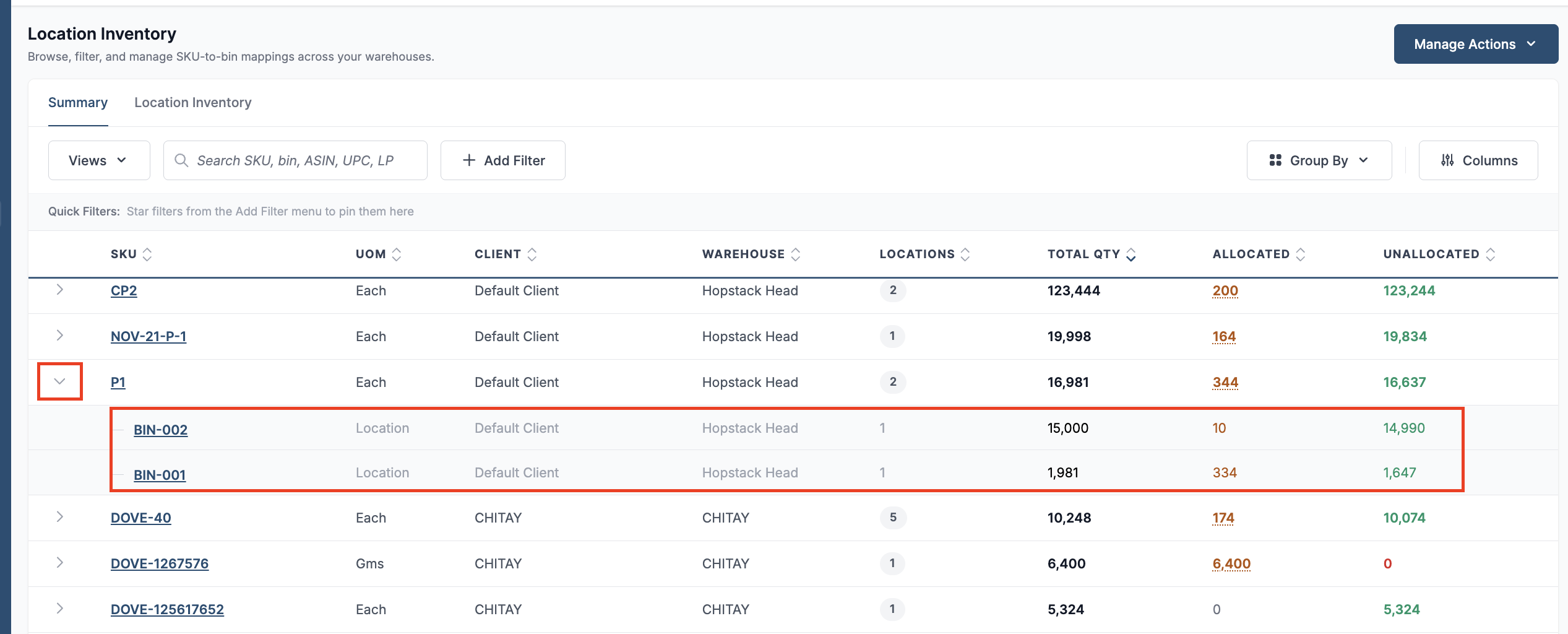
If the user would like to view the locations and quantities for each location, they can expand the row by clicking the side arrow.
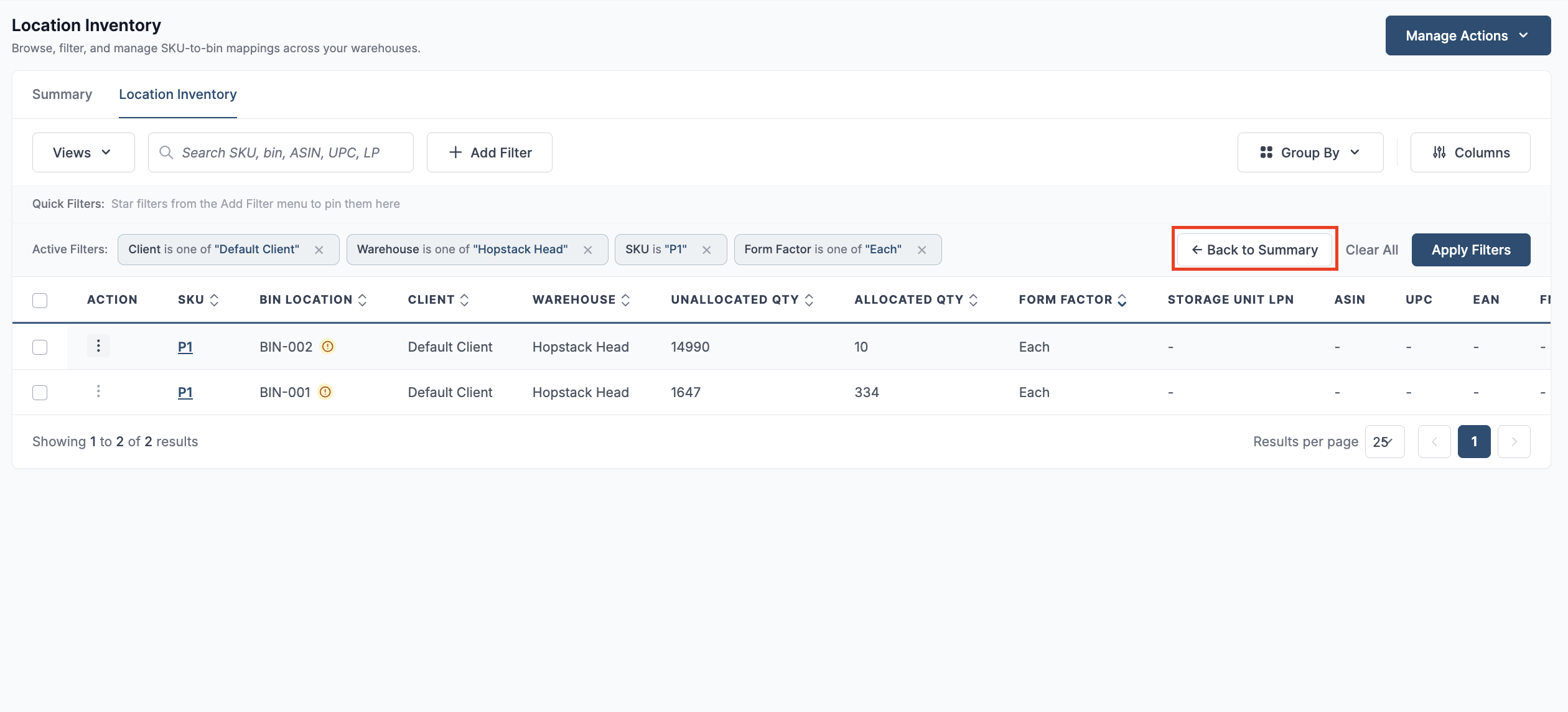
To get more details about the Stock for the SKU, the user can simply click on the SKU or Bin Location, and the screen will switch to the Location inventory tab, where the user can view detailed information about the stock, such as serial numbers, lot ID, Expiration date, etc. They can get back to the summary tab by clicking on the Back to Summary Button.
Allocation Visibility
At the detail level, SKU-bin rows now show soft allocation pool details directly. You can see how much inventory at a location is currently soft-allocated against orders, giving you a clearer picture of what is truly available versus what is committed.
The allocation visibility feature can be accessed from both the summary tab and the location inventory tab by clicking on the allocated quantity.
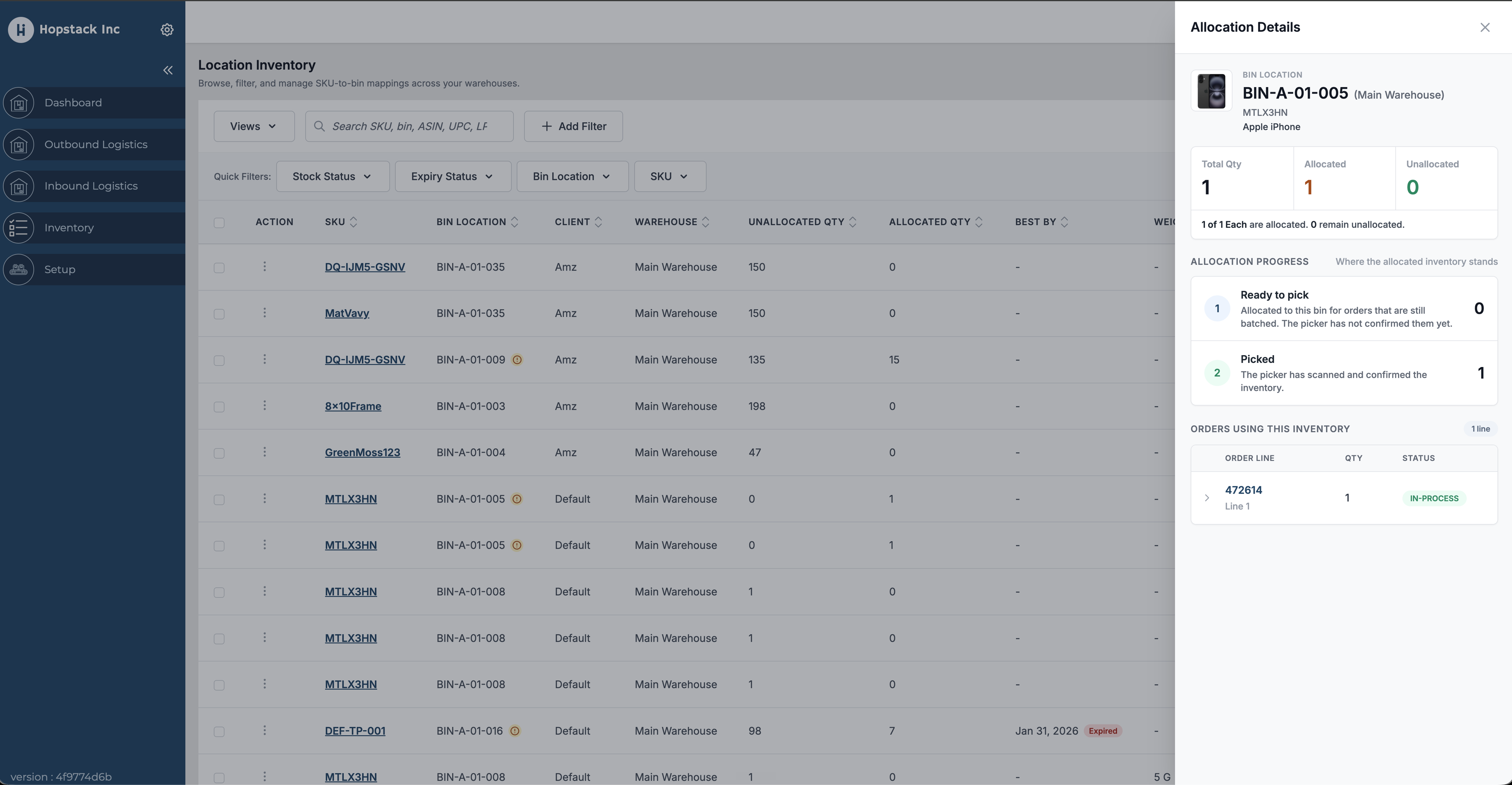
The Location Inventory allocation details view now presents Physical, Committed and Available quantities instead of the older hard-allocation-only summary. Soft allocations are included in the committed quantity, giving users a clearer view of inventory that is physically present but already promised to outbound demand.
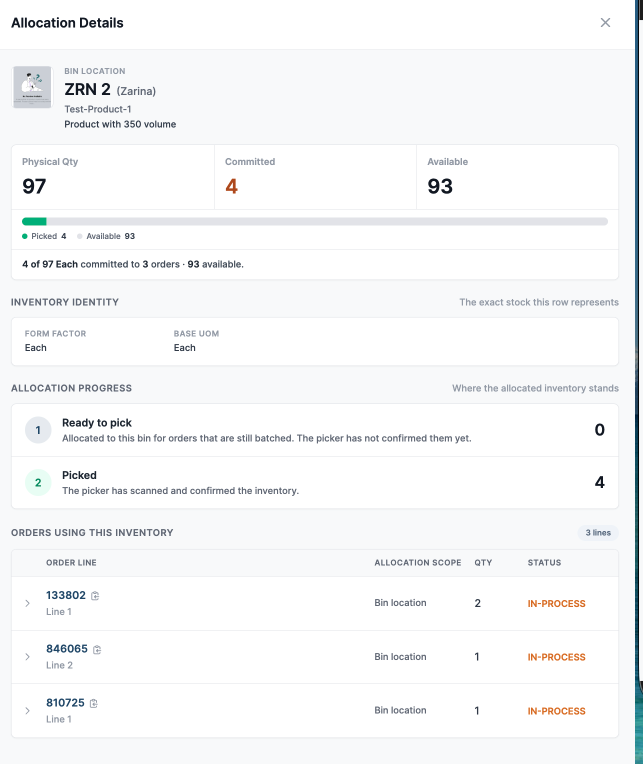
Note: If committed demand exceeds physical inventory, the UI explicitly shows the over-allocation amount and warning state.
The Allocation Progress section provides a real-time view of the current allocation status of the selected inventory. It helps warehouse users understand where the allocated quantity is in the fulfilment process.
The progress is divided into the following stages:
-
Ready to Pick – Displays the quantity that has been allocated to customer orders but has not yet been picked by a warehouse associate. These items are reserved for orders and are waiting for the picking process to begin.
-
Picked – Displays the quantity that has been successfully picked and confirmed by the warehouse associate. This indicates that the inventory has been physically scanned and is ready to move to the next stage of the outbound workflow, such as packing or shipping.
In the example shown:
-
0 units are Ready to Pick, indicating there are no pending pick tasks for this inventory.
-
1 unit has been picked, meaning the allocated inventory has already been scanned and confirmed by the picker.
The Orders Using This Inventory section lists all order lines that have reserved or allocated inventory from the selected bin location. It provides quick visibility into which orders are consuming the inventory, along with the Order ID (Order Line), Allocated Quantity, and Current Order Status. This allows users to easily trace inventory allocations back to specific customer orders and monitor their fulfilment progress.