
Enhance the system to allow for dynamic conversion between Units of Measure (UoMs) based on inventory availability. This enhancement aims to reduce stockouts and improve order fulfilment flexibility by enabling the breakdown of larger UoMs into smaller ones.
Current System Overview
Currently, our system searches for the exact UoM when allocating orders, defaulting to "Each" if no specific UoM is defined. This can lead to exceptions if there isn't enough stock in the requested UoM, despite having UoM configurations defined in the product details.
New Action of UoM Breakdown
We have developed a new admin screen that allows administrators to enable UoM breakdown. This functionality will help you:
-
Select a SKU and bin to "break" the selected bin into smaller UoMs.
-
Logically split the item while retaining its location.
-
Adjust inventory records to extinguish the larger UoM and add the smaller UoM.
-
Create a new SKU-bin mapping with the exact quantity mentioned, duplicating all attributes such as LOT ID, expiry date, etc.
How to Use the UoM Breakdown Feature
Navigation
-
Go to Setup.
-
Select SKU-Bin Management.
-
Click the Action button (⋮) next to the desired SKU and bin.
-
Click the UoM Breakdown button with the corresponding icon.
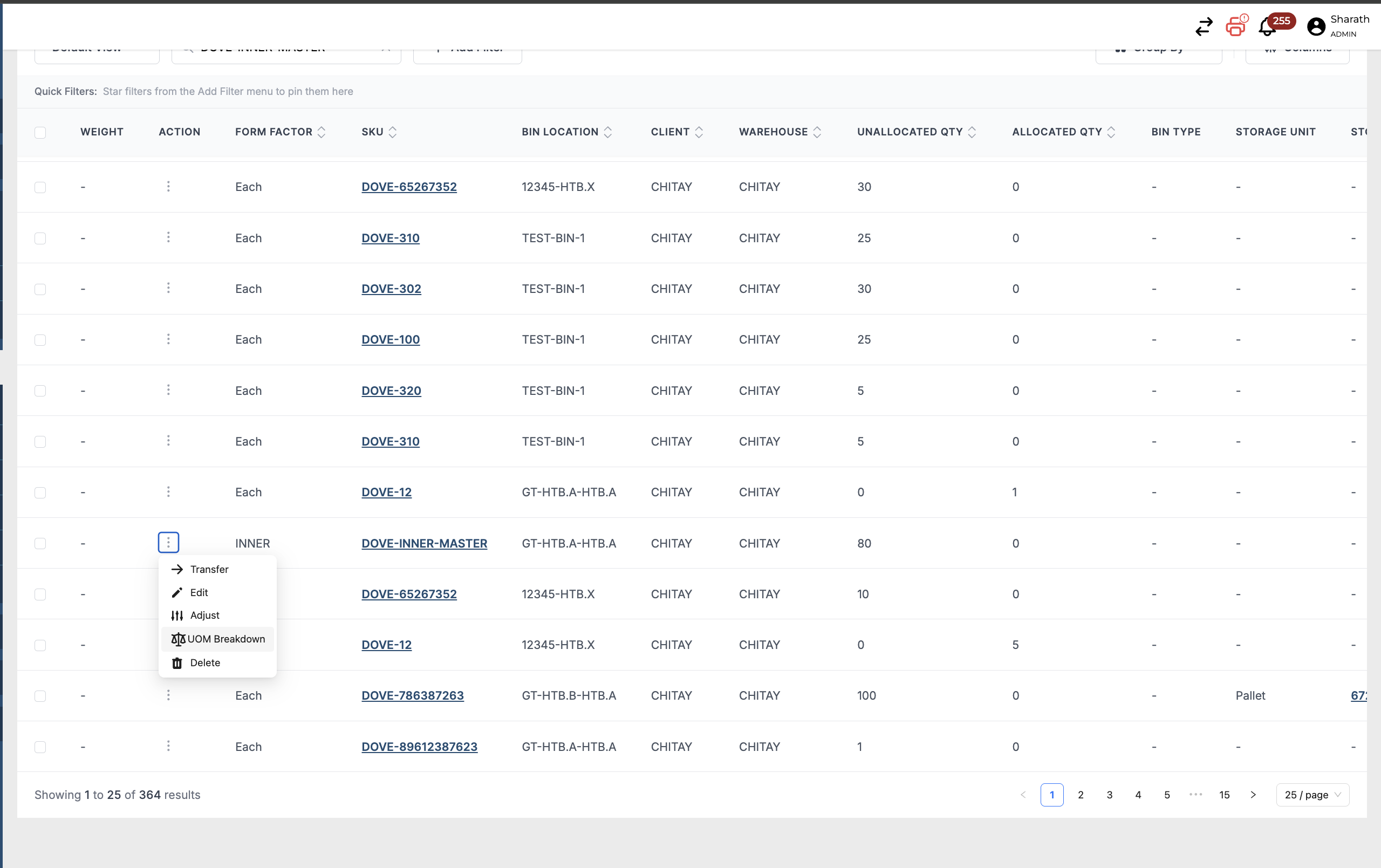
UoM Breakdown Modal
Upon clicking the UoM Breakdown button, a modal will appear. This modal will include the following details:
-
Bin Location: The location of the bin.
-
SKU: The SKU being modified.
-
Present Stock: The current stock available (The current form factor should be greater than the Base UoM for breakdown to work)
-
Base UoM: The defined base unit of measure of the SKU.
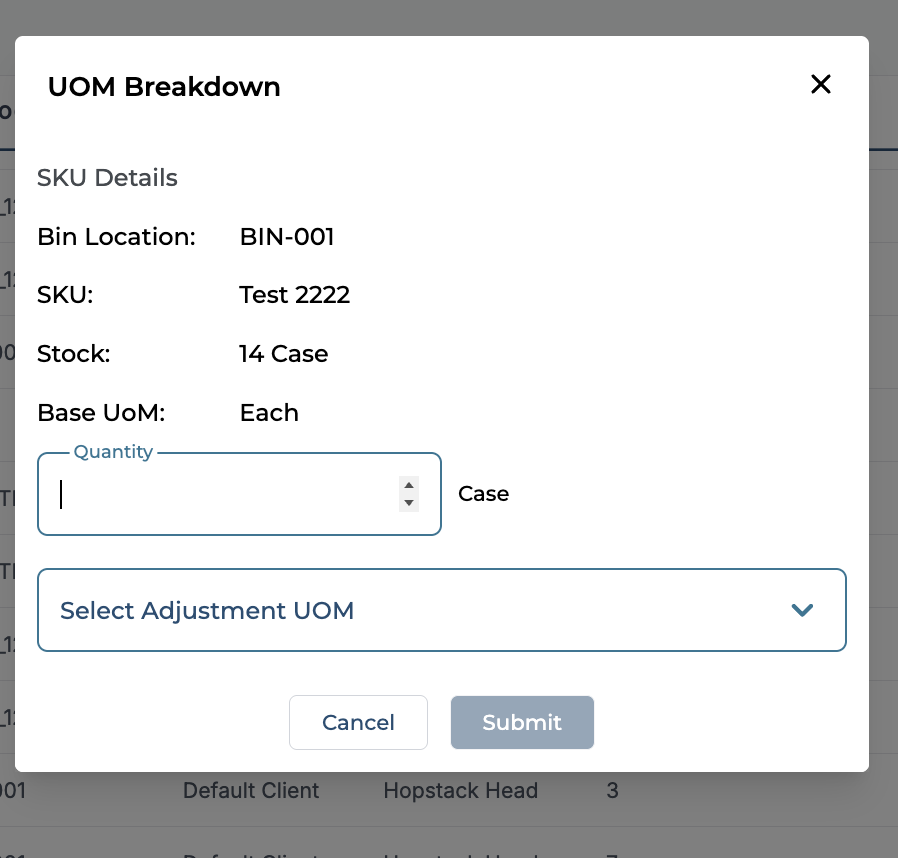
Breakdown Process
-
Quantity: Enter the number of stocks to be broken down (this should be less than or equal to the current stock).
-
Select Adjustment UoM: Choose the form factor to which the stock should be changed. The dropdown will list only lower UoMs available for conversion.
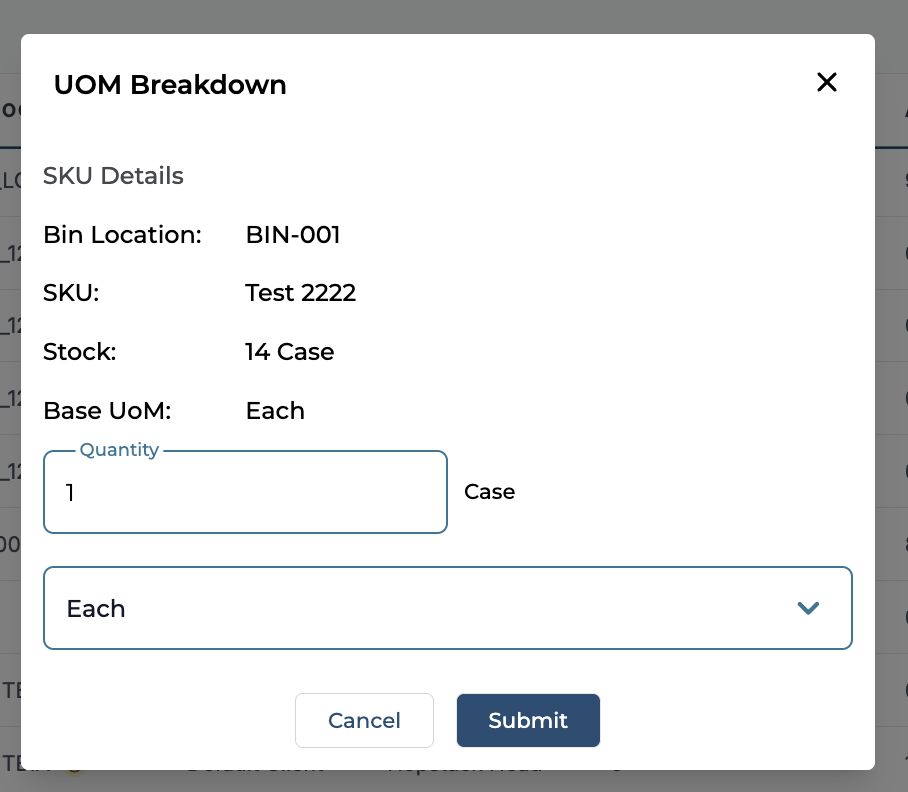
Example
If there are 3 cases in a location (e.g., L1), you can click Breakdown to split one of the cases. Enter a quantity of 1 and select "Each" as the new UoM.
Submission
-
Once you have entered the required information, click Submit.
-
Click on Yes, I Confirm.
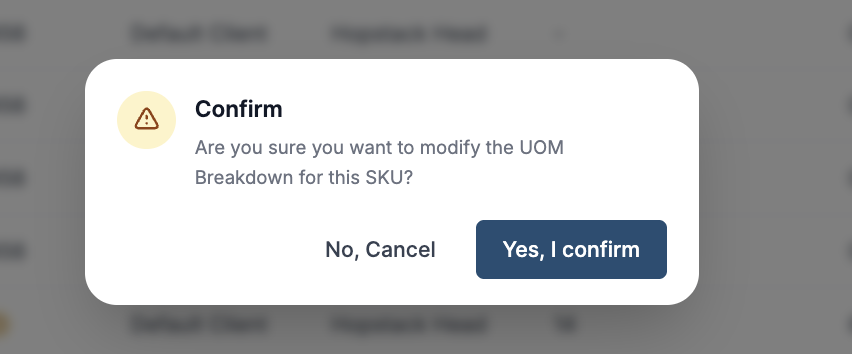
-
A new mapping will be created with the specified quantity in the new UoM (e.g., "Each"), as configured in the product management settings.
Notes
-
This feature is for Admins only.
-
Ensure the new UoM is correctly configured in the product details to avoid inventory discrepancies.