
This new feature explains recent enhancements for managing expiry-controlled products, including visual expiry indicators, client- and product-level fulfilment policies, and minimum shelf-life controls that affect order fulfilment and batching.
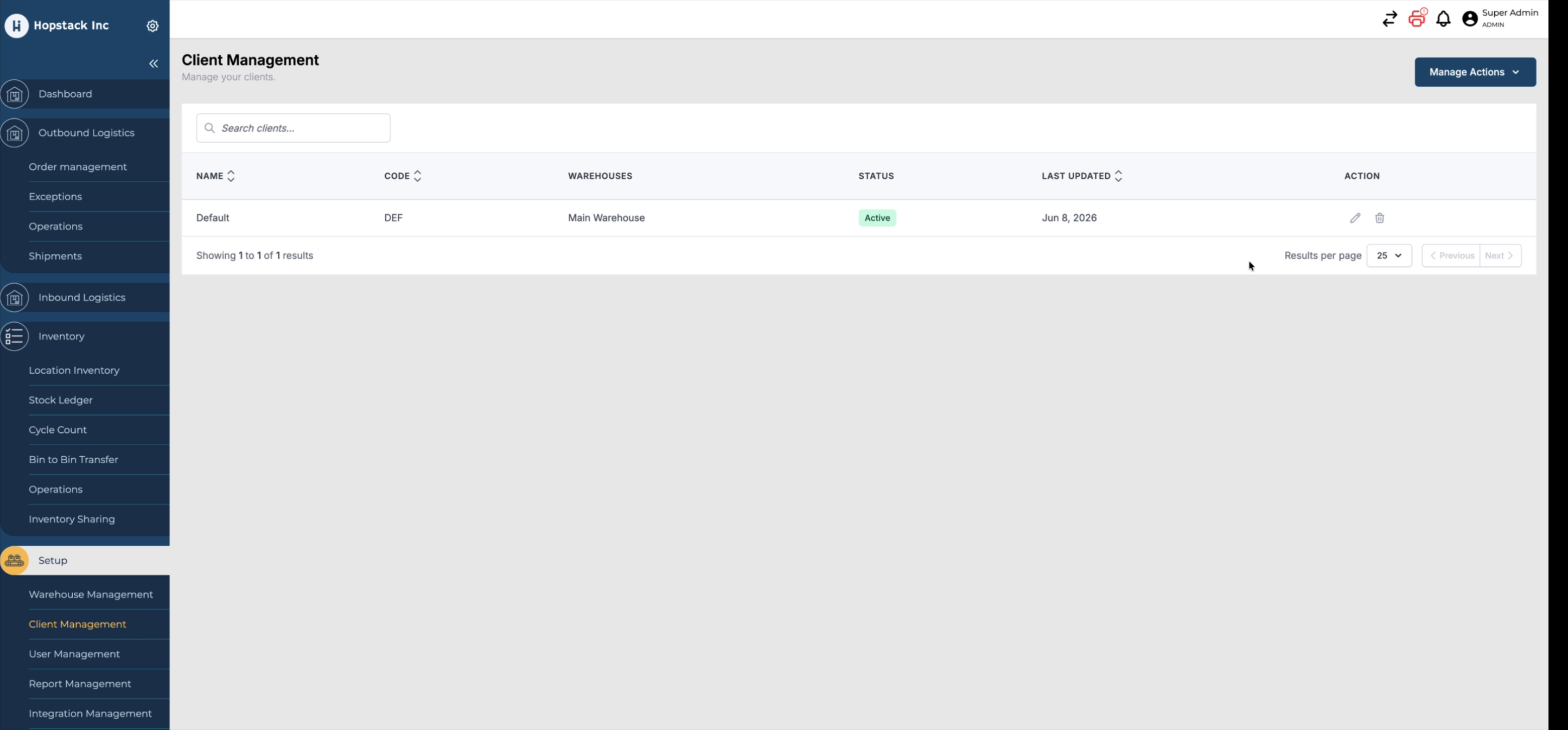
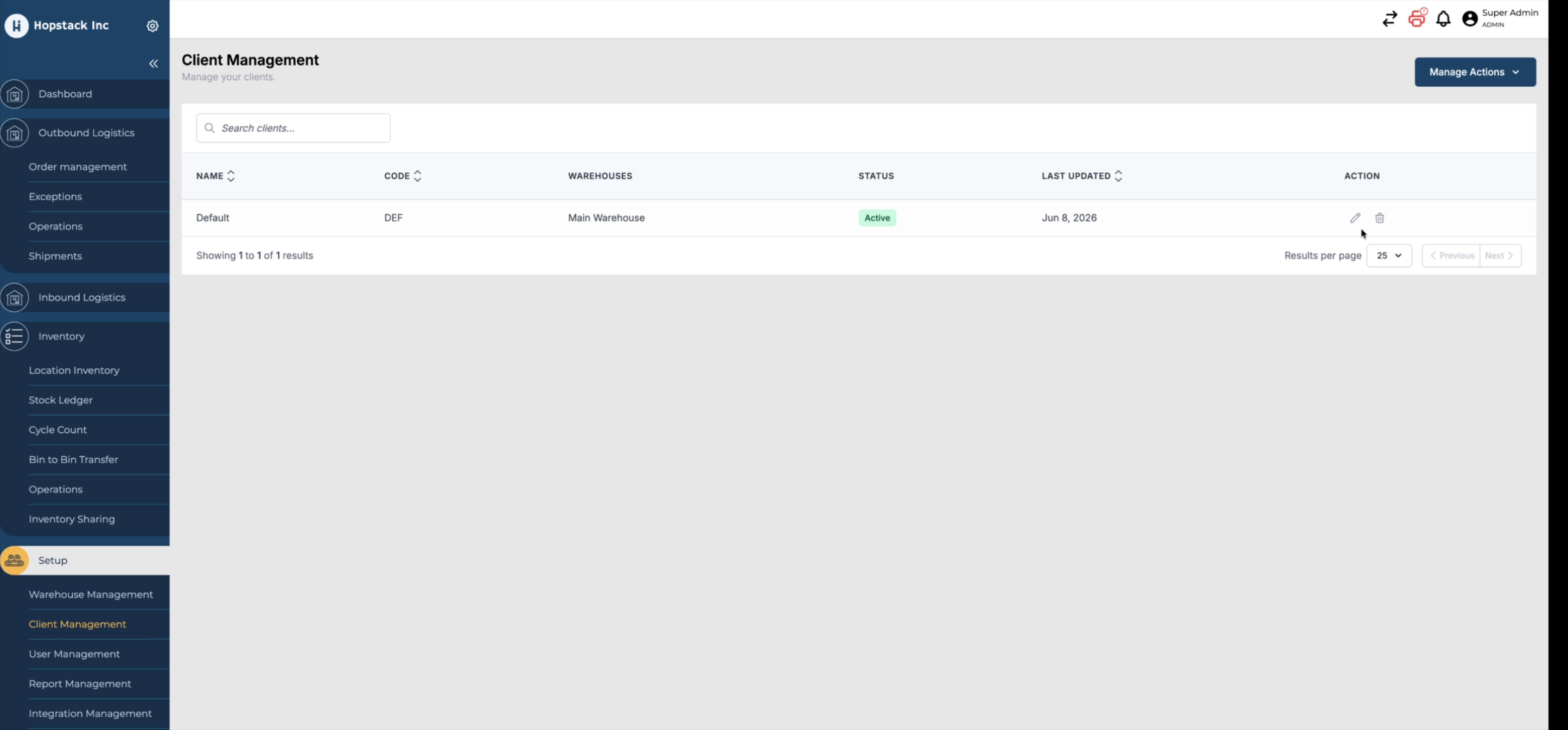
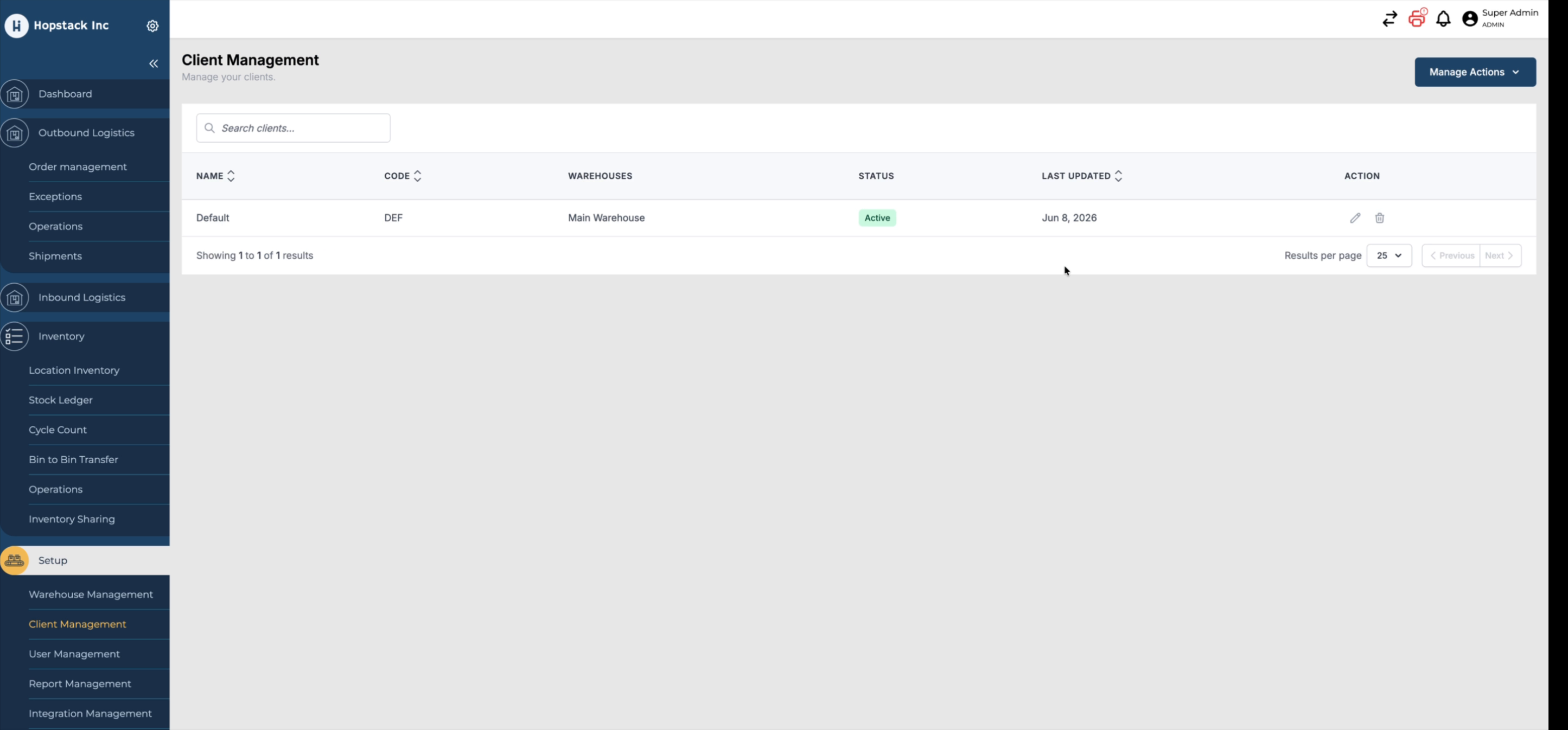
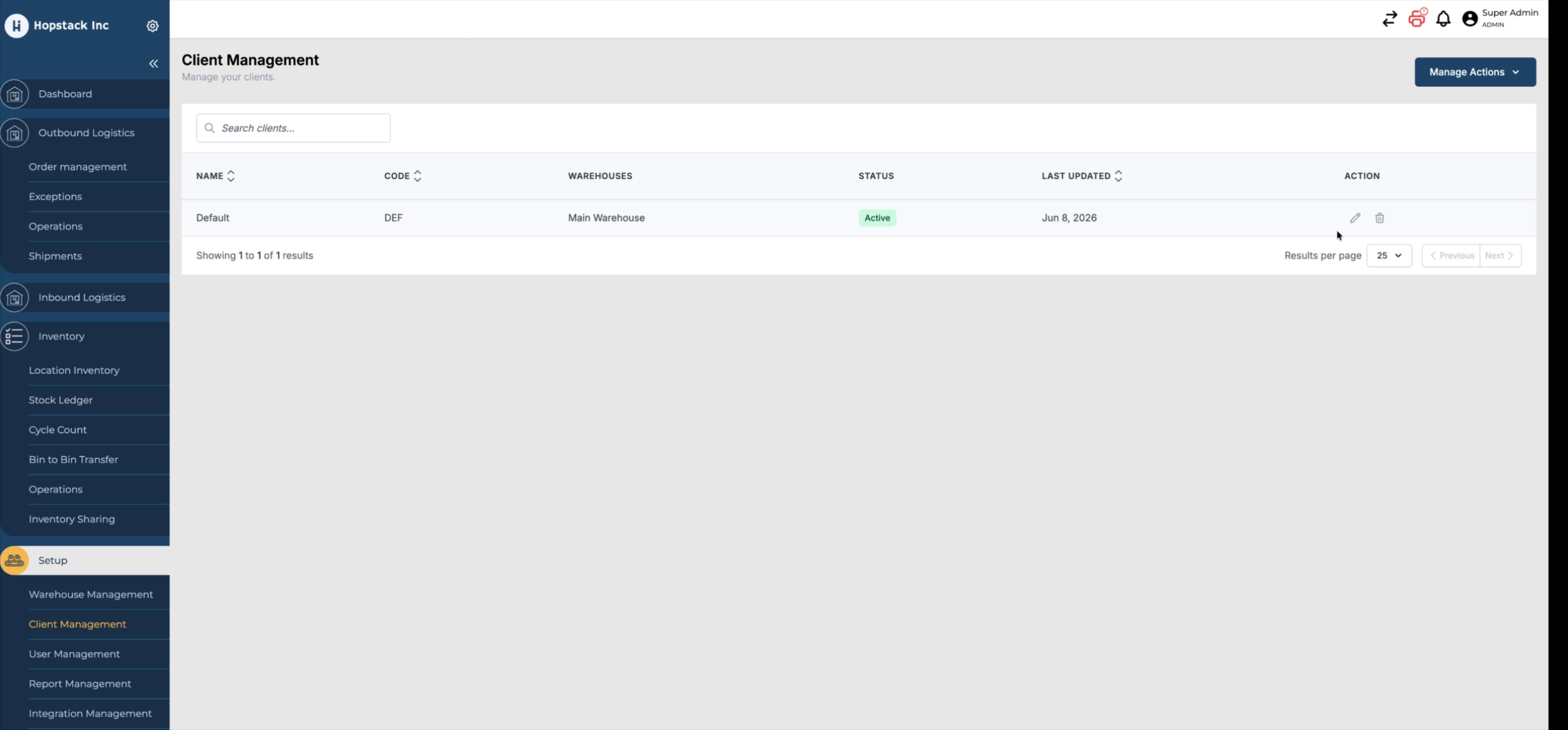
Set it on Client Management: Configure the Inventory Allocation Policy at the client level to establish a default allocation rule for all products associated with the client.
To configure:
-
Navigate to Client Management.
-
Click on the Edit icon
-
Select the desired Inventory Allocation Policy.
-
Click on Submit
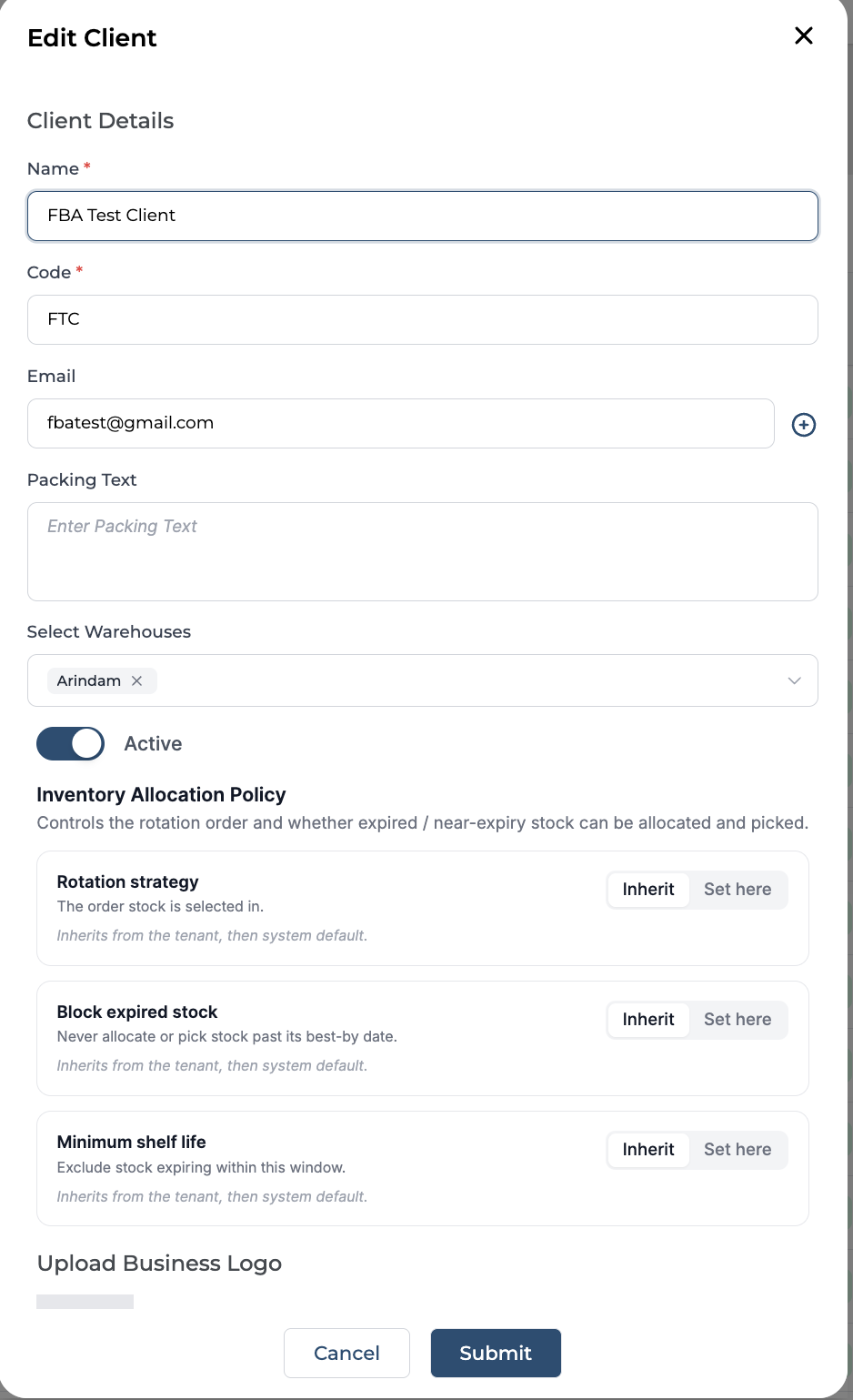
-
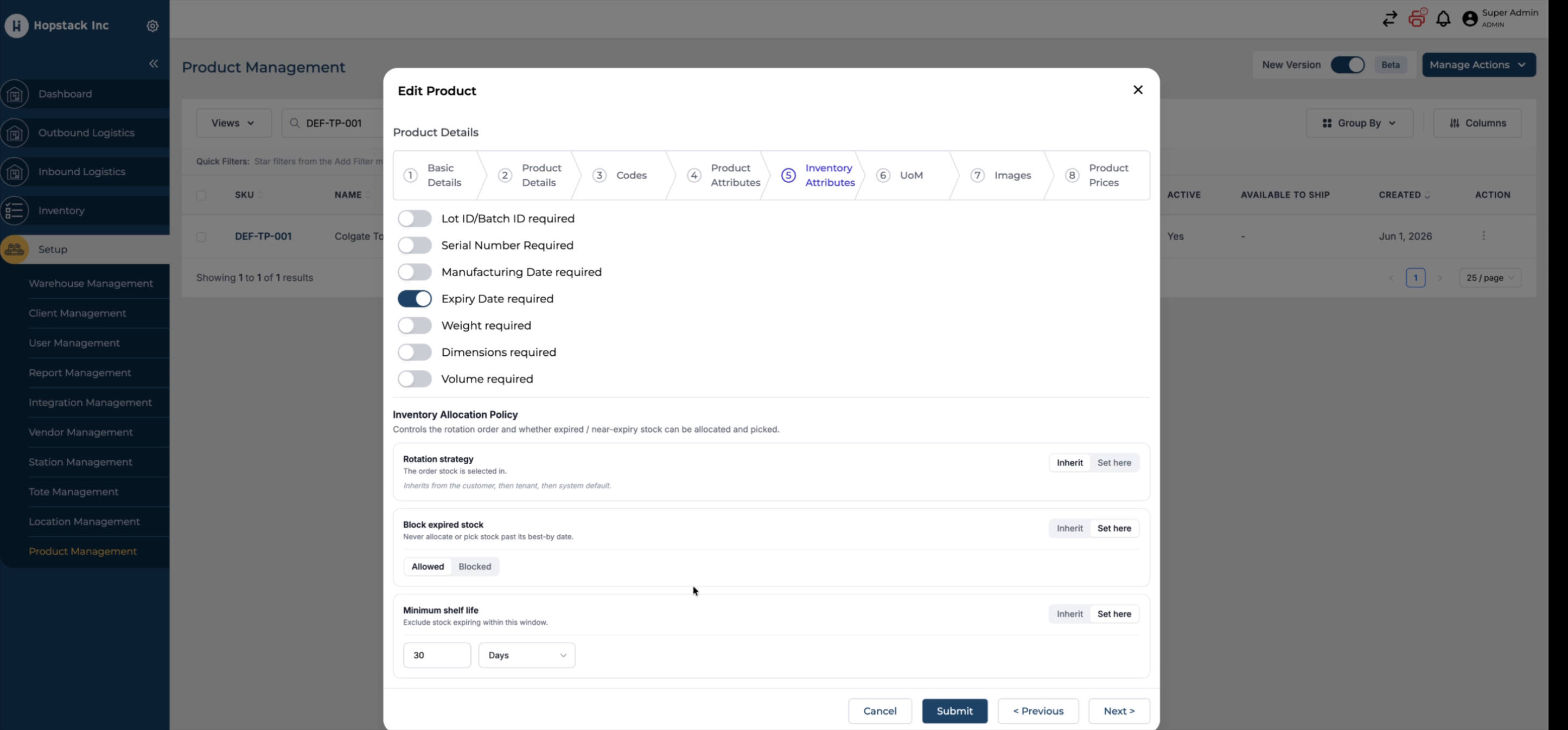
Set it for individual products: Configure the Inventory Allocation Policy for specific products.
To configure:
-
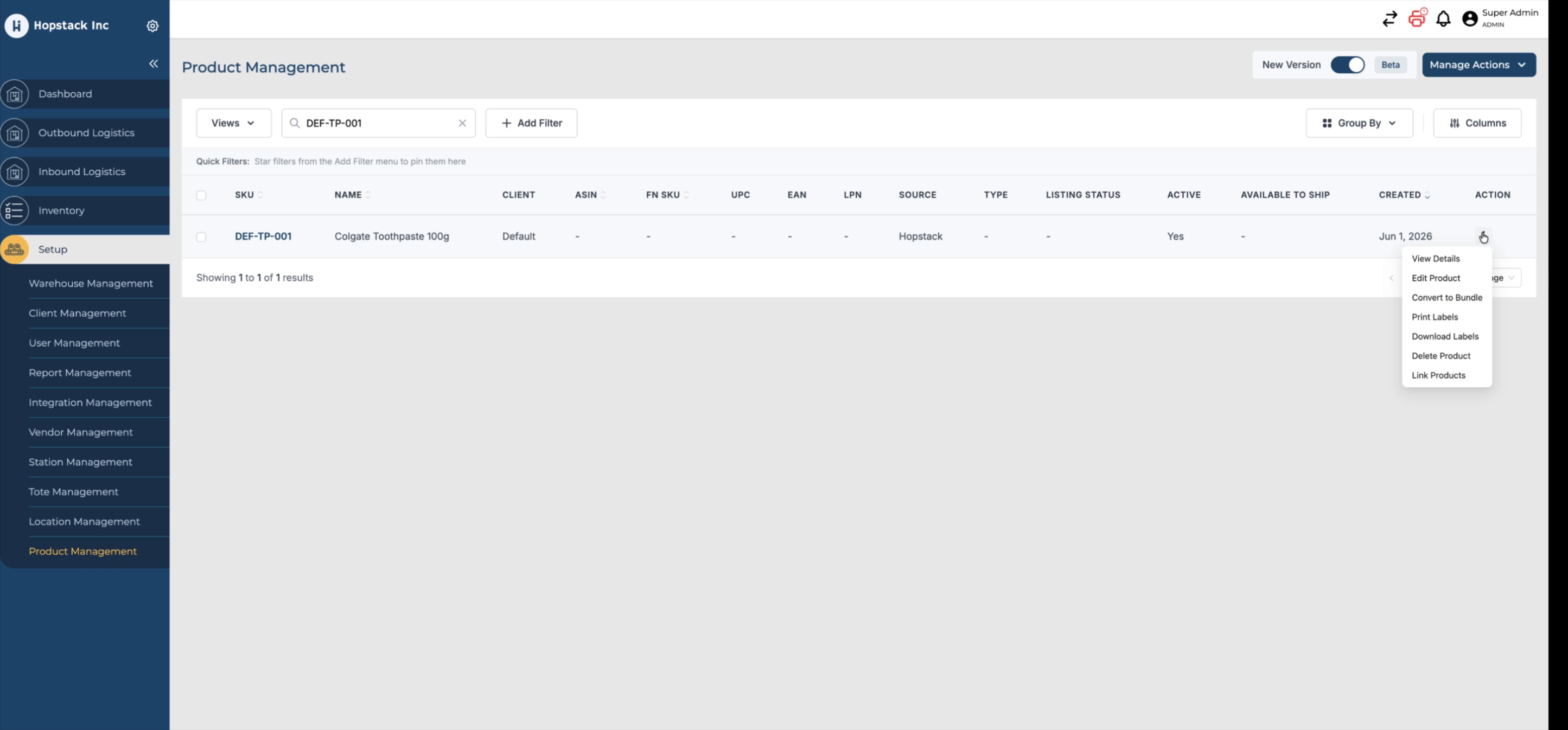
Navigate to Product Management.
-
Click on the Action button> Edit icon
-
Select the desired Inventory Attributes.
-
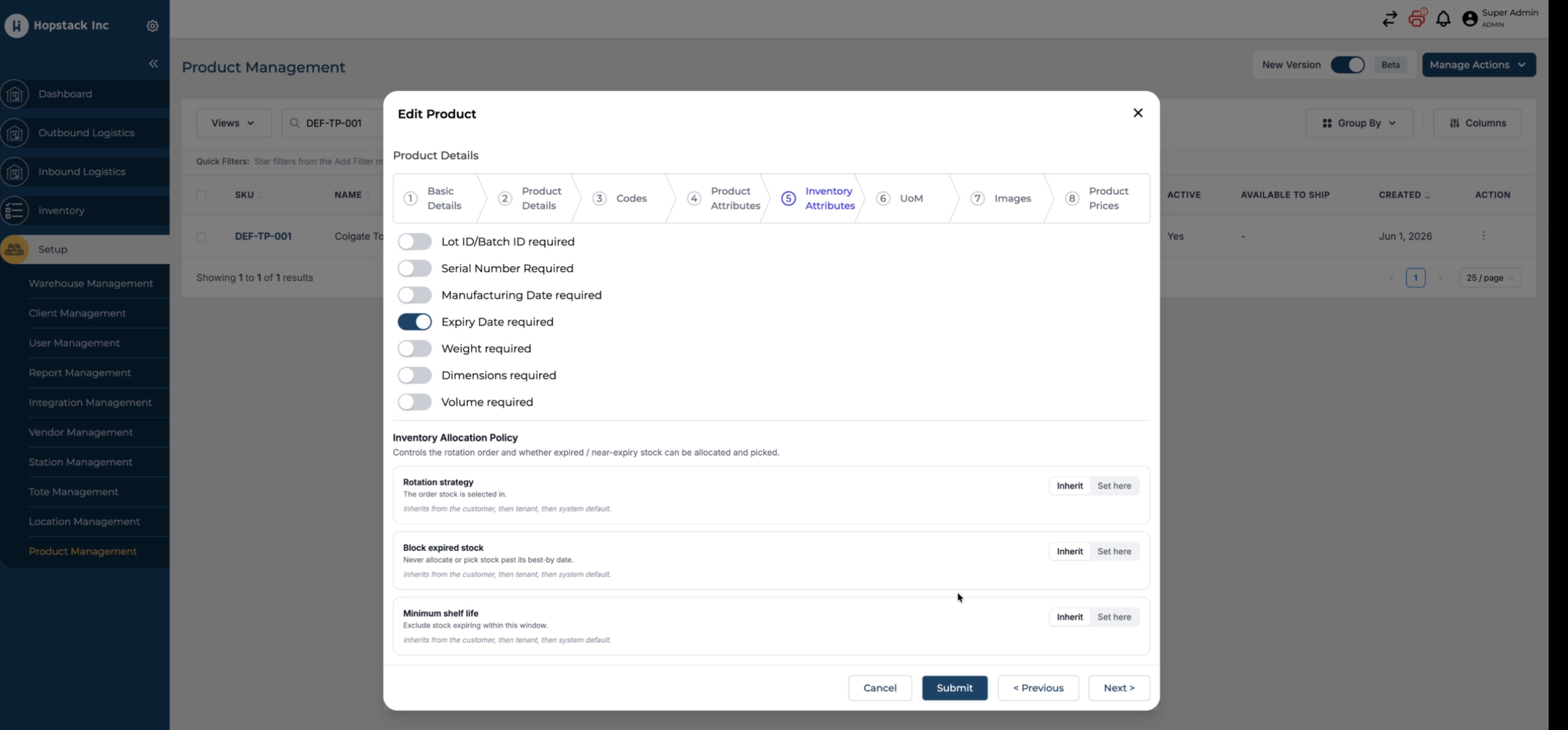
Select the desired Inventory Allocation Policy.
-
Click on Submit.
-
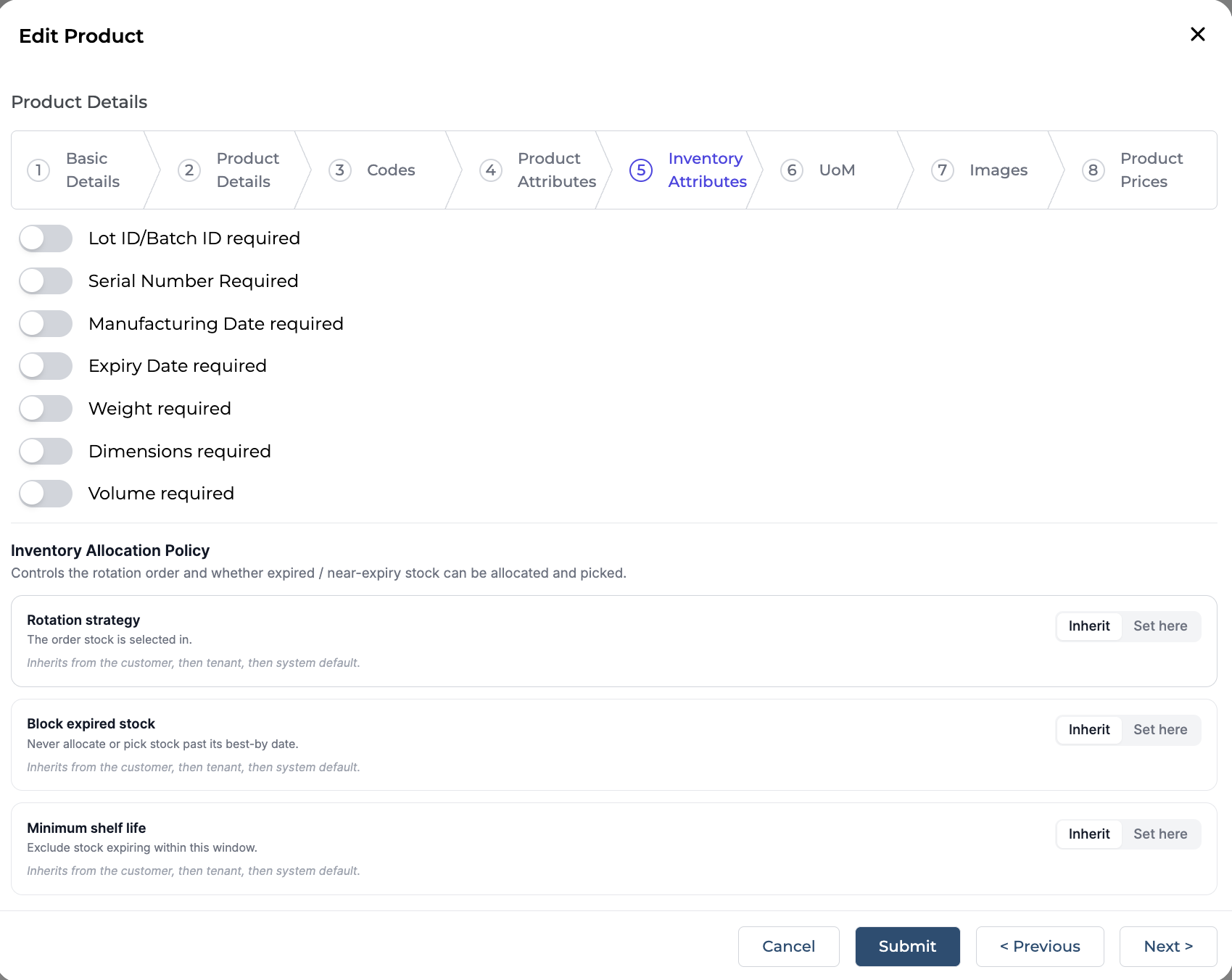
Hierarchy
When an Inventory Allocation Policy is defined at both levels:
-
If the product-level policy takes precedence.
-
If no product-level policy is configured, the Client-level policy is applied.
Inventory Allocation Policy
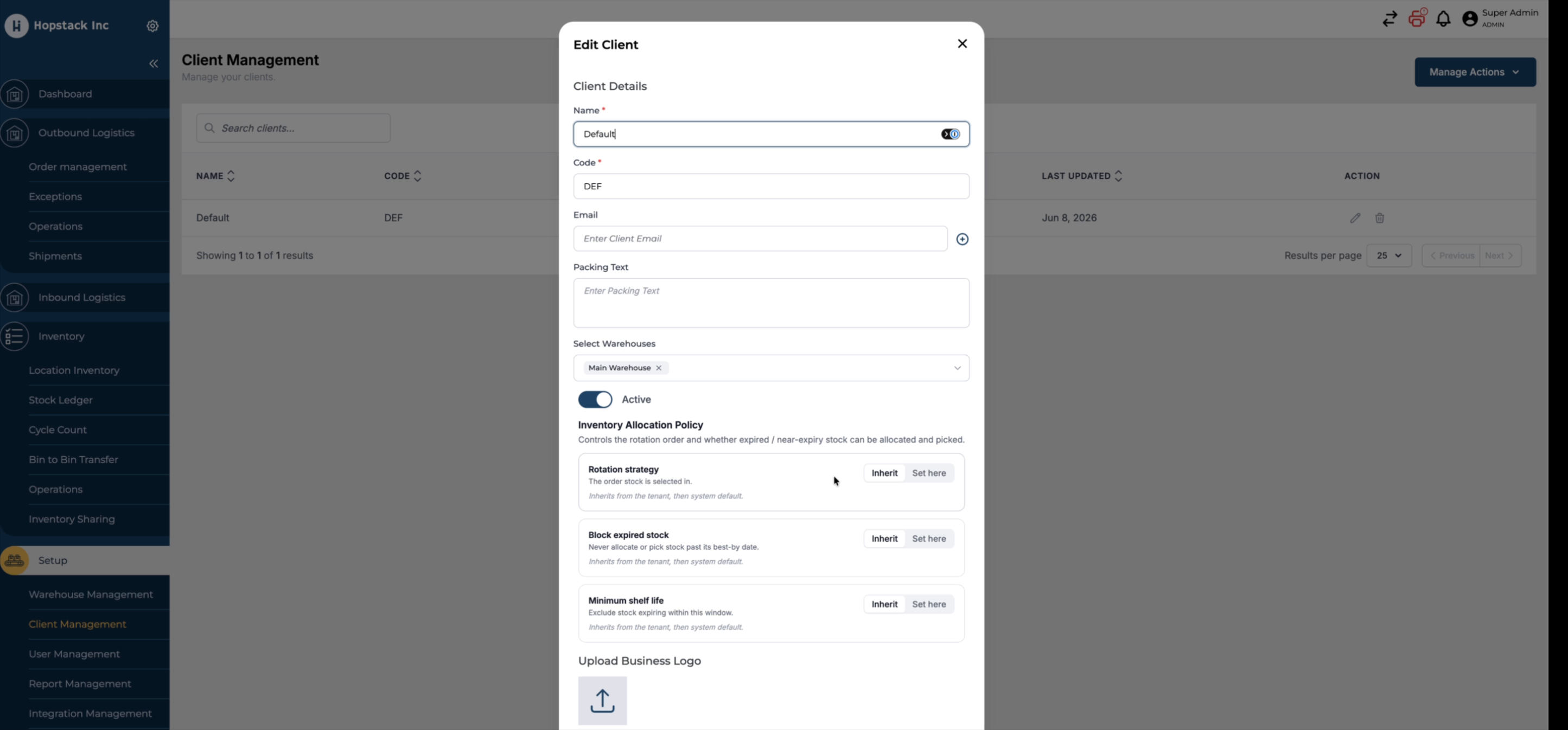
The Inventory Allocation Policy provides flexible control over how inventory is allocated based on product expiry dates. This policy can be set up with:
-
Rotation strategy
-
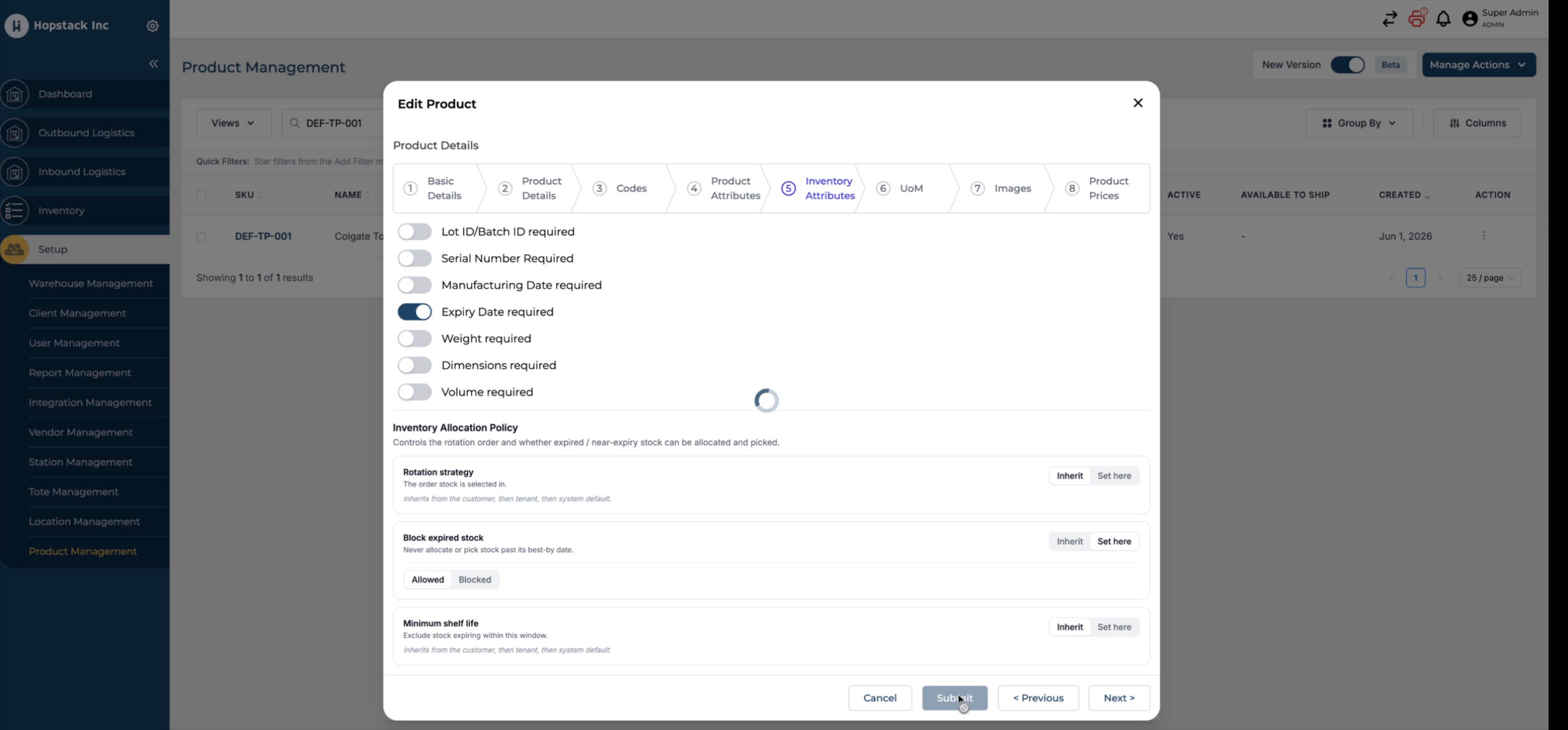
Block expired stock
-
Minimum shelf life
Inherit
Select Inherit to use the policy configured in Client Management. Any changes made to the client-level policy will automatically apply to products that are set to inherit.
Set Here
Select Set Here to define a policy specifically for the product. The product-level setting overrides the policy configured in Client Management.
Rotation strategy
The Rotation Strategy determines the order in which inventory is allocated during picking and fulfilment.
The following rotation strategies are available:
FIFO (First In, First Out)
Inventory is allocated based on the date it was received into stock. The oldest inventory is allocated first, regardless of its expiry date.
FEFO (First Expiry, First Out)
Inventory is allocated based on the earliest expiry date. The stock that expires soonest is allocated first, helping to reduce waste and prevent expired inventory from remaining in stock.
None
No rotation strategy is applied.
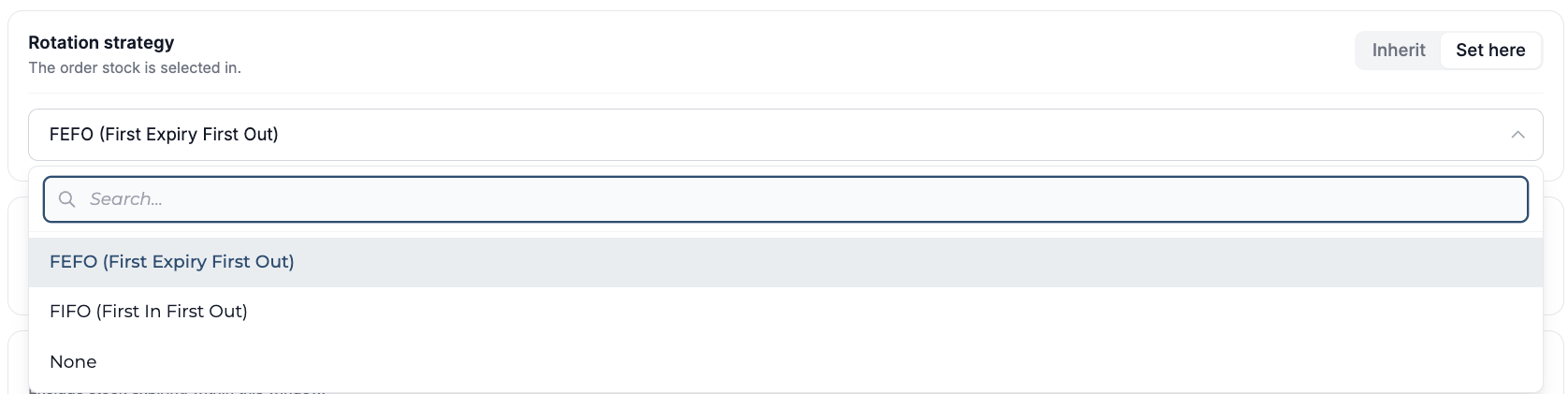
Block expired stock
Controls whether inventory that has passed its best-by or expiry date can be allocated or picked.
Allowed
When Block Expired Stock is enabled, the system prevents expired inventory from being allocated to orders or selected during picking. Any stock with a best-by date earlier than the current date is excluded from inventory allocation.
Blocked
When disabled, expired inventory remains eligible for allocation and picking, subject to the configured rotation strategy and other allocation rules.

Minimum Shelf Life
Defines the minimum remaining shelf life that inventory must have to be eligible for allocation and picking.
When a minimum shelf life is configured, the system only allocates stock that has at least the specified amount of time remaining before its best-by or expiry date.

The Inventory Allocation Policy configured for a client or product is applied during order fulfilment.
This policy determines how inventory is selected and allocated when fulfilling orders, including rules such as:
-
Rotation Strategy (FIFO, FEFO, or None)
-
Blocking expired stock
-
Minimum shelf life
This document explains recent enhancements for managing expiry-controlled products, including visual expiry indicators, client- and product-level fulfillment policies, and minimum shelf-life controls that affect order fulfillment and batching.
Step 1: View Expiry Status Badges in Location Inventory
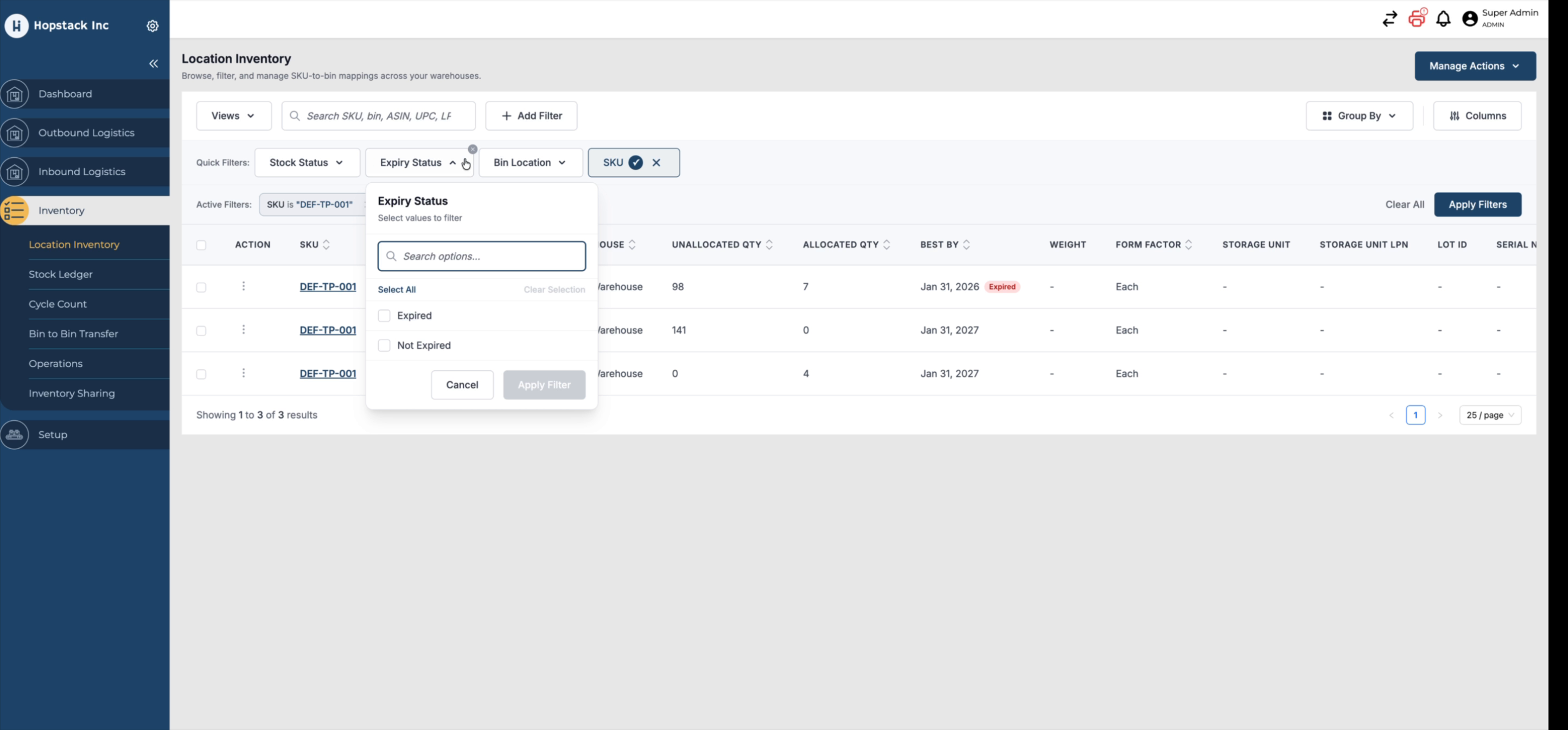
At the location inventory level, each product now displays a badge indicating whether it is expired or not expired. Expired products are clearly marked with a red “Expired” badge.
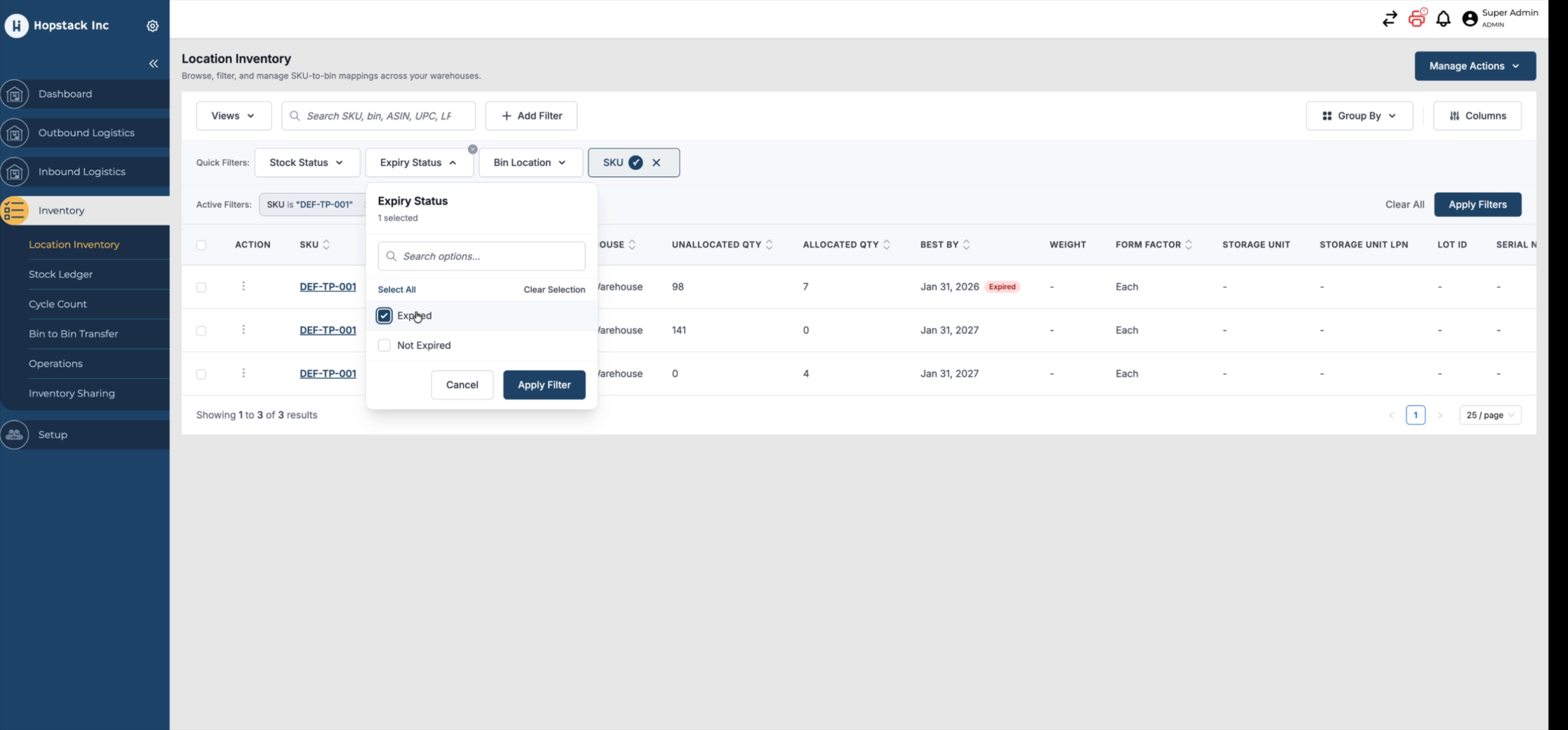
You can also filter the location inventory view using the expiry status filter to show only items with specific expiry states.
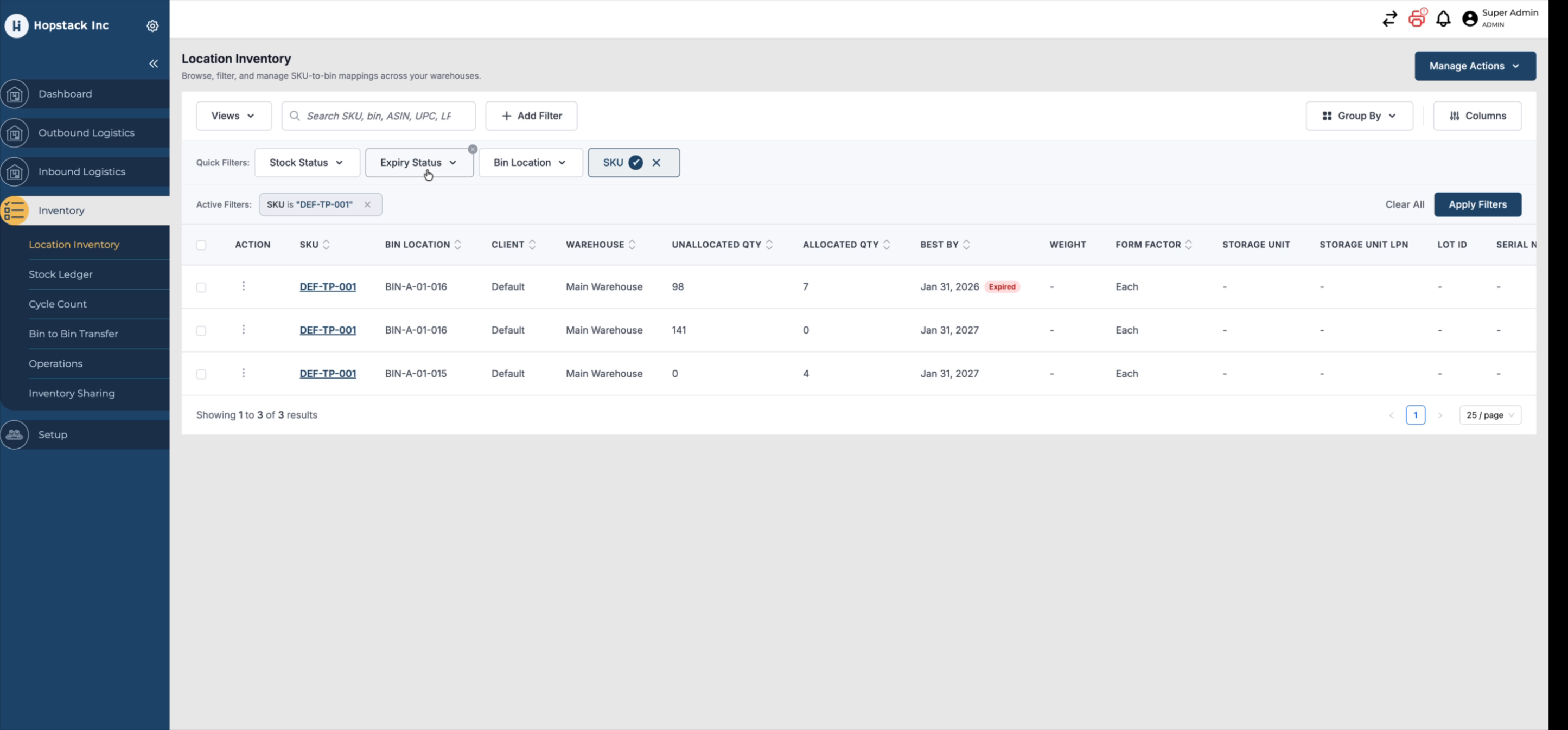
Use the expiry status filter control to narrow down the inventory list to the desired expiry state (e.g., only expired or only non-expired stock).
Apply the selected expiry status filter to update the inventory view.
Step 2: Configure Client-Level Fulfilment Policies
Fulfilment policies can be configured at the client level to control how expiry-controlled products are handled in orders.
Navigate to the client-level settings where expiry-related fulfilment policies are available.
Within the client settings, configure the following options:
-
Stock rotation strategy (e.g., First Expiry, First Out) to control picking sequence.
-
Block expired stock to prevent expired inventory from being used in fulfillment.
-
Minimum shelf life to define how close to expiry a product can be and still be shipped (e.g., within 30 days of expiry, it cannot be shipped).
Before changing these values, review the current behavior: for example, a sample order calling for a SKU with an expected quantity of 140 and a total quantity in stock of 231, where the stock calculation currently includes expired inventory.
Step 3: Block Expired Stock at the Client Level and Review Order Impact
At the client level, enable the option to block expired stock so that expired inventory is no longer considered available for fulfillment.
After enabling this option, return to the sample order and expand it. You will see that the quantity corresponding to expired stock is now excluded, and the order becomes unfulfillable if there is insufficient non-expired stock.
If you attempt to batch this order, the system will block the action and provide a reason to administrators indicating that expired stock is present. This enforces the client-level policy that expired products cannot be shipped.
Step 4: Override Expiry Policies at the Product Level
You can override the client-level policy for specific products that should be treated as exceptions (for example, where compliance can be intentionally relaxed).
Open the product’s inventory attributes, where a new section mirrors the client-level options.
Within this section, choose whether the product should:
-
Inherit the policy from client management or system defaults, or
-
Set it here to define explicit product-level rules.
For the exception product, explicitly allow expired stock at the product level. Then return to the order and reopen it. You will see that the full stock (including expired inventory) is now back in play for that SKU.
Even though expired stock is blocked at the client level, the product-level override allows it to be used for fulfillment and batching for that specific product.
Step 5: Apply Minimum Shelf Life and Understand Its Effect on Availability
To further control what stock can be used, configure a minimum shelf life so that only inventory with sufficient remaining life is eligible for fulfillment.
Open the relevant settings and specify a minimum shelf life value; for example, set it to 10 months.
In this example, even though the product is allowed to be fulfilled when expired, the minimum shelf life requirement of 10 months means no current stock qualifies. At the inventory level, there is no stock with at least 10 months of shelf life remaining: some stock is already expired and the rest has only a few months left. As a result, the order becomes unfulfillable under this shelf life policy.
Step 6: Override Shelf Life at the Product Level and Recheck the Order
Minimum shelf life can also be overridden at the product level, just like other fulfillment policies.
Access the product-level shelf life setting, where it is currently inheriting from the client or system defaults.
Change the setting from Inherit to Set it, and define a product-specific minimum shelf life; for example, set it to 30 days for this product.
Return to the order and review it again. The order may still be unfulfillable if expired stock is not allowed under the effective policies, but you will see that the quantity representing stock within the 30-day shelf life window (e.g., 133 units) is now available. This indicates that inventory satisfying the product-level shelf life requirement is back in play for fulfilment.
Select Inherit to use the policy configured in Client Management. Any changes made to the client-level policy will automatically apply to products that are set to inherit.
Set Here
Select Set Here to define a policy specifically for the product. The product-level setting overrides the policy configured in Client Management.