
The Inventory Operations Overview screen provides a comprehensive summary of all inventory-related operations. Here, you can monitor and manage various tasks such as stock cycle counts and bin-to-bin transfers. The screen is divided into two main sections:
-
Stock Cycle Count
-
Bin to Bin Transfer
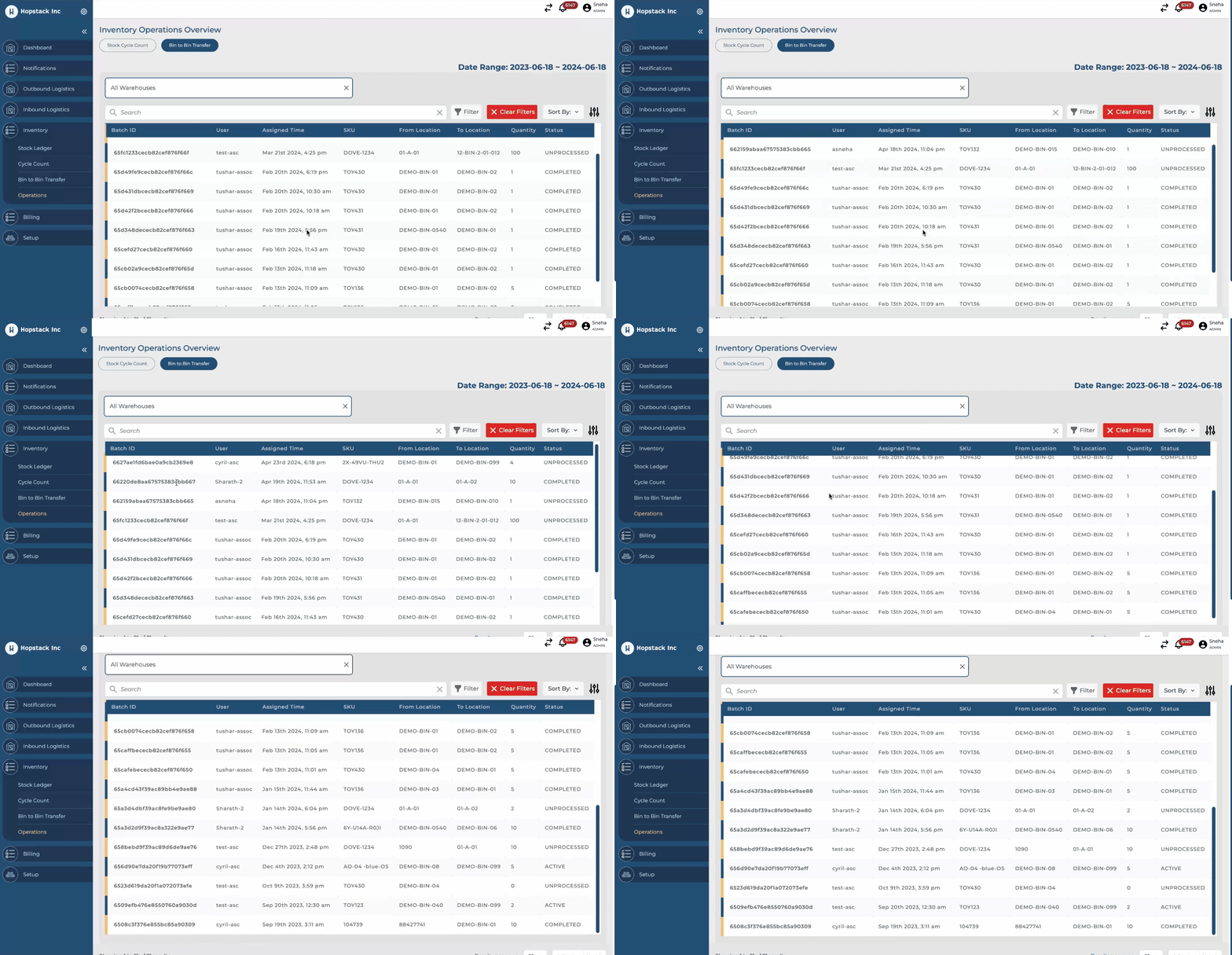
To view the Inventory Operations Overview screen, follow these steps:
-
Log in to the Hopstack platform.
-
Navigate to the Inventory section.
-
Click on the Operations screen.
1. Stock Cycle Count
The Stock Cycle Count section allows you to view all stock cycle count operations. This section includes a table with the following columns:
-
Batch ID: Unique identifier for each cycle count batch.
-
User: The user responsible for the cycle count operation.
-
Plan: The plan or schedule associated with the cycle count.
-
Assigned Time: The time when the cycle count operation was assigned.
-
Status: The current status of the cycle count operation. The possible statuses are:
-
Active: The operation is currently in progress.
-
Completed: The operation has been finished.
-
Unprocessed: The operation has not yet started.
-
2. Bin to Bin Transfer
The Bin to Bin Transfer section allows you to view all bin-to-bin transfer operations. This section includes a table with the following columns:
-
Batch ID: Unique identifier for each transfer batch.
-
User: The user responsible for the transfer operation.
-
Assigned Time: The time when the transfer operation was assigned.
-
SKU: The Product SKU involved in the transfer.
-
From Location: The original location of the SKU.
-
To Location: The destination location of the SKU.
-
Quantity: The quantity of the SKU being transferred.
-
Status: The current status of the transfer operation. The possible statuses are:
-
Active: The operation is currently in progress.
-
Completed: The operation has been finished.
-
Unprocessed: The operation has not yet started.
-
Using the Inventory Operations Overview Screen
-
Viewing Operations:
-
Navigate to the relevant section (Stock Cycle Count or Bin to Bin Transfer) to view the operations.
-
The table in each section displays the operations along with their details.
-
-
Monitoring Status:
-
Keep track of the status column to monitor the progress of each operation.
-
Operations can be filtered based on their status (Active, Completed, Unprocessed) for easier management.
-
-
Assigning Operations:
-
Assign operations to users by updating the User and Assigned Time columns.
-
Ensure that each operation has the appropriate details filled out to maintain accuracy and efficiency.
-
Tips for Effective Use
-
Regularly check the status of operations to ensure timely completion.
-
Use filters to quickly find specific operations based on their status or other criteria.
-
Keep the information in the User, Plan, and Assigned Time columns up to date to facilitate smooth operations.