
Identify the stock to transfer:
-
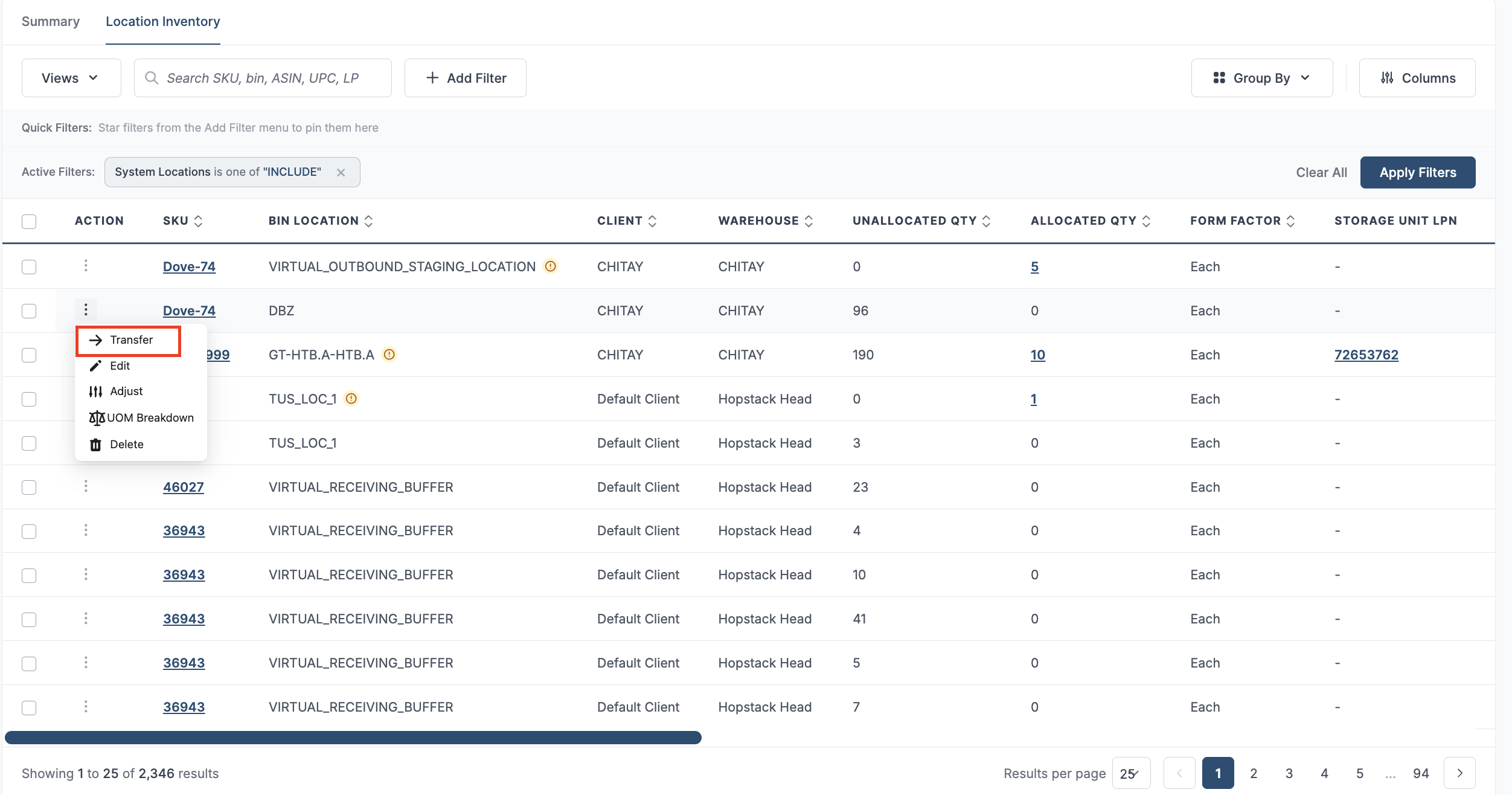
Navigate to Location Inventory in the Inventory Module.
-
Search and Identify the stock for which you would like to perform the transfer.
Choose Action for Stock:
-
You will see a right-arrow button that says: Transfer.
-
Select Transfer if you wish to transfer the stock from one bin to another.
Providing a Reason and to select storage Location
-
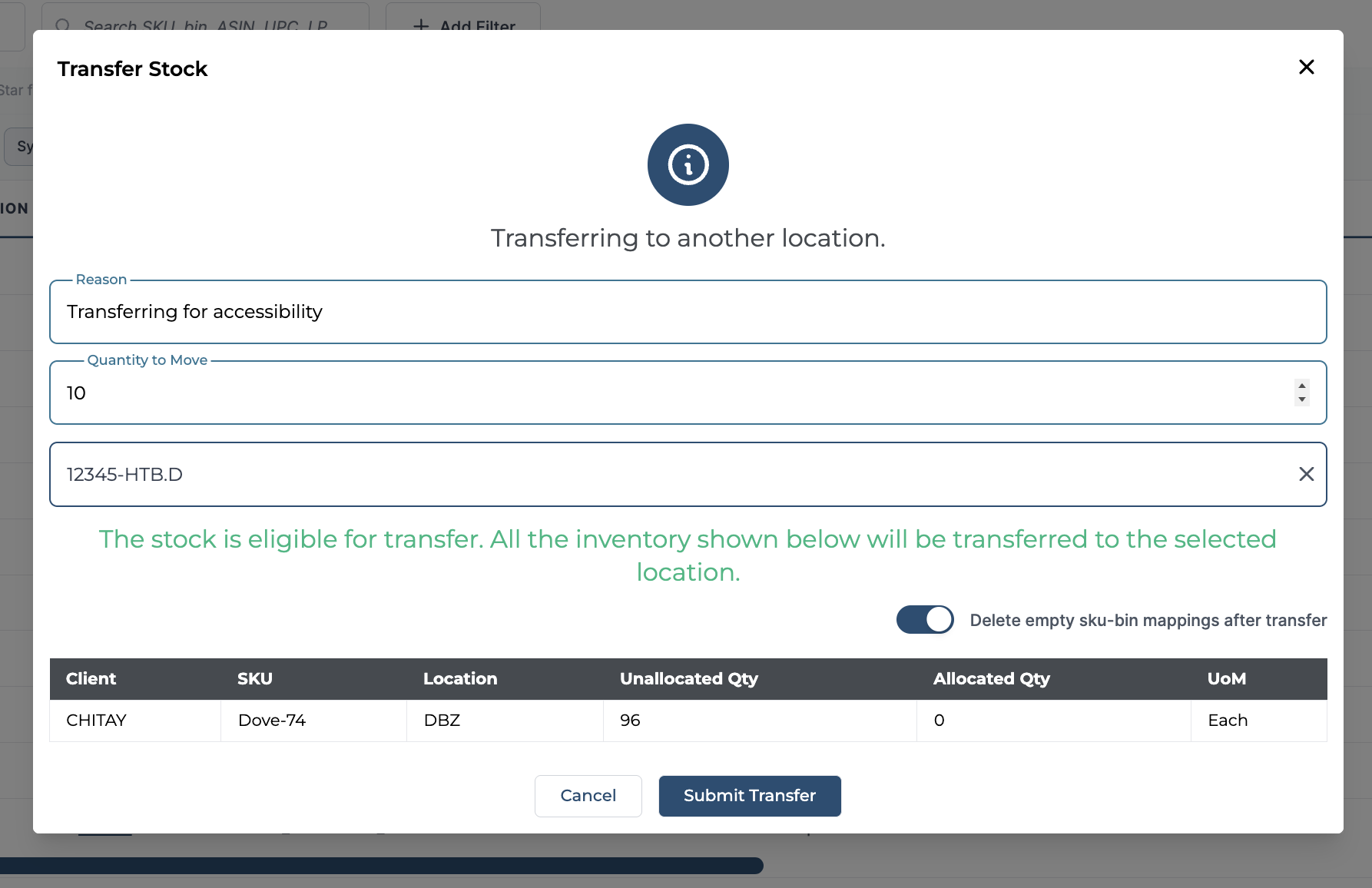
You will be prompted to provide a reason for the stock transfer.
-
Please provide a reason.
-
Edit the transfer quantity if needed. By default, the field is pre-filled with the full available quantity of the selected SKU in the chosen location.
-
“Select Storage Location” where you can define the location(bin) where you want to transfer the stock.
You can’t transfer the stock if quantities are allocated for an order. A notification will be displayed on the screen stating “The stock is not eligible for transfer because there's allocated quantity for some of the inventory affected by this transfer”.
-
After updating the location details and reason, click on the Submit Transfer button to complete the transfer.
This feature follows a specific hierarchy in its model. This is to ensure that every transaction can be tracked and to maintain data sanity.
The hierarchy follows as the below:
-
Pallet ID: If an SKU has a Pallet ID associated with the quantities being in unallocated status. When the transfer is initiated all quantities of the same Pallet ID which are in the same location will be moved to a new location.
-
LPN: If an SKU has a LPN associated with the quantities being in unallocated status. When the transfer is initiated all quantities of the same LPN which are in the same location will be moved to a new location.
-
TOTE: If an SKU has a TOTE associated with the quantities being in unallocated status. When the transfer is initiated all quantities of the same TOTE which are in the same location will be moved to a new location.
Note: If the “Delete empty SKU-BIN mappings after transfer” toggle is enabled, the SKU-BIN mapping is automatically deleted when the entire quantity is transferred to another location. This helps keep inventory records clean by removing empty mappings.