
Adjust Stock to make necessary changes to the stock quantity of a particular SKU (Stock Keeping Unit) within the bin management system. Whether you need to increase or decrease stock levels, this function provides a clear and easy way to do so.
Adjusting stock levels is a crucial task in inventory management, ensuring that stock data is accurate and reflects the real-time situation.
-
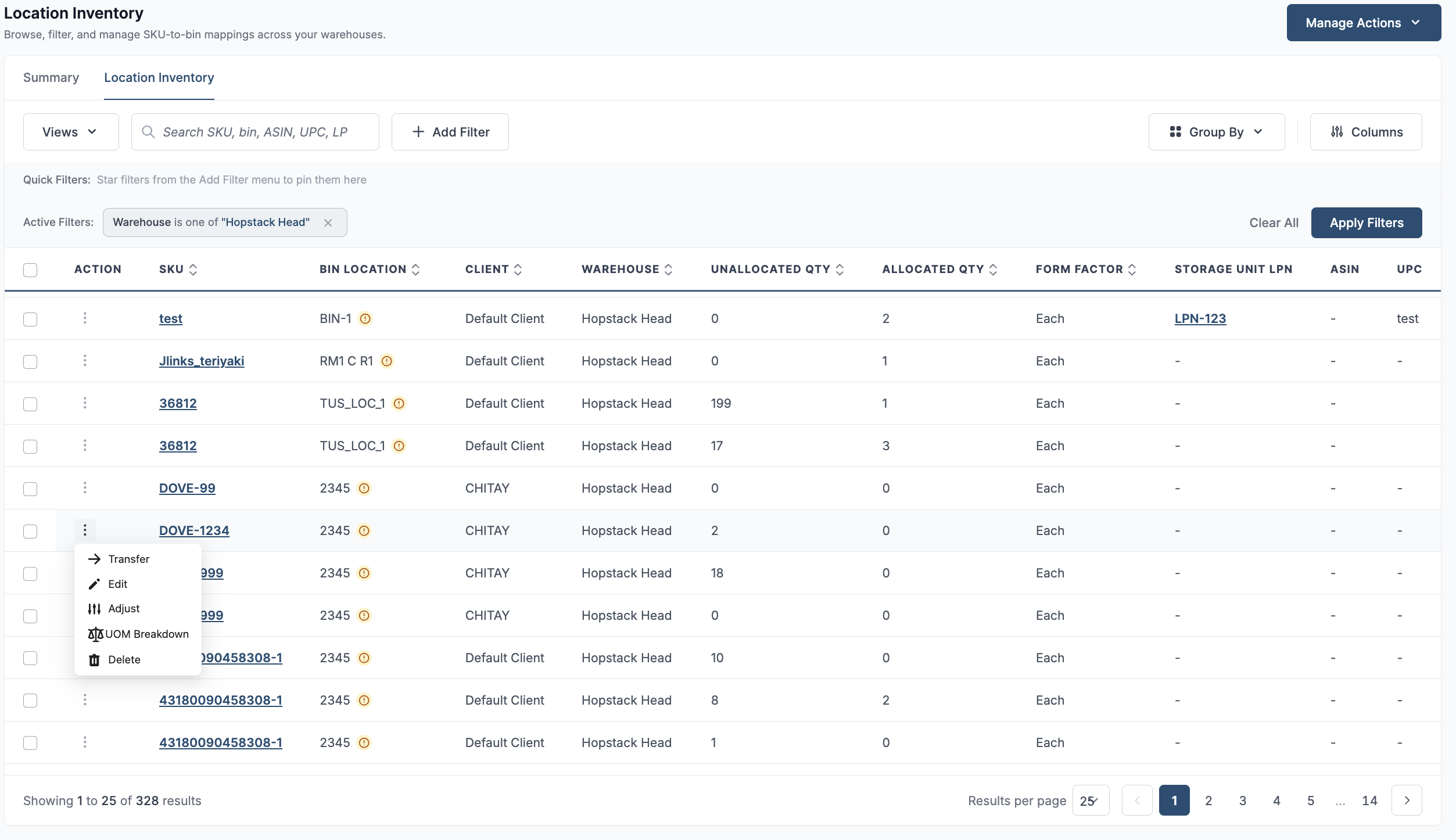
Navigate to the Location Inventory Screen
-
Click on the Adjust button against the SKU-Bin map if you want to adjust the stock by increasing or decreasing the quantity.
-
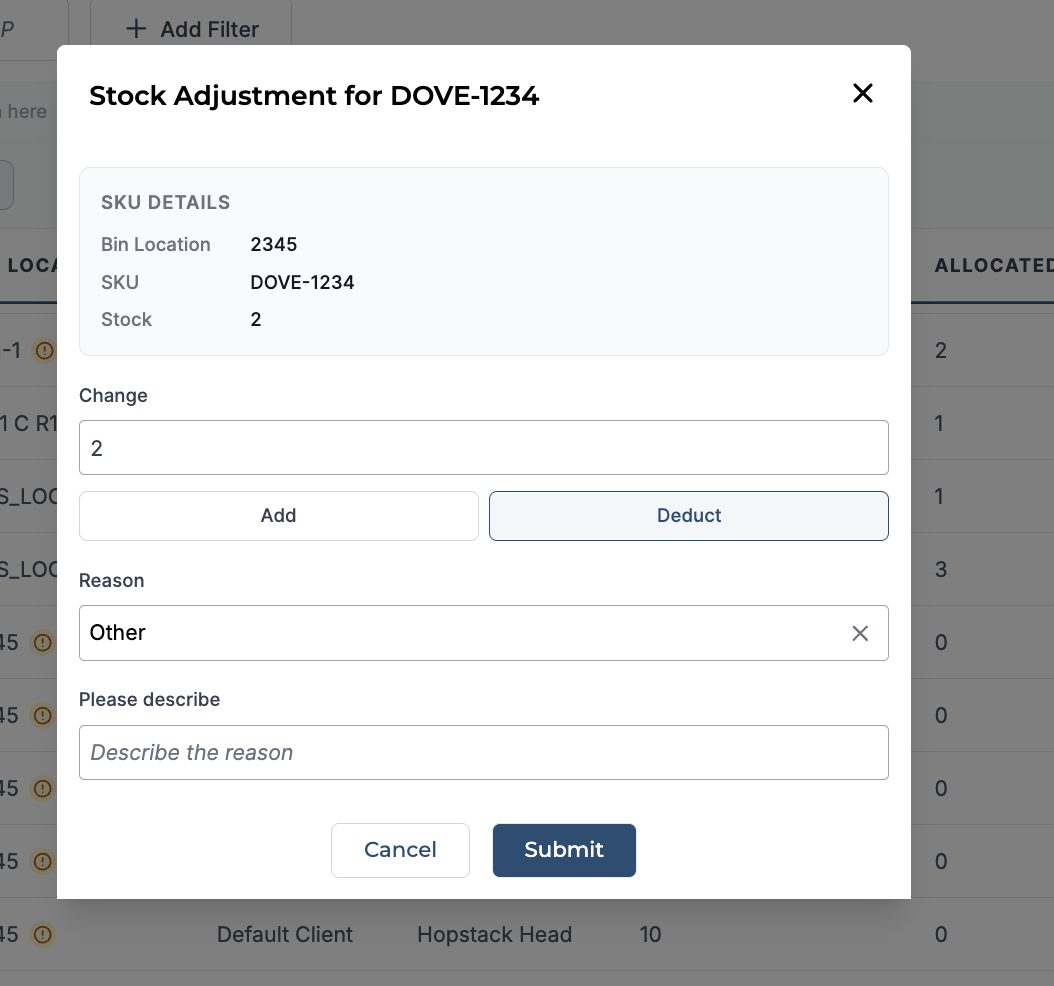
Now in the pop-up, you can deduct or add the stock by selecting the Add or Deduct Button and filling in the quantity in the change field.
-
Provide the reason for it by selecting the appropriate reason from the drop-down menu. If your specific reason is not listed in the available options, select Other. If you are selecting "Other" from the drop-down menu, you need to write the reason for it.
-
Click on the submit button after reviewing the details to submit the change.
-
Click on the "Yes, I confirm" button.
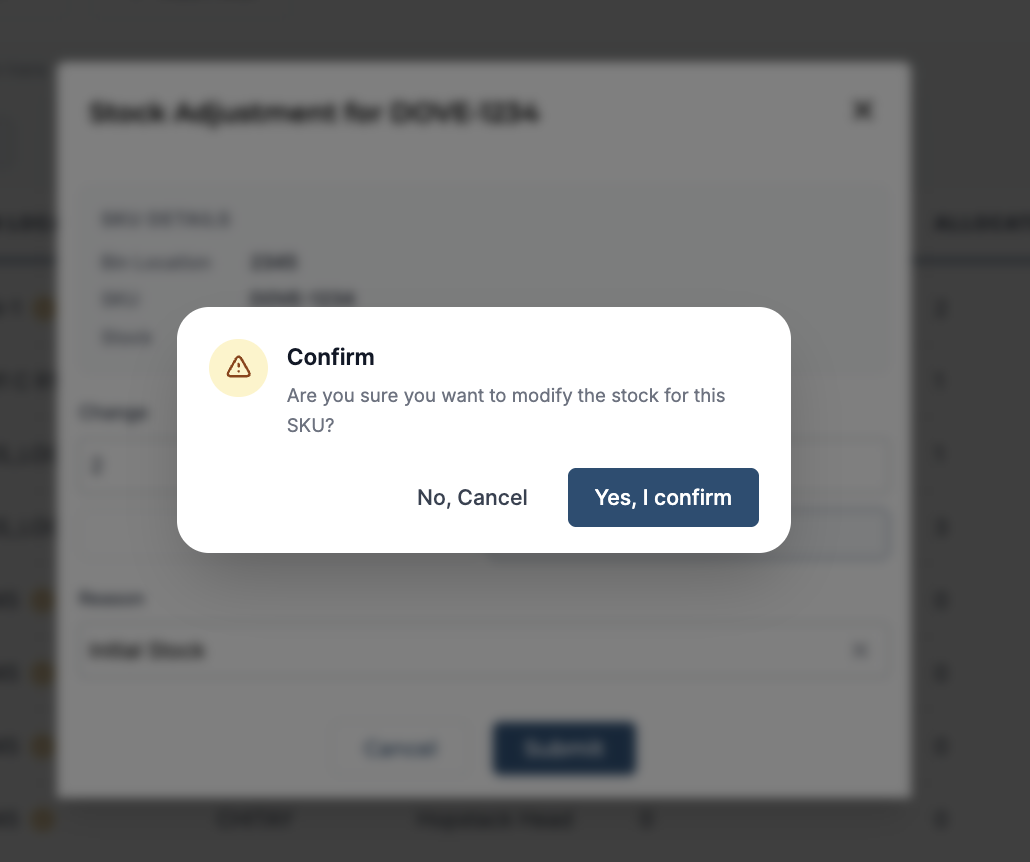
The stock quantity will be updated on the location inventory table, and the user will view the updated quantity for that location inventory record.