This page covers the steps to update or add stock details using the edit feature and to delete a location inventory record.
Navigate to the Location Inventory.
Edit Location Inventory Record
Note: The edit feature allows users to update details such as LOT ID, Serial Number, Expiry date etc. To update the quantity, users may use the adjust feature.
-
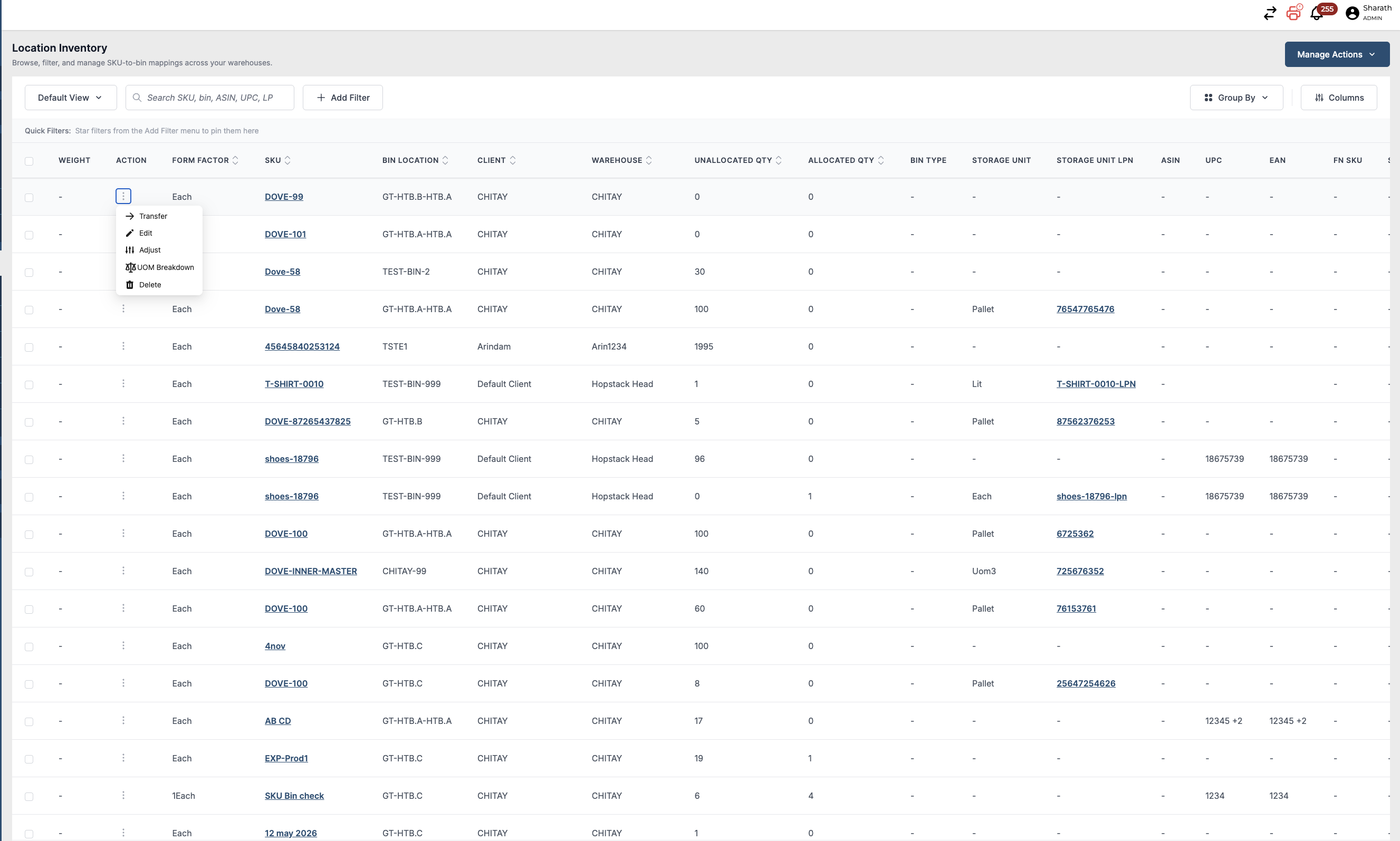
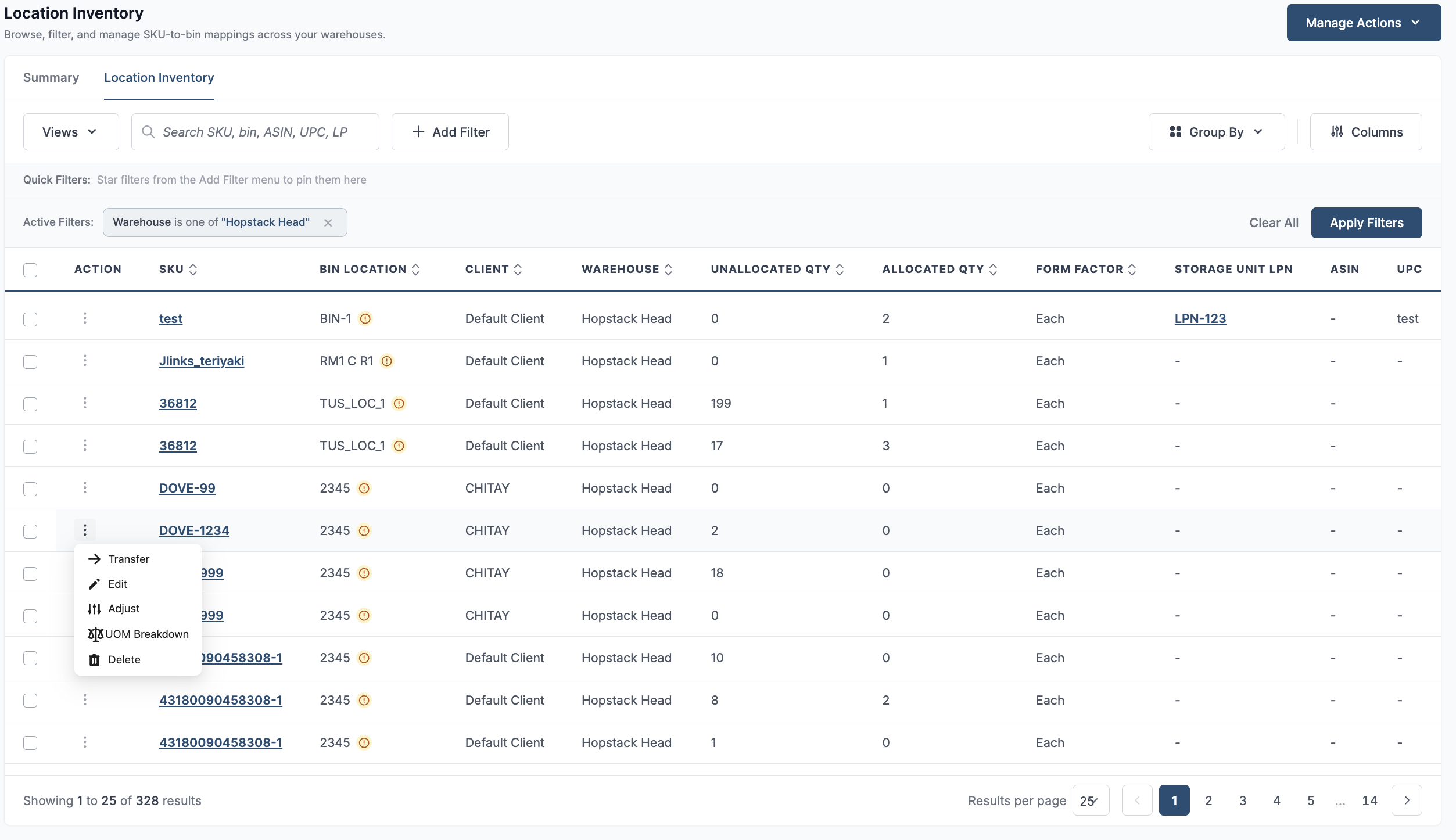
Click on the action icon to edit the Location Inventory.
-
Click on the pen icon
-
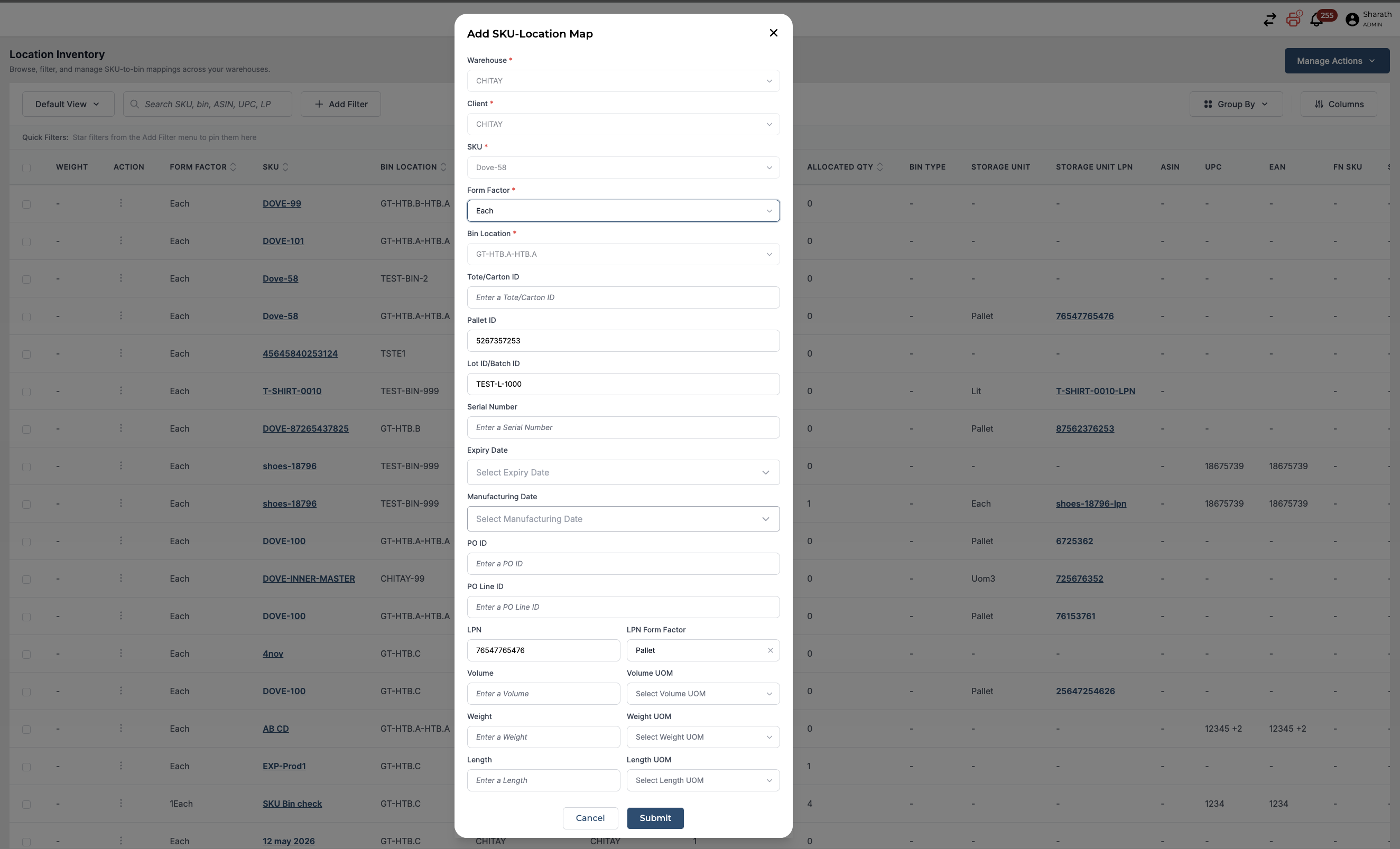
Edit the details according to your requirements in the pop-up dialog box. User may
-
After verifying the details you have entered, click on the "Submit" button.
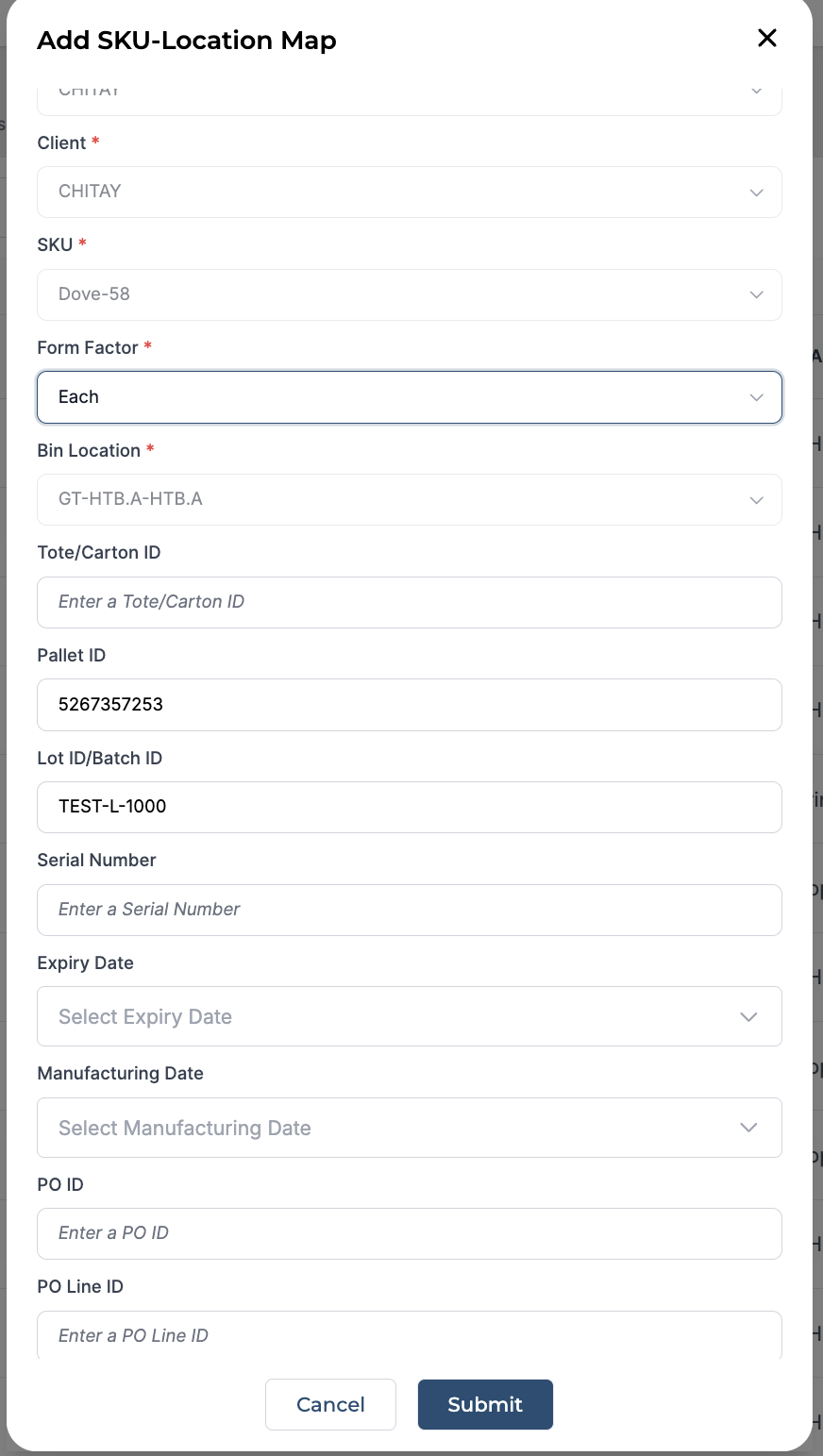
Tip: You can click on the cancel button to cancel the editing process.
-
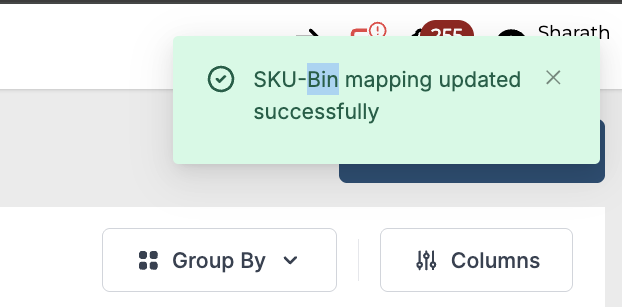
Once submitted, the platform will show the "SKU-Bin mapping updated successfully" message confirming the edit.
Delete Location Inventory Record
In order to delete an SKU-Bin Map, you need to adjust the stock and make it zero. The following steps need to be performed before proceeding with deletion.
-
Click on the Adjust button against the SKU-Bin map if you want to adjust the stock to make it Zero.
-
Now in the pop-up, you can deduct the stock and provide the reason for it by selecting the appropriate reason from the drop-down menu.
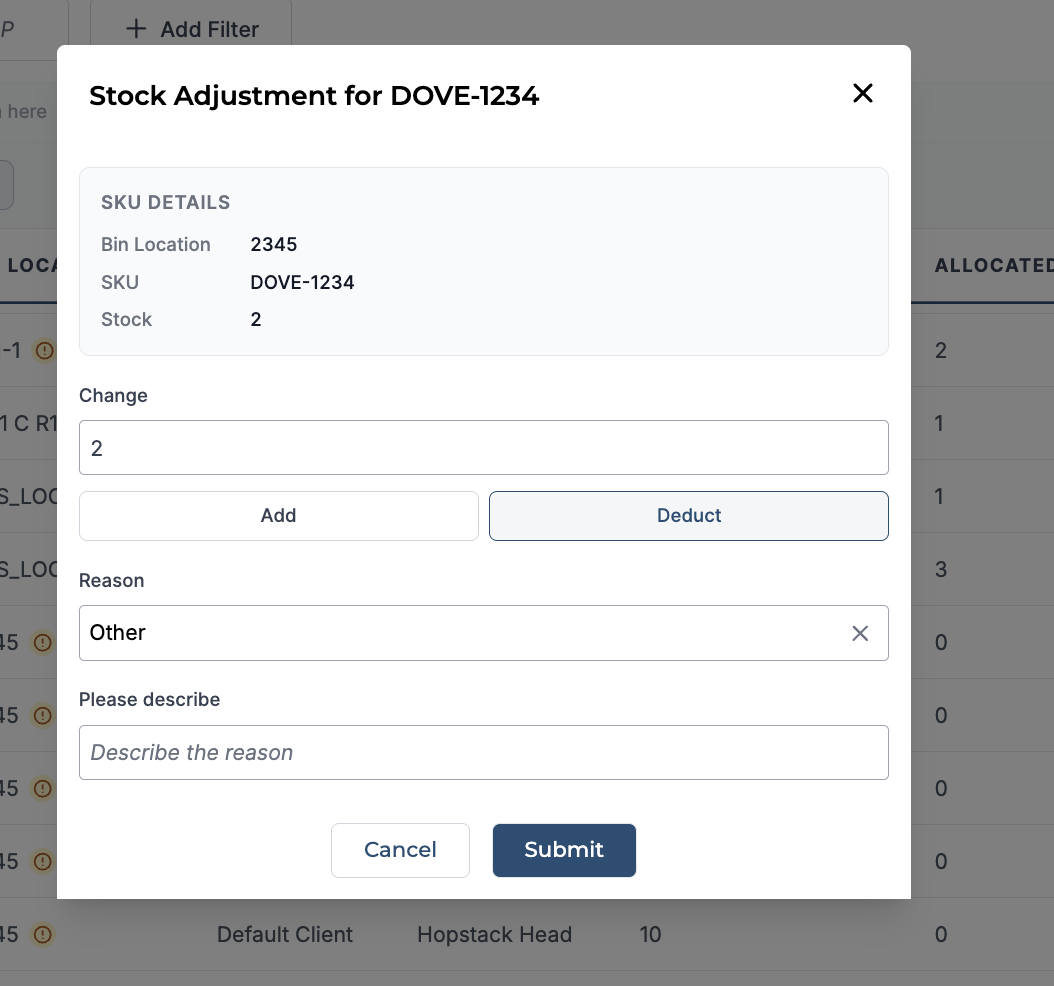
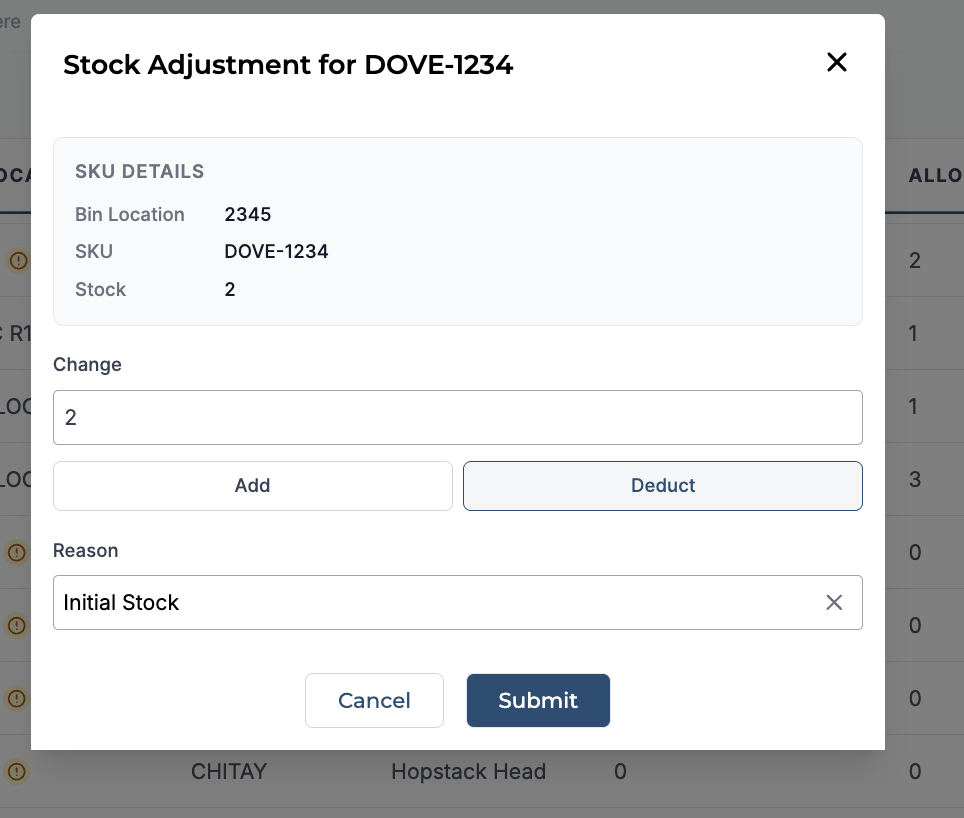
Tip: In order to make the stock count 0, check the current stock count in the pop-up itself and subtract that. For instance, if the stock count is 2, then you need to select deduct and give change value as 2 to make the stock count 0.
If you are selecting "Other" from the drop-down menu, you need to write the reason for it.
-
Click on the submit button after reviewing the details to submit the change.
-
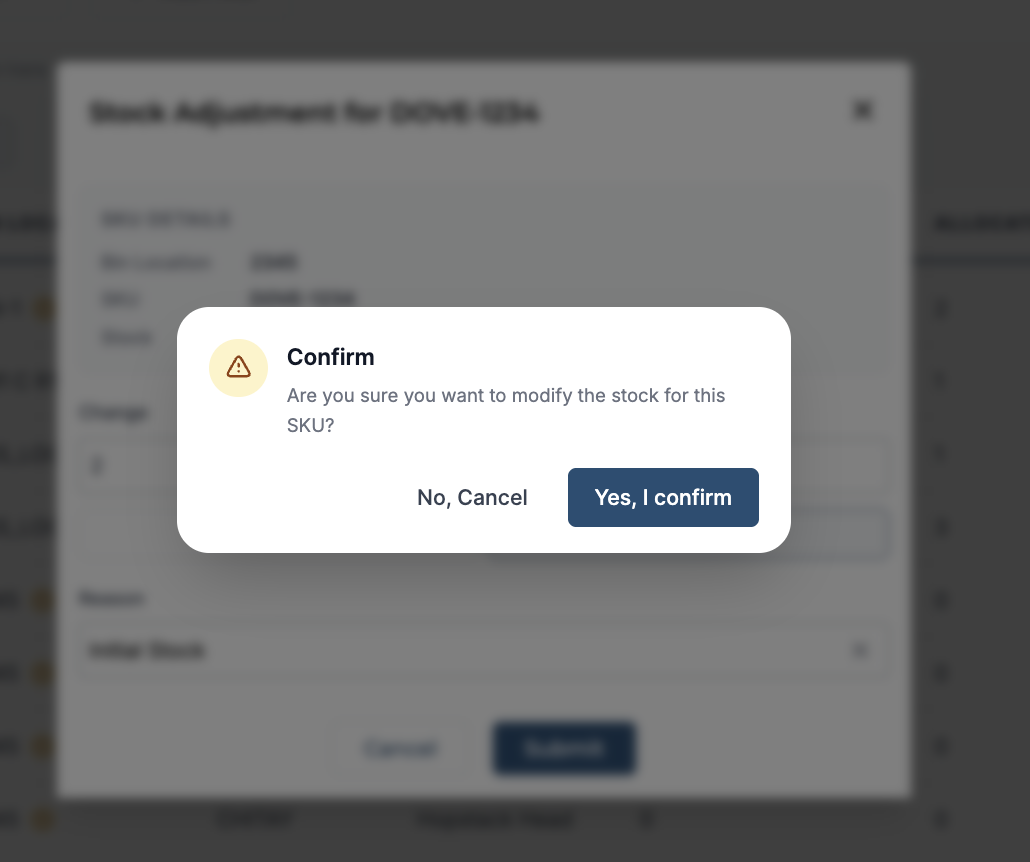
Click on the "Yes, I confirm" button. The stock will be deducted the updated quantity will reflect on the location inventory record.
-
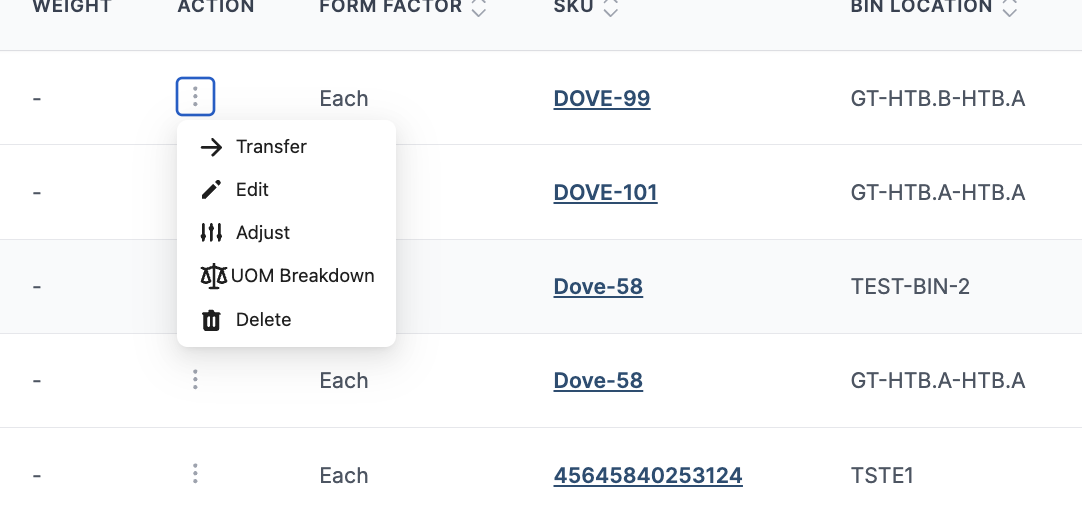
To delete, click on the bucket icon to delete the SKU-Bin Map.
-
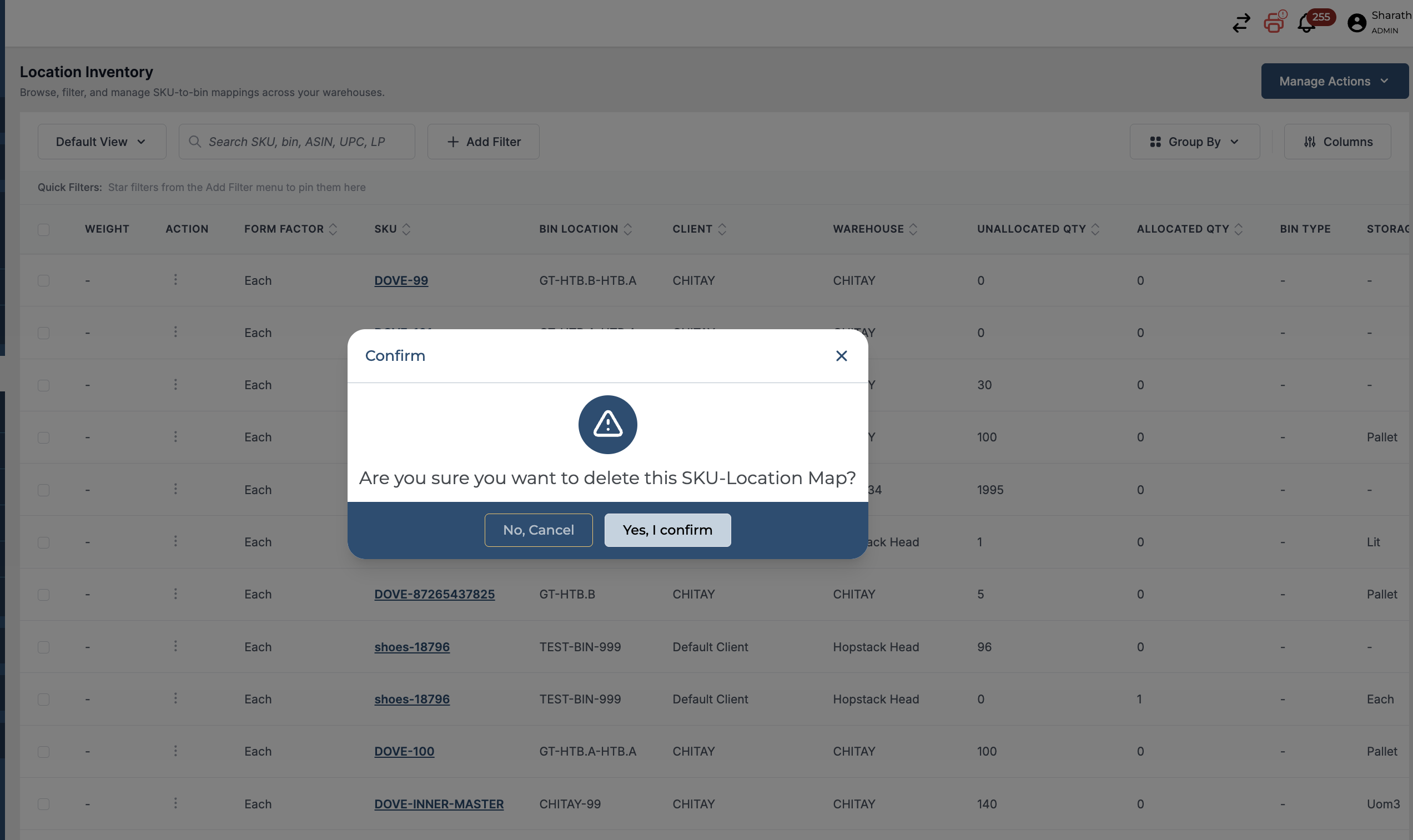
Click on the "Yes, I confirm" button to delete.
-
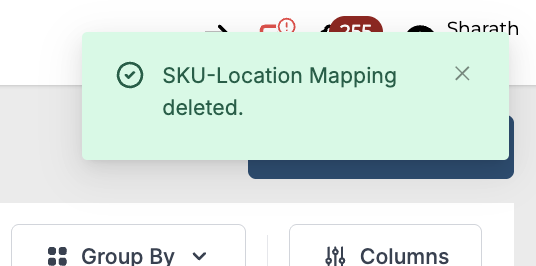
The "SKU-Location Mapping deleted." notification confirms the deletion.