
The Sellable setting decides whether the stock in a location counts toward the quantities Hopstack sends to your sales channels, such as Shopify or Amazon. It sits next to Putaway allowed and Picking allowed, and you set it the same way: on a storage section or on any location in its hierarchy.
Use it when a location should be treated differently for orders and for your sales channels. For example, a showroom or display bin can still be used for orders while its stock is not advertised on your sales channels.
Before you start: Sellable, like Putaway allowed and Picking allowed, only takes effect if Location Validation is enabled for your account. Please reach out to your implementation lead to confirm whether it is enabled. If it is disabled, you can still set and view Sellable, but it has no effect.
What Sellable means
|
Setting |
What it controls |
|---|---|
|
Picking allowed |
Whether stock in the location can be allocated to new orders. Orders already allocated stock in the location are still picked from it. |
|
Sellable |
Whether stock in the location counts toward the quantity published to your sales channels. |
-
Sellable does not affect orders. Order allocation, batching, picking, putaway, cycle counts and transfers follow Picking allowed and Putaway allowed only. Stock in a location with Sellable off can still be allocated and picked.
-
Sellable does not change the stock figures shown in inventory screens. It only changes the quantity sent to sales channels.
-
Default: until you set Sellable on a location, it follows Picking allowed. A location with picking allowed is sellable; a location with picking not allowed is not sellable. Once you set Sellable yourself, it no longer follows Picking allowed.
-
Receiving Buffer: Sellable is not offered for the Receiving Buffer. Receiving buffer stock counts toward channel quantities only when its Picking allowed setting is on and your account does not use quality checking.
Setting Sellable
You need edit access to Storage Management to change this setting.
On a storage section
-
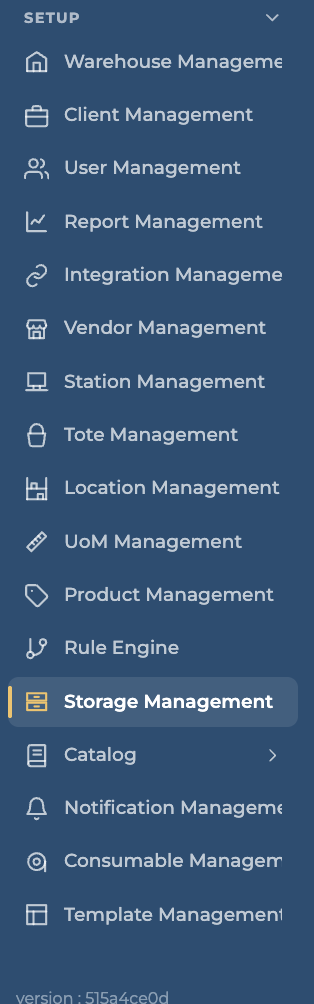
Navigate to Storage Management under Setup in the side menu.
-
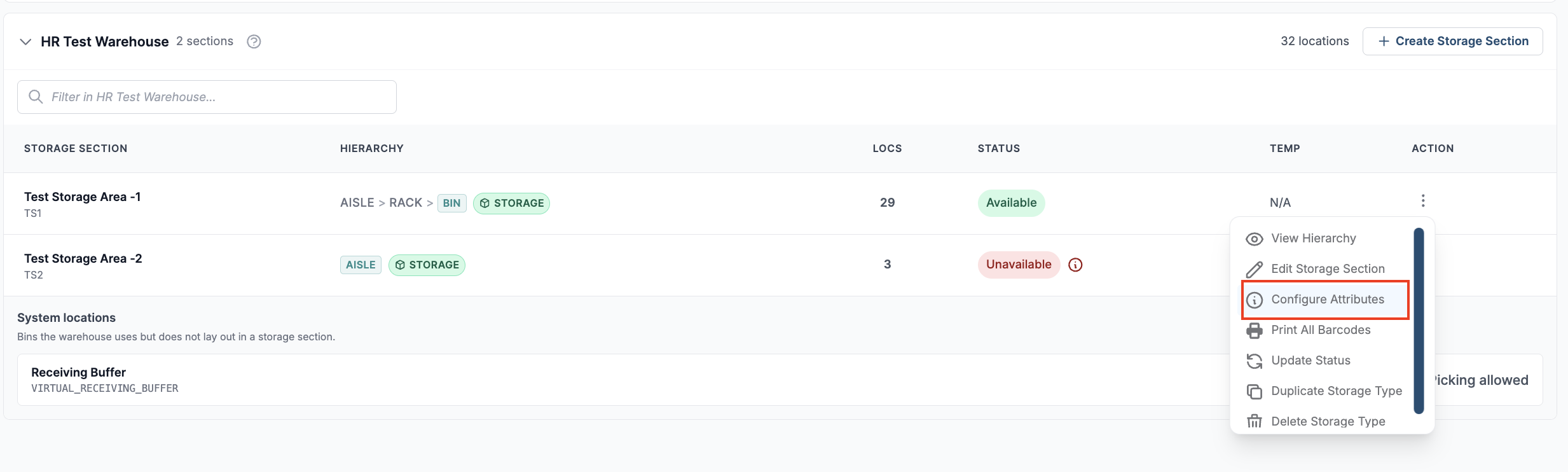
Expand the warehouse that holds the storage section.
-
Under Actions for the storage section, click Configure Attributes.
-
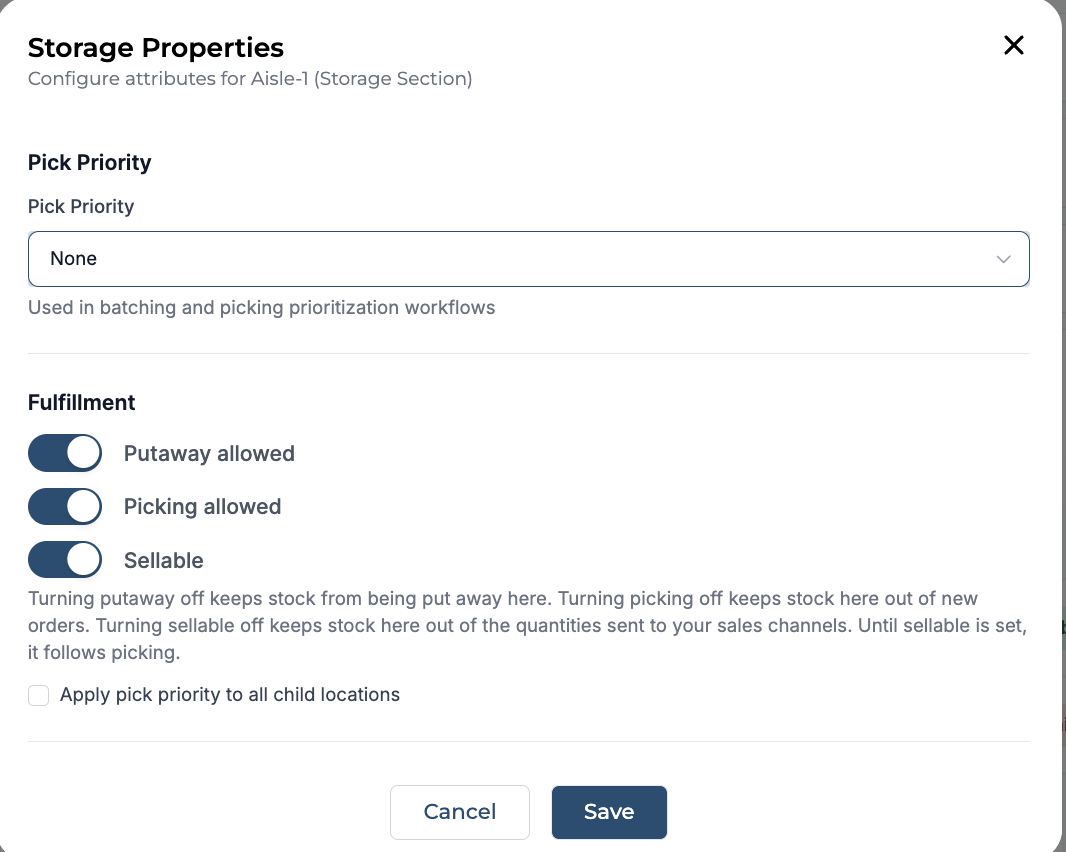
The Storage Properties window opens. Under Fulfillment, turn Sellable on or off.
-
Click Save.
On an aisle, rack, bin or other location
-
Under Actions for the storage section, click View Hierarchy.
-
Find the location in the hierarchy. Under Action on its row, click Configure Attributes.
-
Under Fulfillment in the Storage Properties window, turn Sellable on or off.
-
Click Save.
A change on a storage section, or on a location with locations below it, is passed down to every location below, in the same way as Putaway allowed and Picking allowed. Before you save, the window shows how many locations will change, for example: "Marks 24 locations below as not sellable." See Fulfillment Characteristics For Storage Locations for how settings pass down and how to give one location its own value.
Reading the setting
-
Hierarchy: the hierarchy has a Sellable column next to Putaway and Picking. Each row shows Allowed or Not allowed. A pin icon means the value was set on that location; hovering a value without a pin shows which location it is inherited from.
[Screenshot: hierarchy with the Sellable column]
-
Column help: hover the info icon on any column header in the hierarchy (Capacity, Temp, Pick Priority, Status, Putaway, Picking, Sellable) to see what the column means.
-
Locations report: the locations report includes a Sellable column.
-
Public API: the Locations API returns and accepts a
sellablevalue (API version 1.16.0).
How channel quantities use Sellable
Hopstack updates channel quantities in two ways:
-
Scheduled full sync recalculates the quantity for each product and leaves out stock in locations that are not sellable.
-
Per-change sync sends an update each time stock is adjusted or received. It is used for Shopify, Apparel Magic and Salesforce integrations that are not on the scheduled sync.
Known limitation: the per-change sync does not yet check the Sellable setting. A stock adjustment or receipt in a location with Sellable off still changes the channel quantity until the next scheduled full sync recalculates it.
If you turn Sellable on for a location where Picking allowed is off, its stock is published to your sales channels even though new orders cannot be allocated from it. This can lead to overselling.