This article covers the steps to print location barcodes for individual locations and to print in bulk for multiple locations.
1. Individual Location Barcode Printing
-
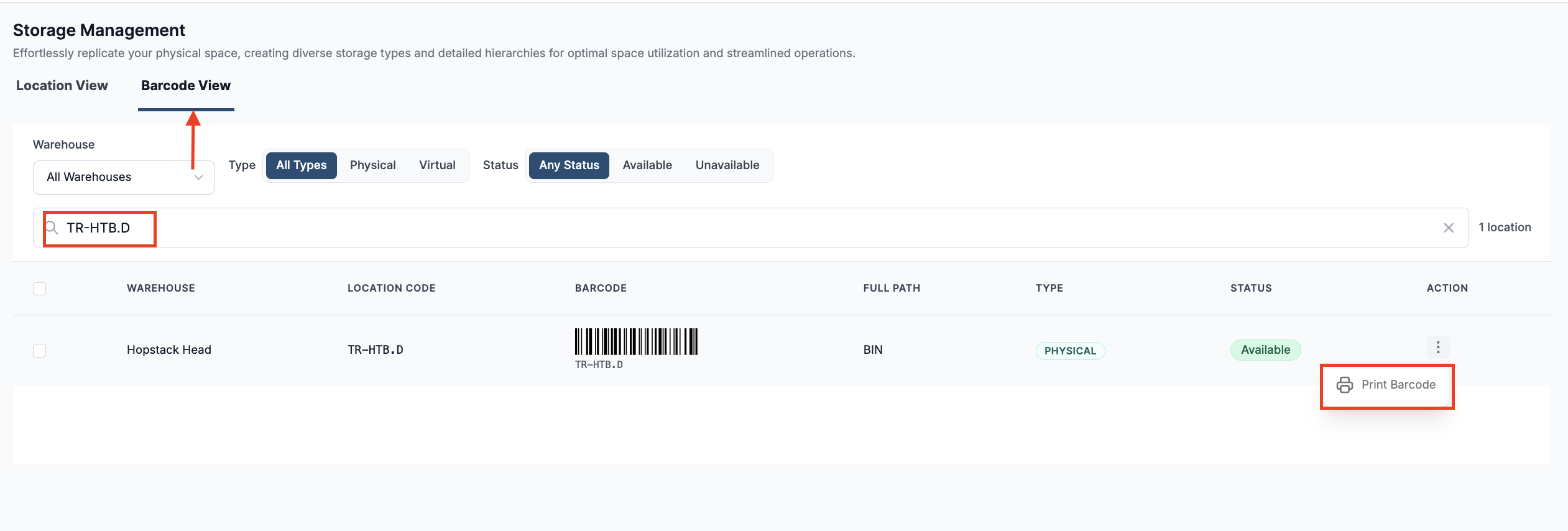
Navigate to the Barcode View tab in Storage Management
-
Search for the location code for which you would like to print the barcode
-
Click on Print Barcode
-
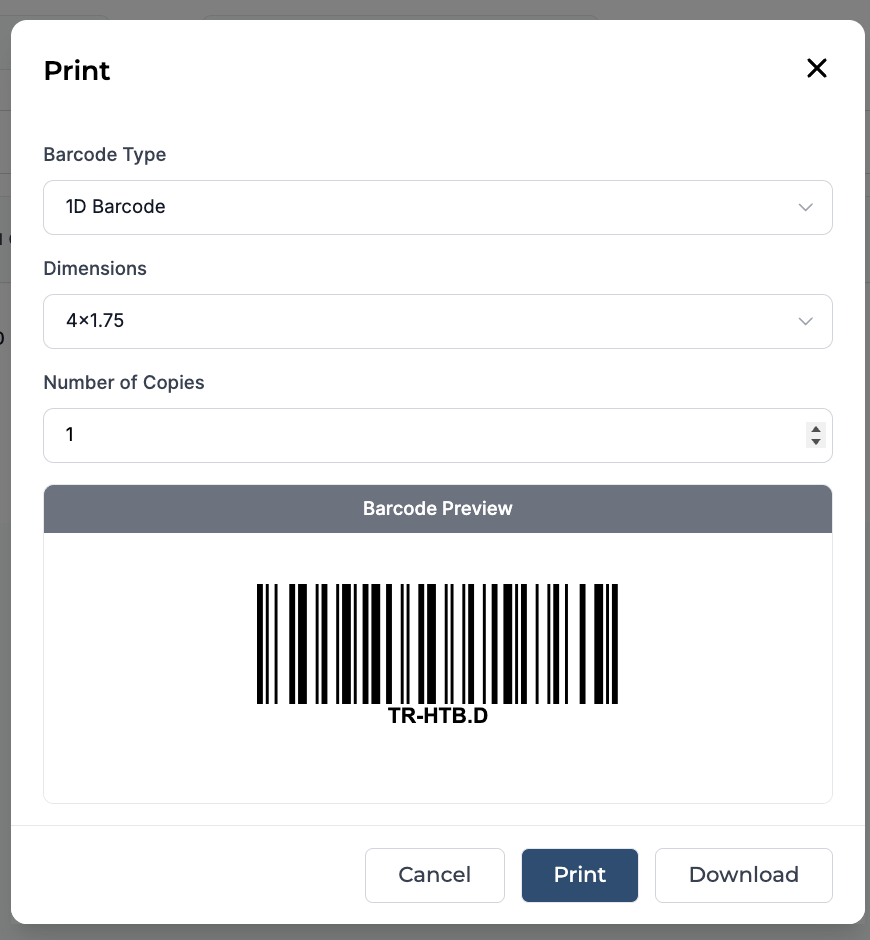
Select the dimension for the label from the drop-down. The drop-down includes most standard label sizes that fit common thermal label stock.
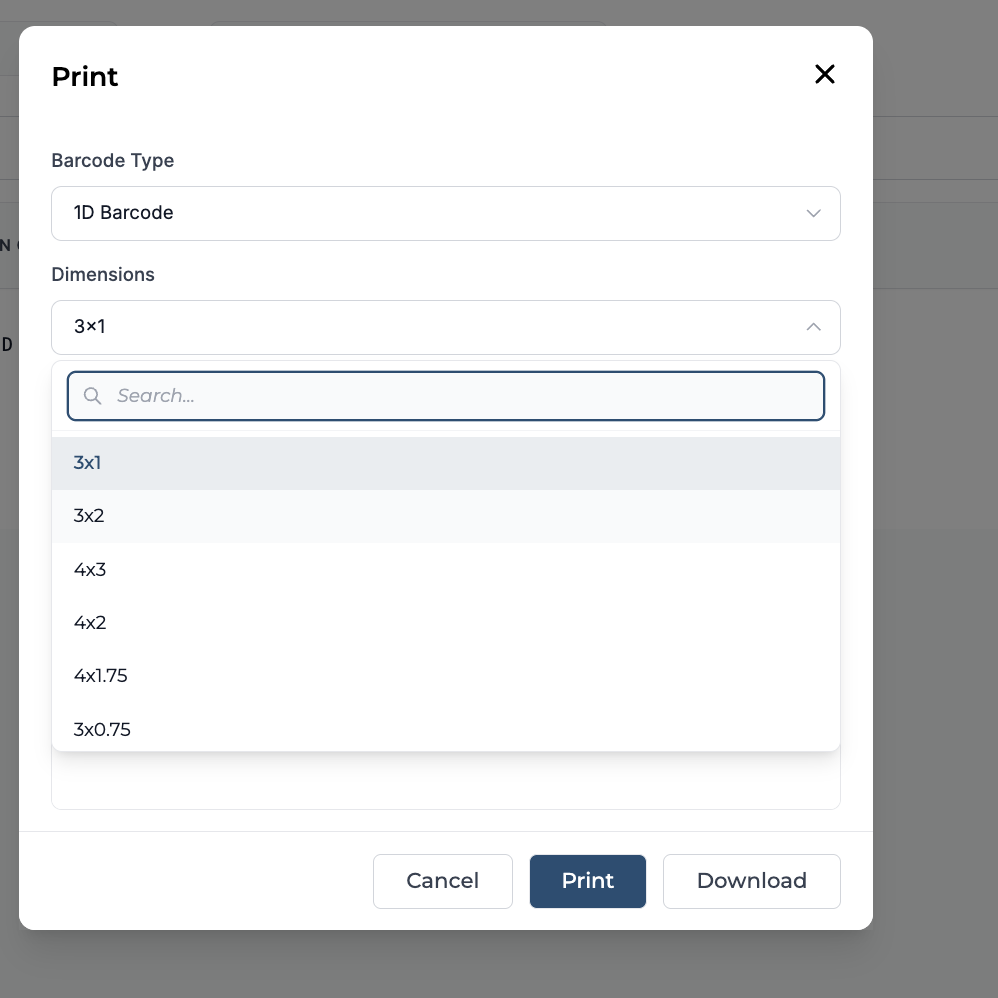
Note: A new 4x1.75 inch label size option has been added to all location code print dropdowns. This gives you an additional label format for printing location barcodes that fits common thermal label stock. -
Input the number of copies that need to be printed. (This is by default set to 1)
-
View the Barcode Preview to verify it looks good for printing.
-
Click “Print” to print the label directly using a connected thermal printer, or click “Download” to save the label and print it later using your preferred printer.
2. Bulk Print Location Codes
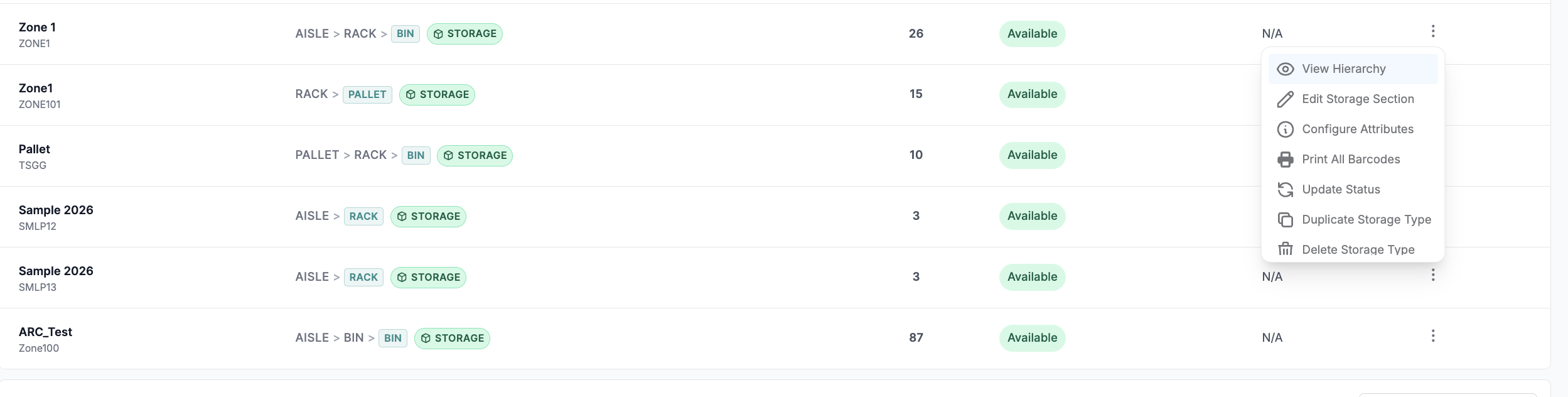
To bulk print location codes for an entire storage section, Click on the action button against the desired storage section and select “Print All Barcodes”.
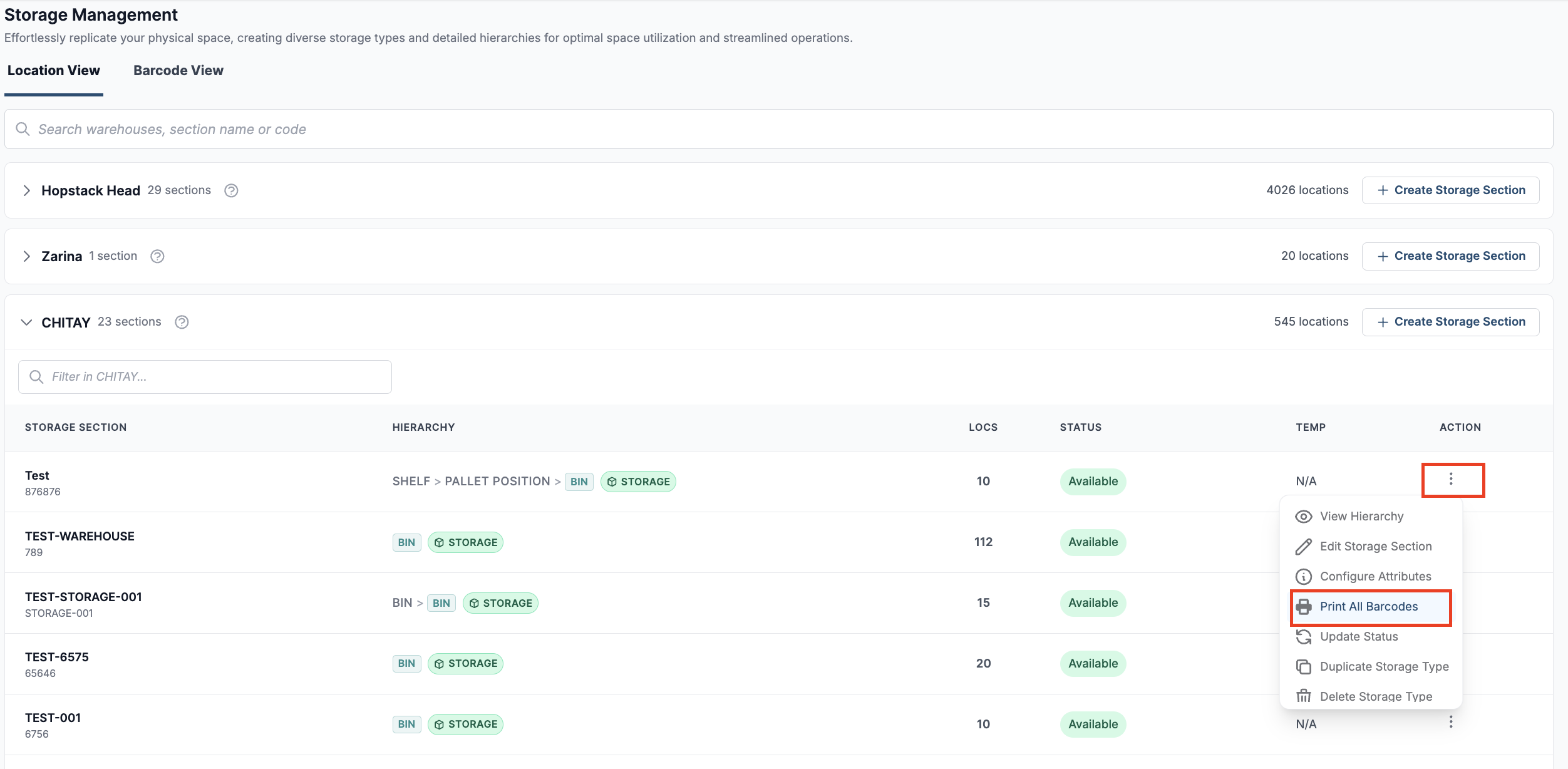
A print pop-up opens, and you can follow steps 4-7 from the above section. This will print or download all location barcodes for the selected storage section.
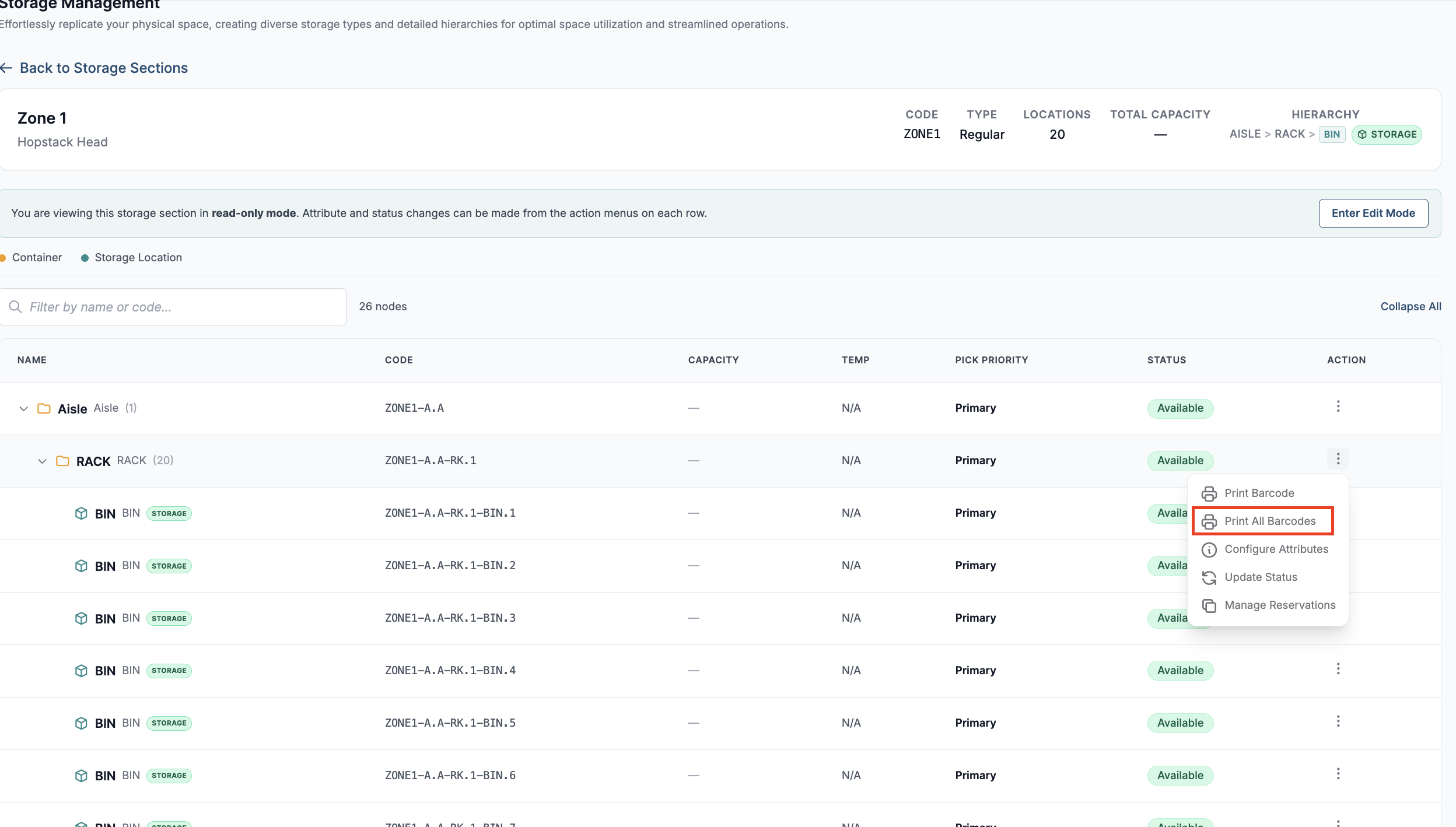
Similarly, to bulk print location codes for a specific part of the section, the user can click on View Hierarchy, identify a specific part of the section (eg, locations in a specific Aisle or a specific rack or even a specific location) for which the location code needs to be printed and click on Print All Barcodes.