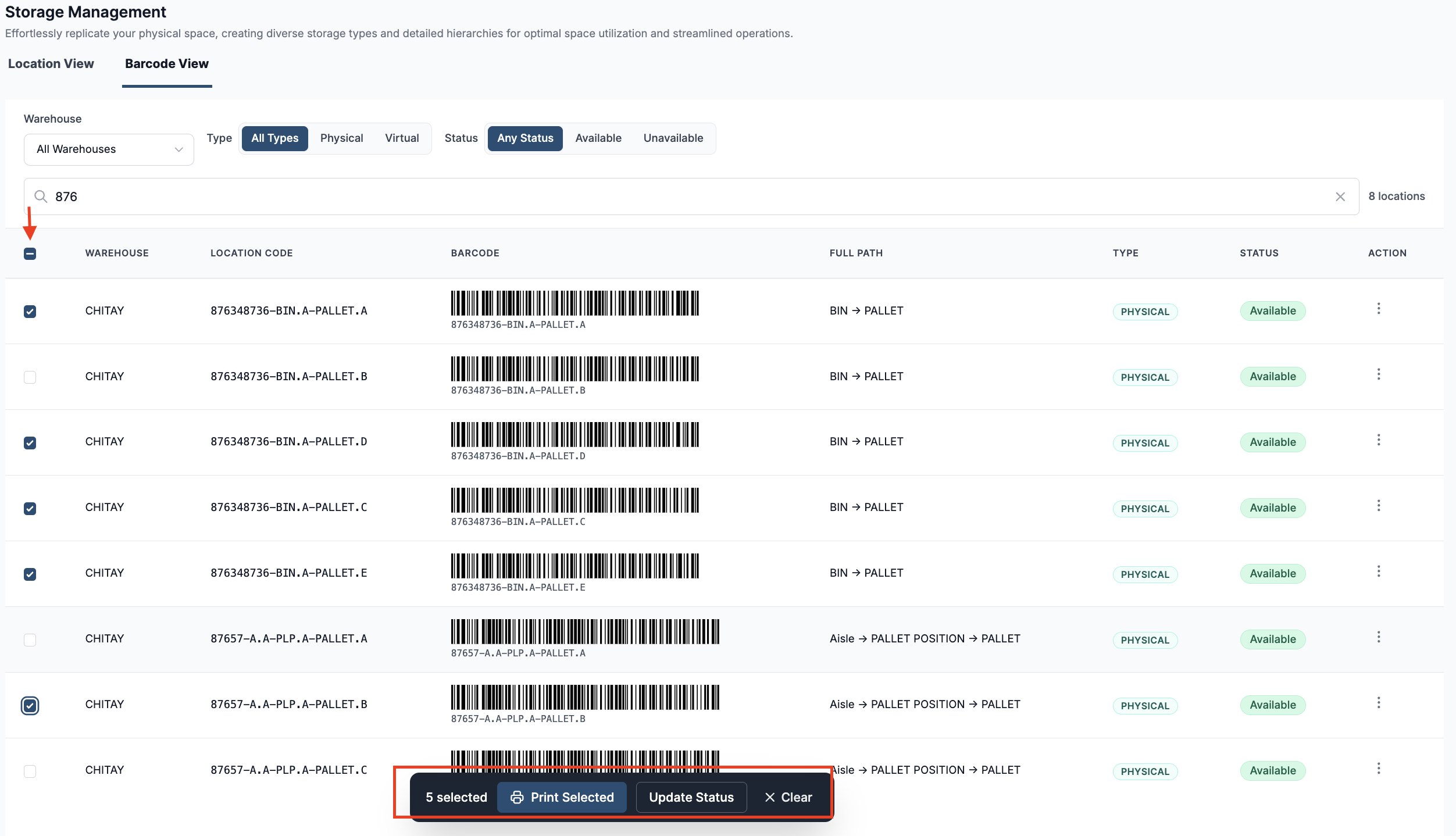
The revamped Barcode view tab has a clean layout, allowing users to search and filter location barcodes seamlessly. This guide walks you through the key features of the updated view and explains how to use them effectively.
In addition to the Warehouse selection drop-down filter, we have toggle filters to filter by type and status of location.
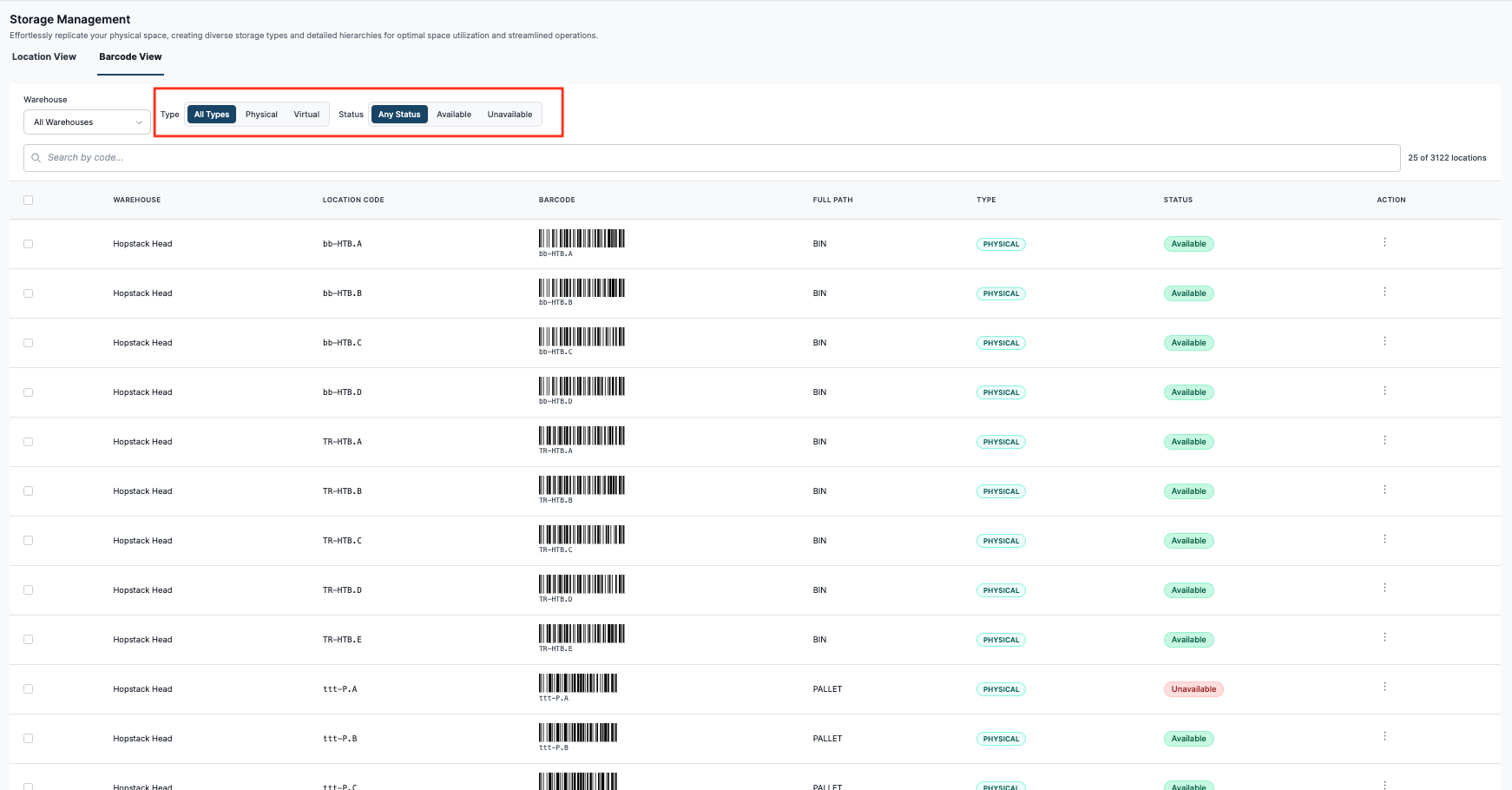
Simply click on Physical to filter to view only physical locations. Click on Virtual to view only Virtual locations. By default, the view is set to All Types.
To filter by available locations, click on Available. Click on Unavailable to filter by unavailable locations.
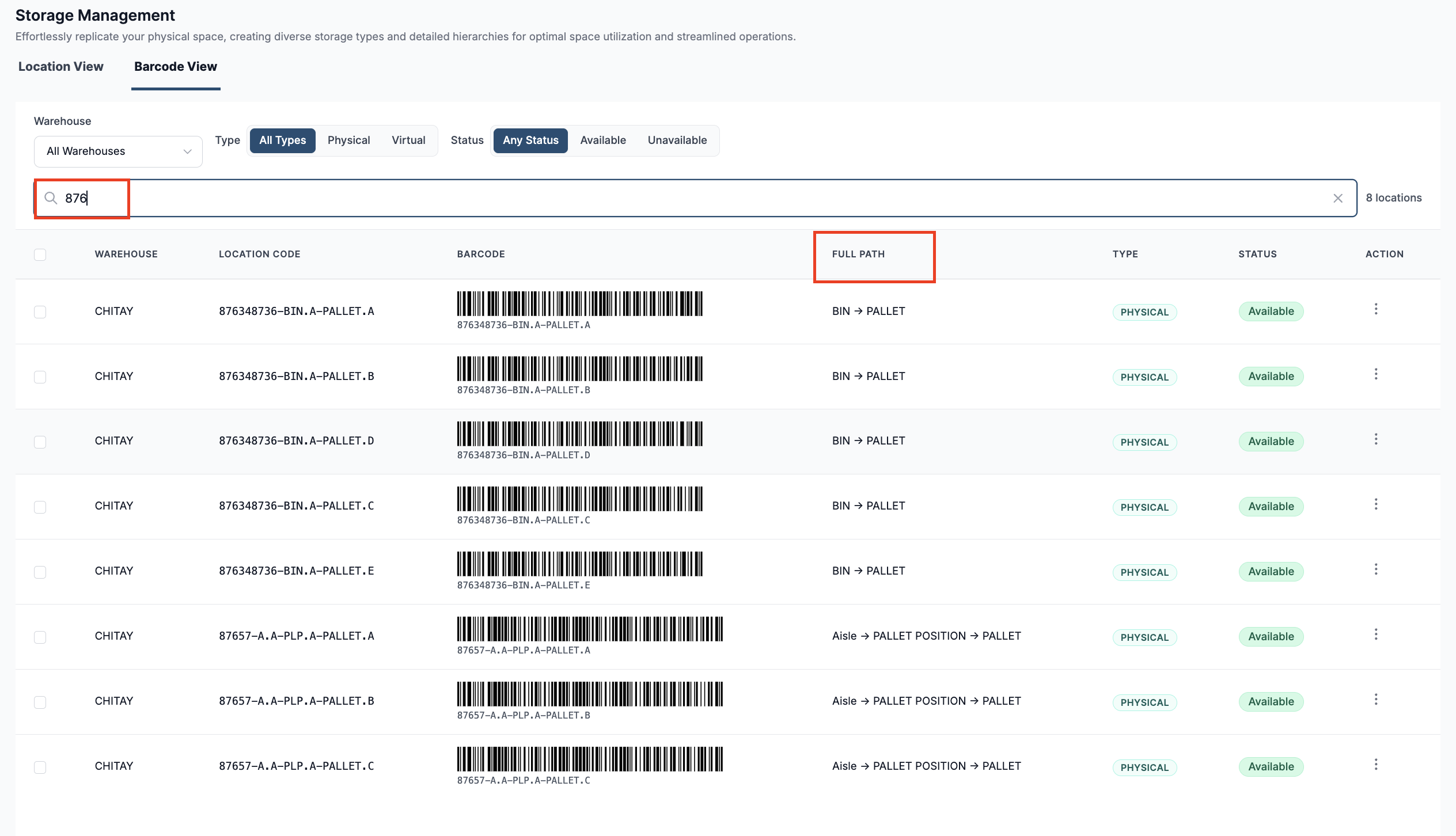
Search for location codes on the search bar to filter by codes. User can see full hierarchical path for the location in the “Full PATH” column. An example is shown below.
The user can select specific locations or all locations in the view by using check box and perform actions like printing labels or updating the status for the selected locations.