
We have completely redesigned the Storage Management experience.
Attached is a video highlighting the key features:
The key enhancements are listed below.
-
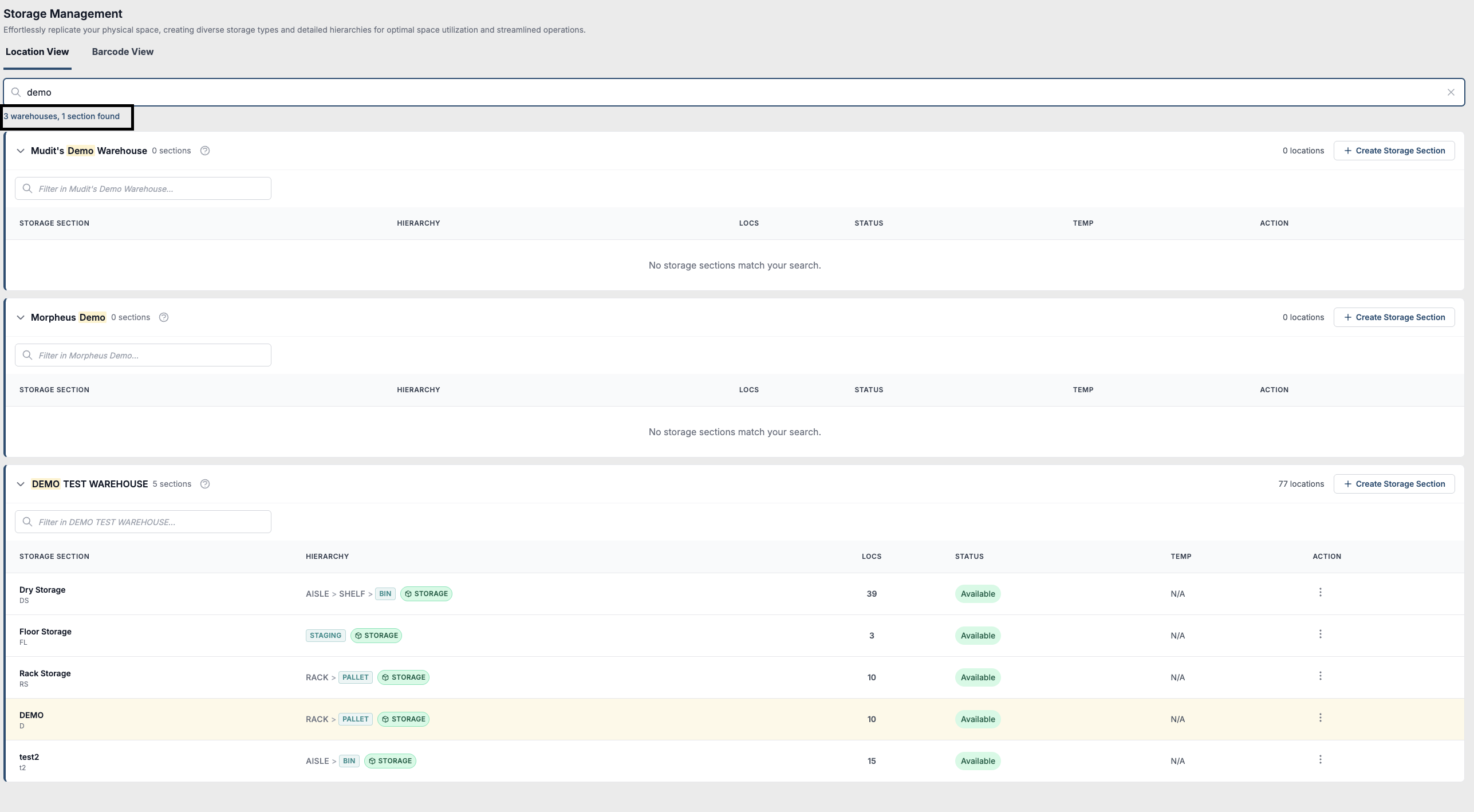
The landing page now includes Global search and filtering across all warehouses and sections. The match for search is displayed with the match highlighted in yellow. And the count of matches found is displayed below the search bar.
-
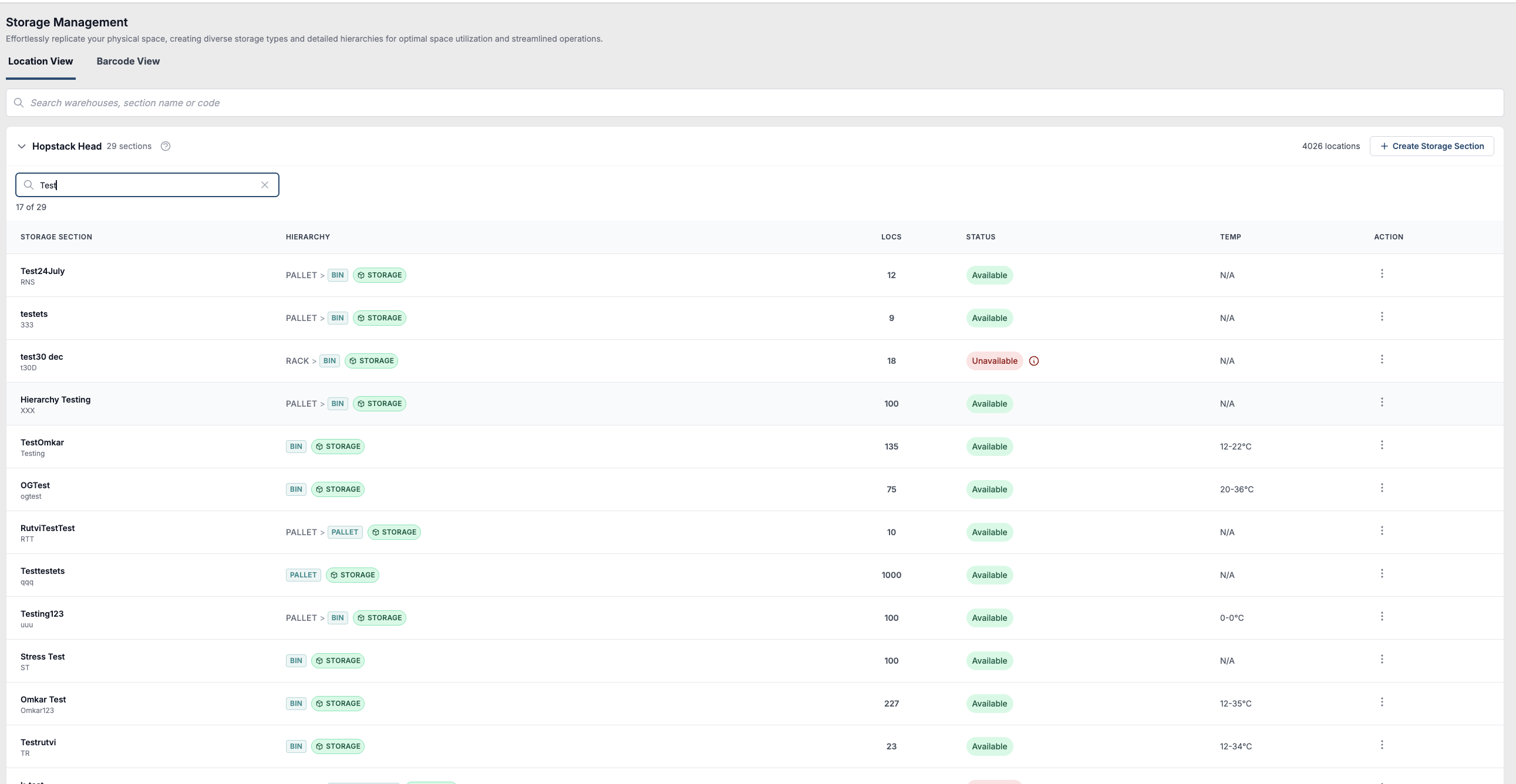
The user is able to filter within warehouse by using the search filter for a warehouse by expanding the warehouse. This feature filters the Warehouse preview by the search criteria and displays the count of match.
-
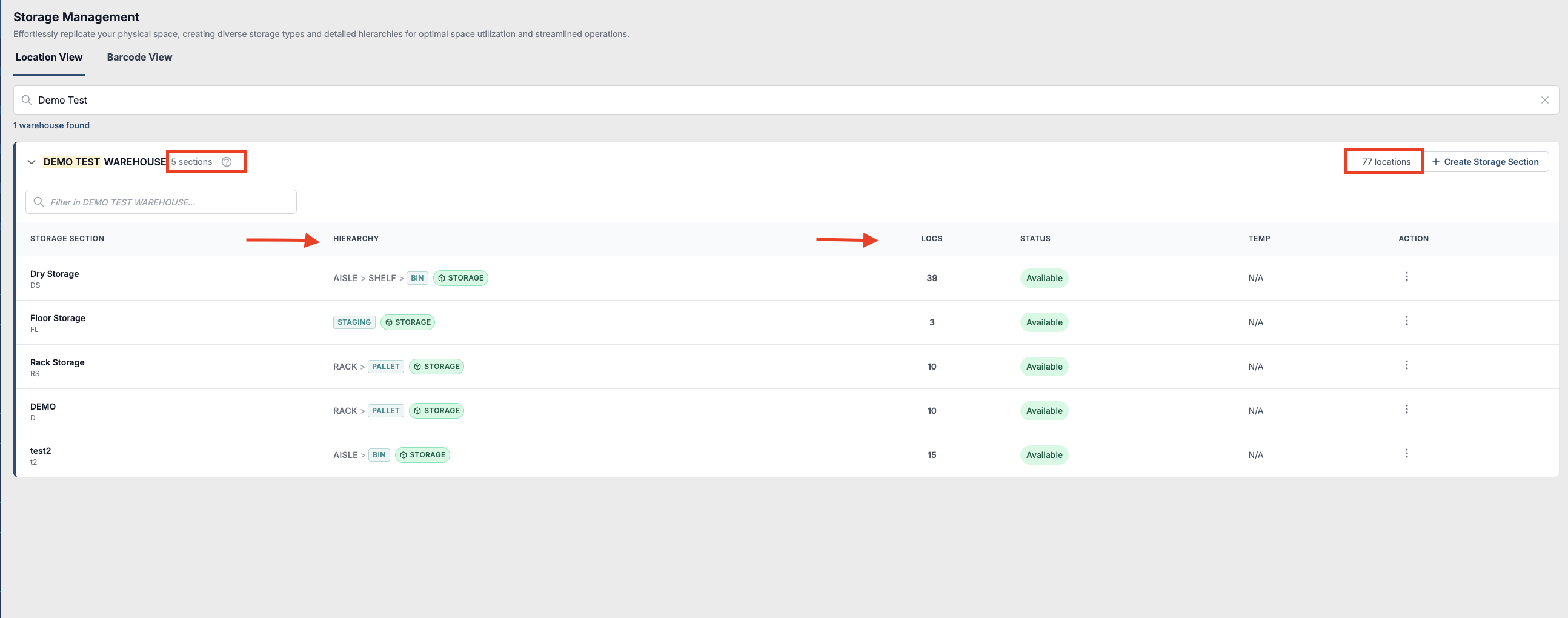
In the warehouse preview we have included hierarchy chips that distinguish container levels from storage levels, and added a location count column so you can see how large each section is at a glance.
-
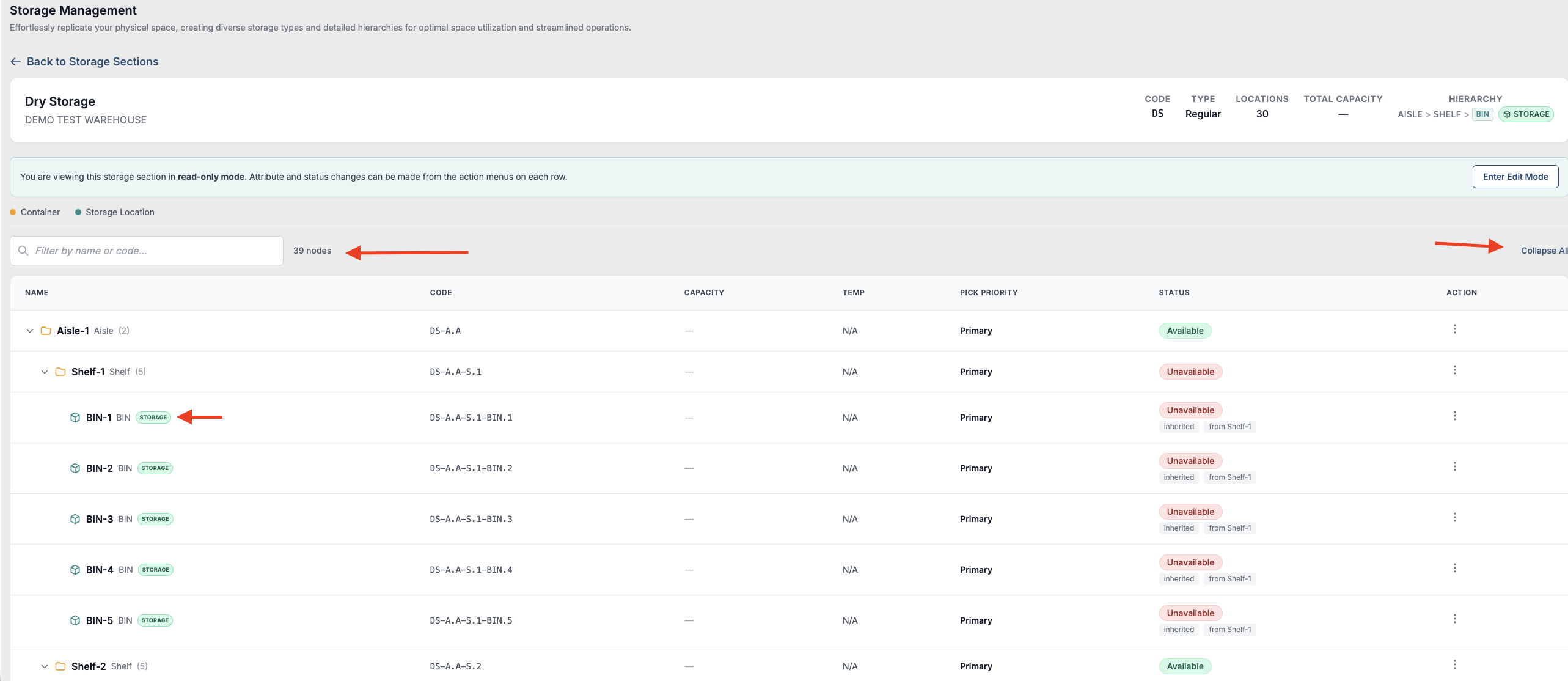
View mode for storage section lets you inspect your full warehouse hierarchy (zones, aisles, racks, bins) in a collapsible tree display, without entering edit mode. You can see capacity, status, and pick priority at every level, search across the tree, and understand exactly how your warehouse is structured at a glance.
To enter the View mode, click on action and View Hierarchy.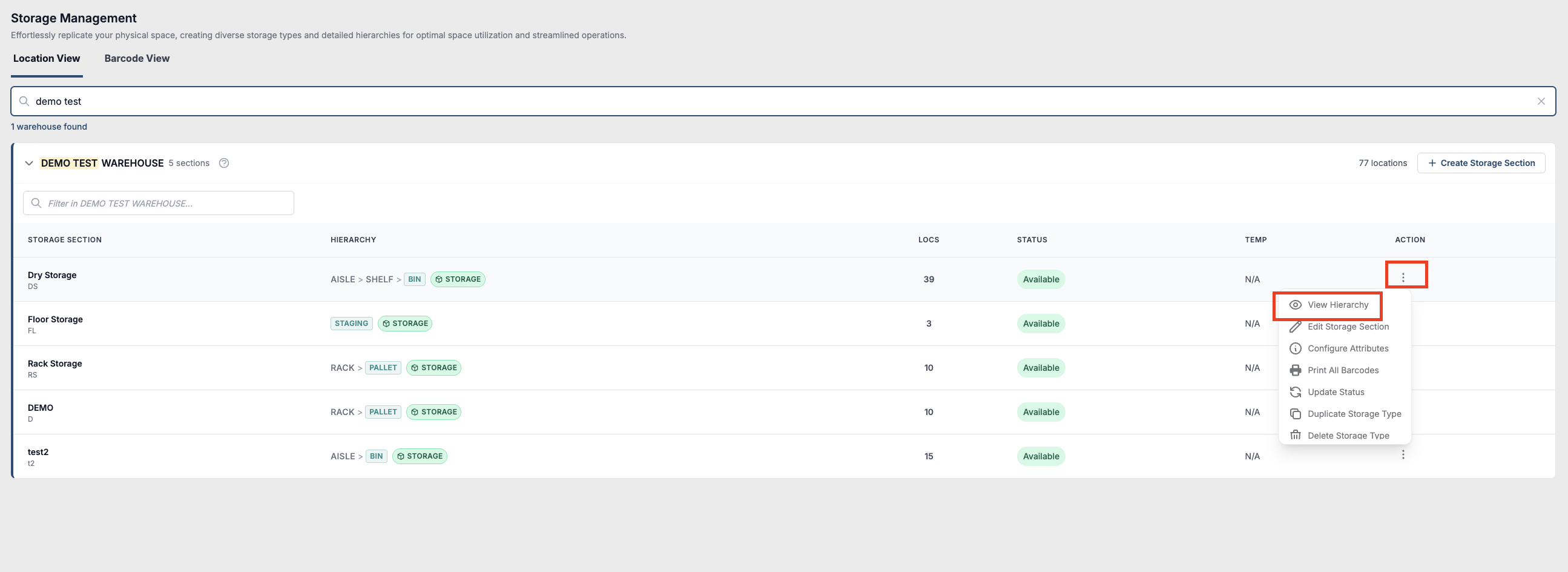
The user can now expand or collapse all, search across the tree. The parent level hierarchies and storage level hierarchy are differentiated on the UI. The Storage locations have storage tag next to them.
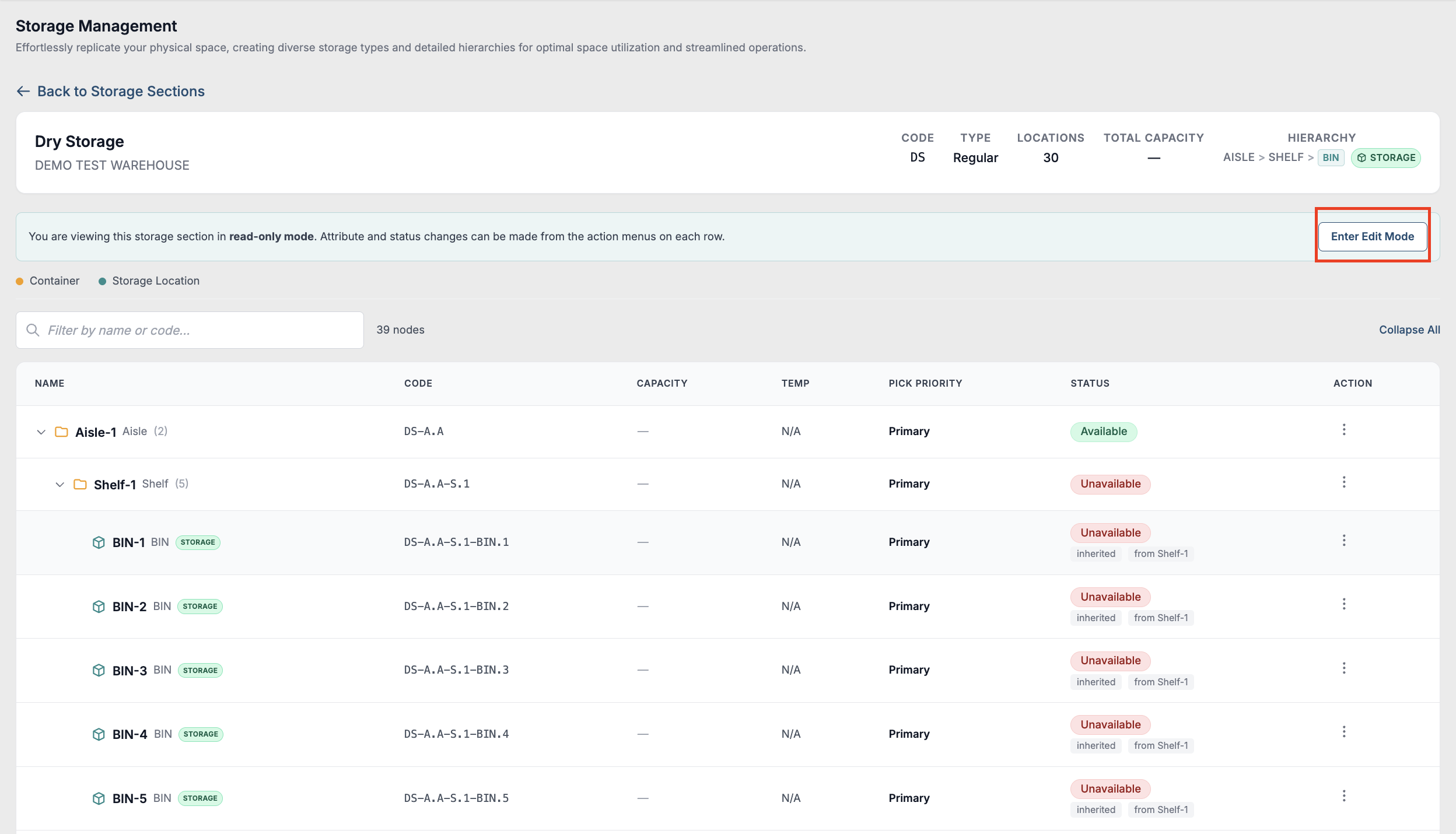
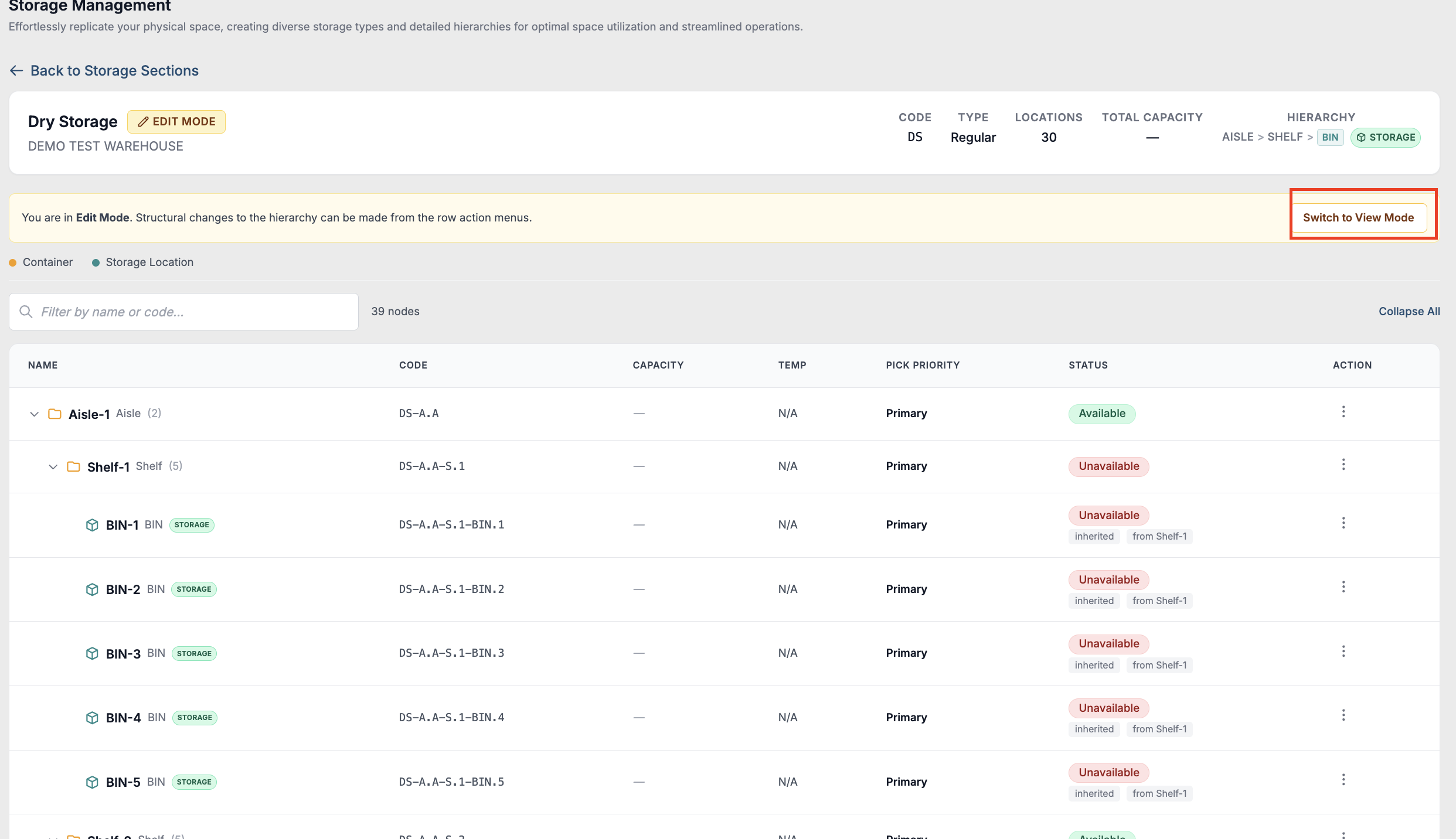
The User can easily switch between View and edit mode clicking on Enter edit Mode or Switch to View Mode.
-
The Pick priority and status are displayed.
The pick priority can be set in the view mode clicking on Action and Configure Attributes.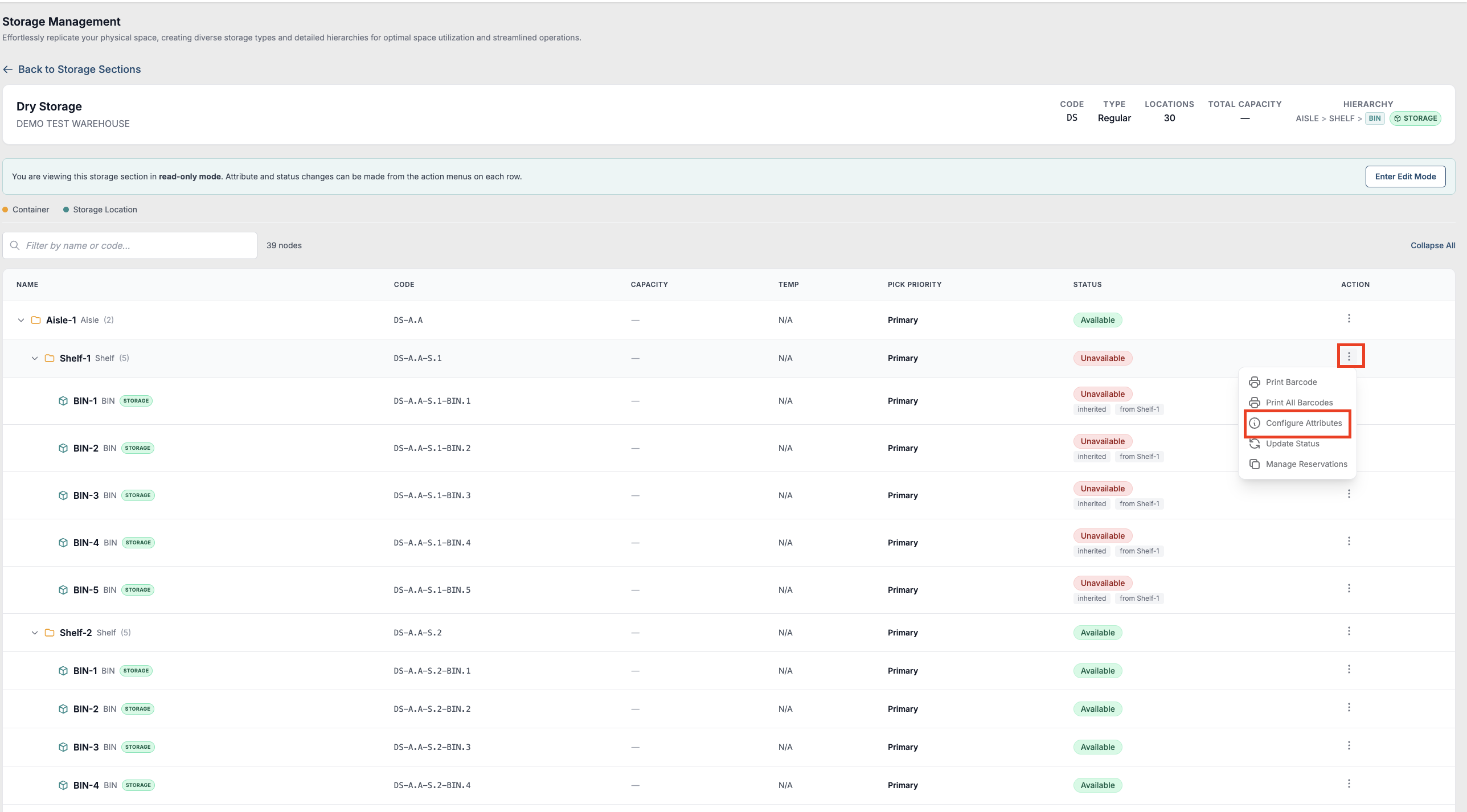
The user can set Pick priority at a parent level and apply the same for the children by clicking on the check box.
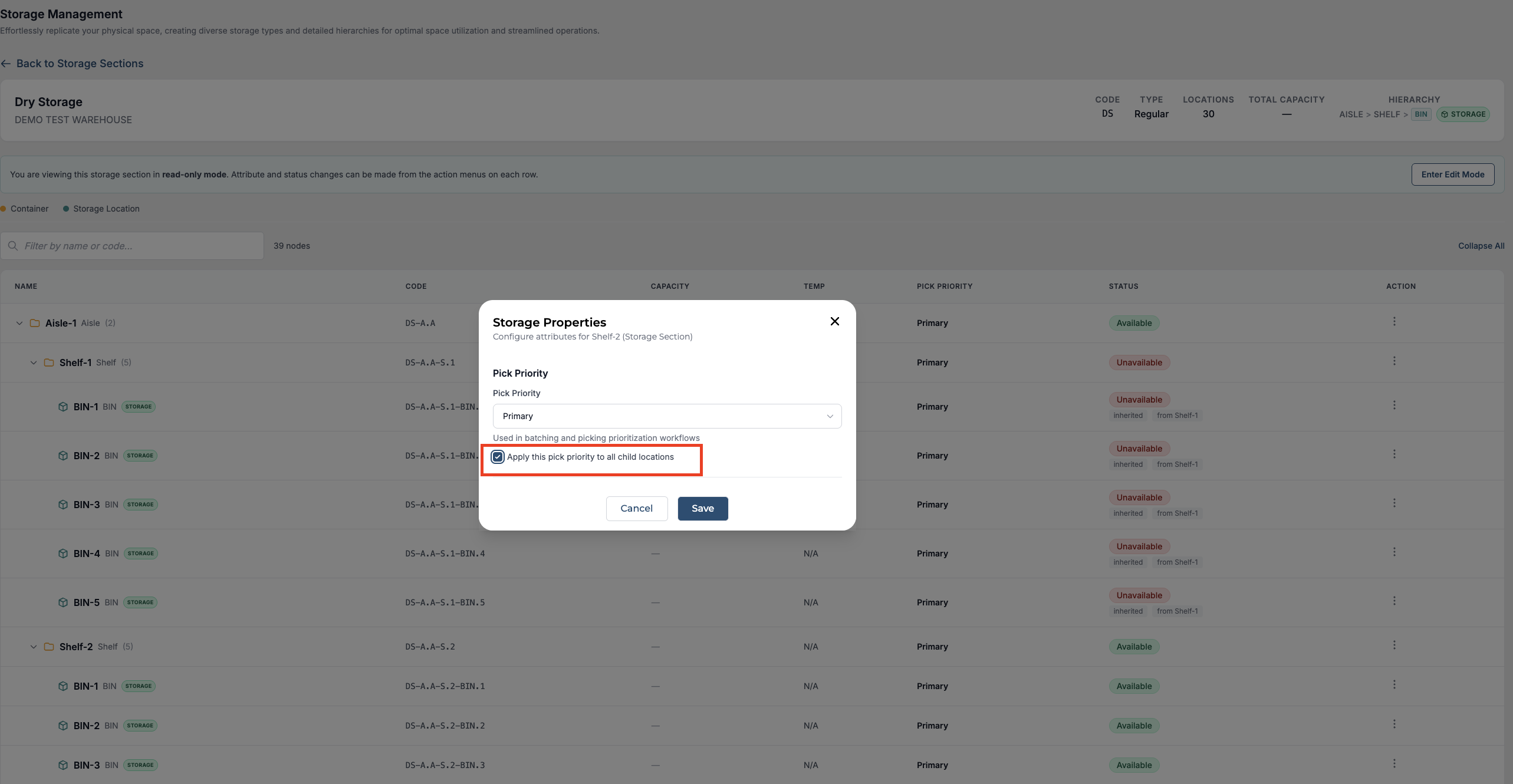
The user can also set a different pick priority for a specific storage location by following the same steps.
-
The Status can be set by clicking on Action and Update status.
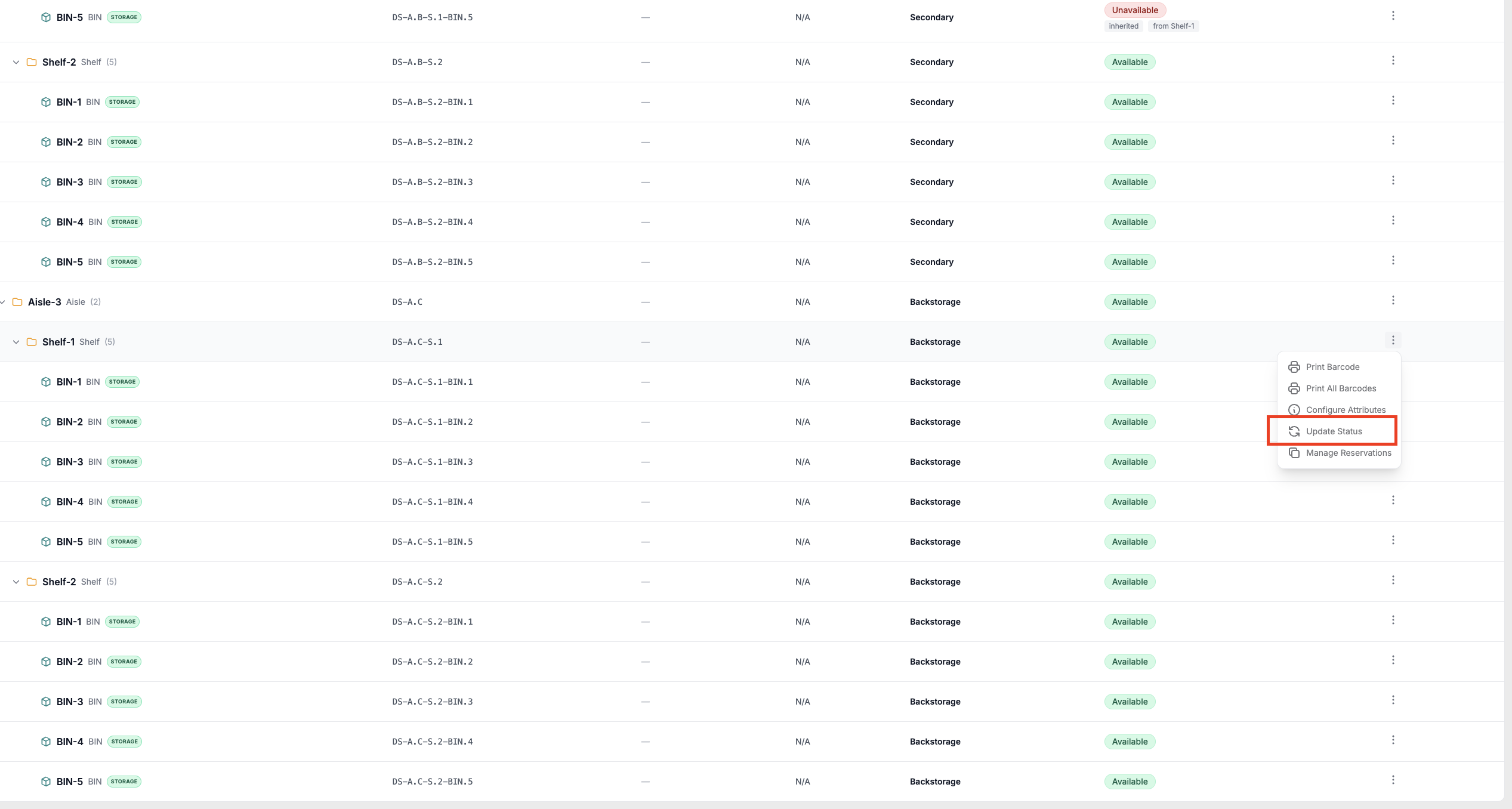
We have the Status cascade feature that lets you mark an entire container (for example, an aisle or a rack) as unavailable, and all child locations inherit that status automatically. The tree clearly shows which statuses are inherited and where they came from.
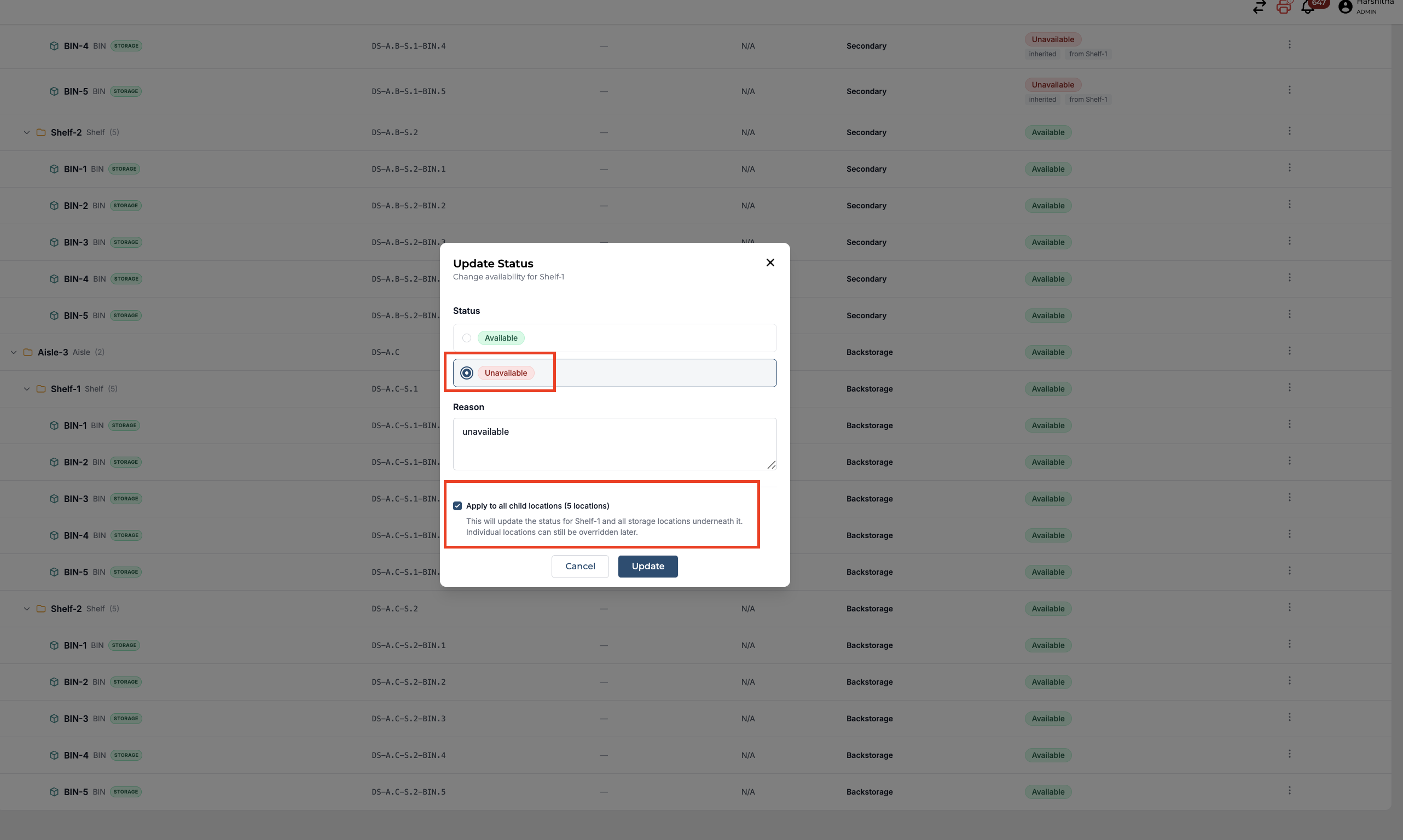
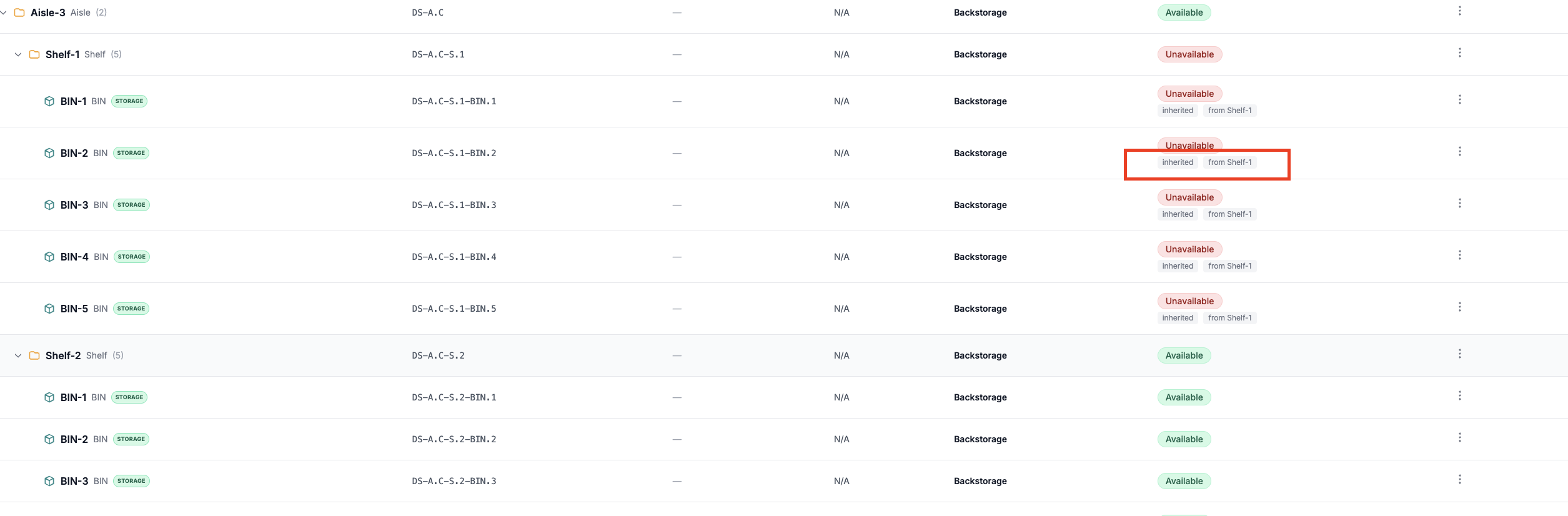
Note: The check box to inherit parent status is checked by default. Individual locations can still be overridden afterward. -
User can seamlessly create a storage section with our new storage creation flow which has been rebuilt as an inline guided builder.
Click on Create Storage Section.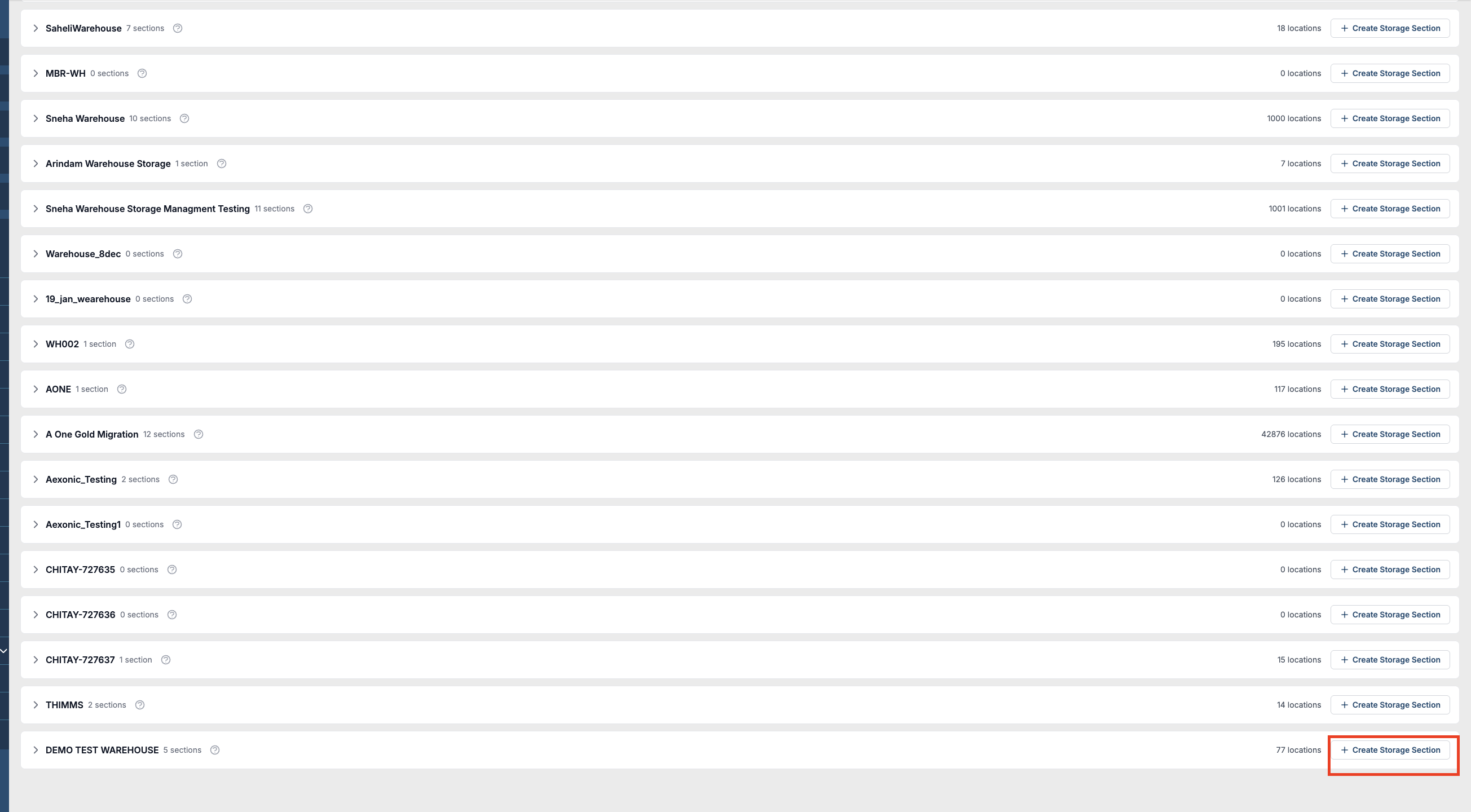
Easy 3 Steps to create a storage section are as follows:
Step 1: Fill in the Section details Name and code.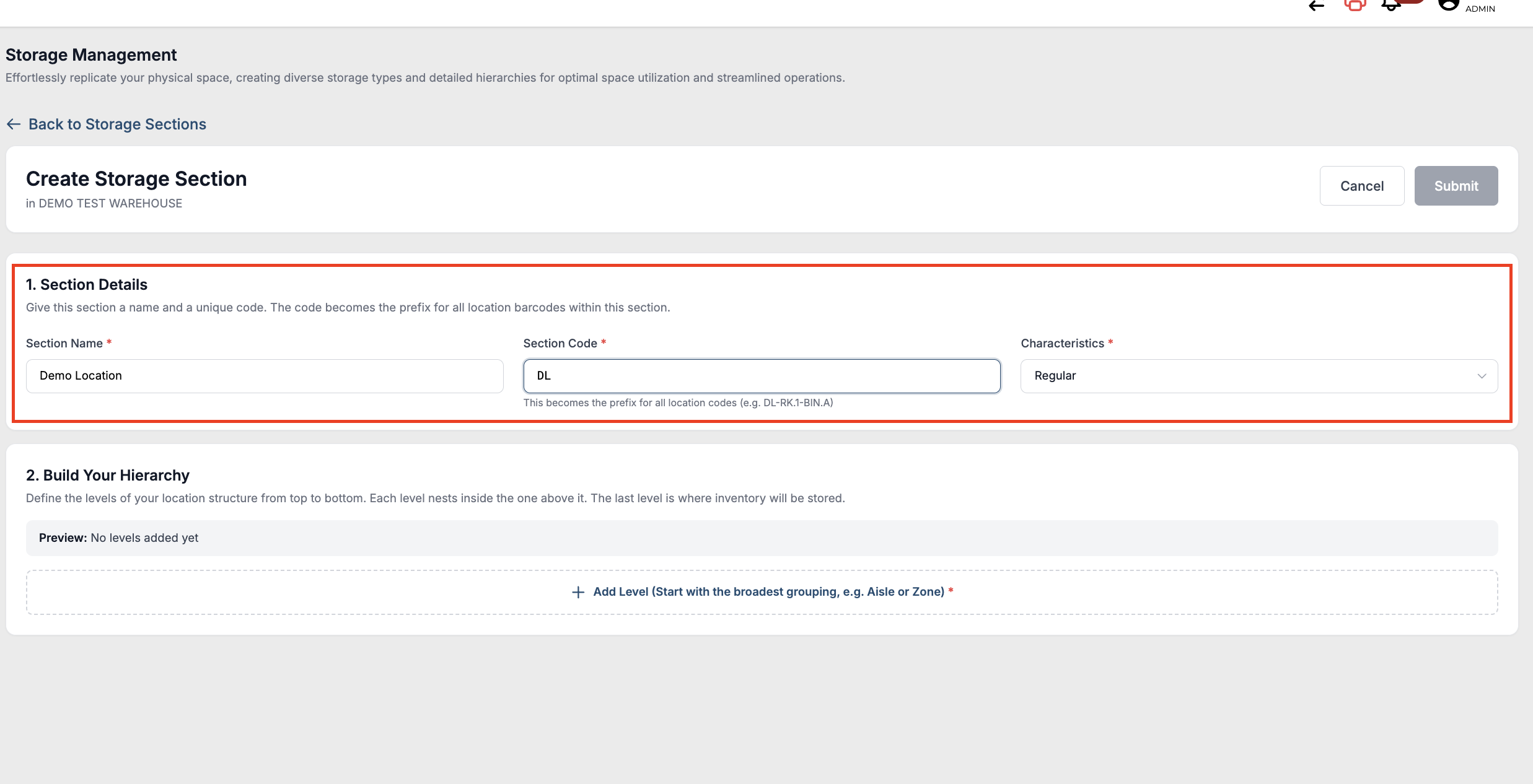
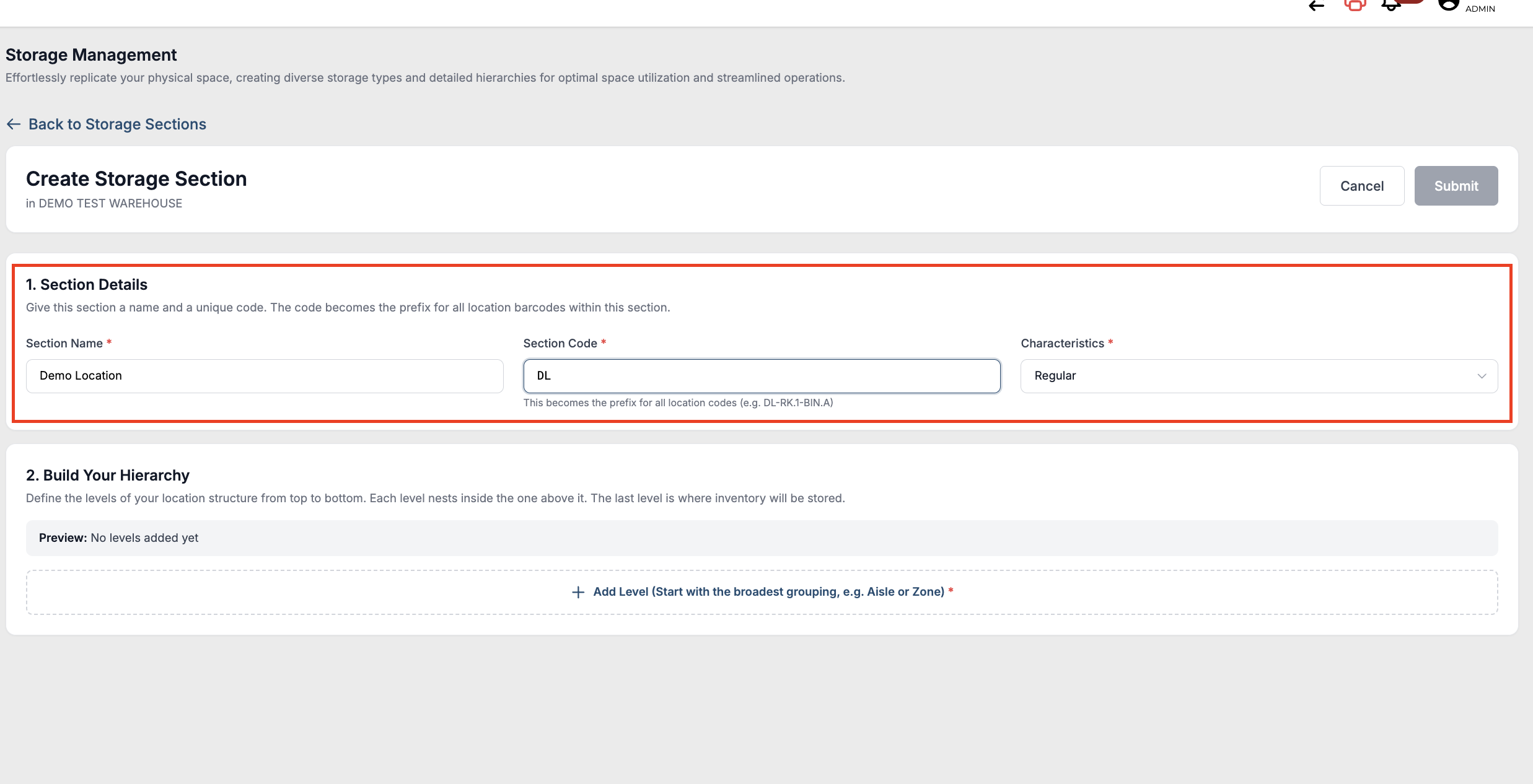
Step 2: Build hierarchy levels by clicking on Add level. Specify the sub type, how many numbers and Code prefex. User can keep adding next levels of hierarchy by clicking on add level. As you build you can see the levels as L1, L2, L3 etc.
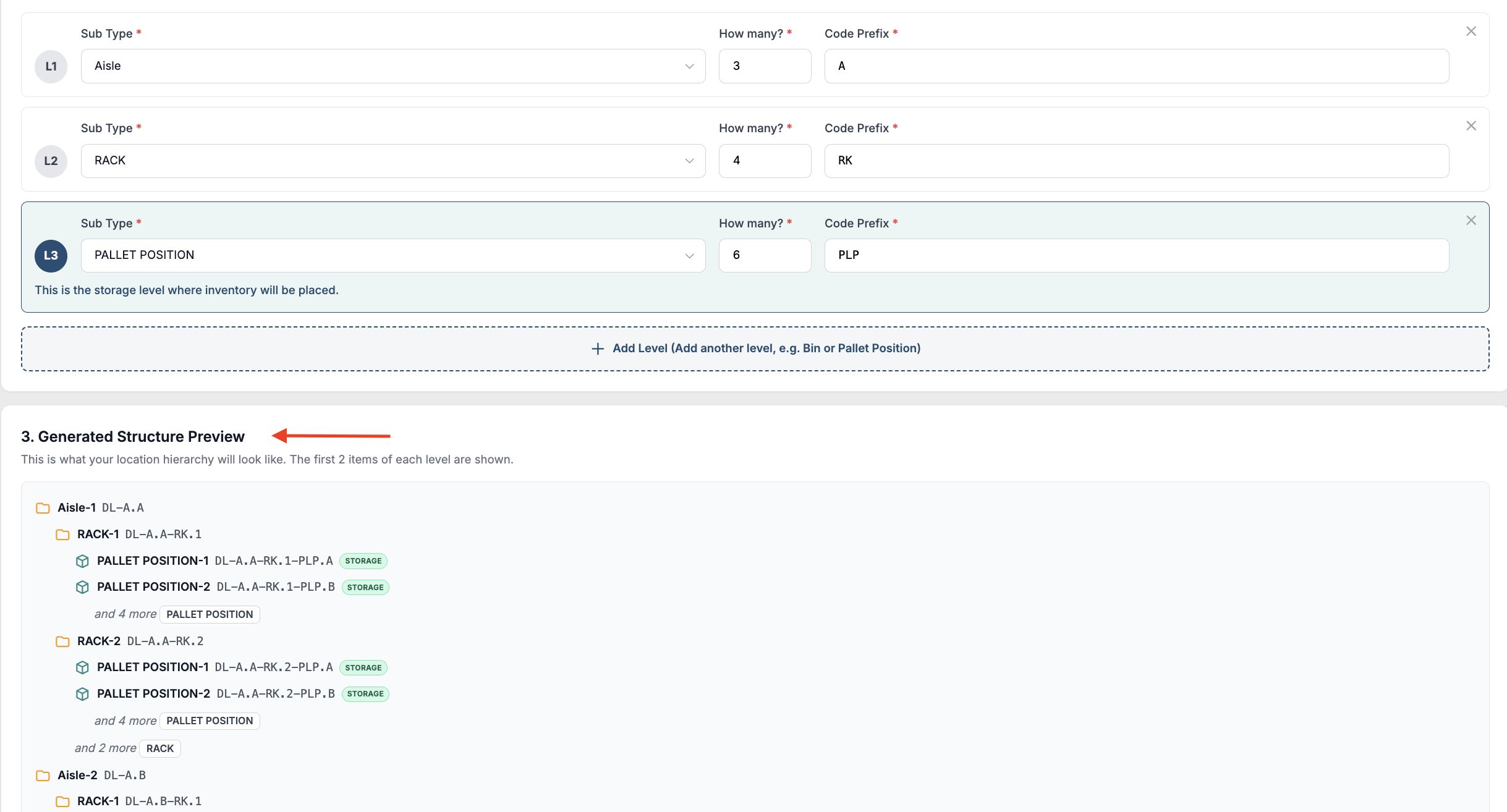
Step 3: When more than one level exists, user can view the live preview the generated structure with computed location codes which provides the user with clear idea of the hierarchical set up and helps them get the set up right the first time.
Here is video guide on setting up storage section.