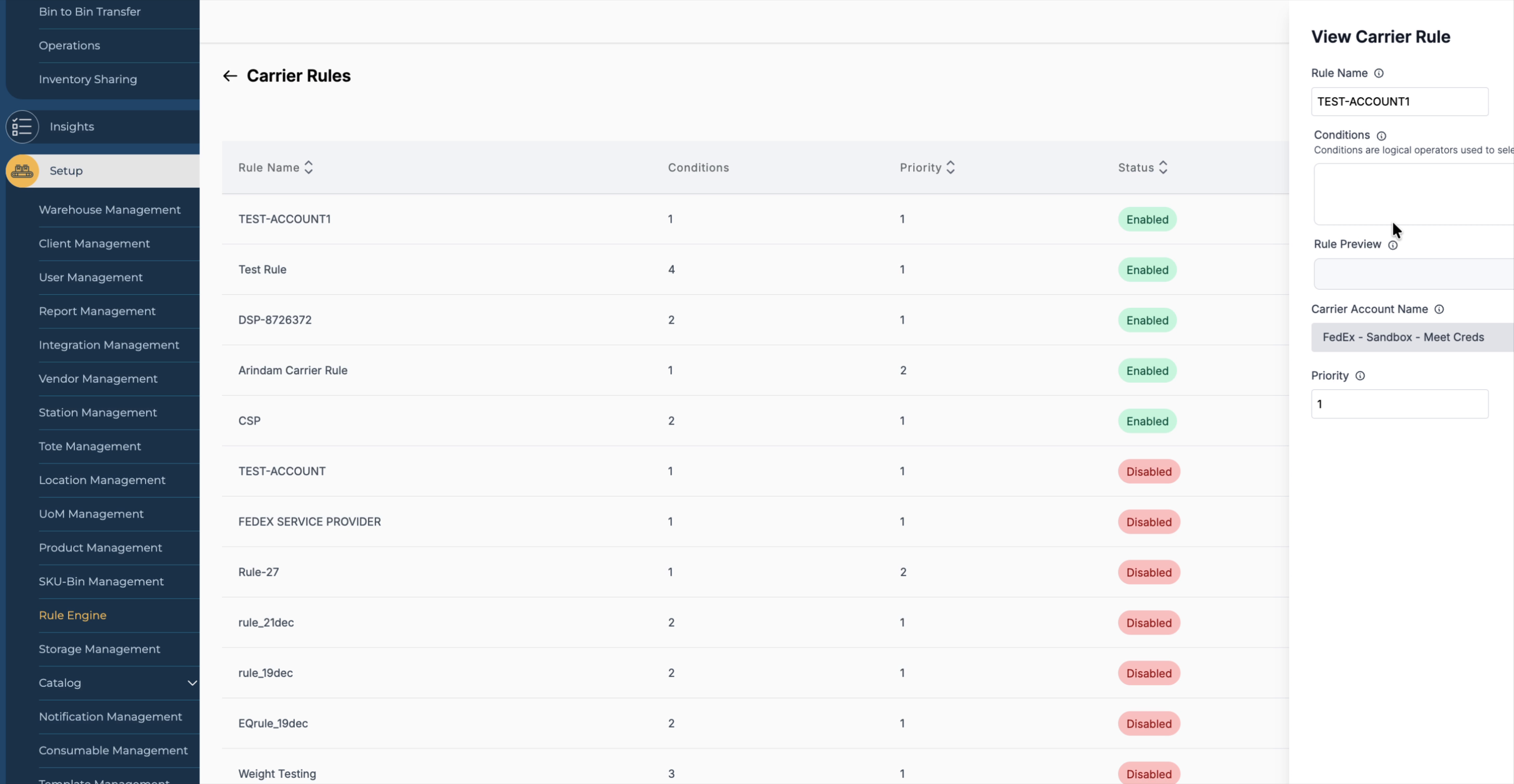
This document explains how to configure carrier rules in the Rule Engine, apply them to orders via Order Management, and manage existing rules (view, disable, and edit). Carrier rules allow you to automatically route shipments to specific carriers and services based on conditions such as carrier, weight, order source, SKU, order value, or warehouse.
Step 1: Navigate to Carrier Rules in the Rule Engine
Go to Setup in your platform.
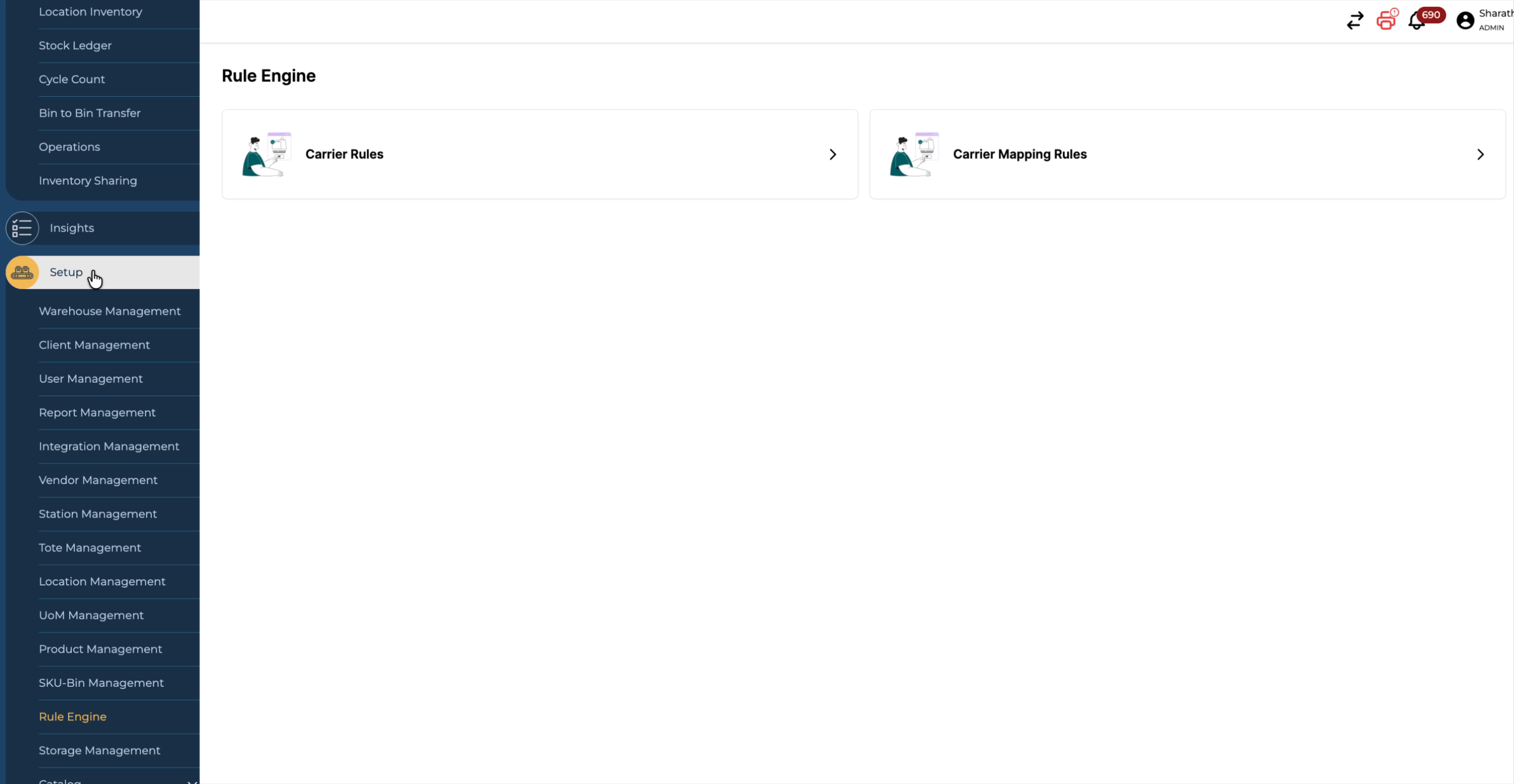
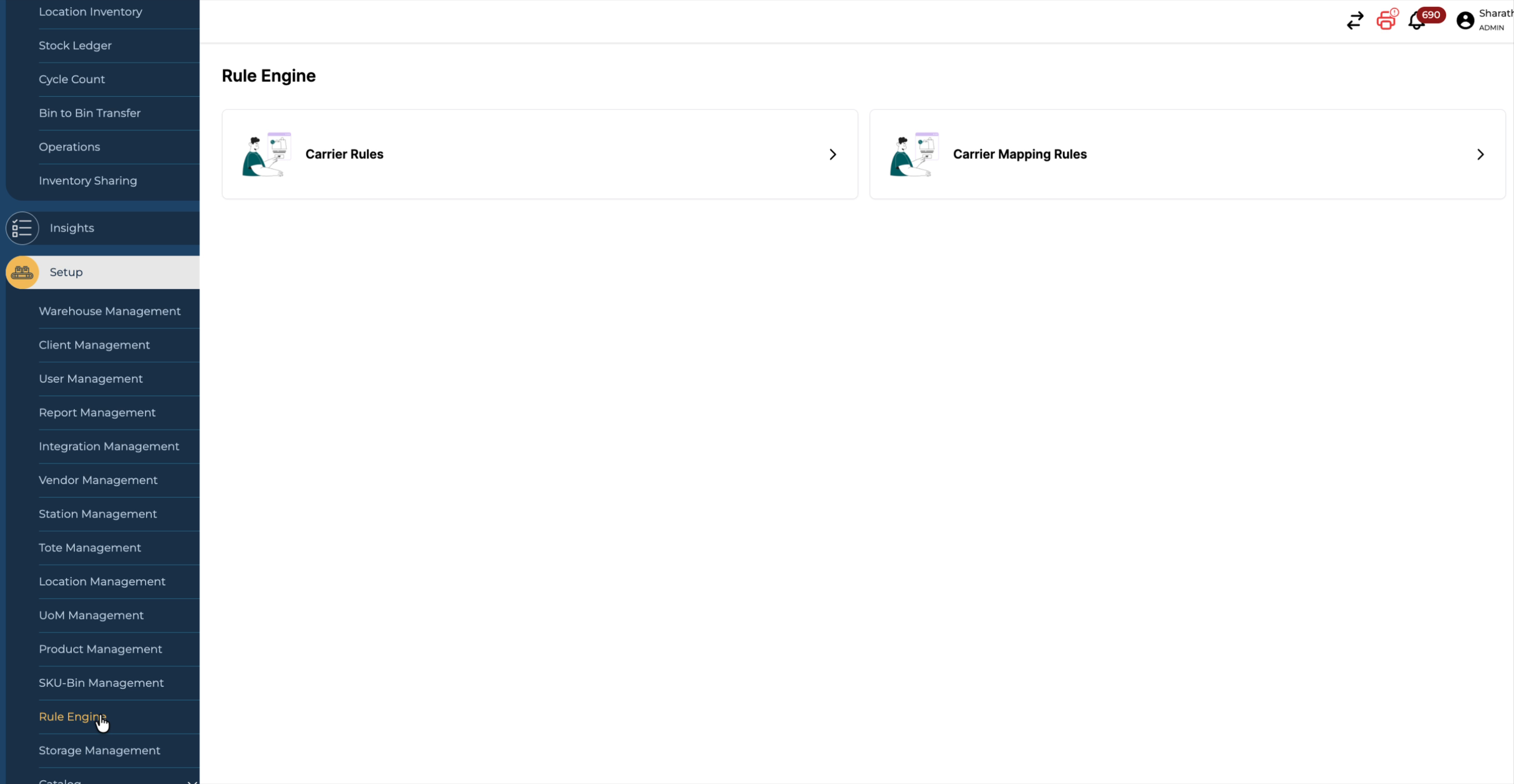
From Setup, open the Rule Engine.
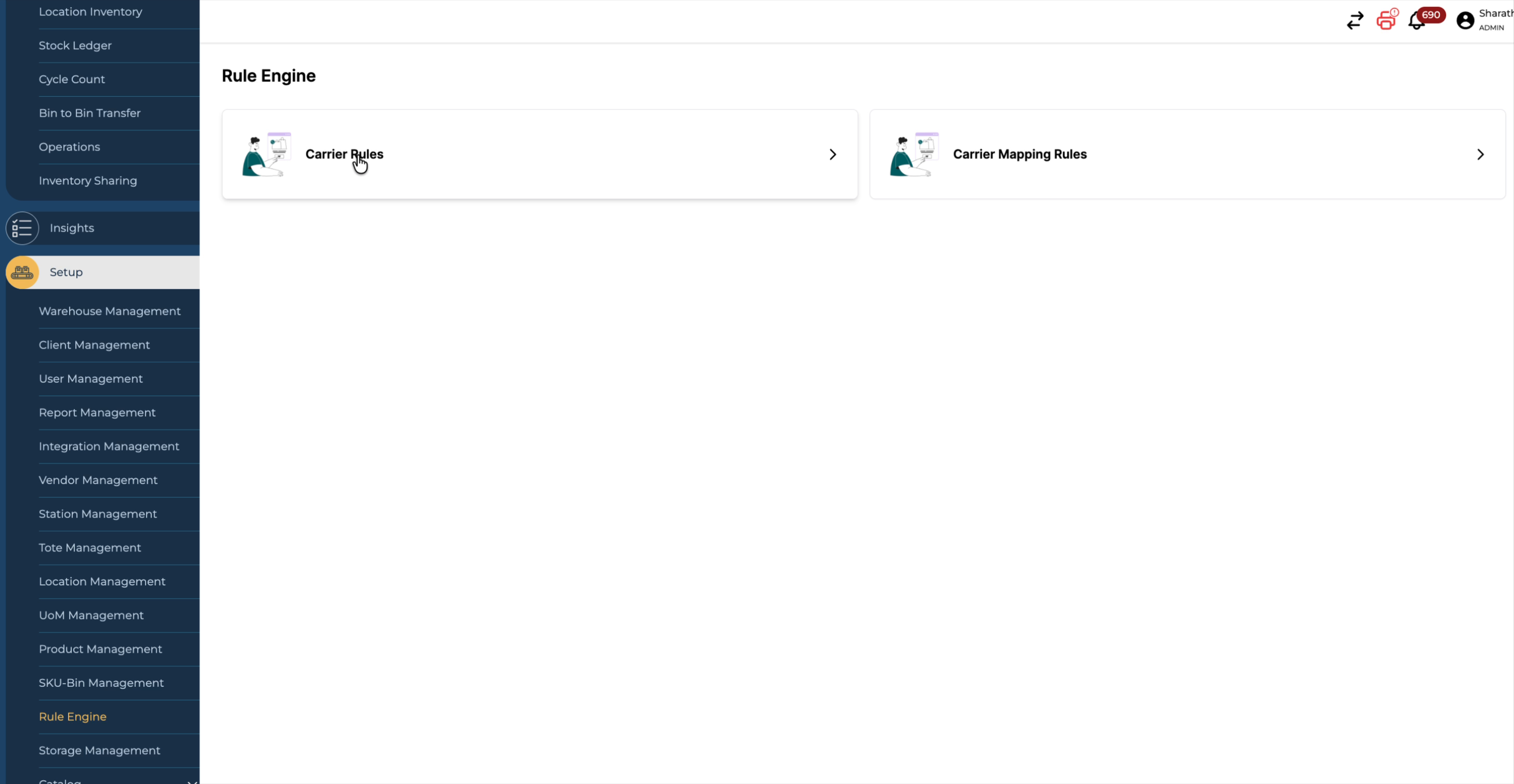
In the Rule Engine, select Carrier Rules from the list of available rule types.
Step 2: Start a New Rule
-
Navigate to the Carrier Rules section.
-
Click the Add Carrier Rule button.

-
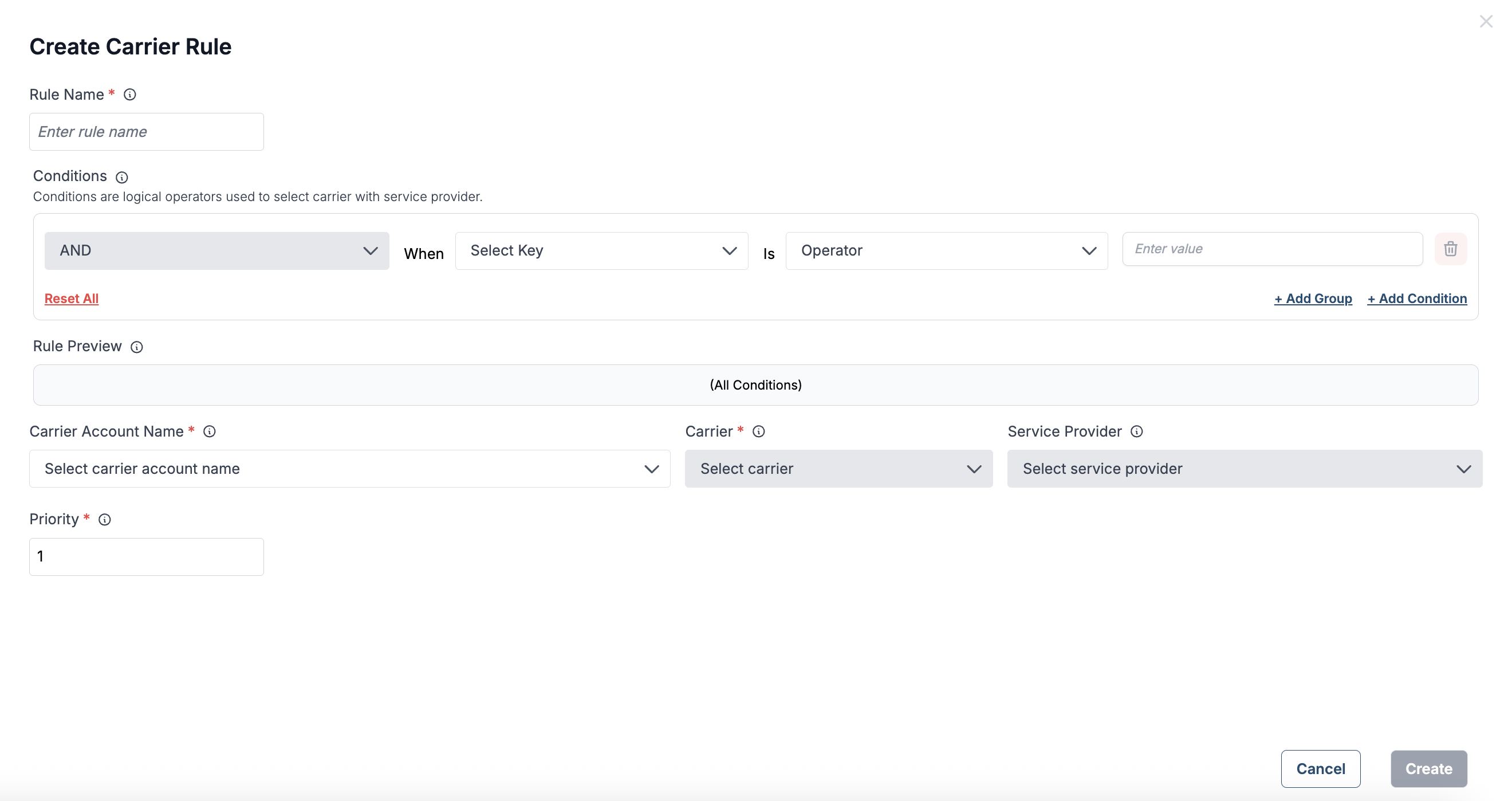
You will be directed to the rule creation window.
Understanding Rule Engine Terms
-
Rule Name: A descriptive name that reflects the rule’s purpose (e.g., “Priority Carrier for West Coast”).
-
Conditions: Logical statements that determine when the rule should trigger.
-
Add Condition vs. Add Group:
-
Add Condition: Adds a single condition to the current group.
-
Add Group: Creates a new set of conditions that can be combined using AND / OR logic for advanced scenarios.
-
-
Rule Preview: A live summary of your rule, showing the complete logic for final confirmation.
-
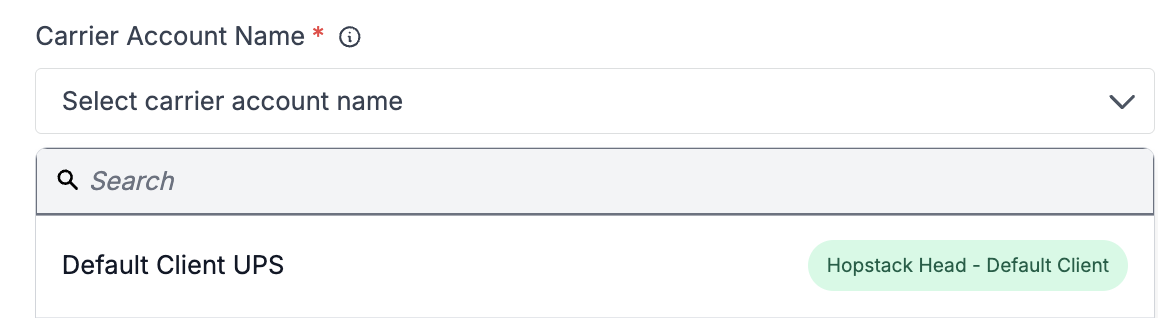
Carrier Account Name: Select the carrier account linked to a Warehouse–Client pair.
-
Service Provider: Choose from the available carrier services in the dropdown list.
Step-by-Step Rule Creation
Step 2: Name Your Rule
-
Enter a clear, meaningful name for easy reference.
Step 3: Define Your Conditions
-
Select a Key from the dropdown (e.g., Carrier, Warehouse, Client, SKU).
-
Choose an Operator:
-
Equals To
-
Not Equals To
-
-
Add more conditions or groups as needed to match your operational requirements.
Step 4: Select Carrier Details
-
Pick the Carrier Account Name.
-
Choose the Service Provider.
Step 5: Set Rule Priority
-
Assign a priority number (lower numbers = higher priority).
-
Click Create to save your rule.
Video for Rule Creation: 👇
Managing Your Rules
-
Newly created rules appear at the top of the list.
-
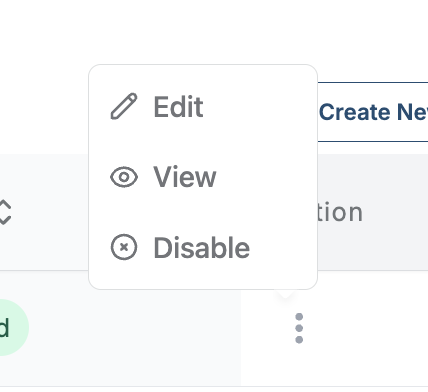
From the Actions menu (right side of the rule name), you can:
-
Edit: Modify rule logic or details.
-
View: Review the rule’s conditions and settings.
-
Disable: Temporarily turn off the rule without deleting it.
-
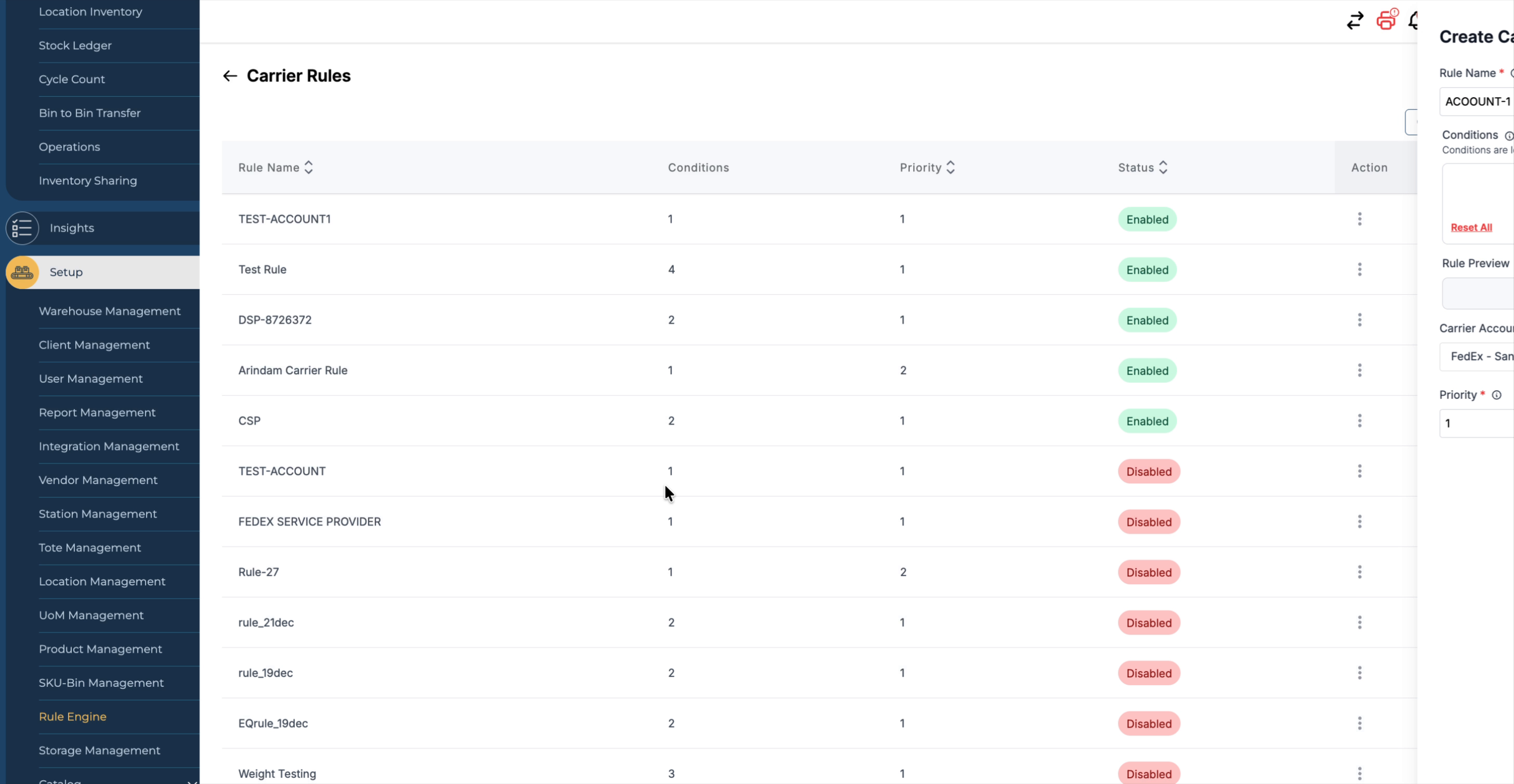
Step 3: Define Conditions and Carrier
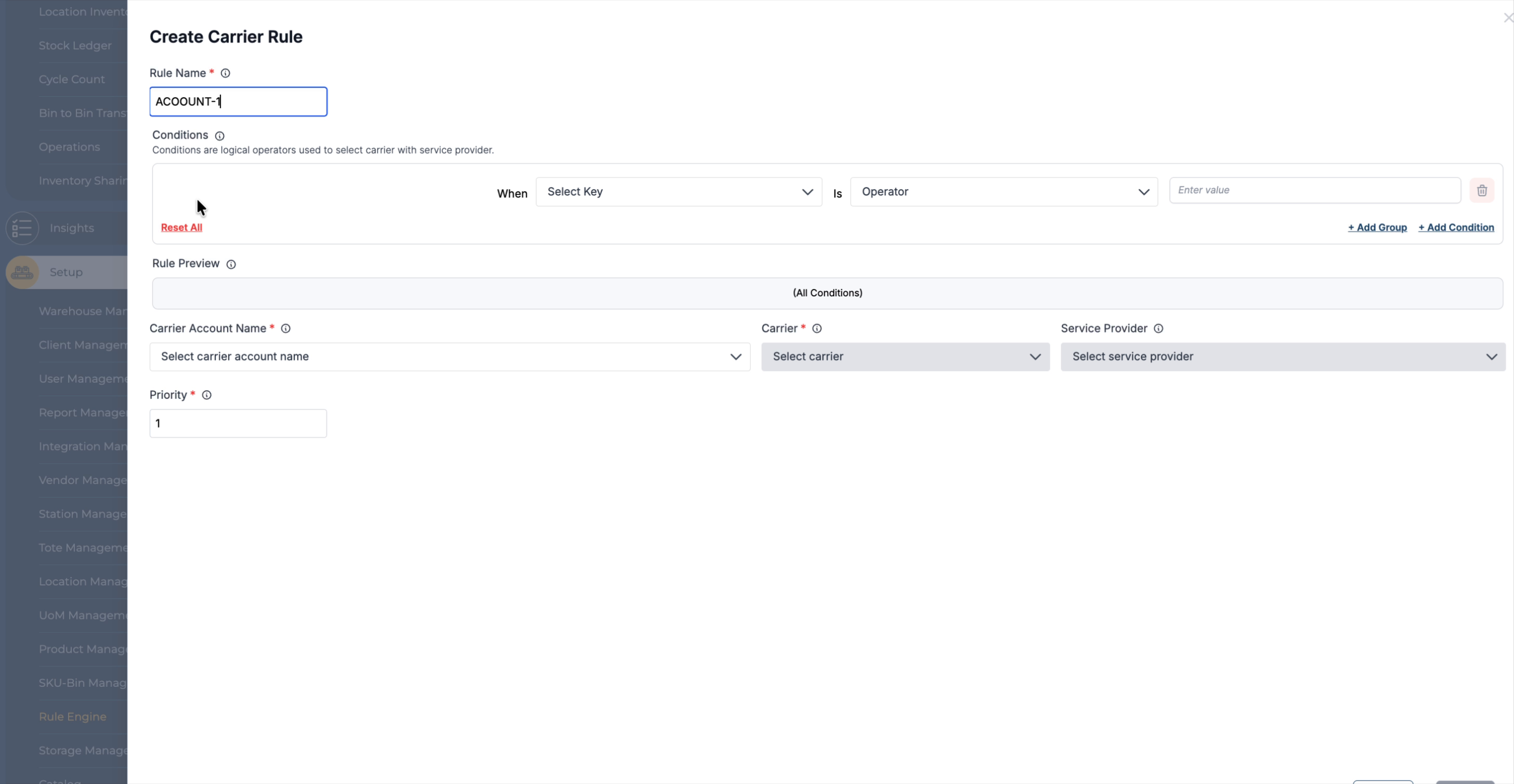
Specify the account or profile this rule should apply to.
Configure the conditions for the rule—for example, when a shipment uses a particular carrier or service.
In this example, set the condition so that when the selected carrier service is Priority Mail Express, the shipment is routed to a FedEx account or another specified carrier/service as desired.
Step 4: Review an Existing Carrier Rule
If you already have rules configured, you can view them in the Carrier Rules list.
Open an existing rule to confirm its logic—for example, a rule that states:
-
If the carrier service on an order is USPS Priority Mail Express,
-
Then the shipment should be fulfilled from a FedEx account using the FedEx One Rate service.
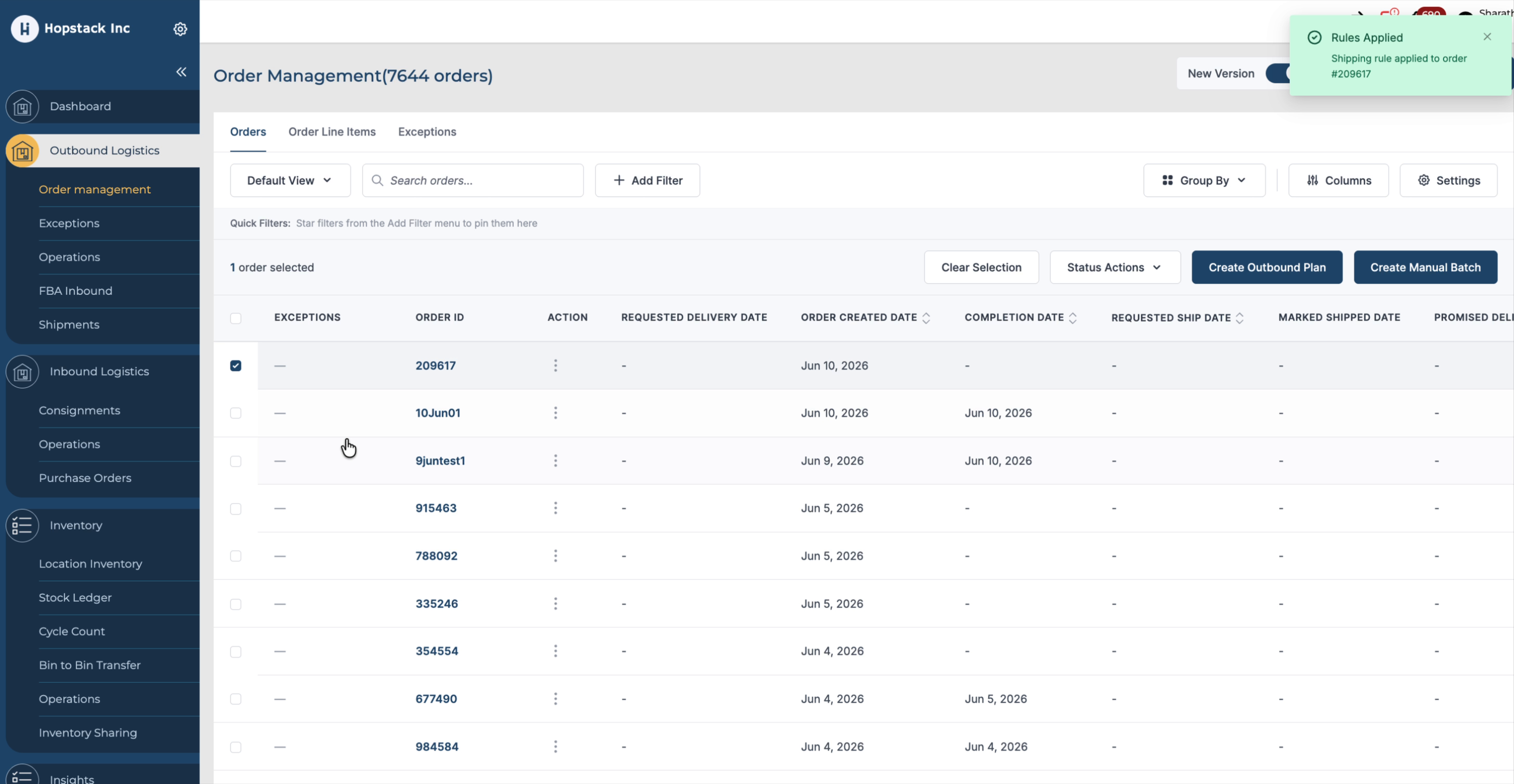
Step 5: Apply Carrier Rules Through Order Management
Navigate to Order Management.
Select an order and create an outbound plan, then proceed through the plan steps.
As you proceed, the Rule Engine will automatically apply the configured carrier rule and select the appropriate rate and service.
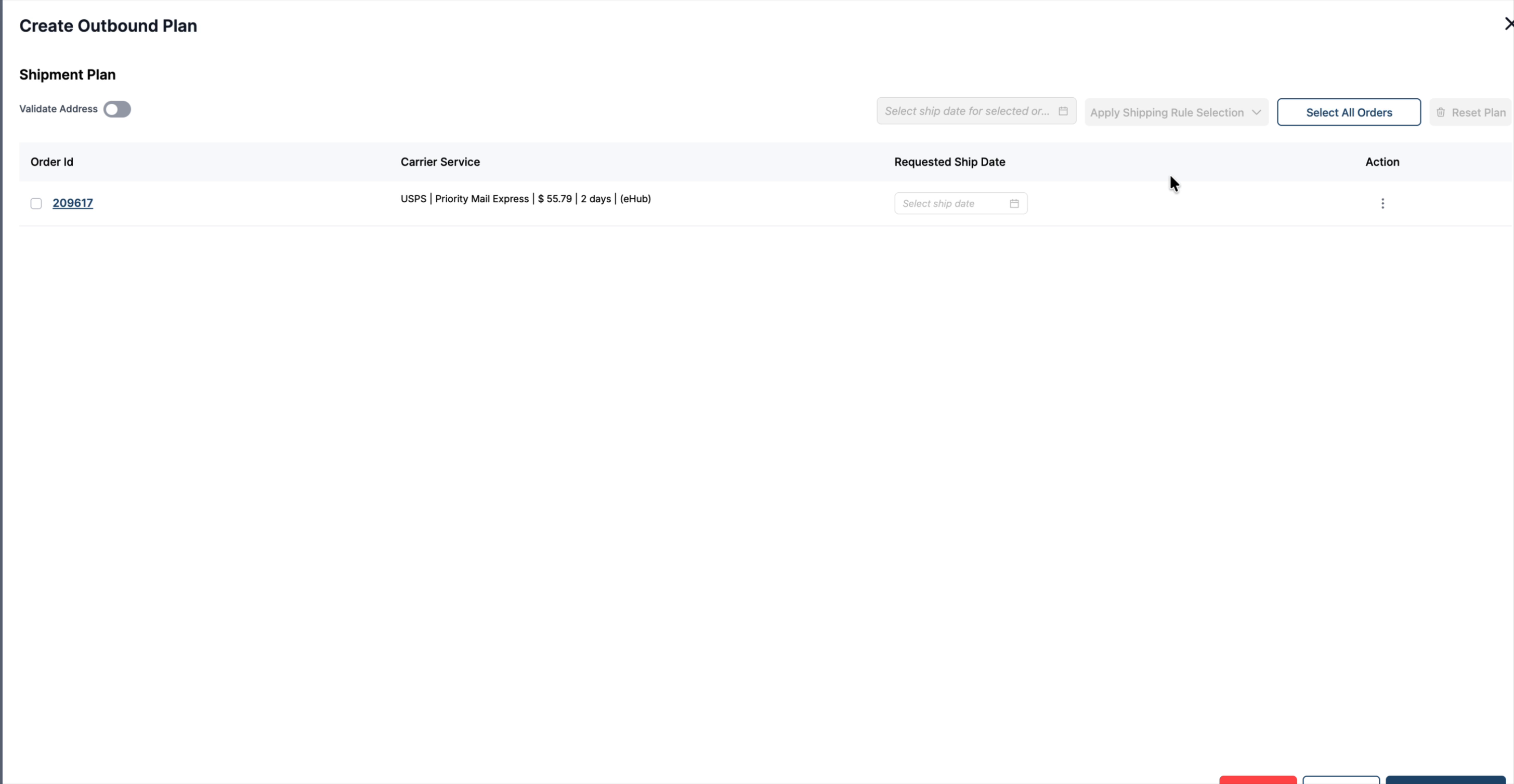
Step 6: Verify the Applied Carrier Service
On the order or outbound plan, review the available carrier services.
You should see the original service, such as USPS Priority Mail Express, and then confirm that, after applying the rule, the system selects the configured FedEx service instead.
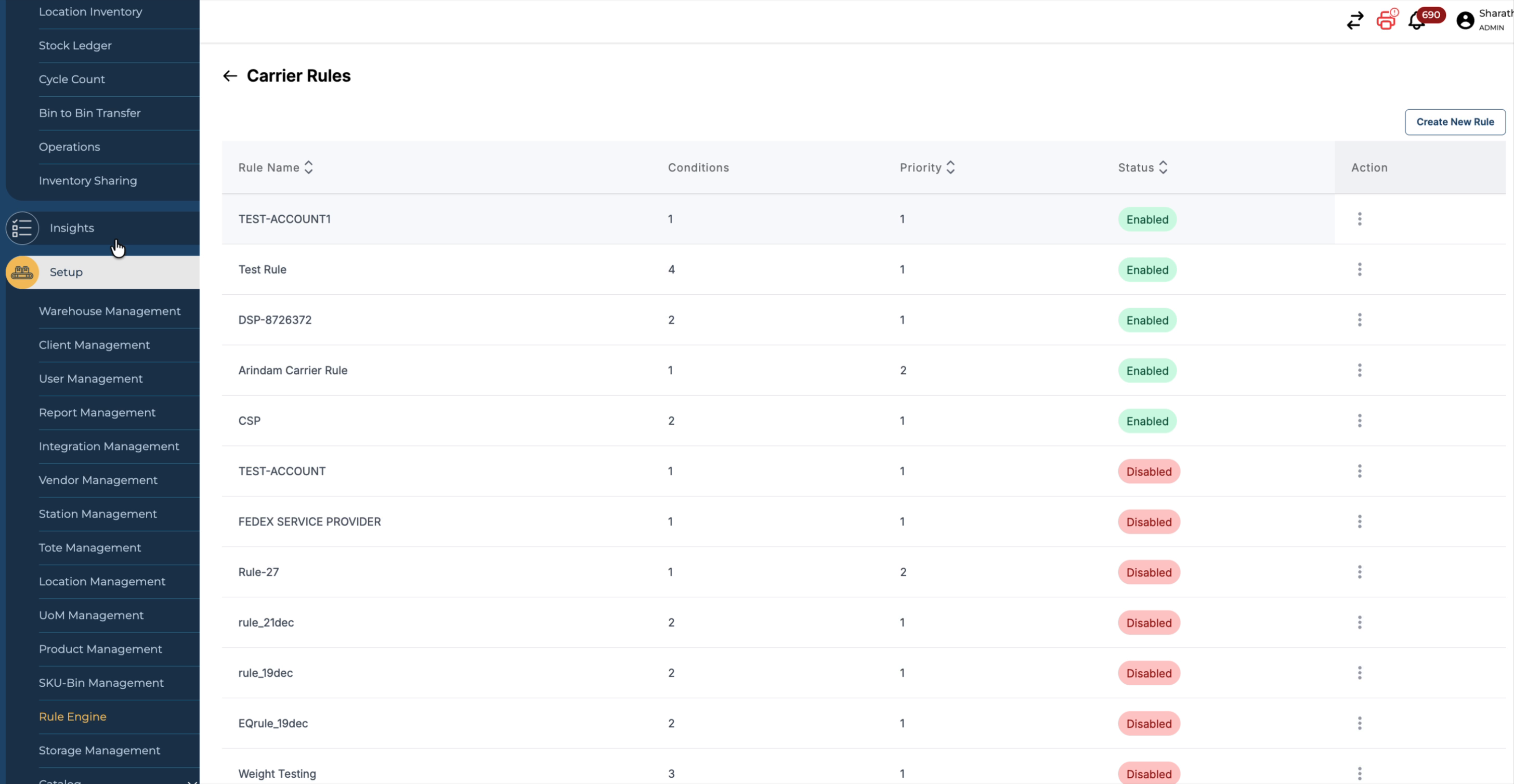
Step 7: Return to the Rule Engine for Rule Management
Return to the Rule Engine and the Carrier Rules section to manage your rules.
Here you can see the list of existing rules and confirm what has been set up.
Step 8: View, Disable, or Edit Existing Rules
From the Carrier Rules list, you can:
-
View rule details to understand the current configuration.
-
Disable a rule if you no longer want it to apply to new orders.
-
Edit a rule to adjust conditions, carriers, or services.
You can create any number of rules based on your requirements—for example, by weight, order source, SKU, order value, or warehouse—using the Carrier Rule Engine.