
This document explains how to configure consumables (boxes, packing materials, and packing components), enable inventory tracking for them, and link them to specific products so packers see the correct packing instructions during order packing.
Step 1: Open Consumables Management
Navigate to Setup and open Consumables Management where all packing consumables (boxes, packing materials, and components) are managed.
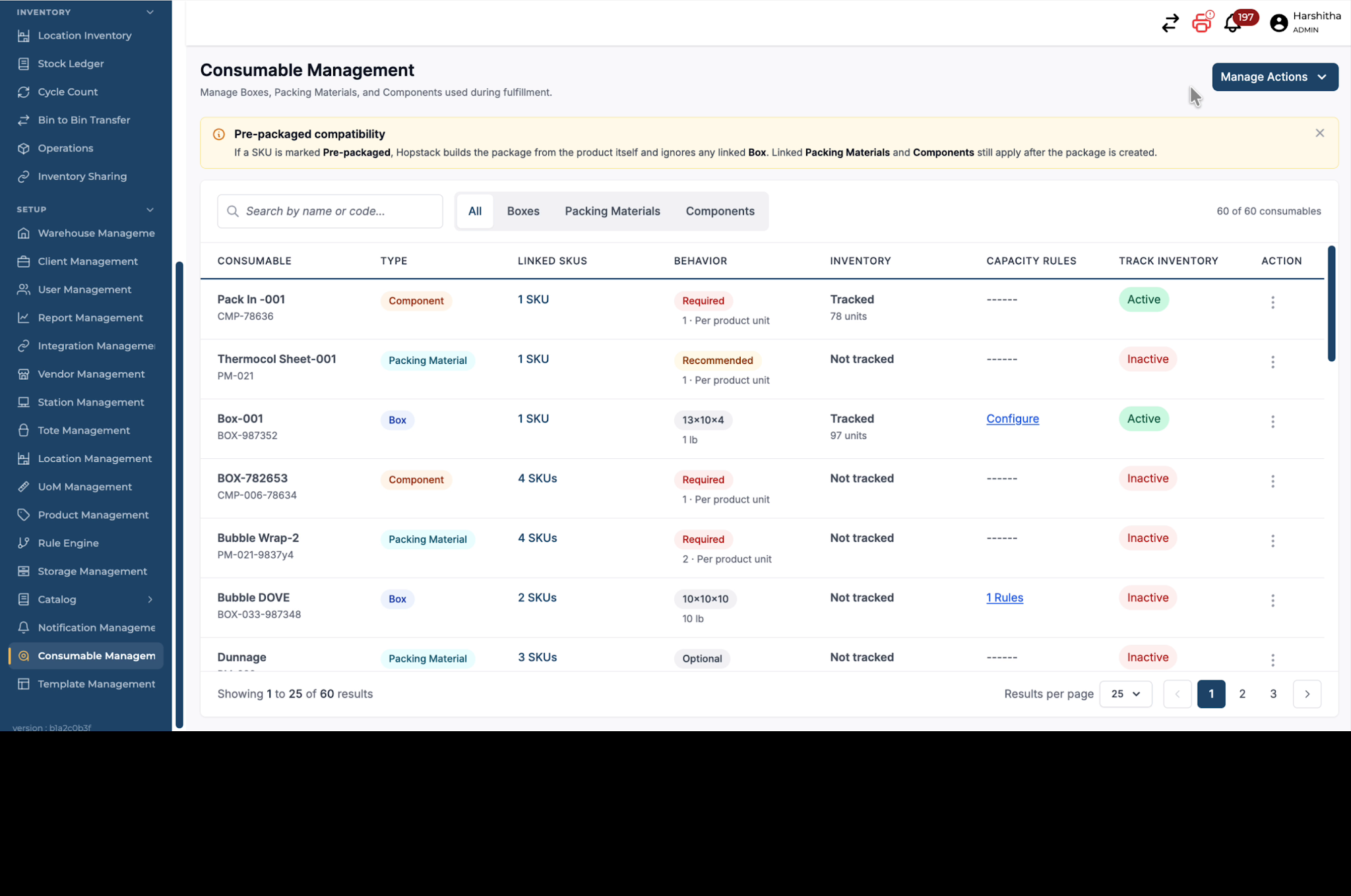
Step 2: Start Creating a New Consumable
Click Manage Actions and then select Create New Consumable to begin defining a new box, packing material, or component.
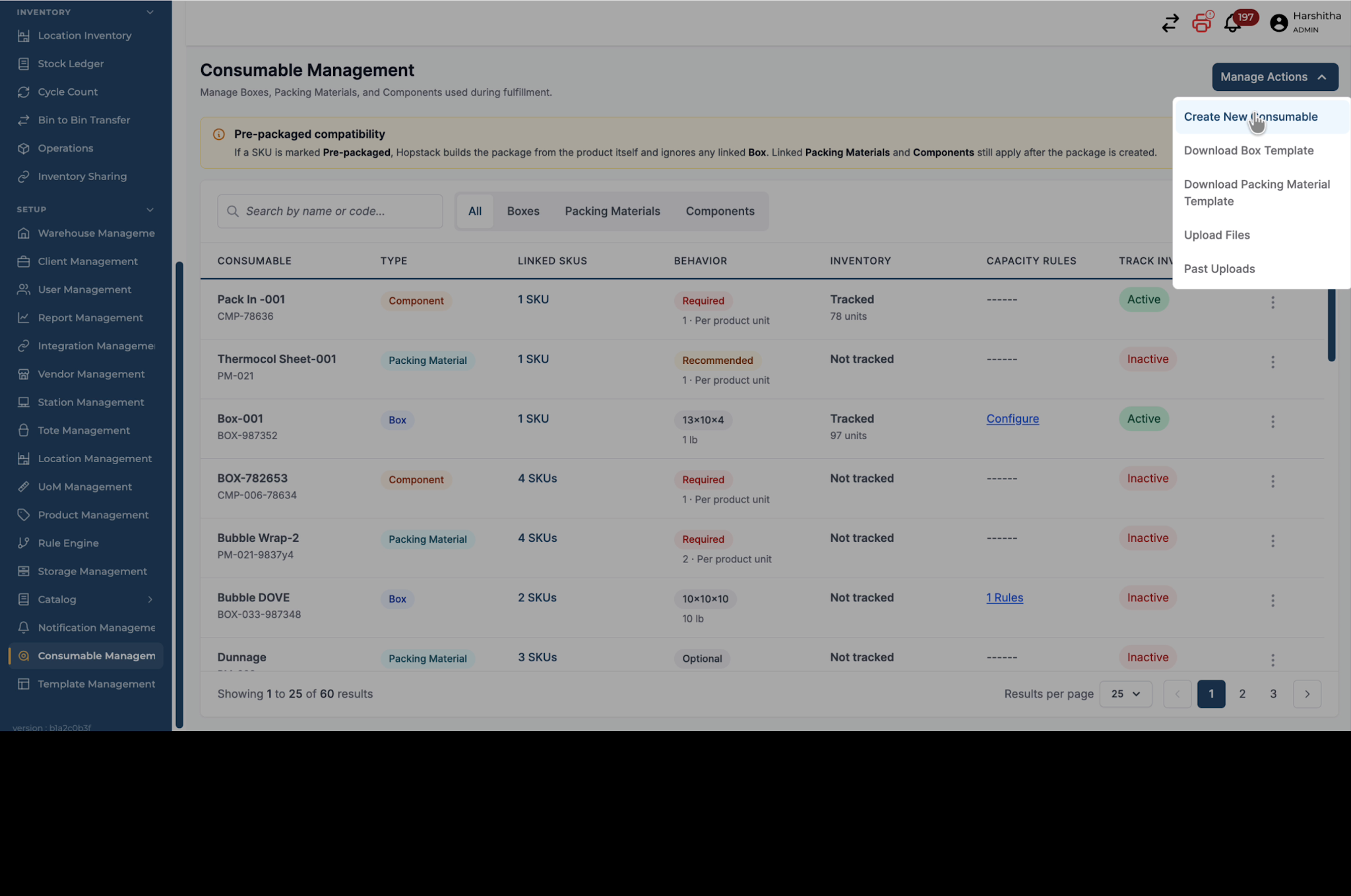
Step 3: Configure a Box Type Consumable
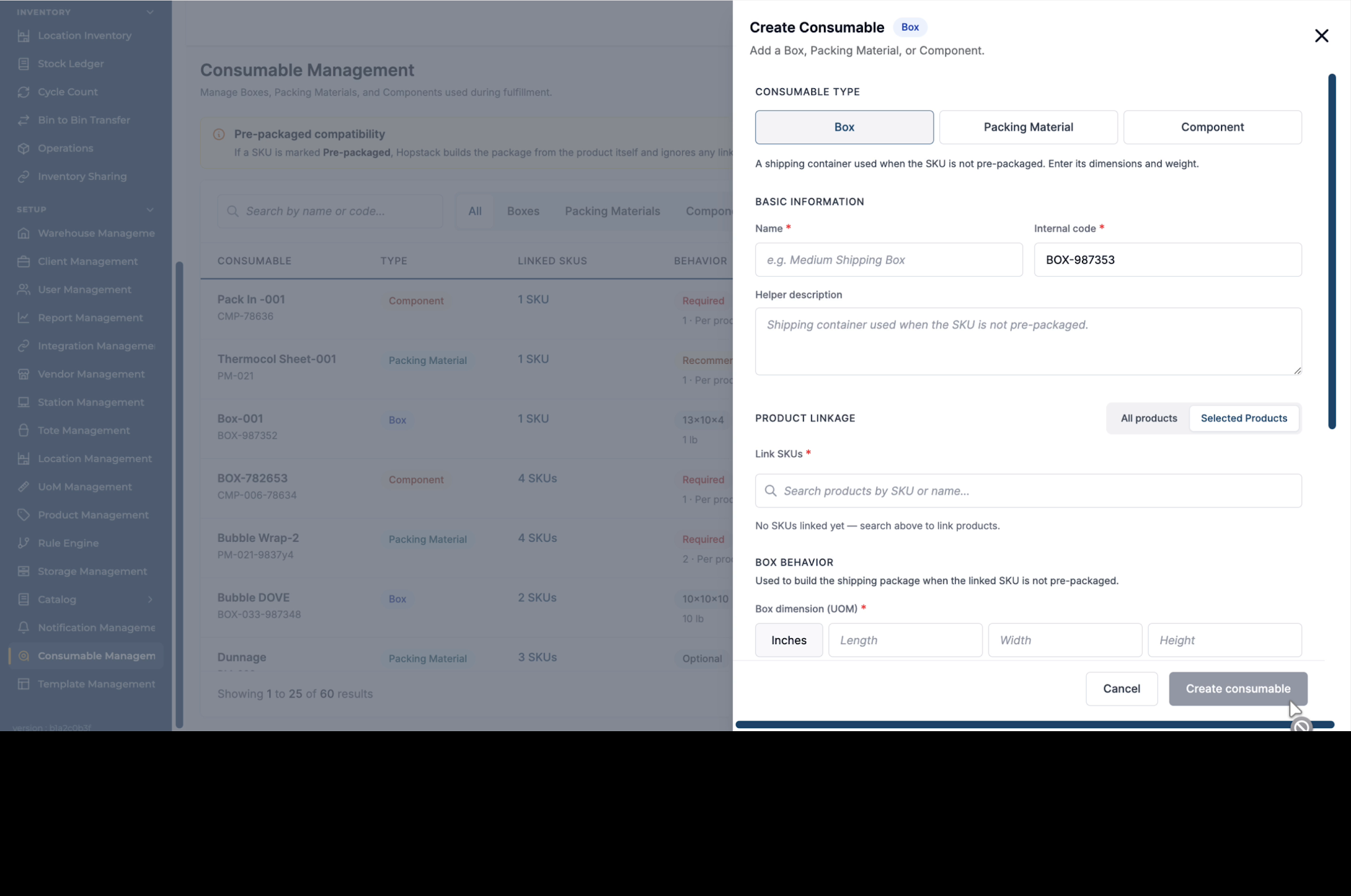
Choose the Box type. Enter a clear name and a helper description that the packer will see while packing. Link the box to one or more specific products so the packer can see the association during packing. Enter the box dimensions and weight so the system and packers know the physical properties of the box.
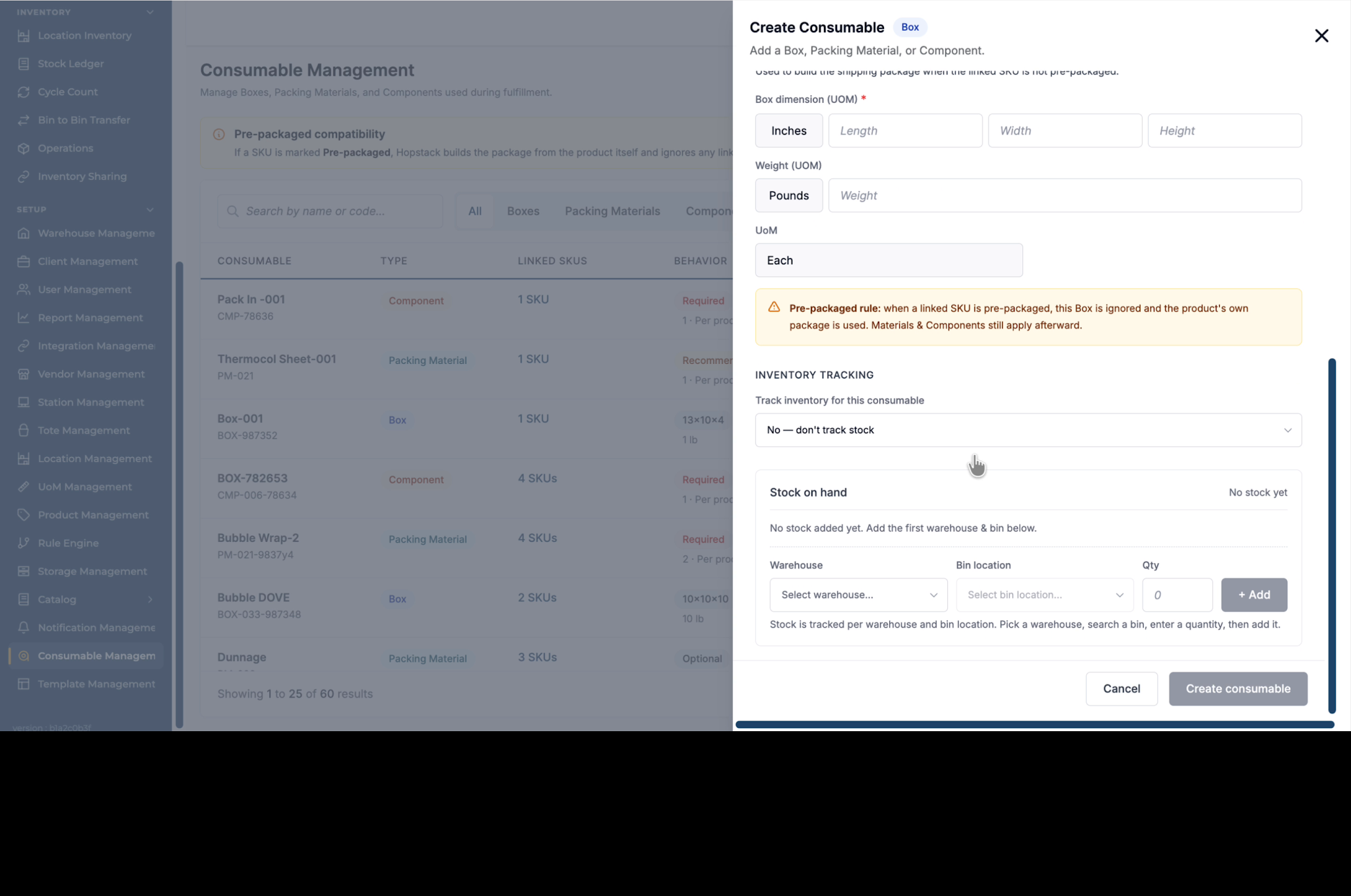
Step 4: Enable Inventory Tracking for the Box (Optional)
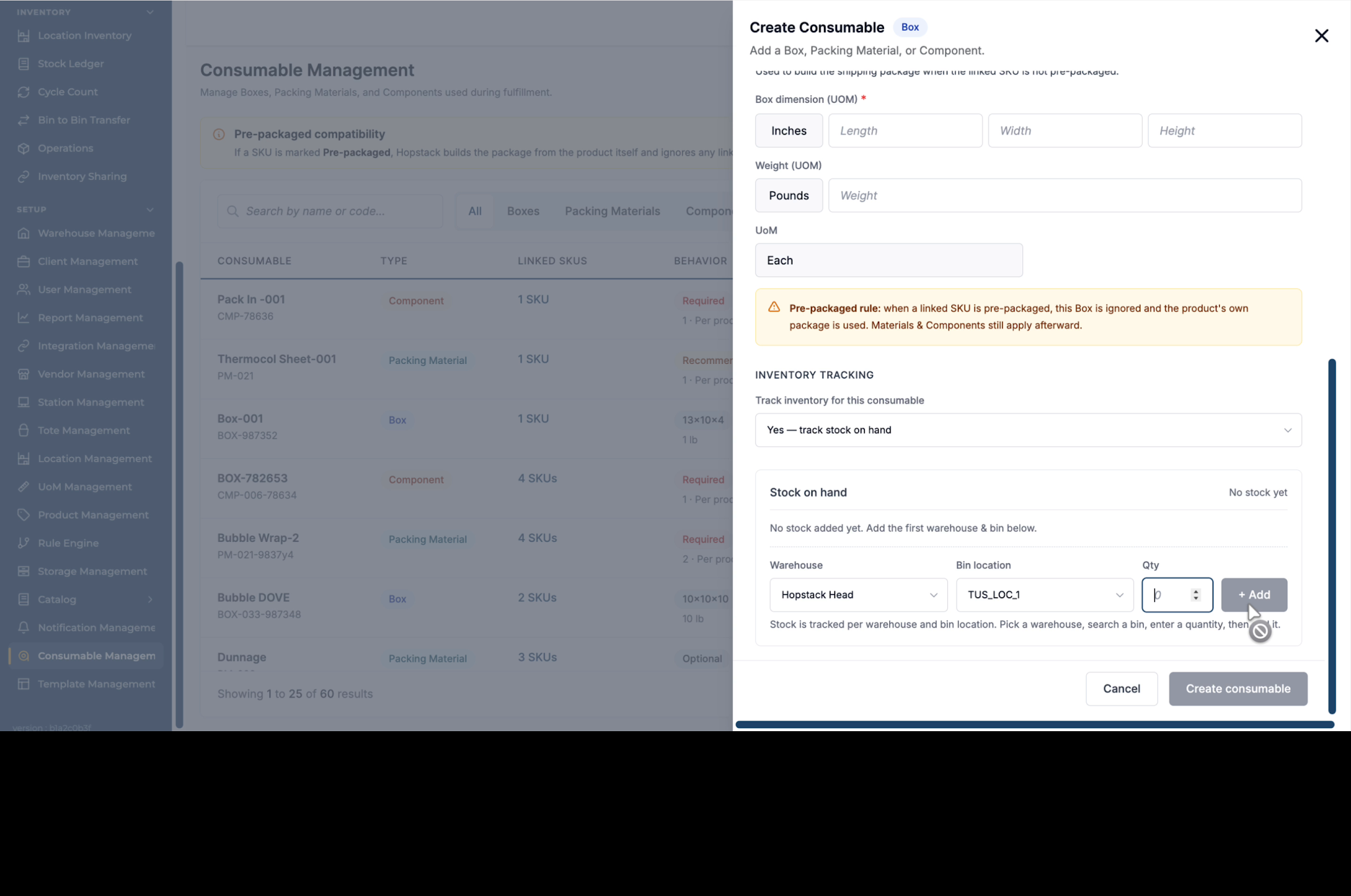
If you want to track the box as inventory, set Track Stock on Hand to Yes.
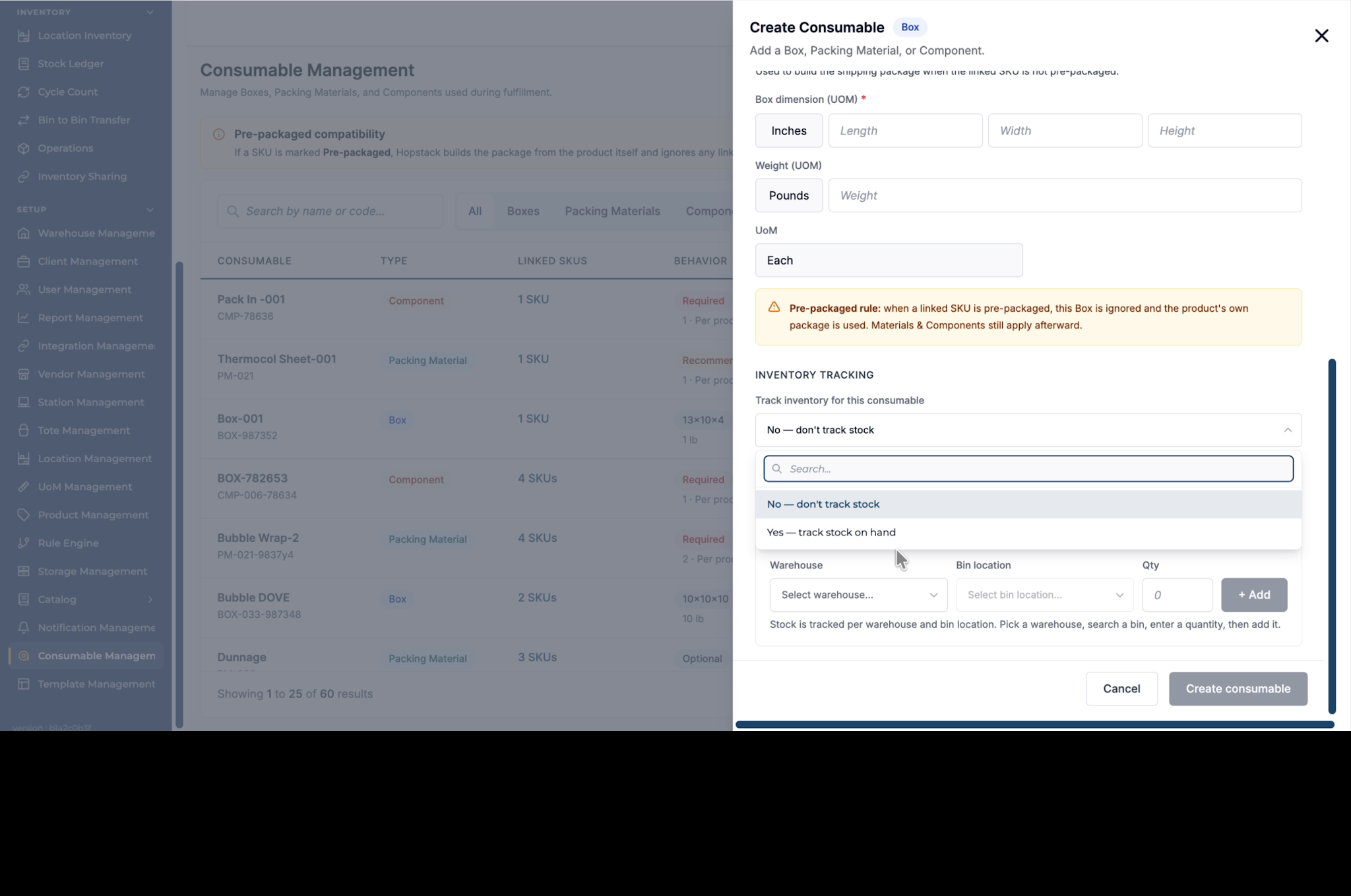
Step 5: Set Initial Stock and Location for the Box
Specify the starting stock on hand by selecting a bin location and entering the quantity available for this box.
Step 6: Save the Box Consumable
After filling in all required details, click Create Consumable to save the box configuration.
Step 7: Configure a Packing Material Consumable
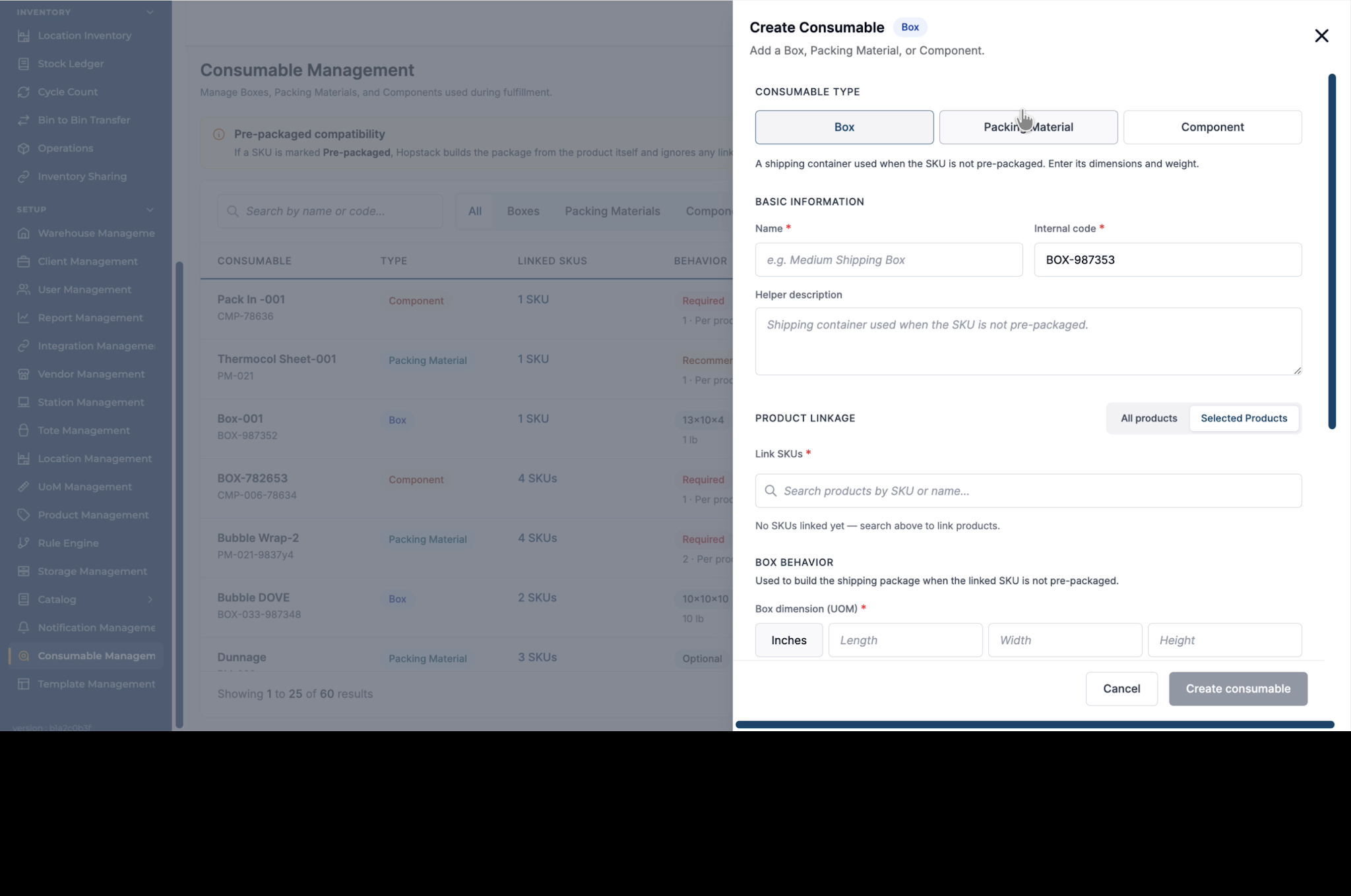
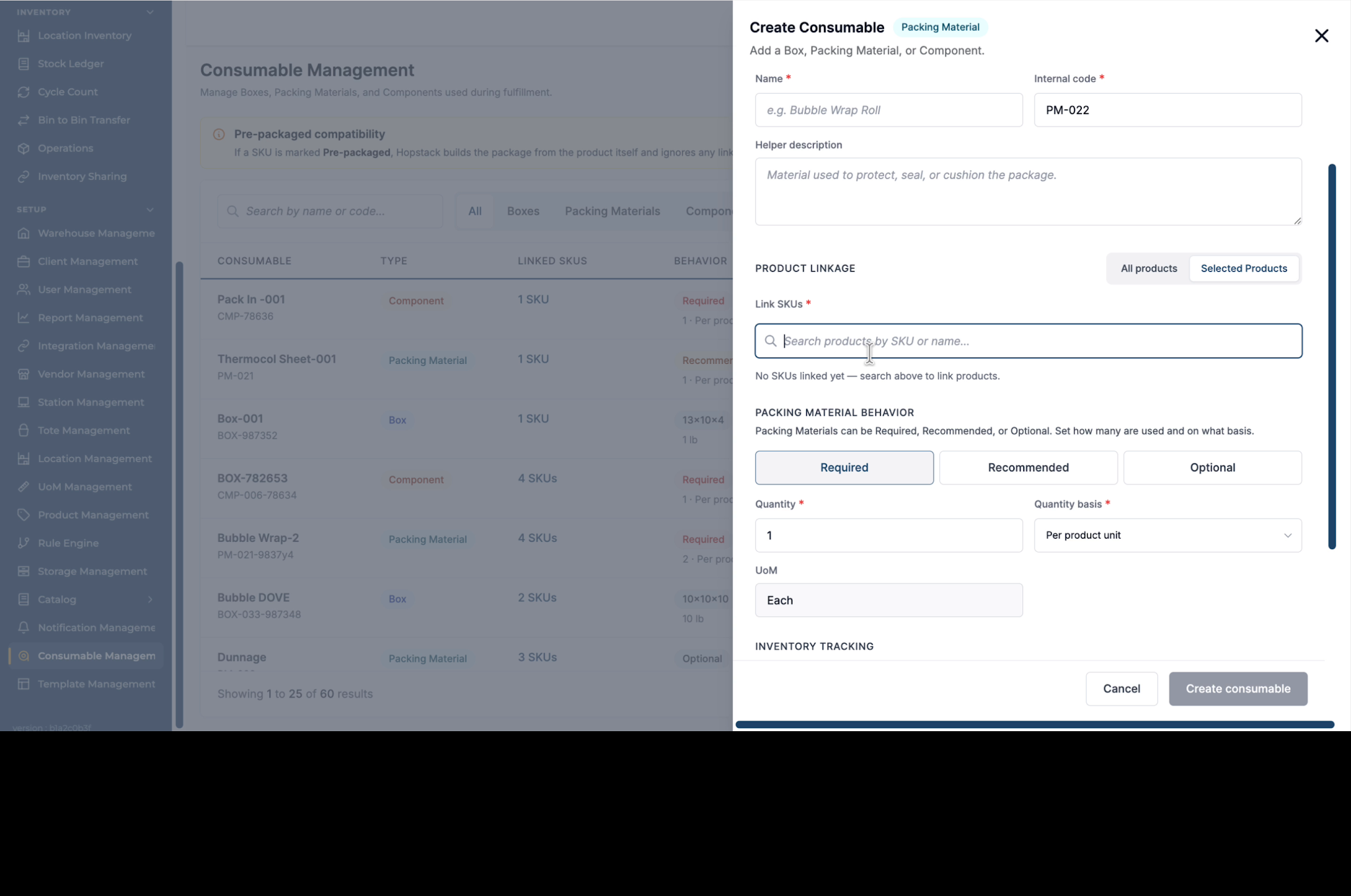
To add a packing material (for example, bubble wrap roll, Thermocol sheet, poly bag), choose the Packing Material type. Enter a clear name and helper description for the packer, and link the packing material to one or multiple products so it appears as an associated material during packing.
Step 8: Define Packing Material Behavior
Set the Material Behavior to specify how the packer should use it:
-
Required – the packer must use this material while packing.
-
Recommended – the system suggests using it, but it is not mandatory.
-
Optional – it is available and shown by category, but entirely optional.
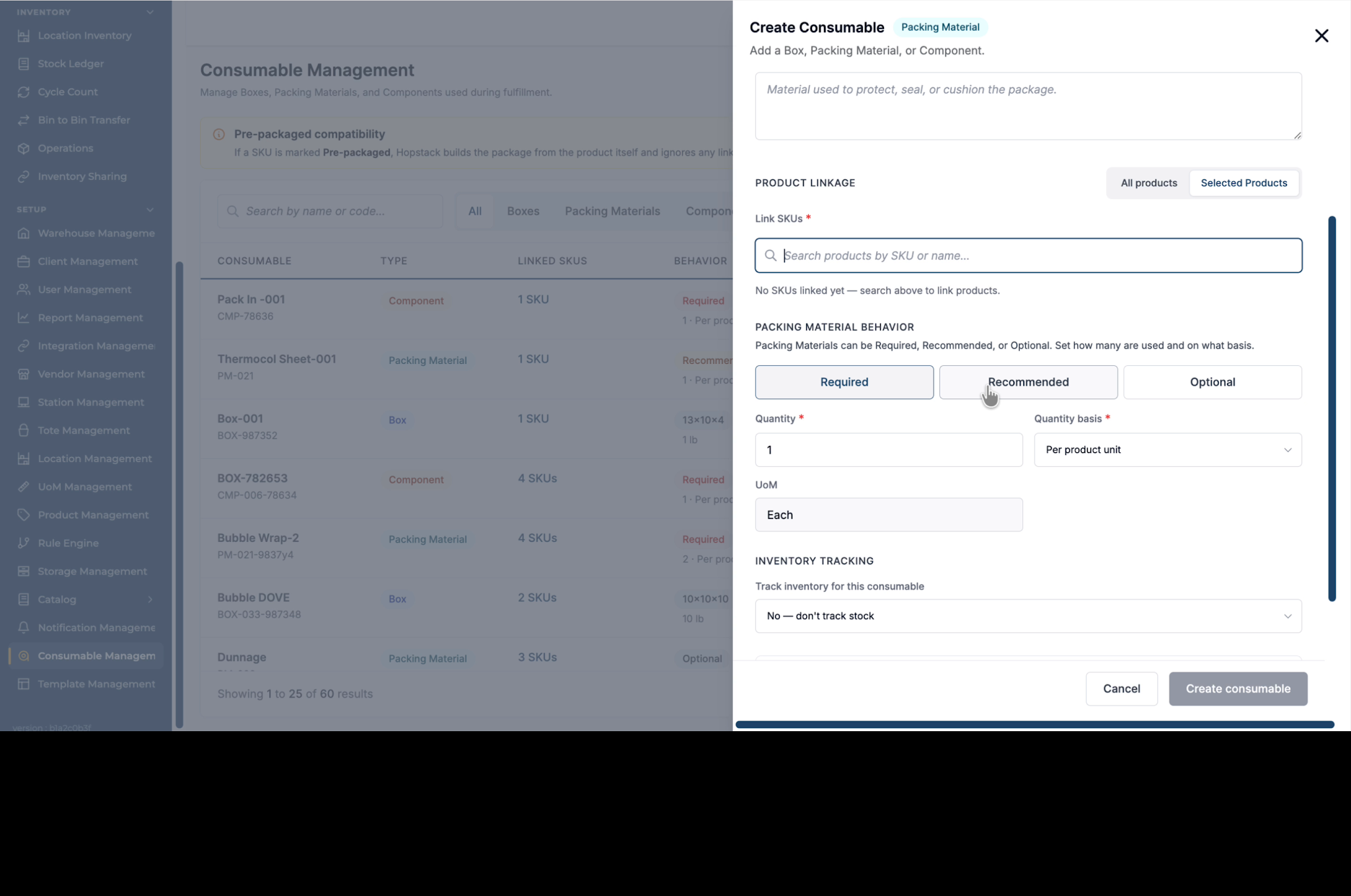
Step 9: Track Inventory and Stock for Packing Material
As with boxes, you can enable inventory tracking for packing materials and define stock on hand, including bin locations and quantities, so consumption can be monitored accurately.
Step 10: Configure a Packing Component Consumable
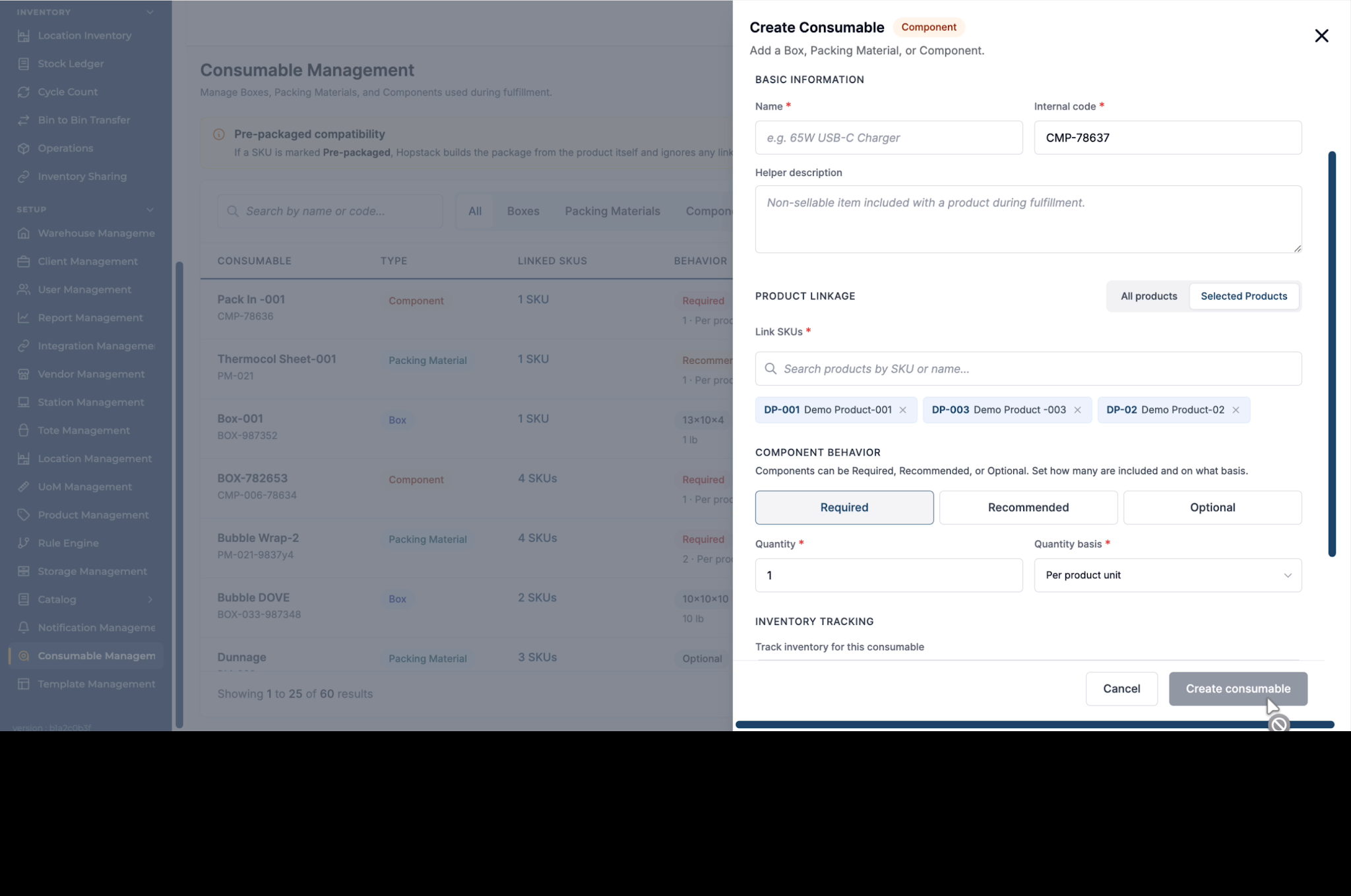
To add a packing component that must always go inside the box with the product (for example, charger, adapter, etc.), choose the Component type.
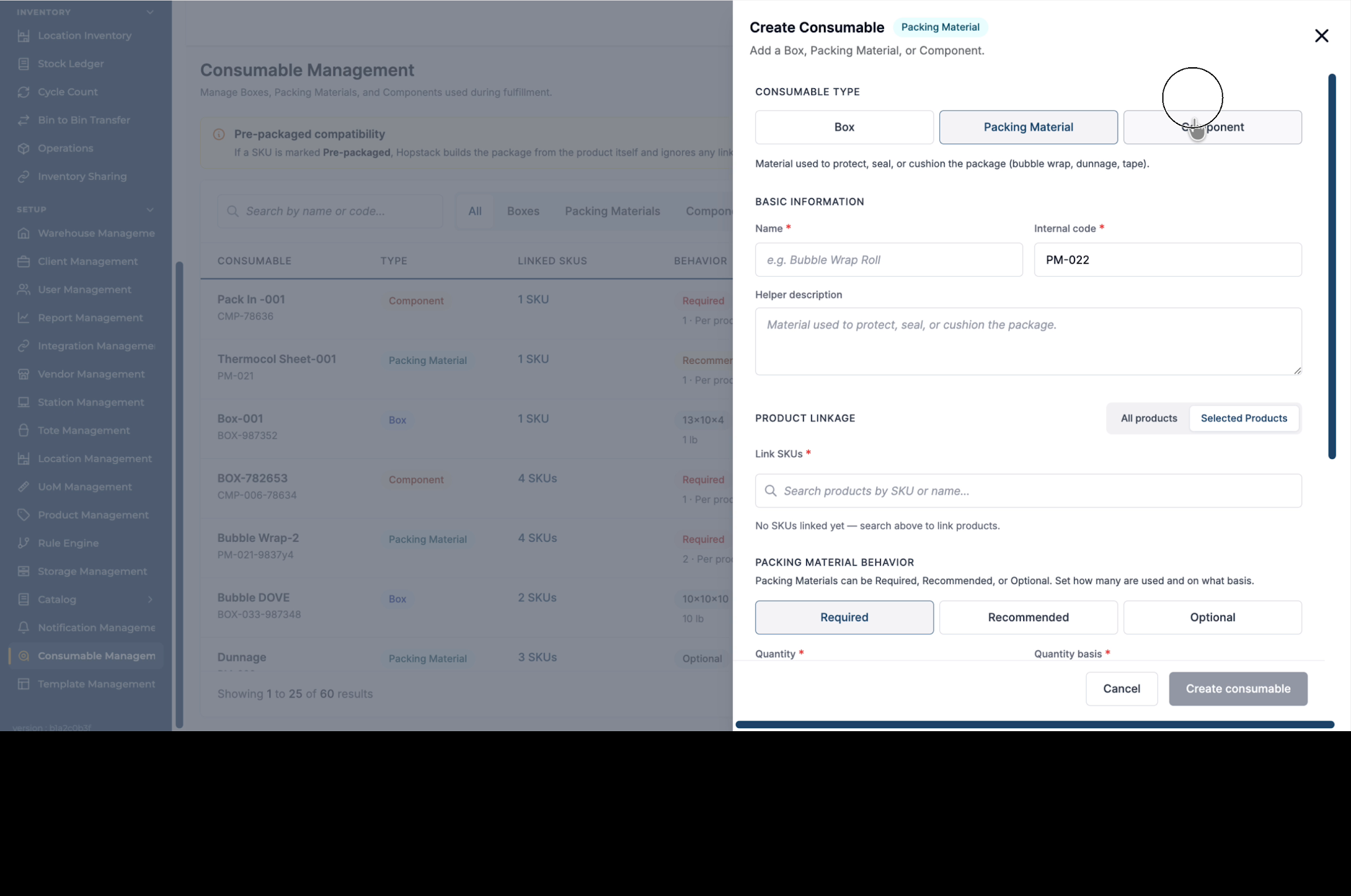
Enter the component name and description for the packer, link it to the relevant product(s), and set the Component Behavior and inventory tracking options similarly to packing materials.
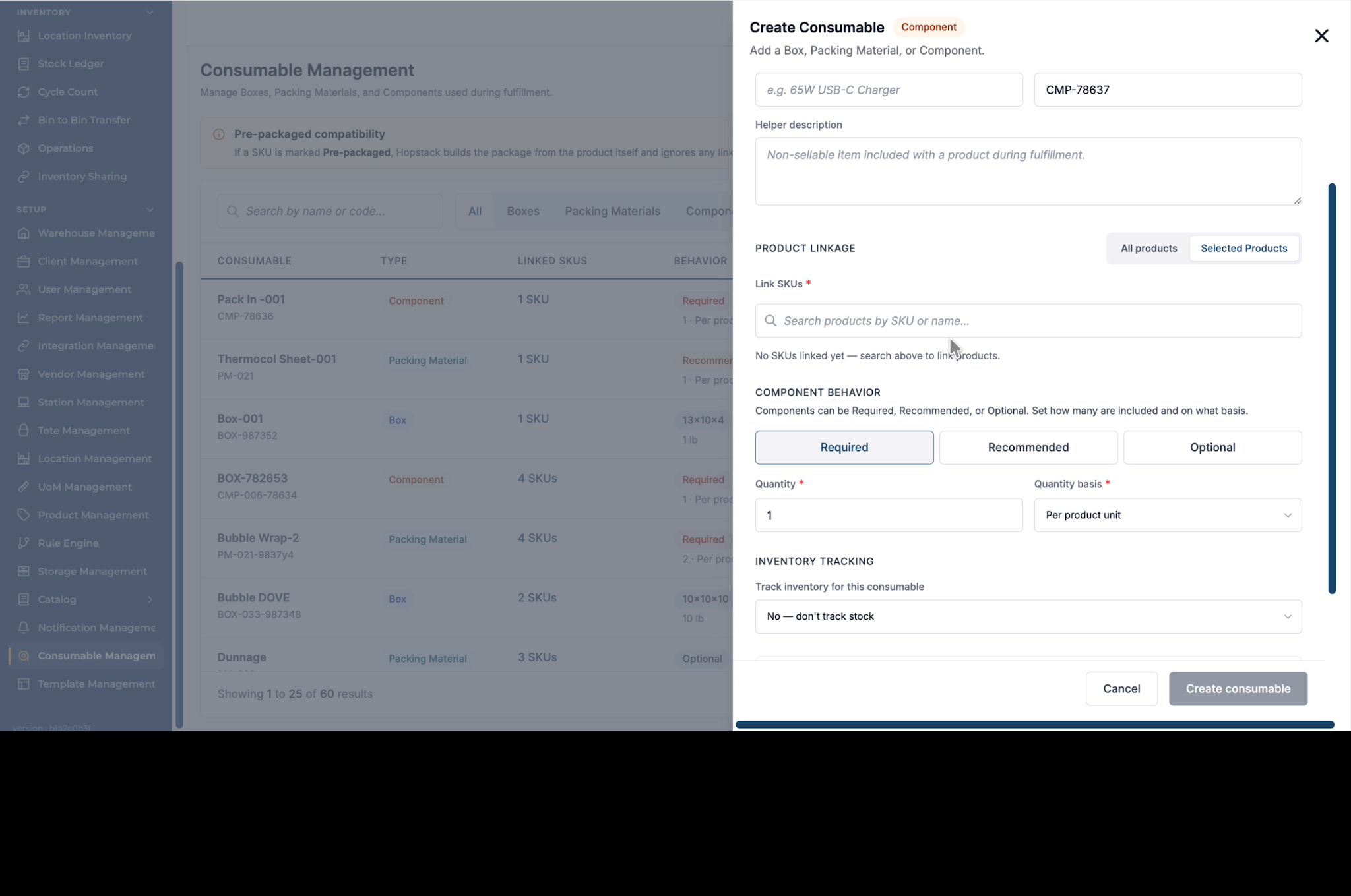
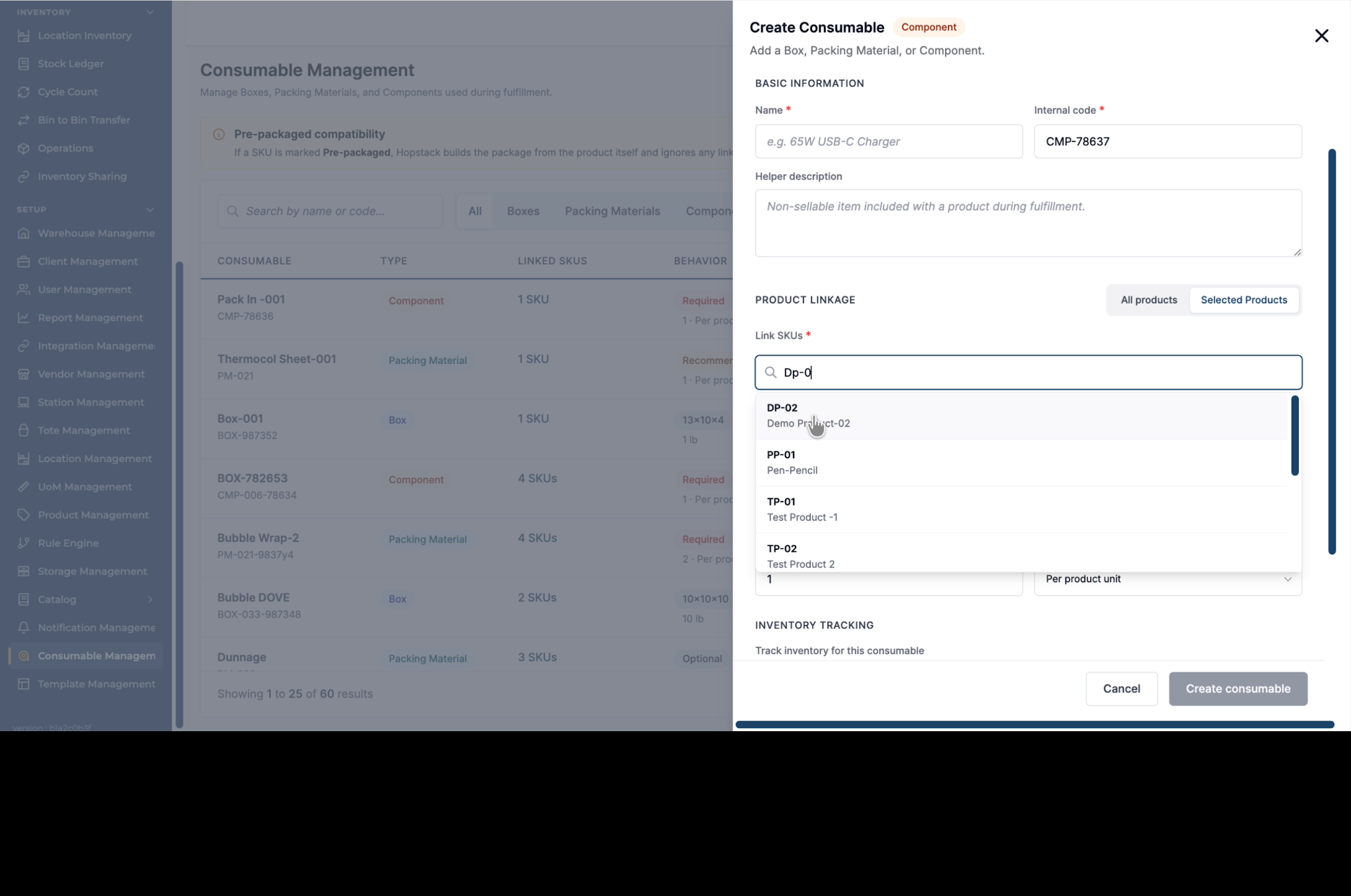
Note: Consumable can be linked to Multiple SKUs
Search for the relevant SKUs and select one or multiple SKUs to link the component to all applicable products.
Step 12: Save the consumable created
After providing all required details for the packing material or component, click Create Consumable to finalize and save the consumable configuration.
Add Consumables and Components Via Bulk Upload
You can now create or update Box, components, and pack-ins in bulk. On the Consumables Management page, open Manage Actions to download the bulk upload template.
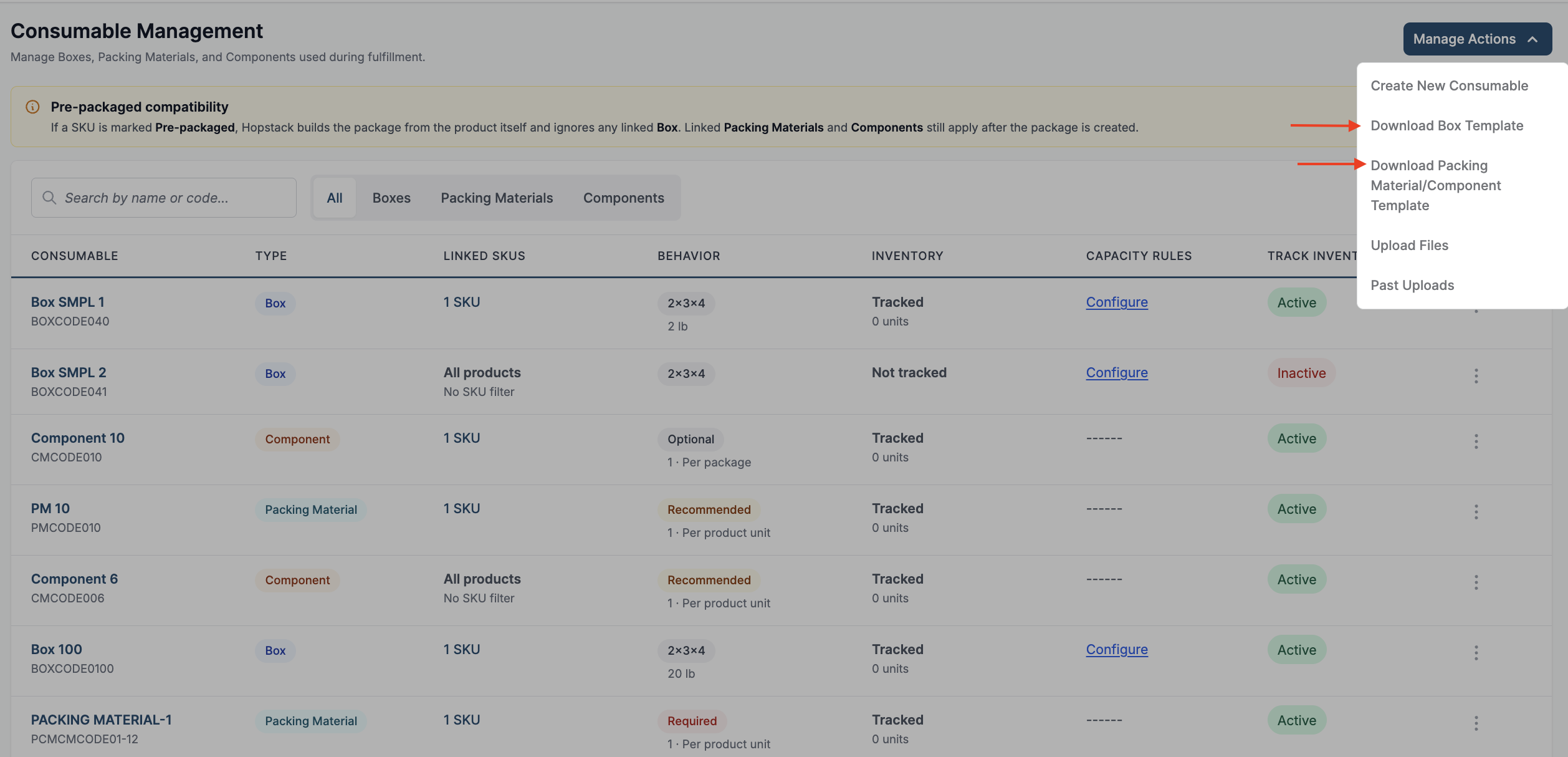
Fill it with the items you want to create or update, including consumable types and their product or SKU linkages, then upload the completed file. This makes it easier to set up and maintain fulfilment materials across many products at once.