
A prepaid return label lets the packer put a ready-to-use return label inside the parcel. If the end customer wants to send the order back, they attach the label and hand the parcel to the carrier. The packer buys the return label together with the outbound shipping label on the Shipment Preview screen.
-
Carriers: UPS and FedEx, through their direct integrations in Hopstack.
-
Addresses: the return label is rated and created from the order's ship-to address (the end customer) back to the warehouse the order ships from.
-
Box: the return label uses the dimensions and weight of the largest box in the outbound shipment.
-
Inventory: buying a return label does not change inventory and does not create a return receipt.
This is a gated feature, please reach out to your implementation lead or sales liaison to enable this for your account.
Before you start
Two settings must be on before the option appears during packing:
-
For your account: prepaid return labels must be enabled for your Hopstack account by the Hopstack team. Until it is, the client setting below is not shown.
-
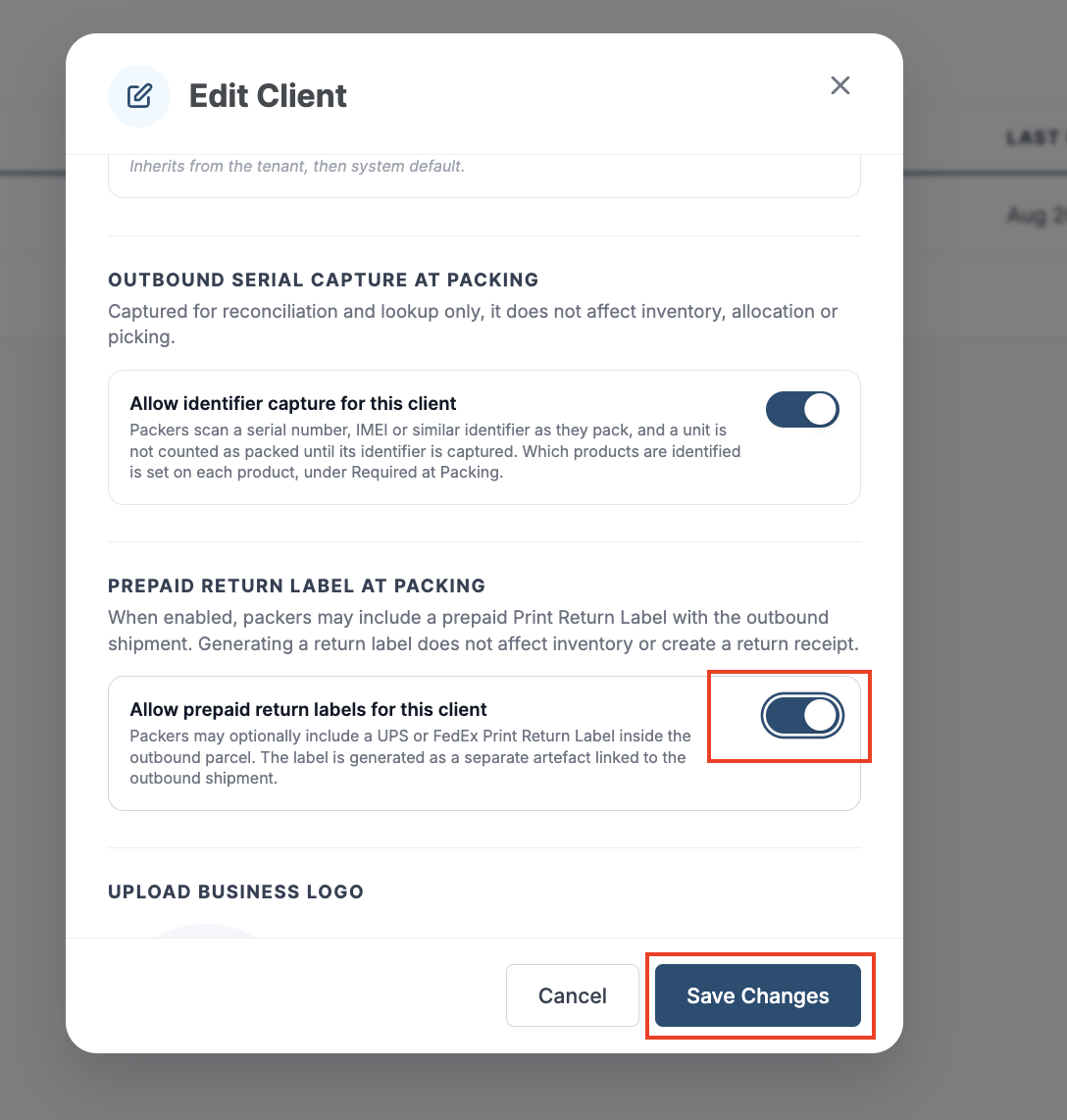
For each client: open Client Management, edit the client (see Editing Client Details), and in the Prepaid Return Label at Packing section turn on Allow prepaid return labels for this client. Click Save Changes to save.
You also need an active UPS or FedEx integration that can rate and buy labels for the warehouse.
Add a return label while packing
Step 1: Include the return label
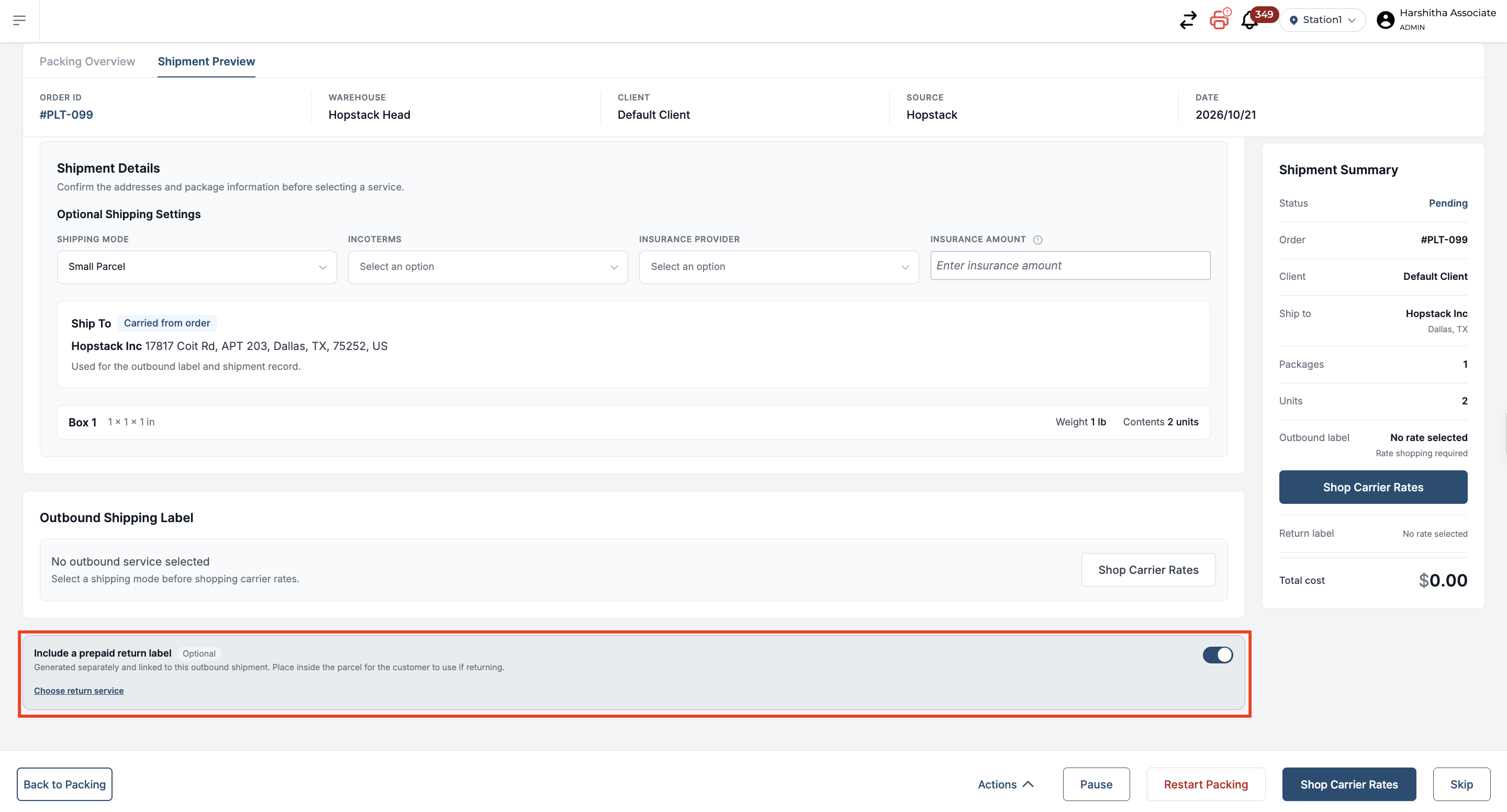
On the Shipment Preview screen, find the card Include a prepaid return label (marked Optional) and switch it on.
Step 2: Choose a return rate
Open the carrier rates panel. When the return label is included, the panel has two tabs: Outbound Label and Return Label. Select the Return Label tab. It shows UPS and FedEx rates for the return trip, with the end customer's address under Return From. Select a rate and click Use This Rate.
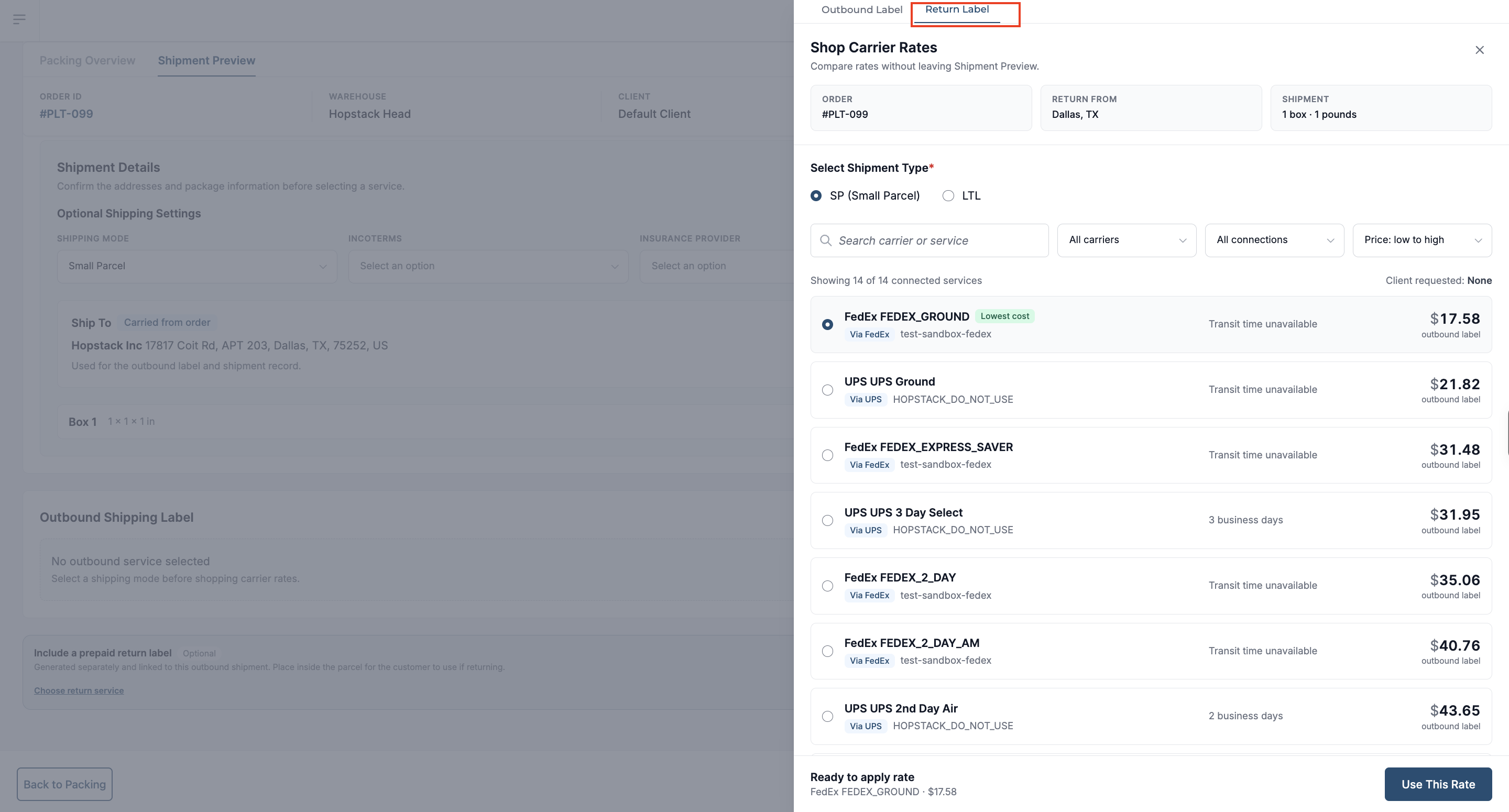
Choose the outbound rate on the Outbound Label tab as usual.
Step 3: Purchase both labels
The purchase button counts both labels and shows their combined price, for example Purchase and Generate 2 Labels. Click it and confirm.
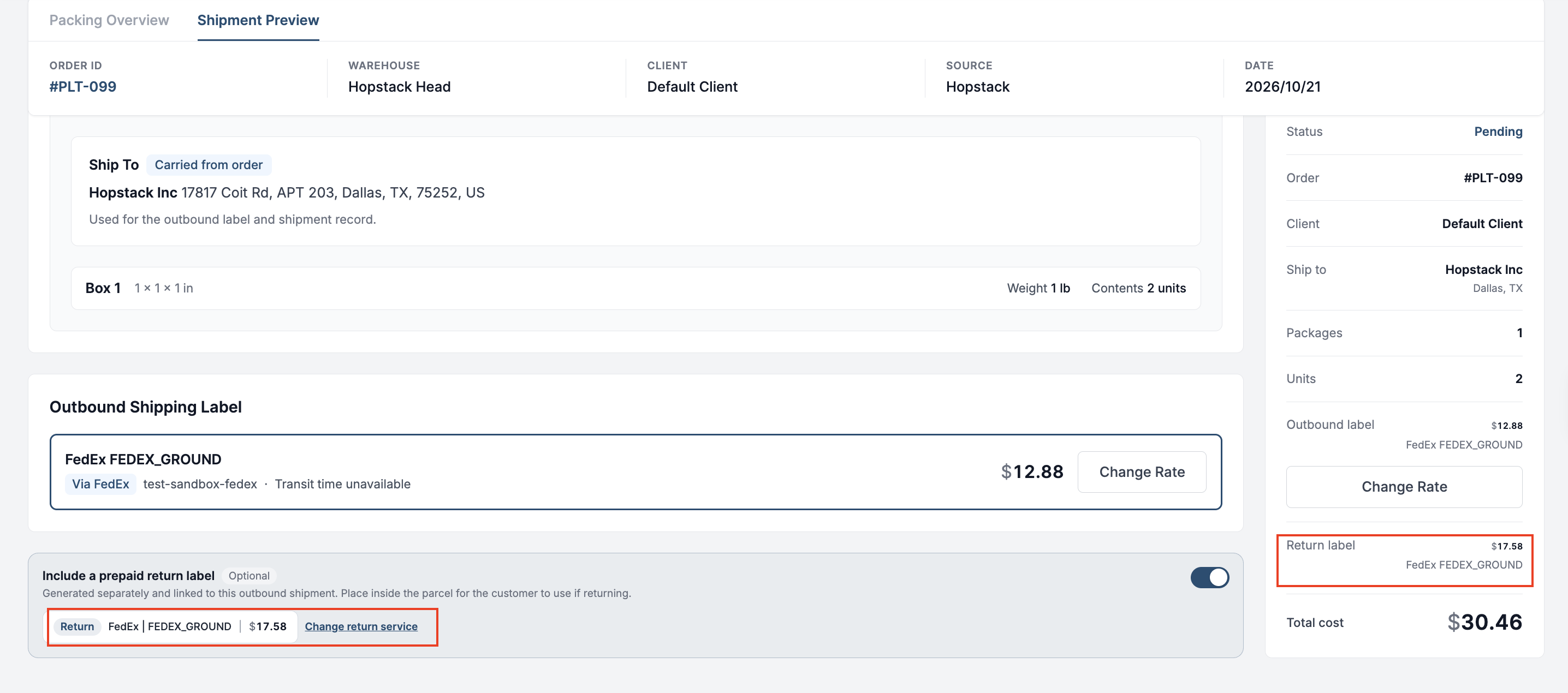
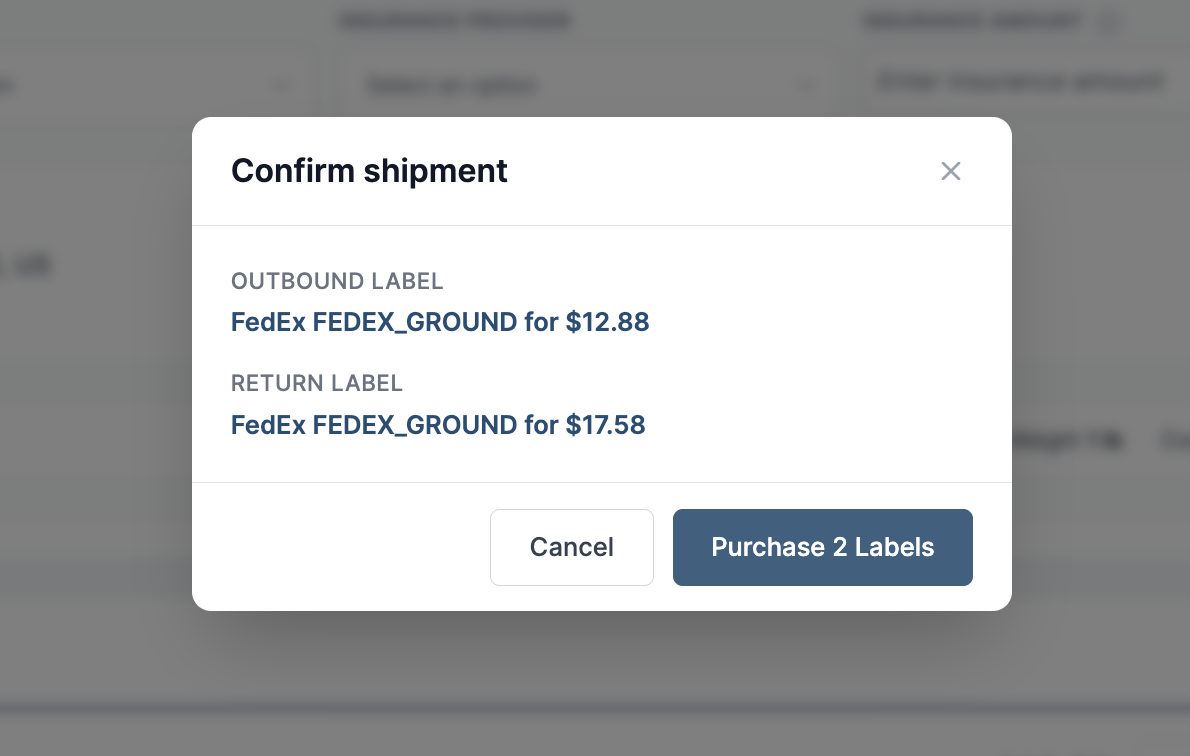
Hopstack buys the outbound label first, then the return label. If the return label cannot be bought, the outbound label is still created and packing can continue.
Once bought, the return label card shows the carrier, service, price and tracking number of the return label.
Download or print the return label
In the packing flow, open the Actions menu and choose Download Return Label or Print Return Label. The options that download or print all labels together include the return label.
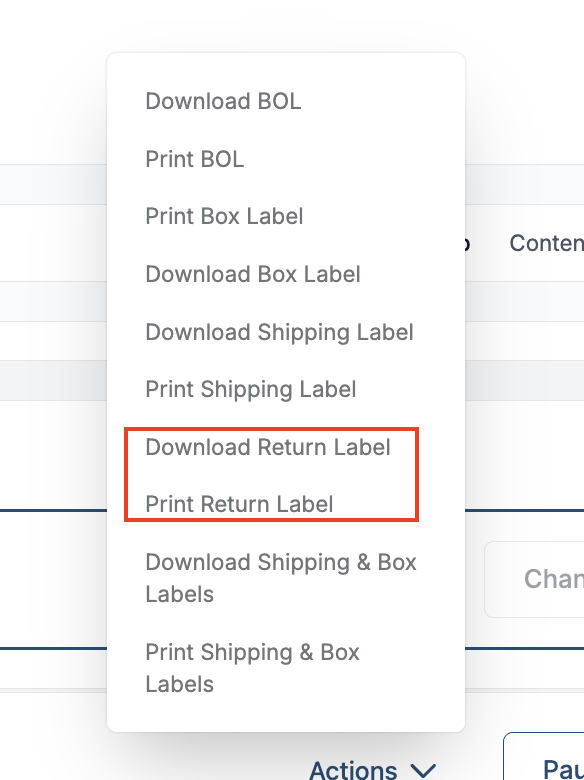
For the other label options, see Download or Print Box and Shipping Labels.
Place the printed return label inside the parcel.
Restarting packing
If packing is restarted after the labels were bought, both the outbound label and the return label are voided with the carrier. See Pause, Resume or Restart Packing.