
Option 1: Scan to initiate packing
Use this option when the tote or order barcode is available at the packing station. The scan field remains active, allowing a connected station scanner to be used without clicking the field for every scan.
Open the Scan view.: On the Packing Queue page, select Scan.
Scan the identifier: Scan the Tote ID or Order ID into the Tote / Order ID field. You can also type the identifier manually.
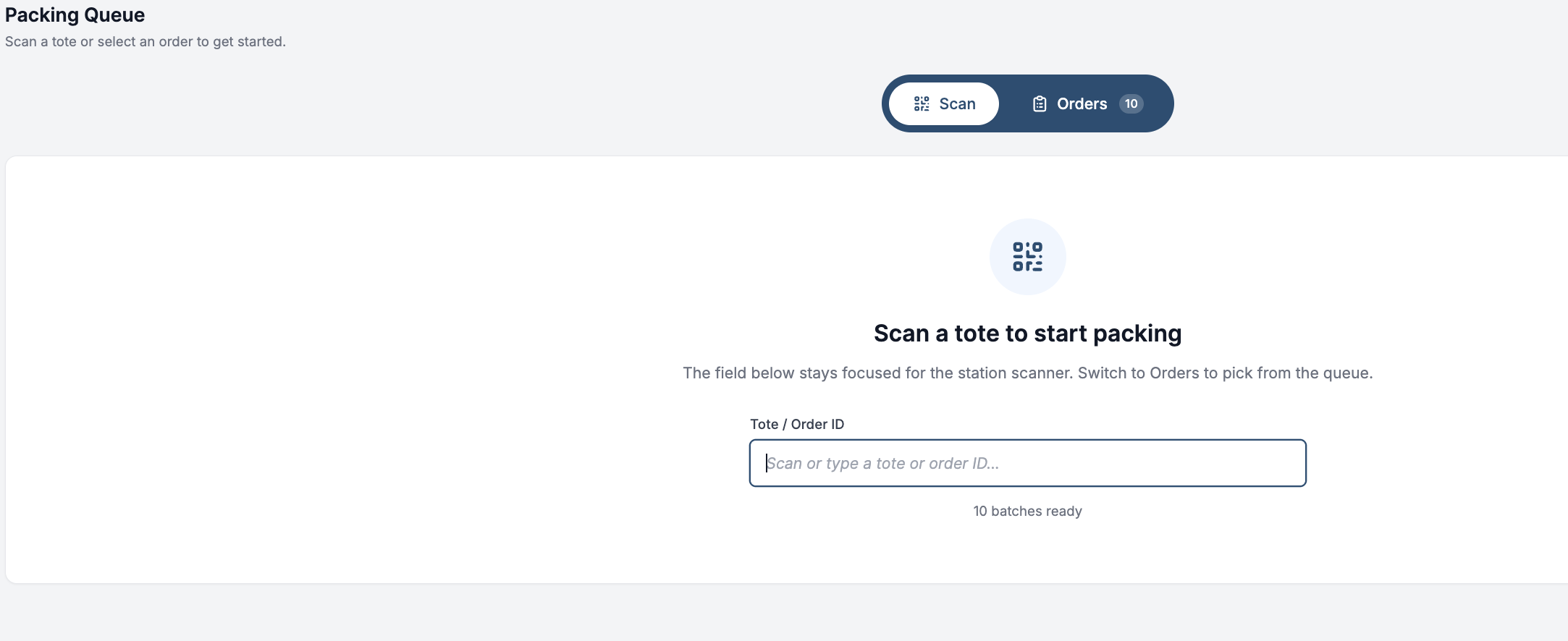
Begin packing: Once a valid identifier is captured, Hopstack opens the corresponding Pack Order page and confirms that packing has started successfully.
Tip: Scanning is the fastest option when each tote or order reaches the station with a scannable barcode.
Packing for offline picking operations is now more seamless, enabling users to scan the Picking Batch ID from the pick list to initiate packing.
Option 2: Select an order from the list
Use the Orders view when you need to find and choose a packing record from the queue, or when a barcode is unavailable.
Open the Orders view: On the Packing Queue page, select Orders.
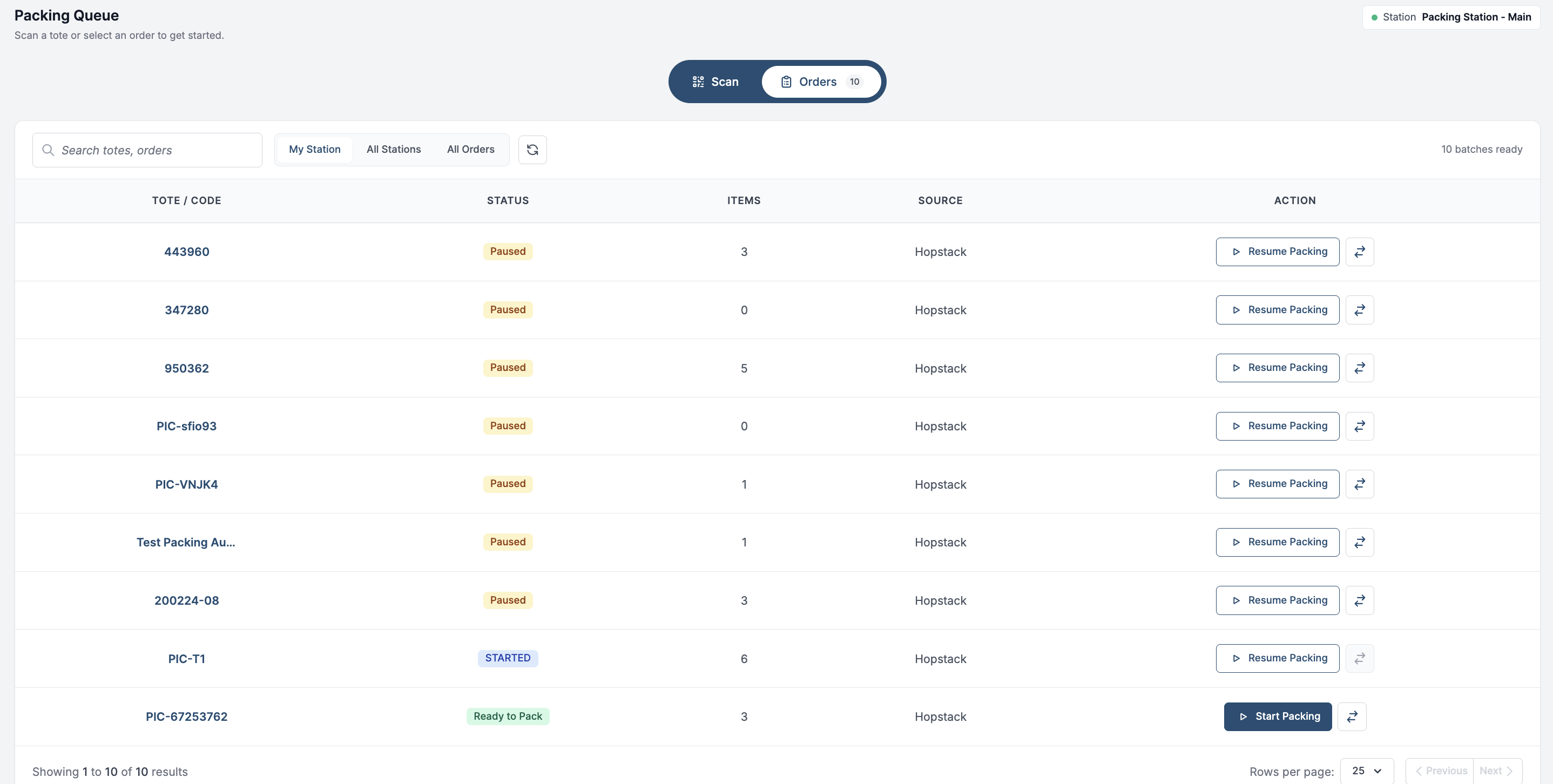
Find the Order:
The order list by default shows the list of orders awaiting packing at your station.
- Search by Order ID or Tote ID using the search field
- Switch to All Stations to view and select orders that are being worked on at other stations.
- Switch to All Orders to search for and work on any specific order, regardless of station assignment.
The user sees the Tote ID/Order ID, Status, Items, and Source in the table to confirm they have selected the correct record.
Start or resume packing:
From the Orders list view:
-
Click Start Packing to begin packing for a new order.
-
Click Resume Packing to continue packing an order that has already been partially processed.
Begin packing: Once the user clicks on Start Packing, Hopstack opens the corresponding Pack Order page and confirms that packing has started successfully.
Scan an Item to start packing pick lists without sub-totes
Note: This feature is not enabled by default. Contact your implementation lead to enable it for your account. Pick lists using sub-totes continue to follow the sub-tote scanning flow.
For multi-order pick lists without sub-totes, you can start packing with the item in your hand. Hopstack selects the next eligible order containing that item.
-
When prompted to Scan any item to start, scan the item’s SKU, UPC, EAN, FNSKU or LPN.
-
Hopstack opens the matching order with the scanned item selected. Continue with the regular packing flow.
-
After completing packing and dropoff, scan another item to start the next order from the same pick list. You do not need to scan the Picking Batch ID again.
If an order is already open, finish or pause it before starting another. Paused orders are considered after other eligible matching orders and can also be resumed from the Orders tab in the Packing Queue.
This feature helps with an efficient packing flow where picking is confirmed manually.