This document explains how to access, download, and print shipping labels, box labels, and Bills of Lading (BOL) from both the packing flow and the order management screen, including options to handle labels individually or together.
1. Download or Print Labels during the Packing flow
Step 1: Confirm Label Generation
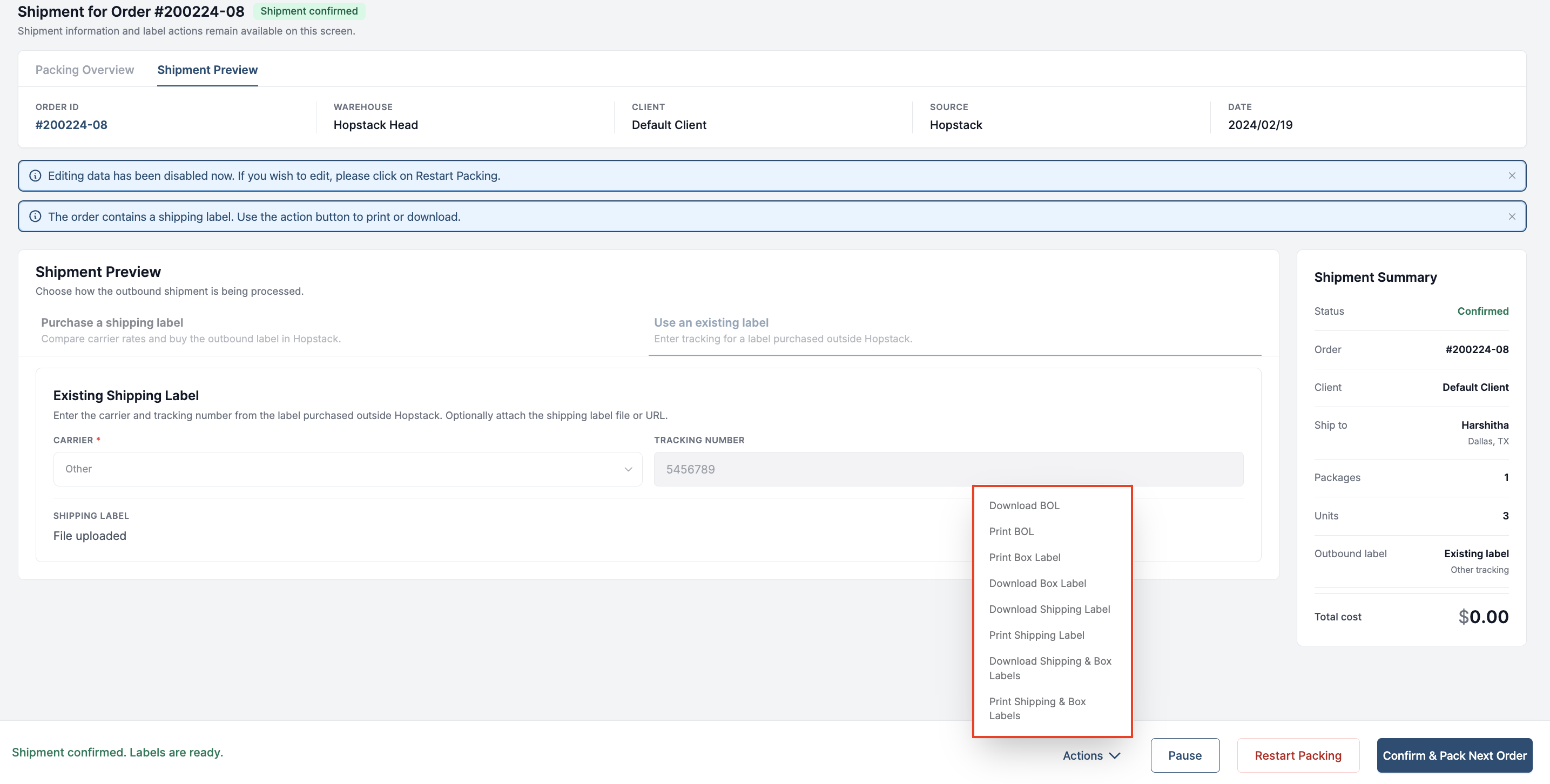
Once the shipping label has been generated, the system will display a notification that the order contains a shipping label.
Step 2: Re-download or Re-print the Shipping Label During Packing
At any time during the packing flow, you can download or print the shipping label again. Open the Actions menu and choose either Download shipping label or Print shipping label.
Step 3: Print or Download Box Labels and BOL from the Packing Flow
From the same Actions menu in the packing flow, you can also download or print the box label.
If the order is not a small parcel but an LTL order, you can download and print the Bill of Lading (BOL) from the Actions menu as well.
To handle both labels together, use Download shipping and box label or Print shipping and box label to download or print both the shipping and box labels at once.
Step 4: Download or Print the Return Label
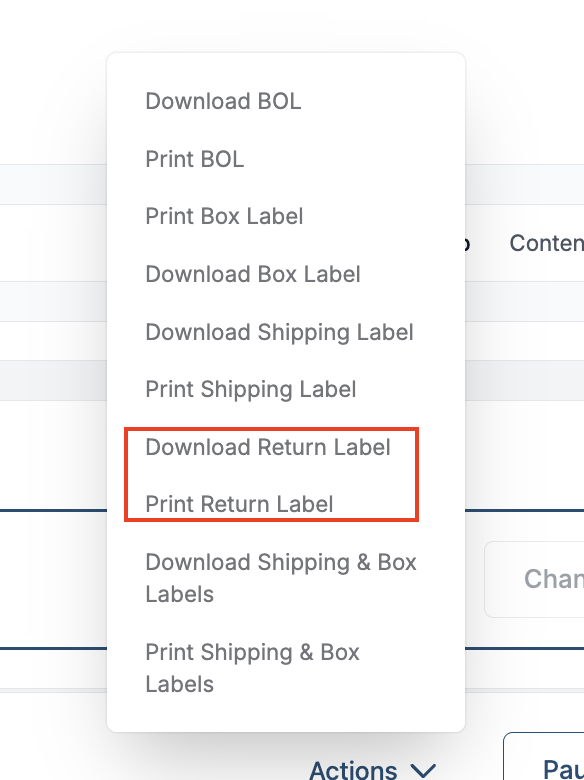
If a prepaid return label was bought with the shipment, the Actions menu in the packing flow also has Download Return Label and Print Return Label. The options that download or print labels together include the return label. See Prepaid Return Labels at Packing.
2. Access Labels from Order Management
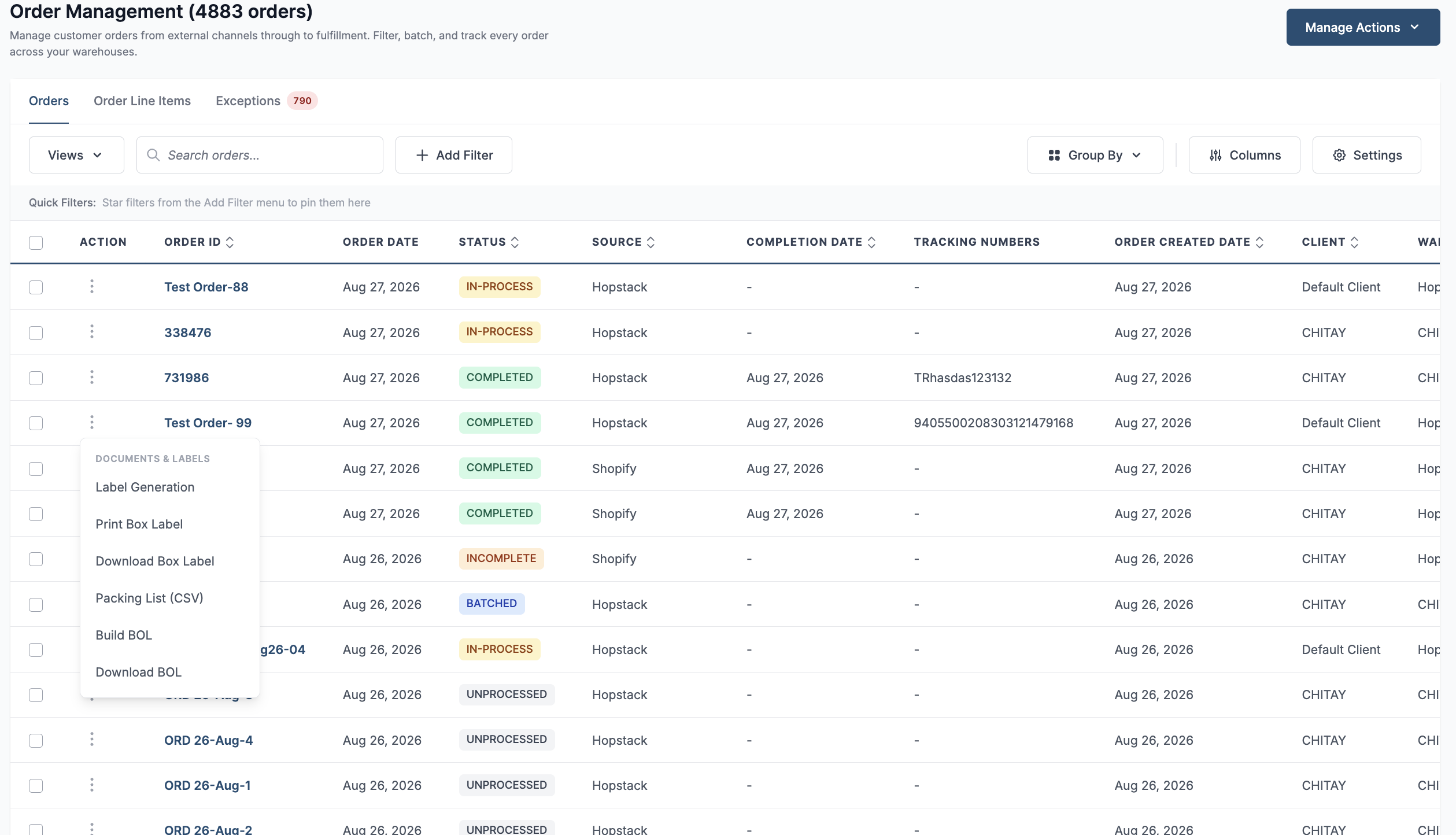
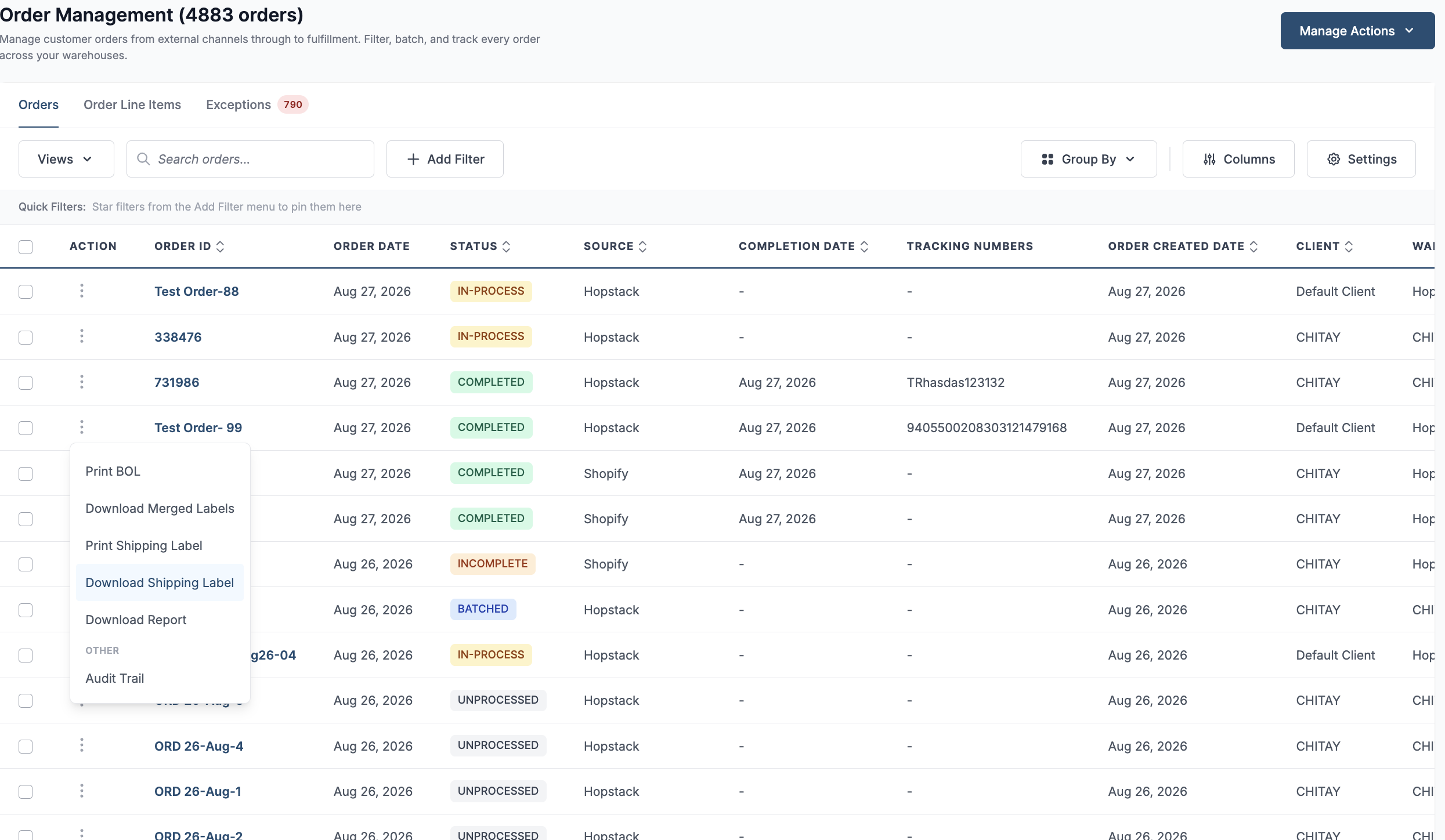
The same label options are available from the order record in Order Management.
Click Actions, then go to the Documents and Labels section to access options to download or print box labels and shipping labels directly from Order Management.