You can now see a customer-facing activity feed for your integrations. Instead of reaching out to support when an integration sync fails or behaves unexpectedly, you can open the activity log and see exactly what happened: which records synced, which failed, and what the error was.
Activity logs are now available for Salesforce, FedEx, UPS, and Shopify integrations. Each log entry shows the operation, timestamp, status, and detailed error messages when applicable. For UPS specifically, error message details are now surfaced clearly instead of being hidden behind generic codes.
As part of our latest update, the Integration Activity logs feature now extends to CommerceHub, eBay, Shippo and Stamps.com.
To access the Activity logs, follow the steps below.
-
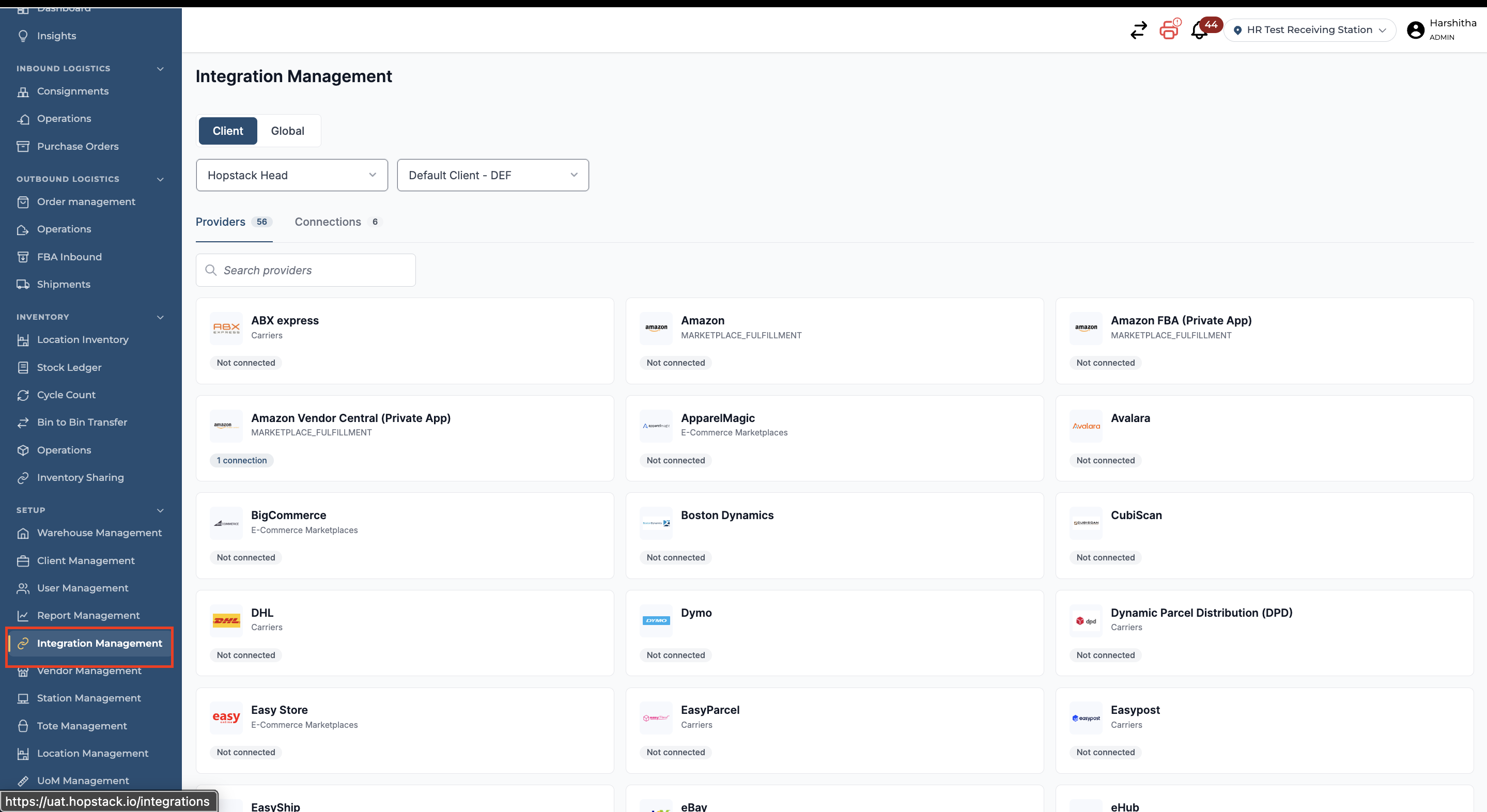
Navigate to Integrations Management.
-
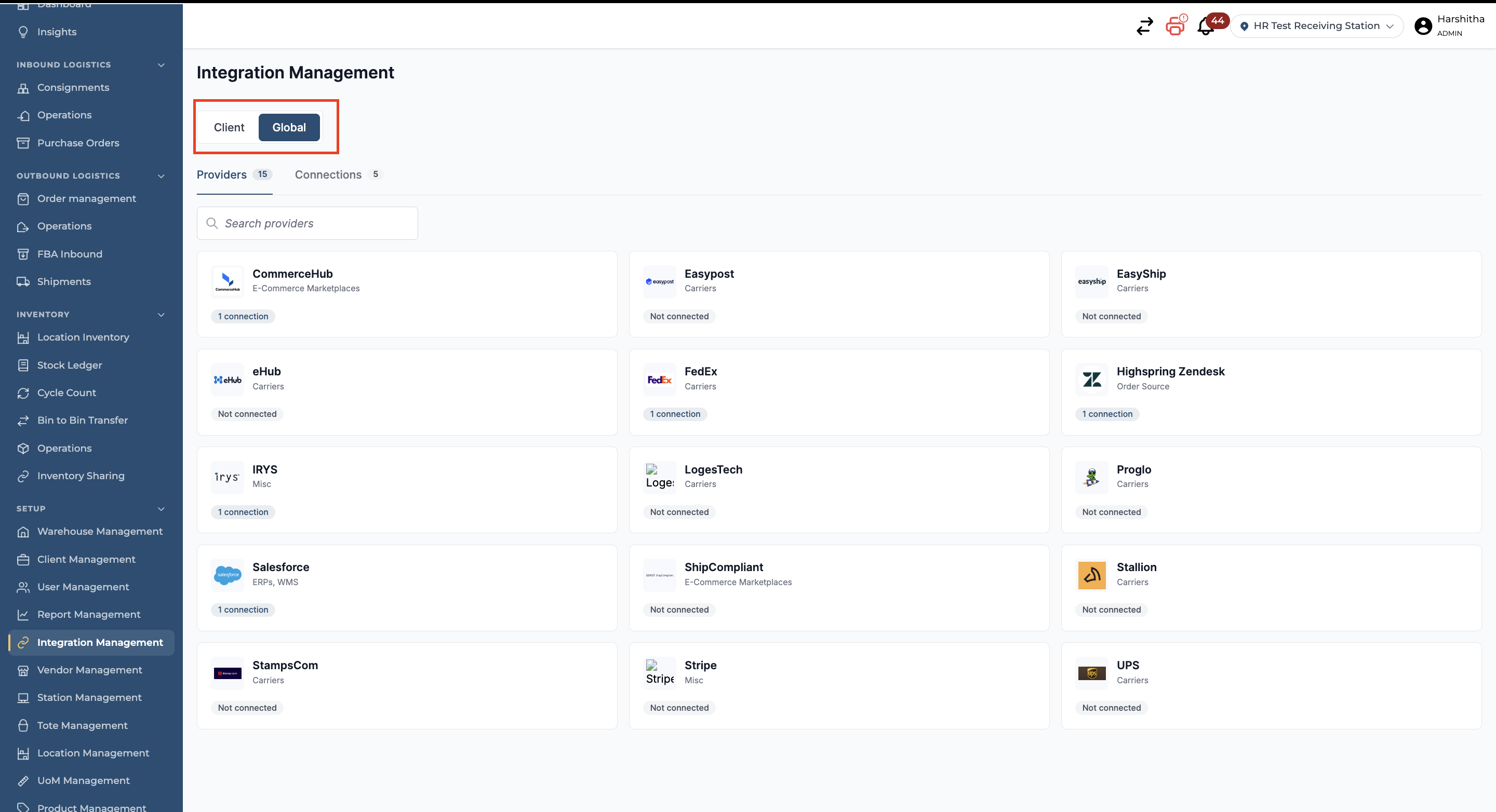
Select the Client for Client-specific integration or click on Global for global integration.
-
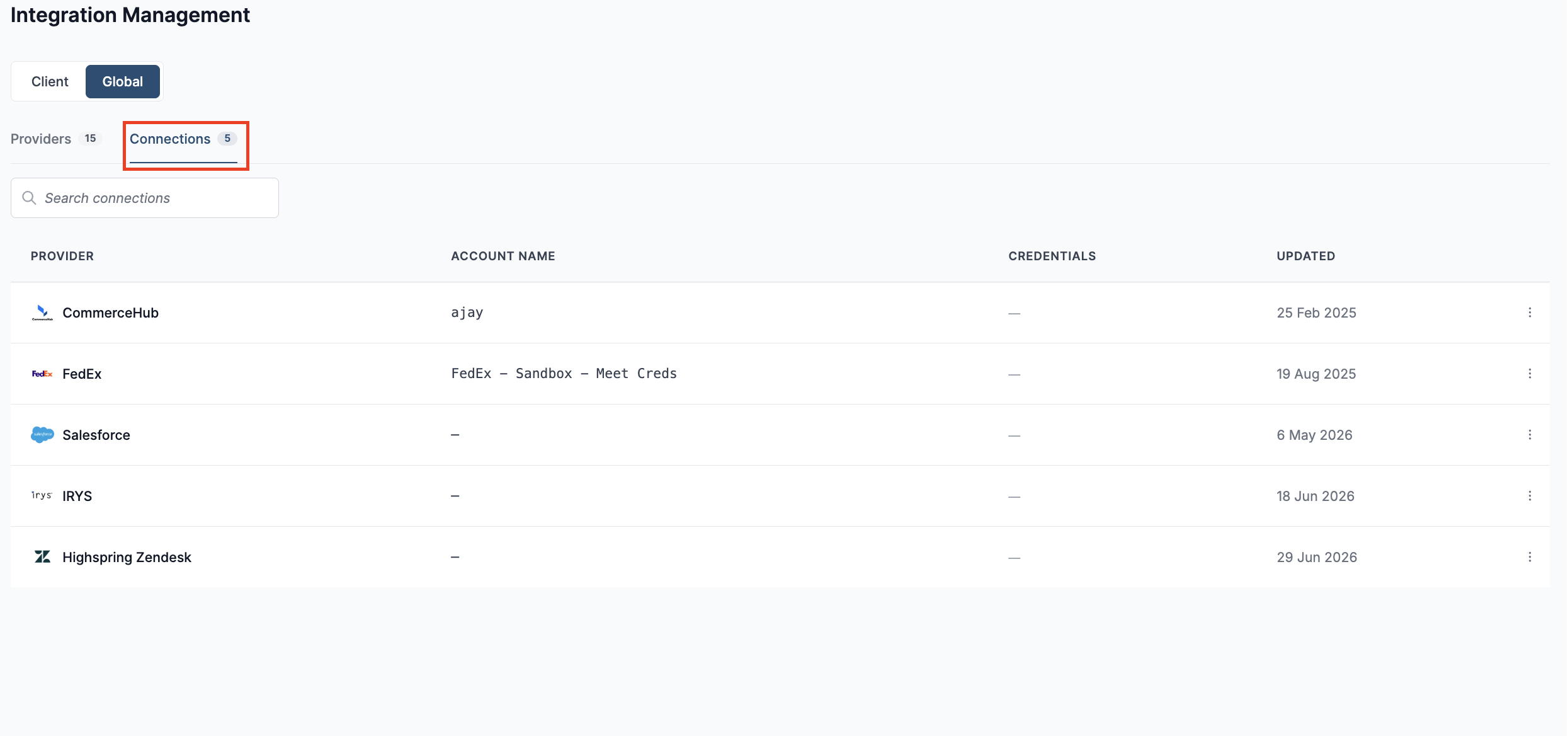
Move to the Connections tab by clicking on Connections.
-
Locate the integration for which you would like to view the activity log, and click anywhere in the row. A panel opens on the right side, showing the integration details.
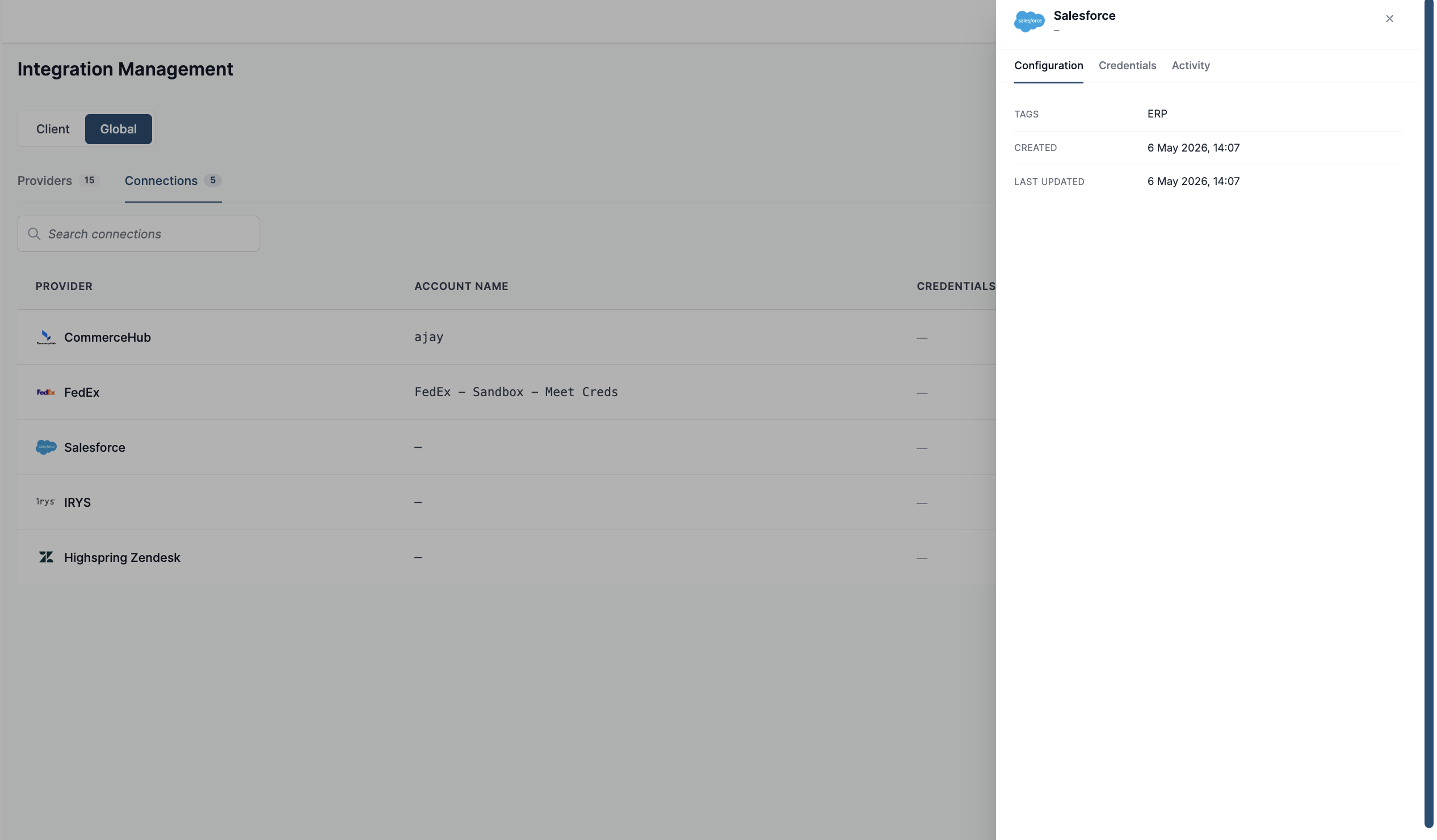
Note: The user may also find the integration tile on the landing page (i.e., Providers tab) and click on it to open the details panel.
-
In the panel, move to the activity tab by clicking on “Activity”. The user can now see the Activity logs and details when applicable. The activity logs are colour-coded for the user to quickly glance through to find the type of log, i.e, Info, Success, Warning, Error.
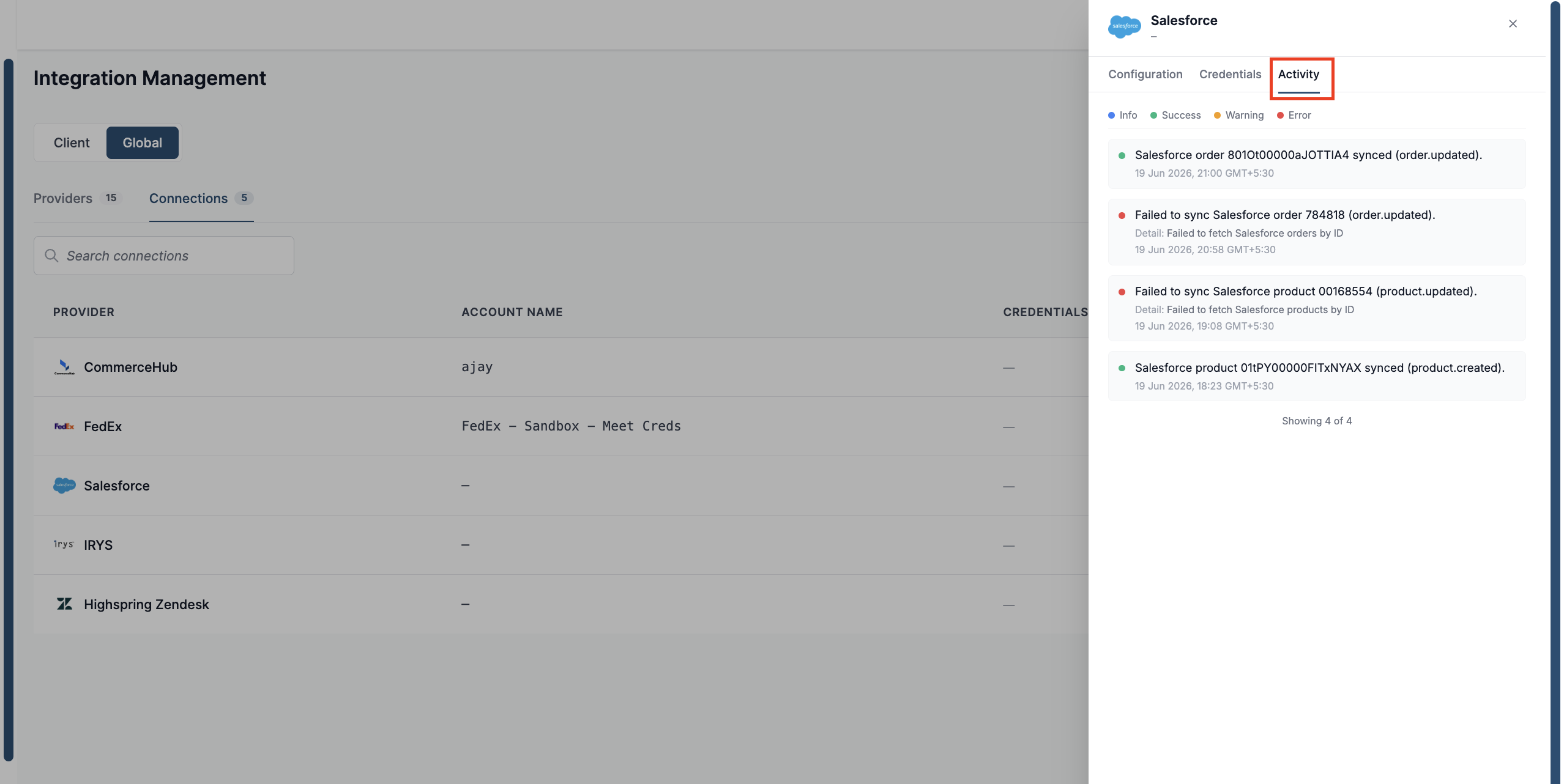
Here are some examples of activity logs.
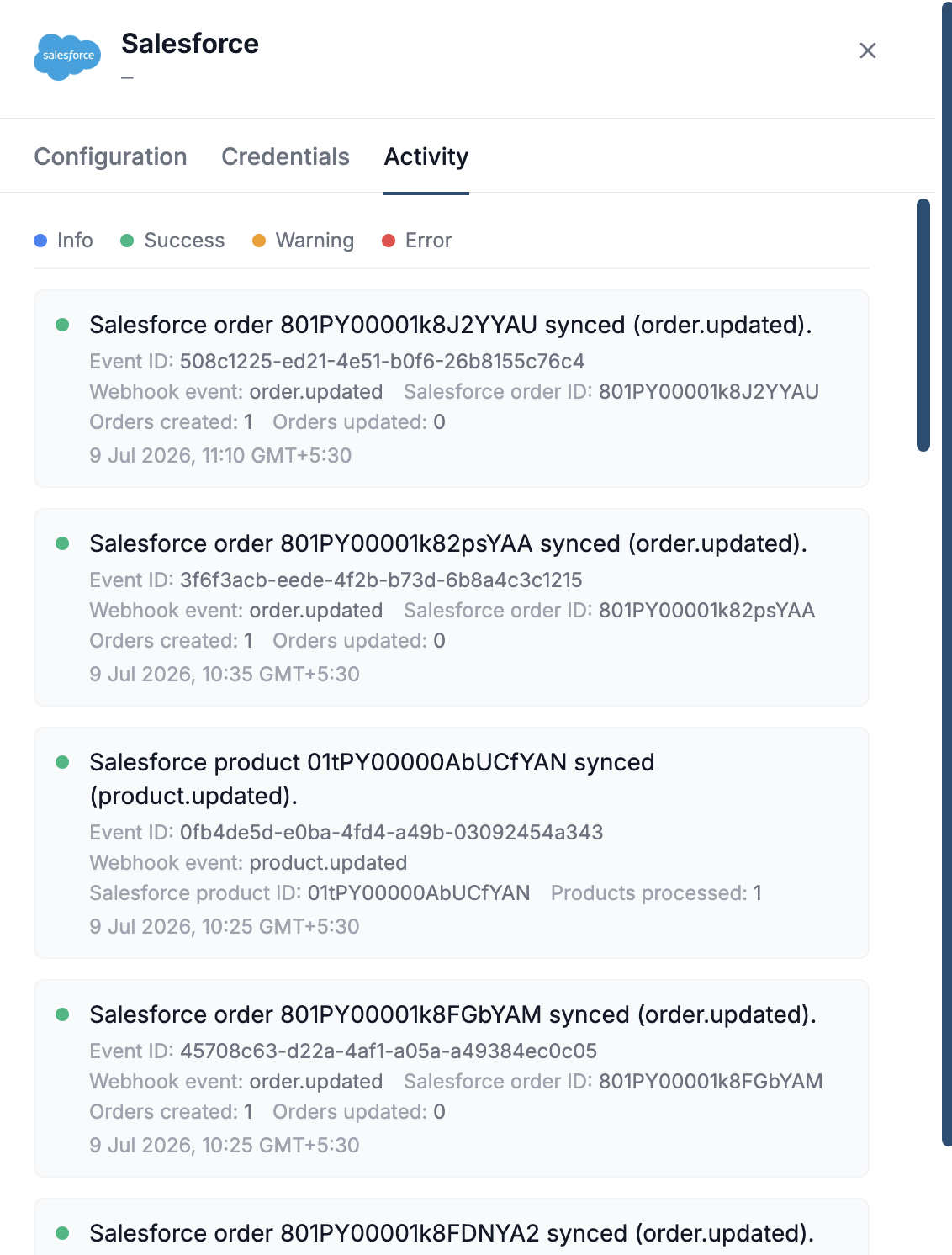
1. Salesforce Activity Log
The Activity tab provides a view of all Salesforce synchronisation events, allowing users to monitor the status of data exchanged between Salesforce and the platform. Each log entry displays the event type (such as order or product updates), the record ID, timestamp, sync status, and processing details. When a sync encounters an issue, the activity log also displays detailed error information to help identify the root cause.
This activity feed enables users to quickly verify successful syncs, troubleshoot failed events, and resolve integration issues without needing to contact support, improving visibility and reducing troubleshooting time.
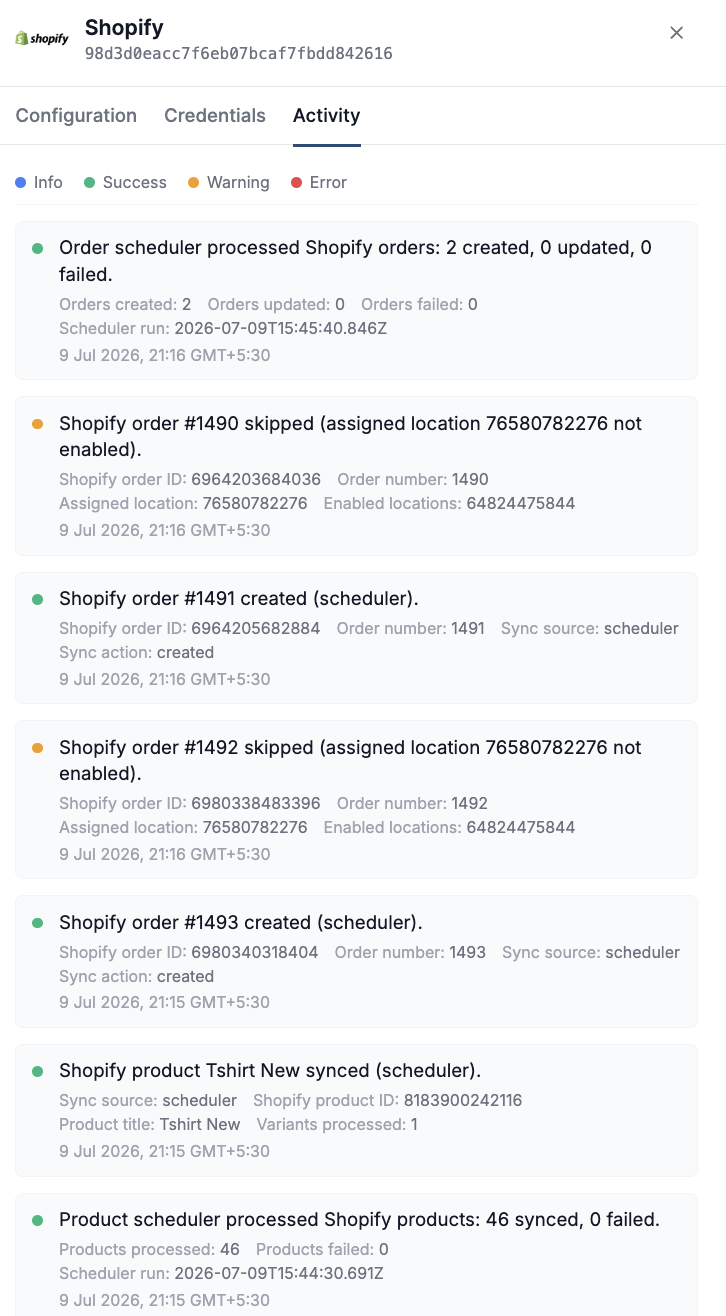
2.Shopify Activity log
The Activity tab provides information about all Shopify synchronisation events, including order and product imports processed through the scheduler. Each log entry displays the operation performed, record details, timestamp, and sync status. It also includes summary entries that show the total number of orders or products processed during a scheduler run, along with the number of records created, updated, skipped, or failed.
The activity log also surfaces warnings with clear explanations. For example, the screenshot shows "Shopify order #1490 skipped (assigned location 76580782276 not enabled)." By displaying the exact reason for skipped records, users can quickly identify configuration issues and take the necessary corrective action.
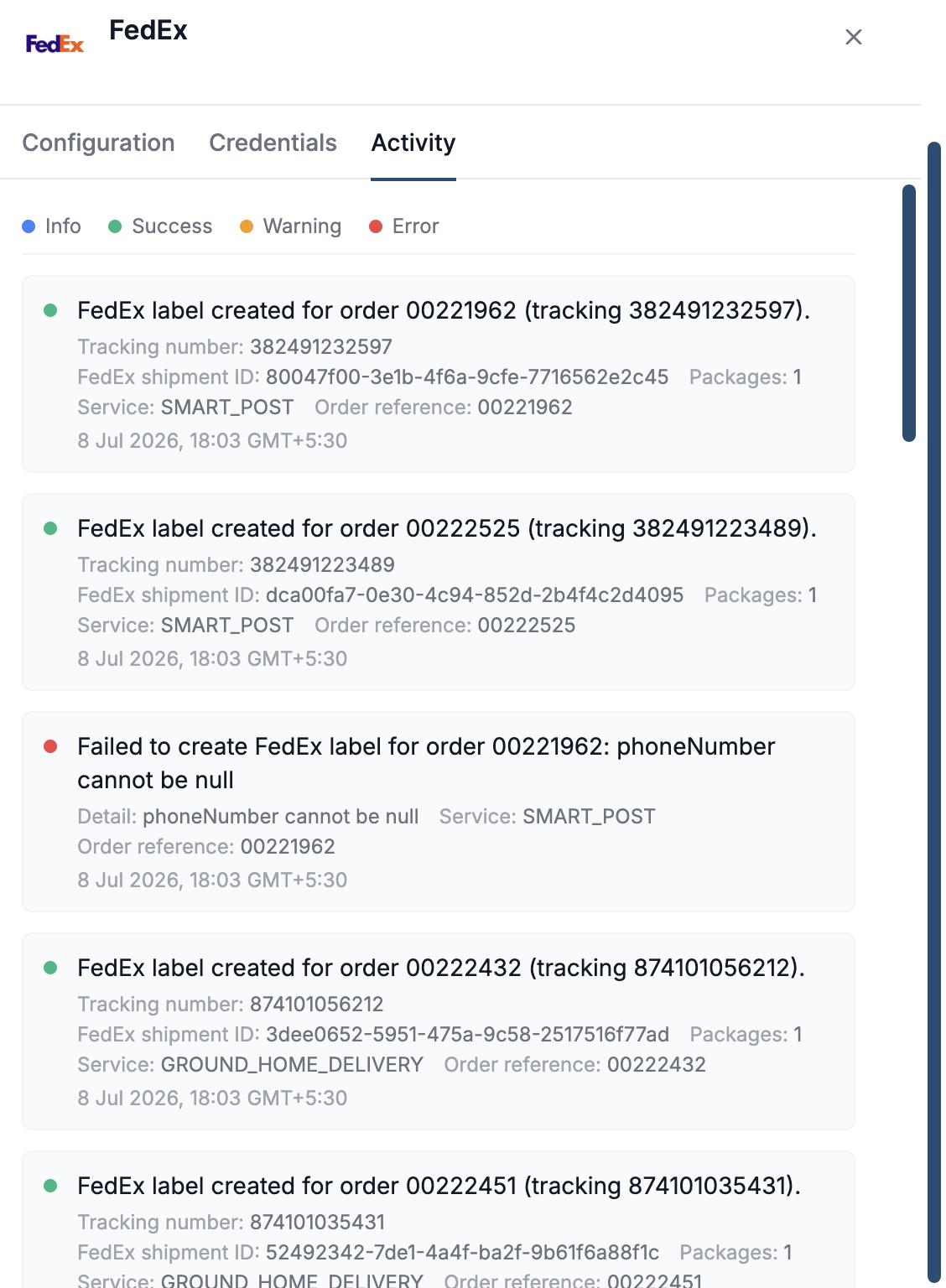
3. FedEx Activity Log
The Activity tab displays a record of all FedEx shipping operations performed through the integration. Each entry displays the operation performed, such as label creation, along with key details including the order reference, tracking number, shipment ID, shipping service, package count, timestamp, and status. If an operation fails, the log clearly displays the reason for the failure, making it easy to identify issues such as missing or invalid shipment information.
This activity feed helps users monitor shipment processing in real time, verify successful label generation, and quickly troubleshoot failed shipping requests without relying on support.
4.UPS Activity Log
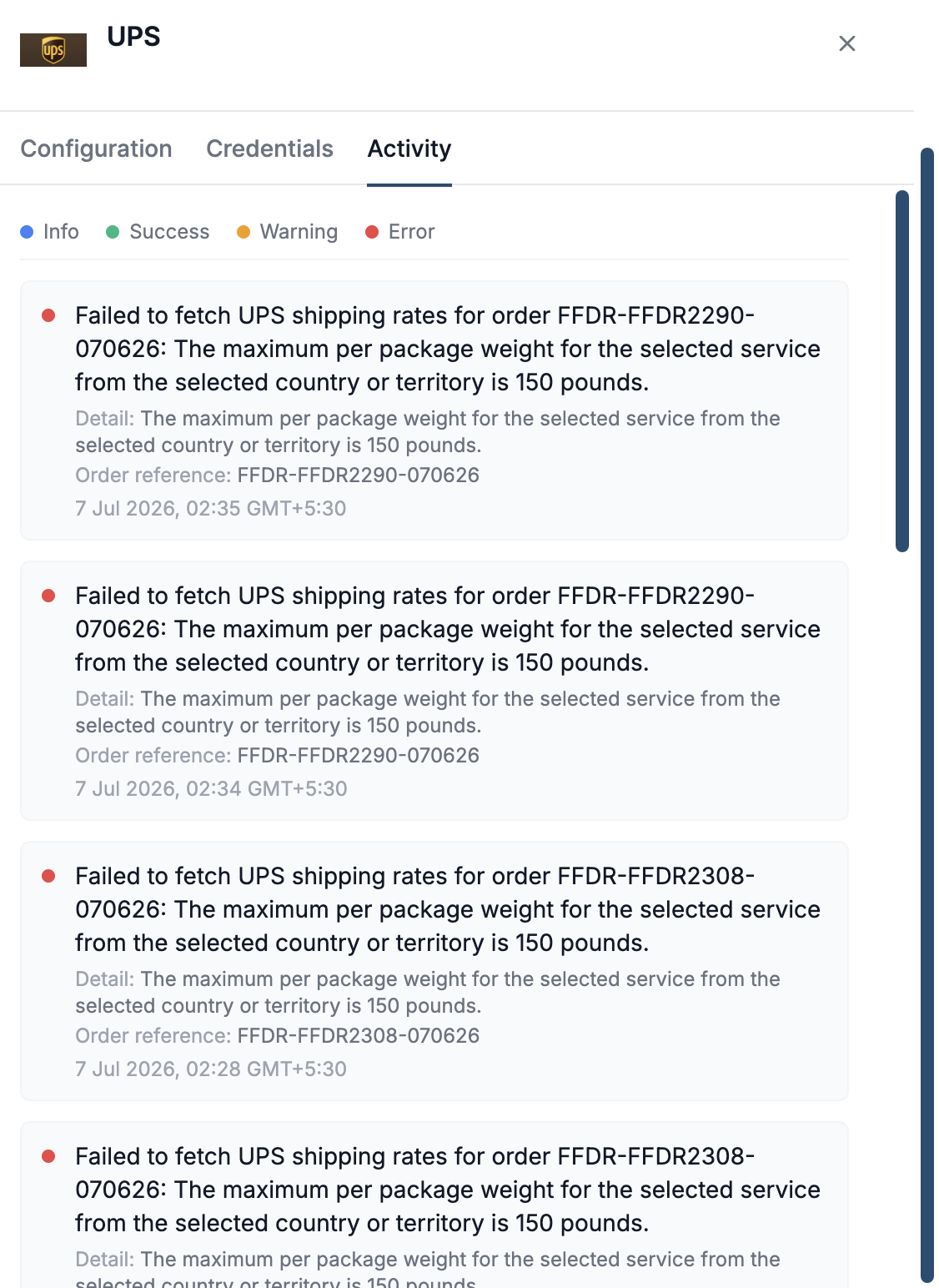
The Activity tab provides a chronological view of all UPS shipping requests and rate lookups processed through the integration. Each log entry displays the operation performed, order reference, timestamp, and the status of the request. For failed operations, detailed UPS error messages are displayed alongside the event, clearly explaining the reason for the failure instead of showing generic error codes.
For example, the activity log in the screenshot shows a rate lookup failure with the message: "The maximum per package weight for the selected service from the selected country or territory is 150 pounds." This indicates that the shipment exceeds the maximum weight limit supported by the selected UPS service. By surfacing the complete error message, users can immediately identify the issue and update the package weight or select a different shipping service.