
This guide will walk you through the process of seamlessly integrating Nawel's App with your Salla store via the Hopstack platform.
Follow the steps below to ensure a smooth installation process.
Prerequisites:
-
Make sure you have access to the email associated with your Salla store.
-
Ensure you have permission to install apps on your Salla store.
Installation Steps:
(Done by Admin)
-
Create a Hopstack User:
-
Go to the Hopstack platform and create a user account using the same email address which is used for login on Salla while installing Nawel's app.
-
-
Assign Client and Warehouse:
-
After creating the user account, assign the client to this user.
-
Make sure to assign the appropriate warehouse to this user to manage inventory effectively.
-
(Done by Client)
-
Install Nawel's App:
-
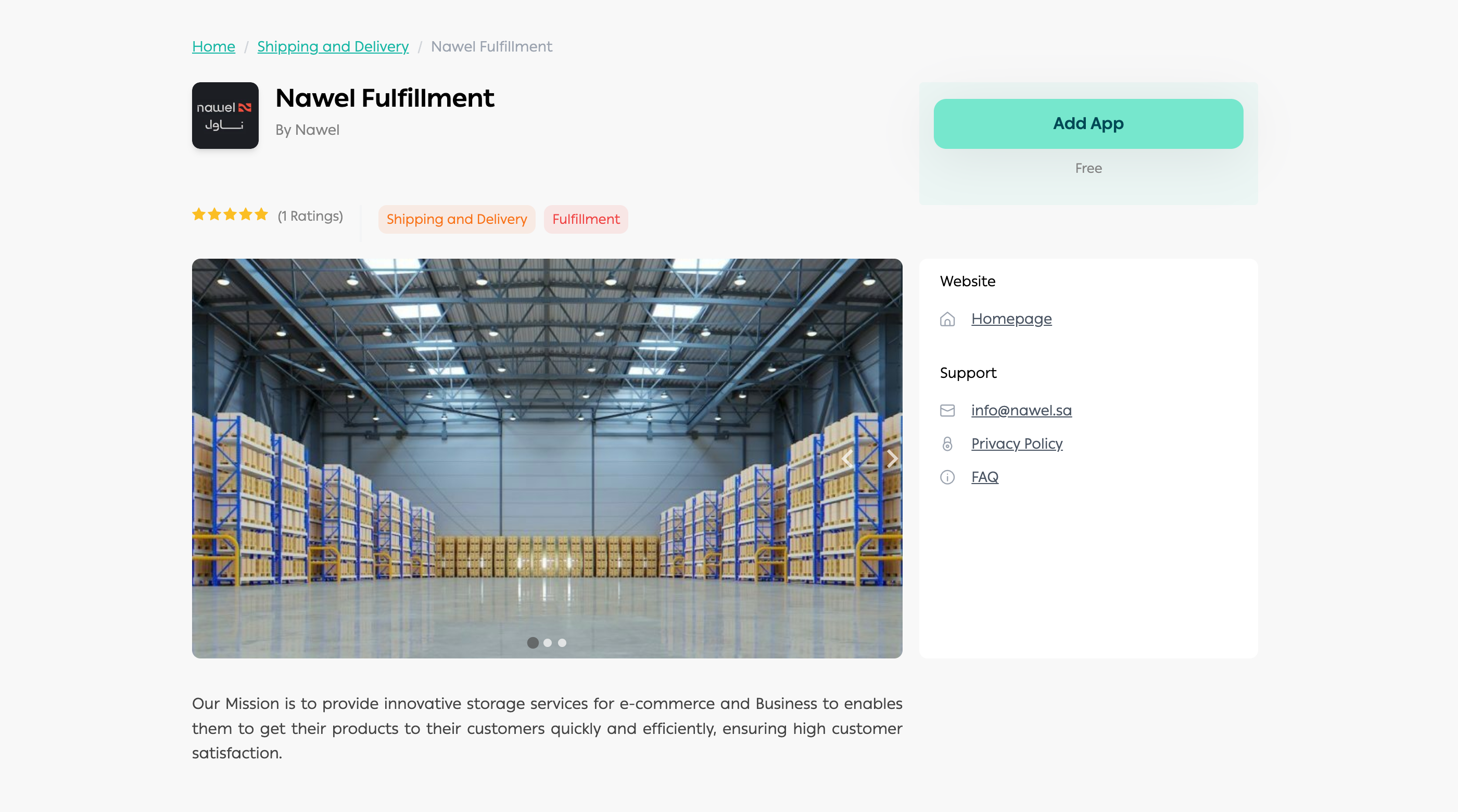
Once the user setup is complete, navigate to the Nawel app page on the Salla store.
-
Visit https://apps.salla.sa/en/app/2051962744 and click on "Add App" to initiate the installation process.
-
-
Grant Permissions:
-
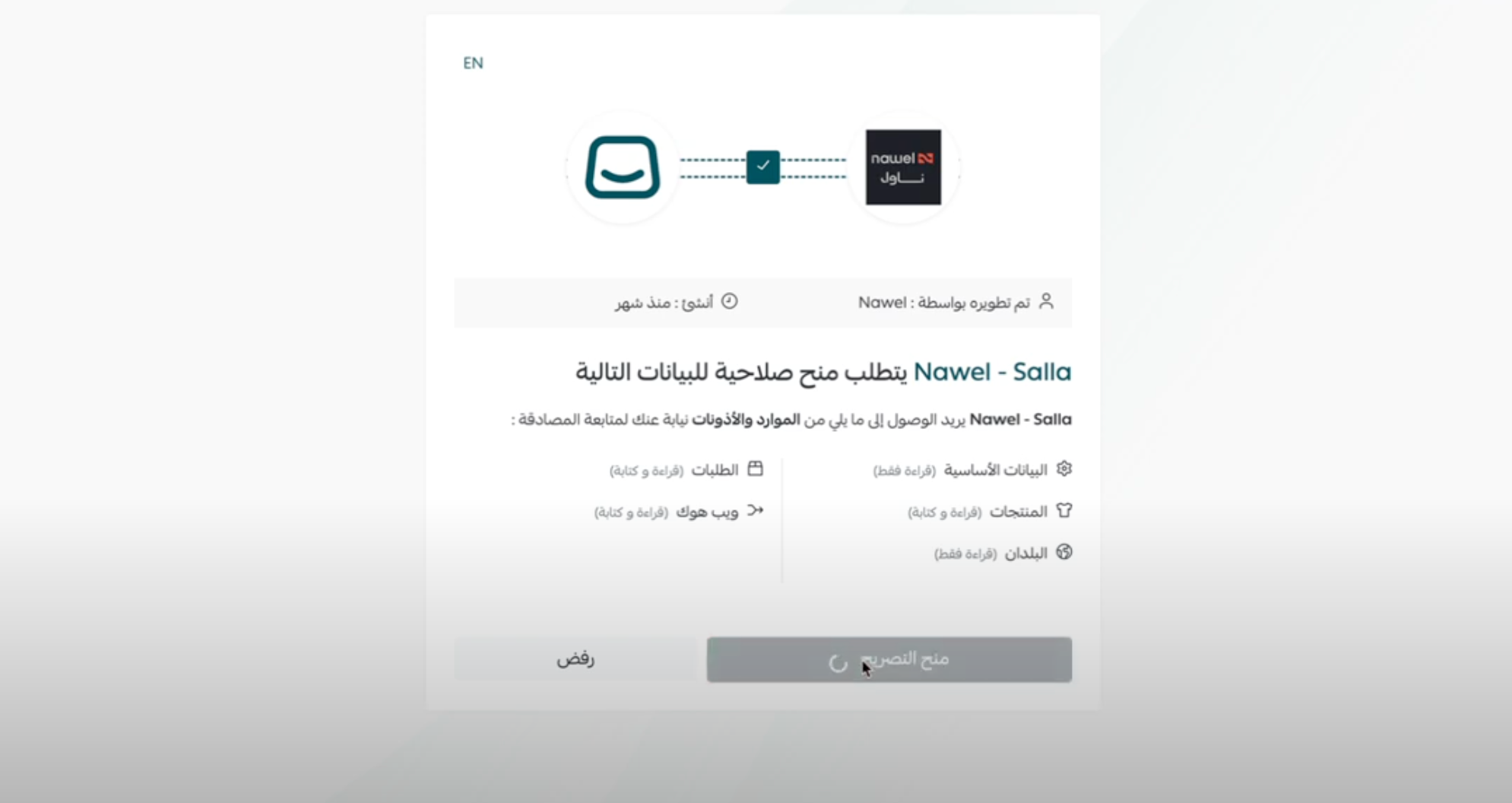
During the integration process, you will be prompted to grant necessary permissions. Ensure you accept all permissions requested for seamless integration.
-
-
Ensure Email Matching:
-
It's crucial that the email used to install the Nawel app from Salla store matches the email added on the Hopstack platform. This ensures successful integration.
-
-
Verify Product Fetching:
-
Once the installation is complete, products from Salla store will start fetching into Hopstack for streamlined inventory management.
-
Note:
-
Duplicate Products: Please be aware that duplicate products may occur during the integration process. In case of duplicate products, please reach out to the Hopstack team for assistance.
-
Contact Support: For any further queries or assistance regarding the installation process, don't hesitate to contact the Hopstack support team.