Consignment Linkage Across Receiving, Storage, and Outbound Orders

This document explains how to view consignment linkage across receiving, storage, and outbound order fulfilment. You will learn how to trace consignment order IDs from location inventory and how to generate and review a consignment linkage report for outbound orders.

To create a consignment and complete the receiving and putaway process, please follow the guides below:

  1. Consignment Creation: https://help.hopstack.io/home/new-design-creating-a-consignment

  2. Receiving+Putaway: https://help.hopstack.io/home/receiving-putaway

Once the receiving and putaway process has been completed for the consignment, you can verify the linkage of Consignment Order ID by following the steps below:

Step 1: Open Location Inventory

To verify the consignment is linked from Recieving to Storage. From the main menu, open Inventory and then select Location Inventory.
3.jpg?t=1783672418&Expires=1783687021&Signature=t2okADEwP7xlij3-1X0adWDrCvfSHpwJ8BqvJApbKBbmpIj~lsiadDGlkm7p8I8bzRQKvJ2jz2mHM15fHmTkq1zIIXjVXzZhDPtfIBiXz81cAnaC17ylEX8NtBOGskBlO6HpvT6EJsa2prbCQsB2VWbF7TosyQUD2yvr1AJmoF9plhL1o3g9kpaDncIQE5ITG5ZPXQRU03tXHIv

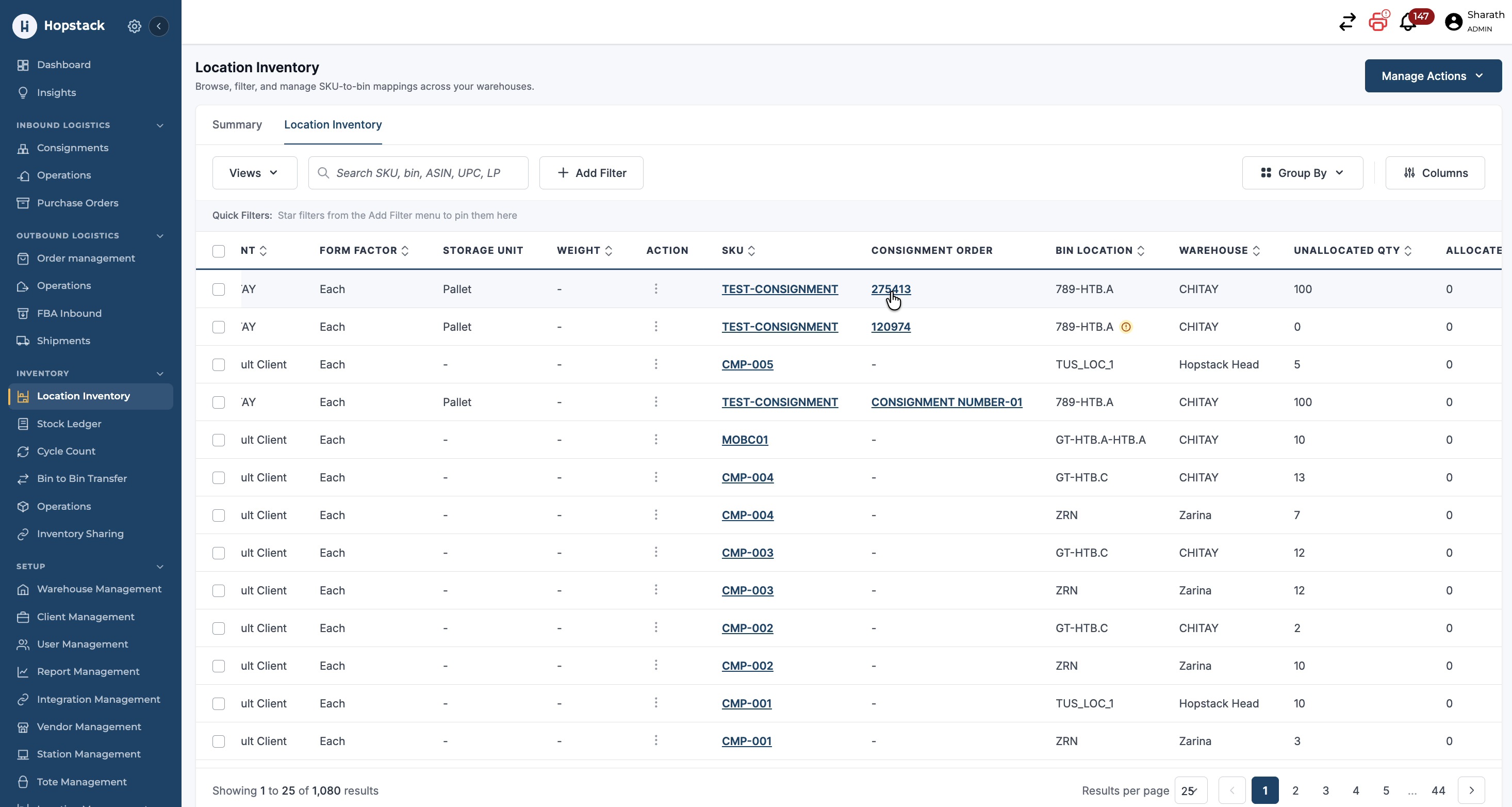
On this screen, you can see the Consignment Order ID mapped to the corresponding storage records, including the total quantity received for that consignment.

3.jpg?t=1783672418&Expires=1783687021&Signature=t2okADEwP7xlij3-1X0adWDrCvfSHpwJ8BqvJApbKBbmpIj~lsiadDGlkm7p8I8bzRQKvJ2jz2mHM15fHmTkq1zIIXjVXzZhDPtfIBiXz81cAnaC17ylEX8NtBOGskBlO6HpvT6EJsa2prbCQsB2VWbF7TosyQUD2yvr1AJmoF9plhL1o3g9kpaDncIQE5ITG5ZPXQRU03tXHIv

Step 2: Open Consignment Details from Location Inventory

In the Location Inventory screen, locate the row showing the relevant Consignment Order ID.

3.jpg?t=1783672418&Expires=1783687021&Signature=t2okADEwP7xlij3-1X0adWDrCvfSHpwJ8BqvJApbKBbmpIj~lsiadDGlkm7p8I8bzRQKvJ2jz2mHM15fHmTkq1zIIXjVXzZhDPtfIBiXz81cAnaC17ylEX8NtBOGskBlO6HpvT6EJsa2prbCQsB2VWbF7TosyQUD2yvr1AJmoF9plhL1o3g9kpaDncIQE5ITG5ZPXQRU03tXHIv

Click the Consignment Order ID link to open the consignment page. Here you can view complete consignment details such as SKU, planned quantity to be received, and the actual quantity received for this specific consignment.
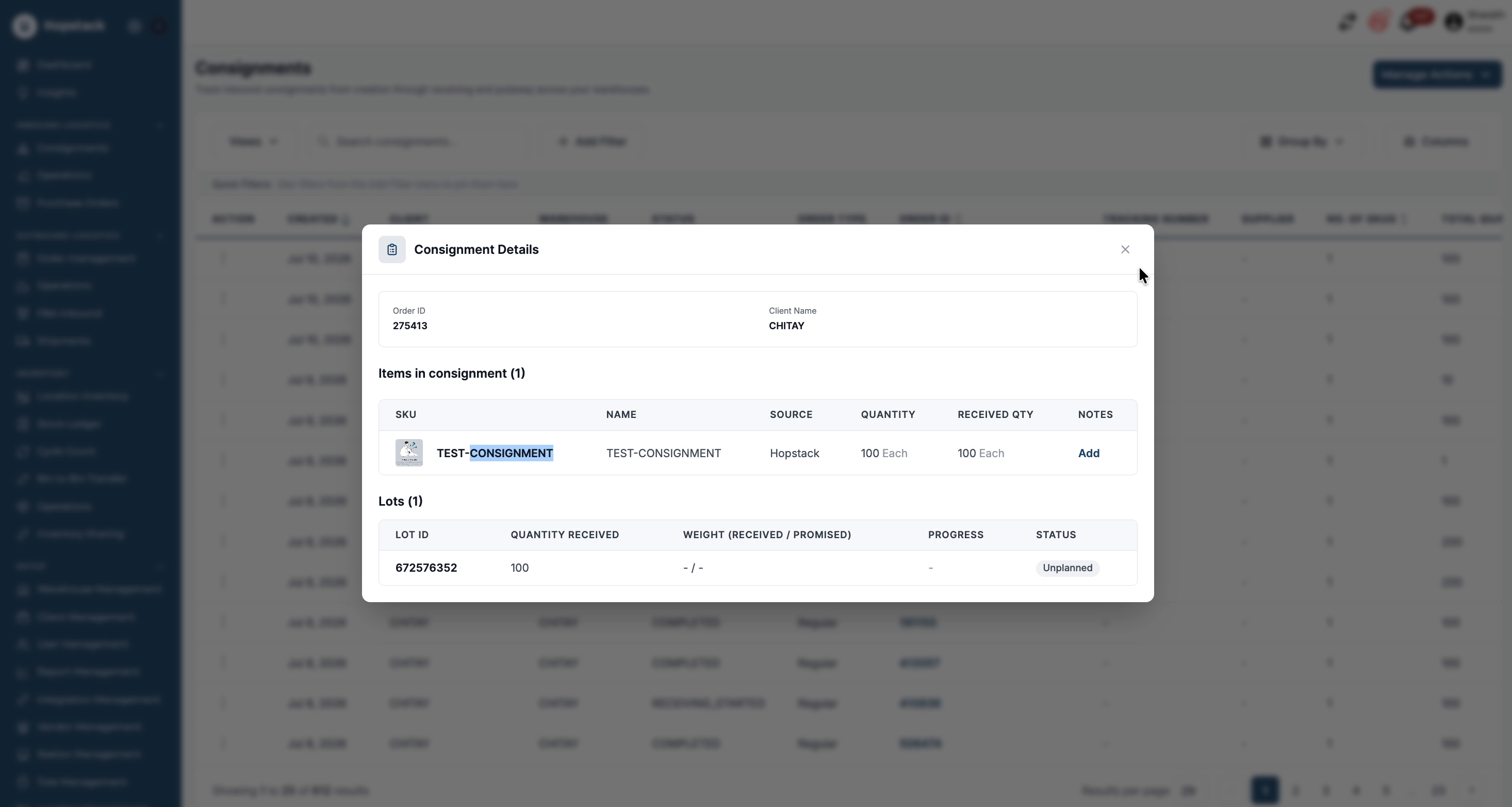
4.jpg?t=1783672418&Expires=1783687021&Signature=qIUF23V~mvGj13o5V-AVFo3z-AYxBRDOJHdvny2dnY4giT3-rXUjDJHGL81oficBqYPp18vAvI6Pr1oN922QuEu3RPNqfZ6i-wvFWGo0vGWM7wszlaye3ghYdDkmQWgEoh1evGOdJ60KCeFWuUlYHoTOsdzHKk7frmqEHAFnVfn7Vp7F69VjPAUmsA5h-ugVxGST13rV2QMxWX5

After reviewing, return to the Location Inventory screen to view the associated bin locations, allocated quantities, and the storage LPNs received against this consignment order ID.

Step 3: Use Group By to Analyse Consignment Mappings

Back in the Location Inventory screen, you can analyse how inventory is distributed across locations for a consignment by using the Group By functionality.
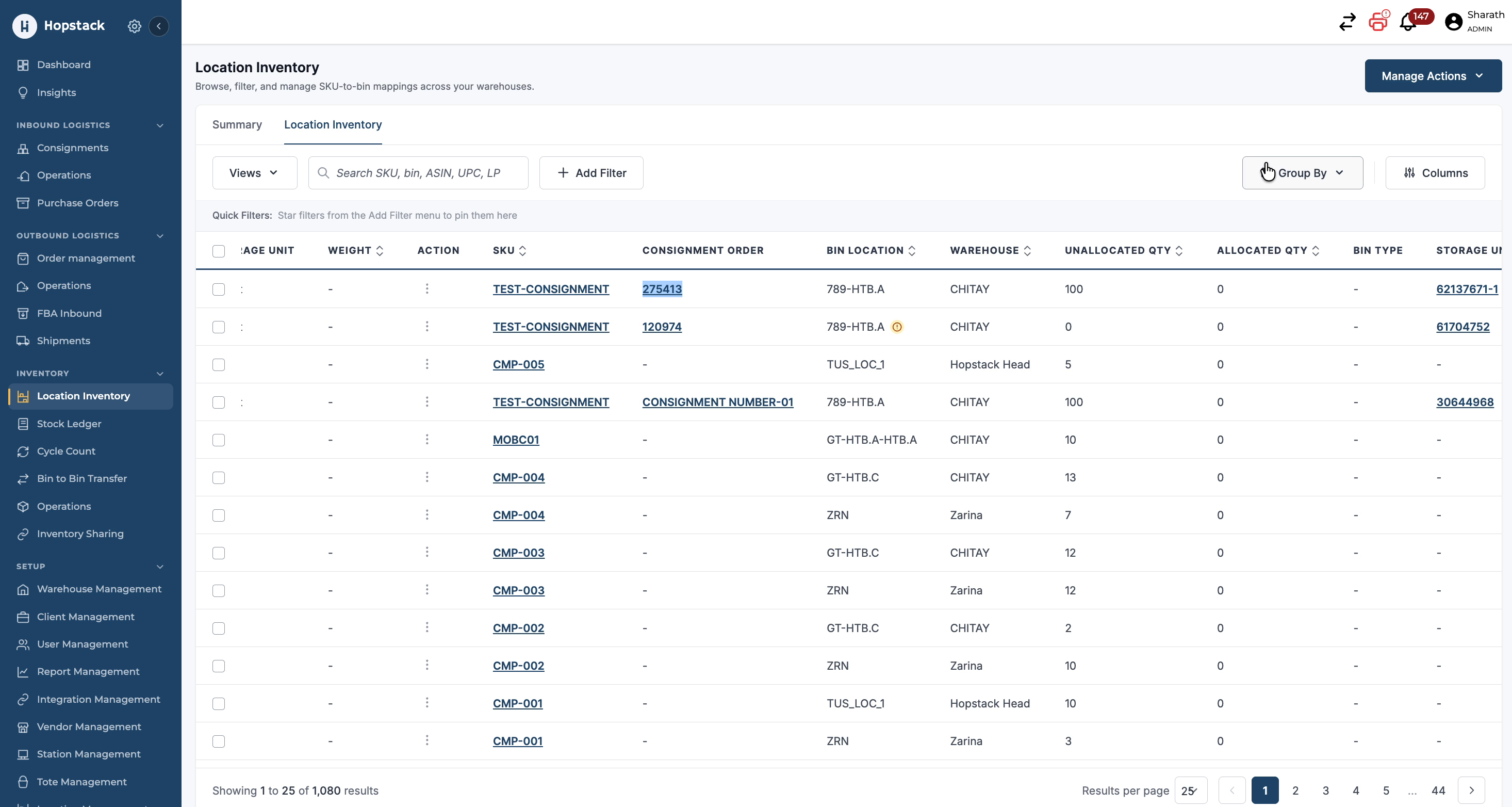
5.jpg?t=1783672418&Expires=1783687021&Signature=azDIKruThkDkQ6SuYPvOSoWktDOr8d11bHBGm3BABOZN8ym-DJ1rciuTKLHn~dxGDcVg897sLHq0fmXvE8RHfLglLIX~Tq-W0j4gN9apZZzZKw9Thz4SlEFxJ7Rad4IdJN5GdTlPs5DVHqa4sYF5JseZrKOYnMk7ANoFrP84w0KyvUVjyXDhdpe6BXgIlnGGbVr1X7vhbi7BrNU

Enable the group-by option and choose to group by Consignment Order ID.
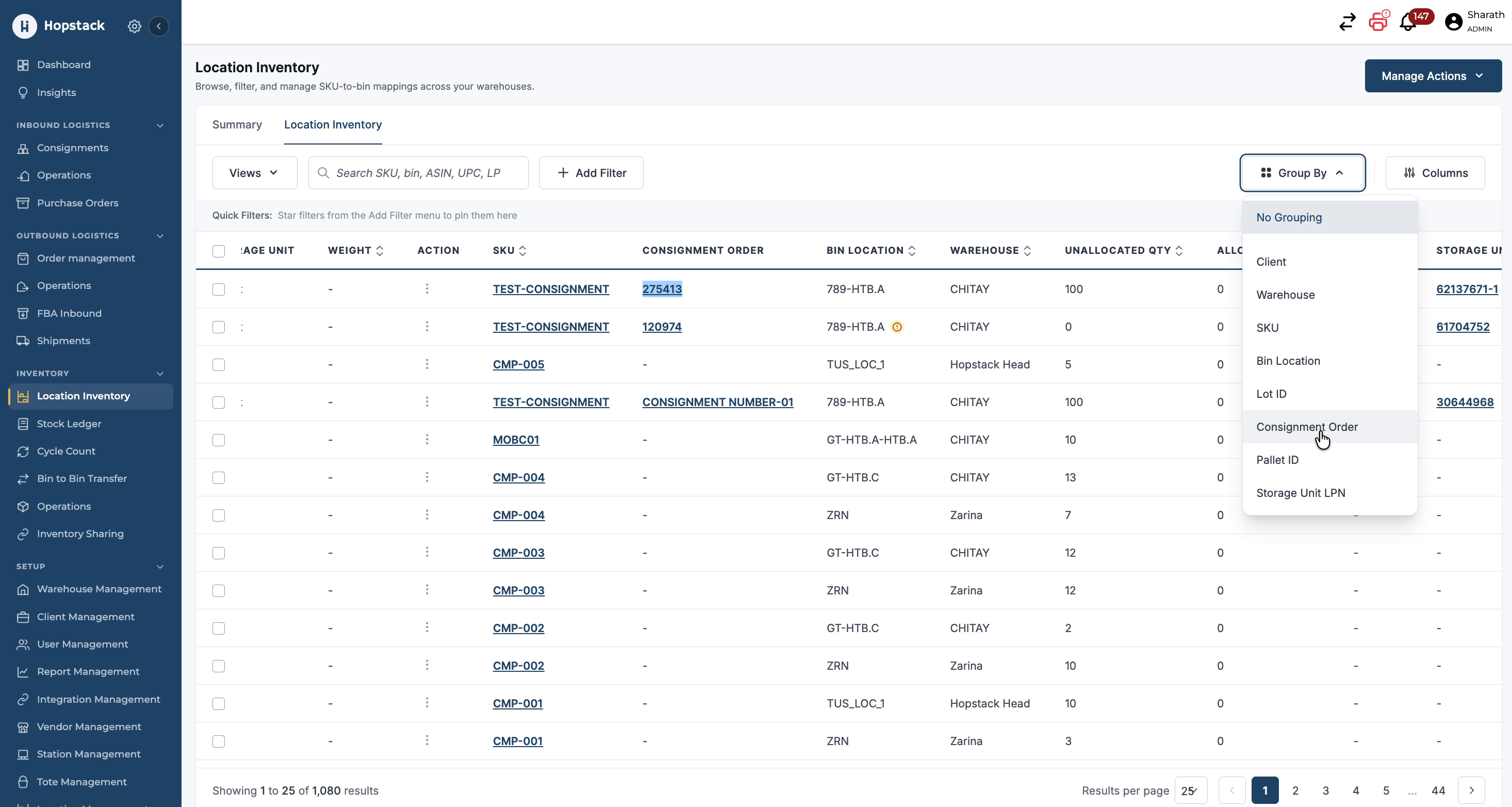
6.jpg?t=1783672419&Expires=1783687021&Signature=oKZVriB4LlDpeWXQKy-CdNdtZeXA9EG4BjuSO-ZnjnCqDBKLD6Xm1oAXnJW5LFOQy0c44sQLqI27HrwqXdoqbW6xIMoezqdUUf-7BAzPjh9ga17kWj6Bo9EIY1dsbFXLlszKpH6Q-u1N8T1O2kikYTl8d8JuTYw3MfFsjz30Gn-lxNVGtHR7GVyNUEr2-Nq3dBgwPL4in6W6EFp

Click on Consignment Order ID in the group-by selector to view all mappings created for that consignment.
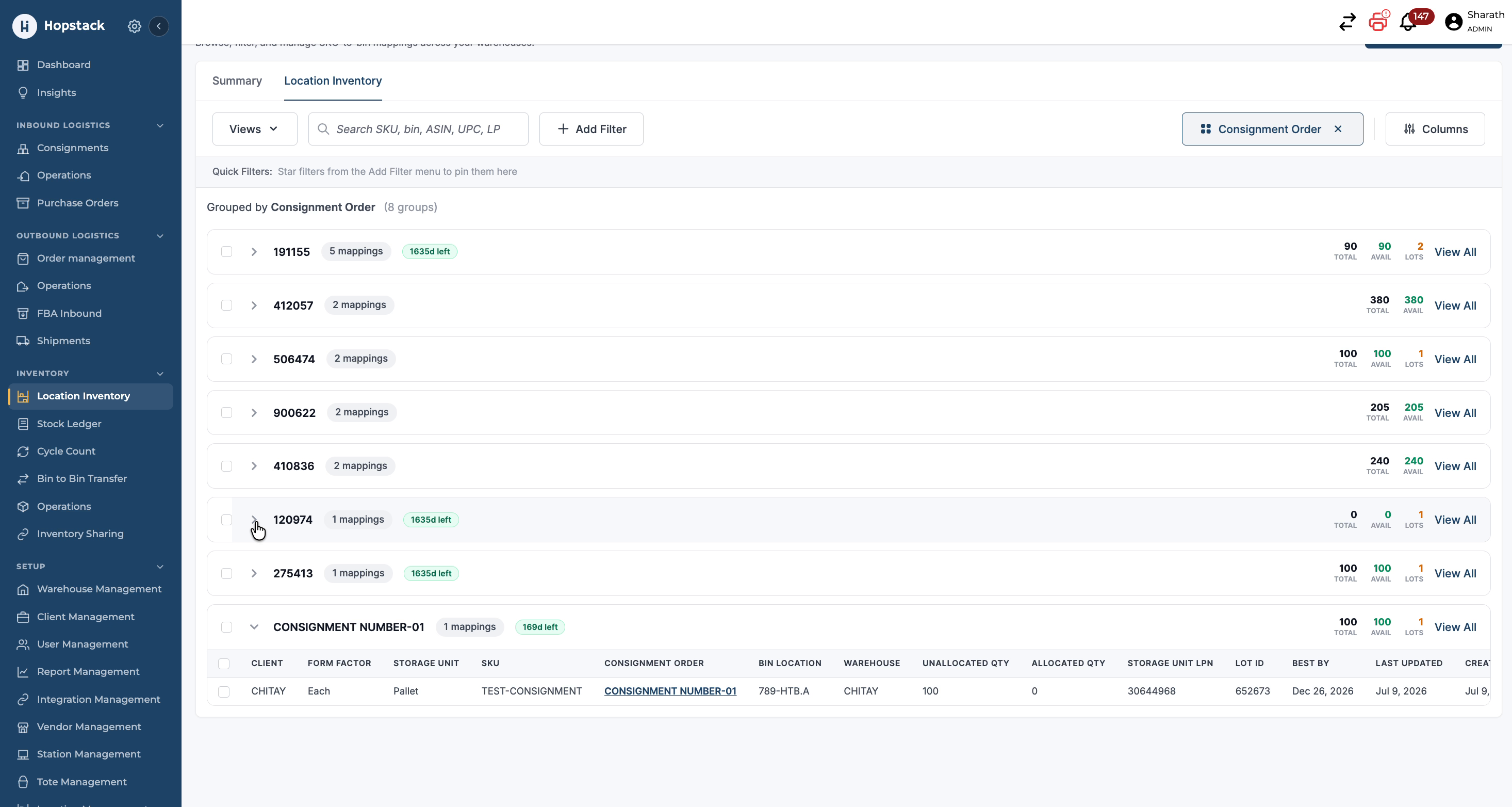
7.jpg?t=1783672418&Expires=1783687021&Signature=MNWCjv7Ji7cY36k4ww8S50rJ7NRMtlXtNNYN8HkcLNJAc2F2WsqtpK95YUWr3wXUxDd-CIO-DMdeZMylO57hr0wim4r5Tl7W30ZD0snjTkskcQu7jzstbJdce6CqeXF-9HAchnLkemSg0Yob5i~kNUTV3NwJydZmIEQDYhrUiUfjTU36GwQXespCsvrv5~pCSDJOkiZq-av83Uh

Then click the right arrow icon to expand and view detailed information for each mapping, including the individual locations and LPNs, Lot IDs,Expiry date, and Pallet ID linked to that consignment.
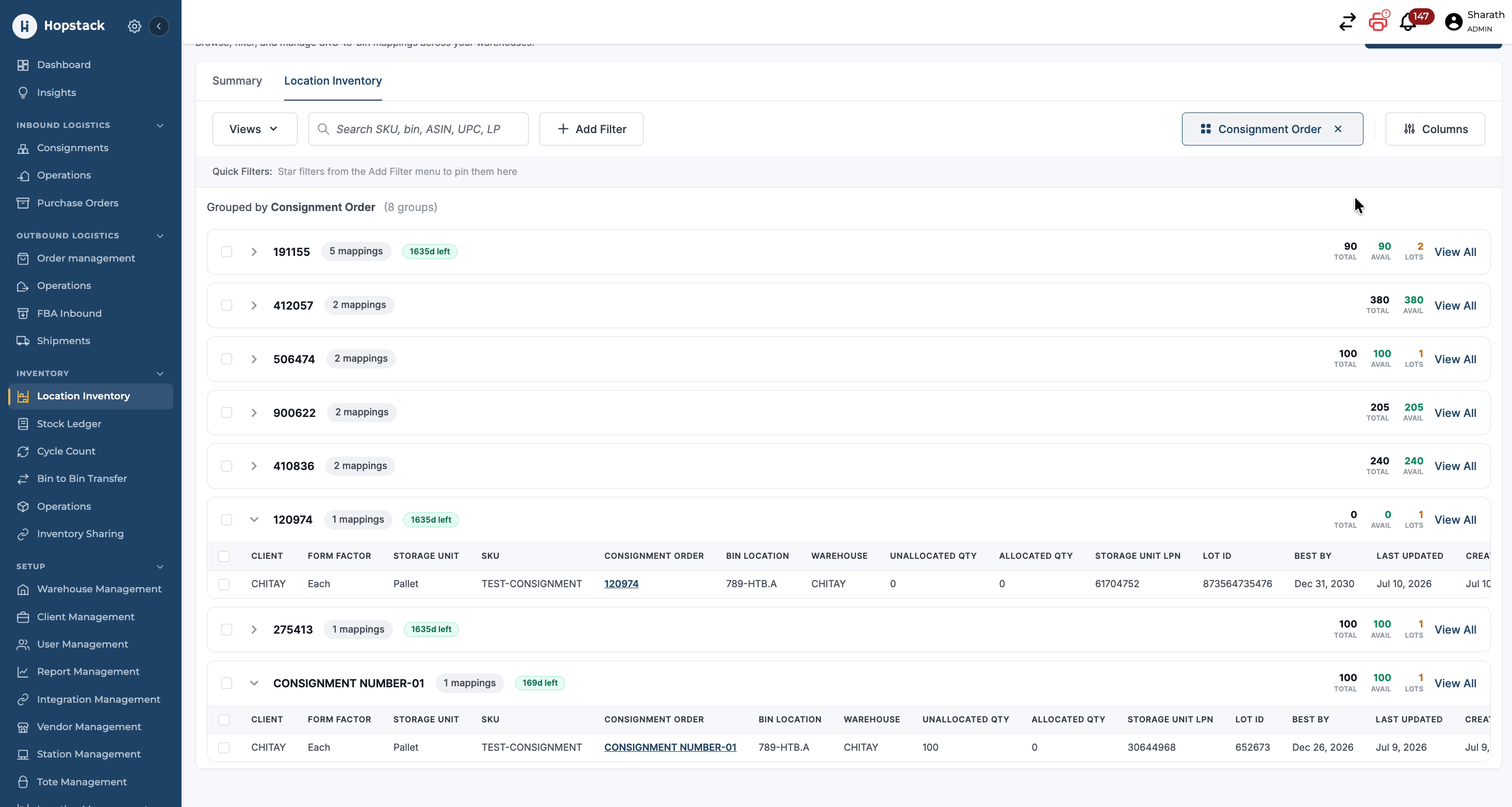
8.jpg?t=1783672419&Expires=1783687021&Signature=LhekGKrOKLd2yWchlQq60NjD9COwtpTQrynkqzUDuXizjXd6RgtUUknGOoelo03dO65p0bbvMdcIhQKLP4kvyFWWYroZ3Hfb9MPVSp1VDLptZYGSoZeWP6vo5dOCk5WTKzUuDJMVPankVq9qzOg6bYoImQb-rg99fB3sUk8TcmhM9cwFuVdrU3WRLyqDYc98sajauIu5OnuAJd9

This gives complete visibility of how received stock for a consignment order ID is stored across locations.

Step 4: Outbound Fulfilment Orders Linkage

To create an Outbound Order and complete the picking and packing process, please follow the guides below:

Order Creation:https://help.hopstack.io/home/order-management-creating-an-order

Picking: https://help.hopstack.io/home/associate-workflow-picking

Packing: https://help.hopstack.io/home/associate-s-workflow-packing

Once the picking and packing process has been completed for the outbound order, you can verify the linkage of the fulfilled outbound order ID by following the steps below:

To see which consignment order IDs were used to fulfil outbound orders. Navigate to Report Management
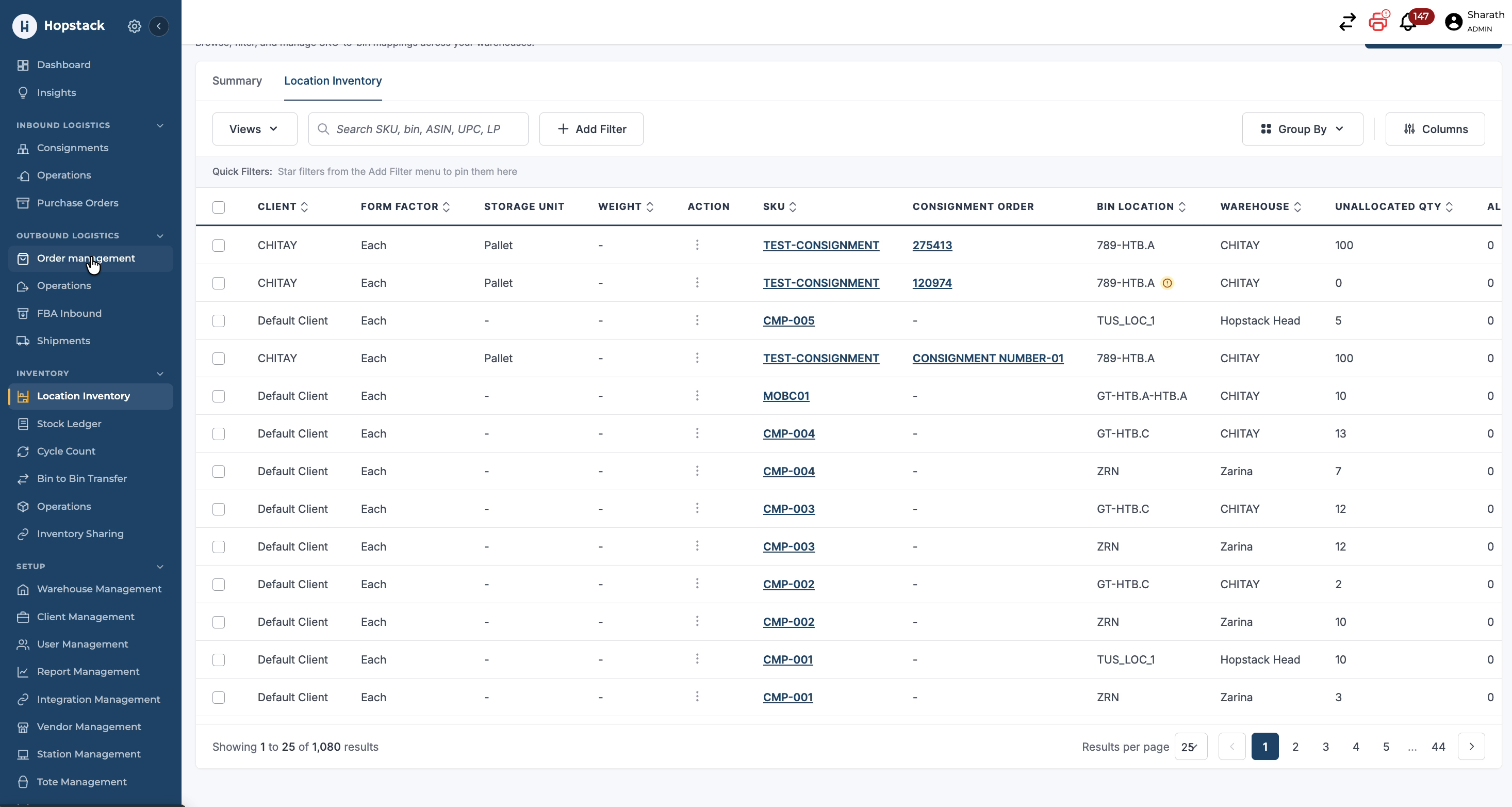
9.jpg?t=1783672418&Expires=1783687021&Signature=ZIv-2jNAkNFYnMBmOVCnMagH79tIzhXj2bwwkHB-jv~9VLaWDvah2OolJdd6yhd1eN1GdblpE4TMSTm7r4tn3yCQCzzTdpTI3OBnRZxdUpAZKuK-2yo0TWaHS0inLSBlj5KVKZLiI3jpuFYIjkZPdfppuOO2qB57LJDAbyn6Z2xjEw4Pt2ceRhQYc9lM46JWuWcqIJarFejePPz

Select the relevant outbound order for which fulfilment is complete and for which you want to trace the consignment linkage and LPN, Lot, Pallet, etc. details.

Step 5: Navigate to Report Management and Add a New Report

Go to Report Management, and
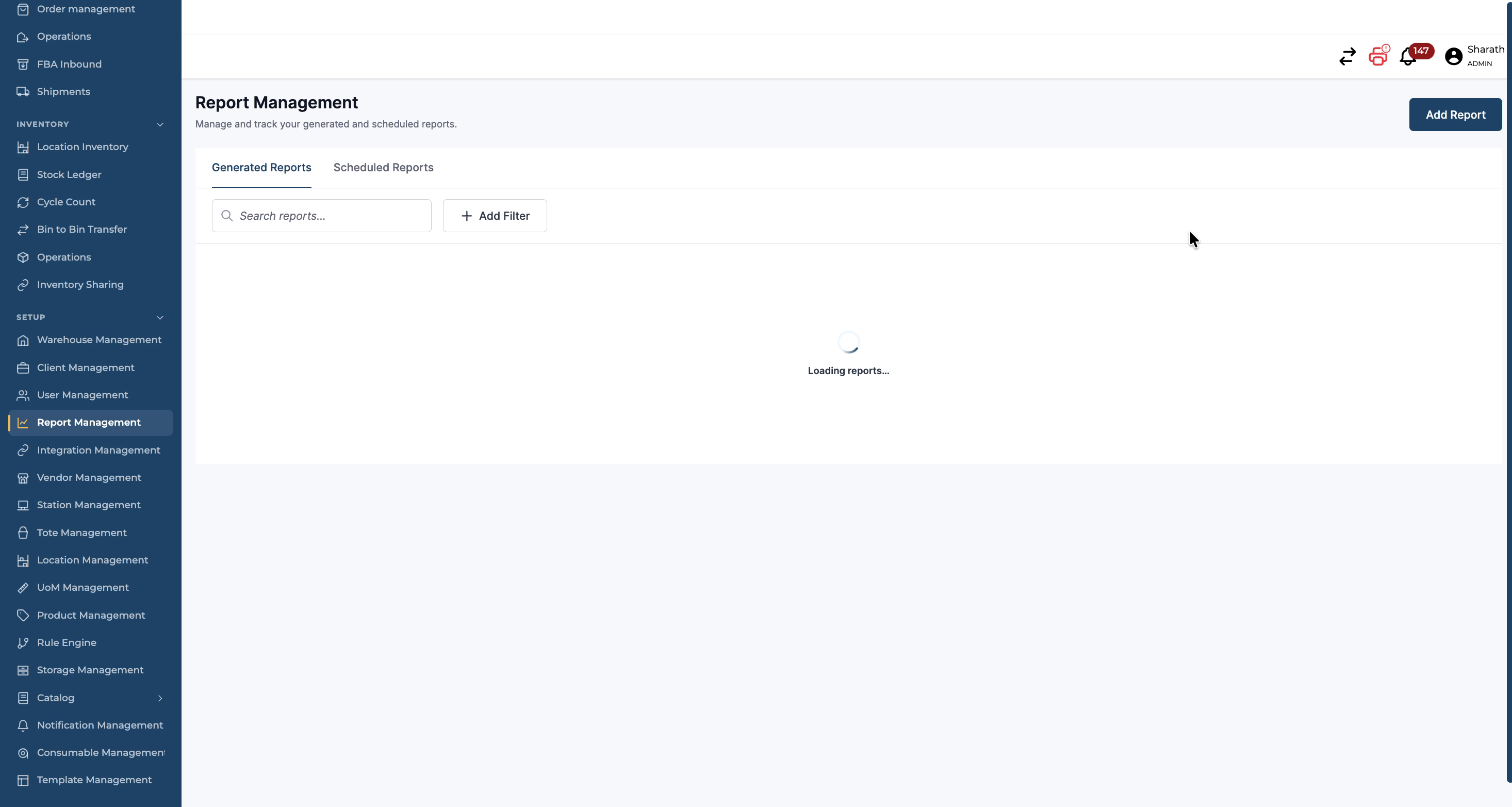
11.jpg?t=1783672417&Expires=1783687021&Signature=mwsBWBci2gOPNunQ9xMf17IXMmaOVXOeRqoMX7DZtdCzNx7co~HUPVSYJA~fZIuH1kHS4Vns7RuKgukbB1nSfovticsoBD394S8s66iU7zZm9s~z5SL90FZiIvwP~LnrZZ3Wk6deZkKNsgMBerziBe~E2P0hf50eGmfg9uRREfmoQ1Xbd2ofD1V4qTfKMBFTosP4~L2hgS0AE5

Click on Add Report to create a new report.
12.jpg?t=1783672418&Expires=1783687021&Signature=n9PmF3~pwaYQ8ThyjxrZqA3iDmucPNnY24SgwBzrcVi7Lv3yubXksWGW4TFnkD3f1htorSzrLsMiOkHgzTBpN~xy2vn0DpQYrVAilTTW8sRJdmG~9t9LAlsxSzcK7TIIezUSaspqvFyFWTRvoG~sF1WLboA3Z67Sg-lpQaEv0tVydGgVf4R2zAwpXGaQv387ZBklMUHh7d~IDR

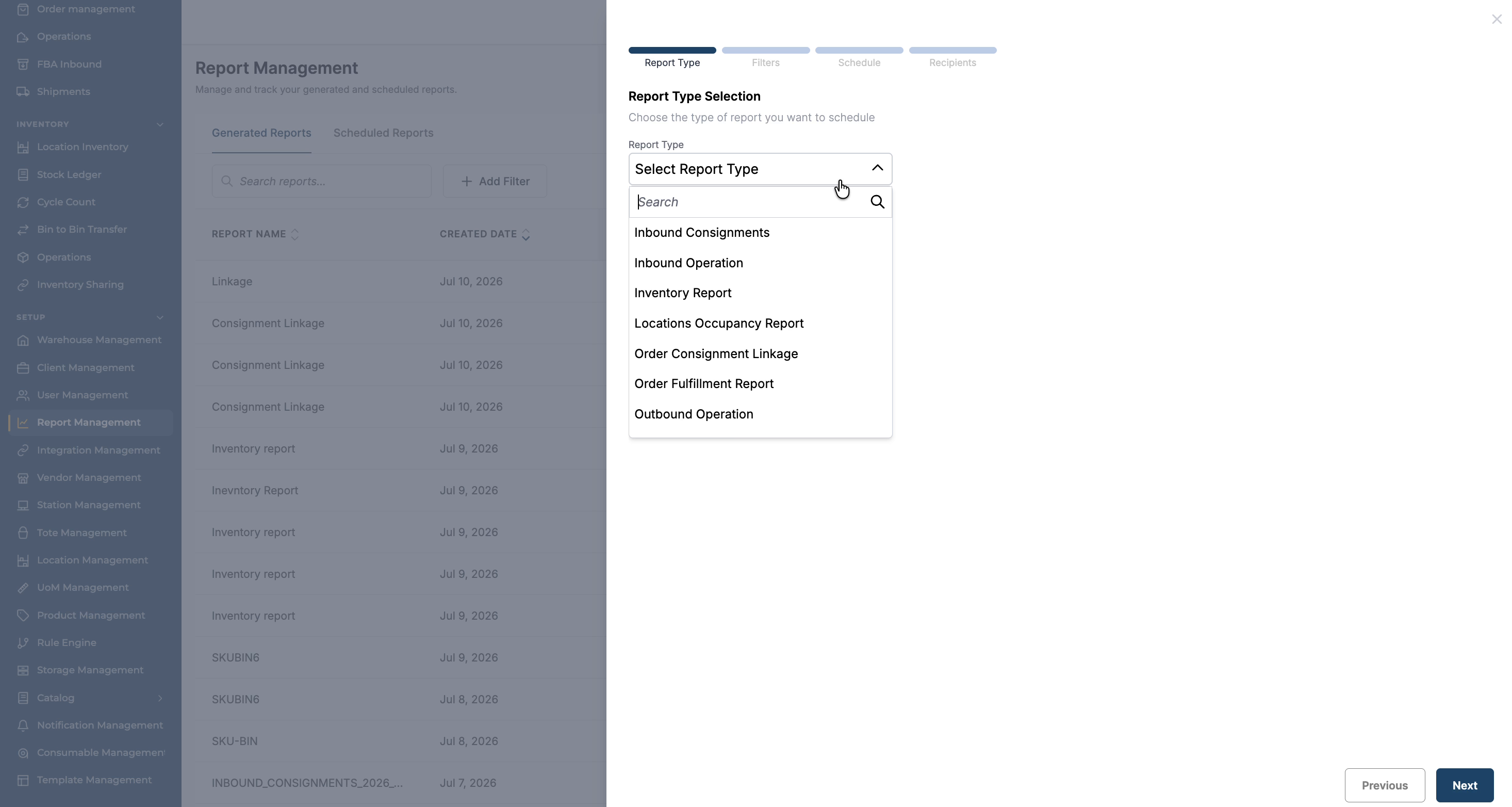
In the report type selection,

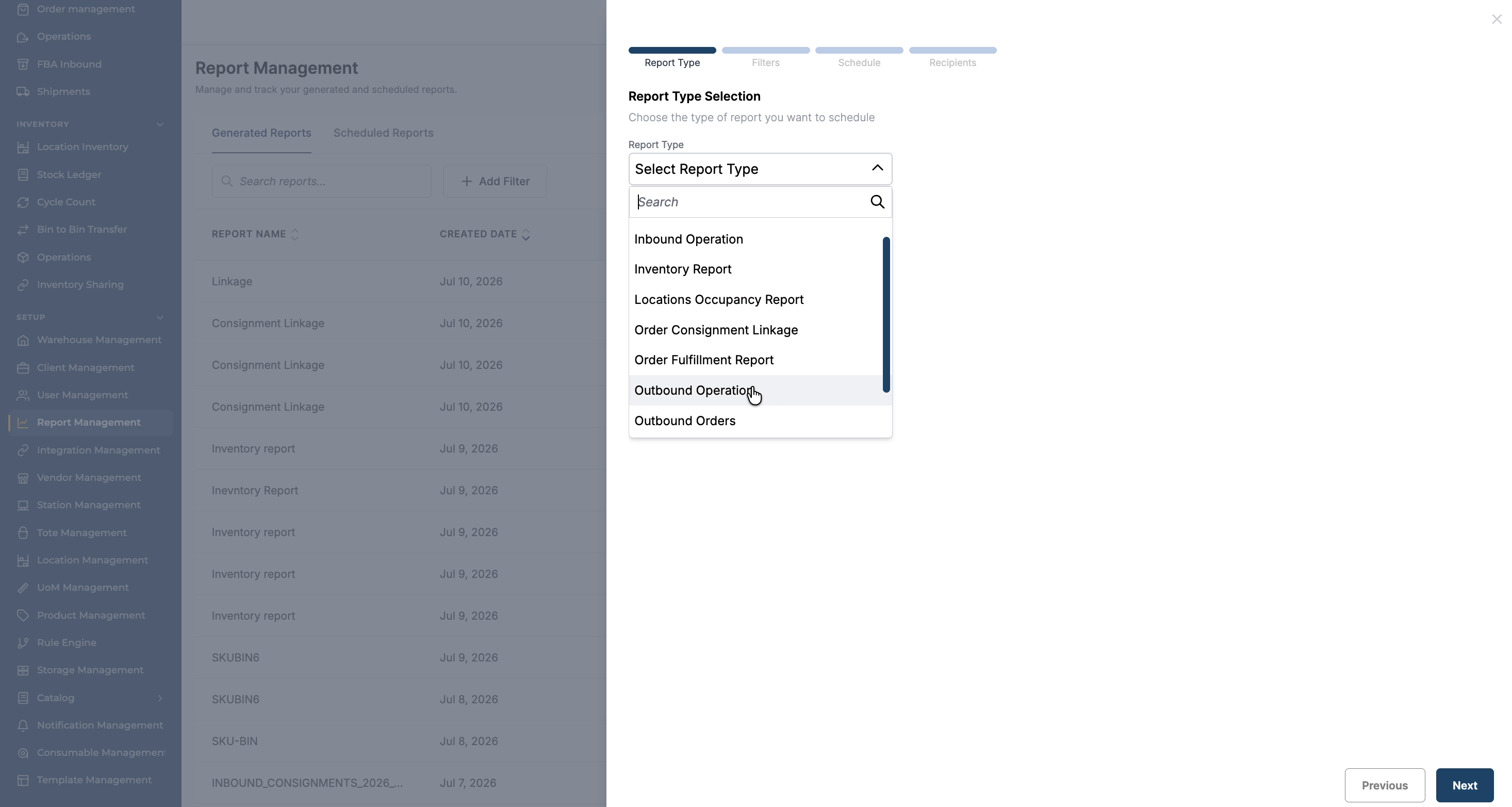
13.jpg?t=1783672417&Expires=1783687021&Signature=CdAf77PudkSr7wPxtX78wBTy-8DLKVf1tqegqIK45LWy1XFBzLFHFuk8Ke~LAy6GexgMR9LA8MzIM0YHtNn1ZljZyWOta7o9gI-btIY3p6viB3uGIY5aVVaI1duTLoJzZCEHV4NfCZmIn9I75VbU8kFLWqMsOBcwlkhUCPyjP6tW4vTskZZBamDyFbMl0fE3ZrdRPDbA0dlu8F

Choose Consignment Linkage Report. Enter a suitable name for the report and then
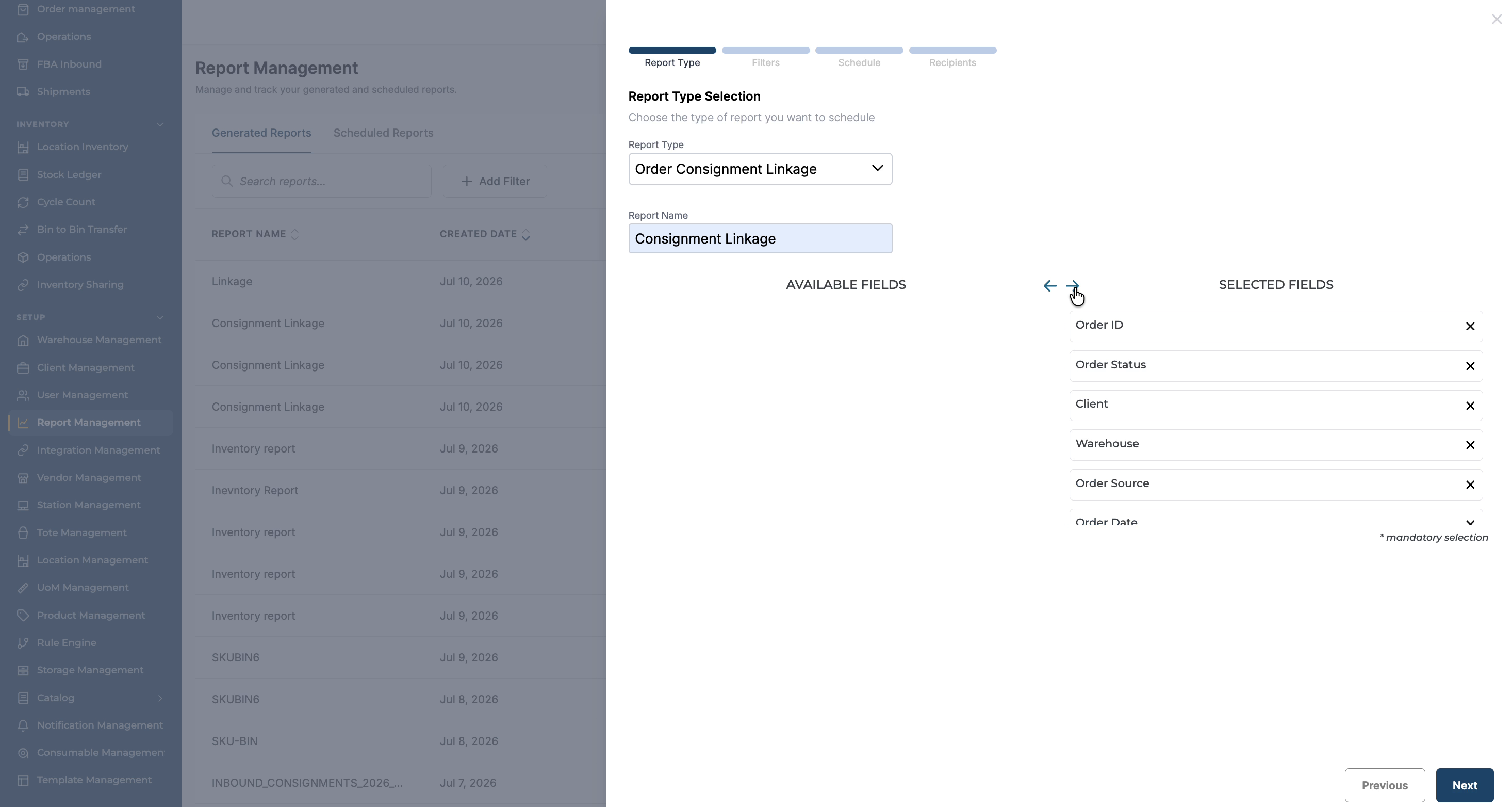
14.jpg?t=1783672418&Expires=1783687021&Signature=B9cbNyjF7HoX6aVThi-o0RhtI3dei8T1jelZT2wyQ-498rRlIsFsdULQZIuPX7bZa7siPyGdyubXReY6a58w7wpmKM4zZxVdIr08kqC~9oMH1aaVRcTobqxxWeAjRcmH4-AWECnoRNGcZF4bjblrvIWhExKE4JwWe9VVmdDAtbJwc9Q3v8HPCiJZT3f1scVicRFGzE4b7DyeB5

Select all the fields you want to include (such as outbound order ID, consignment order ID, LPN details, lot ID, etc.).
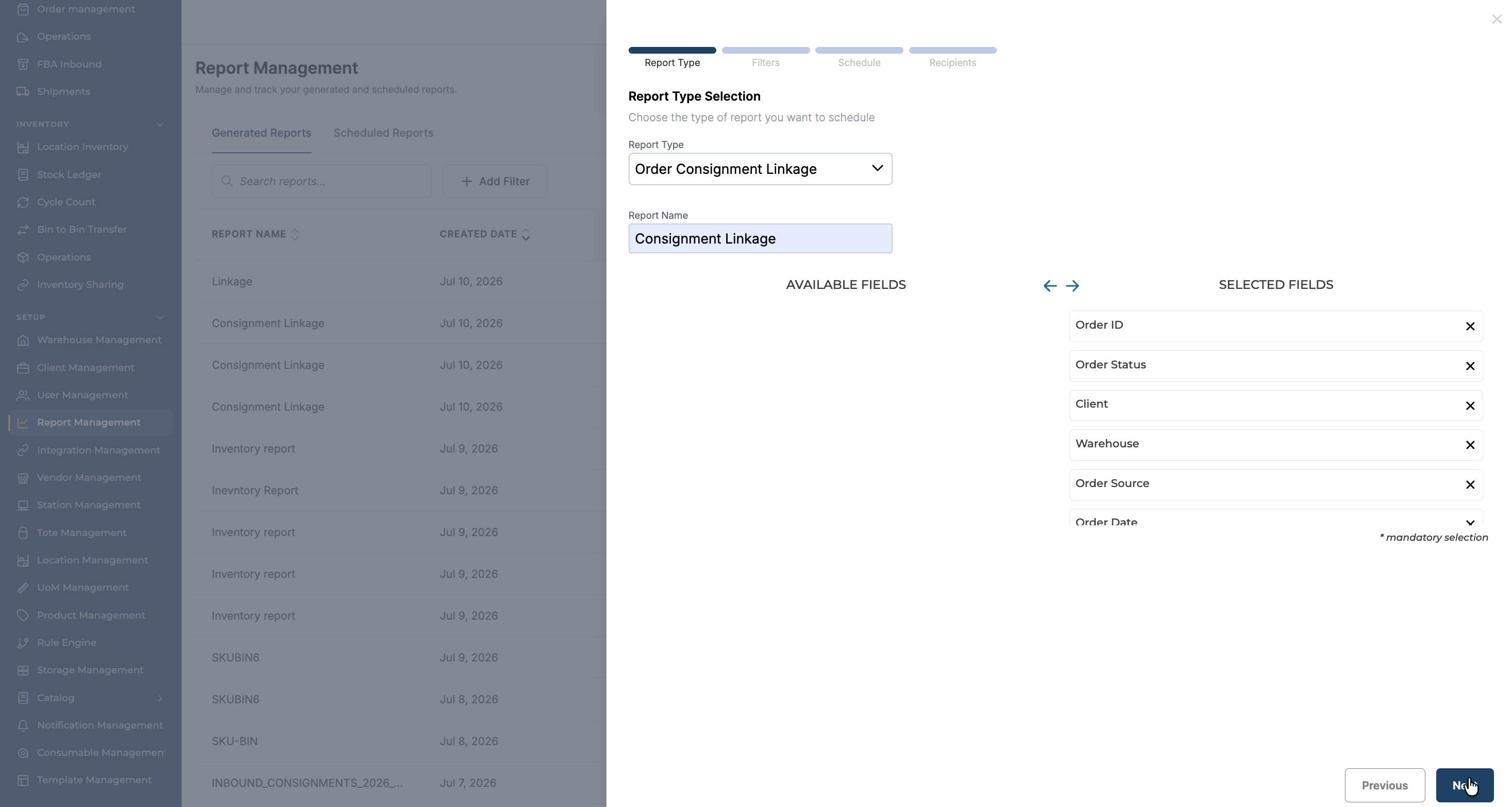
15.jpg?t=1783672418&Expires=1783687021&Signature=KACWWpidSLHrvDdP9t4I5PH02-loZuLtRDCK2I5yXVY5eR3bLMEGBryinzo-UmSkq0utMLu~qi-4ph-uuEN8UkHUImhqH56PYYEdo8gagDQOuQ4MhzN3WsuP4sOYl902m8hpgTCSNcyweEYWR98iKbg11cE5u6ugmMhBVkoO14x6XJzhSe472prQU8OGsZR9PtdXqeIpSecqFi

Click Next to proceed.

Step 6: Configure Report Filters (Warehouse, Client, Date Range)

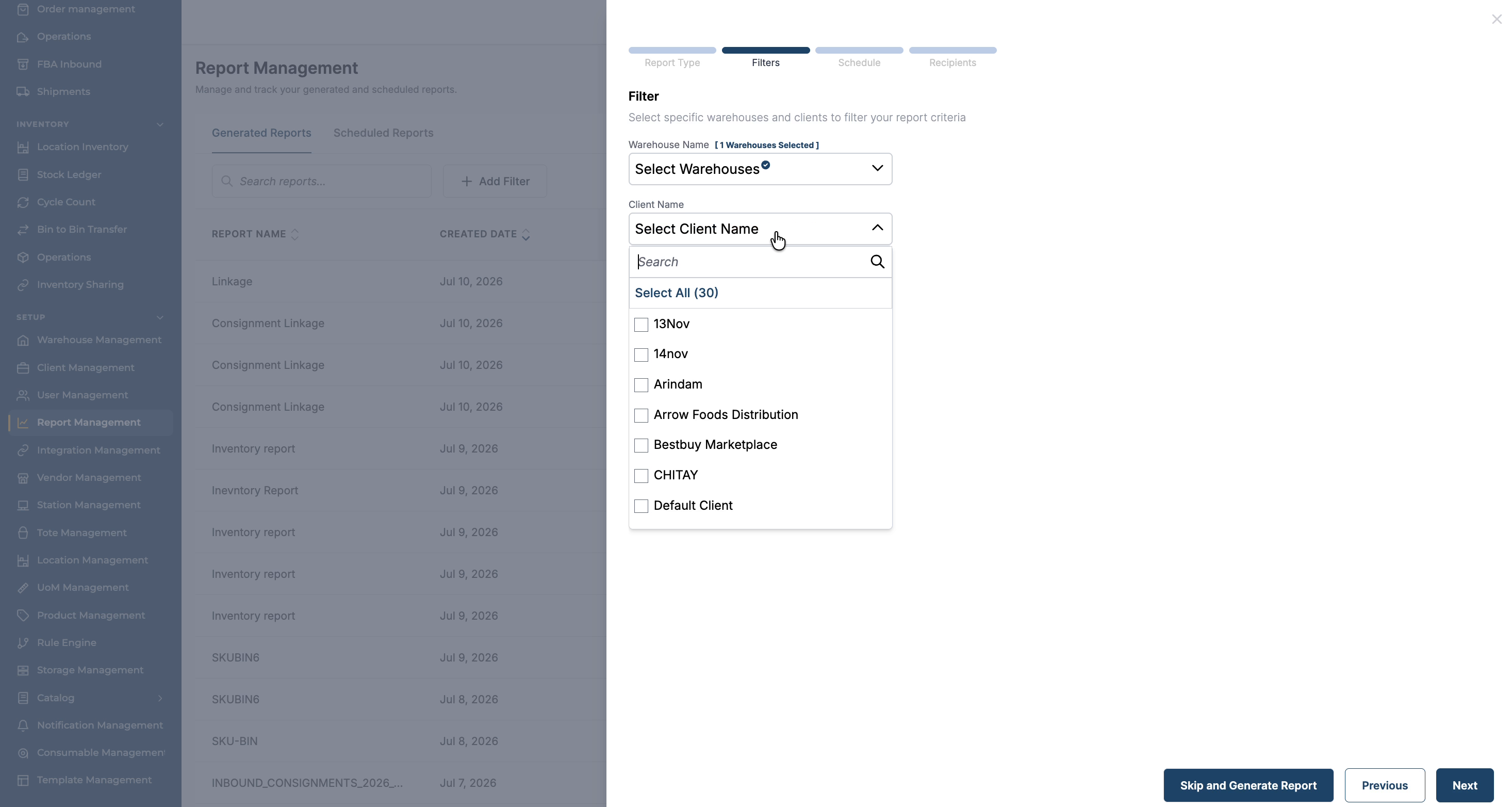
On the next screen, configure the filters for the report.
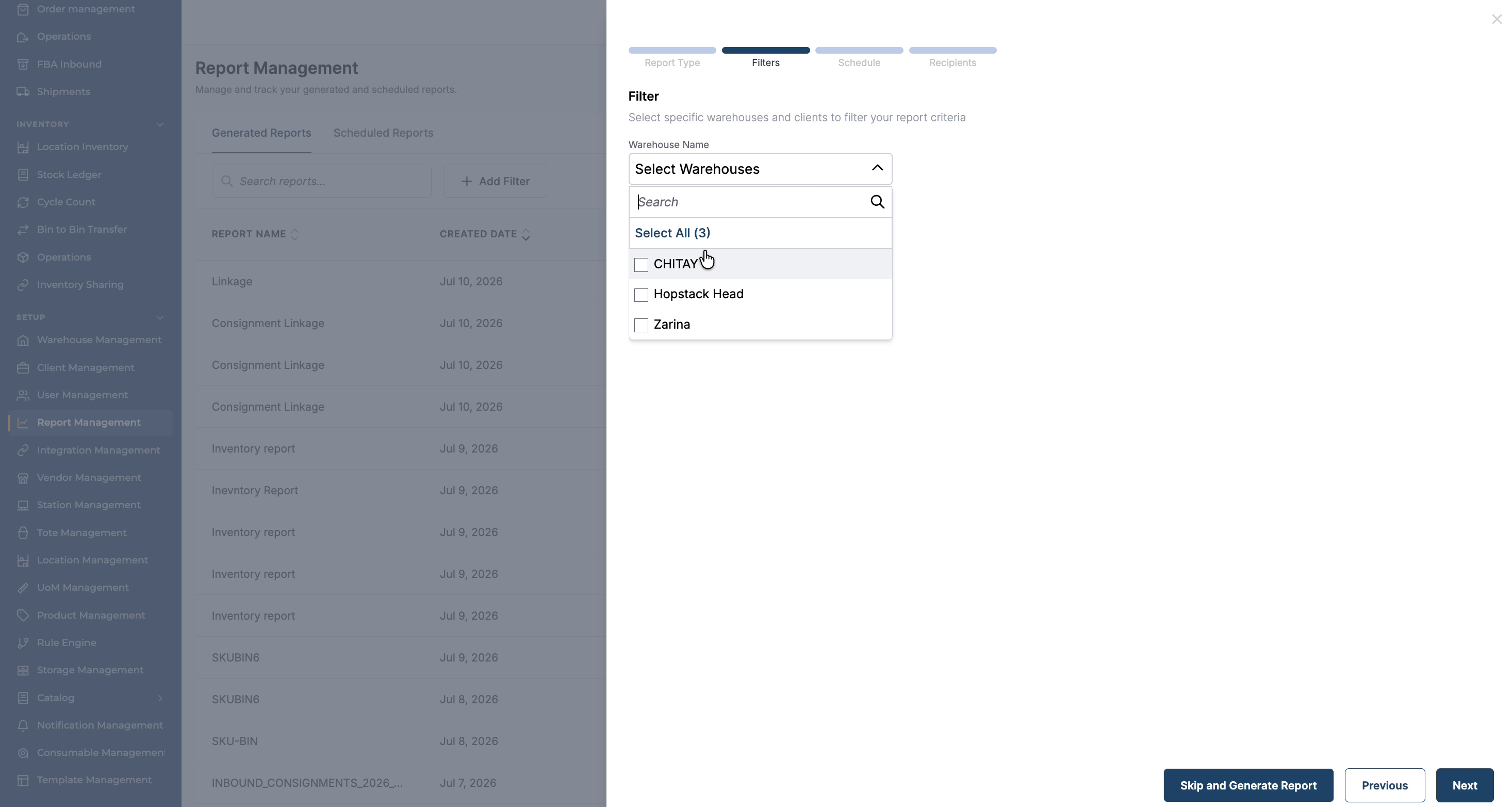
16.jpg?t=1783672418&Expires=1783687021&Signature=iadNR~tX1mbFu5ksFstMh-XSchC085RKFI3UA~kFsb~Rt1LSq43vMlLysyajc6Z56DjhjjH8IYUyAFcmDICqBJ8gCsEv7h-xIkw4zVFBAHFt8KbFiNiBYDFnUZVe5e8H0AHLV6Bt5H66YGCPRw-5~QQDC7-QVTBSpeTspffMyGpZB6GryYXW6YA4s2Wmcq3fGmmXzp6Iv28d13

Select the Warehouse,

17.jpg?t=1783672418&Expires=1783687021&Signature=iHRapfNO7kbtnjT90DrMvgbAg9Fg98CDotYRLMAlLoMJCYcMHQ7790WA5cCiQCeo4gOrwsAgQyNO4cHJ1w0dJib~TrGIWA814AaSrvP7myfMKuF5UGu8DYRhqqtBb4mn6-Q6K7~VgWhls8JAwZu961rkO5xCxq57NAoxUhe-zLNHsbY4C-hmjcieaoPqueFtN1VGVNw4za0LgN

select the Client, and

18.jpg?t=1783672418&Expires=1783687021&Signature=bTJH1himowA6tdw3mP70YOT9OVJ9QWF7N0jTaK59HBKZ2EL6thnRdXScxbWDOax2Lvwsg1KsTKf7OIz~q5xddQQZ0pFNanpAUurdPk893qLTPYelE8W1K6F3GqiZL2XIfqa736dhCLWs9ZW2d87tVCkjL4dn9QjDg-E5e81D1GK0OlNiZj4~Z1O5ahbgtn1pumiQvQbmjcu83d

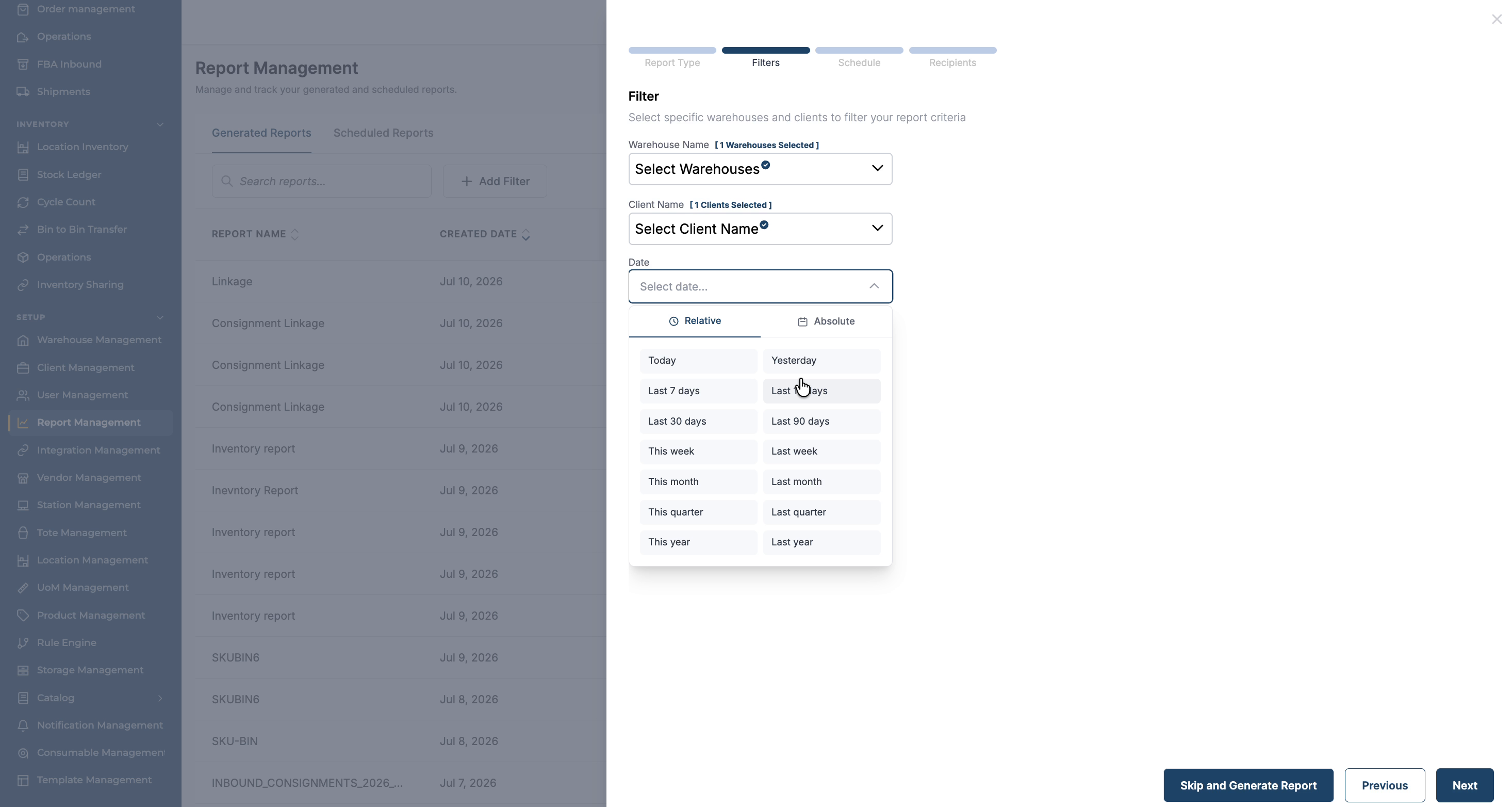
choose the Date Range for which you want to view the consignment linkage (for example, the last 7 days).
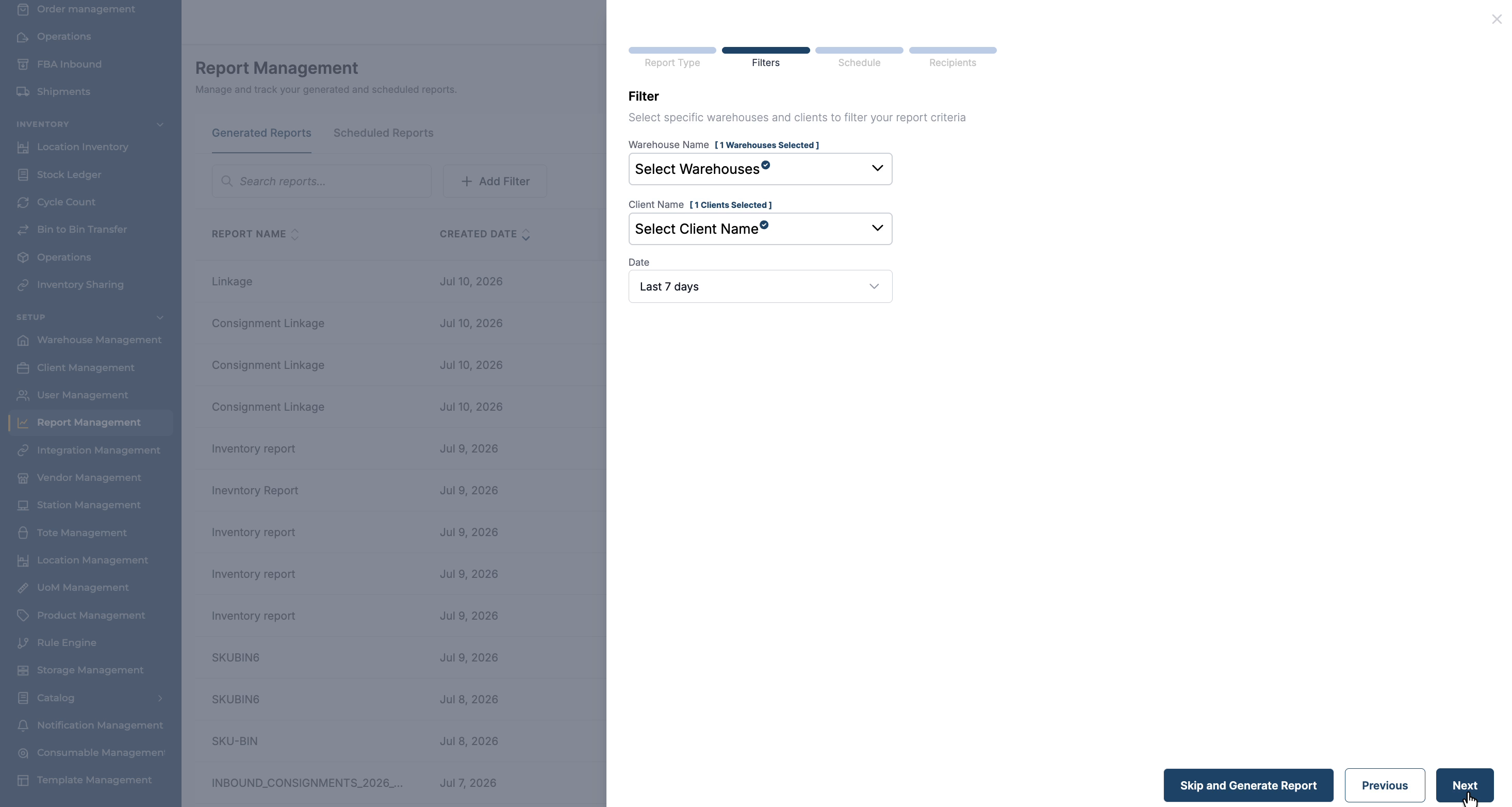
19.jpg?t=1783672419&Expires=1783687021&Signature=h0rf7bxI2tyk2EM3yko8FJSG7zAlwuvrqF16jB52vDulmHFtX36DeaUiDBdDZI3GEDBcyze3B0G6c7FqayOw9-cl5kdljtE-WRV7X0hzWjhbTuR3G8iNGrLMVossKX3OZudf3xd7FatVERyhMF156tOwlIrbk1Tn7kXoEVlOubAh~o-~4X5Z-v8Z9OGsDZBr8glPLxSB-VSjs5

Click Next to move to the final step.
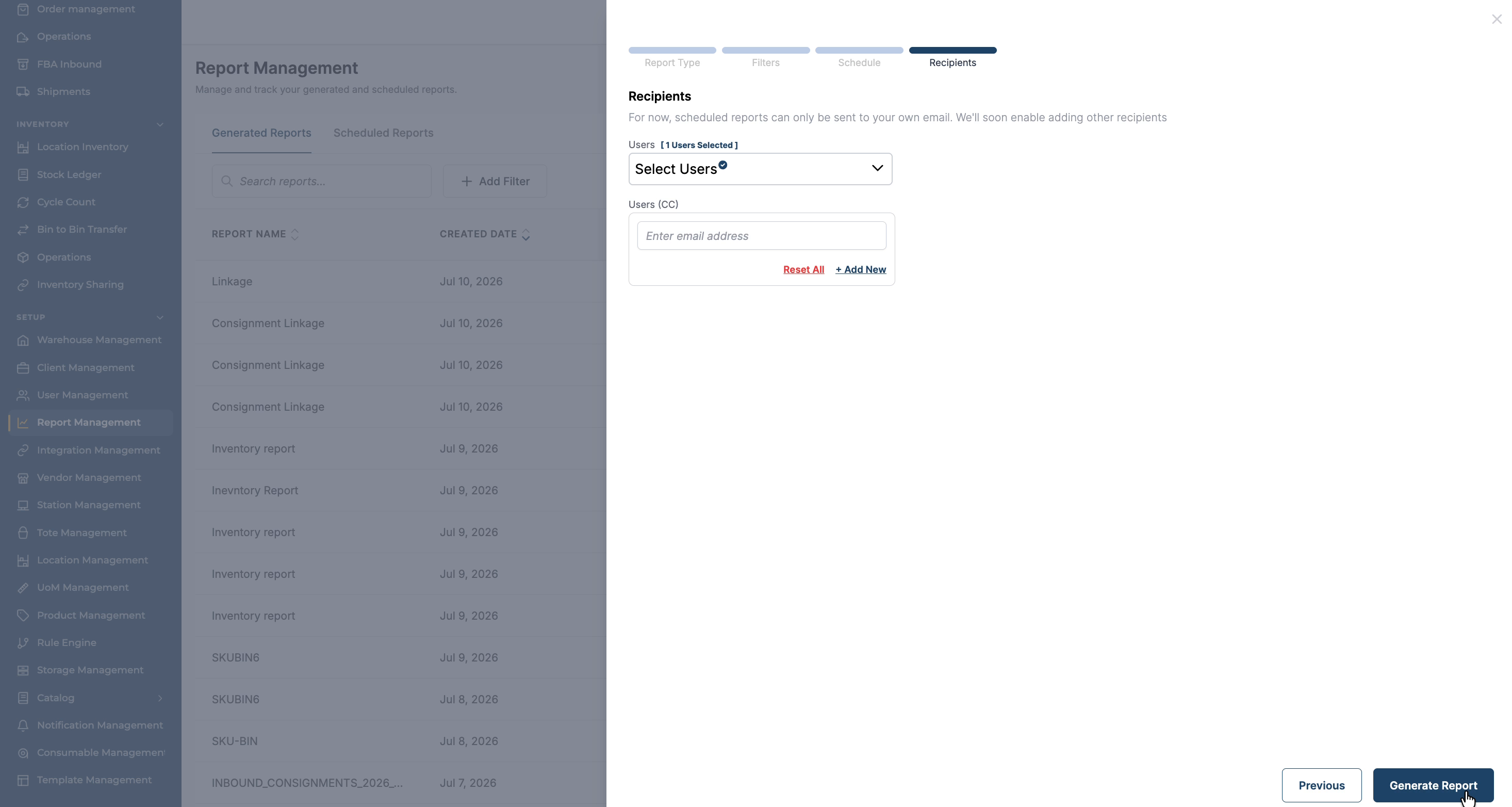
20.jpg?t=1783672418&Expires=1783687021&Signature=ZCBUeGX8JYxaKe-UOzWMARMiQjumf2HIRLMu2jvZM-qUWv1G0rTO33pWJOm7zwutukFbjmi8TMatkV2MWZJCU3jLDB2Y7o6y3SpTdUMztsCQISzR7KqesigscYsYP8QhiQRp6hLZ1Nl-uhn4L4YurNYi0ToGX8J8L8pzUQgsr-WwlMnynyudYJYfb3BPnLtgcIFni5ArD29Xdr

Run the report to generate the consignment linkage data.

Step 7: Report Generation and Review Results

Once the report is generated, open the report to see, for each fulfilled outbound order ID, which consignment order ID it was linked to, along with associated details.
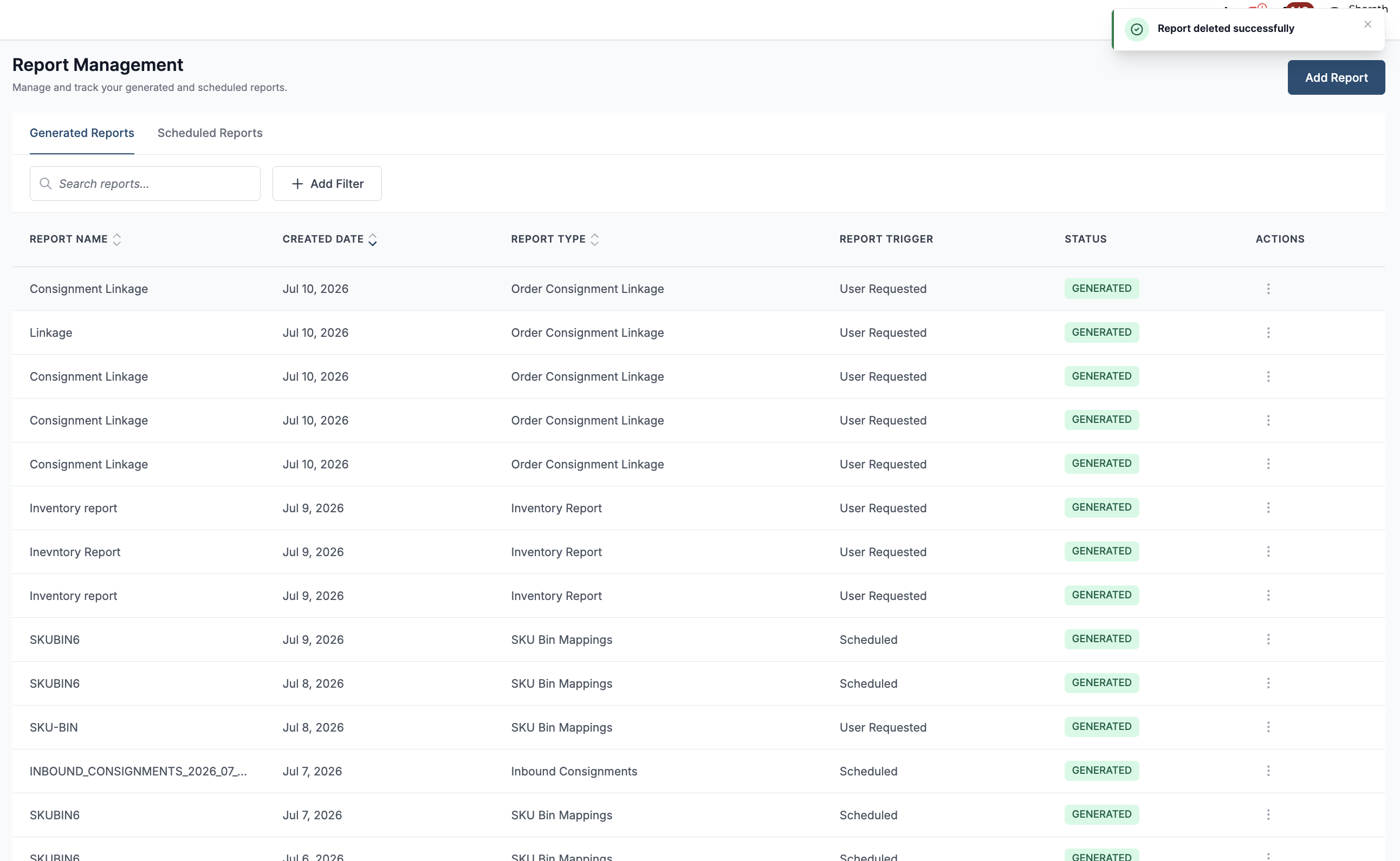
Screenshot 2026-07-10 at 2.41.11 PM-20260710-091118.png

This navigation path lets you clearly see the linkage from consignment to outbound orders.

Step 8: Download and Analyse the Consignment Linkage Report

Download the generated report file to your local system.
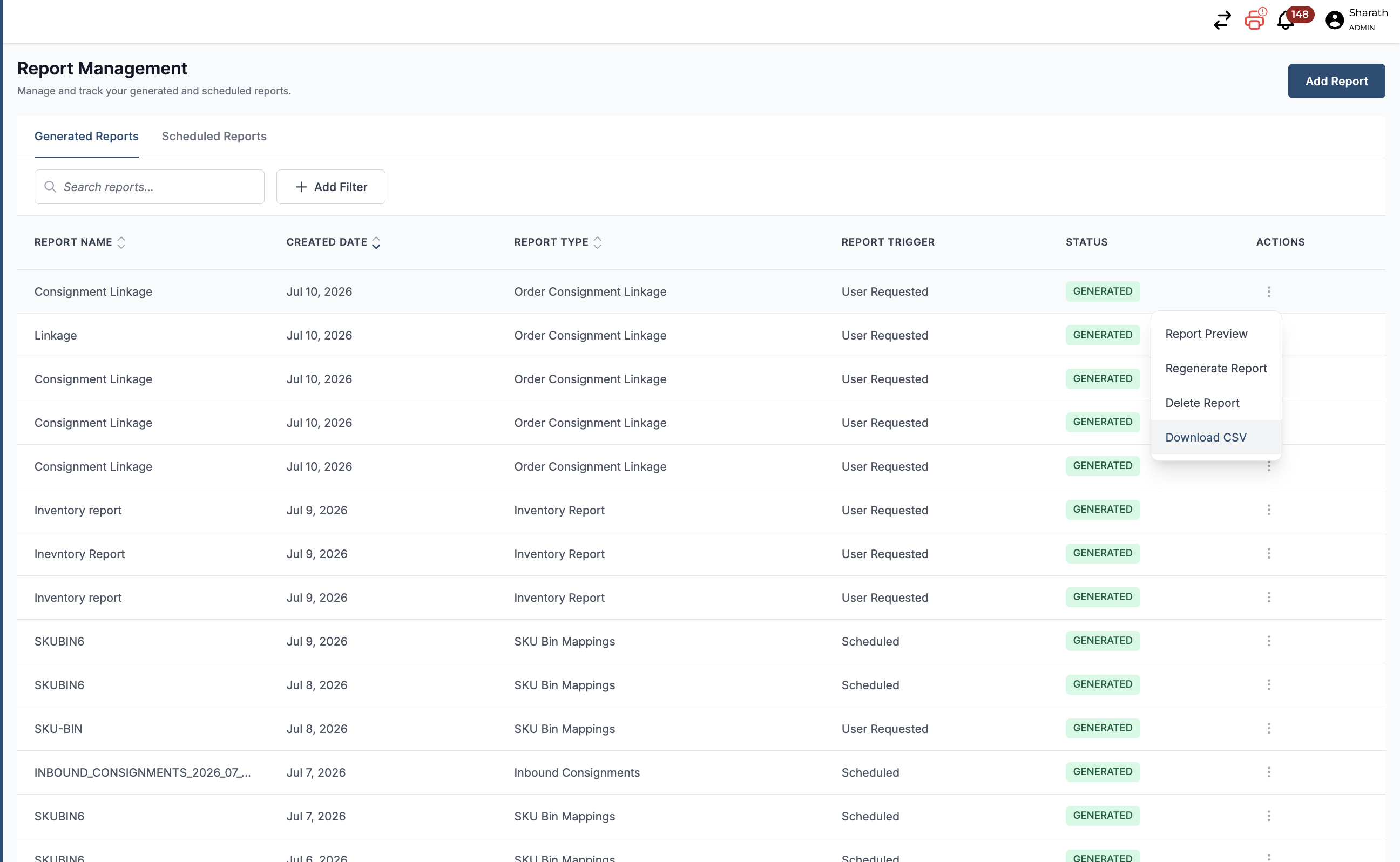
Screenshot 2026-07-10 at 2.41.41 PM-20260710-091148.png

After downloading, open the report to review the data. You will see each outbound Order ID, its corresponding Consignment Order ID linkage, and related LPN and Lot ID details. This report provides clear visibility from receiving to storage and from storage to outbound order fulfillment, enabling end-to-end tracking of consignment inventory usage.

Screenshot 2026-07-10 at 12.34.52 PM-20260710-070503.png

In the downloaded report, review each record to see:

  • Outbound Order ID

  • Associated Consignment Order ID

  • Quantity shipped from that consignment

Confirm that for your example outbound order (e.g., shipping 5 units), the report shows the correct outbound Order ID and the corresponding Consignment Order ID from which the stock was sourced.

This completes the end-to-end linkage from receiving consignments, through storage and location inventory, to outbound shipment and reporting of consignment associations.