Efficiently overseeing and processing inbound consignments is paramount for the smooth running of logistics and supply chain operations. The Hopstack system is specifically crafted to grant users an integrated experience, ensuring every stage, from consignment reception to storage, is carried out without a hitch.
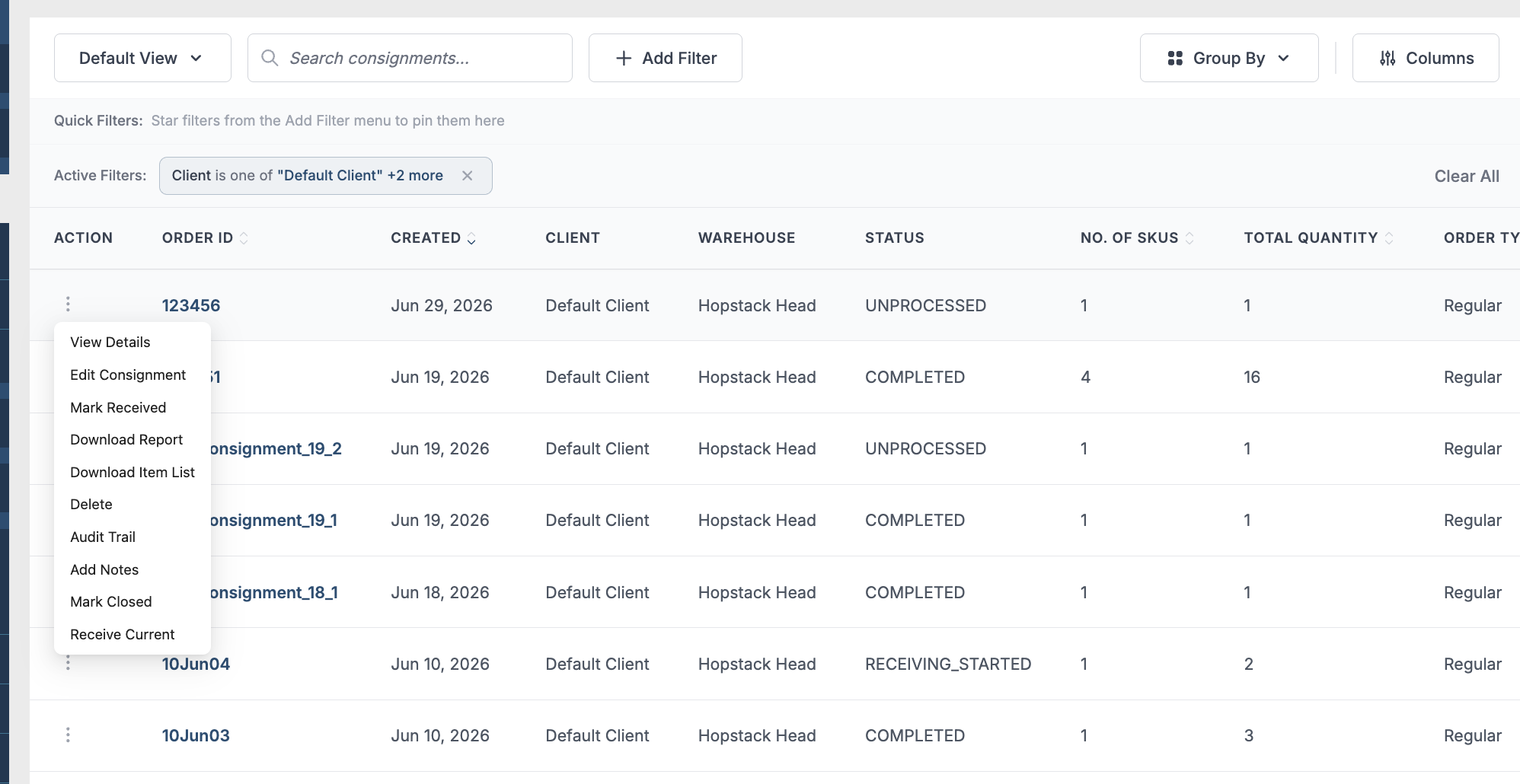
At the heart of this user-centric experience is the Action Menu, a versatile tool providing a spectrum of options tailored exclusively for inbound consignment management.
The Action Menu amalgamates numerous functions into a single dropdown interface, sidestepping the need to sift through various tabs or pages. Whether you're aiming to confirm a consignment's receipt, review item details, or even edit consignment information, the Action Menu is your one-stop solution.
Please find below the different options available under the action menu.
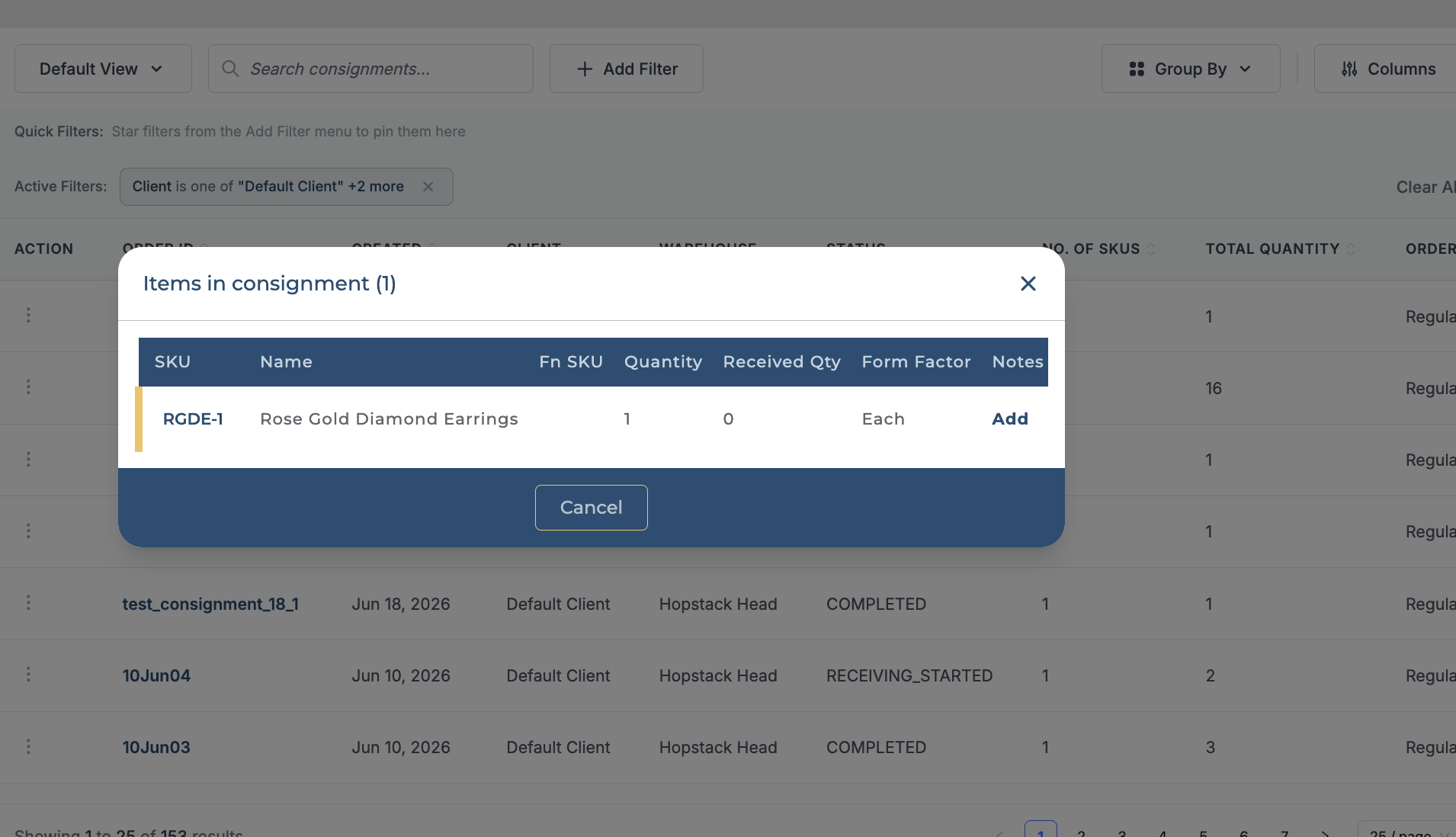
View Details
This option allows user to view the items in the consignment.
Edit Consignment
User can edit consignment details using this option, the steps to edit are explained below.
1. You modify the date using the date-picker icon.
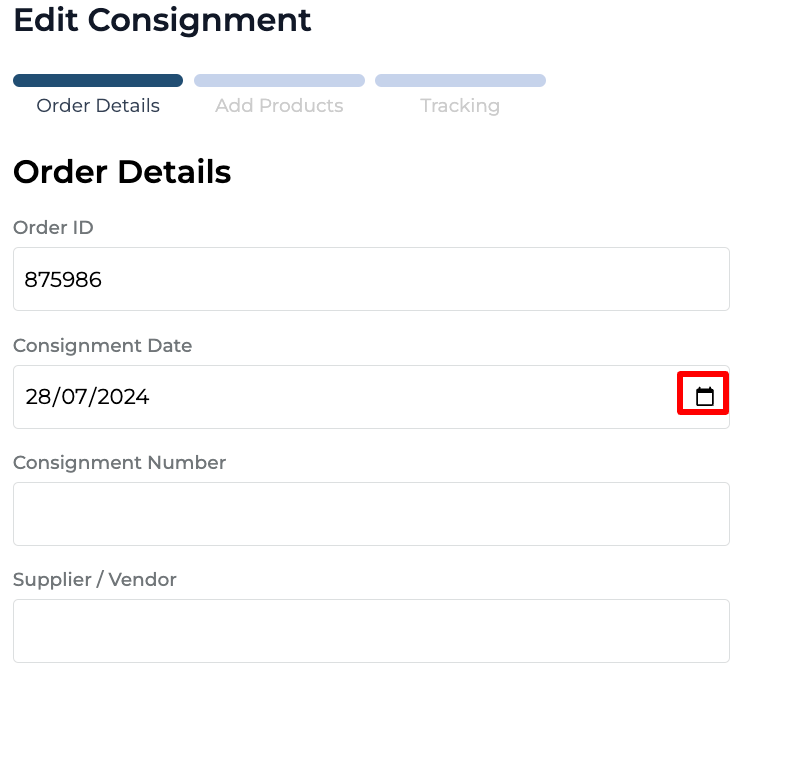
2. Click on the "Order ID" field to modify the Order ID.
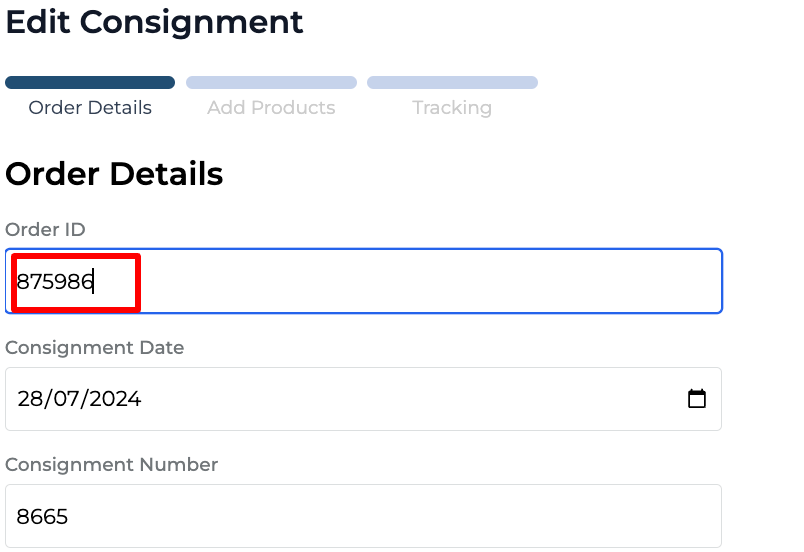
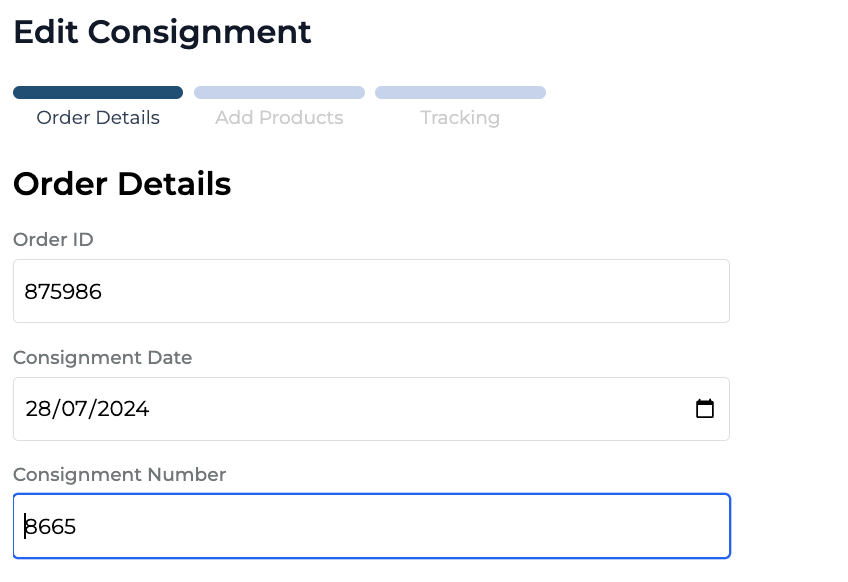
3. Similarly, you can click on the Consignment Number field to edit the Consignment Number.
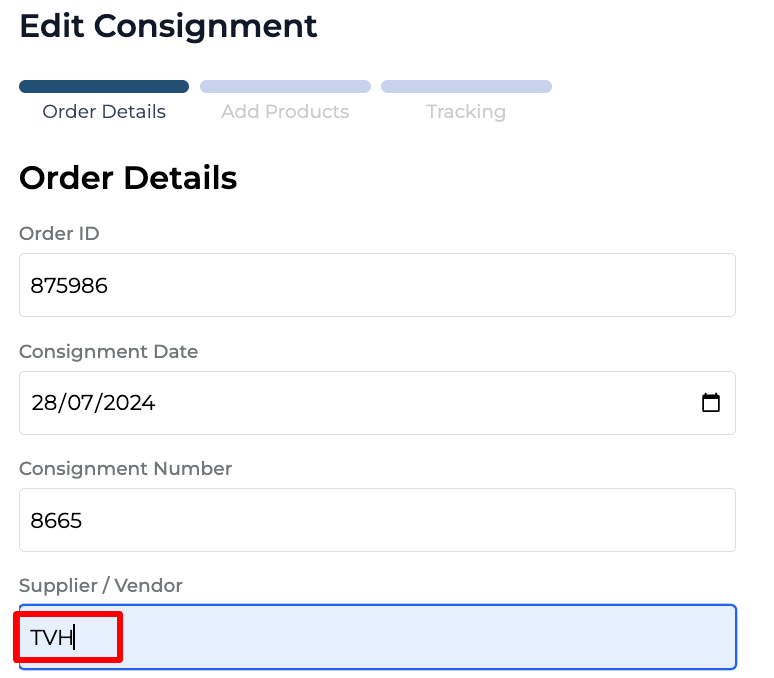
4. Click on the Supplier/Vendor to edit the Supplier/ Vendor.
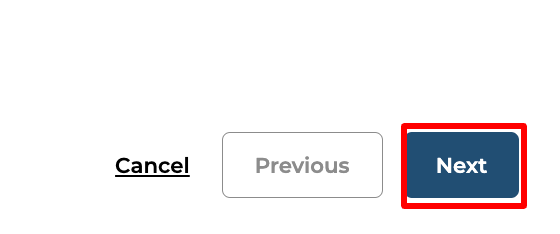
5. Click on the "Next" button to navigate to the next section.
6. You can click on the "Update" button once you have completed editing the consignment.
7. The platform will show a "Consignment updated successfully" message to confirm the change.
Mark Received
Allows user confirm the receipt of the inbound consignment in its entirety.
Prompts user to fill in optional details - Best By/expiry, Pallet ID, Lot TD, Bin Location. User can fill in the necessary details and click on Submit.
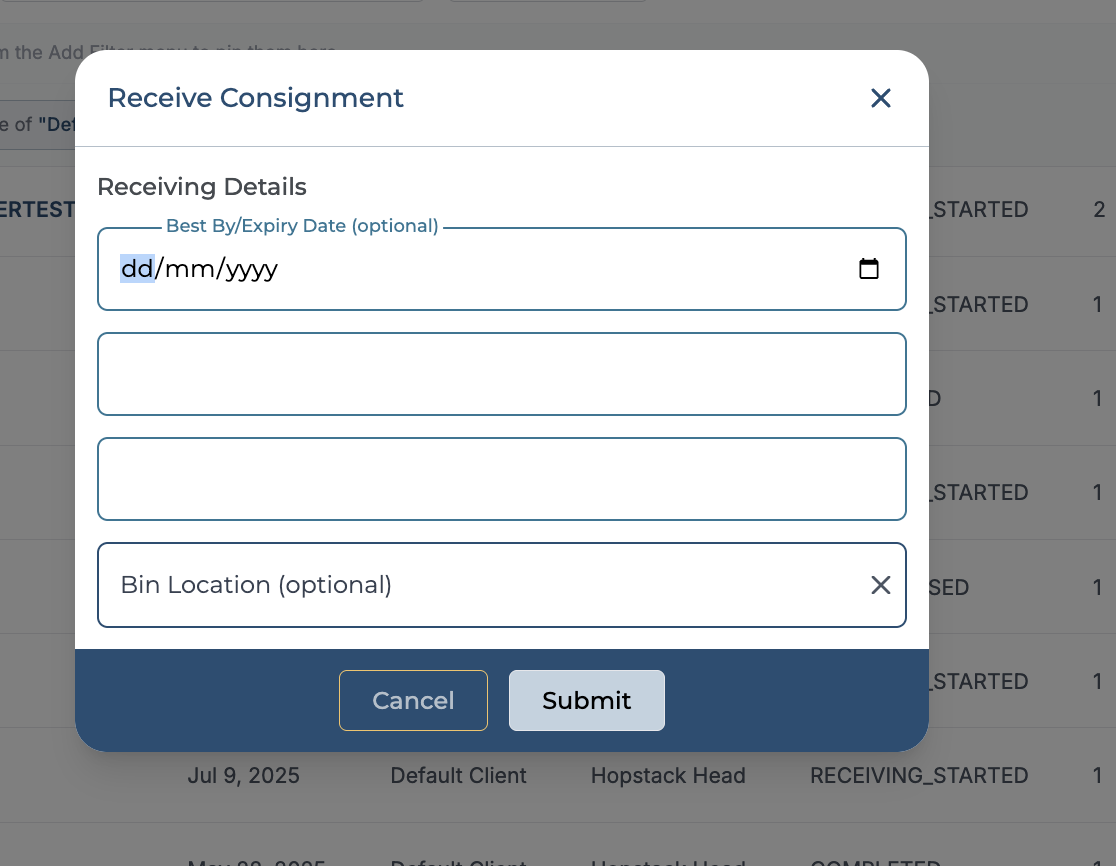
Once the user clicks on submit the consignment is received and the status of the consignment changes to completed.
Download Report
This option allows user to download a CSV receiving report to view the following details SKU, Order Id, Created At, Receiving Completed At, Name, Expected Qty, Received Qty, Form Factor.
Download item List
This option allows user to download the receiving list in a Pdf format that can be printed, this is useful for warehouses where they perform paper based receiving first and then update in the system.
Delete
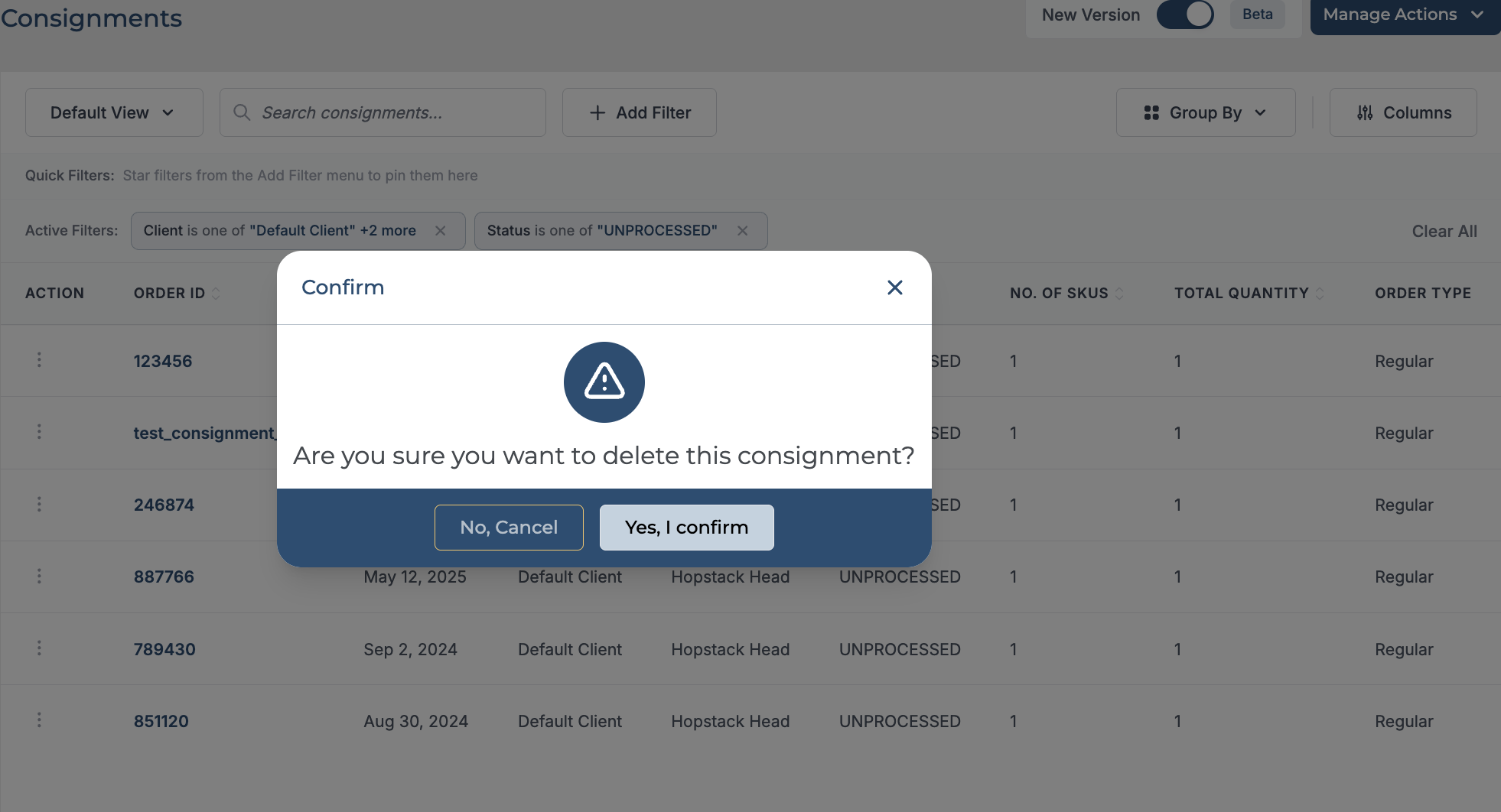
This option allows user to delete a consignment. When user attempts to delete a consignment a pop up appears asking if they are sure, if user clicks on Yes, I Confirm button the consignment is deleted.
Audit Trail
The Audit Trail provides a complete record of every action, status change, and event associated with an inbound consignment. It enhances transparency and traceability by showing who performed each action and when, enabling users to track the consignment's journey from start to finish.
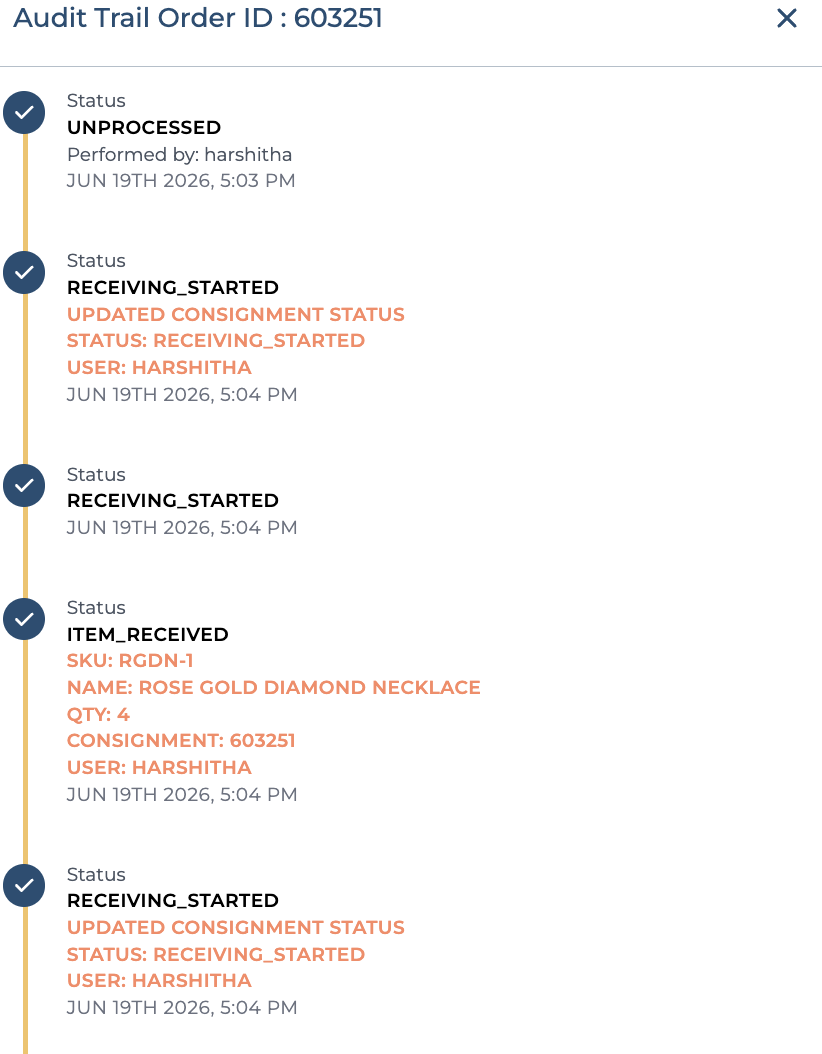
To know more about audit trail for consignments, view https://help.hopstack.io/home/audit-trail-for-consignments
Add Notes
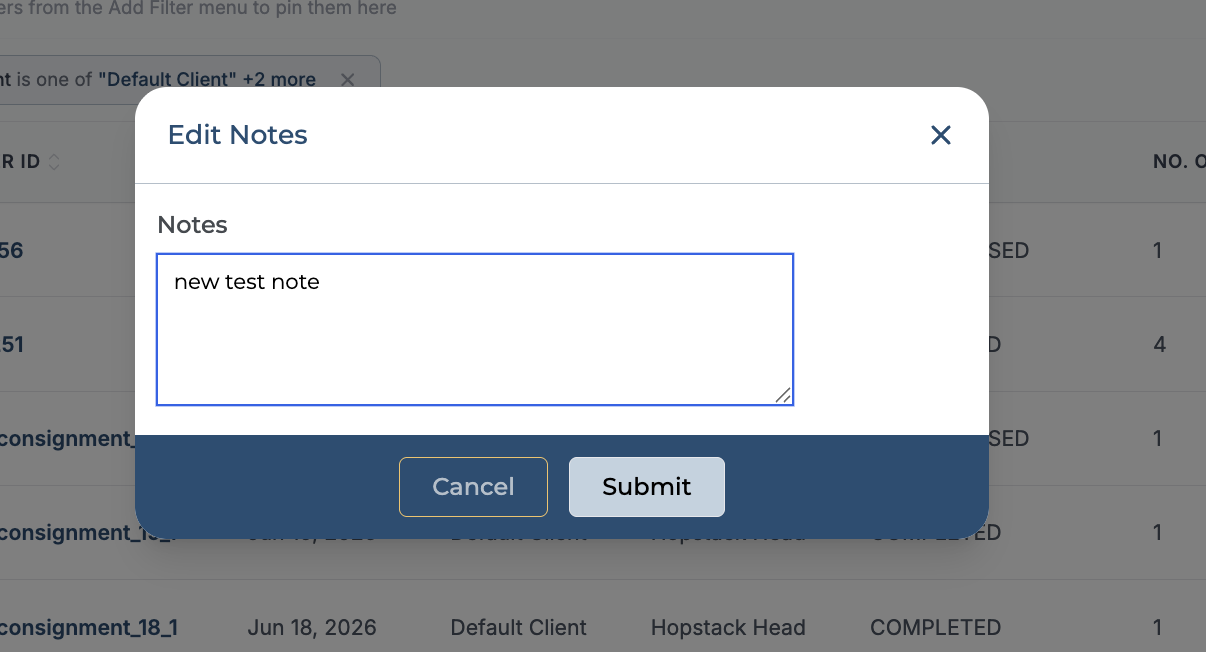
This option is used to append notes or comments related to the inbound consignment for future reference or clarification.
User can simply type in their notes and click on submit to save the notes.
Mark Closed
This option is to indicate that the inbound consignment has been processed and no further actions are required. If you decide that no further items will be added or actions are taken on a particular consignment, even if the received items are less than expected, you can use 'Mark as Closed'.
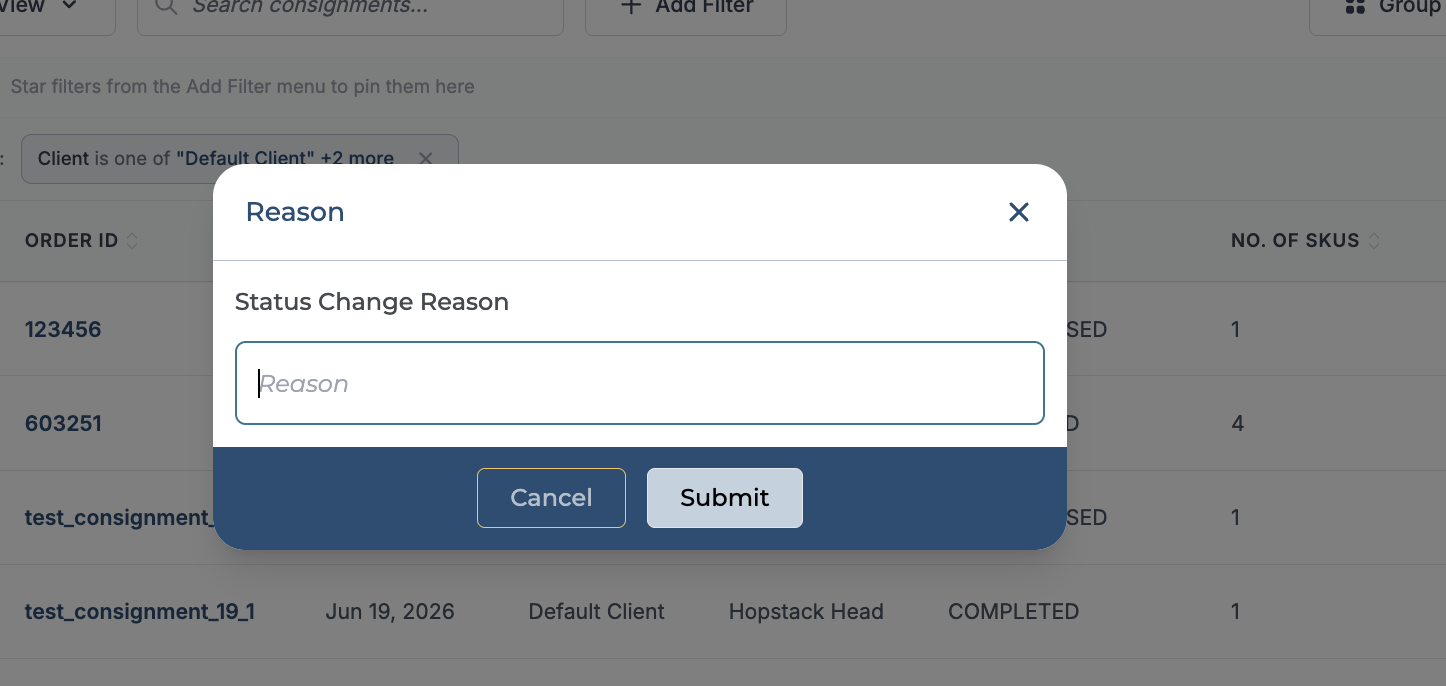
When user clicks on mark closed, a pop up appears asking the status change reason. User must input a reason and click on submit.
Upon clicking on submit the system asks for user’s confirmation to close the consignment.
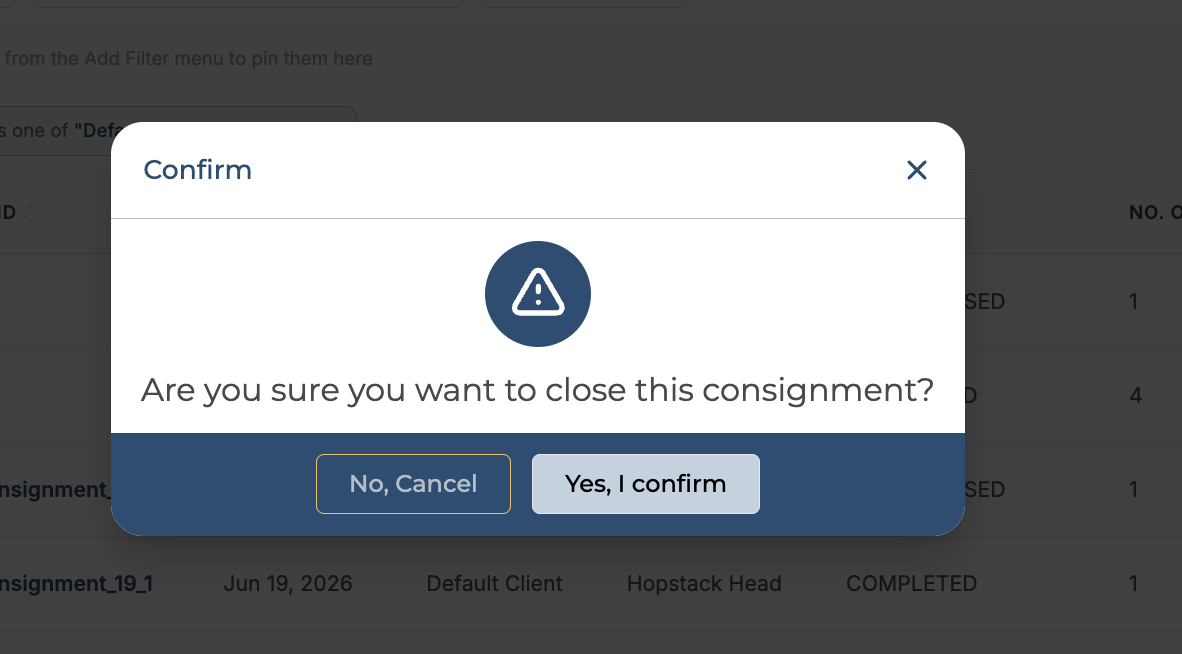
Once confirmed the status of the consignment changes to closed.
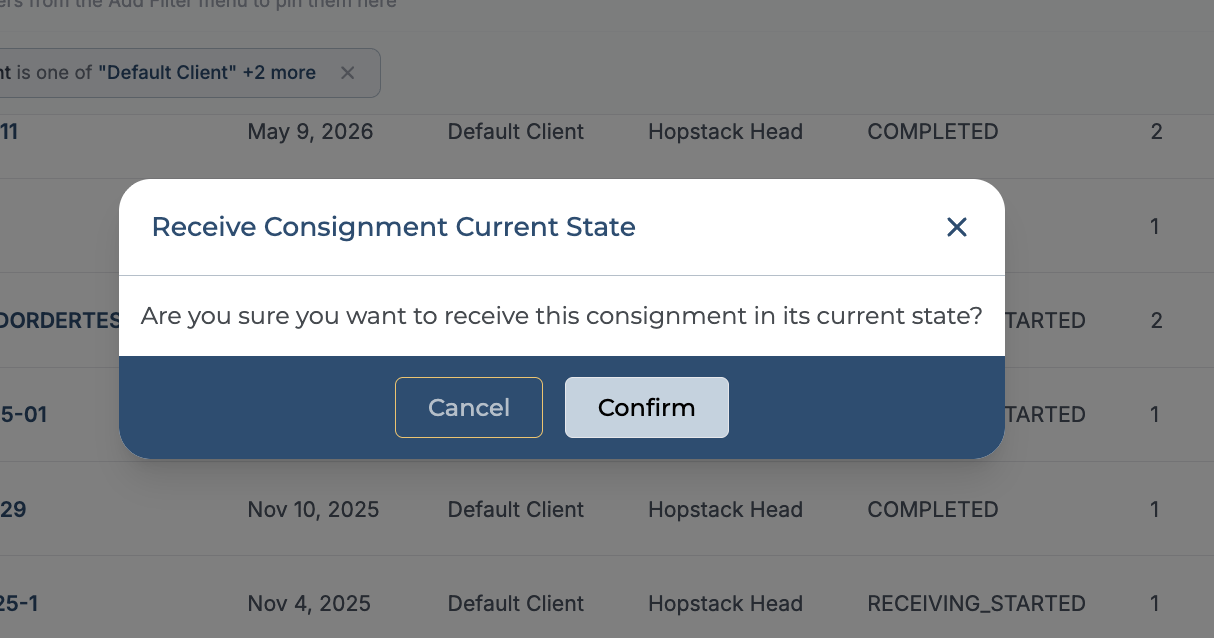
Receive Current
Confirms the receipt of the currently received items within the inbound consignment and marks the consignment complete.
When user clicks on Receive current, a pop appears asking for confirmation. Upon confirmation from user, the status of the consignment gets updated to completed.