
An audit trail is a secure and comprehensive record of sequences in a process, depicting who did what and when. In the context of the Hopstack platform for inbound consignments, it chronicles every status change, action, or event associated with a consignment. The primary objective of this feature is to enhance transparency, accountability, and traceability, ensuring users have a clear line of sight into their shipment's journey from start to finish. By providing a detailed history of every activity linked to a shipment, users can pinpoint the exact status of their consignments and act promptly if any discrepancies arise.
How to Access the Audit Trail
-
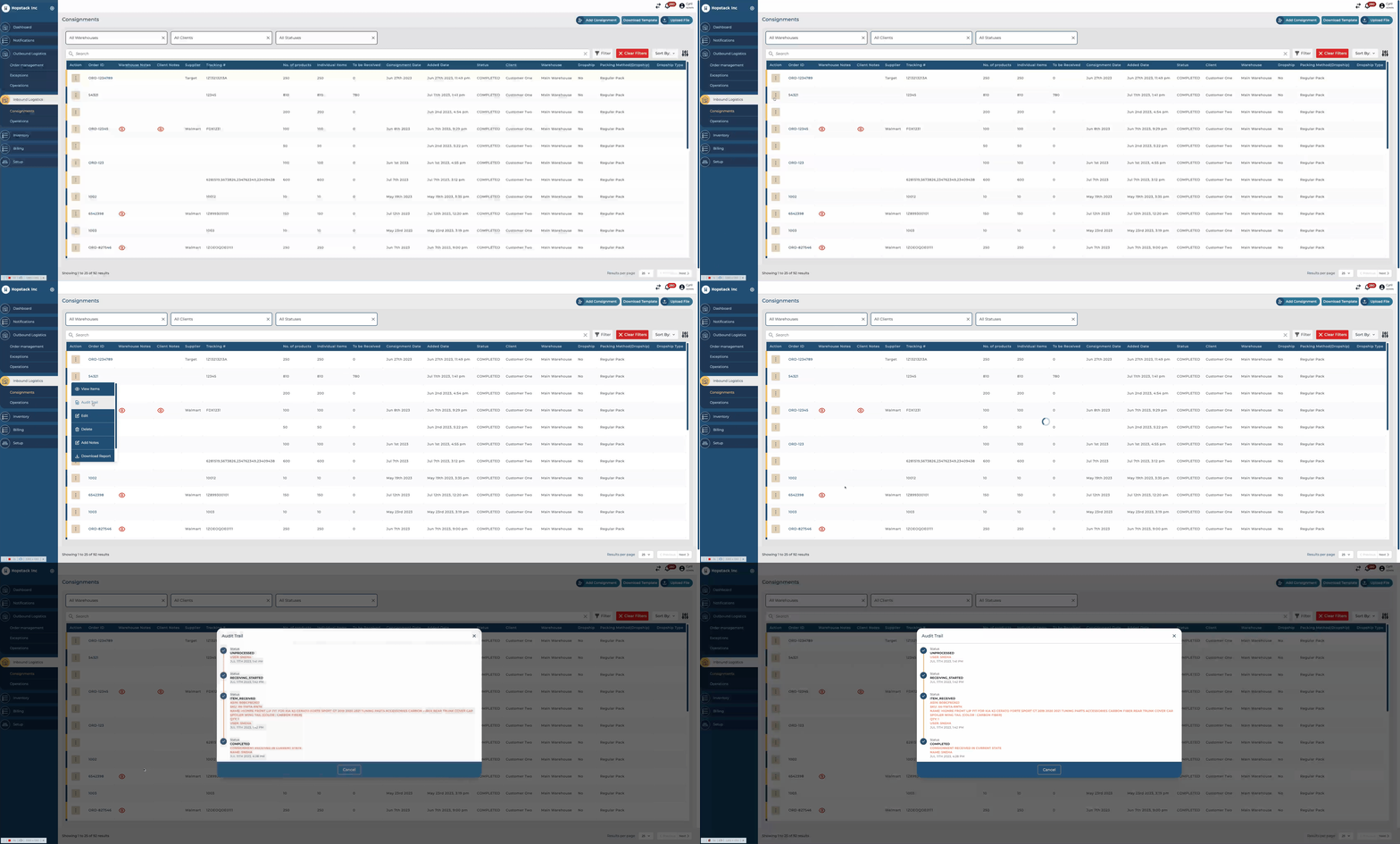
Navigate to the Consignments section under the Inbound Logistics tab.
-
Locate the specific consignment you wish to view.
-
Click on the Action Menu (typically represented by three dots or a similar icon) adjacent to the order.
-
From the dropdown, select Audit Trail.
General Overview
Upon accessing the audit trail, users will be presented with a structured and chronological history of the selected order. Each entry or status update is accompanied by:
-
A status icon.
-
The precise status designation.
-
The name of the user who initiated or was responsible for the change.
-
A timestamp, indicating the exact moment the status was updated or action was taken.
Specific Descriptions of Each Status
-
UNPROCESSED: This status indicates that the consignment has been logged into the system but has yet to undergo any further processing or action.
-
RECEIVING_STARTED: This marks the beginning of the process where the platform starts acknowledging the incoming items associated with the consignment.
-
ITEM_RECEIVED: Specific items within the consignment have been received and documented in the system. Each item's details, such as ASIN, SKU, name, and quantity, will be listed.
-
COMPLETED: The consignment has been fully processed, and all associated activities have concluded successfully.
-
CONSIGNMENT RECEIVED IN FULL: All items linked with the consignment of the order have been received in their entirety. This entry appears as a result of clicking “Mark as Received” in the action menu.
-
CONSIGNMENT RECEIVED IN CURRENT STATE: The consignment associated with the order has been received in its current state. This entry appears as a result of clicking “Receive Current” in the action menu.