
The Audit Trail in Product Management shows when a product was created, updated, or deleted. It records changes to individual fields, including their previous and new values, and identifies the user or system that made the change. It includes changes made through manual edits, bulk uploads, supported integrations, the public API, and bundle updates.
How to view the audit trail
-
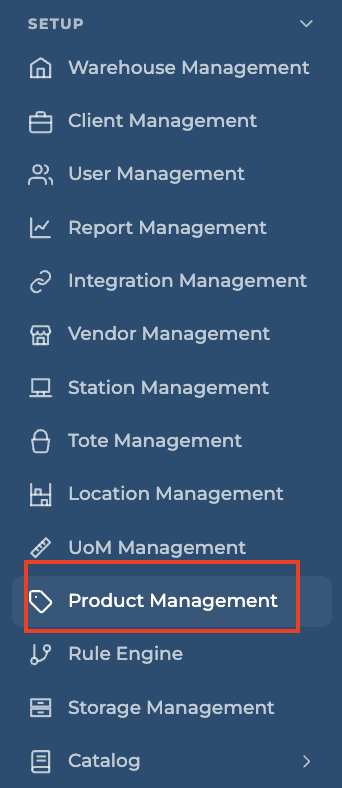
Navigate to Set Up > Product Management.
-
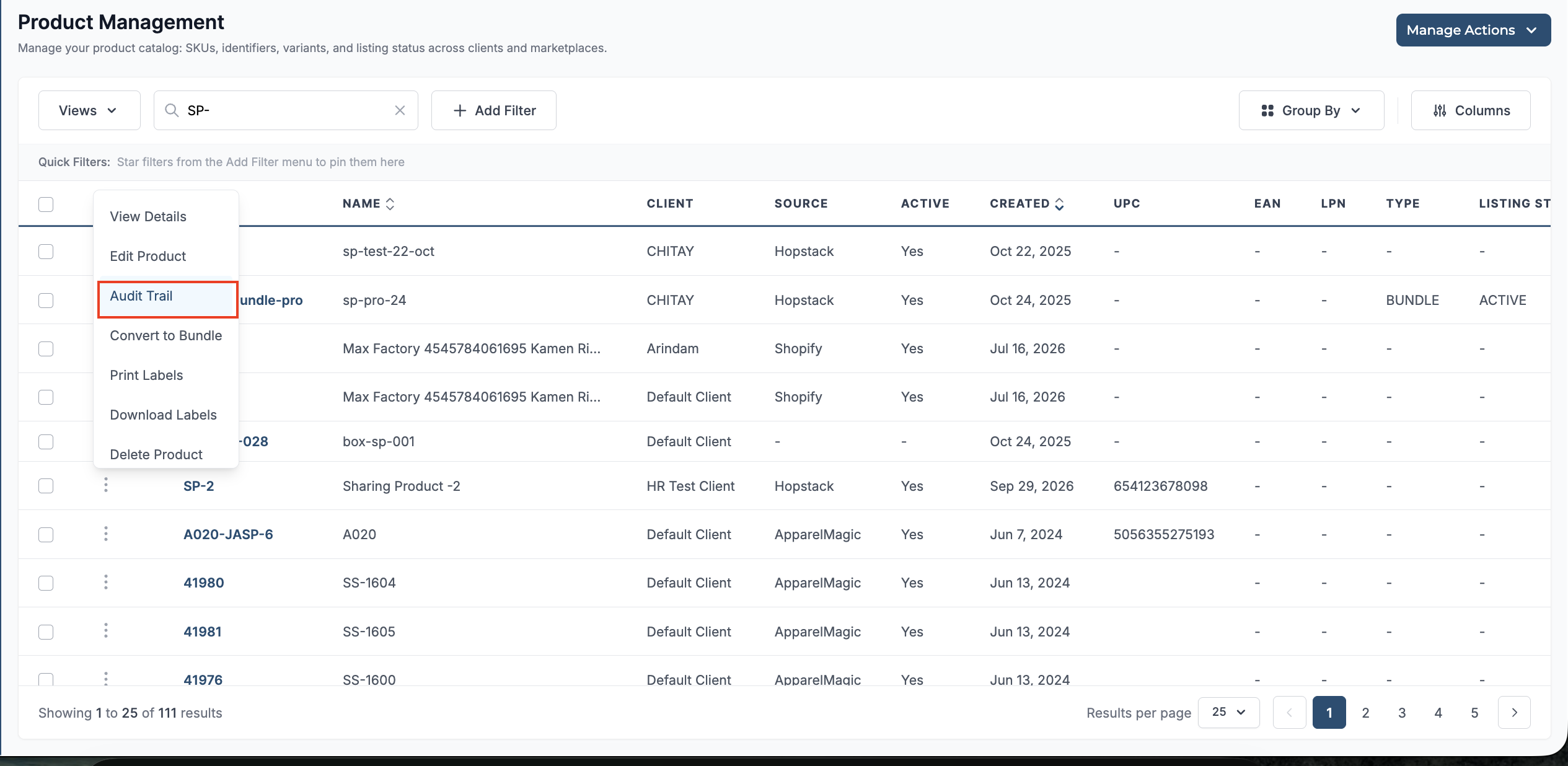
Find the product or bundle you want to review.
-
Open its Actions menu and select Audit Trail.
What the Audit Trail Shows
The audit trail displays events in a timeline, with the most recent changes at the top. Its header identifies the product, source, and client. Each event shows the action, date and time, changed fields, and Initiated By information when available.
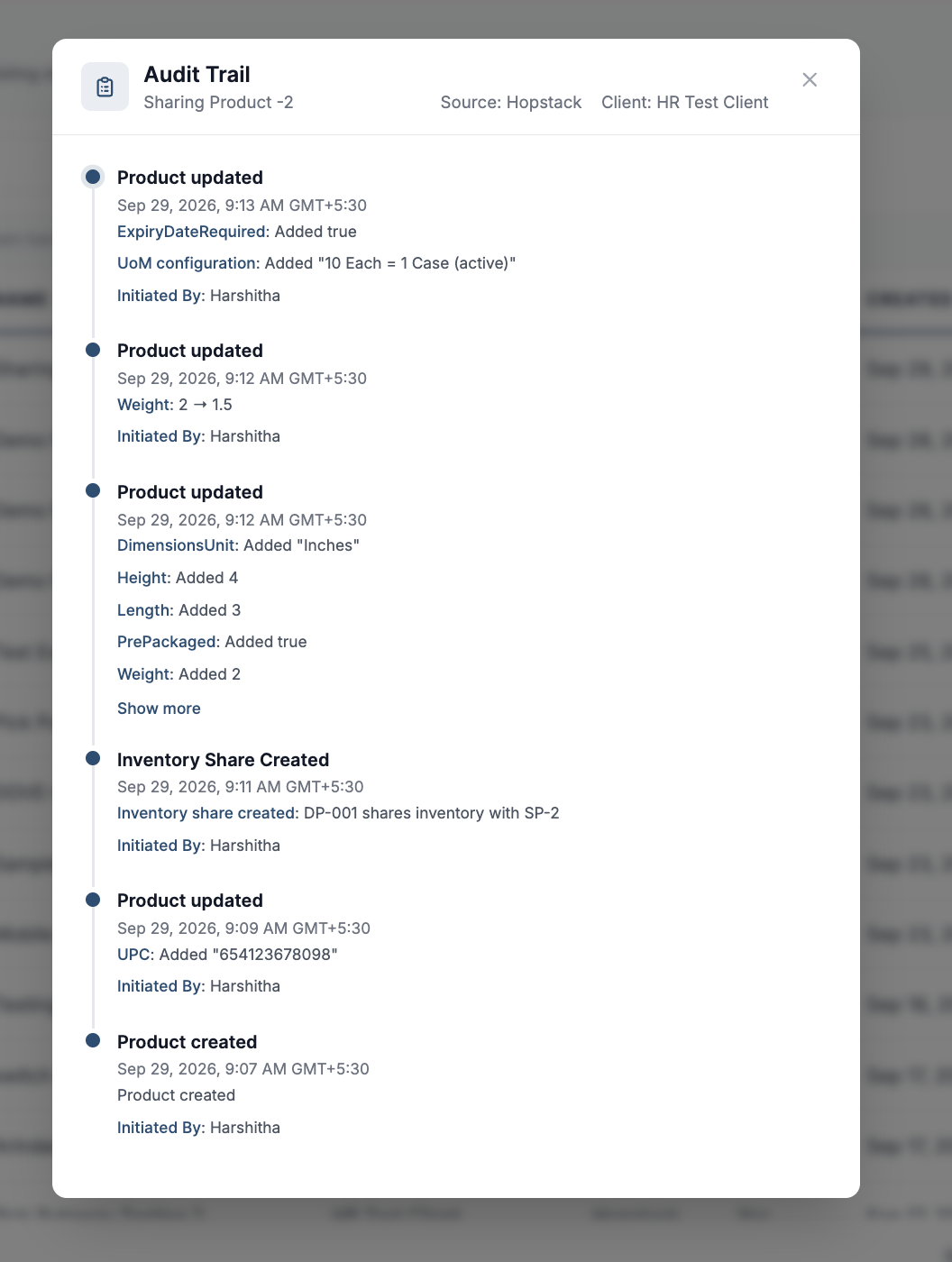
From the above example, we can observe that:
-
Field changes appear as Added when a new value is added.
-
When an existing value is changed, it appears with an arrow showing the previous and new values. For example, Weight: 2 → 1.5 means the weight changed from 2 to 1.5.
-
Select Show more to expand an event with additional changes.
-
The history also shows “Inventory Share Created” and the product with which inventory is shared.
For bundles, Bundle Updated shows the components Before Update and After Update, including their quantities and units of measure. In the example below, you can see that changes from DP-001 (qty 1) and DP-002 (qty 1) to DP-002 (qty 2) the audit trail displays both component lists so you can see exactly what changed.
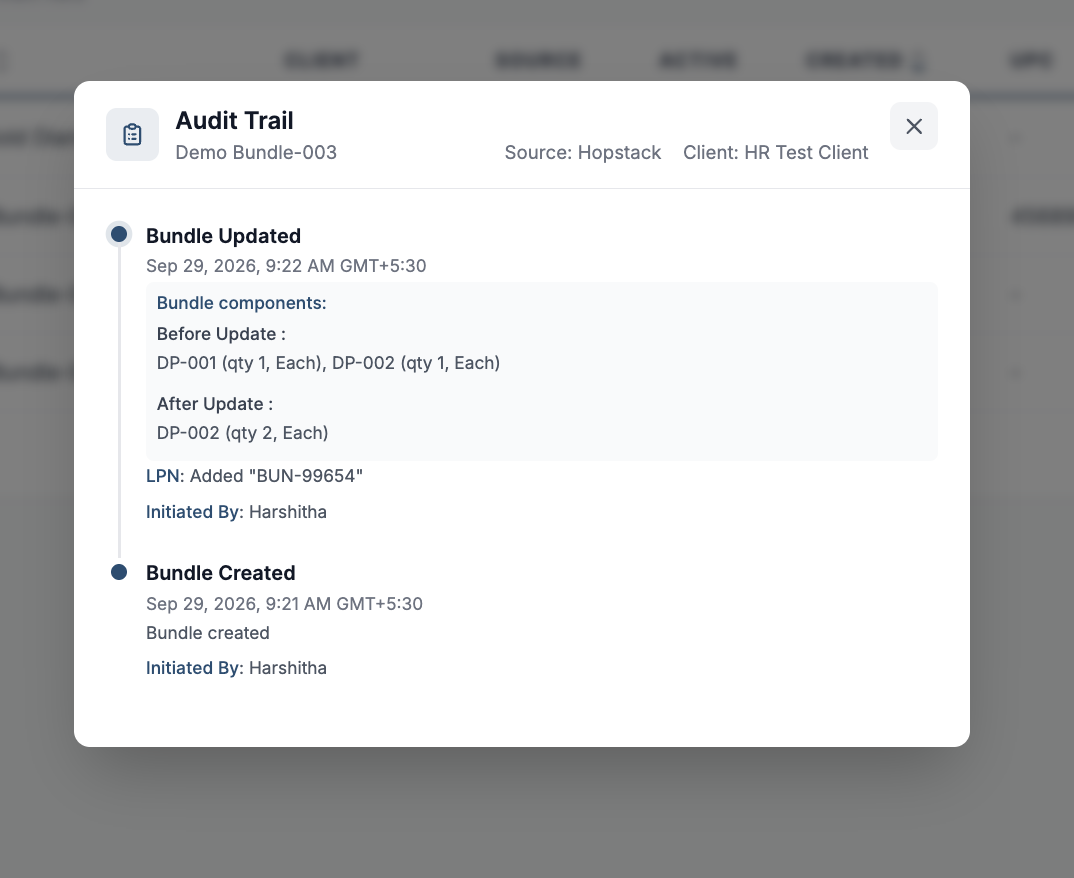
Use the audit trail to investigate unexpected product or bundle changes. For example, if a product’s weight changes or a bundle contains the wrong components, you can compare previous and new values, find the update that caused the discrepancy, and follow up with the person or process that made it.