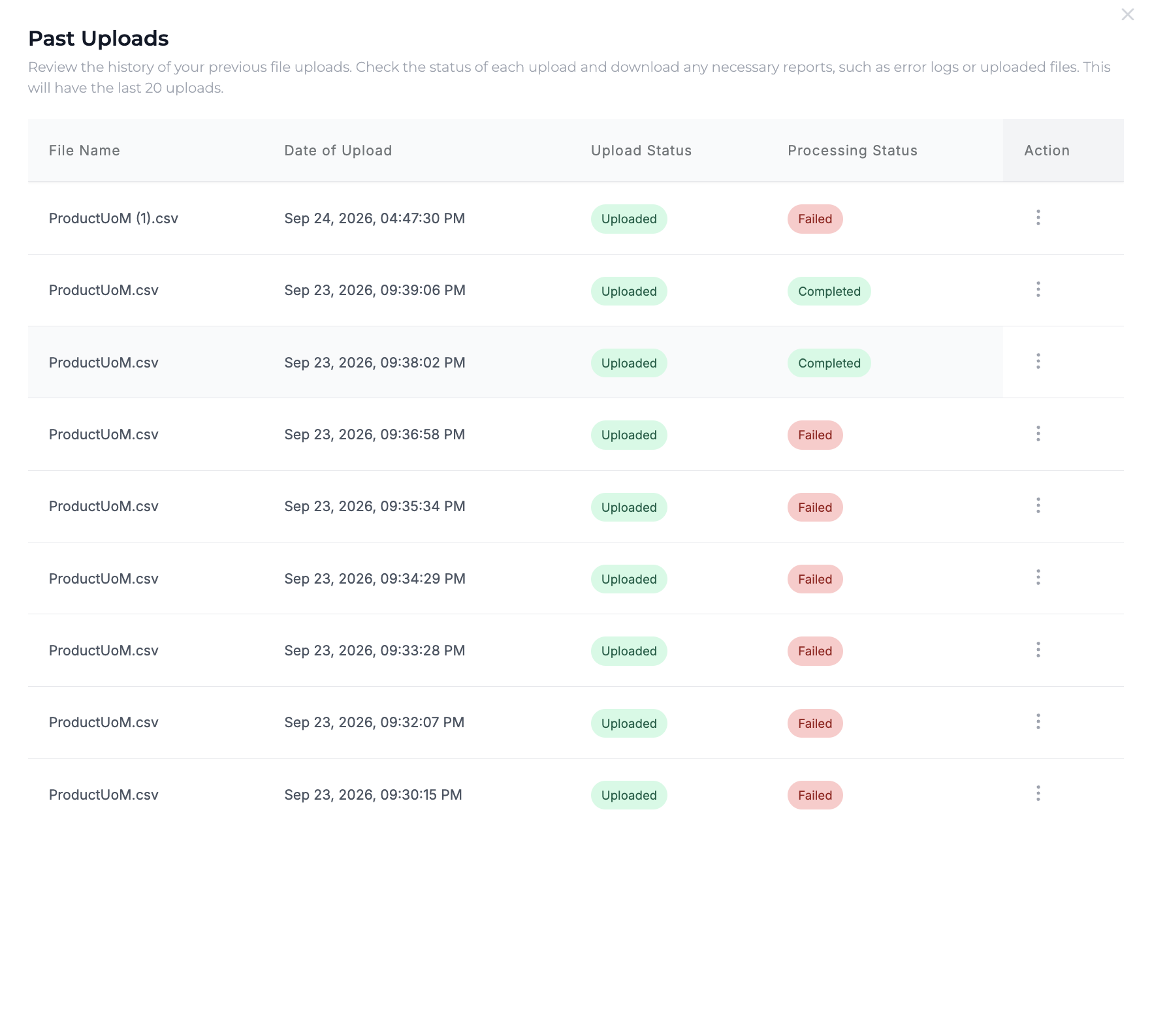
We're excited to introduce the bulk UoM upload feature, designed to help you efficiently manage large amounts of data. With improved data validation and formatting, you'll benefit from real-time feedback during uploads, as well as the ability to view past uploads for better tracking and management.
Follow the steps below to bulk upload products.
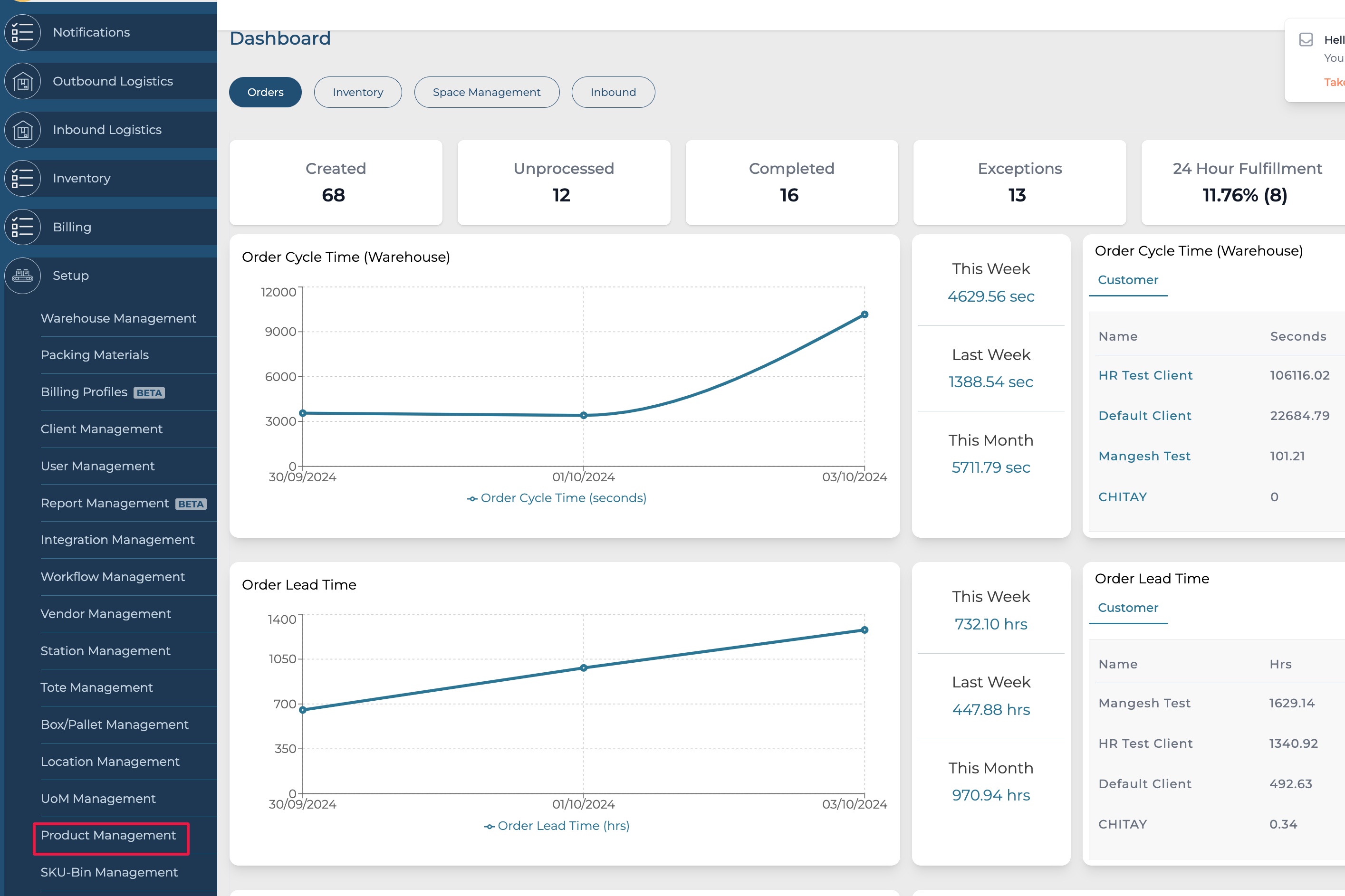
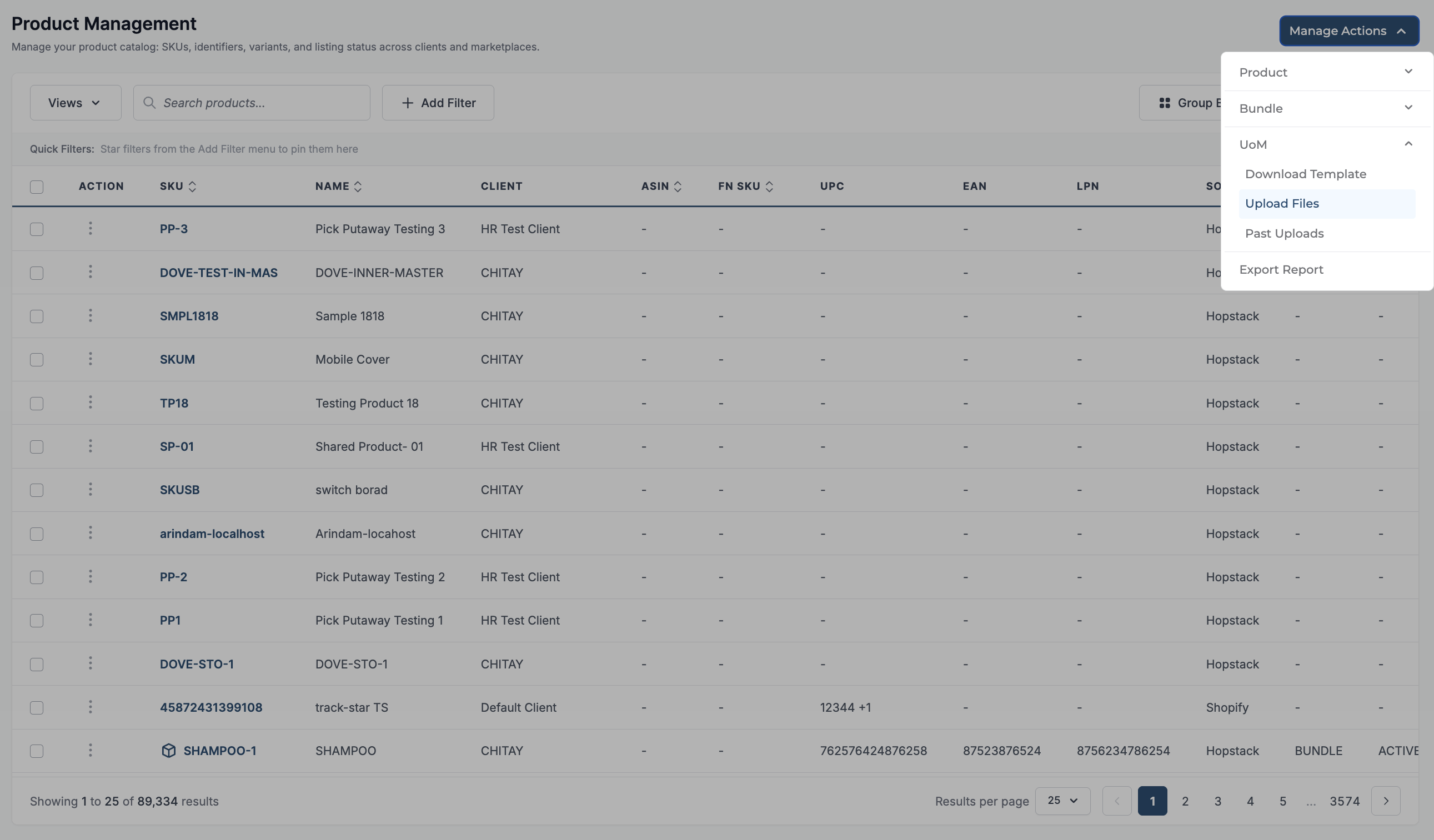
Step 1: Click on Product Management under Setup to enter the product management screen.
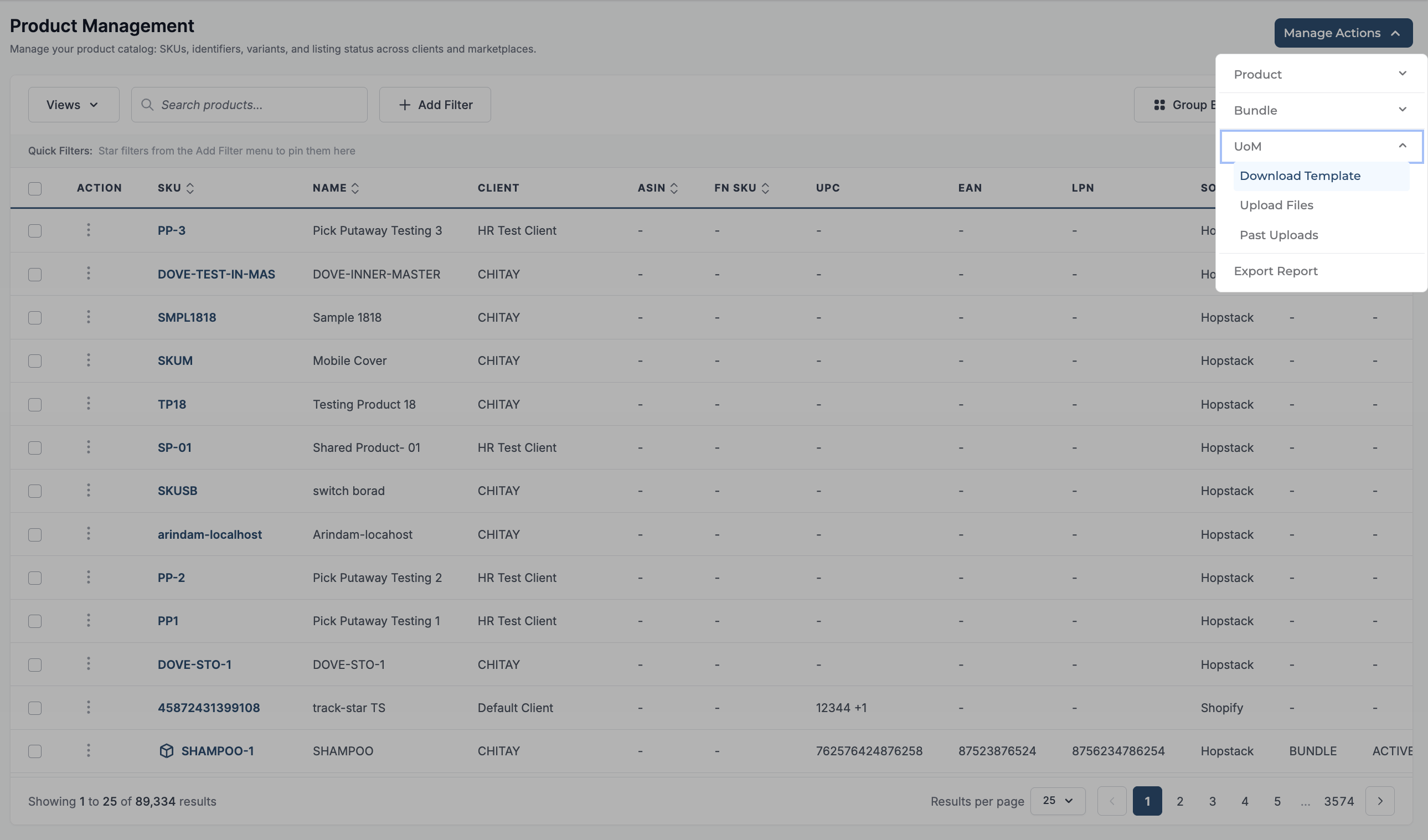
Step 2: Click on the Manage Actions button, and click on the Download template to download the bulk UoM upload template.
Step 3: Open the template and fill in the details. The template will look like the one below.
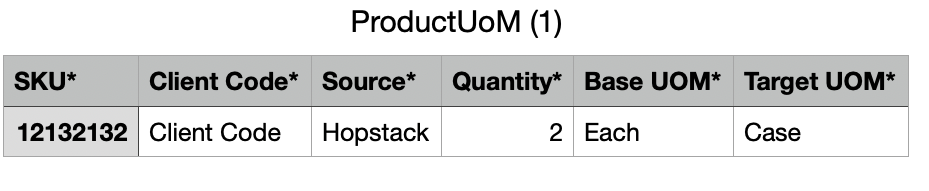
-
SKU: The SKU created on the Hopstack platform or imported via the integration.
-
Client Code: The client code obtained from Client Management in Hopstack.
-
Source: The source associated with the product.
-
Quantity: The quantity of the product to be defined.
-
Base UoM: The base Unit of Measure (UoM) configured for the product.
-
Target UoM: The Unit of Measure (UoM) in which the quantity is to be converted or defined.
Step 4: To upload the filled template file, click on the Manage Actions button and then click Upload Files.
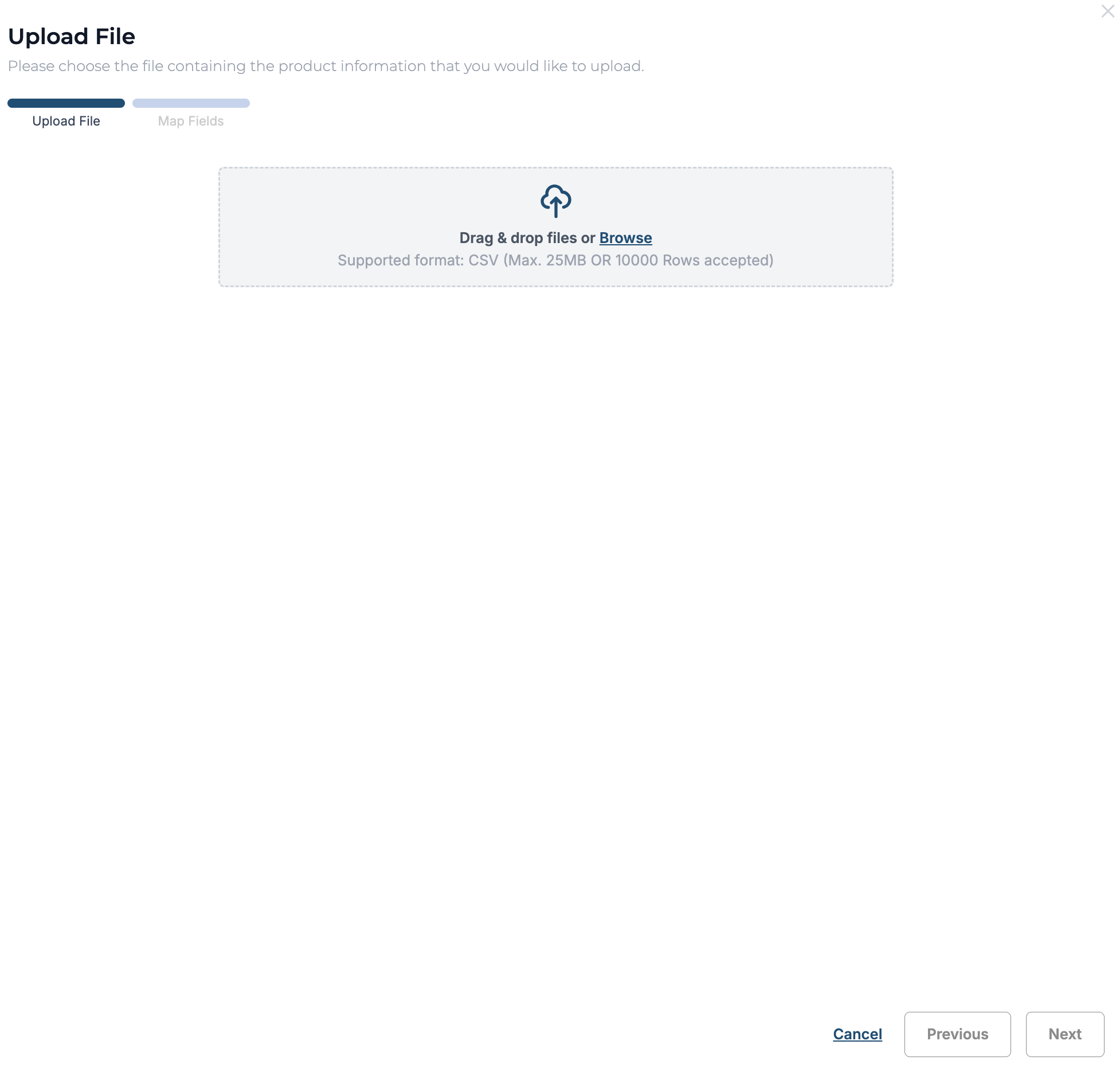
Step 5: The upload file window opens; click on Browse or drag and drop files to upload.
Step 6: Confirm that the file name is reflected on the screen and click on Verify!
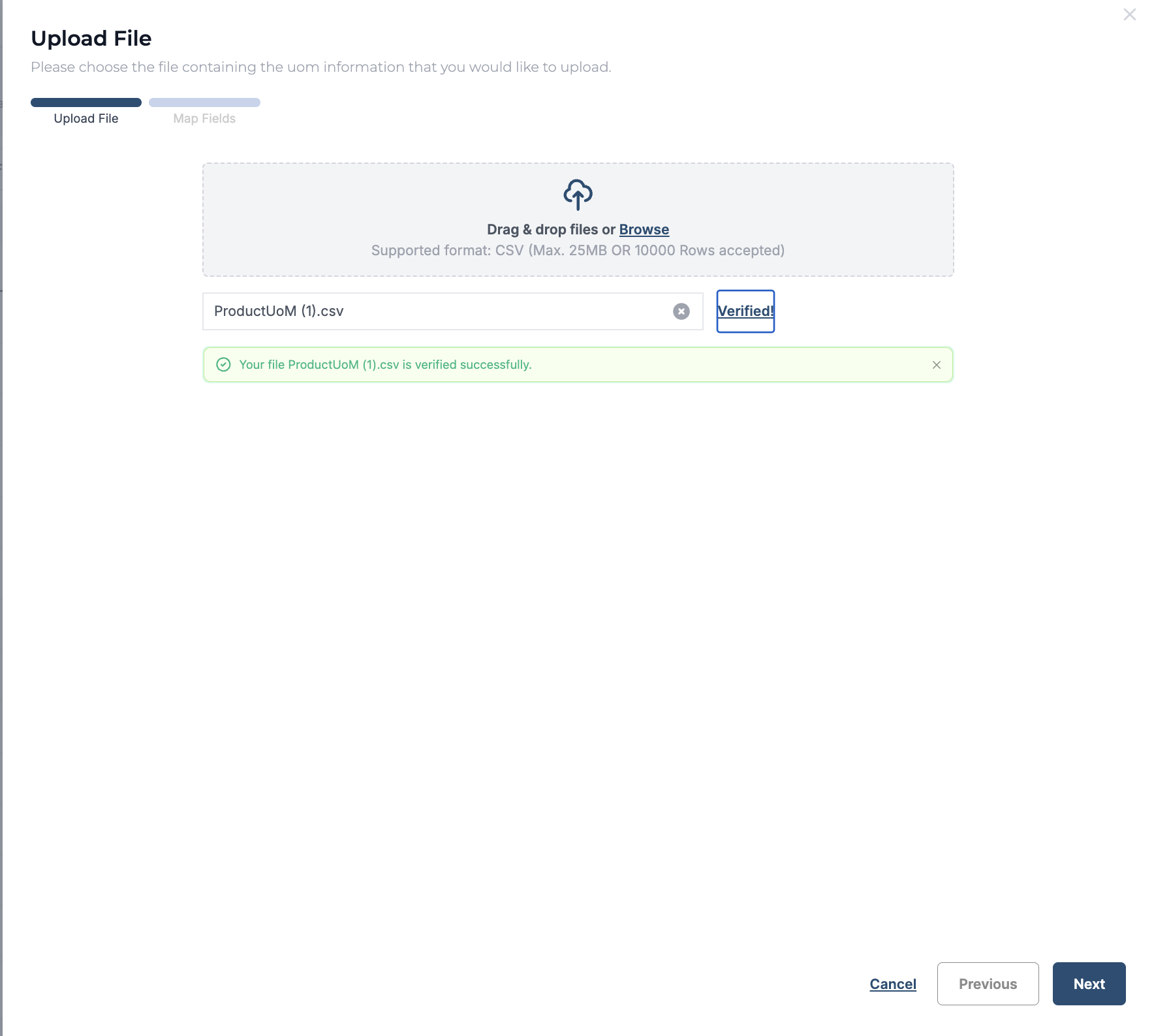
Step 7: The notification for verification appears, and if successful, click on Next.
Step 8: The Map Fields screen appears. This screen can be useful to map the field names in the file to the specific product attributes when the column name in the file is not the same as the template. If the template column names were not modified, this step can be skipped, and the user can click on Submit.
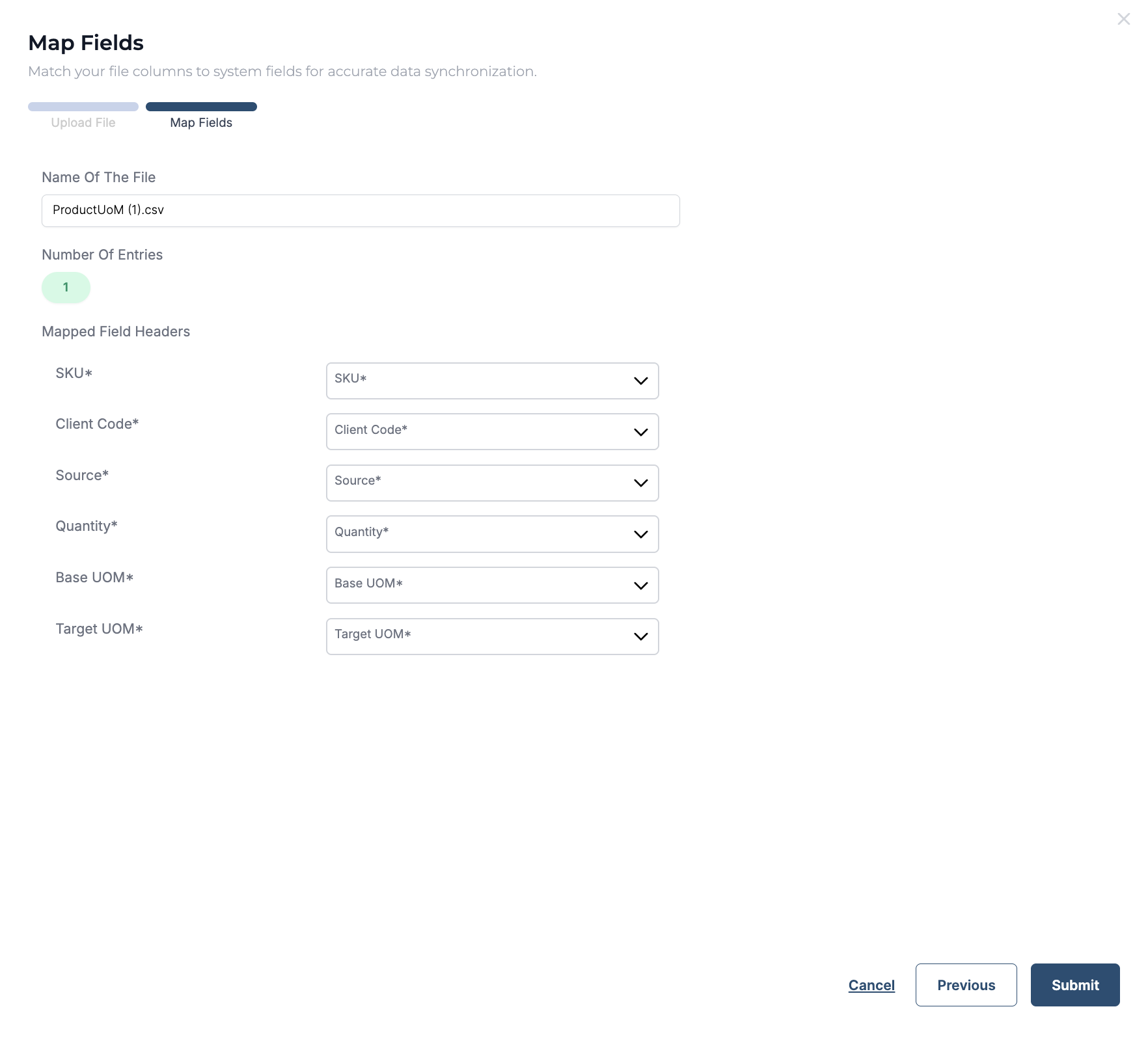
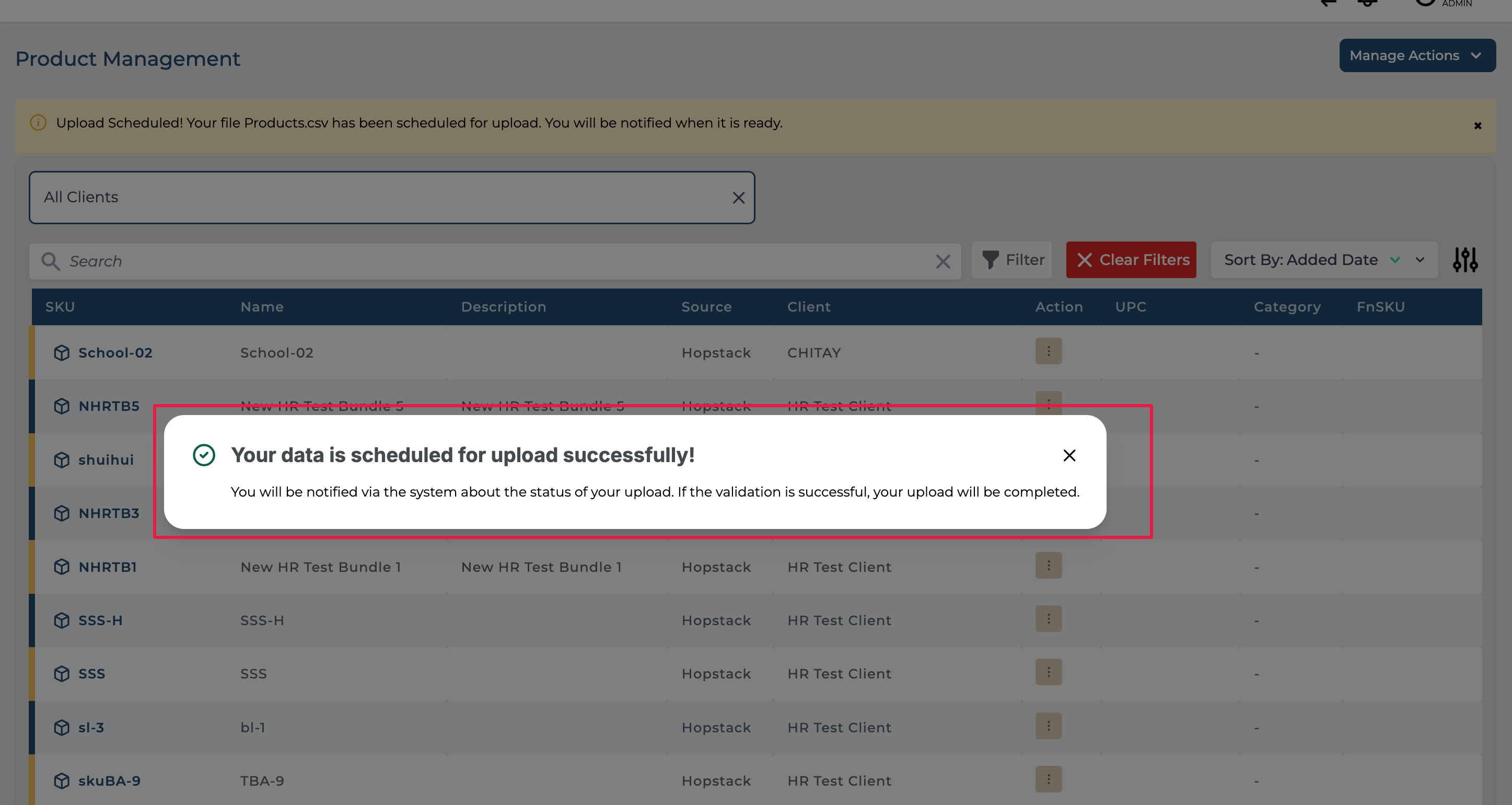
Step 9: Click on Submit. The user will receive a notification indicating that the data is scheduled for upload.
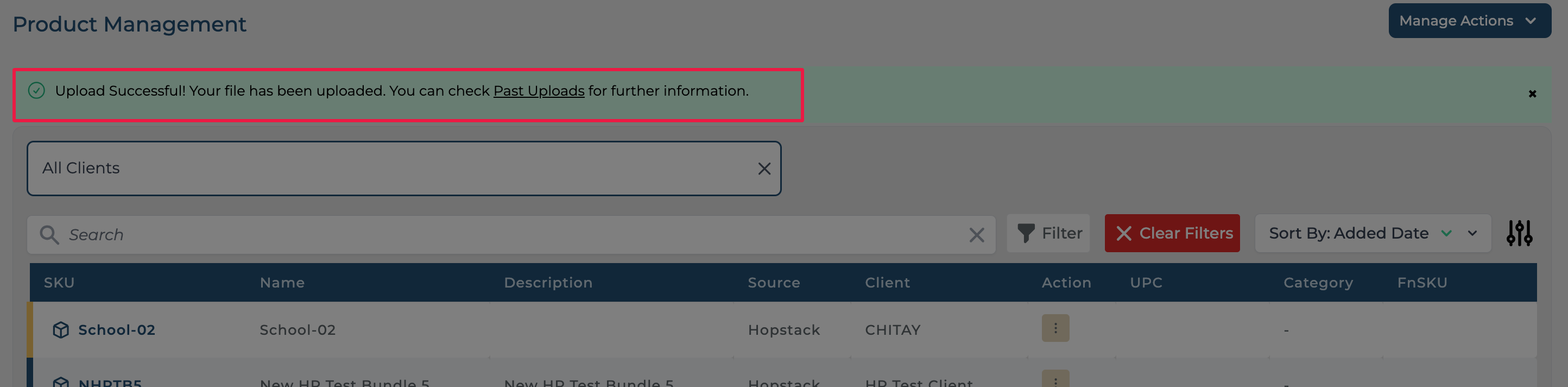
If successful, the following notification will appear.
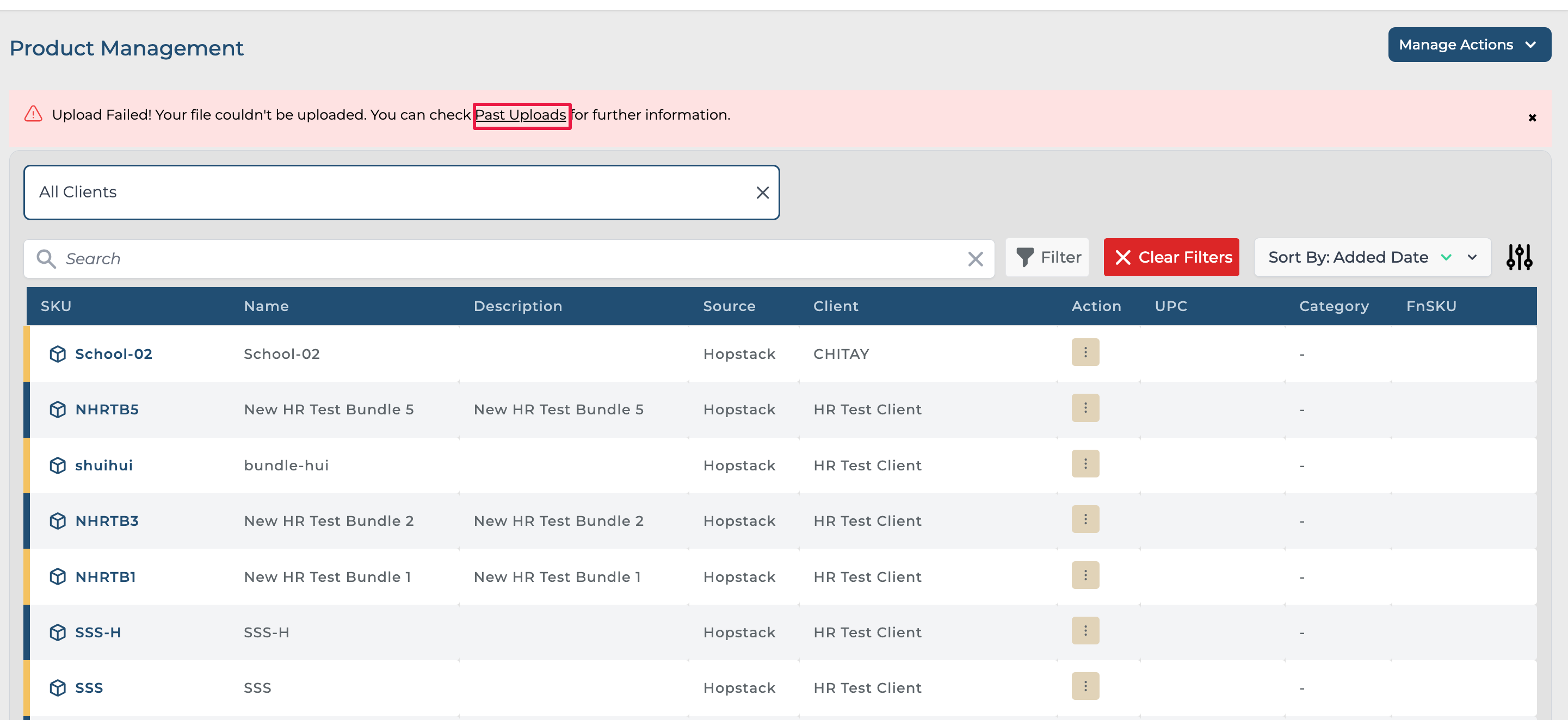
If the upload failed or was partially successful, a corresponding notification will appear, and the user can click on Past Uploads to download the error record to view the reason for the error.
The Manage Actions button could also be used to view all past uploads.