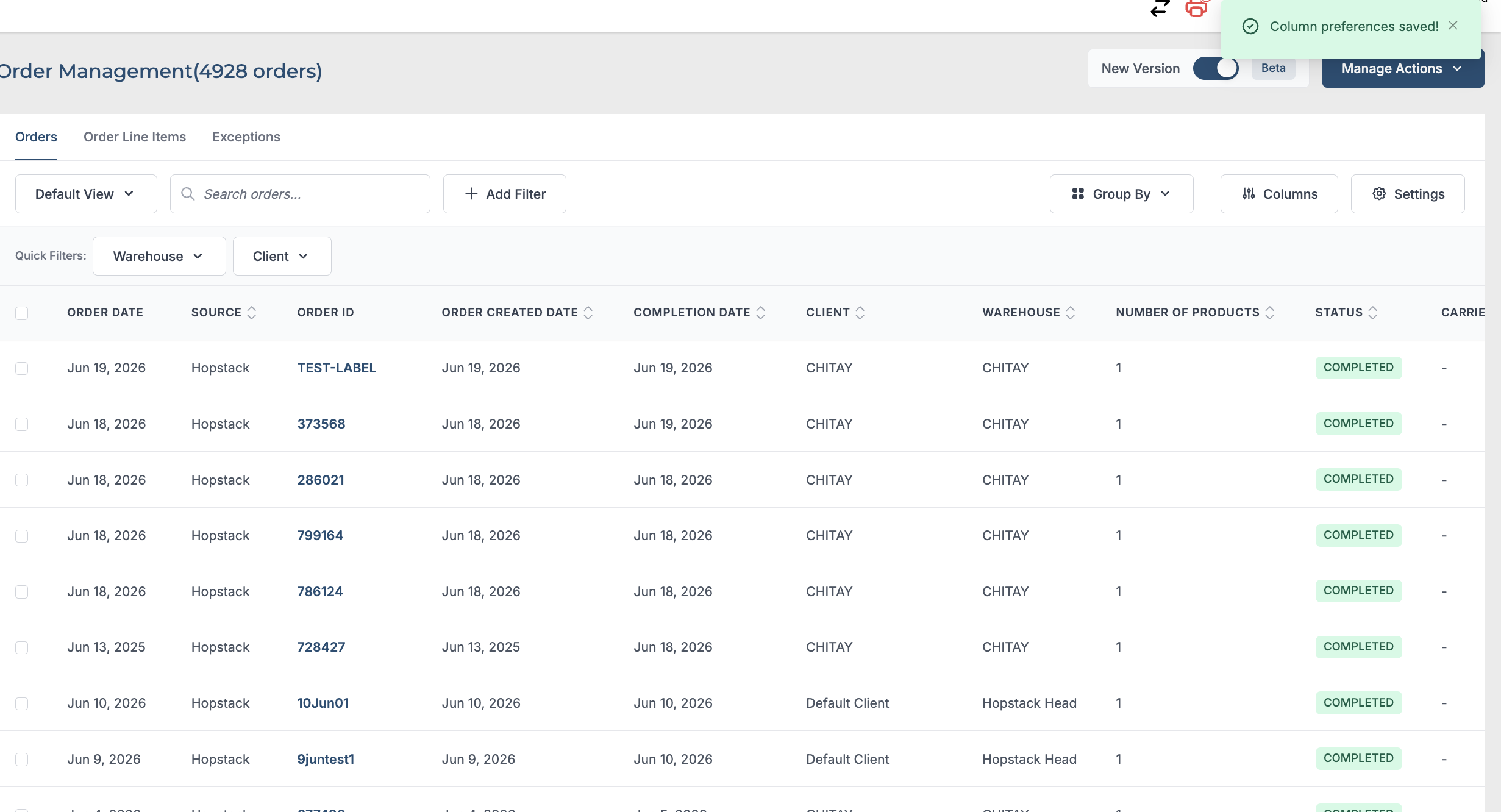
It is not seldom that you might want to re-order or adjust the columns on the platform with respect to the level of priority the columns hold. You might want to see certain columns in the first instance without having to scroll or navigate through the entire data table. You might also want to hide or remove certain columns which are less frequently used or are not relevant to your needs.
Here is how you can configure your table:
-
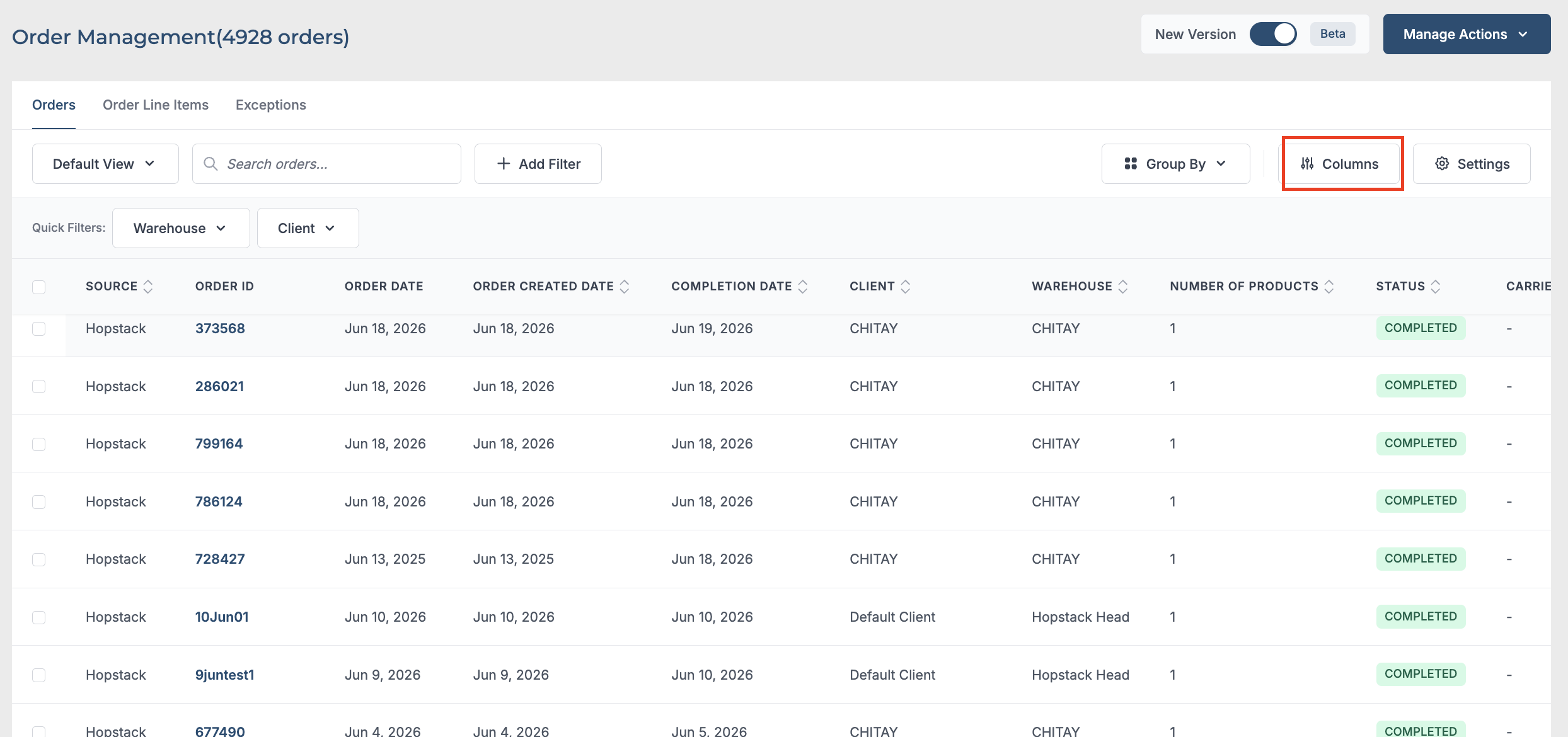
Navigate to the screen containing the data table you want to adjust. Look for the "Columns" option, represented by a filter icon (as shown in the image below), and click on it.
-
To View or Hide Column
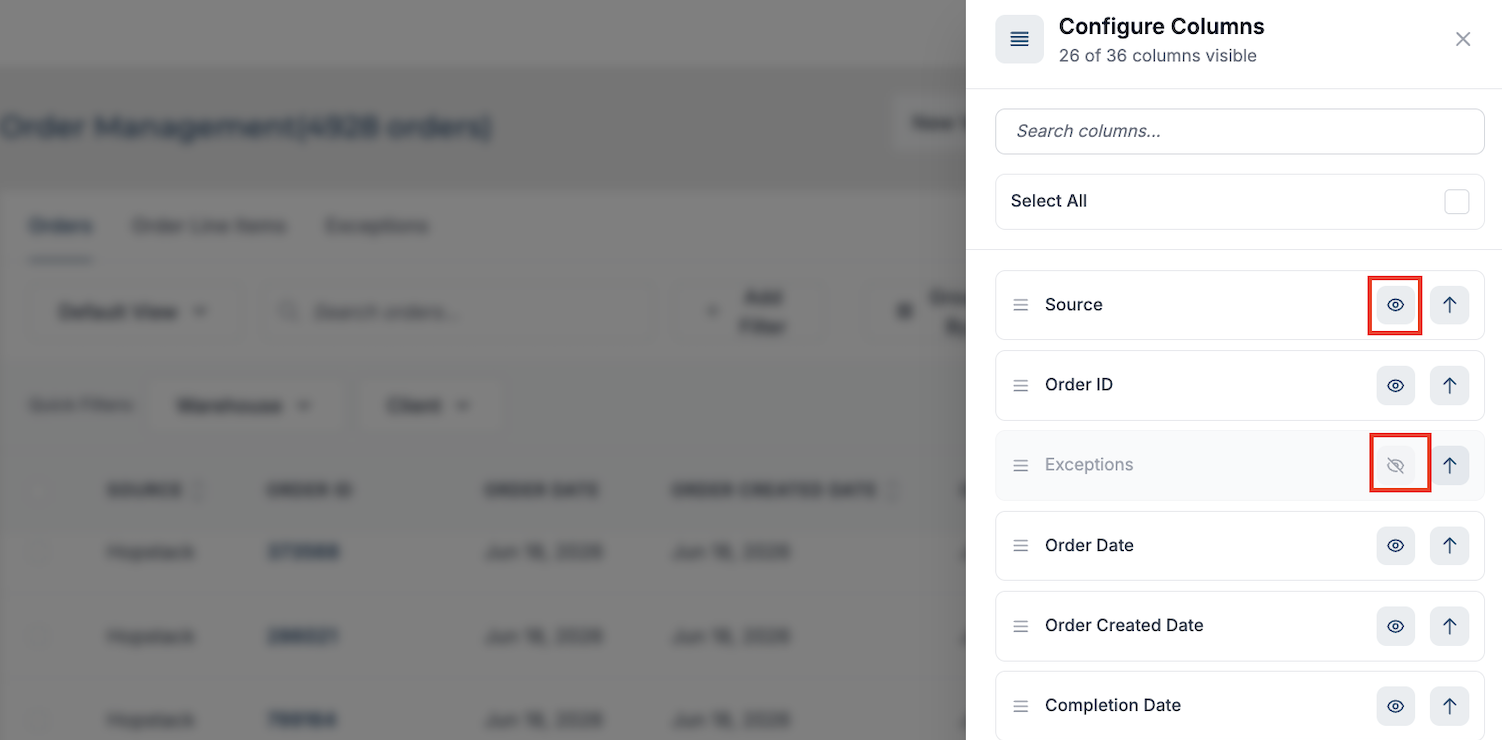
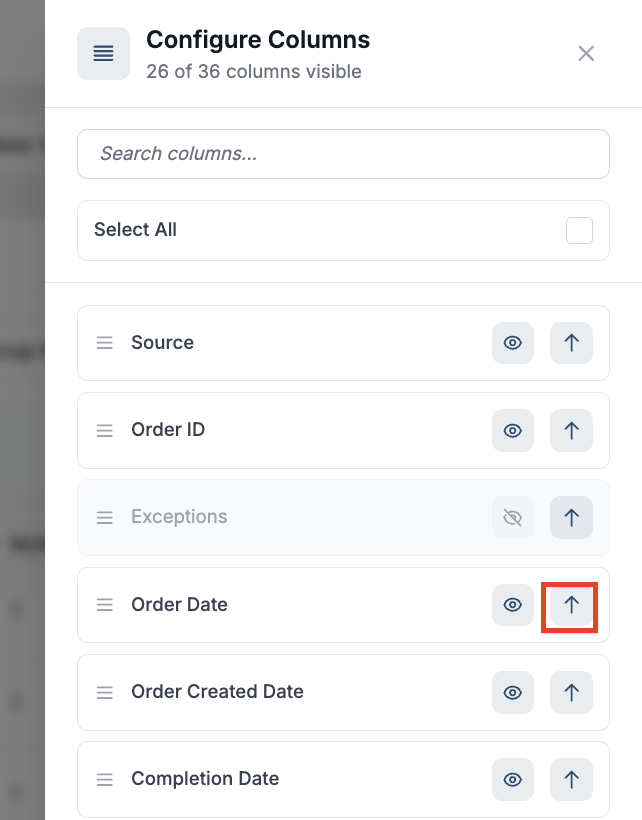
Click on "Columns" option, you will see a list of all the columns available on that screen. Each column name will have a Eye icon next to it. Use the eye to select which columns you want to display on your screen. An open eye icon indicates that column is currently visible, while a crossed-out eye indicates that it is hidden from view.
-
To Re-order Columns
Next to each column name, you should see a drag icon, represented by three parallel horizontal lines (as shown in the image below). Click and hold this icon, then drag the column name up or down the list to change its order. The sequence of the columns in this list will reflect the sequence of the columns on your screen.
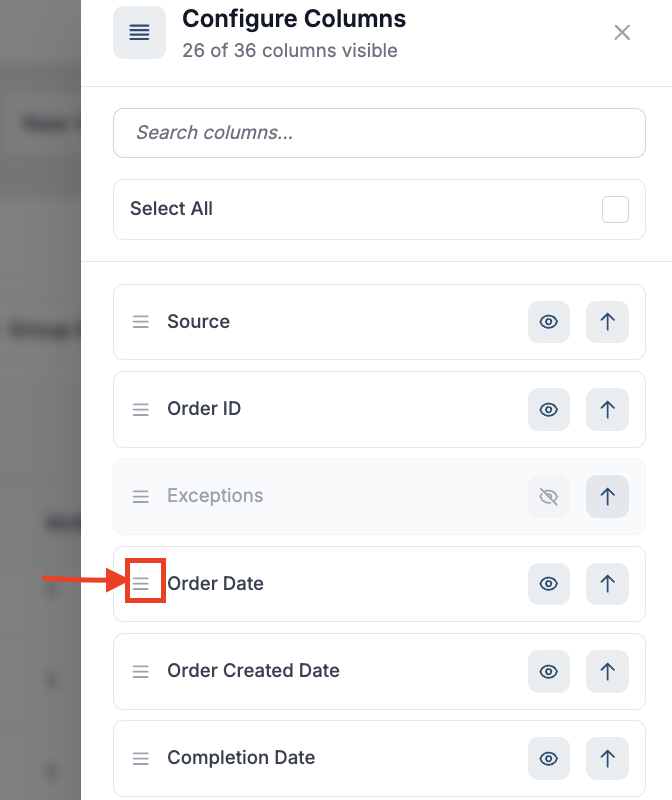
To move a specific column to the top in the sequence click on the top arrow next to the eye icon.
-
After making the changes in the order of your columns, just hit on X on the top and your changes are automatically saved and the user gets notified that the column preferences are saved.
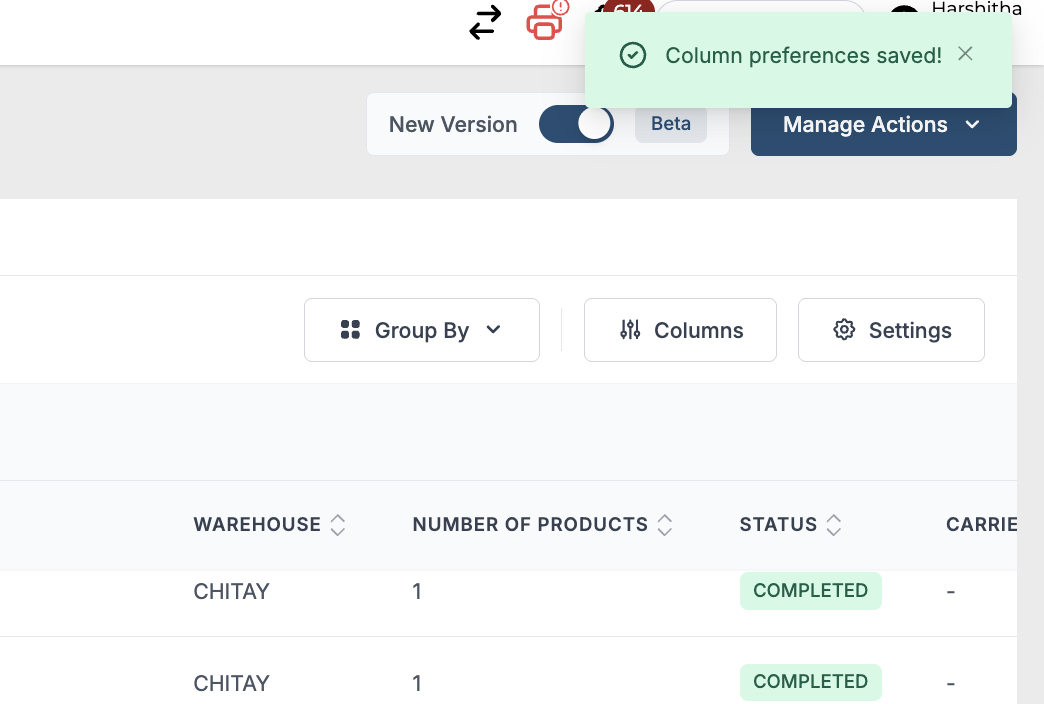
The table instantly reflects the column preference changes allowing the user to focus on what is important for their operational needs.