The Hopstack interface has been updated with a new design language across the entire platform. Every screen you use daily now shares a consistent visual style: cleaner tables, updated forms, a redesigned sidebar, refreshed login screens, and a modern look across the dashboard, shipper station, inbound and outbound operations, inventory views, FBA workflows, and print dialogs.
This is not just a visual refresh. The new design system brings improved readability, more consistent interactions, and faster page loads across the board. Buttons, modals, filters, and data tables all follow the same patterns now, so learning one screen makes every other screen feel familiar. This document covers the feature highlights and how to use them.
As part of this update, the legacy V1 screens have been fully retired. This includes the old Order Management, Consignments, Products, Integrations Management, SKU-Bin Management, and Outbound Exceptions screens. All functionality from these screens is available in the V2 versions.
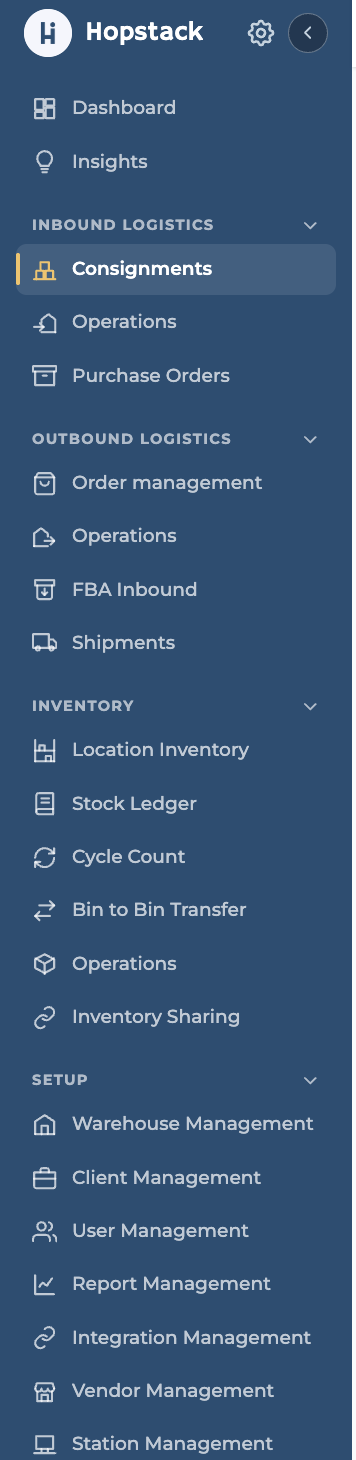
Redesigned Side bar
We’ve updated our sidebar with a cleaner look and intuitive new icons for every section to help you find what you need at a glance. Whether you are tracking inbound consignments, managing outbound shipments, or adjusting warehouse setups, navigating through Hopstack is now faster and more visual than ever.
Enhanced Visual Layouts
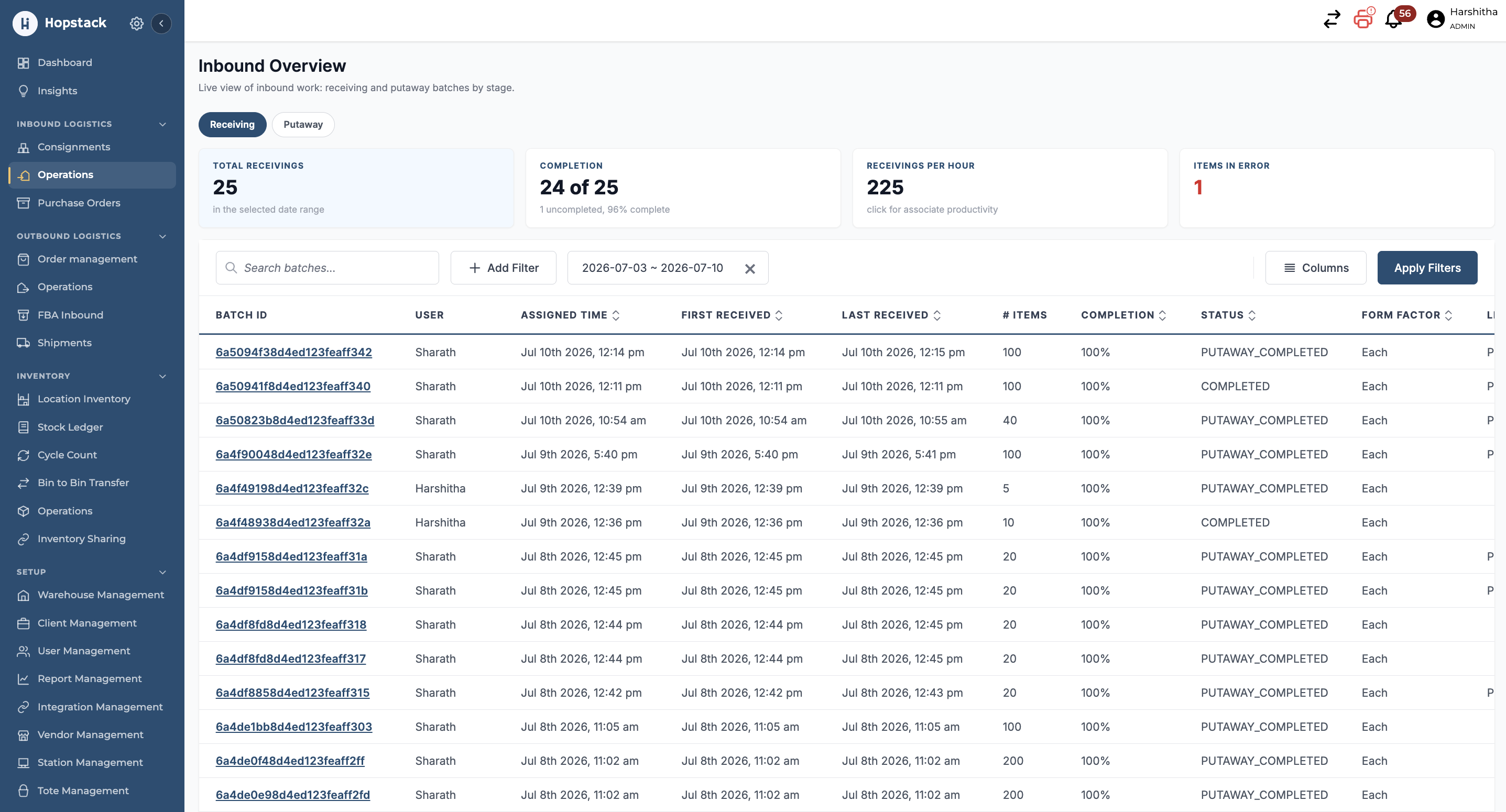
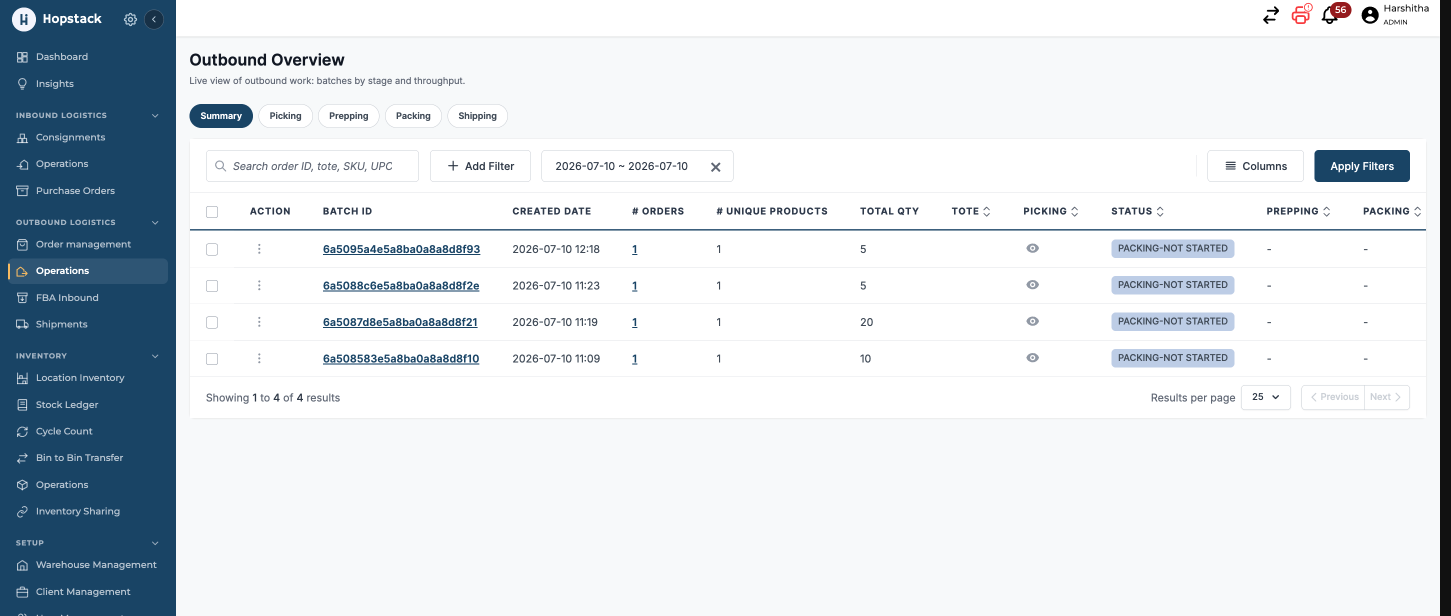
We have modernised our data grids to offer a cleaner, highly readable interface paired with critical performance enhancements. This update ensures significantly faster data loading times and a cleaner layout, allowing you to manage large datasets with optimal speed and visual clarity.
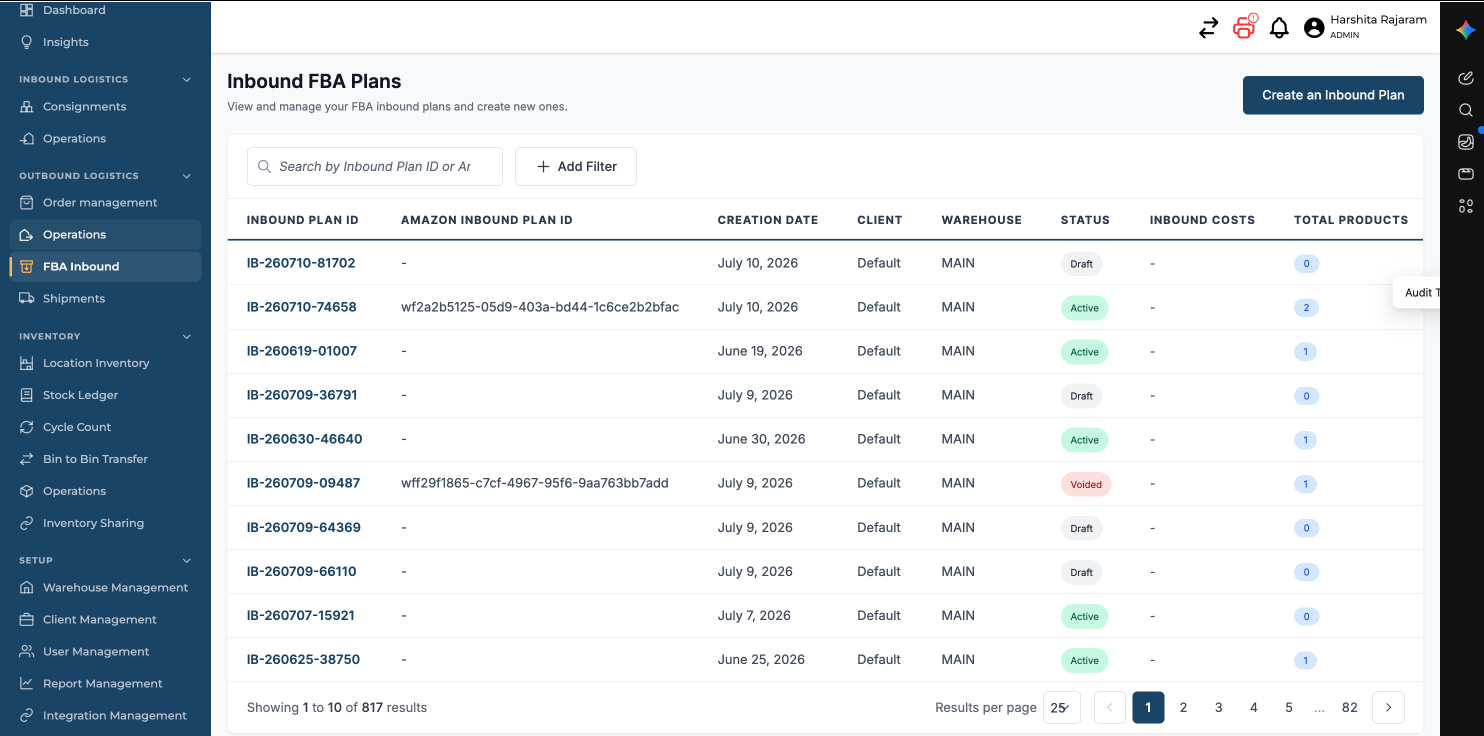
The enhanced table views were initially available for Consignments, Order Management, Location Inventory. Now this feature is exended across the platform, Below are a few examples of the updated layouts in action.
Inbound Operations
Outbound Operations
FBA Inbound
New Advanced Filters and Saveable Views
This document explains how to use the new List view interface, including building advanced filters, marking quick filters, saving and sharing views, and using the Group By summary feature.
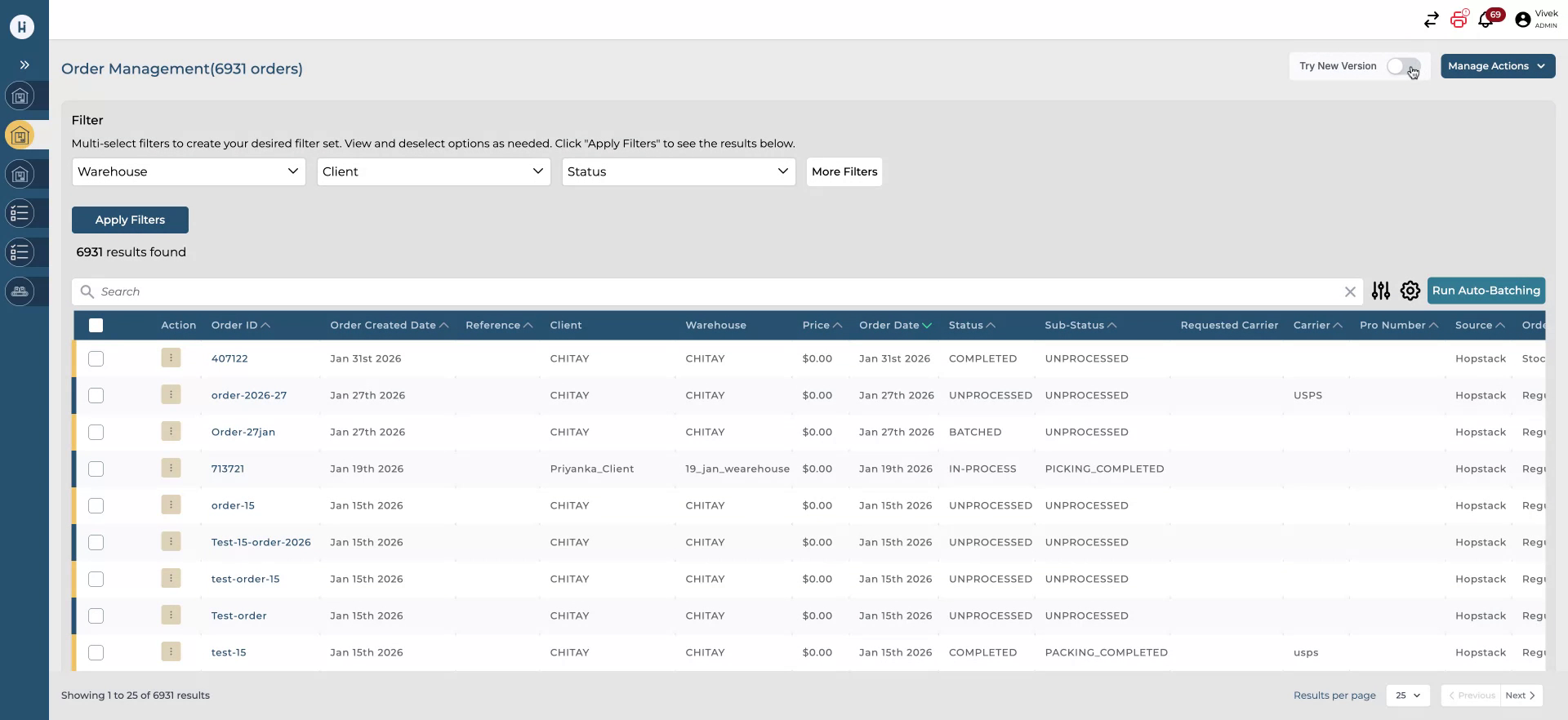
Step 1: Switch to the New Order Management Interface
Toggle to the new version of the Order Management UI to start using the enhanced filters and views.
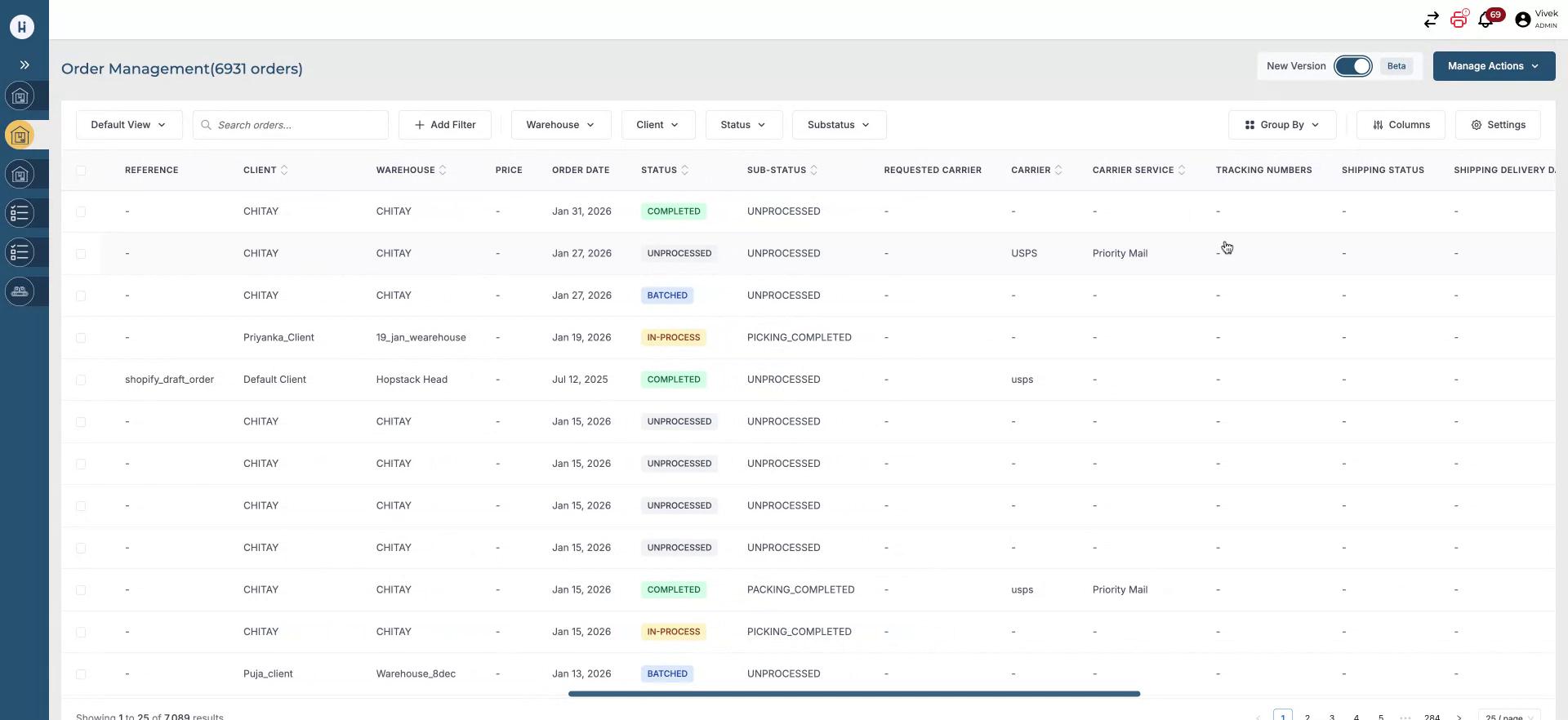
Once enabled, the updated Order Management screen will appear with the new layout and controls.
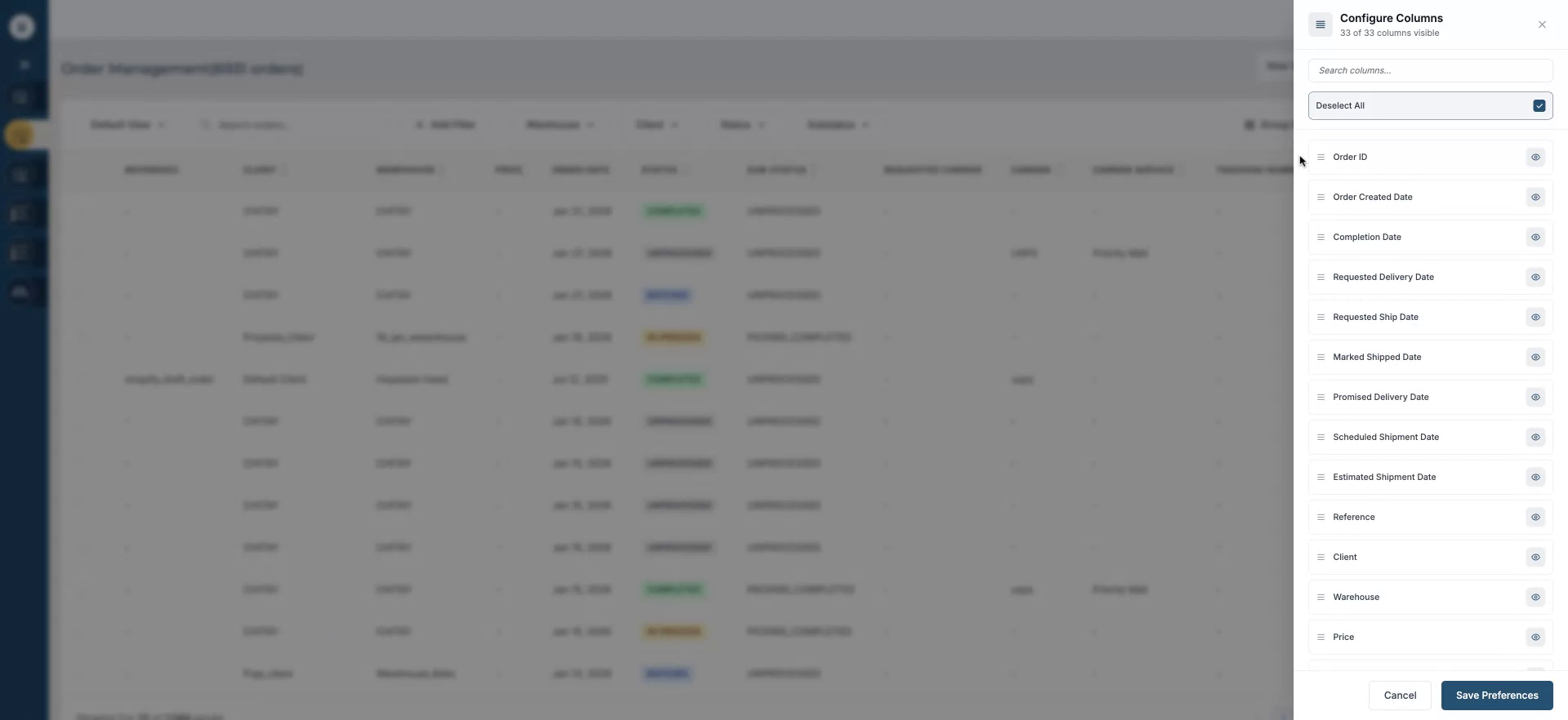
Confirm Column Arrangement Options
Your existing options for arranging columns and selecting specific columns remain available in the new interface.
Open and Review the New Filtering Panel
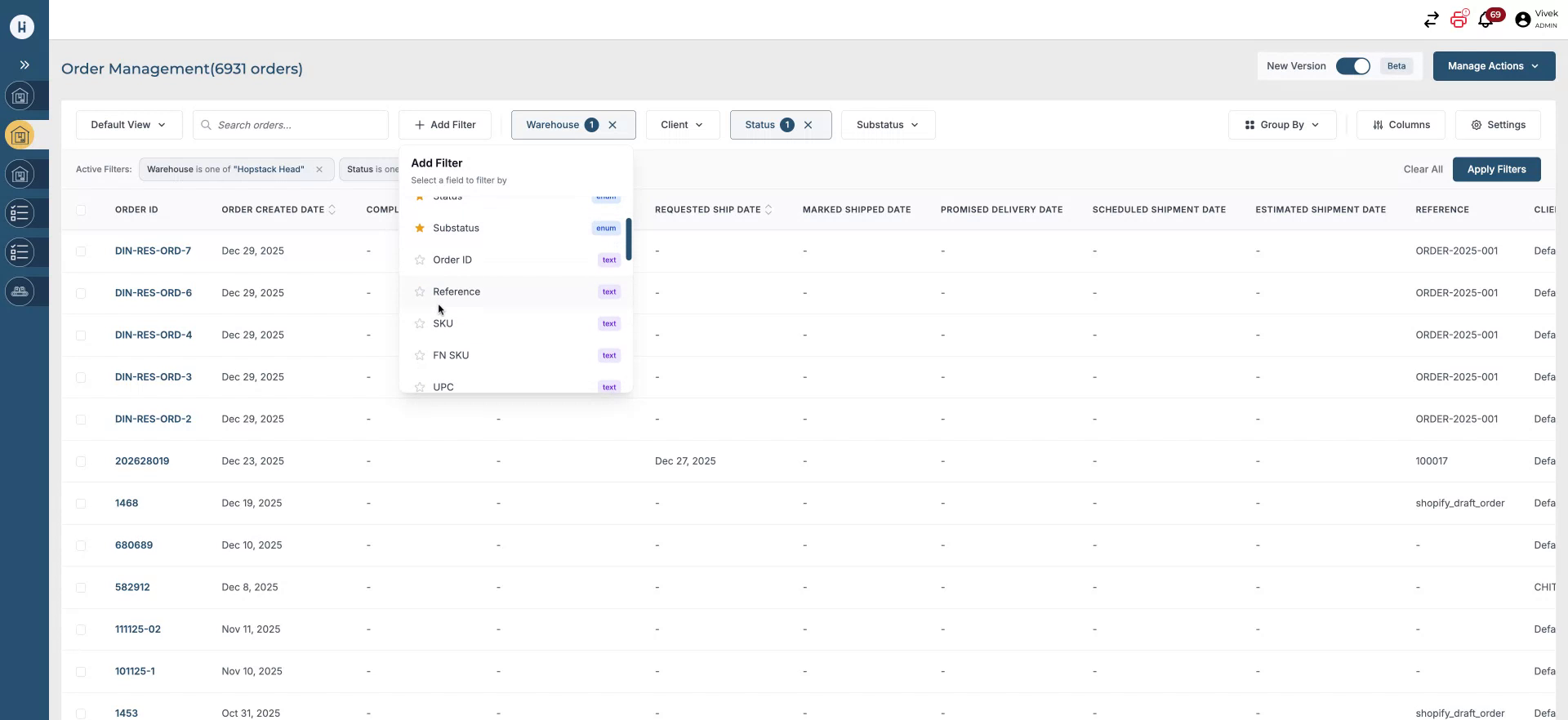
Locate the filtering section in the new UI; this is where you will see the biggest difference in functionality.
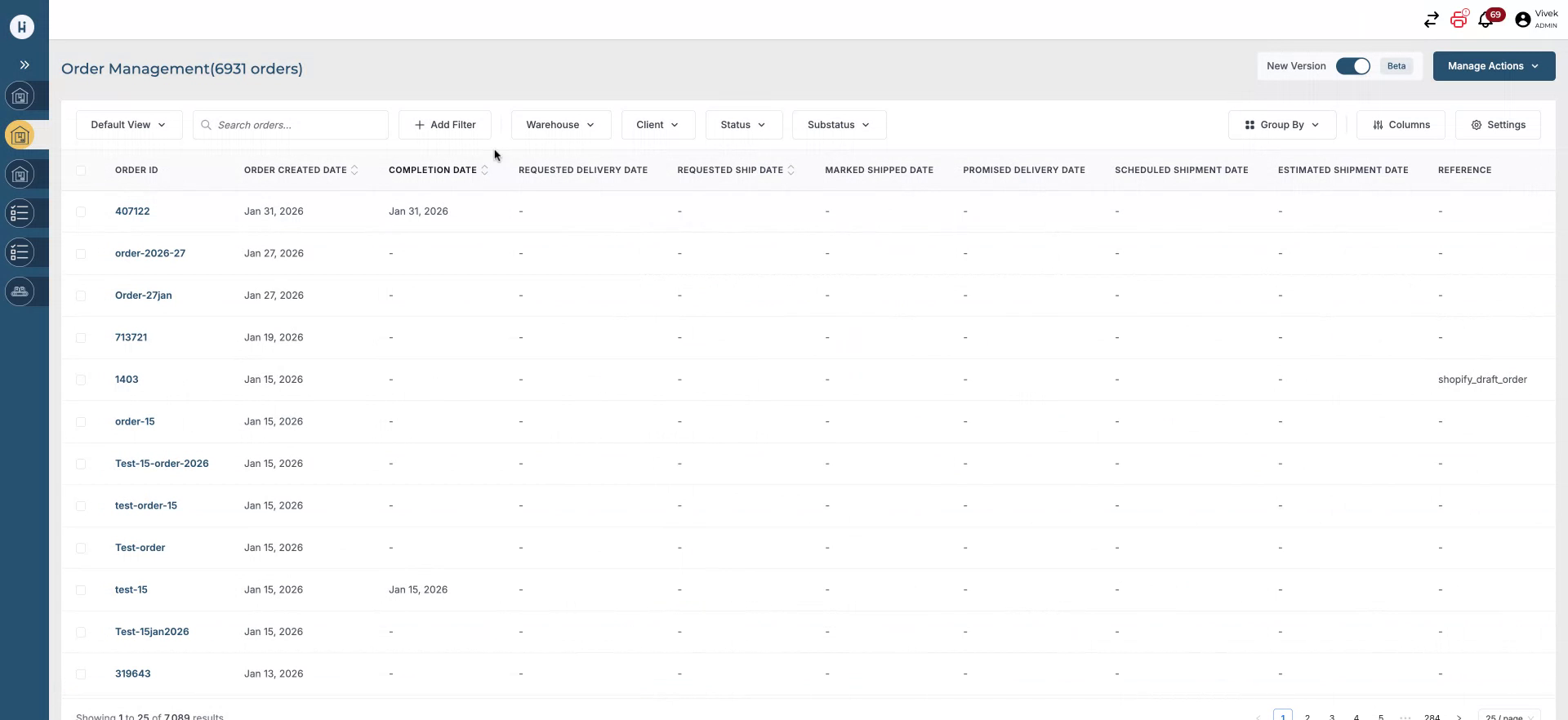
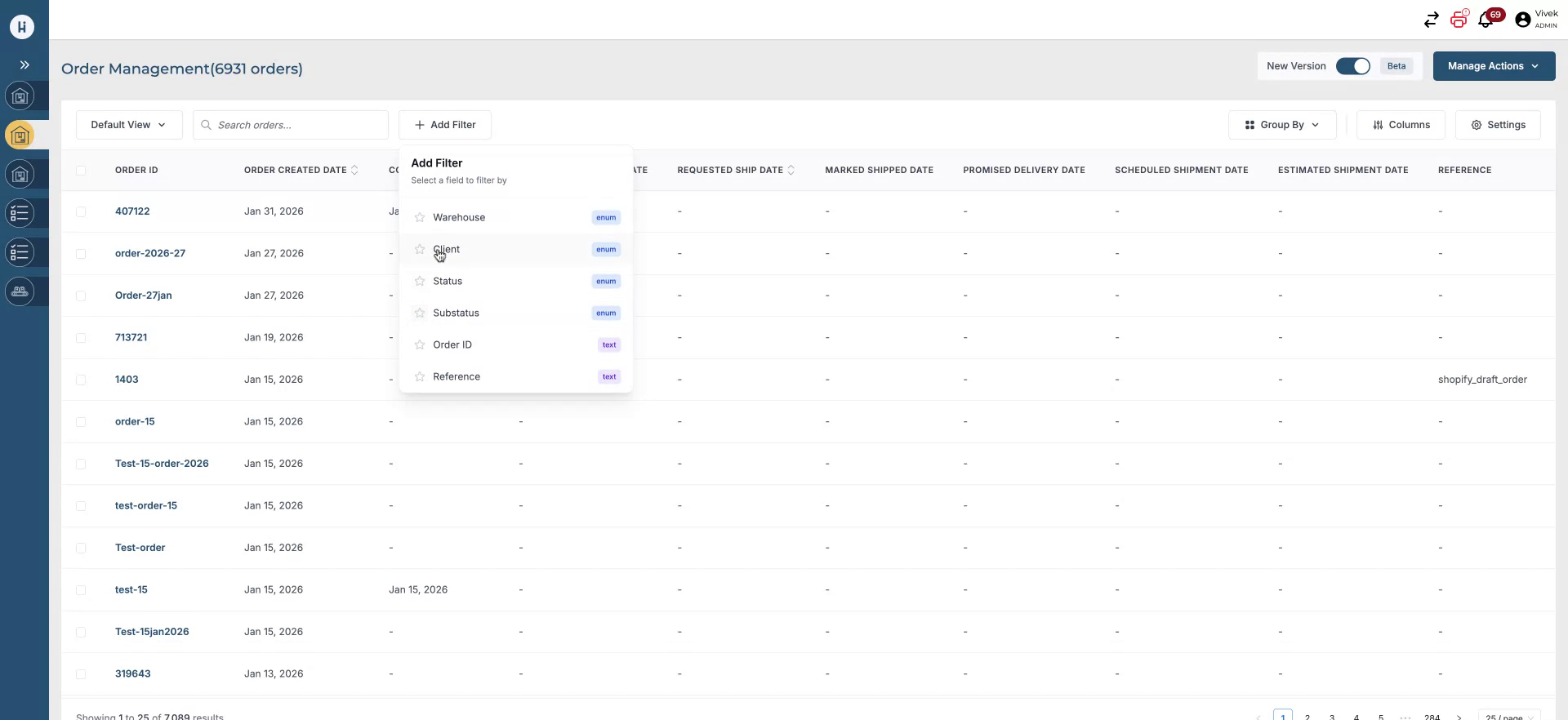
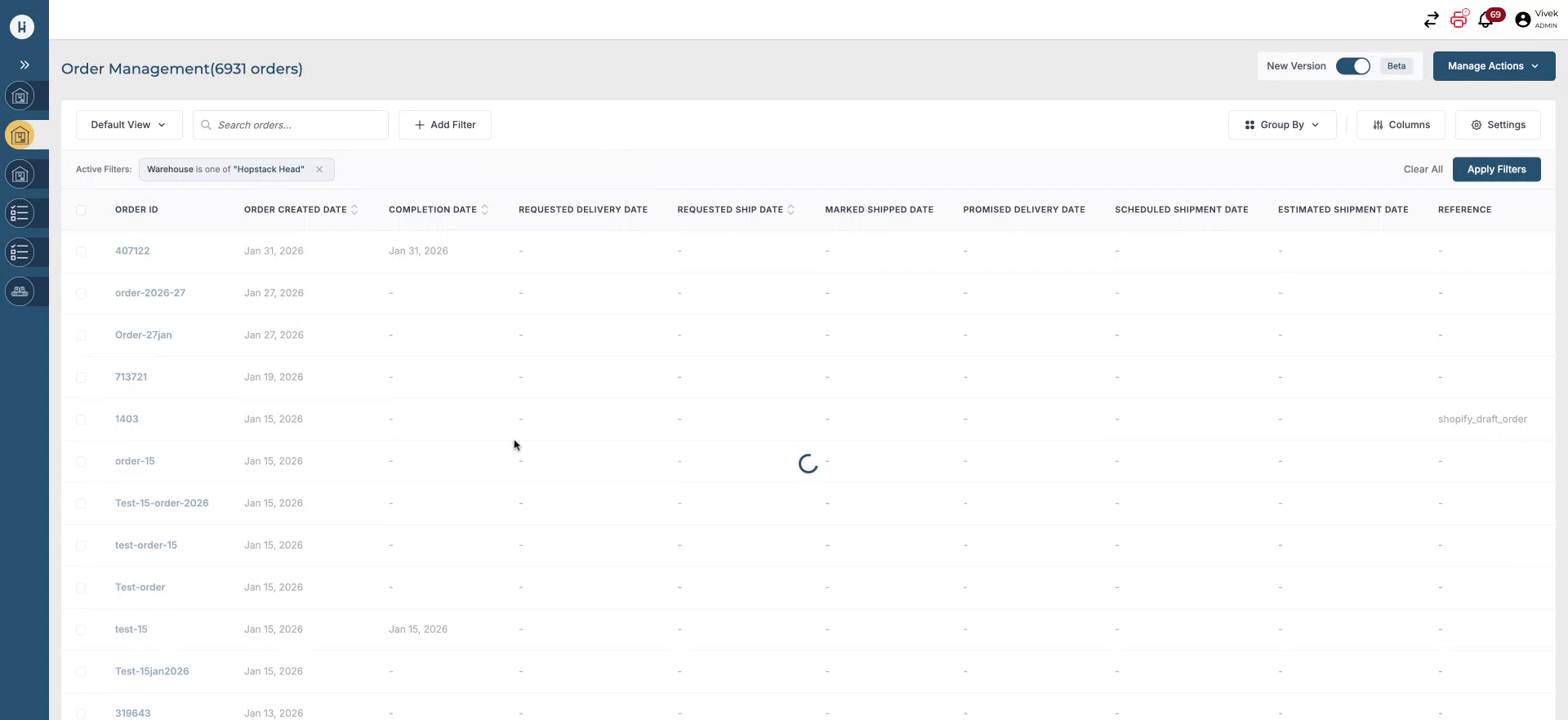
You can now build your filters one field at a time using the improved filter builder.
The filter panel also includes an option to exclude specific values, a capability that was not available previously.
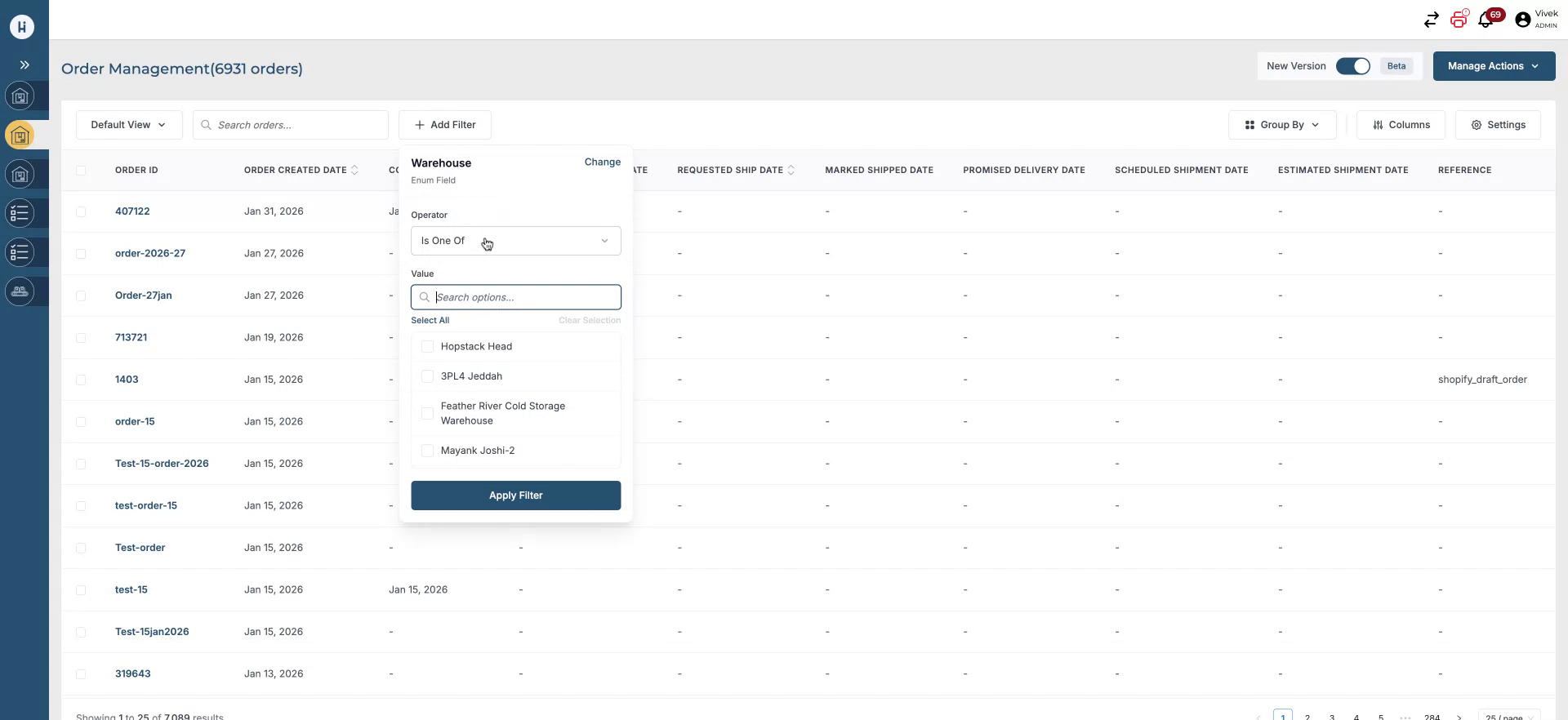
Build a Multi-Value Filter
Start configuring your filter criteria field by field.
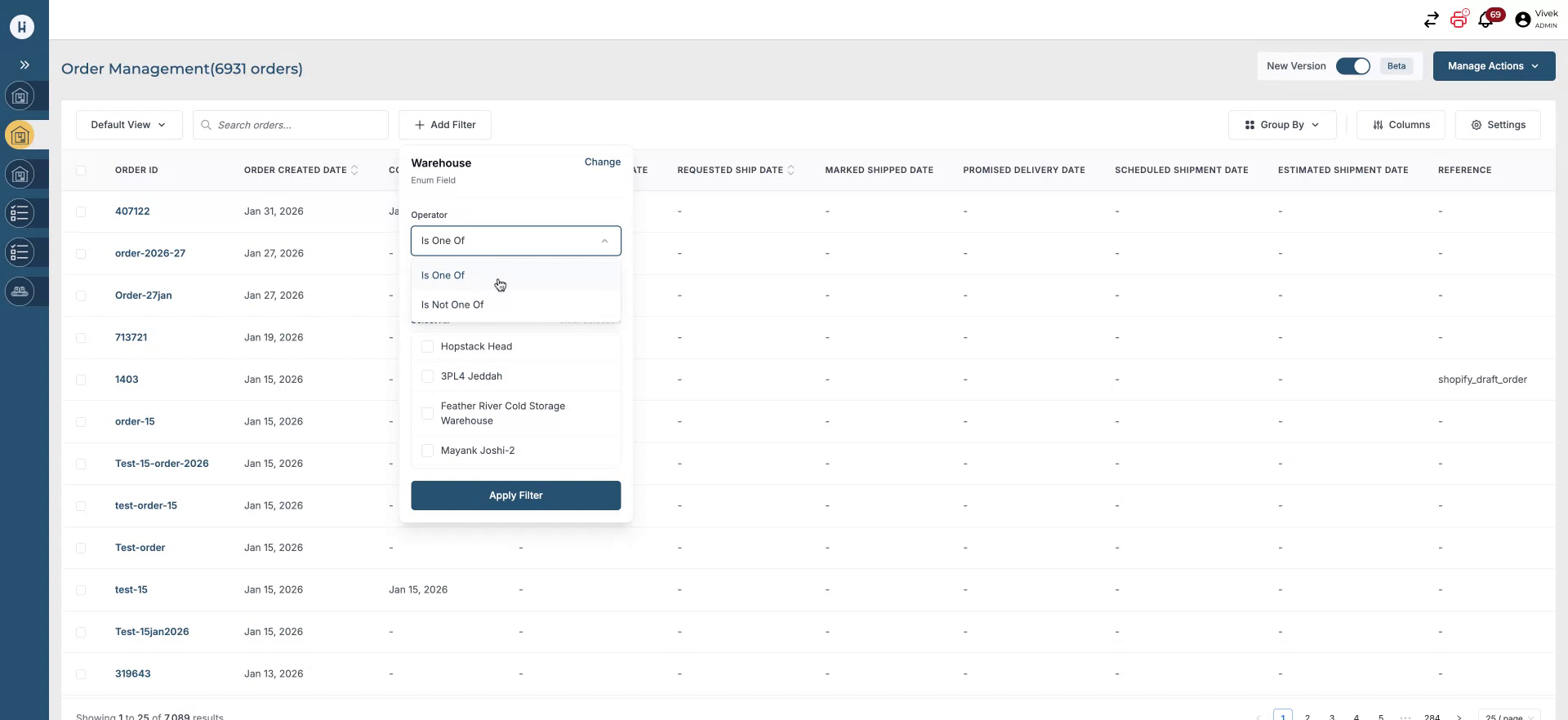
After adding your first condition, continue to add more values and criteria as needed to refine your results.
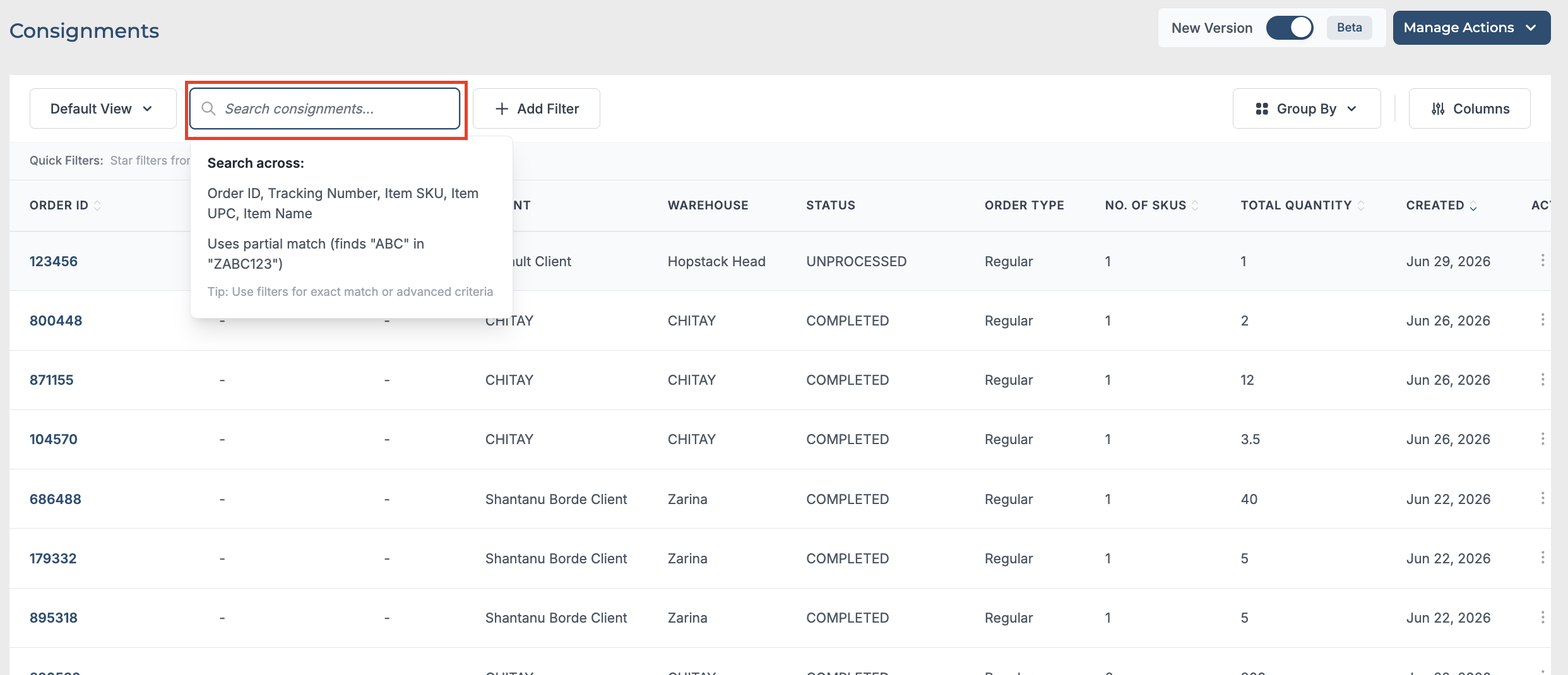
Search Filter
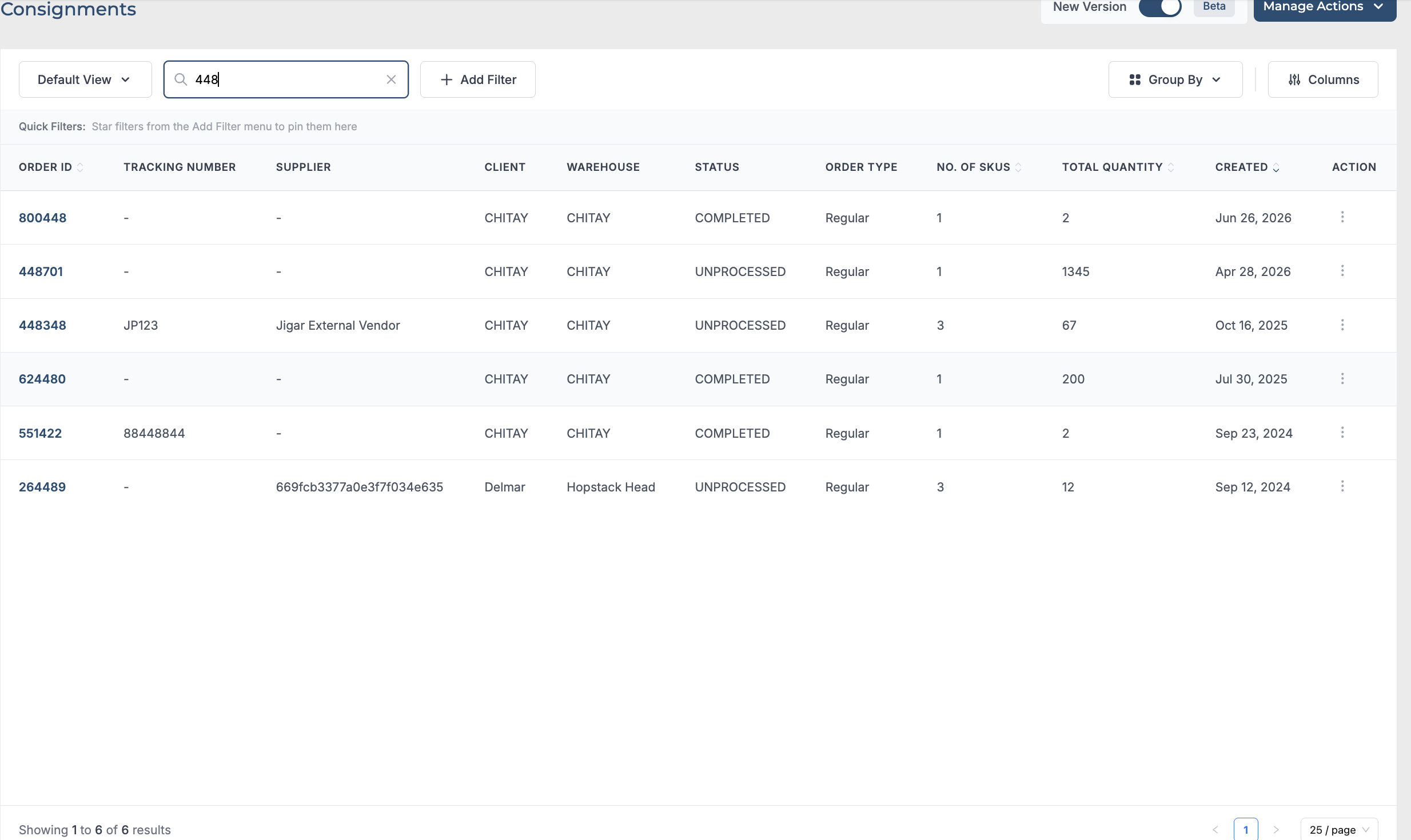
You can use the search bar to search across different fields that are relevant to the page you are on and the table dynamically shows the results containing the search key. Product search relevance was also improved so stronger and exact matches rank above weaker partial matches.
Mark Frequently Used Filters as Quick Filters
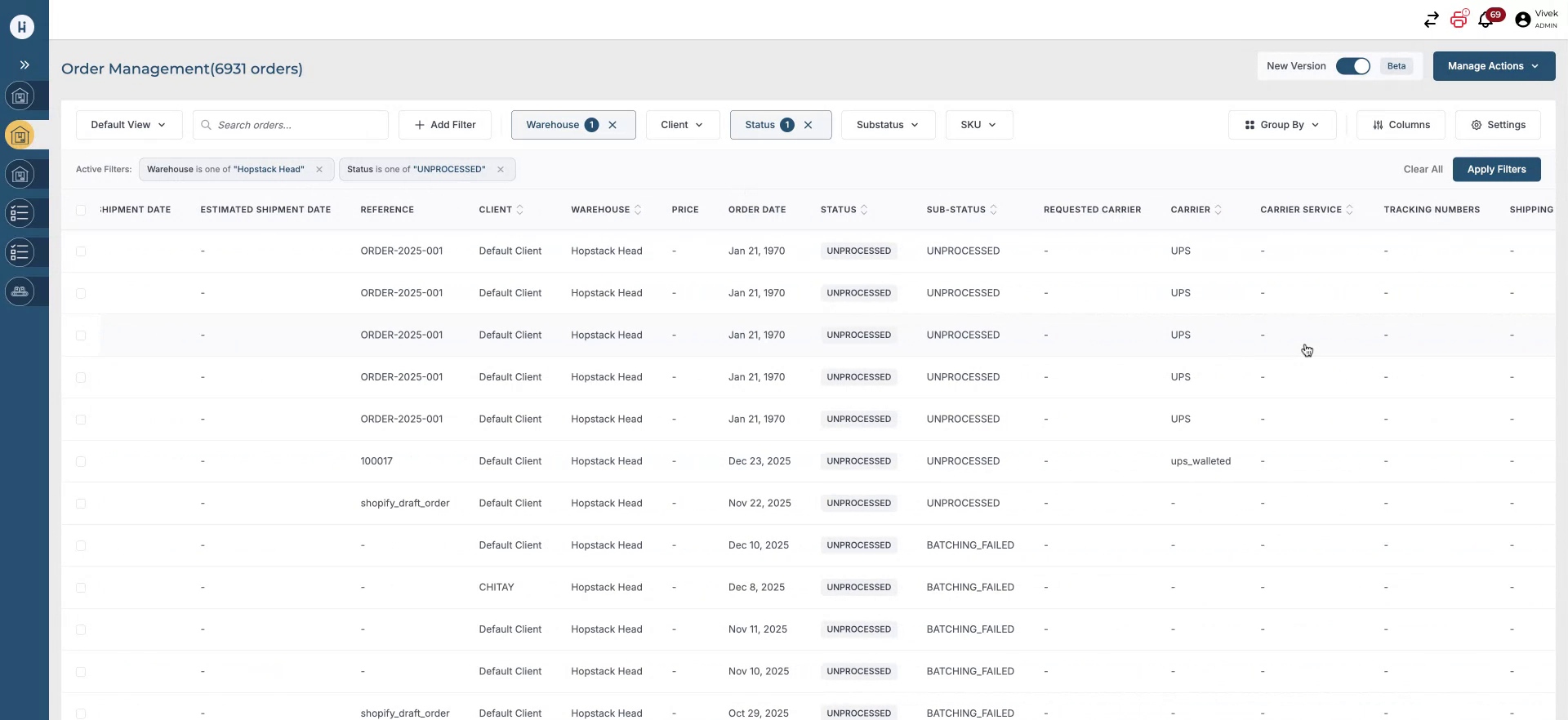
If you have a set of filters that you use daily, mark them as quick filters by adding them to your favorites.
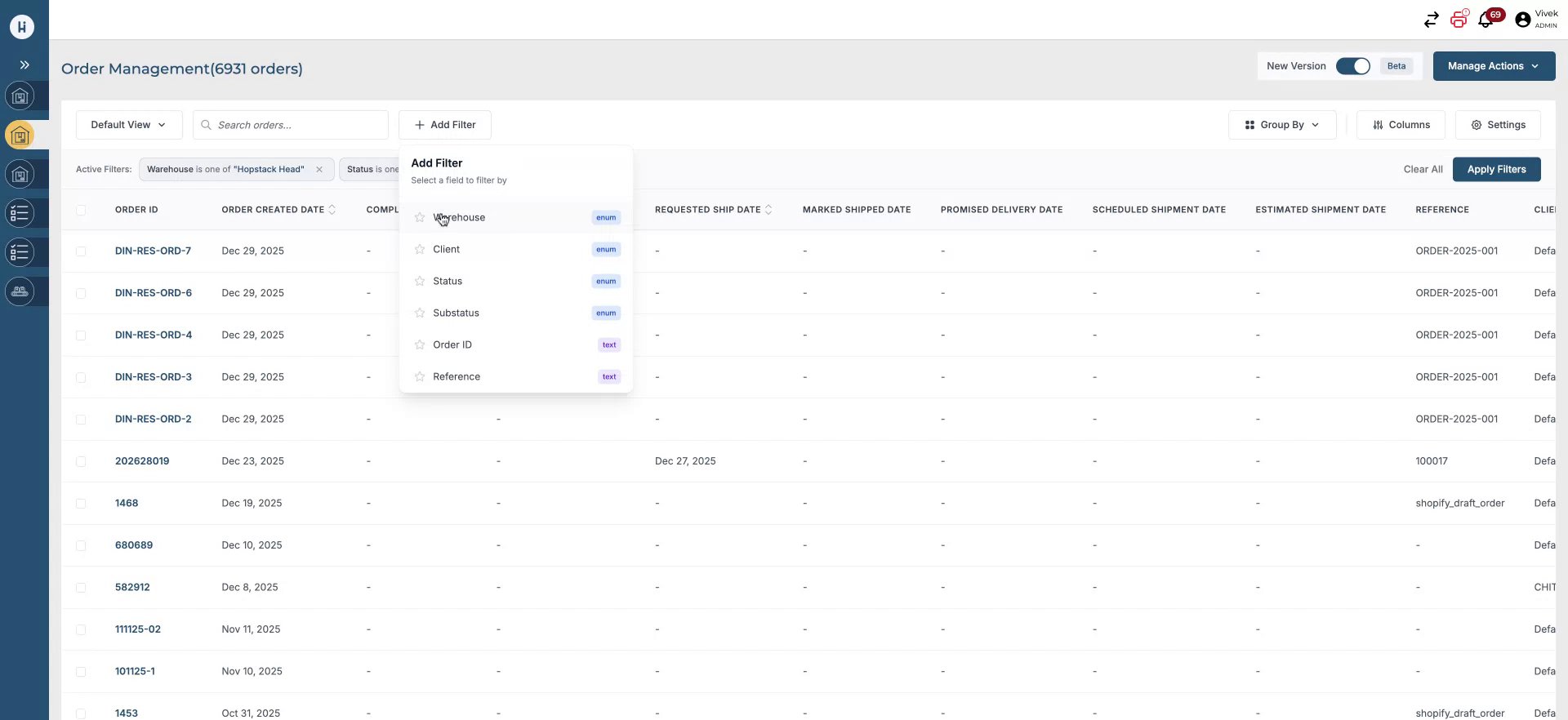
You can have a maximum of five favorite filters configured as quick filters.
Access the Views Section
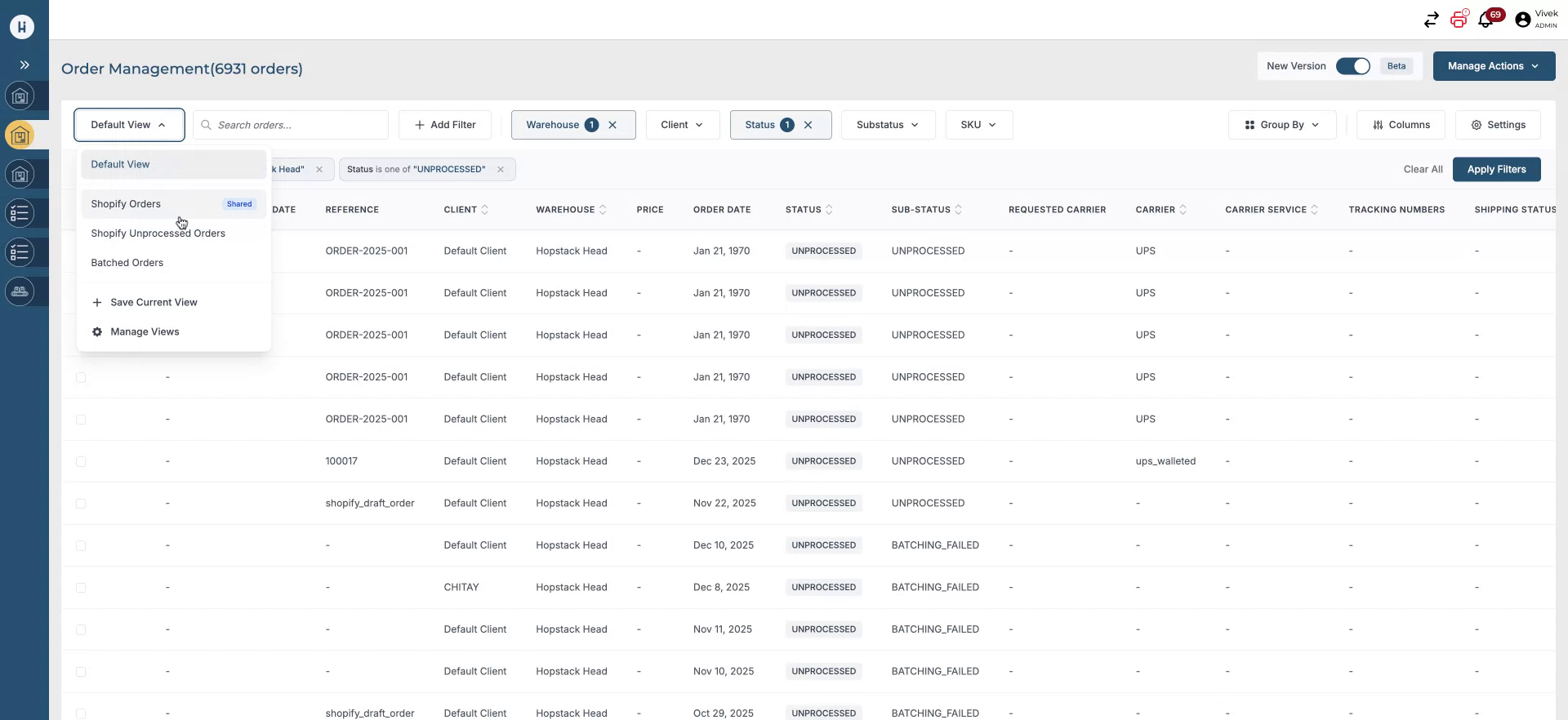
Use the main Views section to manage and access different saved views for your Order Management list.
For example, if you want to save your current filtered configuration as a new view for quick access every time you log in, proceed from this section.
Save the Current Filtered View
With your filters configured, choose the option to save the current view.
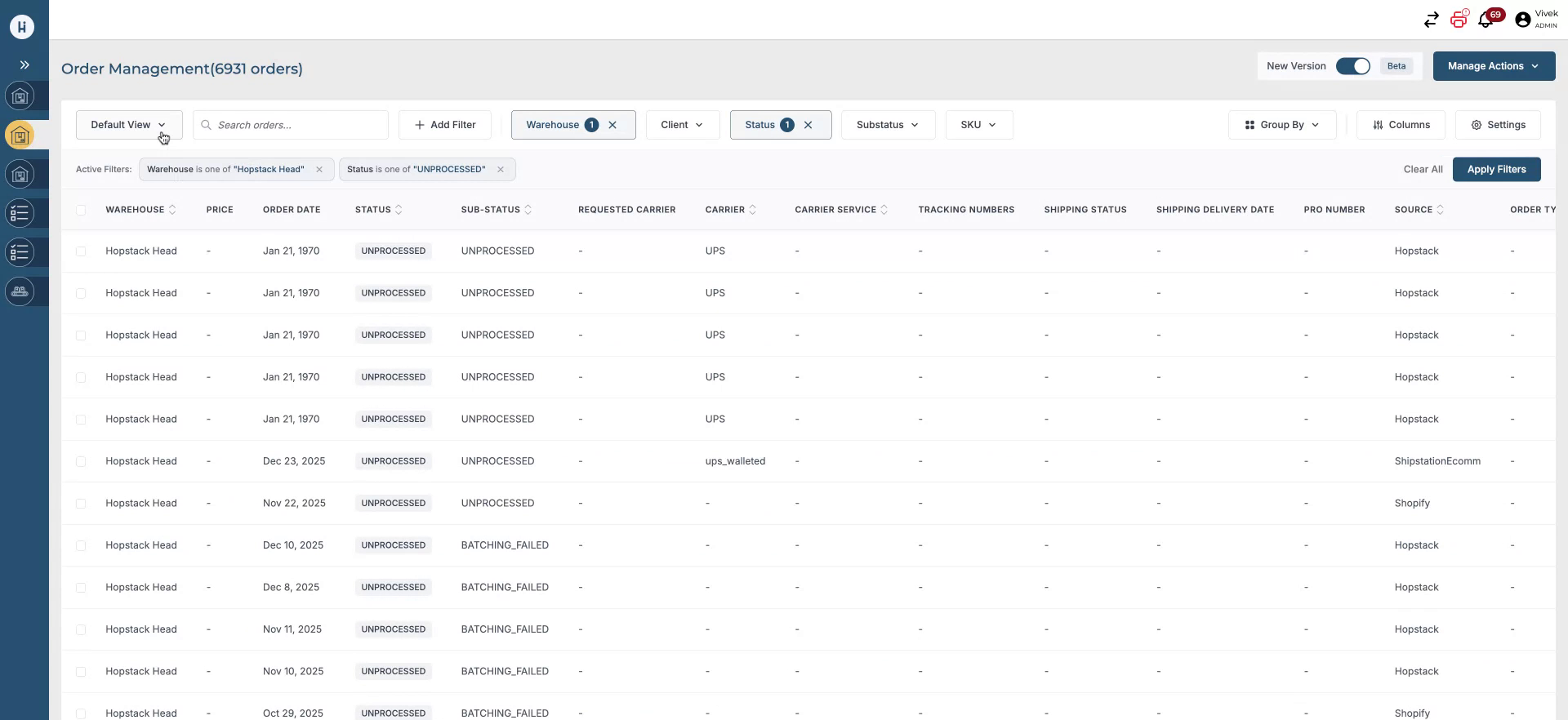
Enter a name for the view, such as “HS unprocessed orders,” and select whether to save this view only for yourself or share it with everyone who logs in.
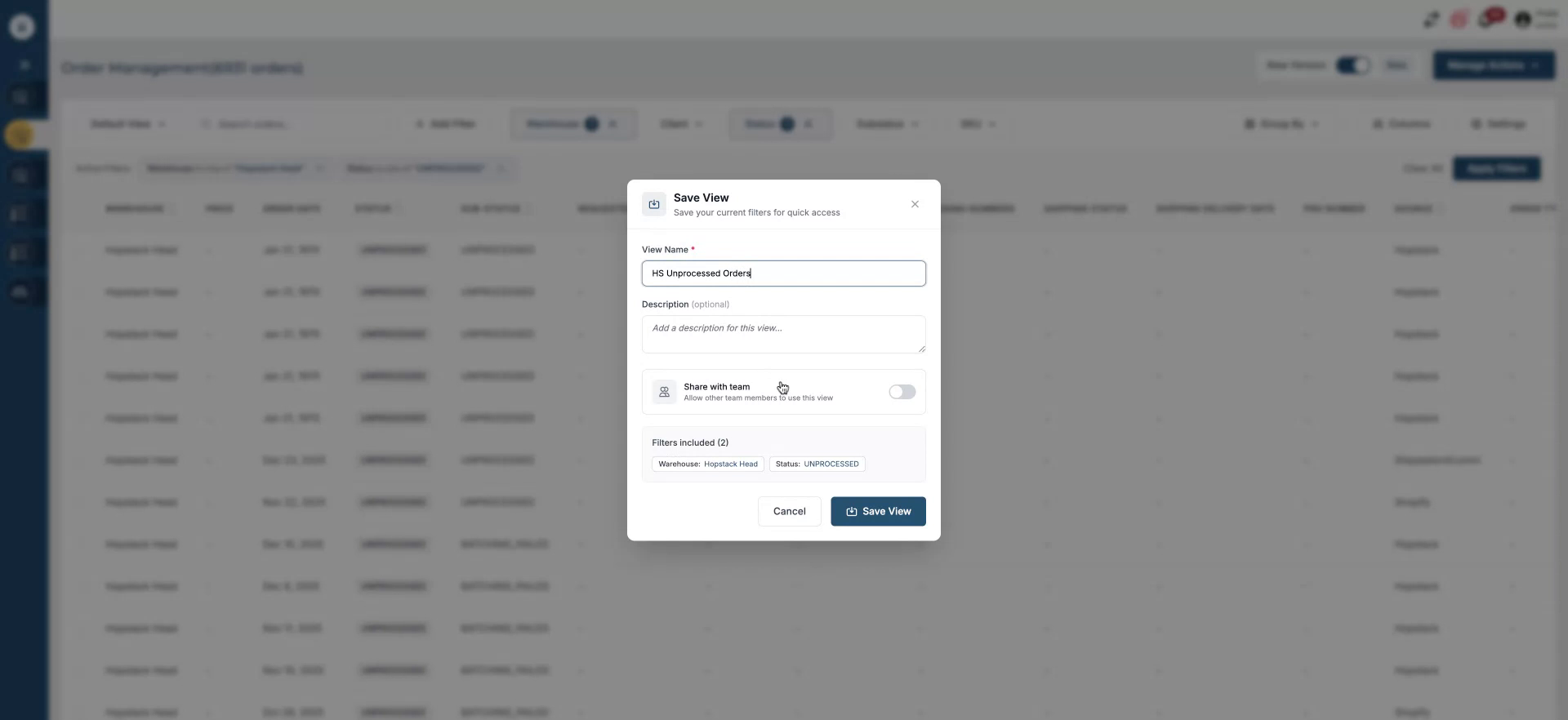
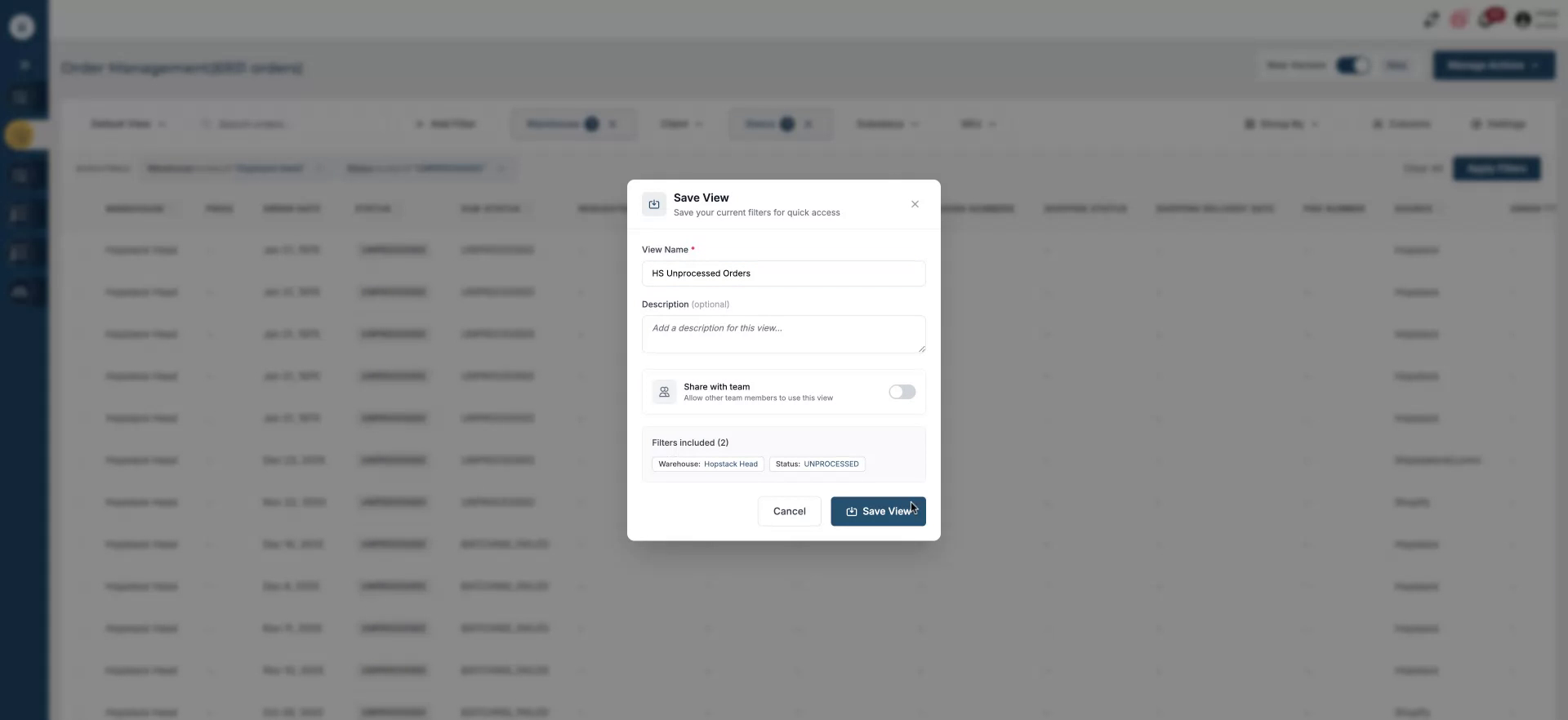
Confirm to save the view; it will now be stored and accessible in your views list.
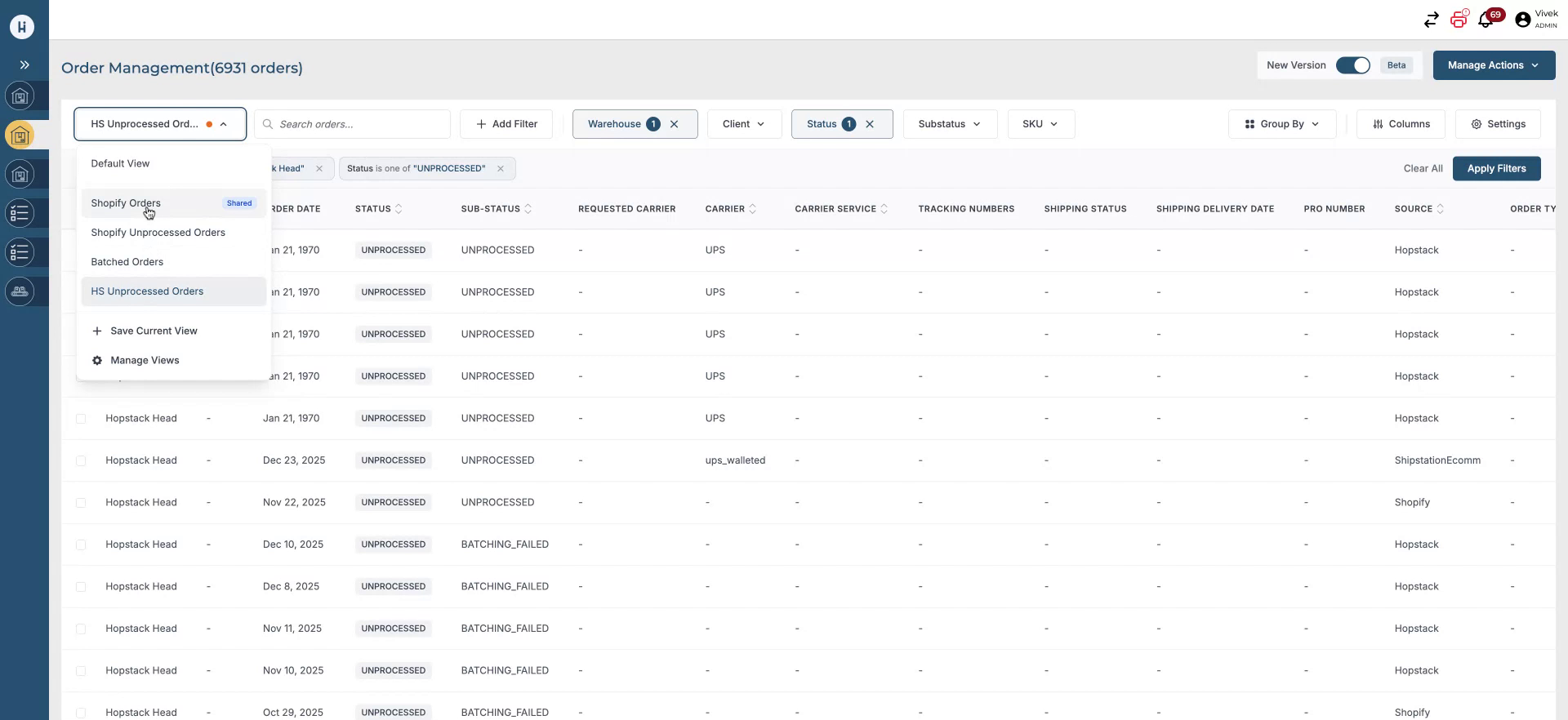
You can also access previously saved views from the same menu and apply them with a single click—for example, to see all your Shopify unprocessed orders.
Use Group By to Summarize Orders
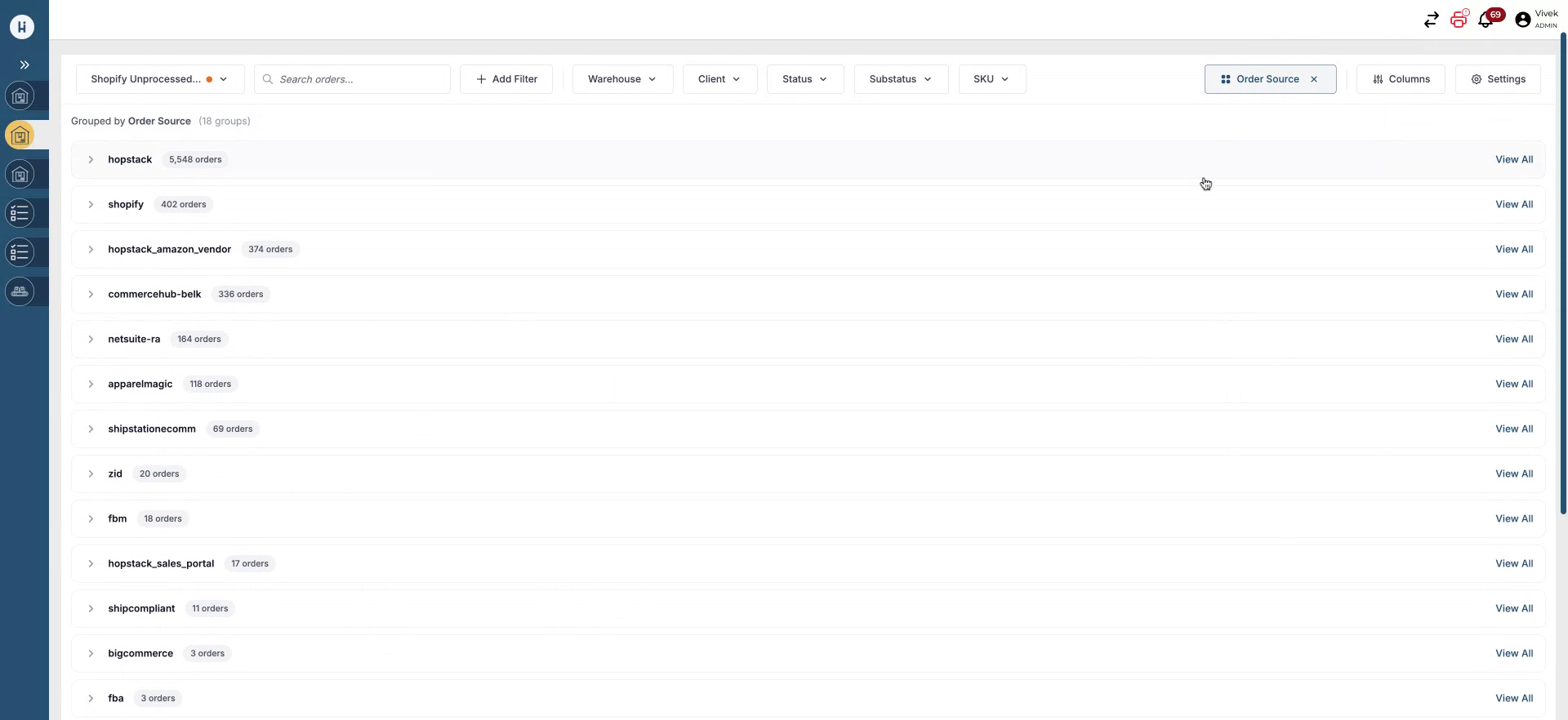
Use the Group By capability to see quick summaries of order counts based on different criteria.
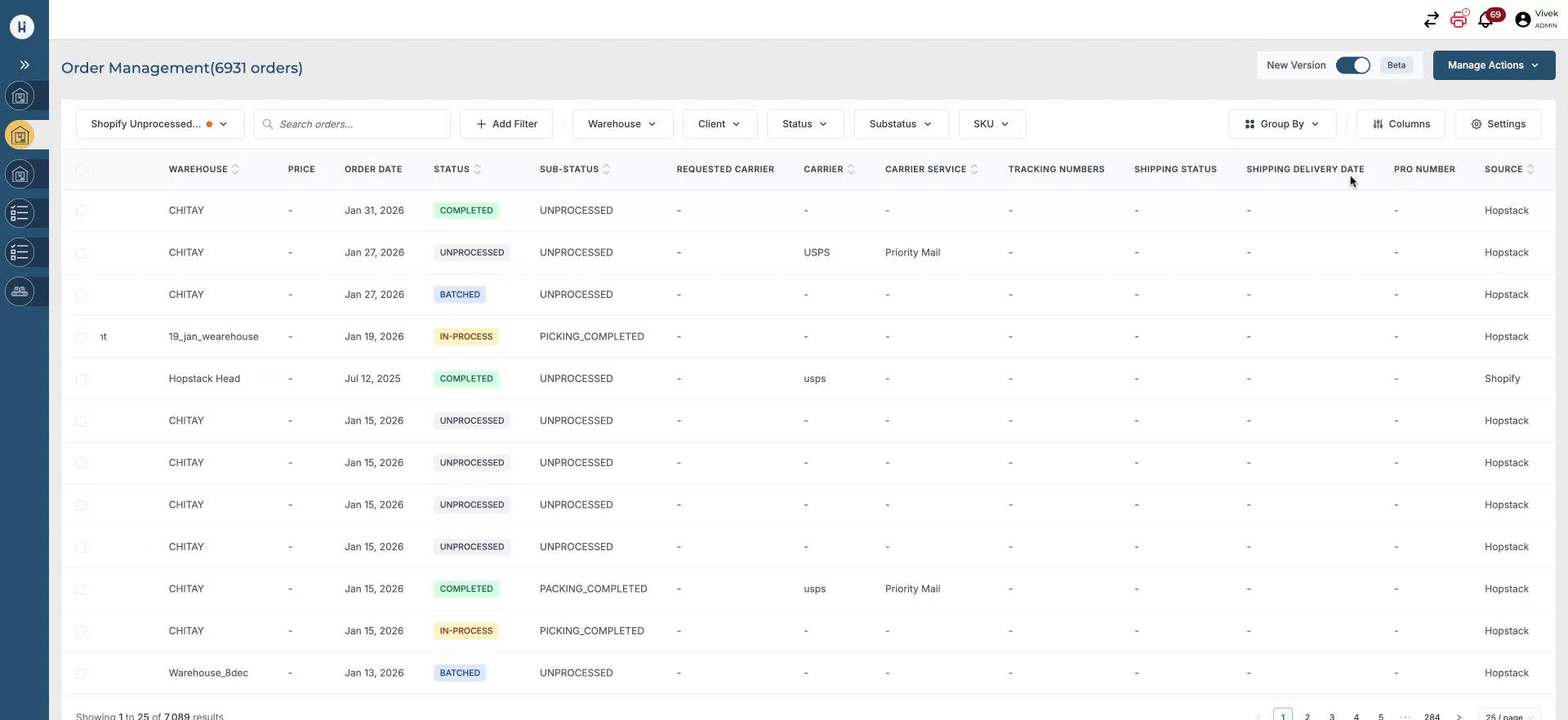
For instance, group orders by source to see order counts by each source.
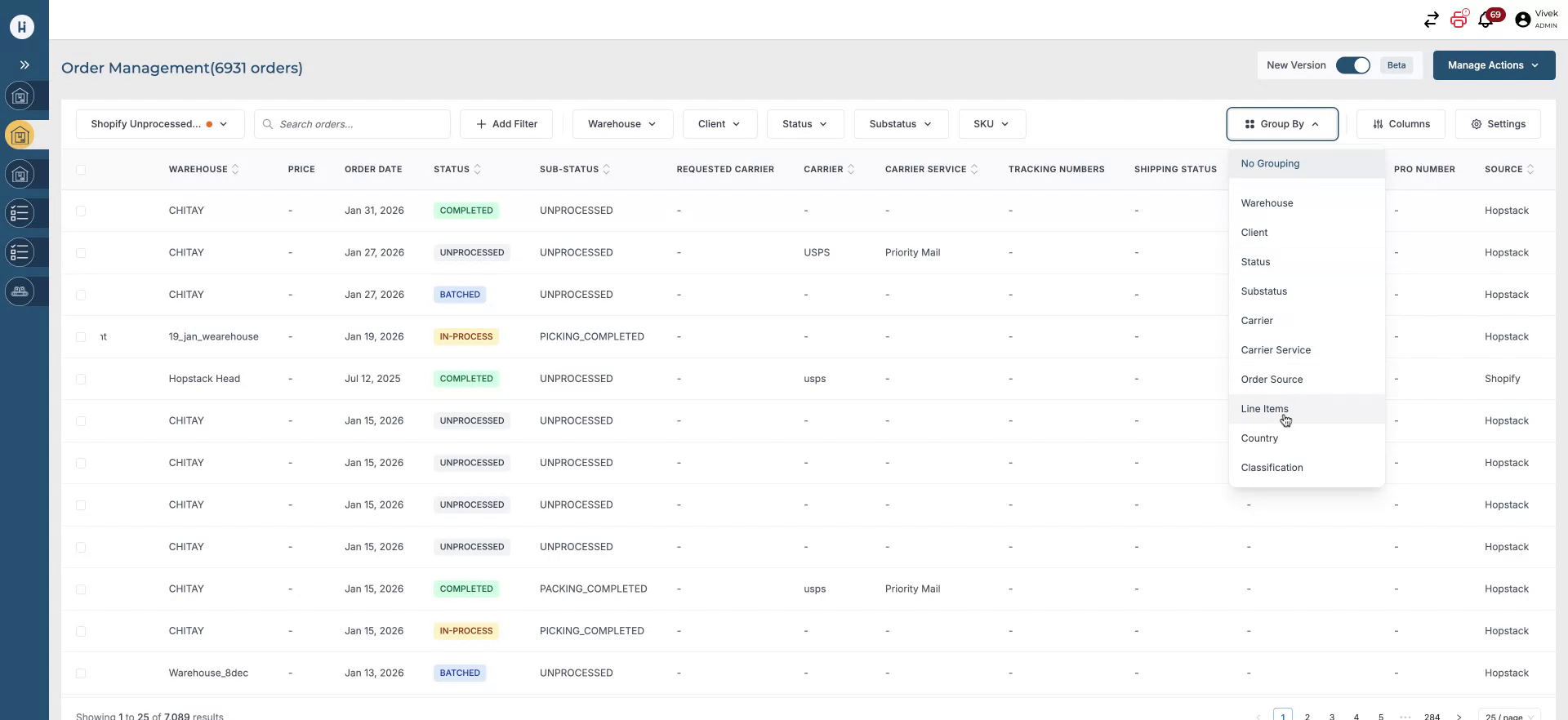
You can also group by carrier to see orders per carrier, or by status to see counts by order status.
New Filter Addition - Is Blank and Is Not Blank
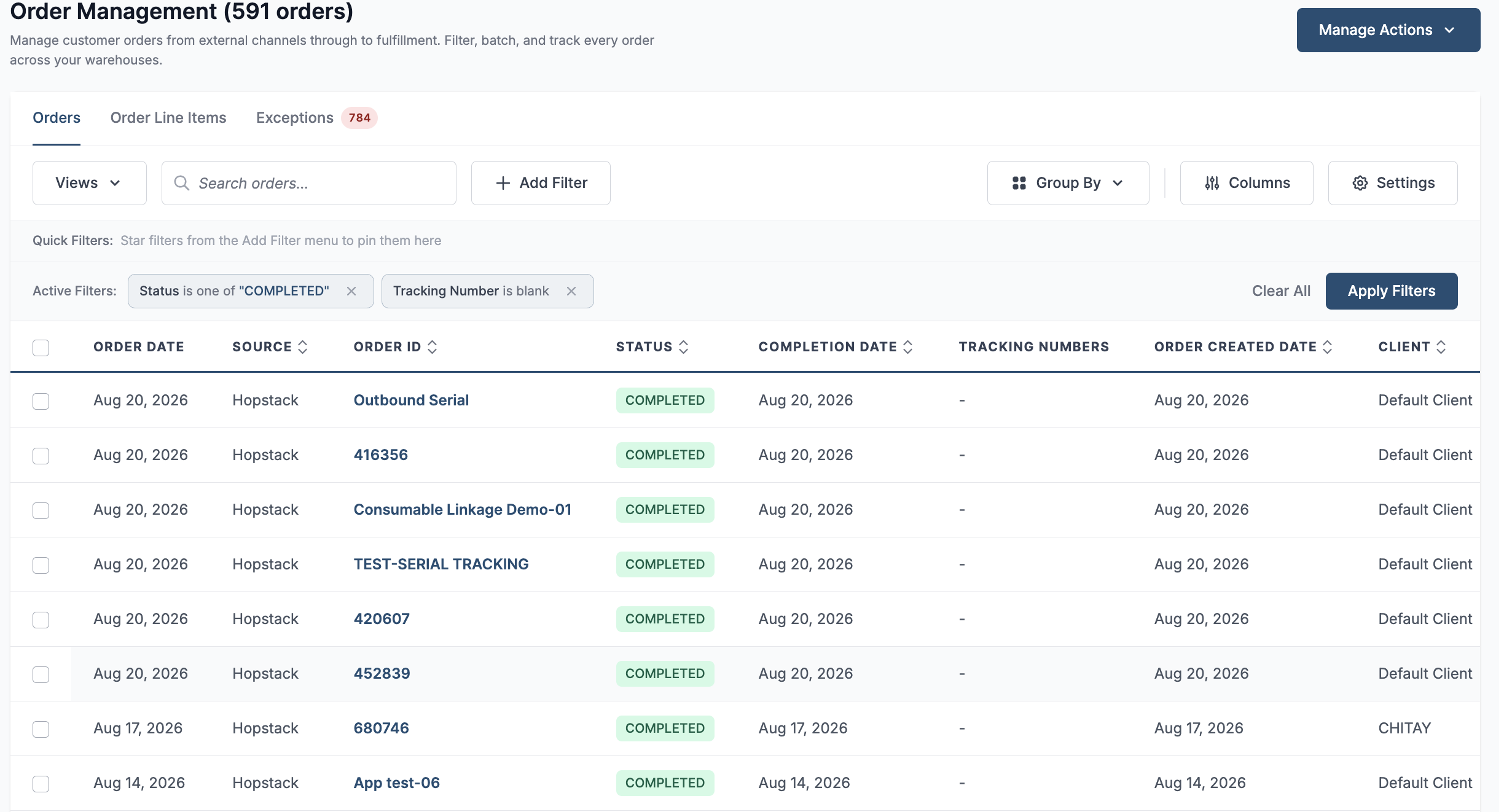
V2 filtering now supports Is Blank and Is Not Blank conditions for text fields, making it easier to identify records with missing or populated data.
Example use case: To identify completed orders that are missing a tracking number, set the Status filter to Completed and the Tracking Number filter to Is Blank.
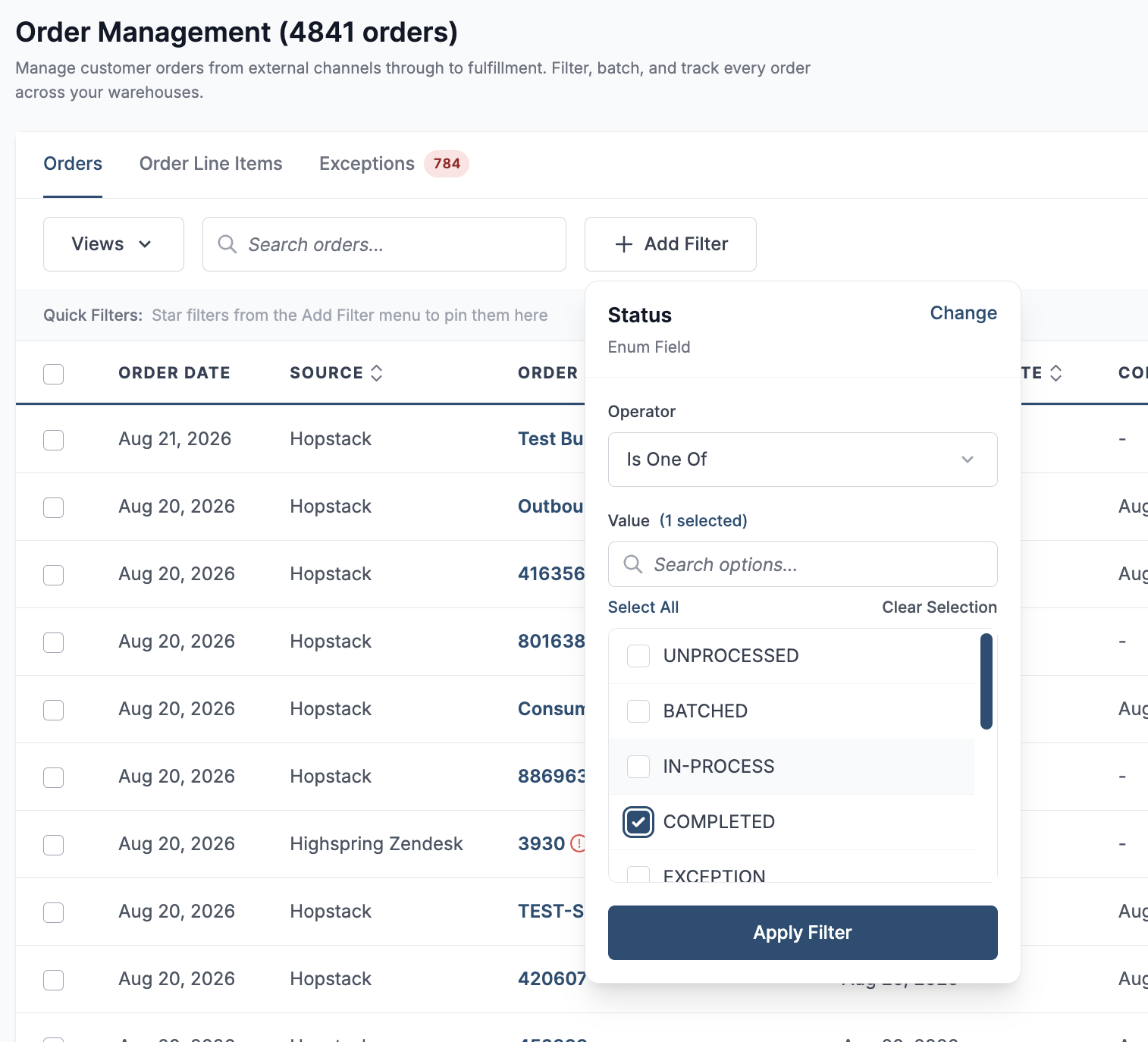
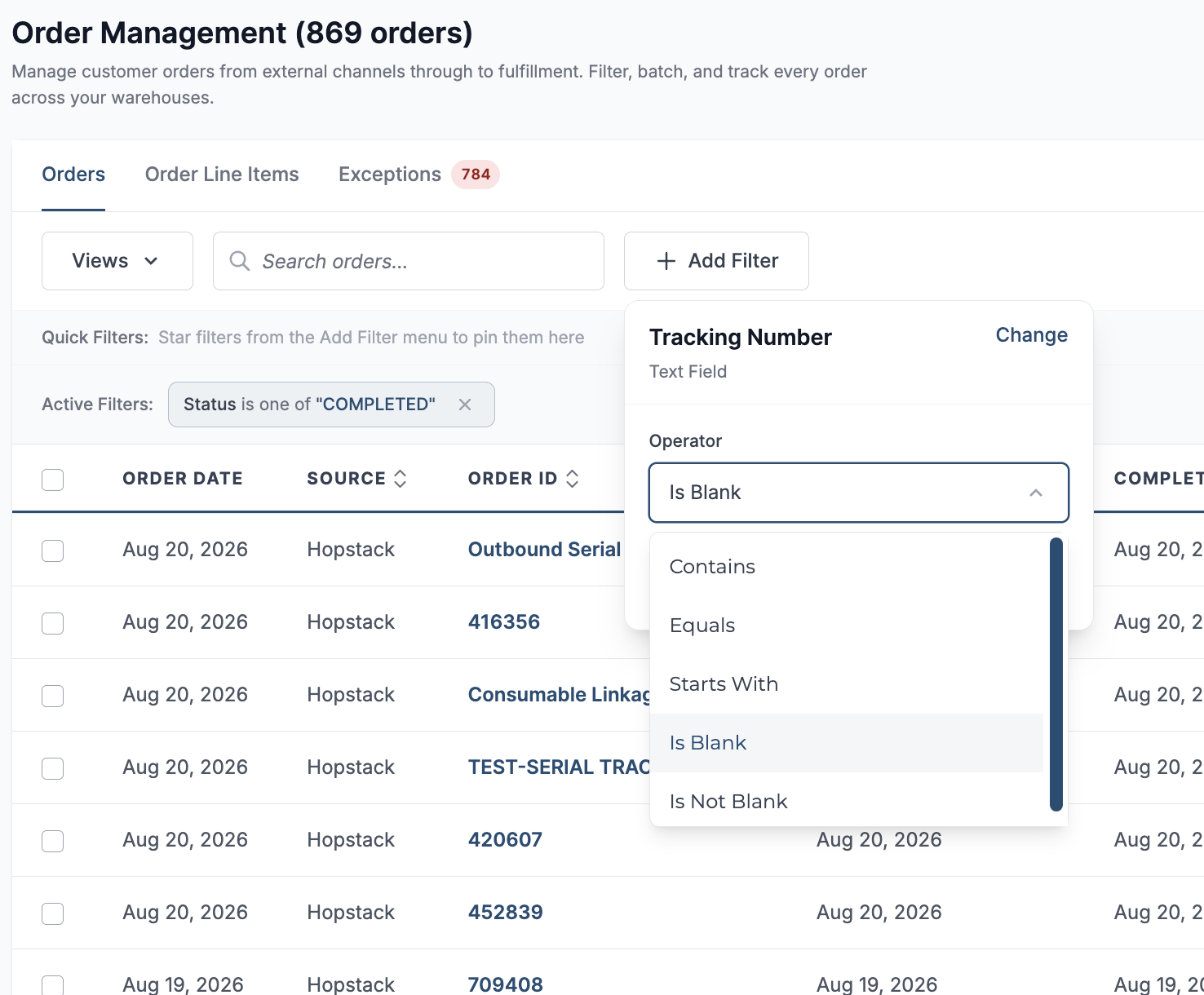
The above filters display orders that are completed and are missing a tracking number.