
When a picker on a soft-allocation batch reaches a bin that holds less than the line needs, they can choose Find another location. Hopstack keeps what was already picked, finds other bins that hold the rest, and adds those bins to the picker's walk. The picker no longer has to short the line when the stock is sitting in another bin.
Before you start: Find another location is available only on soft-allocation batches in the mobile app. Hard-allocation batches and the classic picker do not show it. Soft allocation is not enabled by default; contact your Hopstack implementation lead to have it enabled. See Soft Allocation.
Finding another location
When the bin is empty
-
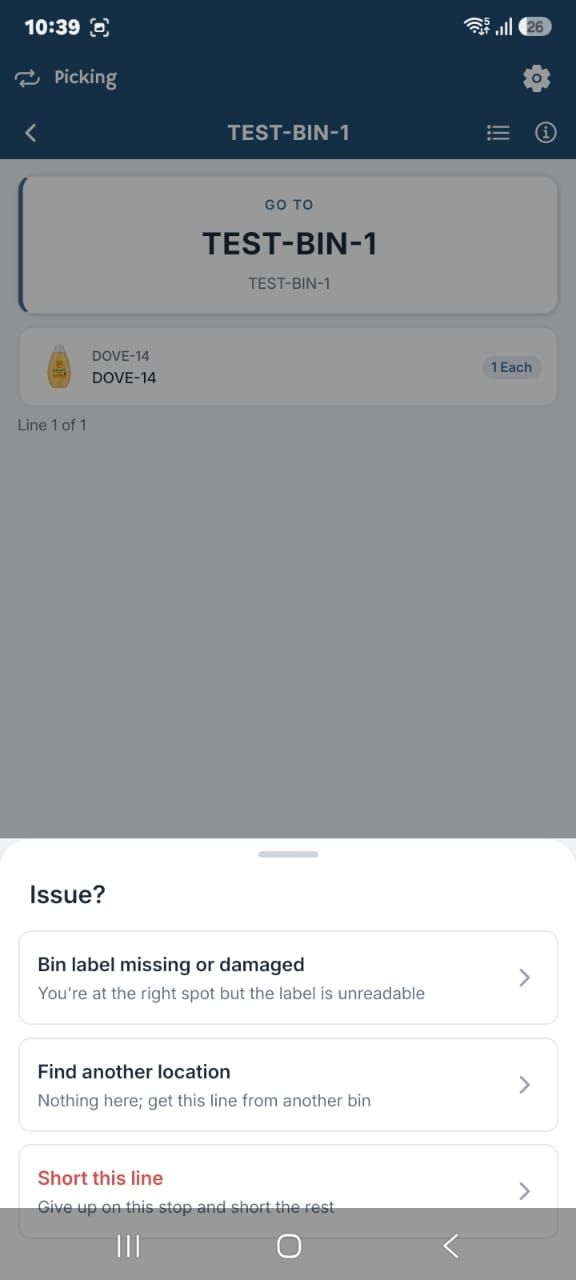
On the walk-to-bin screen, tap Issue?.
-
Choose Find another location ("Nothing here; get this line from another bin").
-
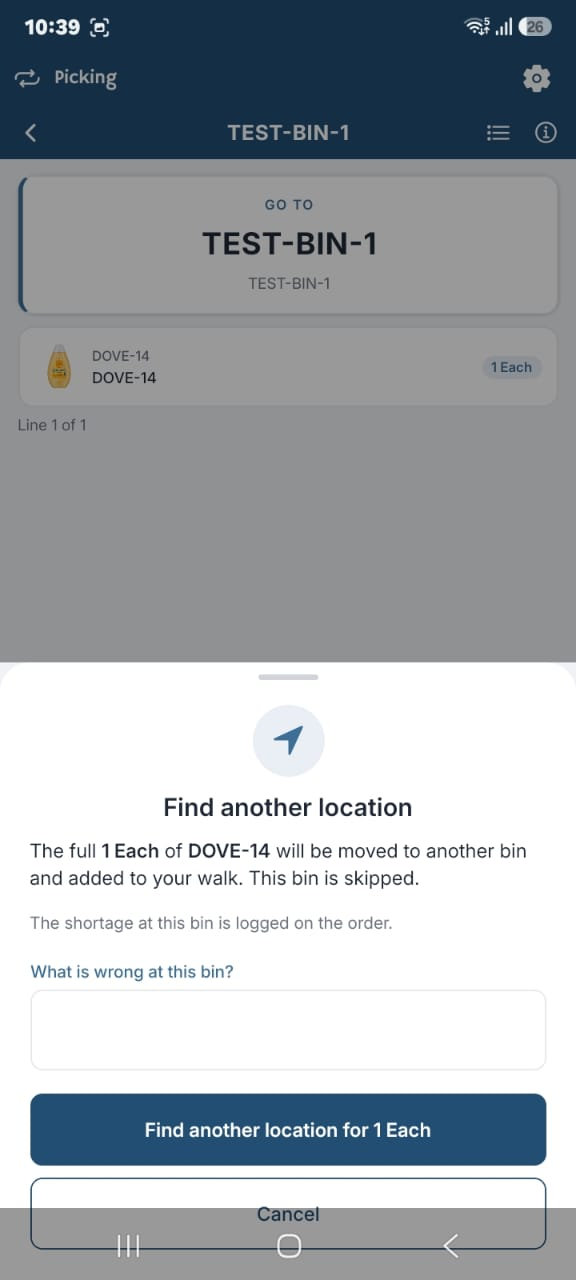
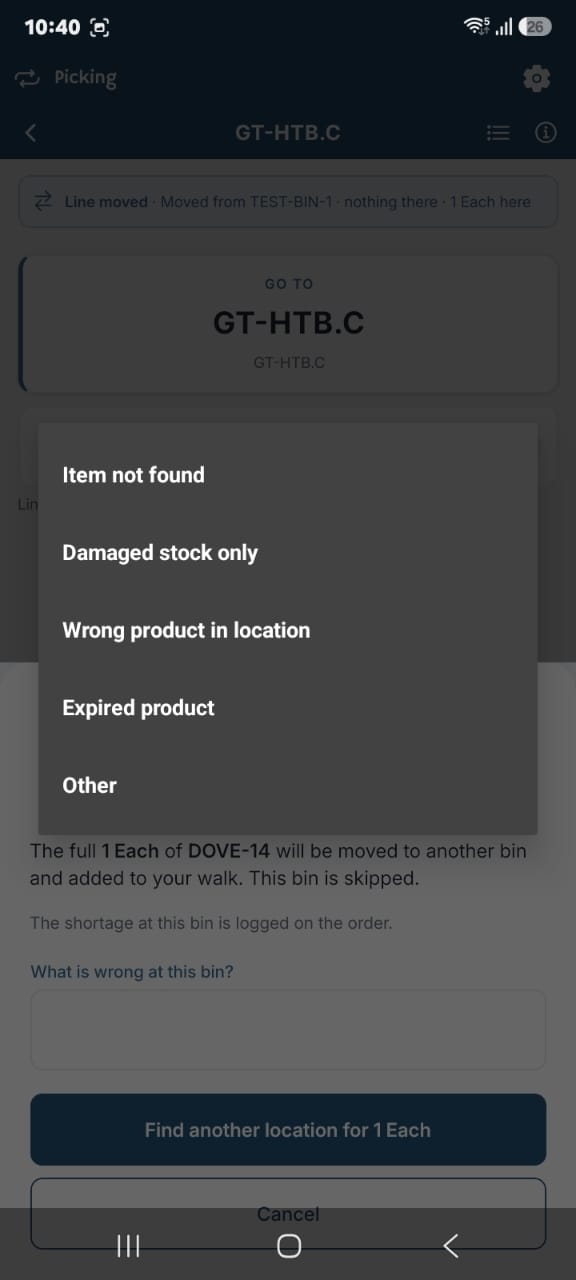
Under What is wrong at this bin?, pick a reason: Item not found, Damaged stock only, Wrong product in location, an expiry reason, or Other.
-
Tap Find another location for quantity. Hopstack moves the line to another bin and adds it to your walk. The empty bin is skipped.
After picking part of the line
-
On the pick screen, tap Issue?.
-
Choose Find another location ("Keep what you picked, get the rest from another bin").
-
Pick a reason and tap Find another location for remaining quantity.
The units already picked at this bin are kept and recorded as picked. Only the remaining quantity moves to another bin; you do not pick the first part again.
When no other location has the stock
If no other bin can cover the rest of the line, the sheet shows No other location found. Tap Short this line instead to short the remaining quantity, or Cancel to go back.
What the picker sees next
-
The new bin or bins are added to the walk at the point where they fall in the walking order. This is not always the next stop.
-
The walk screen for a moved line shows where it came from, for example: "Moved from A1-R2-B3 · 2 units picked there · 3 units here".
-
The batch overview lists the new bin lines.
-
Drop-off, packing and order completion treat moved lines as ordinary picked lines.
How Hopstack chooses the new location
-
It uses the same rules as batching: expiry order (FEFO), your expiry policy, container preference, excluded locations and inventory shares.
-
It only uses stock that is not already reserved for another order.
-
The bin reported short is left out of the search.
-
If the order line asks for a specific lot, serial number, best-by date, pallet, LPN or tracking ID, the new bin must hold stock with exactly those values.
-
If no single bin holds the full remaining quantity, it is split across several bins. Each bin becomes its own line.
Where the change is recorded
The order's audit trail shows that the line was short at the original bin, with the picker's reason and the bin or bins the rest was moved to.
Short this line and Skip this line continue to work as before.