
This guide will walk you through the process of selecting a scanning method on our mobile application. The application provides multiple methods for scanning, and you can choose the one that's most convenient for you.
Procedure to Select Scanning Method:
-
Access the Mobile Application: Open the mobile application on your device.
-
Navigate to Settings:
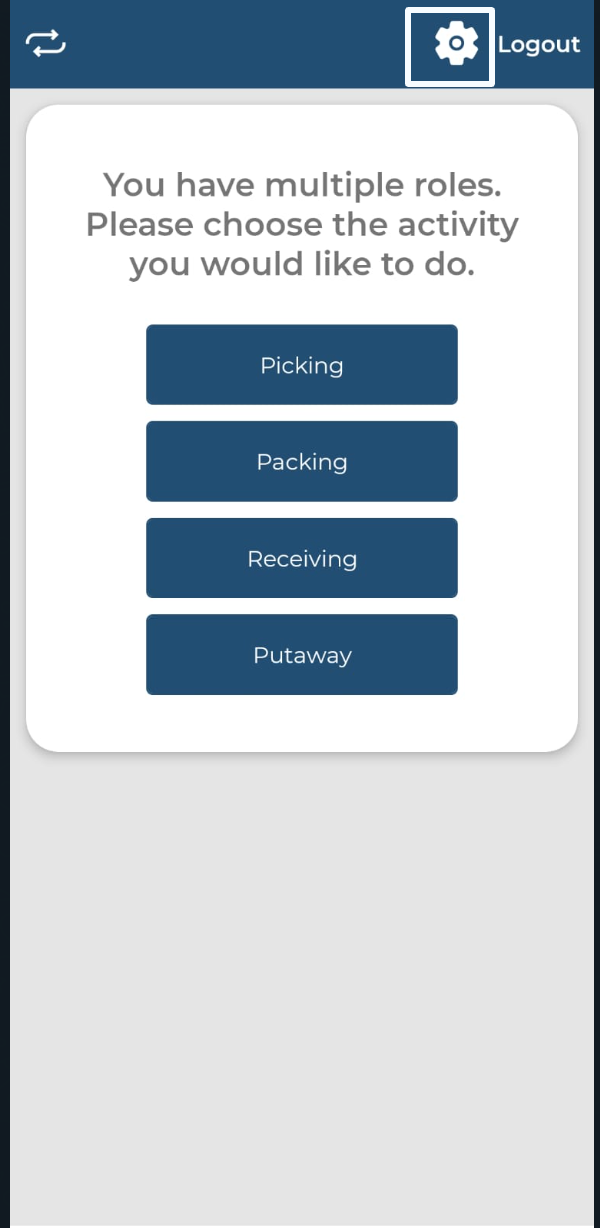
a. On the home screen or main menu of the application, look for the “Settings” option.
b. Tap on the “Settings” option to access the settings menu.
-
Scanning Method Selection:
a. In the settings menu, you will see an option labeled “Scanning Method”. Tap on it to see the available scanning methods.
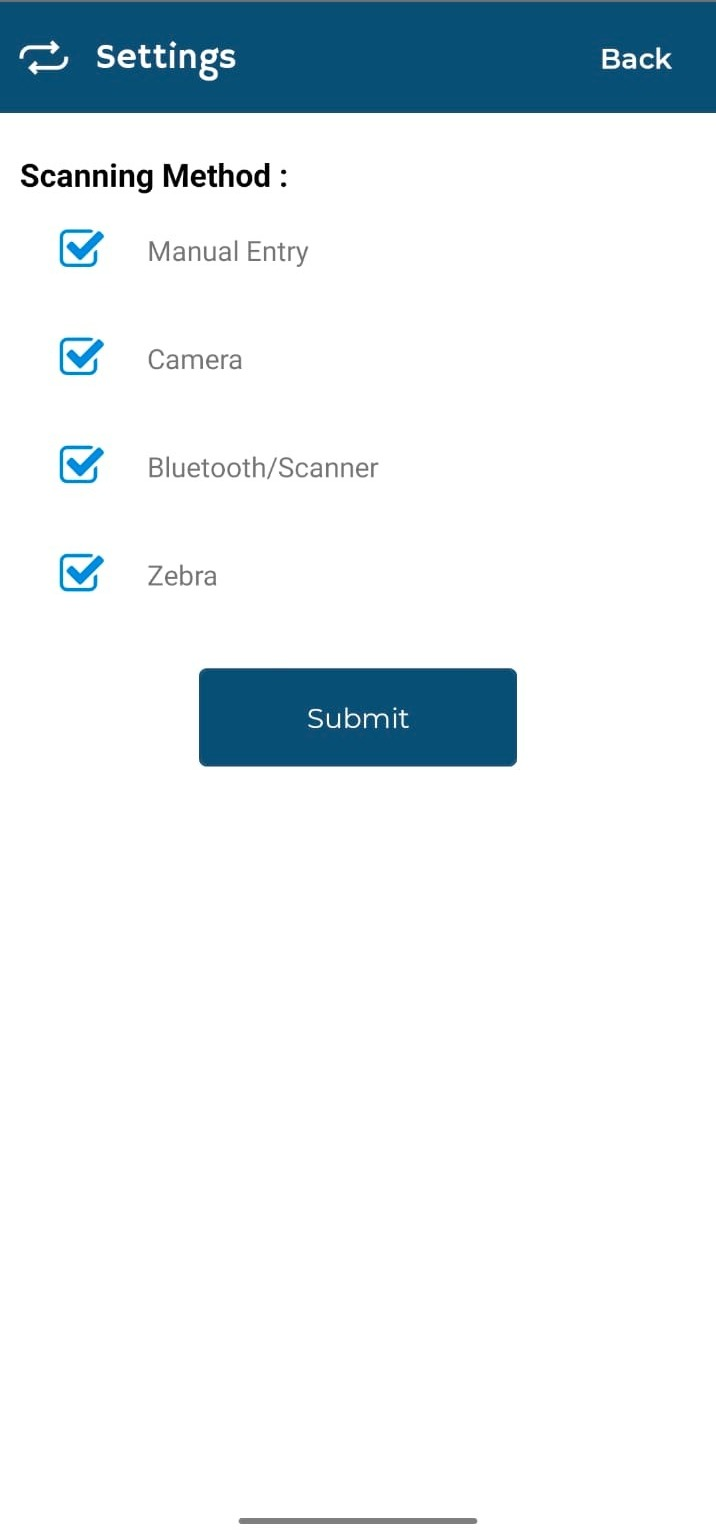
b. Choose from the following methods:
-
Manual Entry: Select this if you wish to manually enter the data.
-
Camera: Choose this method to use your device's camera for scanning.
-
Bluetooth/Scanner: Opt for this if you have a Bluetooth scanner connected to your device.
-
Zebra: If you have a Zebra scanning device, choose this option.
-
-
Confirm Selection:
After selecting your preferred scanning method, tap on the “Submit” button to save your changes.
Troubleshooting:
-
Can't Find 'Settings' Option: Ensure you are on the home screen or main menu of the application. If the problem persists, consider updating the app or reinstalling it.
-
Scanning Method Not Working: If a specific scanning method is not working, ensure that you have the necessary permissions granted (e.g., camera access) and that any external devices (e.g., Bluetooth scanner, Zebra) are properly connected.