
Bulk Shipping Completion for Multiple Orders
This process allows users to scan or enter multiple order IDs or tracking numbers, build a list of orders, optionally adjust that list, and then mark all selected orders as shipped in a single action.
Step 1: Open Shipping Module
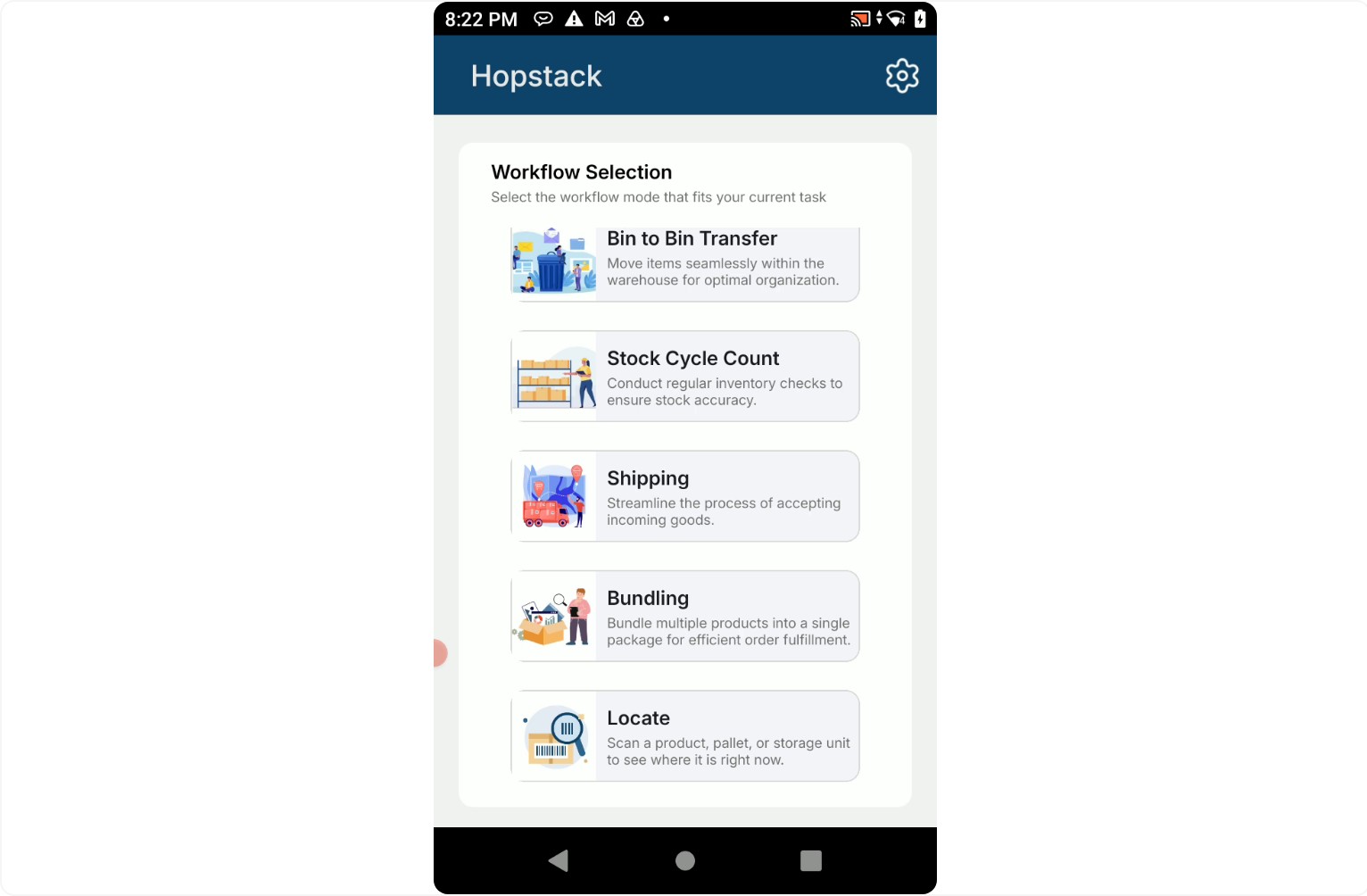
Step 2: Start Adding Orders by Scanning or Typing
To do so, scan or manually enter a tracking ID or order ID into the input field.
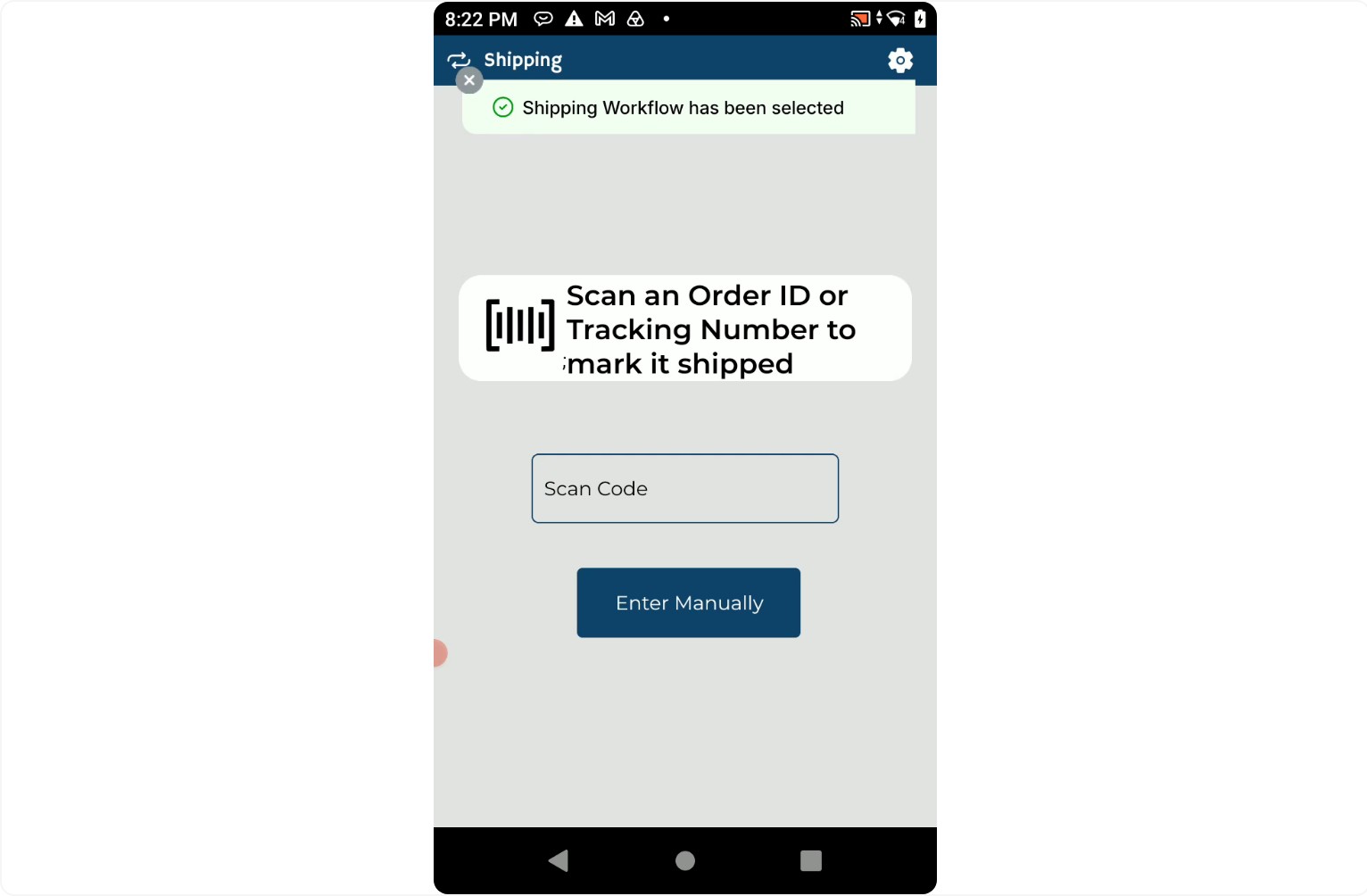
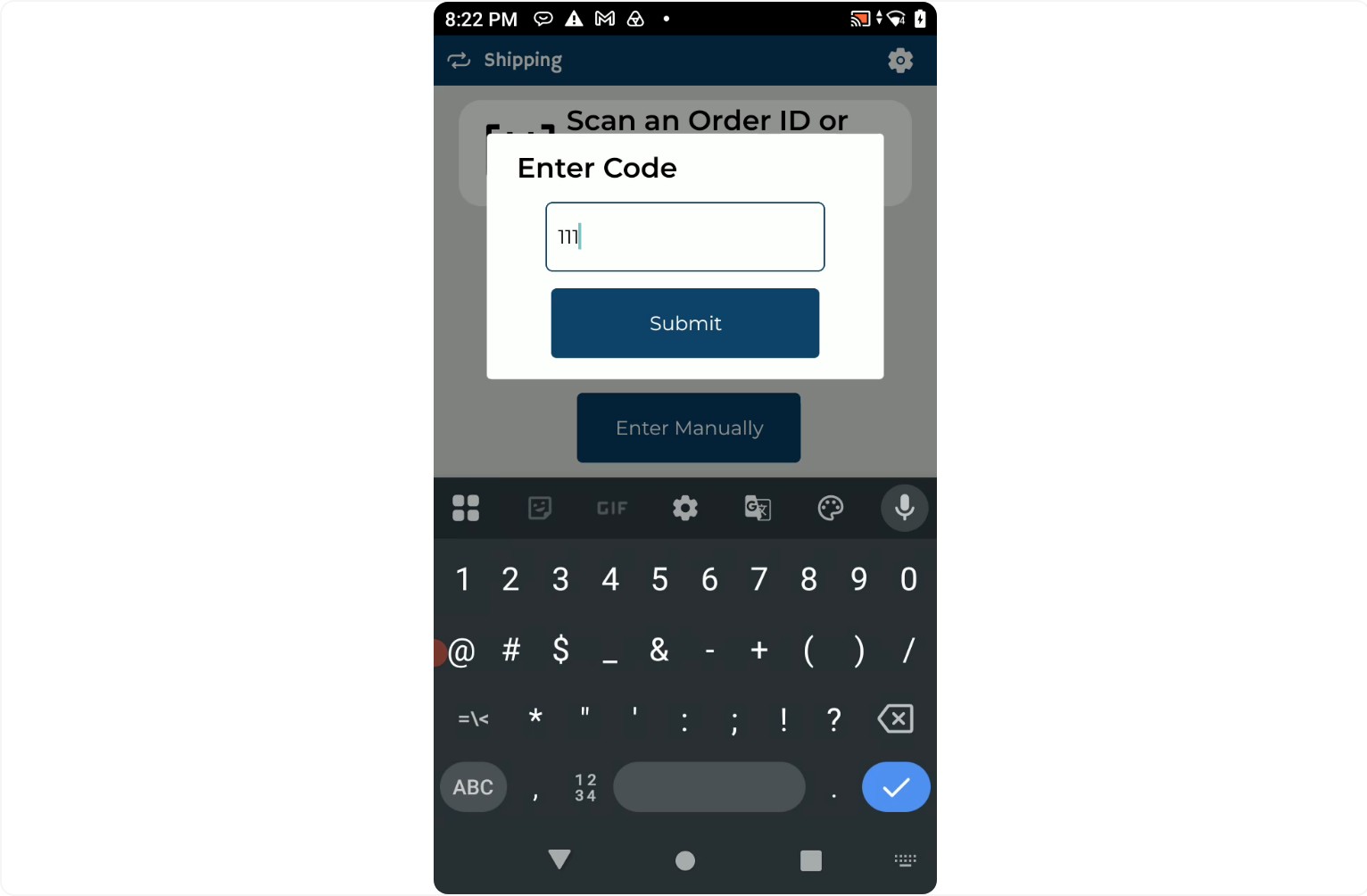
Step 3: Continue Adding Multiple Tracking IDs or Order IDs
The system allows you to scan or enter additional tracking IDs or order IDs, building a list of orders to be processed together.
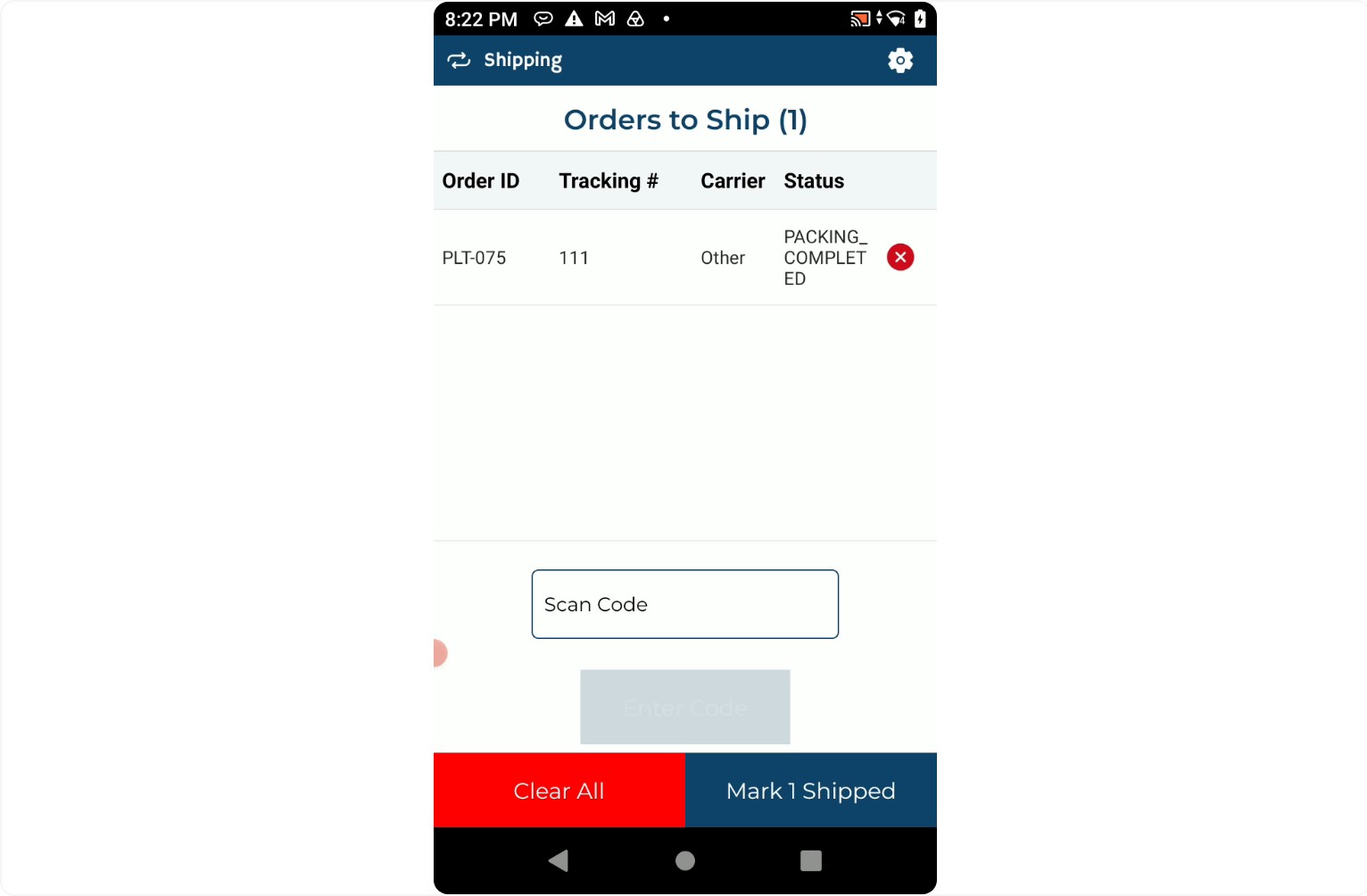
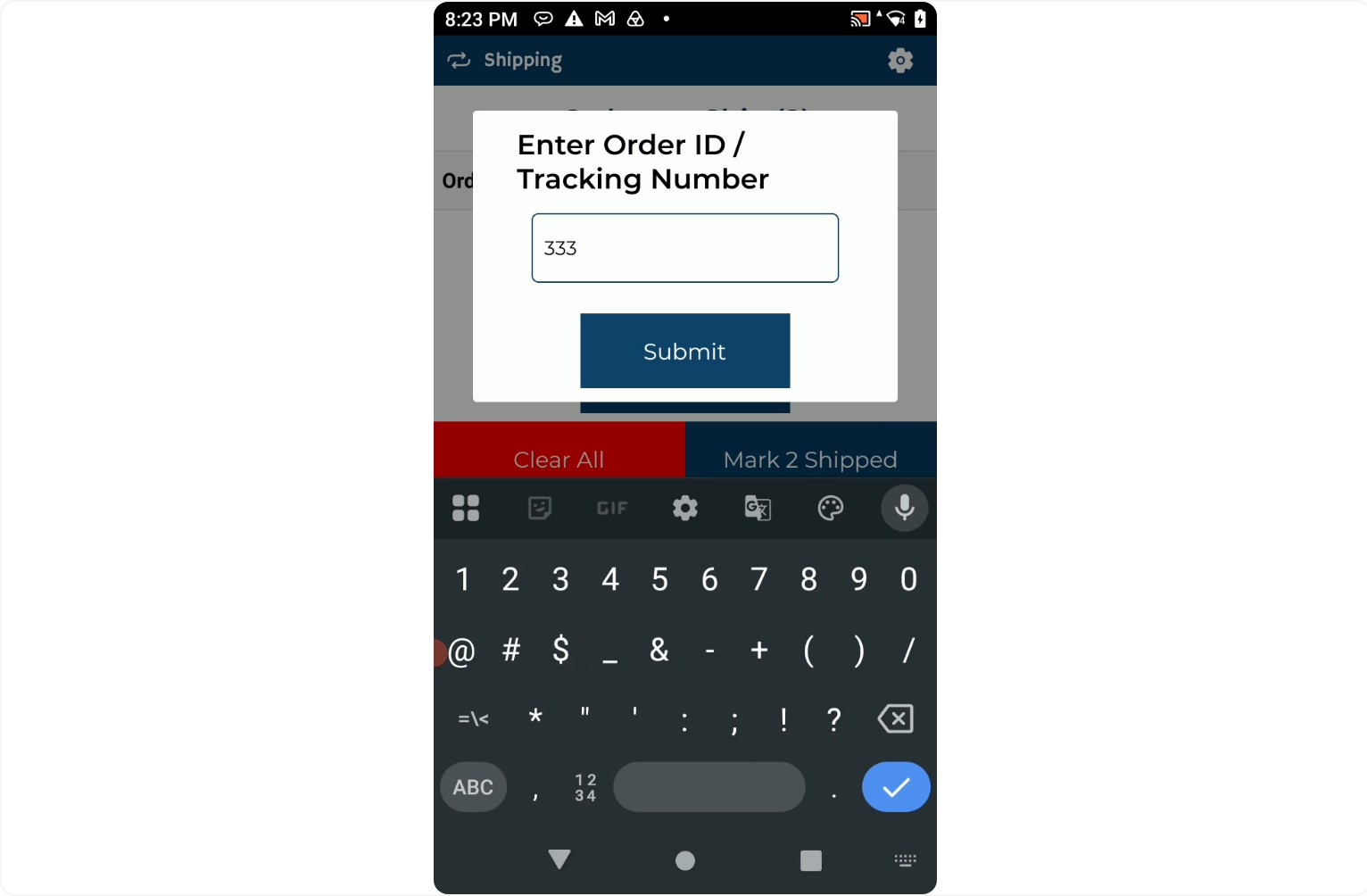
Step 4: Review and Adjust the Order List
As you enter or scan the IDs, a list of orders is created. You may remove an individual order from the list by clicking the X next to it. If you want to start over with a different set of orders, you can clear the entire list by clicking on Clear All.
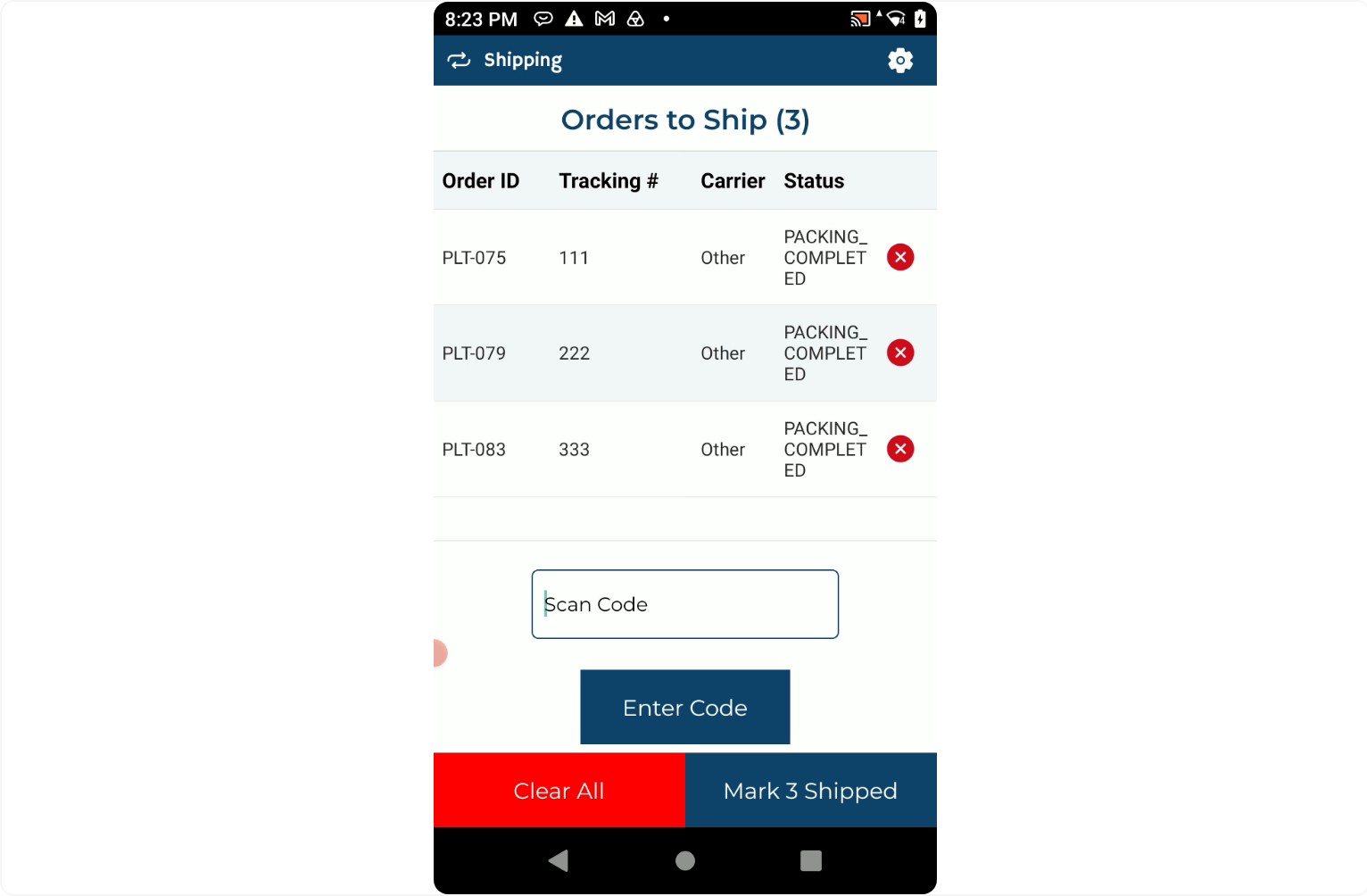
Step 5: Mark All Listed Orders as Shipped
Once the list is finalized, mark all orders in the list as shipping completed by clicking on Mark Three Shipped (or the equivalent bulk ship button).