The new picking flow streamlines the picking process with a more intuitive experience, making it easier to handle warehouse and client selection, track orders, and scan SKUs.
-
Accessing Picking: Upon selecting Picking, the system checks your warehouse access:
-
If you only have access to a single warehouse, this step will be skipped.
-
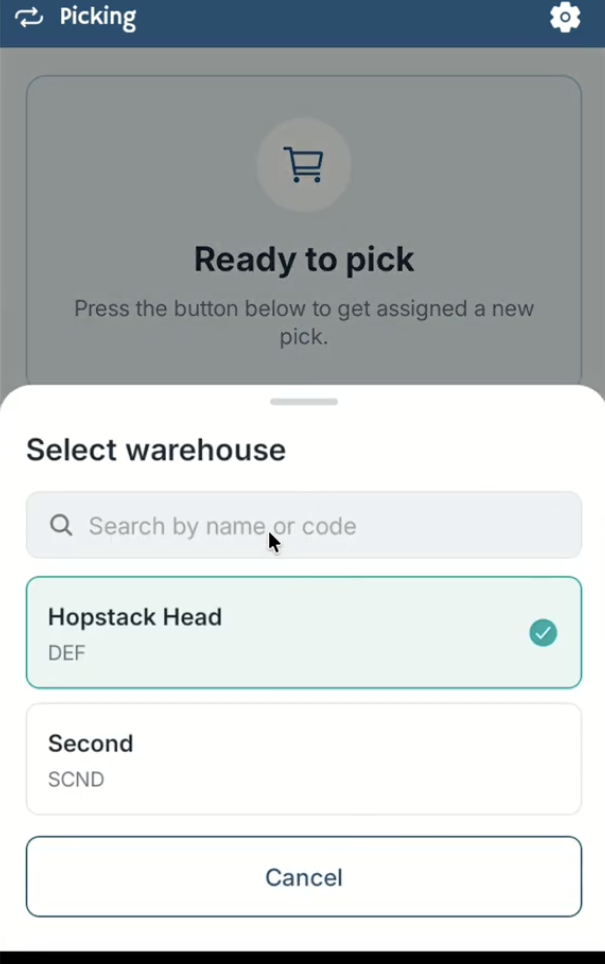
If you have access to multiple warehouses, click on “TAP TO SWITCH” and select the warehouse.
-
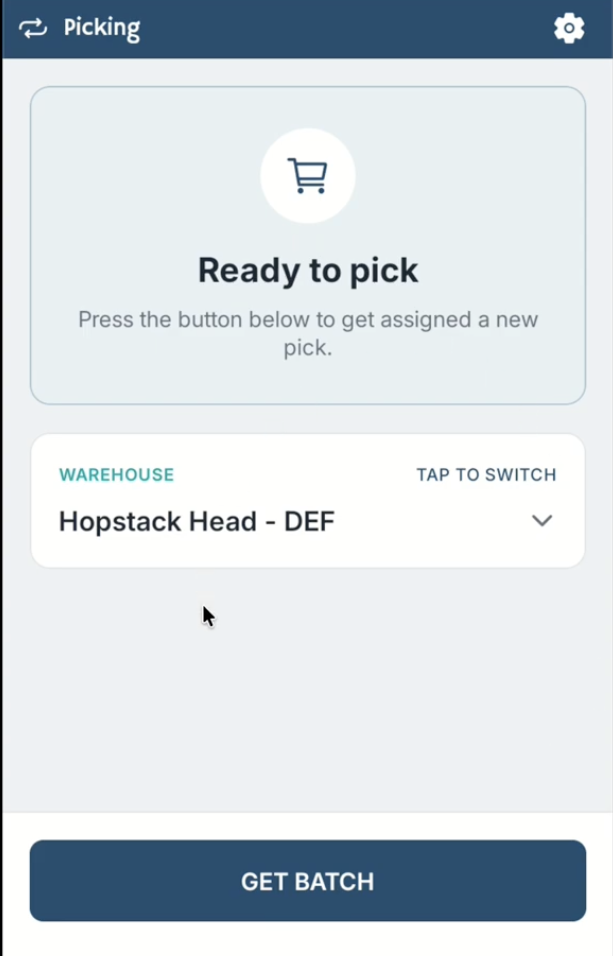
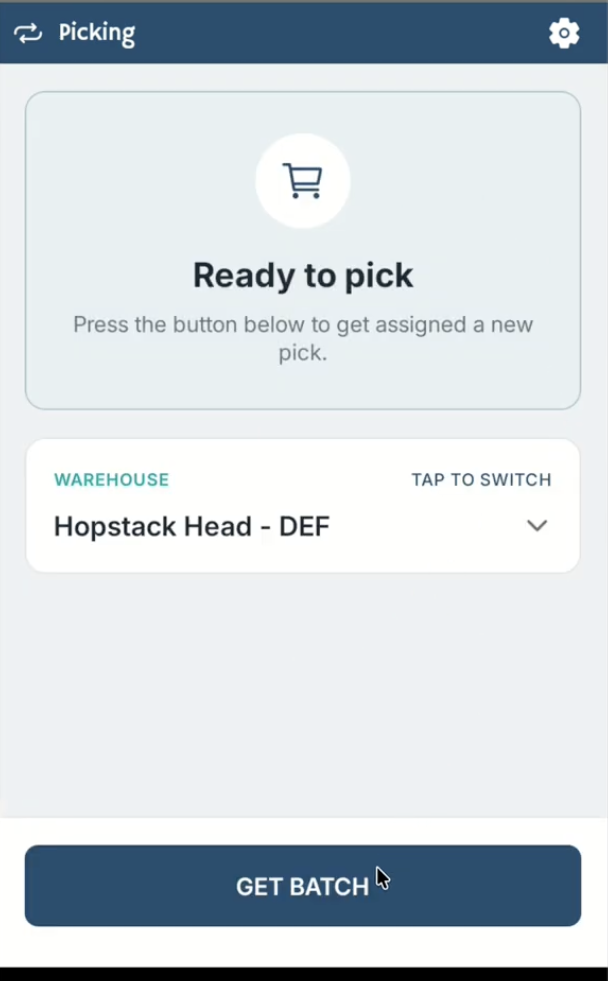
Once the warehouse is selected, click on “GET BATCH”.
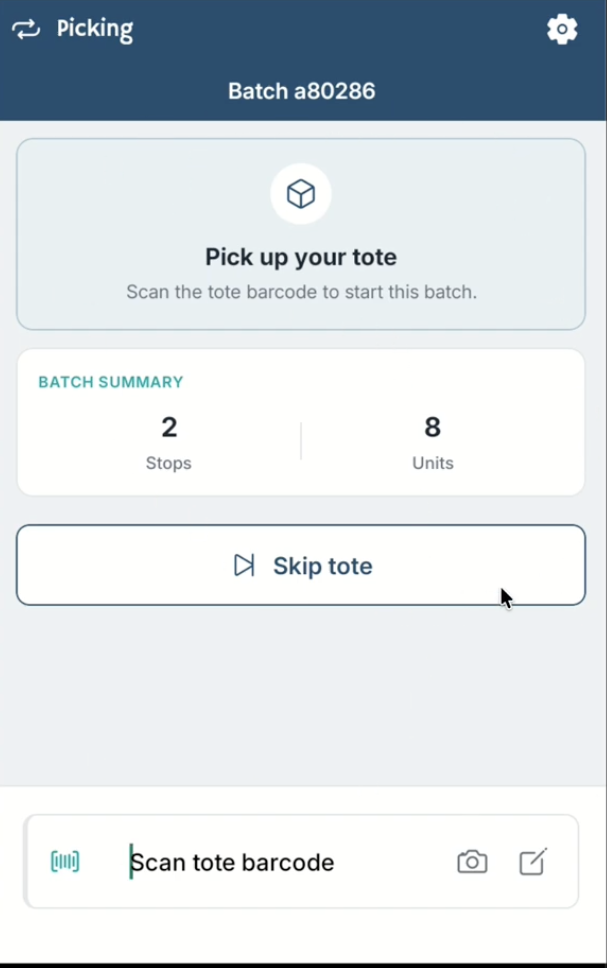
Pickers can now view the total number of stops and units required to be picked. They also have the flexibility to scan the tote barcode or skip the tote if needed.
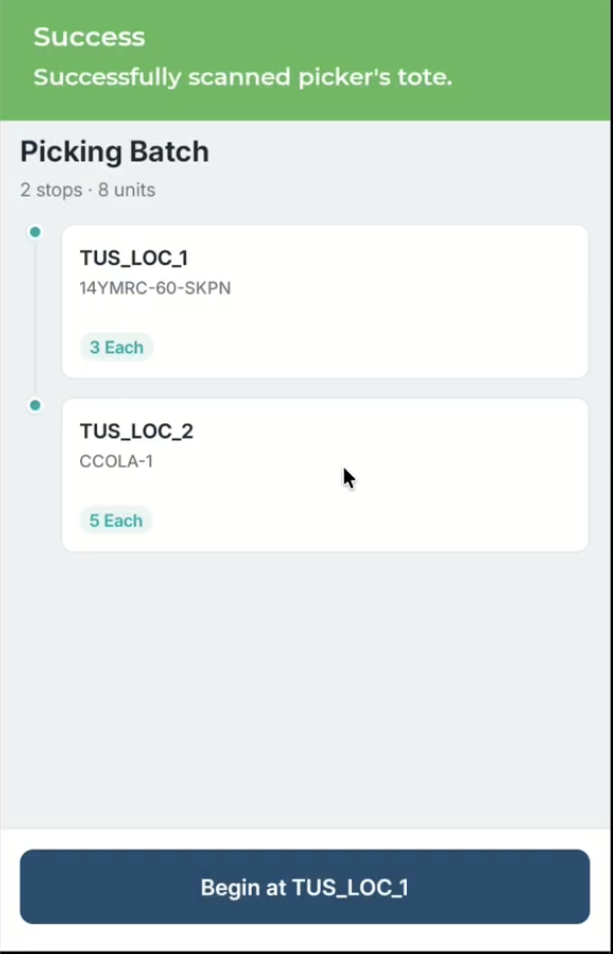
Once the tote is scanned or skipped, the picker can view the remaining stops in the route, along with the items and quantities that need to be picked at each location. Click “Begin” to start picking at the location shown on the screen.
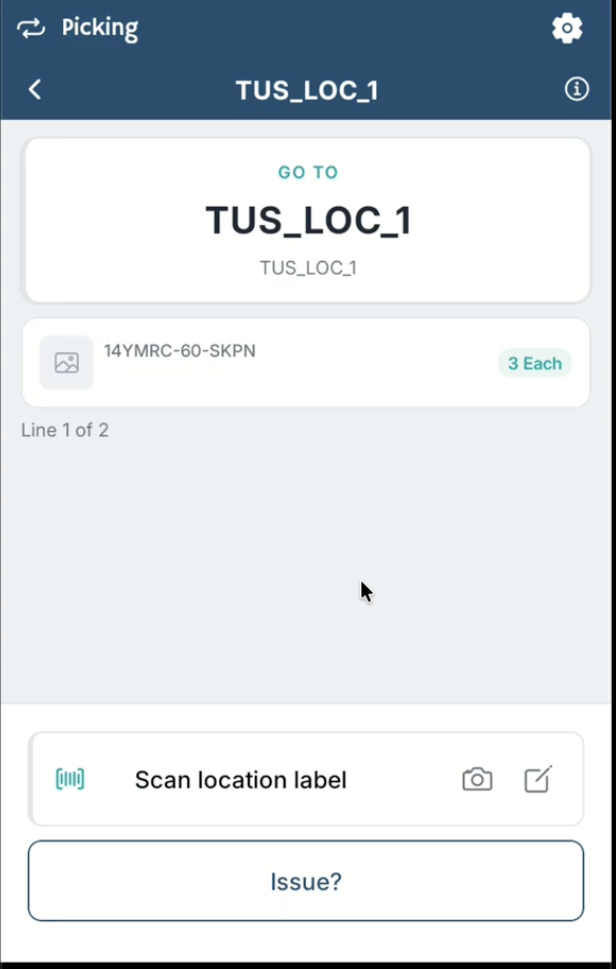
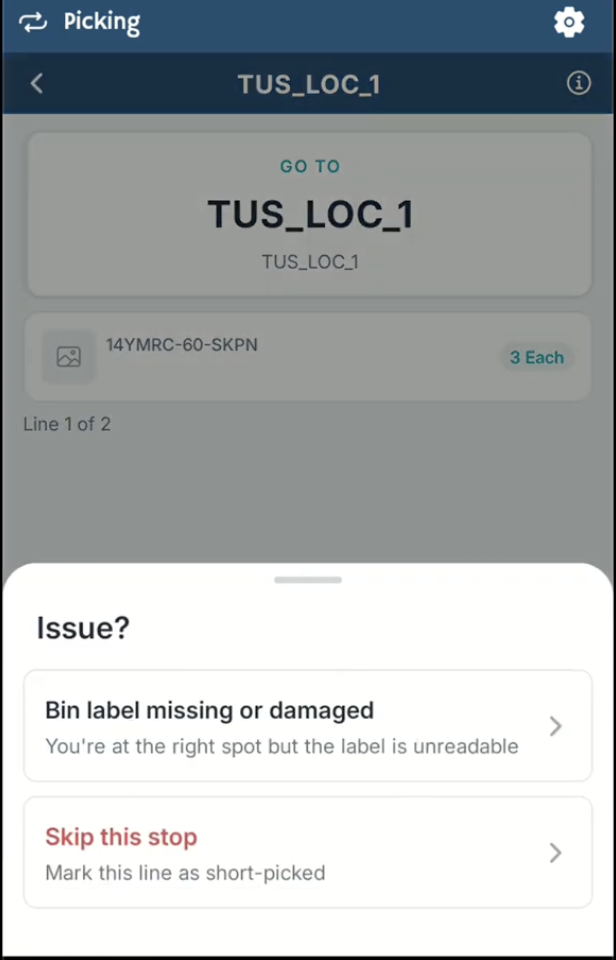
Pickers can continue by scanning the location barcode as usual, or can manually enter the location by clicking on the edit icon. If they encounter a problem at the location, they can select “Issue” and choose from available options, including “Bin Location Missing or Damaged” or “Skip This Stop.” Selecting an issue option serves, the picker to continue without manually entering the location details.
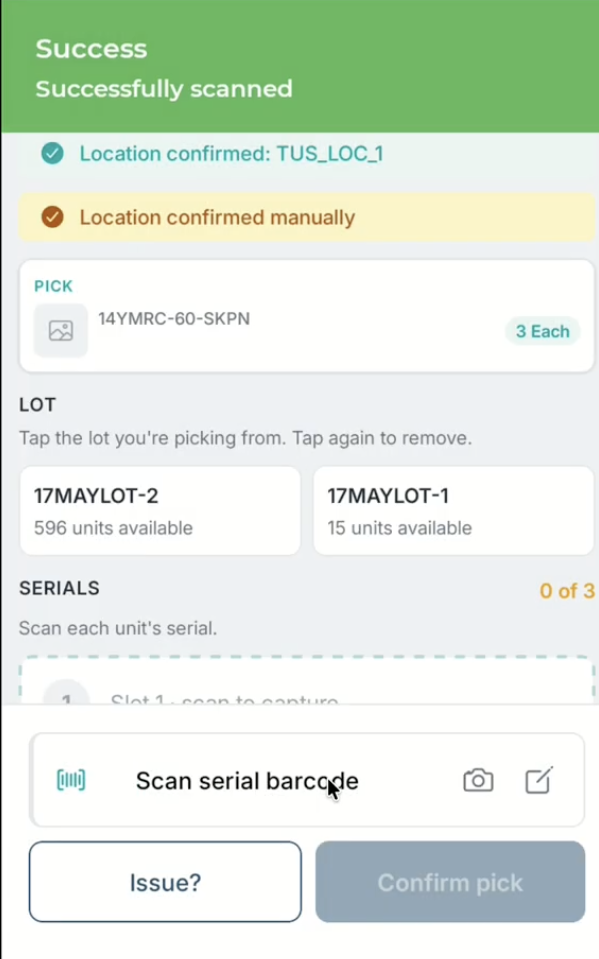
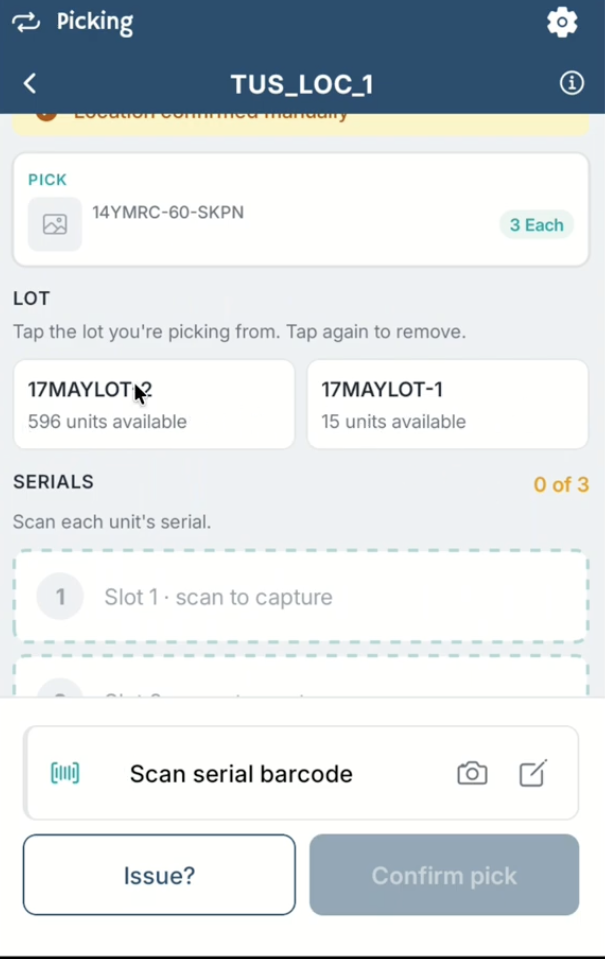
Once the location is scanned/manually entered or confirmed, the picker can view the product details, including the Lot ID and any associated serial numbers (if the lot has serial numbers assigned or if the product is serial-controlled).
If the picker encounters an issue with the serial barcode, they can click “Issue” and select the appropriate option from the list displayed on the screen to continue with the picking process.
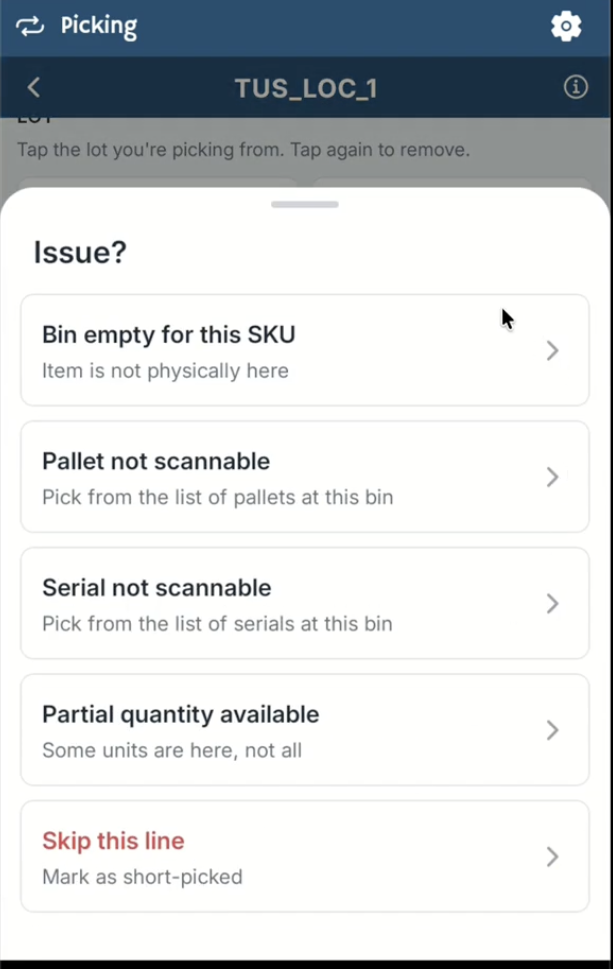
The picker can either scan the serial barcode or select one of the available Issue options. In either case, they will be taken to the next screen, where they can review and confirm the quantity picked.
The picker can also undo the selected option be click on the delete icon
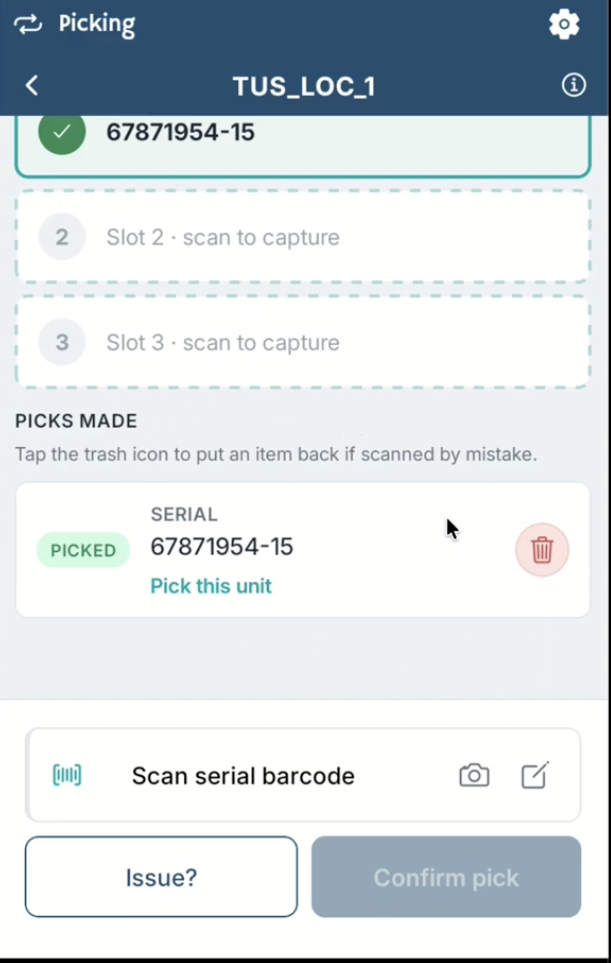
Delete icon to undo the action. performed earlier
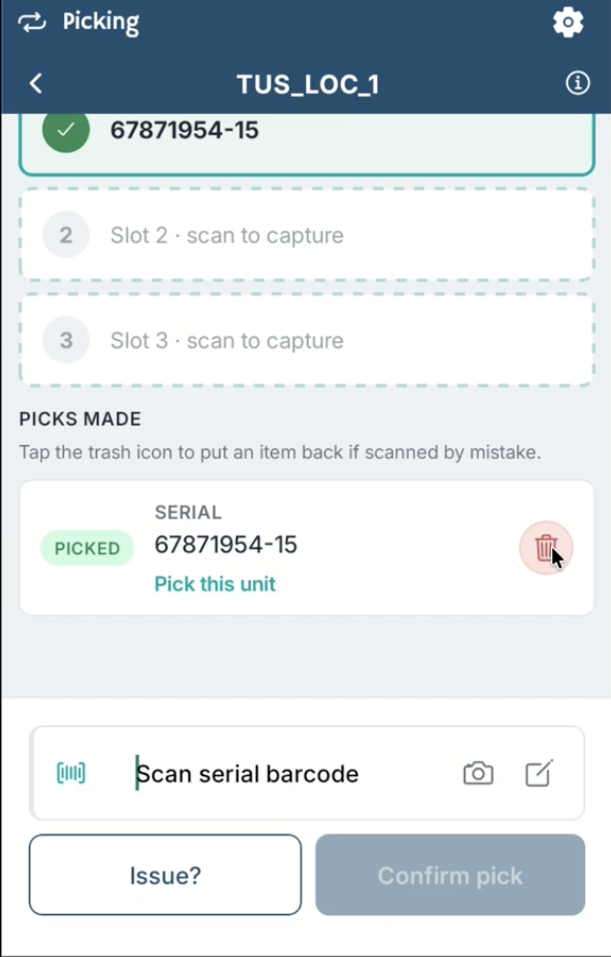
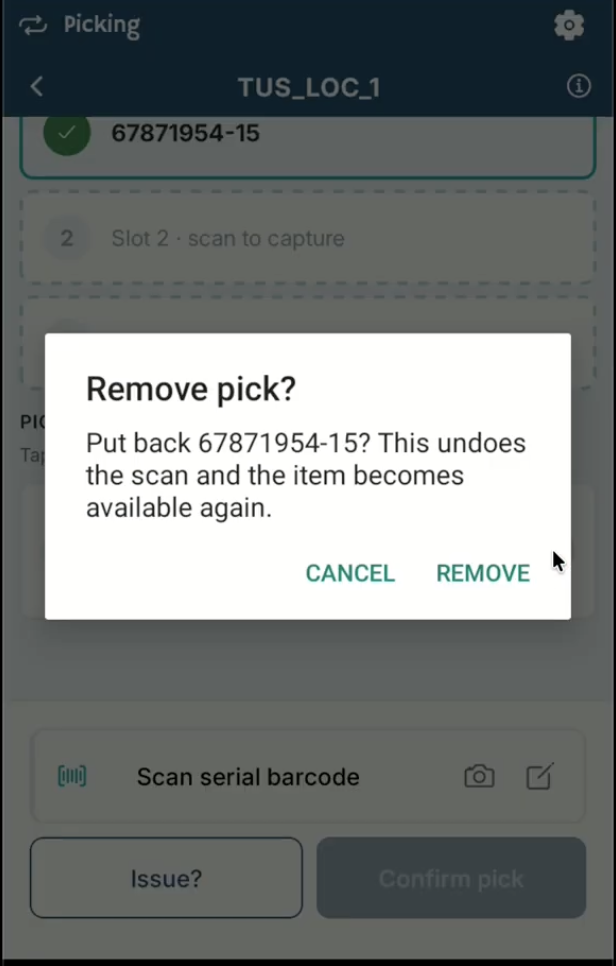
If multiple Lot IDs are available, the user can select the appropriate one from the list and proceed.
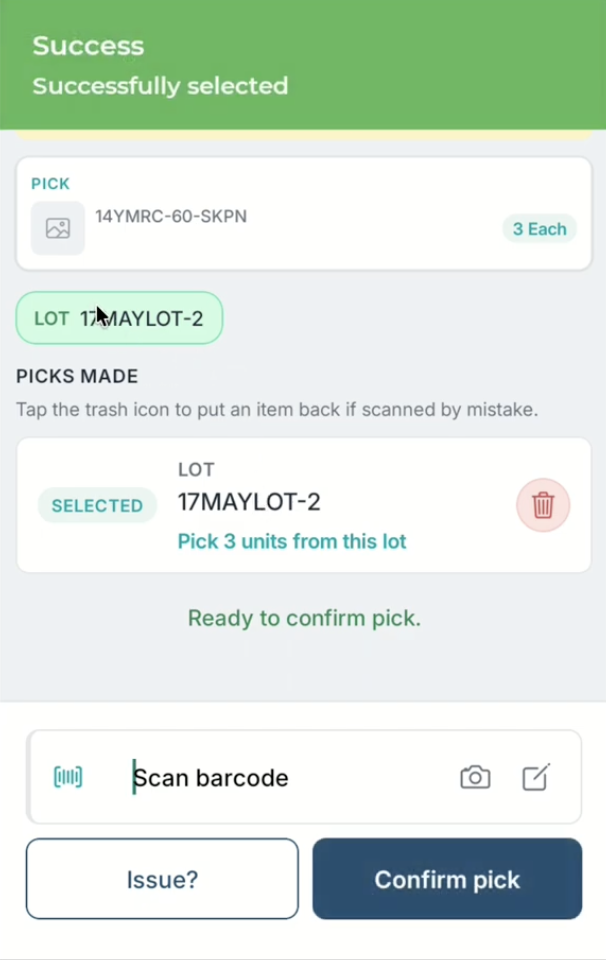
If the Lot is not serial controlled, the picker is suggested to pick all the units from this LOT and proceed. Delete icon to undo the action. performed earlier to delete the LOT ID.
If LOT is serial controlled, the picker can scan the serial number and proceed
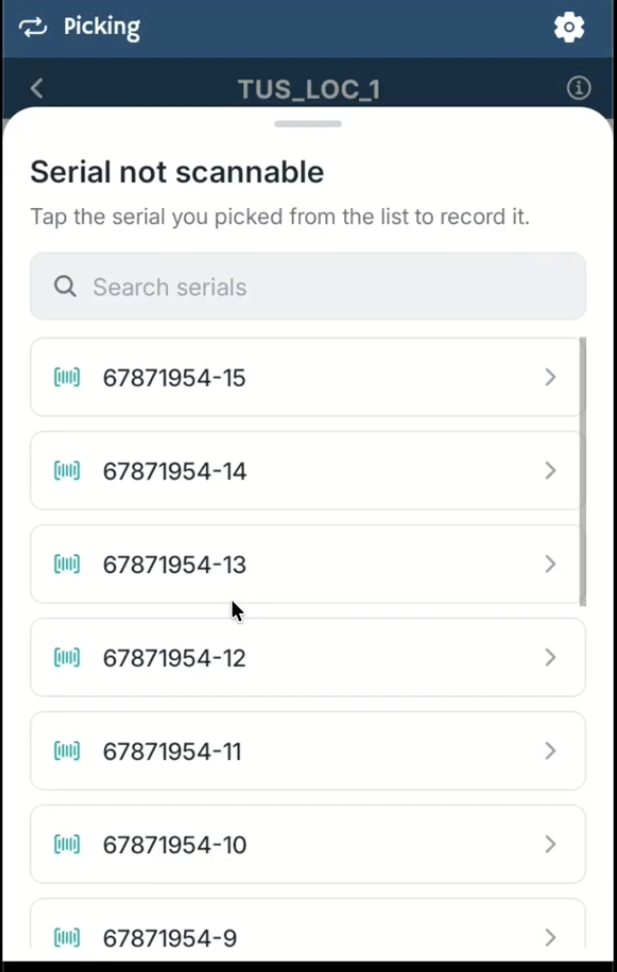
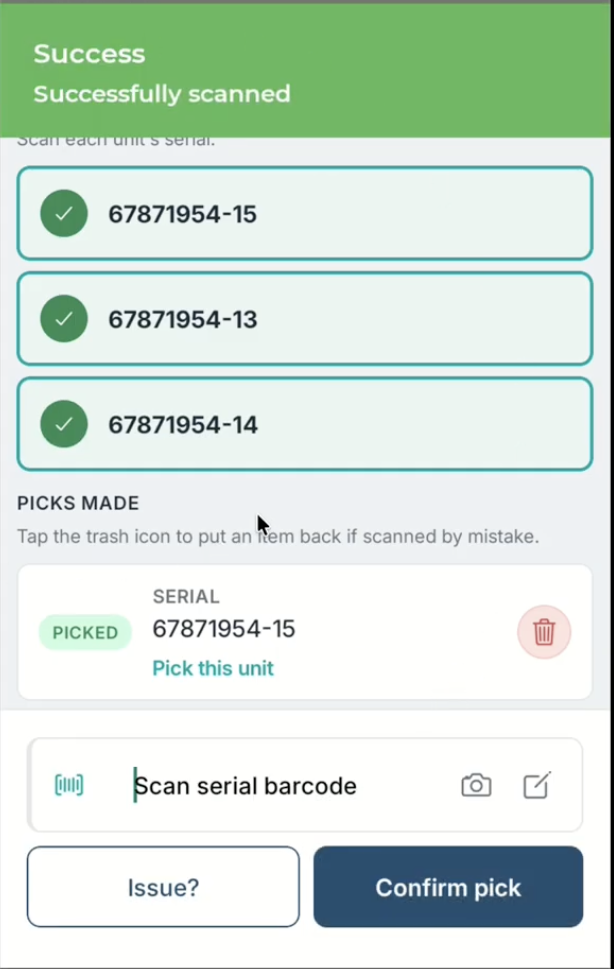
Once all serial numbers are picked, click “Confirm Pick” to proceed to the next step.
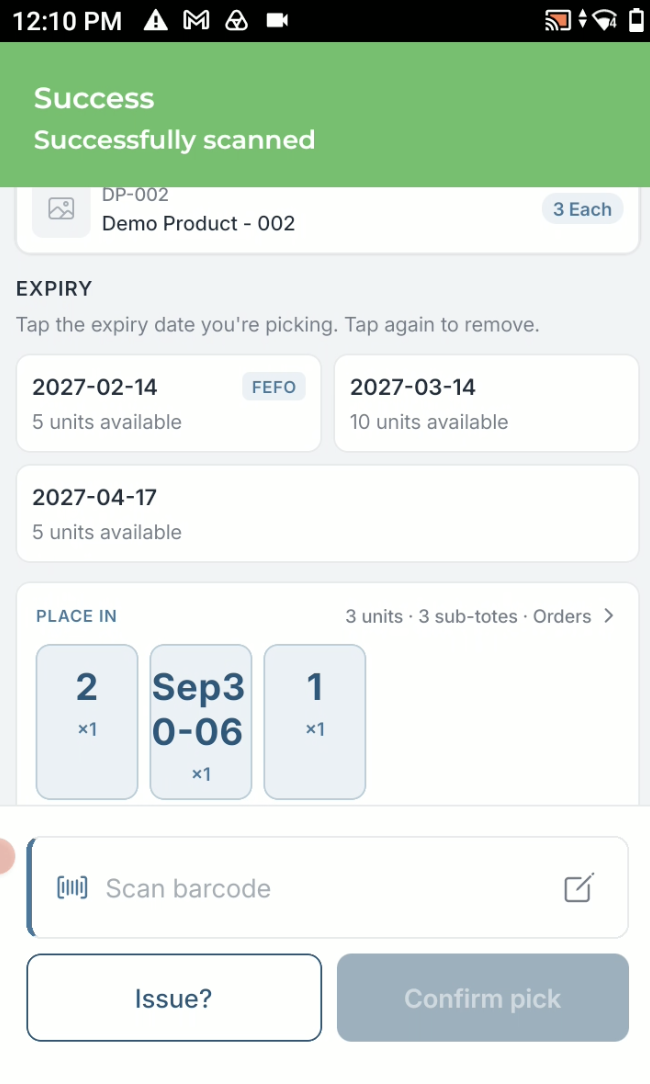
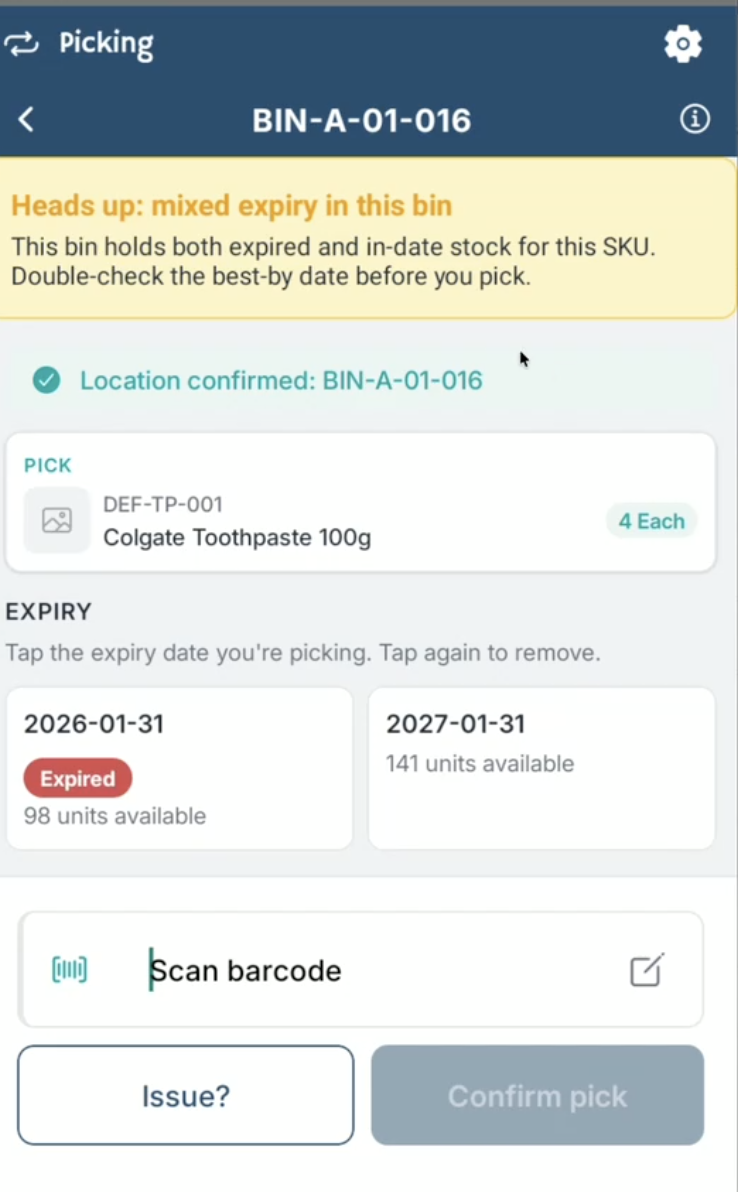
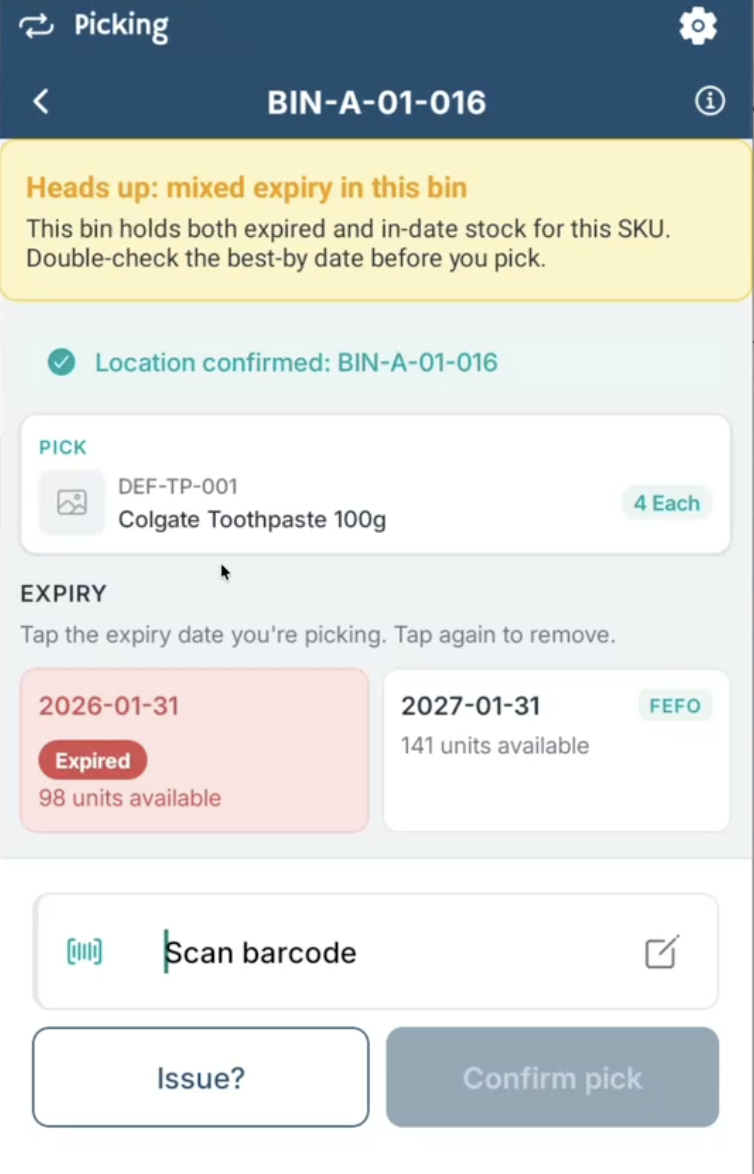
For expiry-controlled items, the system displays available expiry dates on screen so the picker can choose the correct one during picking. The picker can also see which items need to be picked first based on FEFO (First Expired, First Out) logic.
The picker can also override the suggested selection by choosing products with a different expiry date.
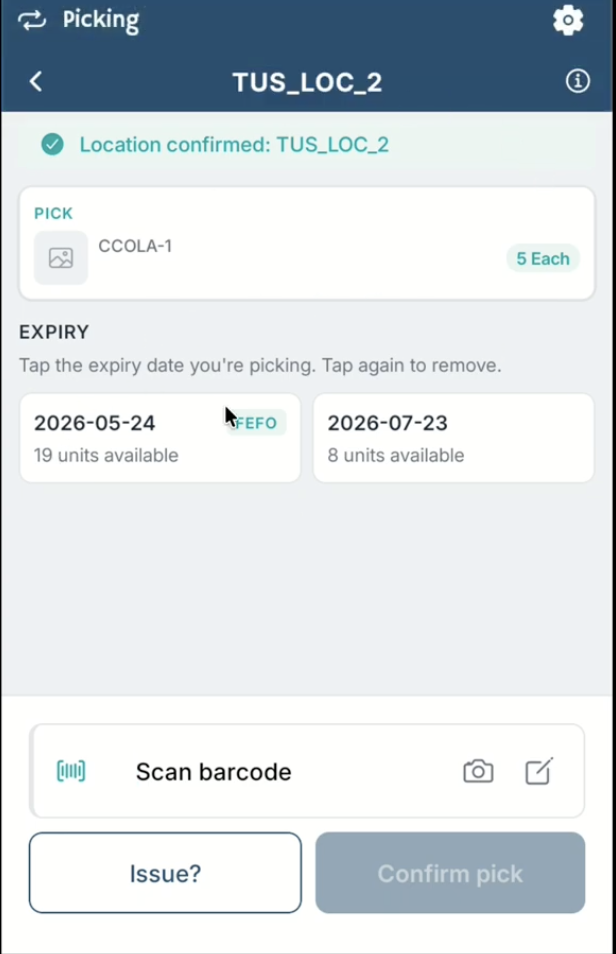
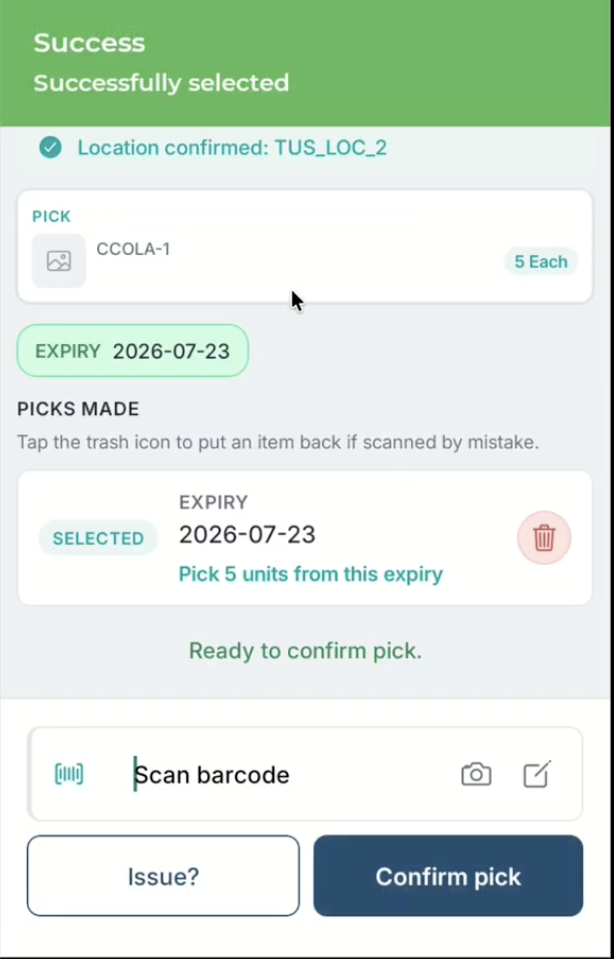
The user can delete the selected expiry date using the delete icon to undo the action. performed earlier.
Once Expiry dates are picked, click “Confirm Pick” to proceed to the next step.
During order fulfilment, the picker is guided by the Inventory Allocation Policy and is shown which inventory should be picked.
The App indicates:
-
Whether a product has expired.
-
Which inventory should be picked based on the configured rotation strategy (FIFO, FEFO, or None)
-
Whether inventory is excluded due to expired or minimum shelf life.
The picker now has visibility into what has been picked and the total units picked. The user can click “Line Summary” to view details such as serial numbers, expiry dates, and Lot IDs for the picked items. Also, group based on By Line, SKU and CODE.
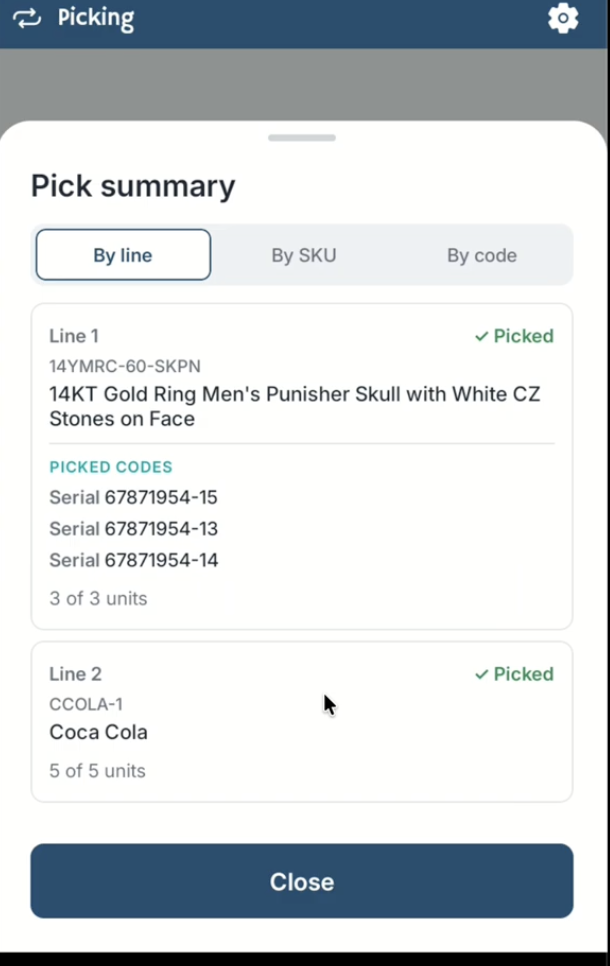
Once the picker has a bird’s-eye view of the line summary, they can review all picked items, including quantities, serial numbers, and Lot IDs. Click on “Proceed to dropoff”.
By clicking on “Proceed to dropoff”, the picker can see the tote and the next dropoff station. Click on “Confirm dropoff”.
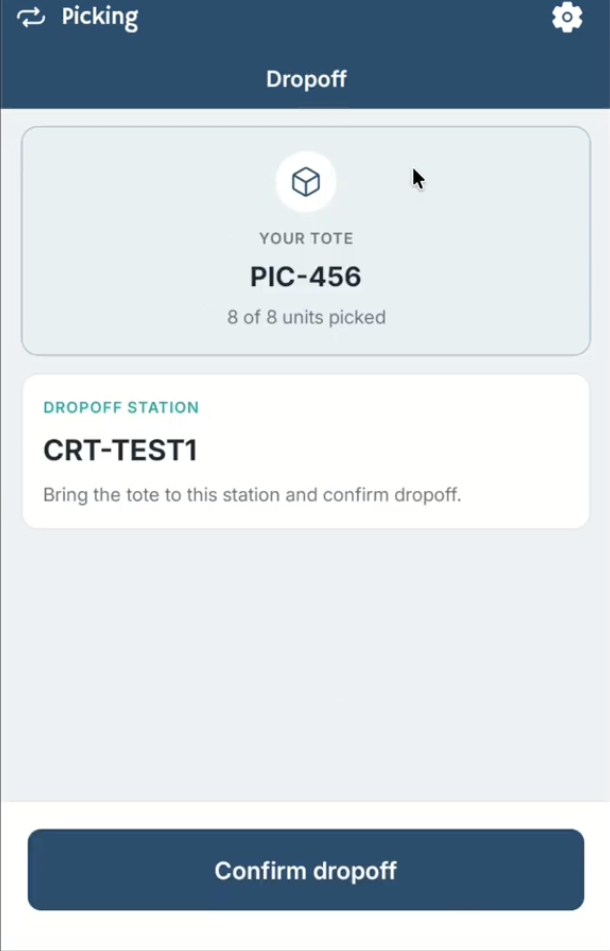
The newly revamped UI has simplified the process while maintaining full visibility of all key elements, making picking more user-friendly and efficient.
Improved Verification for Soft-Allocated Picks
Soft-allocation picking now includes additional verification to improve picking accuracy. For container-based picks, such as pallets or LPNs, pickers may be prompted to scan the product barcode to confirm the correct SKU. For loose, untracked inventory, pickers can confirm the actual quantity picked and provide a short-pick reason for any remaining quantity.
Pick-Then-Sort and Sub-Tote Placement
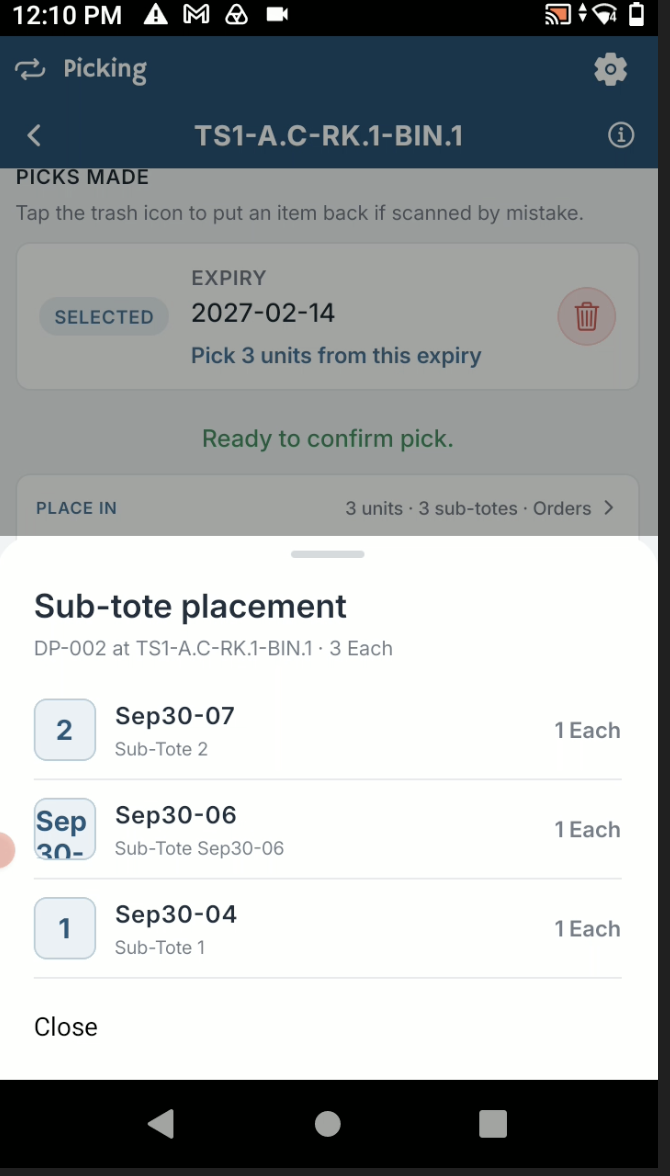
The soft-allocation mobile picker now shows sub-tote placement during picking. An example is shown below.