
This document provides a guide to the user journey for the client role
Step 1: Get Started with Hopstack
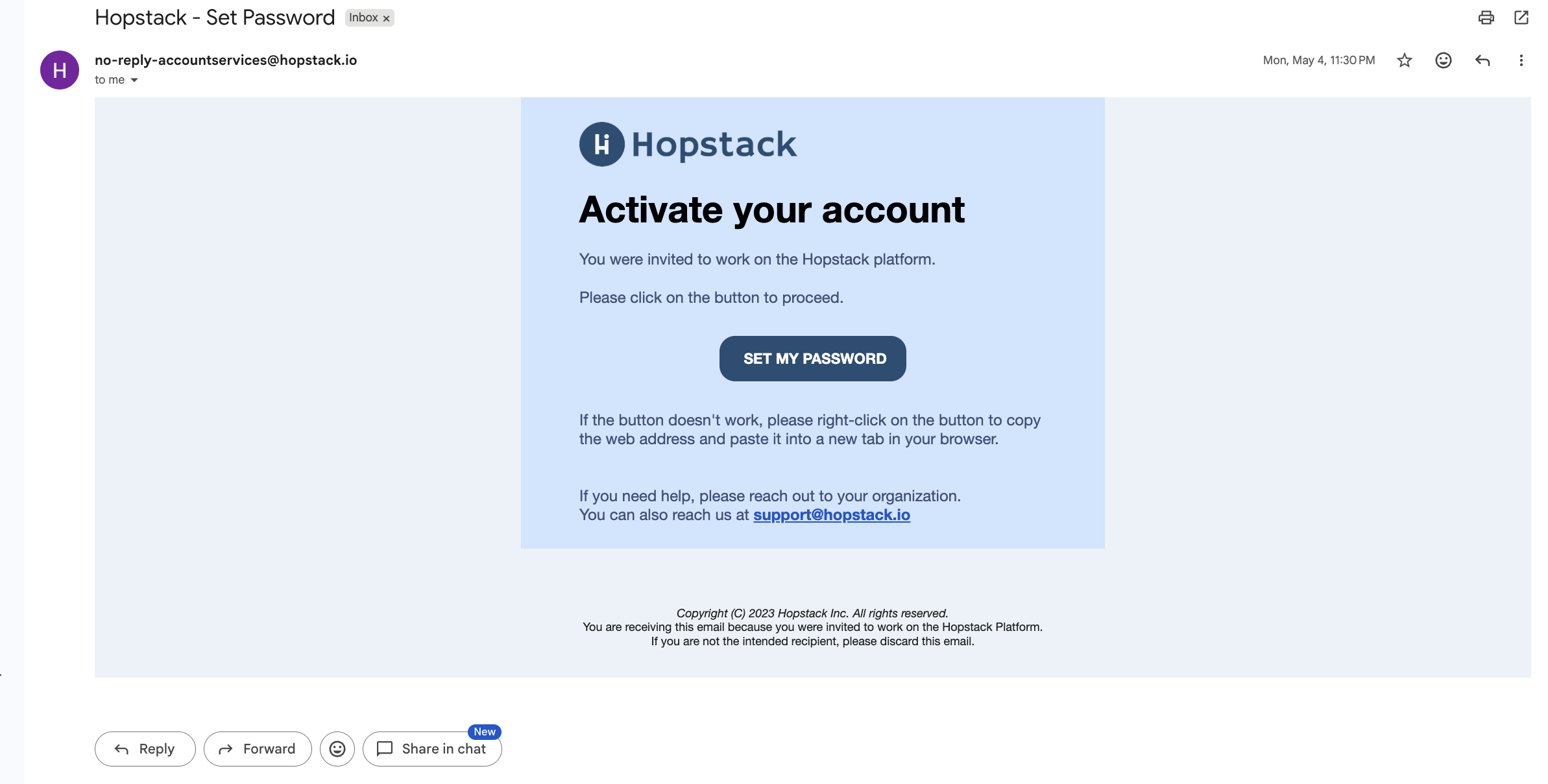
Once an ADMIN creates a user in Hopstack, the user will receive an email invitation. The user can click the link in the email to access the Hopstack platform and complete the first-time login or password setup process.
Step 2: Create Your New Password
-
You will need to enter a new password and then re-enter it under Confirm Password to ensure accuracy.
-
Password Requirements:
-
Must be a minimum of 8 characters in length.
-
Cannot be a sequence of the same letter or number.
-
Both password fields must match exactly.
-
Step 3: Submit Your New Password
-
After entering your new password and confirming it, click on the "Submit" button to finalise your password reset.
Step 4: Return to Login
-
Once your password has been successfully reset, you will be redirected back to the login screen.
-
Now you can log in using your new password.
-
Users with the ‘Client’ role have access to the following functionalities: Dashboard, Outbound Logistics, Inbound Logistics, Inventory, and Setup. Access is restricted based on permissions.
Clients can view only their own orders, consignments, dashboard data, and inventory information.
Dashboard
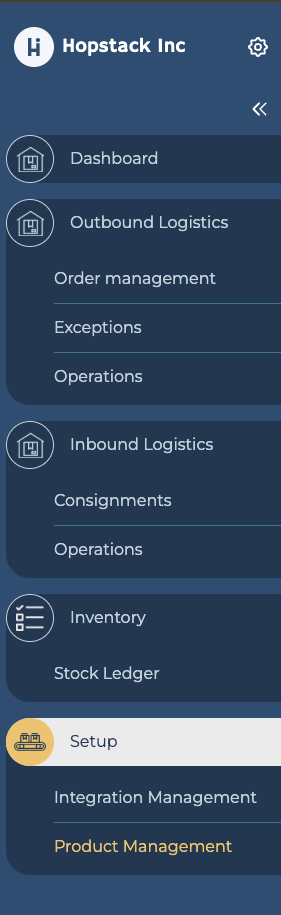
The Dashboard provides a real-time overview of Orders, Inventory
Integration Management
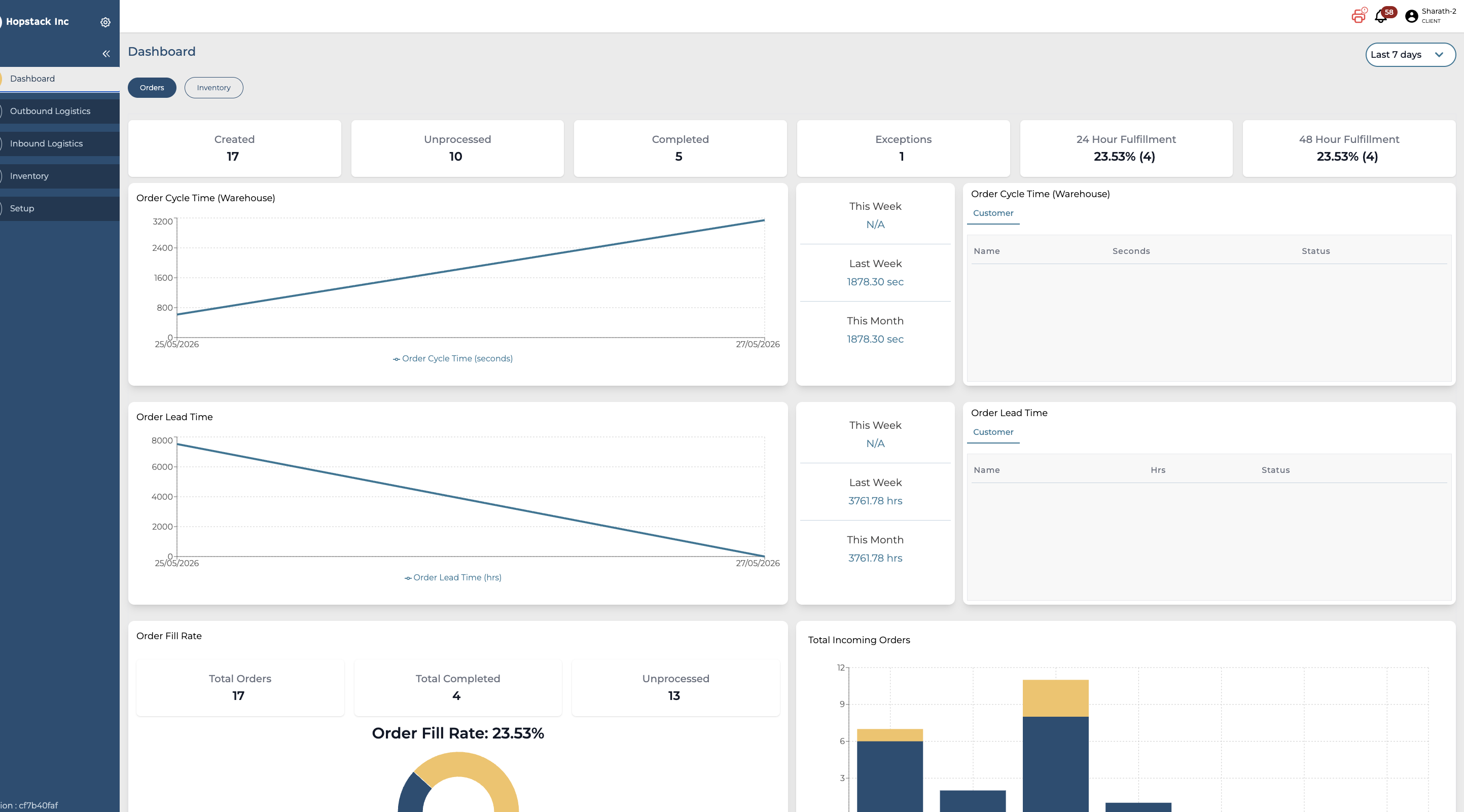
Navigate to 'Integration Management' under 'Setup' to connect with platforms like carriers and marketplaces/stores.
Click on the link on how to integrate multiple marketplaces/carriers
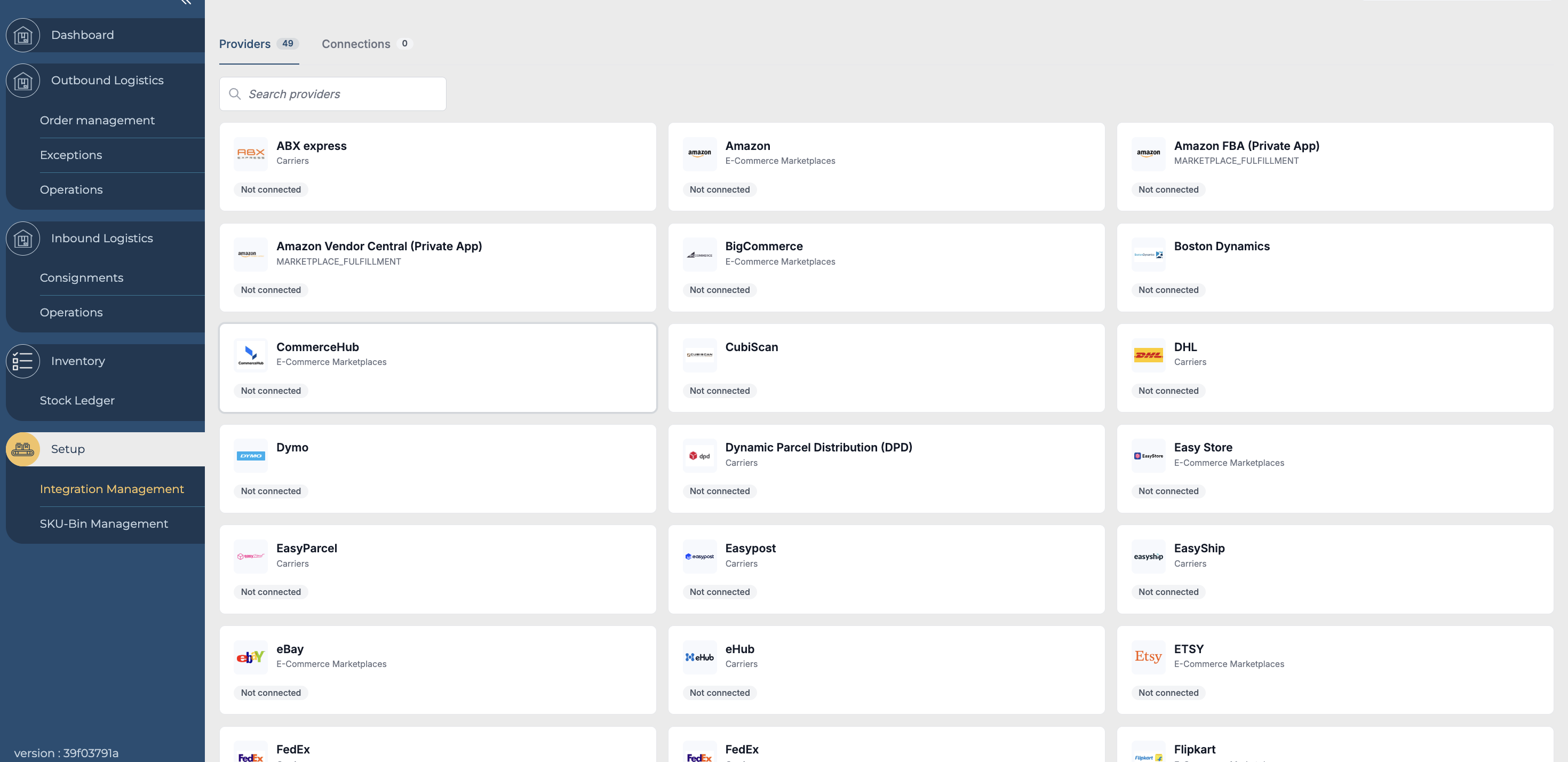
Outbound Logistics:
Order Management:
Orders can be created within the platform either individually or in bulk. For marketplace integrations, orders are automatically imported for processing. All order-related activities are managed under Order Management. Click on the link on how to create orders
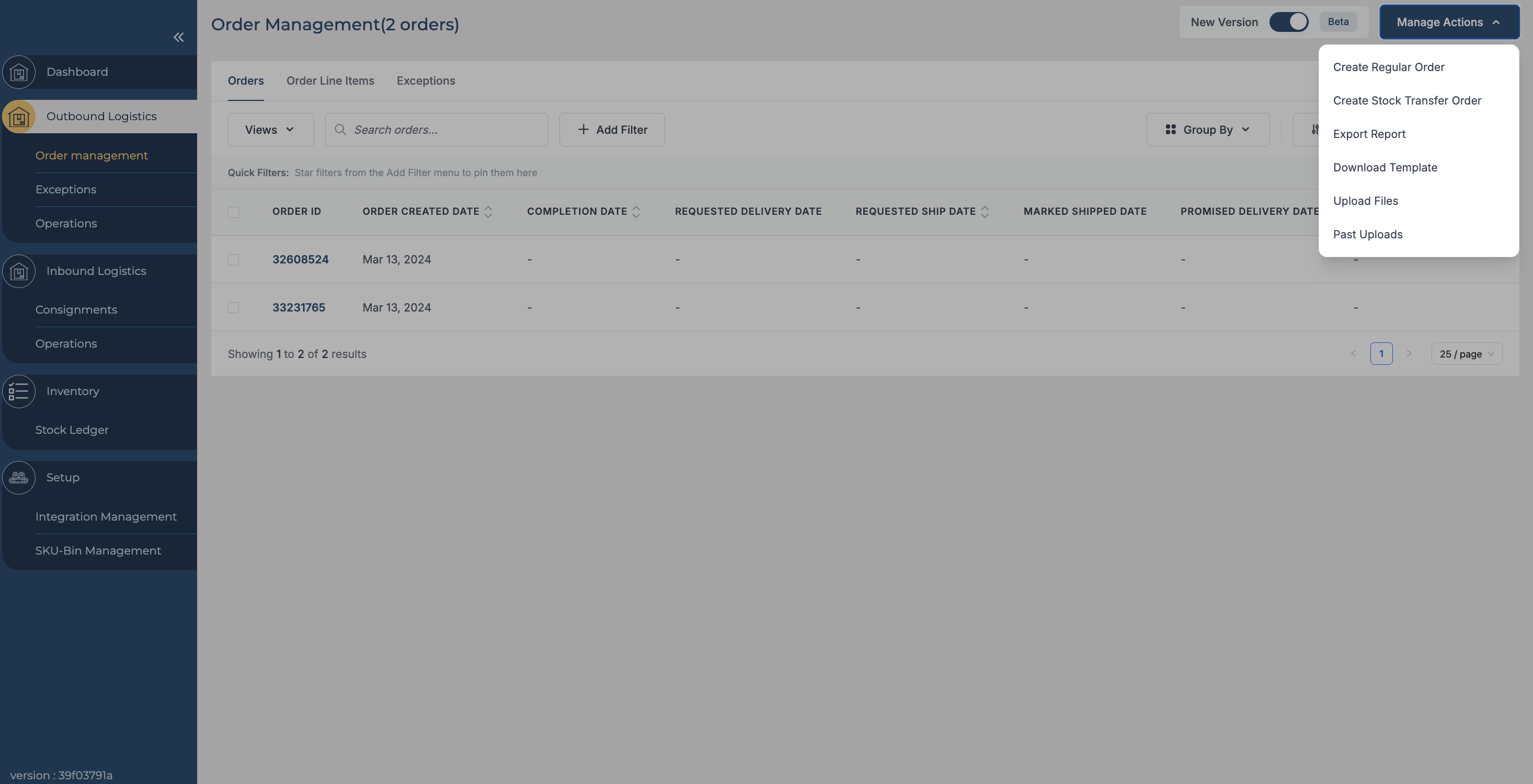
Exception Tab
To understand the specific reason for any order exception:
-
Navigate to the Exceptions screen on the dashboard.
-
Look for the order in question, which should be highlighted due to its exception status.
-
To the right of the order details, you'll find the Action column.
-
Click on the button labelled Check Reason.
-
A pop-up or a new screen will appear detailing the exact reason for the exception.
Outbound Operations
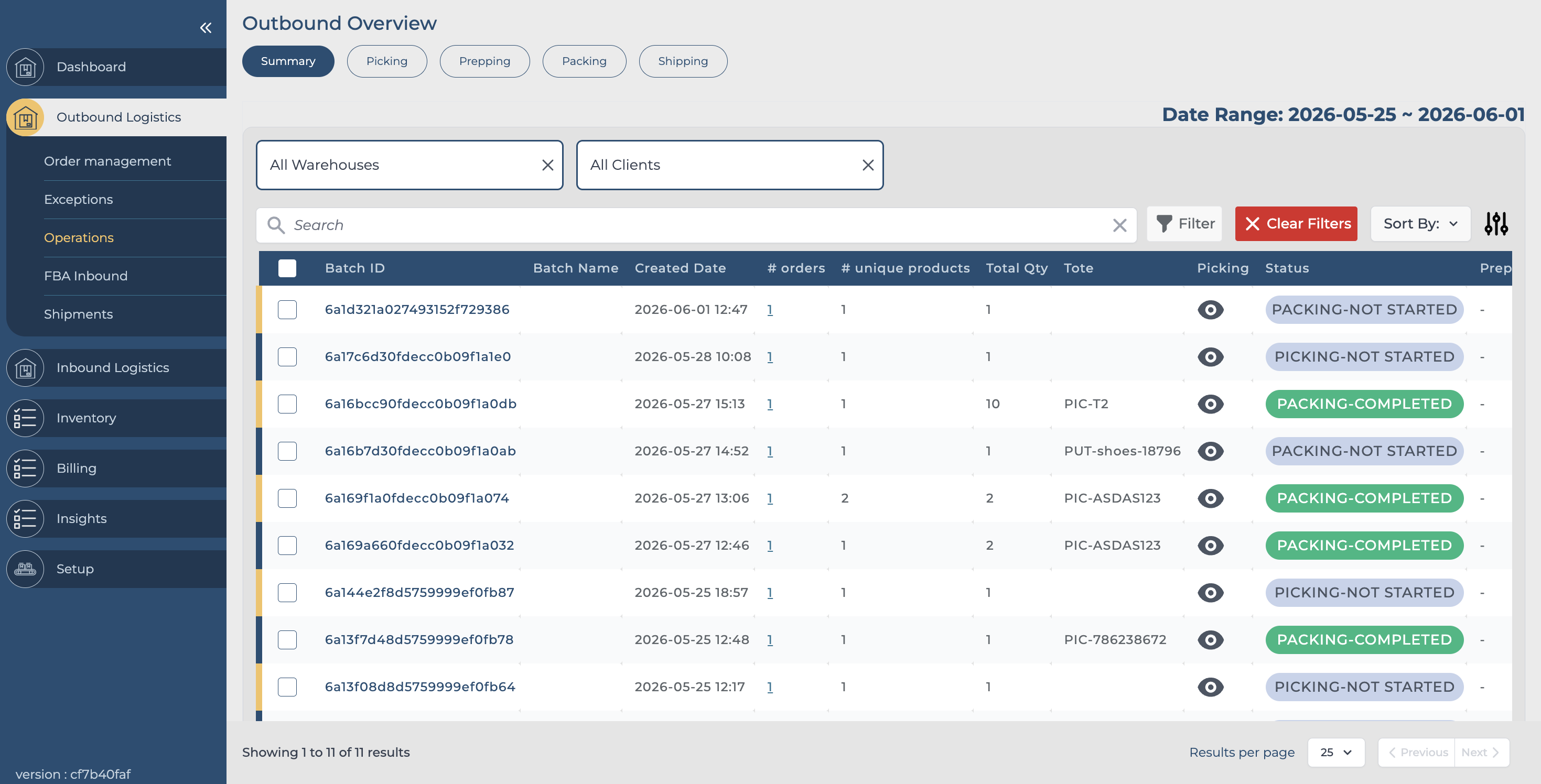
This tab provides visibility for seamless order management and tracking.
The panel displays three primary stages for the outbound process: Picking, Prepping, and Packing. This allows users to toggle between the different stages that an order may be in to see how operations are occurring in a specific stage.
Inbound Logistics:
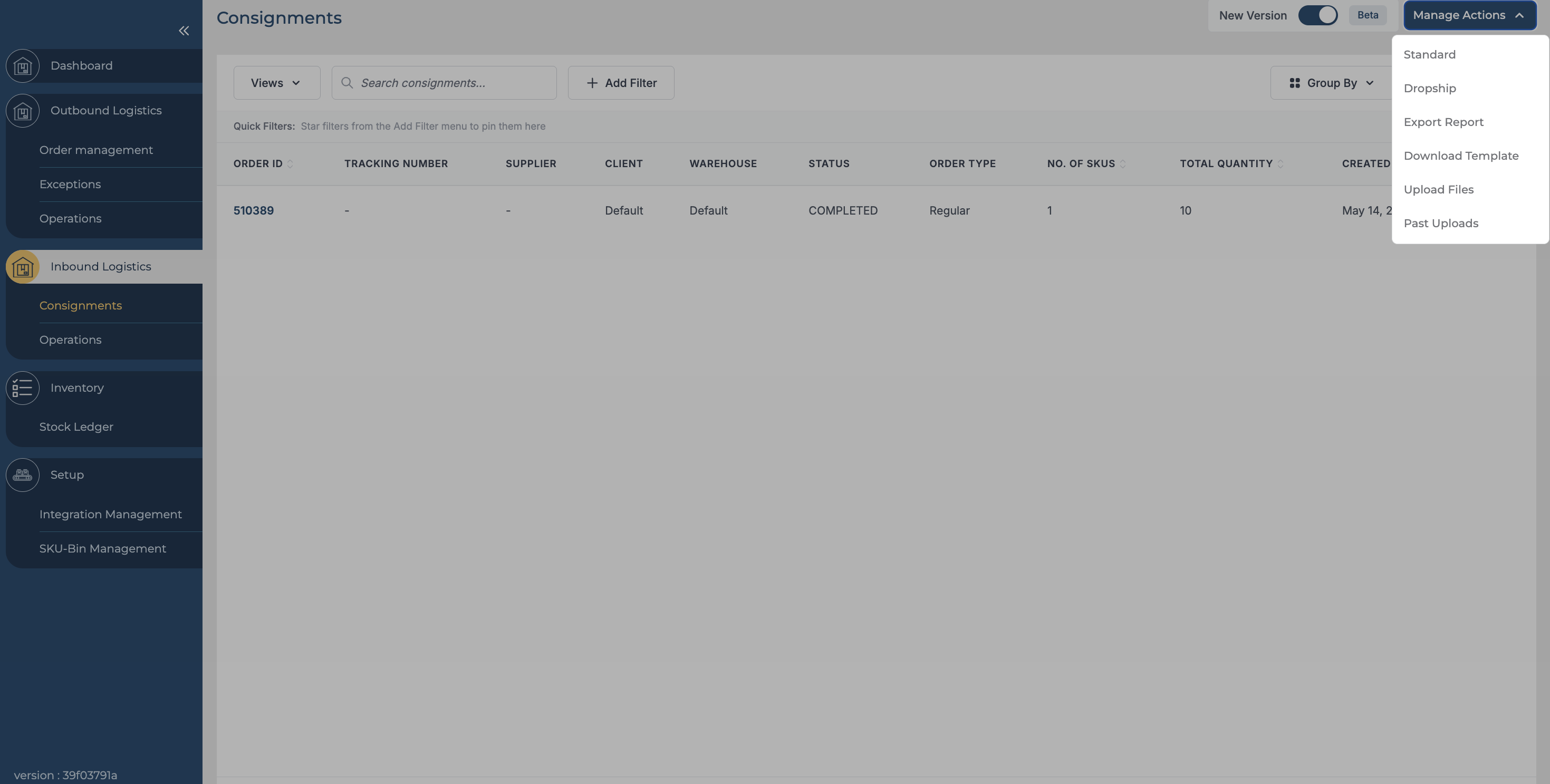
Consignment:
The consignments module under Inbound Logistics within the Hopstack platform allows you to create consignments on the Hopstack platform. It is meant to keep track of all inbound orders.
Click on the link on how to create consignment orders
Operations:
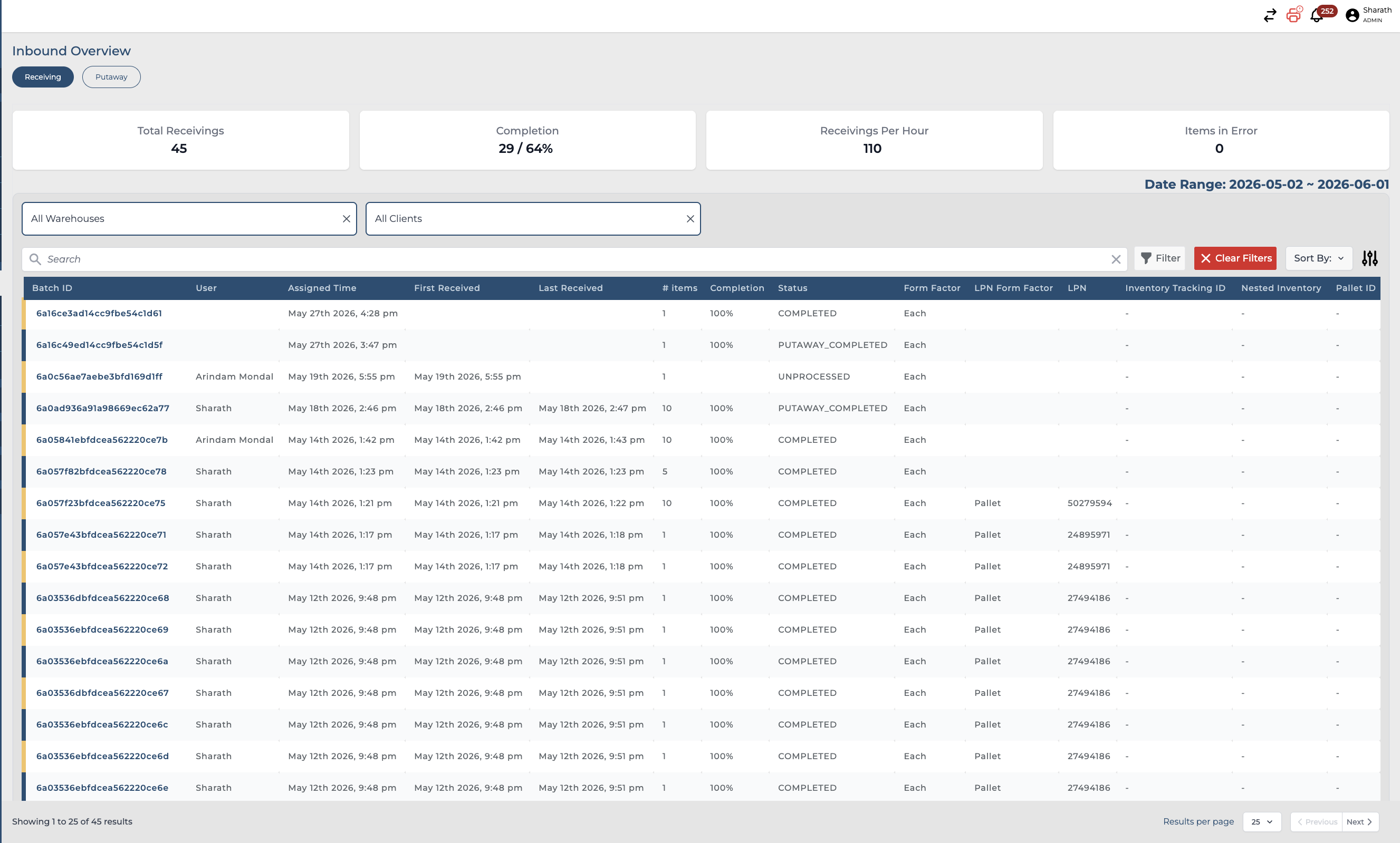
The operational dashboard is designed to provide real-time data and insights into the various activities carried out by warehouse associates, especially those concerning receiving and putaway tasks.
Stock-Ledger:
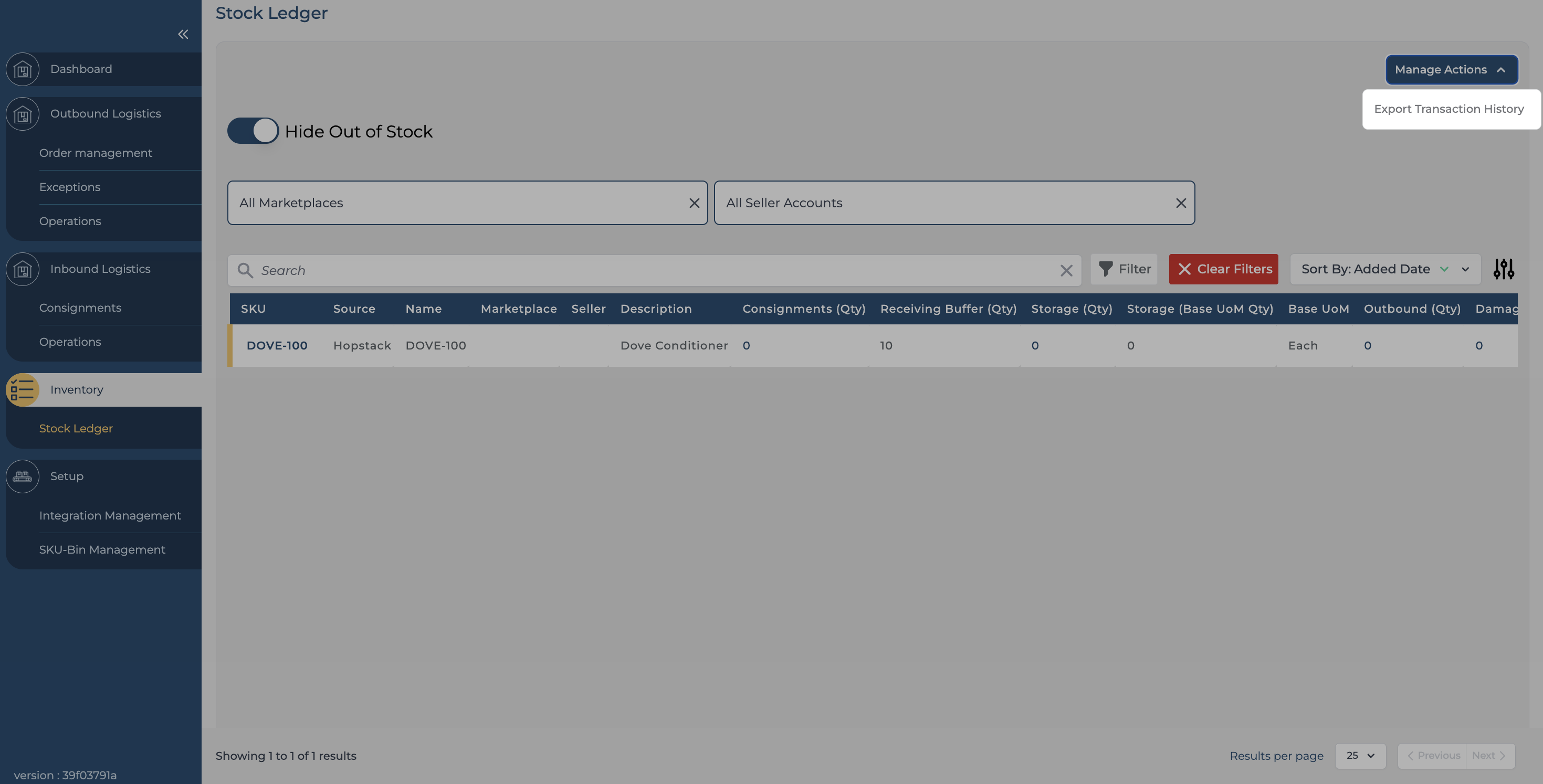
A stock ledger under Inventory provides a complete, real-time view of all inventory and helps understand what's available.
Let's take a deeper look at each of the terms used in the stock ledger:
-
SKU (Stock Keeping Unit): A unique identifier for each different product in your inventory, making it easier to track its location, availability, and movements throughout the supply chain.
-
ASIN (Amazon Standard Identification Number): A unique block of 10 letters and/or numbers used to identify items on Amazon. Every product from Amazon is given a unique ASIN.
-
Name: The name or description of the product.
-
Consignments (Qty): The quantity of products expected in the next consignment or shipment. It helps in planning for the receipt of incoming goods.
-
Receiving Buffer (Qty): The total quantity of products currently received in the warehouse but not yet put away. This includes:
-
Qty at Docks
-
Qty in Inbound - Receiving
-
Qty in Inbound - Putaway
-
Qty in Inbound - X (X being all the other stations in the inbound workflow)
-
-
Storage (Qty):
The total quantity of products currently stored in the warehouse represents goods that have been received and put away but have not yet been dispatched in customer orders.
Clicking on the "Storage Qty" in the stock ledger view opens a modal window with a detailed breakdown of the inventory. This includes the following views:
Click on the link to understand the stock ledger column
Product Management:
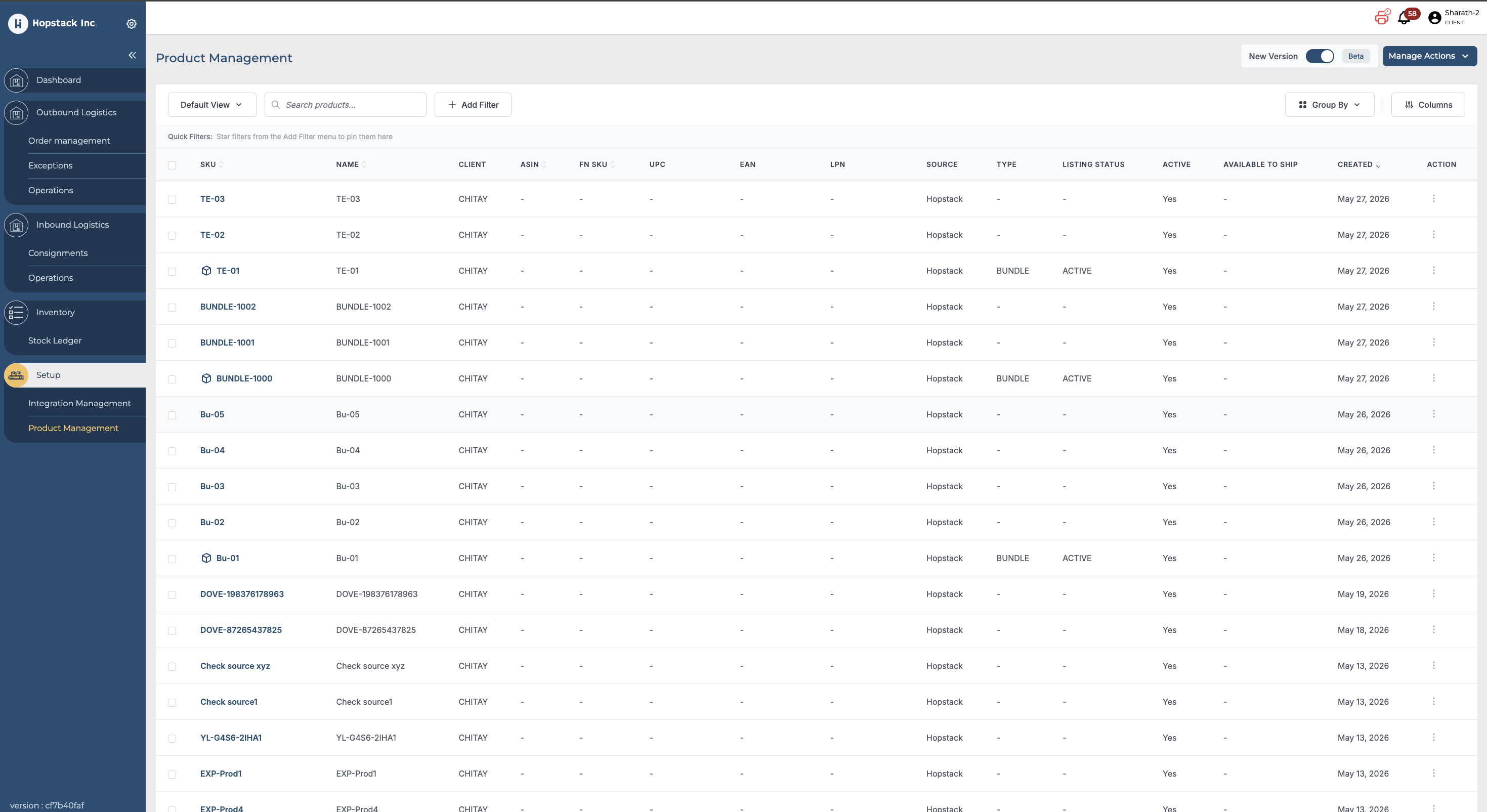
The Product Management tab allows users to create products/bundle individually or in bulk.
Click on the link to understand how to create products via the platform
The admin role user can customise user permissions based on client requirements via the User Management tab.