
This article outlines the steps using DataWedge for Android to append the Send Enter or Send Tab key after scanning when using Keystroke. The guide consists of the two main steps:
-
Set up the PDA profile
-
Install the Hopstack App
Applicable to DataWedge for Android Zebra Android Devices such as the TC8xxx, TC5x, TC7x, MC93, MC33, ET5x and TC2x, etc
Step 1: Set up the PDA profile
-
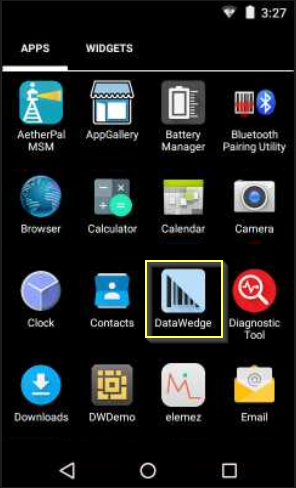
On your device, launch the DataWedge app from the Apps drawer.
-
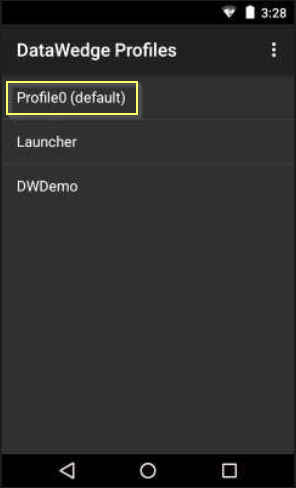
From DataWedge Profiles, select the profile you want to edit (in this example, Profile0 is the default profile).
-
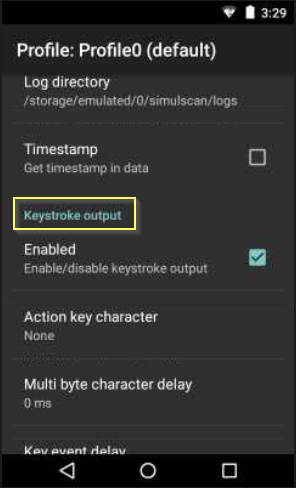
Scroll down to the Keystroke Output option. Ensure it is enabled.
-
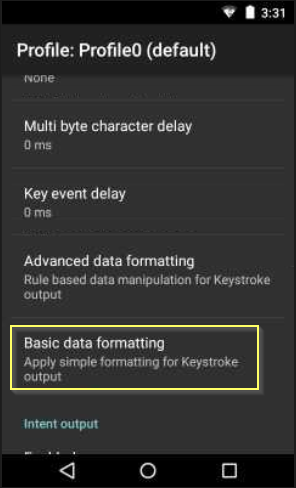
Select Basic data formatting.
-
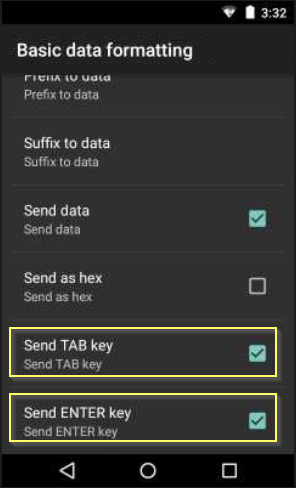
Enable the Send TAB key or Send ENTER key.
-
If both are selected, the TAB followed by ENTER will be appended after the barcode data.
-
Go back to the previous screen and exit the DataWedge app.
Step 2: Install the Hopstack App
-
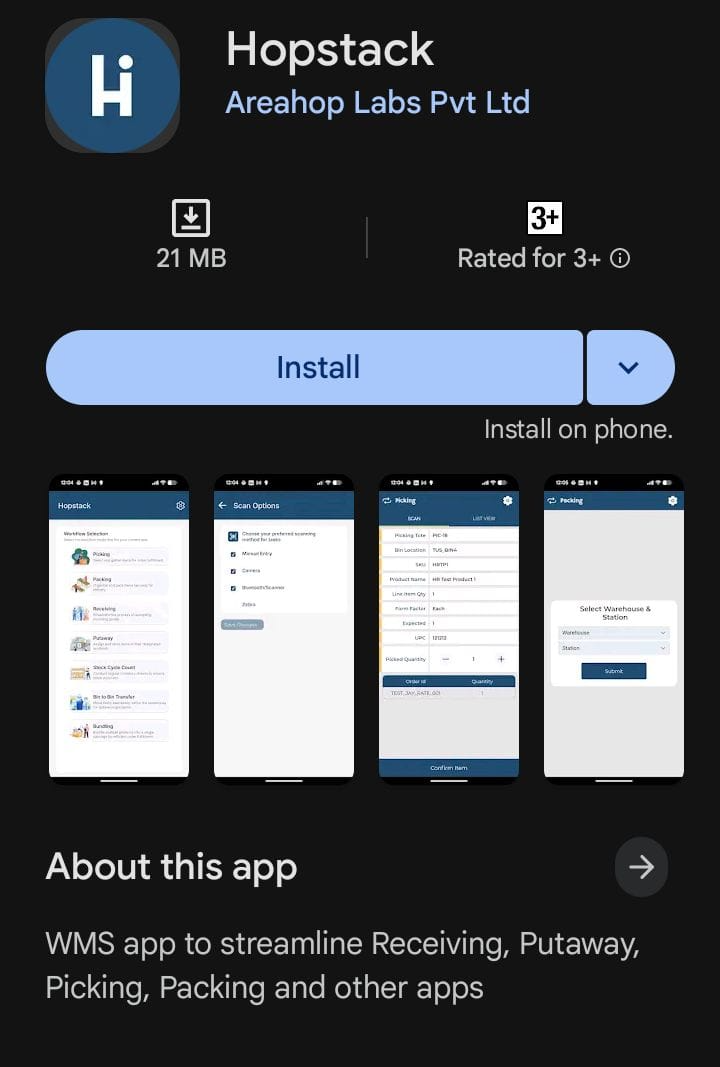
Download the Hopstack Mobile App via the Play Store
-
Tap Install and wait for the installation to finish.
-
Open the “Hopstack” app.
-
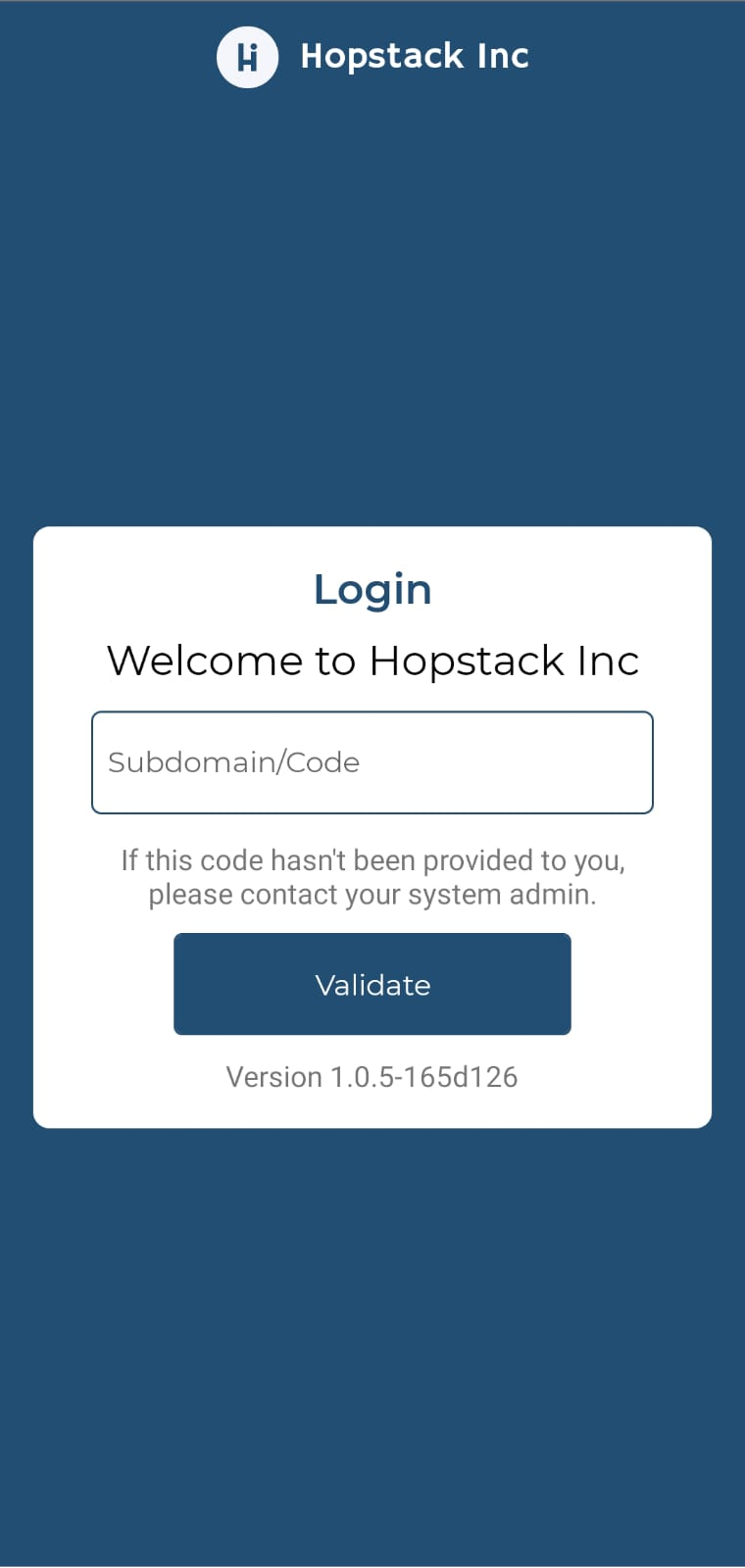
Update your domain
-
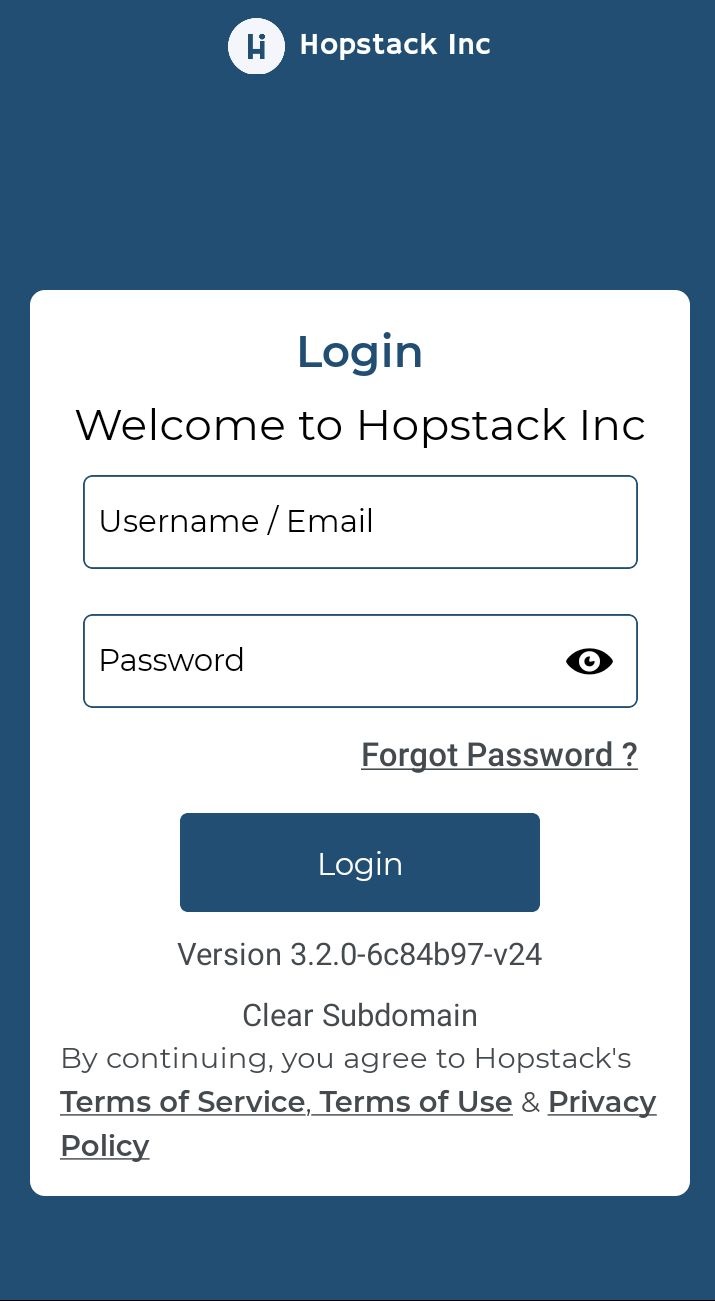
Enter the credentials
-
Tap Log In.
If you encounter any issues or have questions, don't hesitate to get in touch with Hopstack support.