
-
Locate the App File
-
Navigate to the Shared Drive folder on your computer.
-
Inside the Shared Drive, look for the "Set-up" folder and then the "App" subfolder.
-
In the "App" folder, you will find a file named "Hopstack-app.apk."
-
Download the App
-
Right-click on "Hopstack-app.apk" and select "Download" to save the file to your device.
-
Install the App
-
On your device, navigate to the location where you copied the "Hopstack-App.apk" file.
-
Tap on the file to initiate the installation.
-
A prompt will appear asking for permission to install the app. Tap "Install" to proceed.
-
If you encounter any issues or can't find the app, contact the Hopstack team for assistance.
-
Open the App
-
Once the installation is complete, tap on the Hopstack app icon on your PDA to open it.
-
Enter Tenant Information
-
You will see a text box asking for the name.
.jpeg?cb=8b0c2acfb3bd54bcb1478564745a3908)
-
Enter your specific name.
-
This is the name is followed by ".hopstack.io."
For example, if your platform is "MyCompany.hopstack.io." name is "MyCompany," which you would enter on the device.
.jpeg?cb=fbb73053499cfdfdaaed89b2fe4b0aba)
-
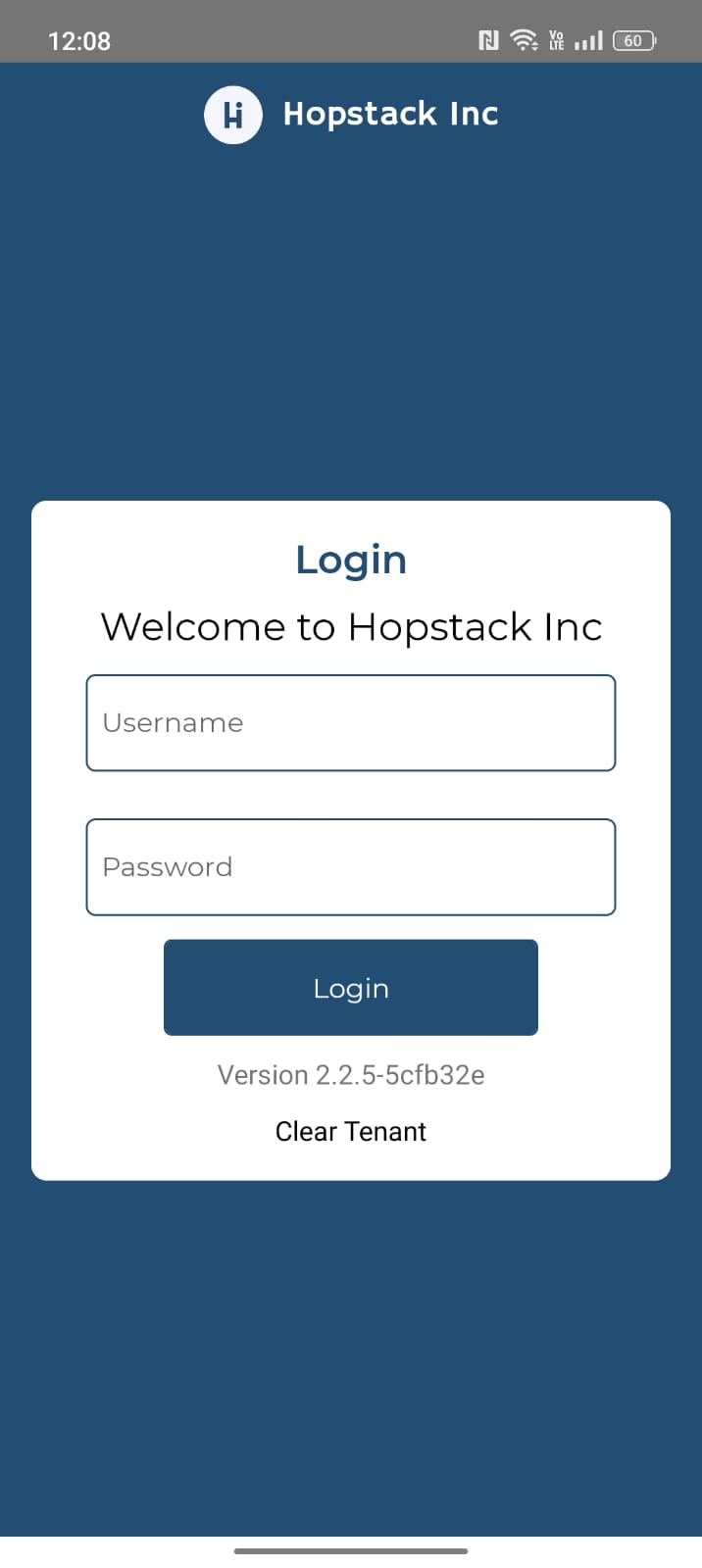
Log In
-
Log in using your Hopstack account credentials.
-
If you encounter any issues or have questions, please contact Hopstack support.