
You can now include multiple shipping services in a carrier rule and configure Hopstack to automatically select the Cheapest or Fastest option. Services can belong to the same carrier, different carriers, or multiple carrier accounts.
For example, add USPS Ground Advantage and UPS Ground to a rule and select Cheapest to choose the lower-priced service whenever the rule is applied.
Step 1: Open a Carrier Rule
Go to Setup → Rule Engine → Carrier Rules. Create a new rule or edit an existing one, and configure its name and conditions.
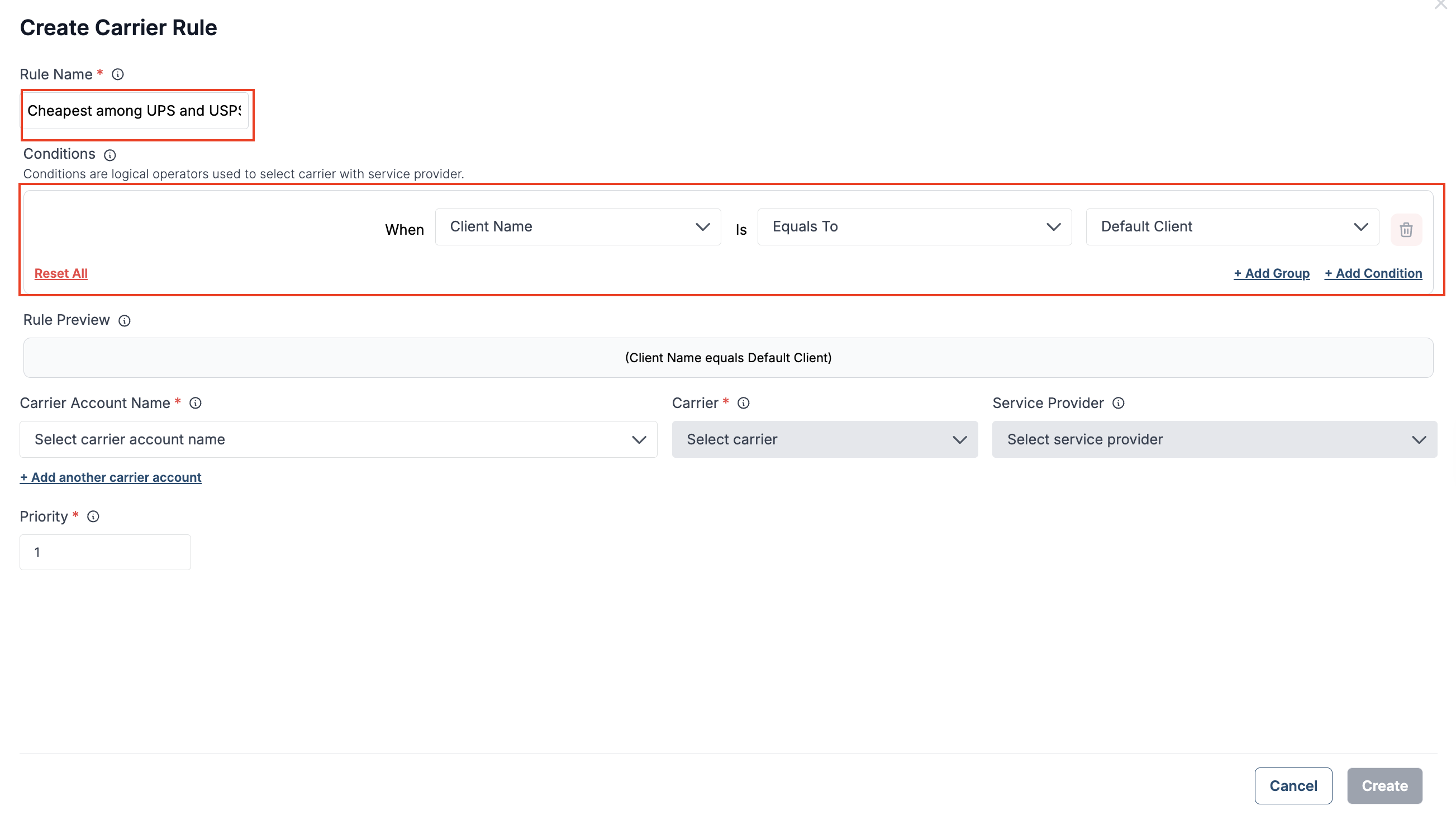
Step 2. Select Multiple Services
Select the Carrier Account Name and Carrier. In the Service Provider dropdown, select the services you want Hopstack to compare.
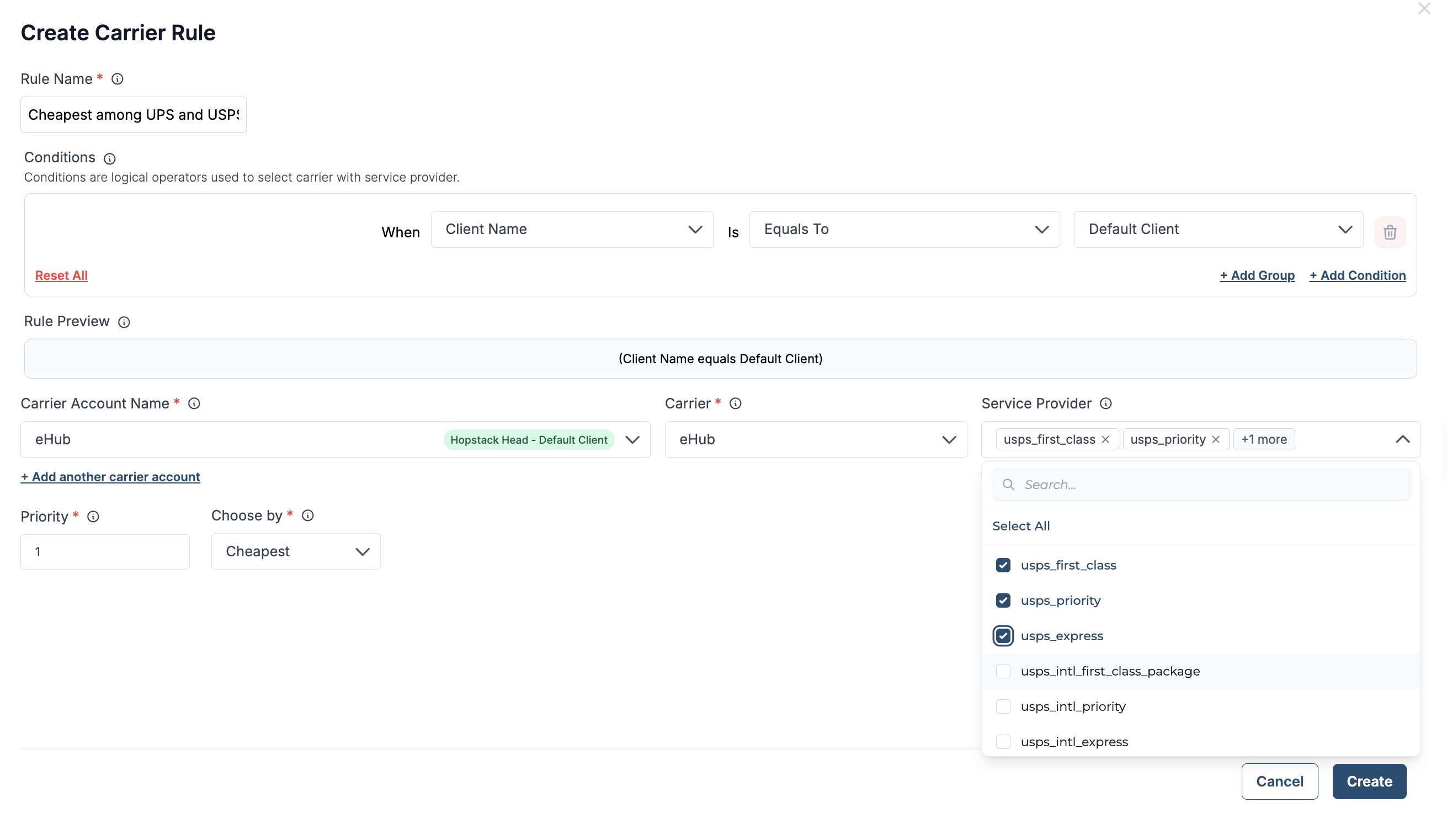
Step 3. Add Other Carriers or Accounts
Click + Add another carrier account to add another row. Select the account, carrier, and services to include.
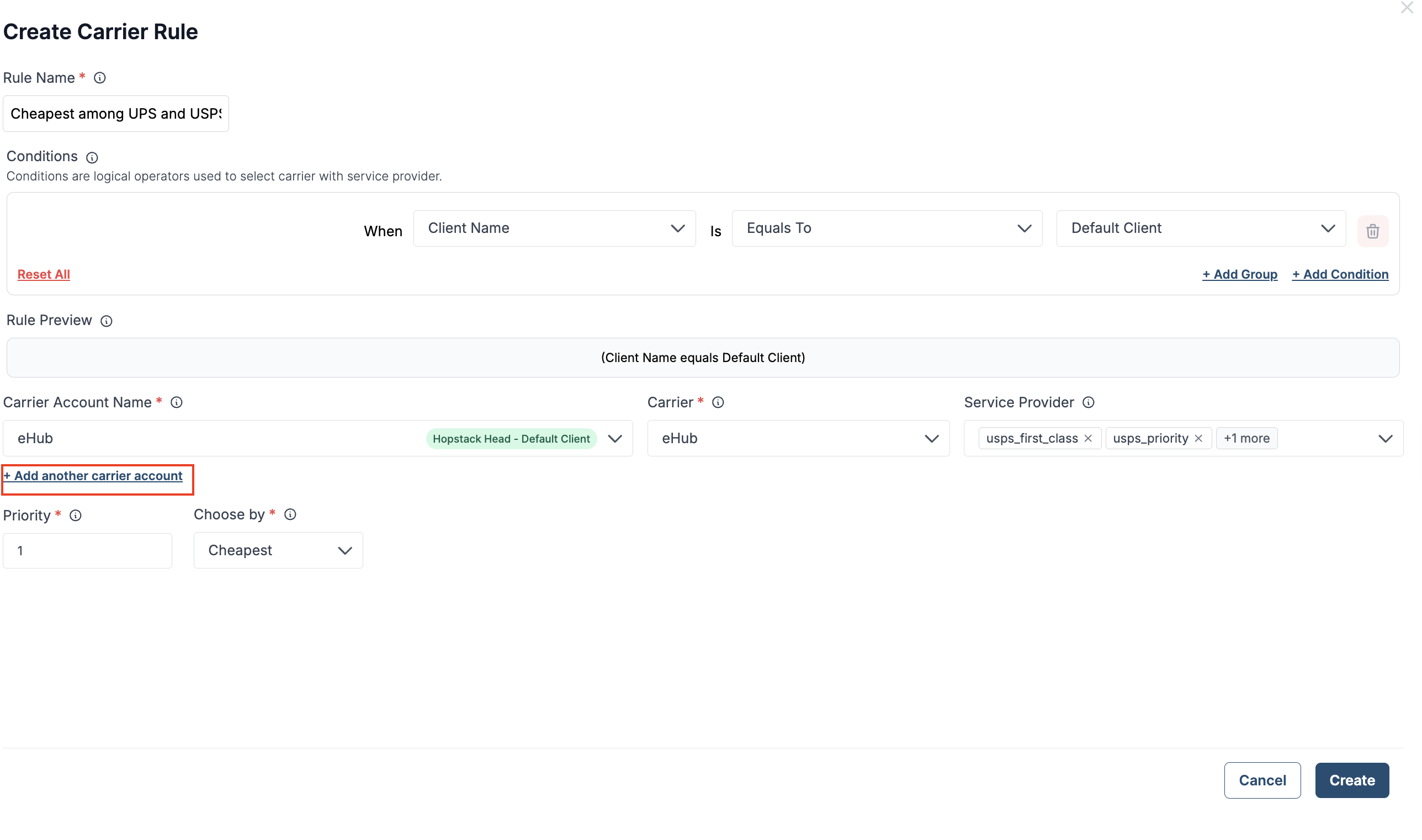
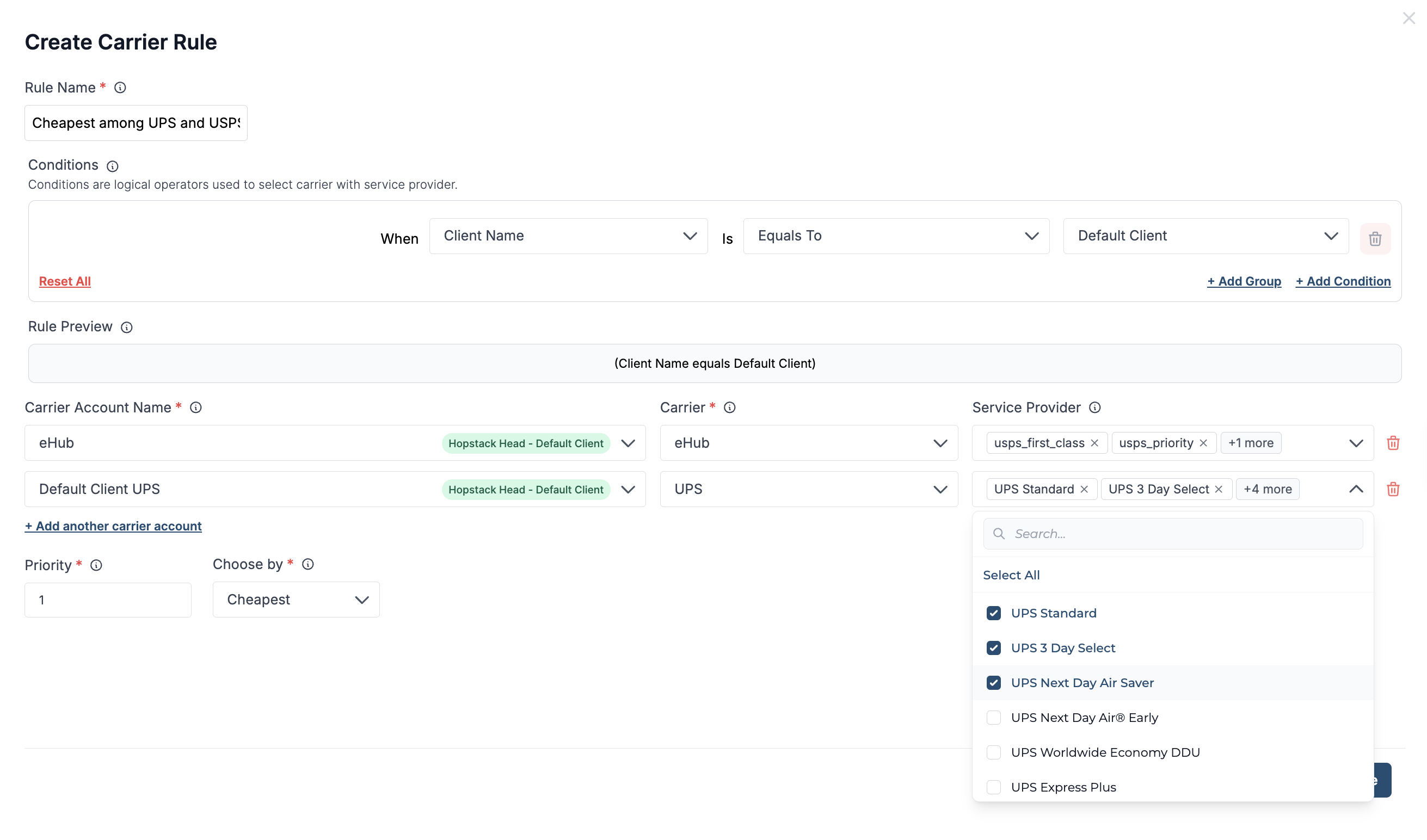
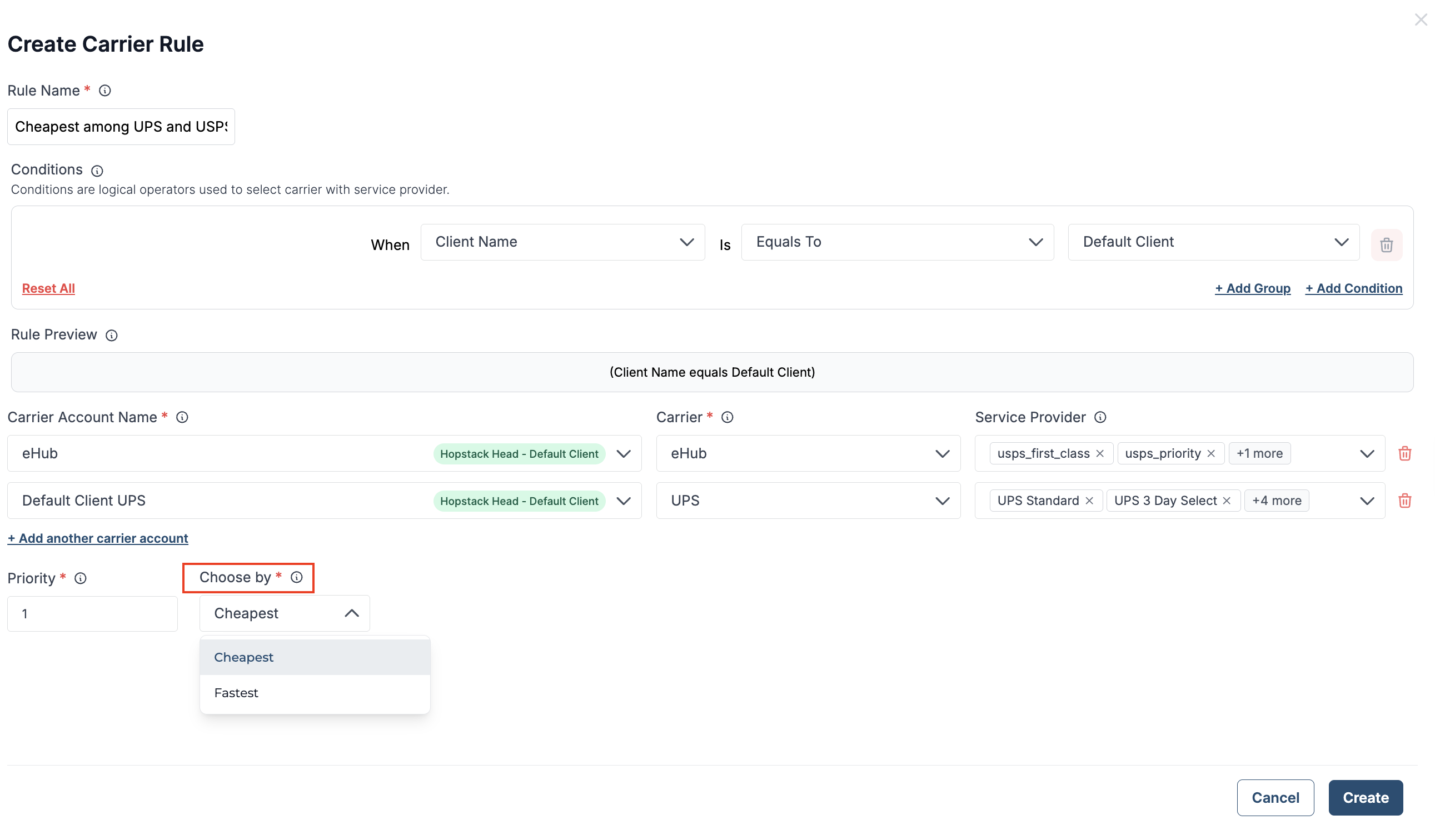
Step 4. Set the Selection Preference
When more than one service is selected, the Choose by field appears. Select one of the following and set the priority for the rule.
|
Option |
Selection behavior |
|---|---|
|
Cheapest |
Selects the service with the lowest available rate among the configured services. |
|
Fastest |
Selects the service with the fewest delivery days. If delivery times are equal, selects the cheaper service. |
Step 5. Review the configuration and save the rule by clicking on “Create”.
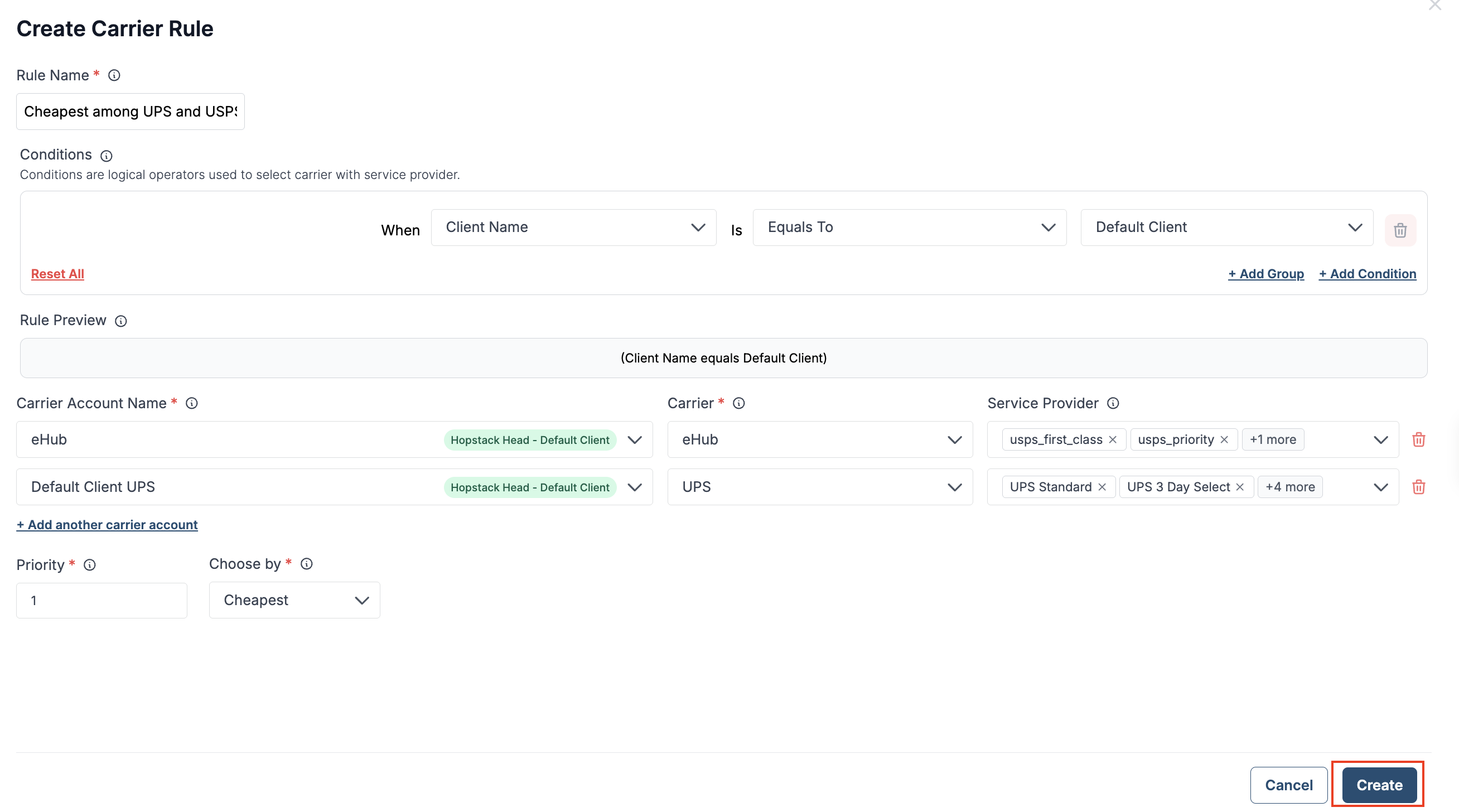
When the rule is applied through Apply Shipping Rule Selection in the shipment plan or from the packing screen, Hopstack compares the available rates for the configured services and selects one based on your preference.
Note: Hopstack compares only the services included in the rule. Rules configured with a single service continue to work as before.